Check In and Check Out a Household
Last updated: October 8, 2026
Staff check-in and check-out can move an entire household in one submission. When the resident you are checking in or out is a primary member of a dependent group, both flows show a Household section listing each member and their current status, and eligible members can be included in the same confirmation as the primary resident.
Use household check-in during move-in when dependents arrive with the primary resident, and household check-out at departure when the household leaves together. Dependents never move automatically: they move only when you select them in the Household section before confirming. To prepare the household's spaces before move-in, see Assign a Household to Rooms.
Where the Household section appears
Staff check-in and staff check-out each open in a modal with a student details step and a final step, titled Check-In Student and Complete Check-In for check-in, and Check-Out Student and Complete Check-Out for check-out. When the resident is a primary member of a dependent group, the Household section appears in the flow and lists each household member with their current status, so you can see who can move before you confirm.
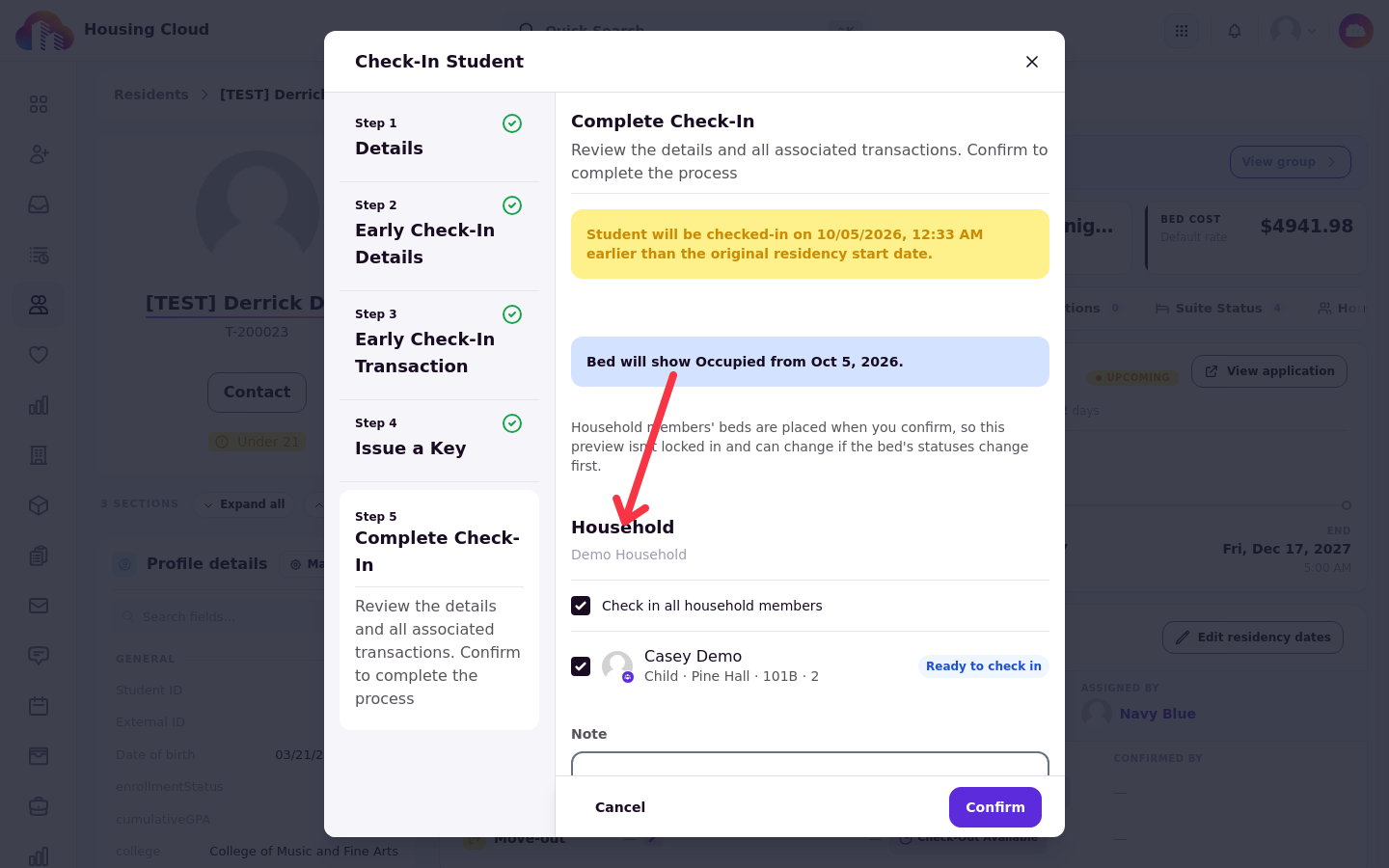
Bulk check-in and bulk check-out do not show the Household section. Instead, the batch has a single batch-wide option, Also check in/out household members, that applies to eligible household members across all selected residents in the batch.
Check a household in
Household check-in happens in the same confirmation as the primary resident's check-in, on the staff check-in page.
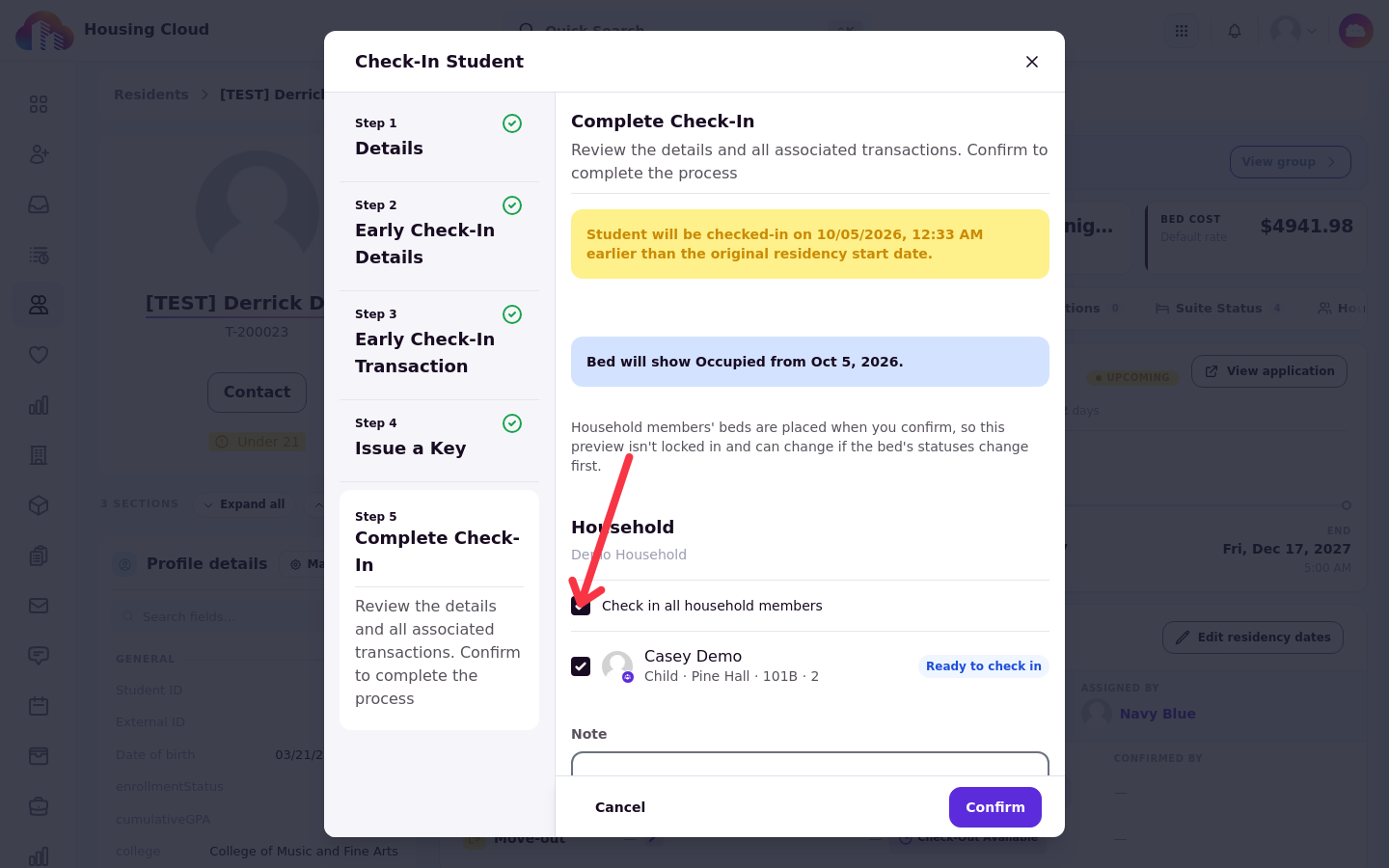
On the confirmation step, household members who can check in are pre-selected with checkboxes. Clear the checkbox of any member who is not arriving, or use the Check in all household members master checkbox to select or clear every member at once. Confirm with Confirm to submit the primary resident and the selected dependents together.
Check a household out
Household check-out happens in the same confirmation as the primary resident's check-out, on the staff check-out page.
On the Complete Check-Out step, eligible household members are pre-selected with checkboxes. Clear the checkbox of any member who is not leaving, or use Check out all household members to select or clear every member at once. Confirm with Confirm to check out the primary resident and the selected dependents together.
When a member cannot move
A member who cannot move stays in the Household section without a selectable checkbox, and the displayed status explains why. A member is not selectable when:
they are already checked in, during check-in
they are already checked out, during check-out
they have no residency in the housing cycle
their residency has ended
At check-out, a member who was never checked in is not eligible for an ordinary check-out. The Household section offers Check in household member, so you can check that member in first and then continue with the check-out.
Selected dependents move only when the primary resident's move succeeds. If the primary resident's check-out does not succeed, the selected dependents are not moved, and each dependent's result shows an error beginning "Not moved with the household".
Verify
Each selected dependent receives their own check-in or check-out record, with their own move-in or move-out date and the staff member who verified it, rather than a status inherited from the primary resident. Reopen the Household section to confirm each processed member now shows Checked in or Checked out.