Track a Household's Residency, Charges and Meal Plans
Last updated: October 8, 2026
A dependent group's detail page tracks the household day to day: the Residency tab shows who is housed and where, the Transactions tab shows the household's balance and its billing history, and the Meal plans tab lists meal plan information for each member. Use these tabs when you need the household as a whole instead of opening each member's profile one by one.
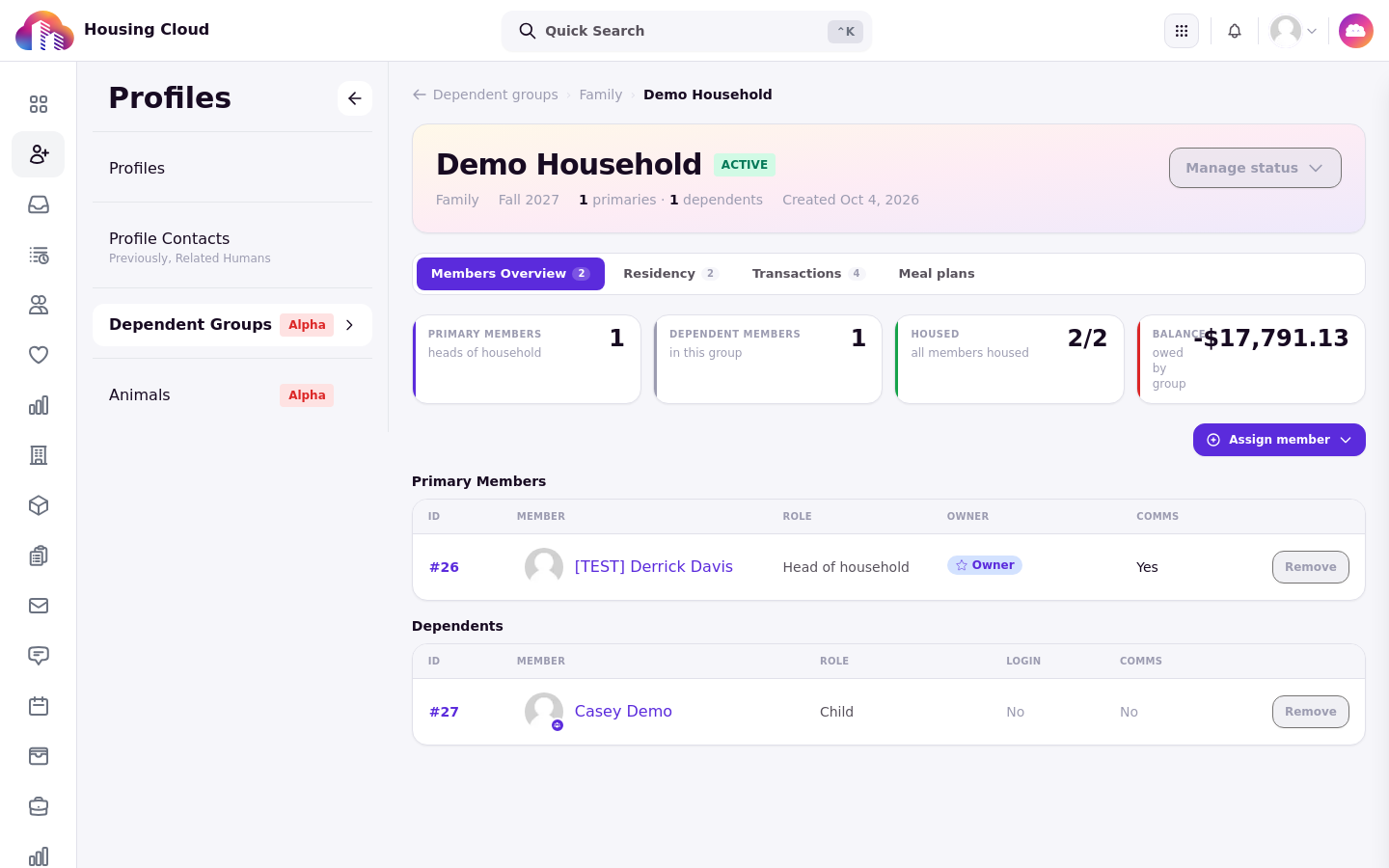
Open a group from Profiles > Dependent Groups. The detail page has four tabs: Members Overview, Residency, Transactions, and Meal plans.
Before you start
What you can do on the group's detail page depends on your permissions:
Viewing the tabs requires the "View dependent groups and members" permission.
Unlinking a residency requires the "Create and manage dependent groups" permission.
Members Overview tab
The Members Overview tab lists the household's people: the Primary Members table holds the heads of household and the Dependents table holds everyone linked to them. Each row starts with the member's assignment number.
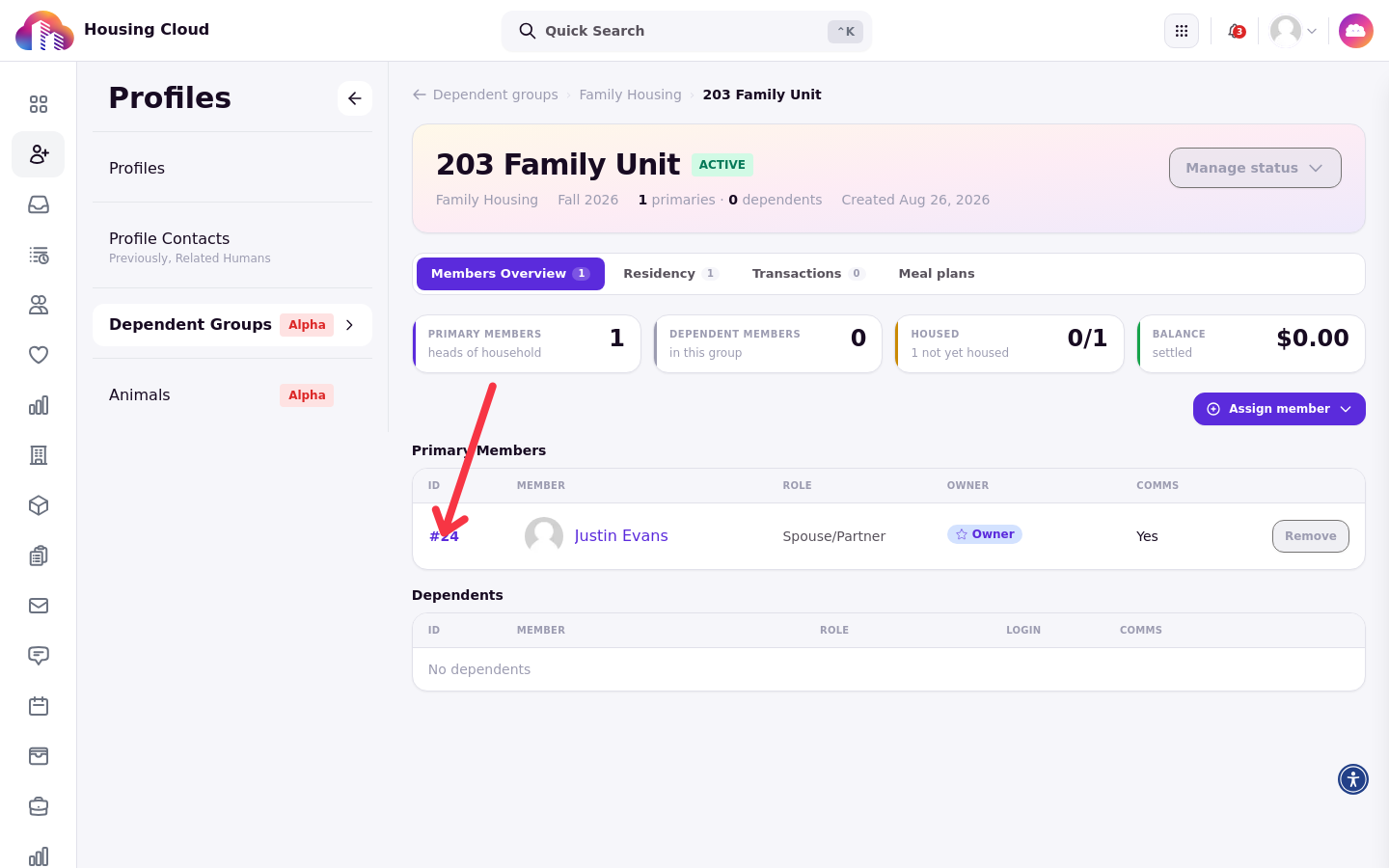
The Primary Members table shows Role, Owner, and Comms columns; the Dependents table shows Role, Login, and Comms.
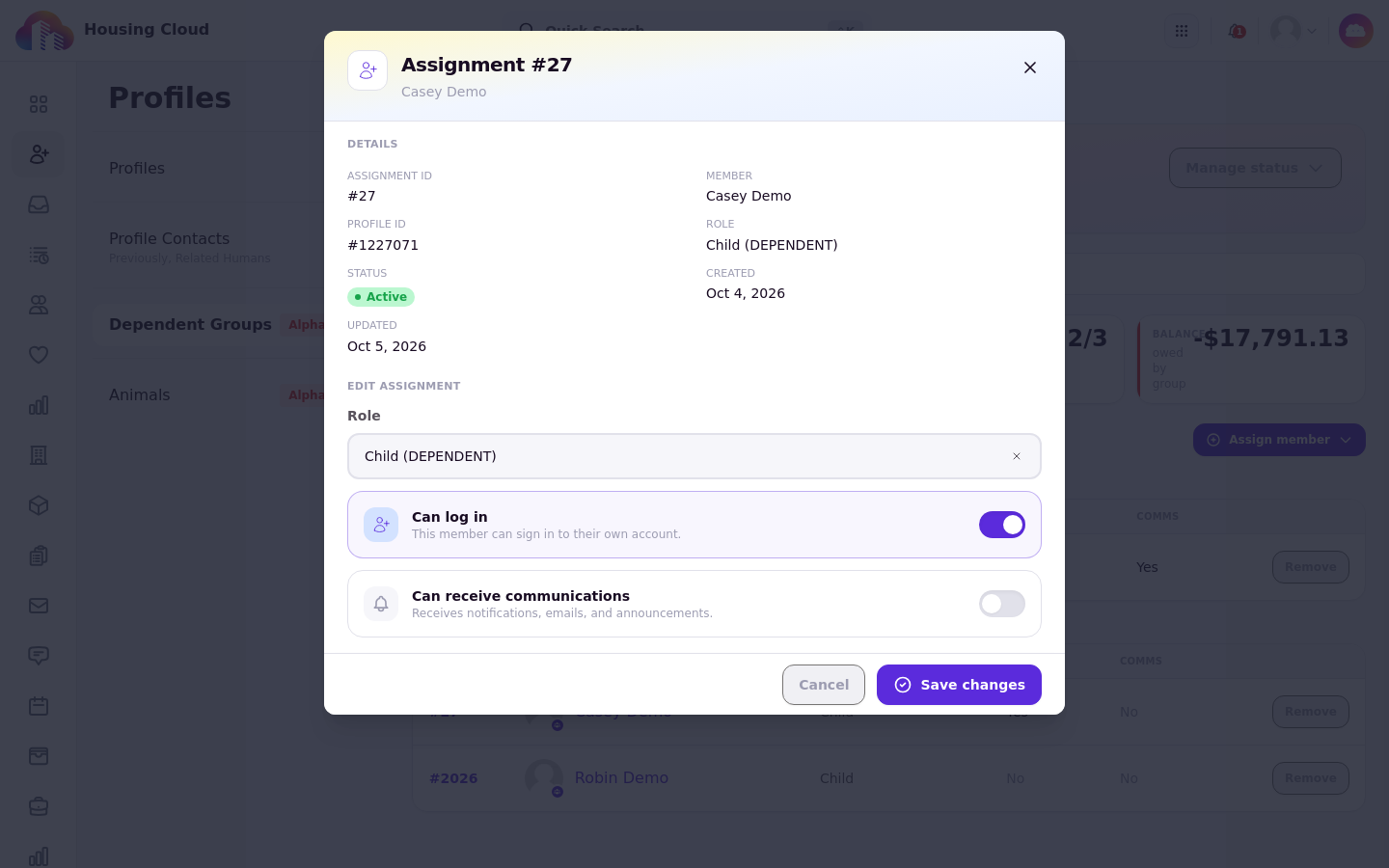
Clicking a member's assignment number opens their detail window, where you edit that person's role and sign-in settings; change ownership from the Owner column using Make owner; see Change a Household Member's Role, Sign-in and Owner. The Comms column shows whether the member can receive communications such as notifications, emails, and announcements.
Residency tab
The Residency tab opens with four summary cards and the member table underneath. The cards give the group's placement at a glance, and the table shows each member's space, so you can find members who still need one.
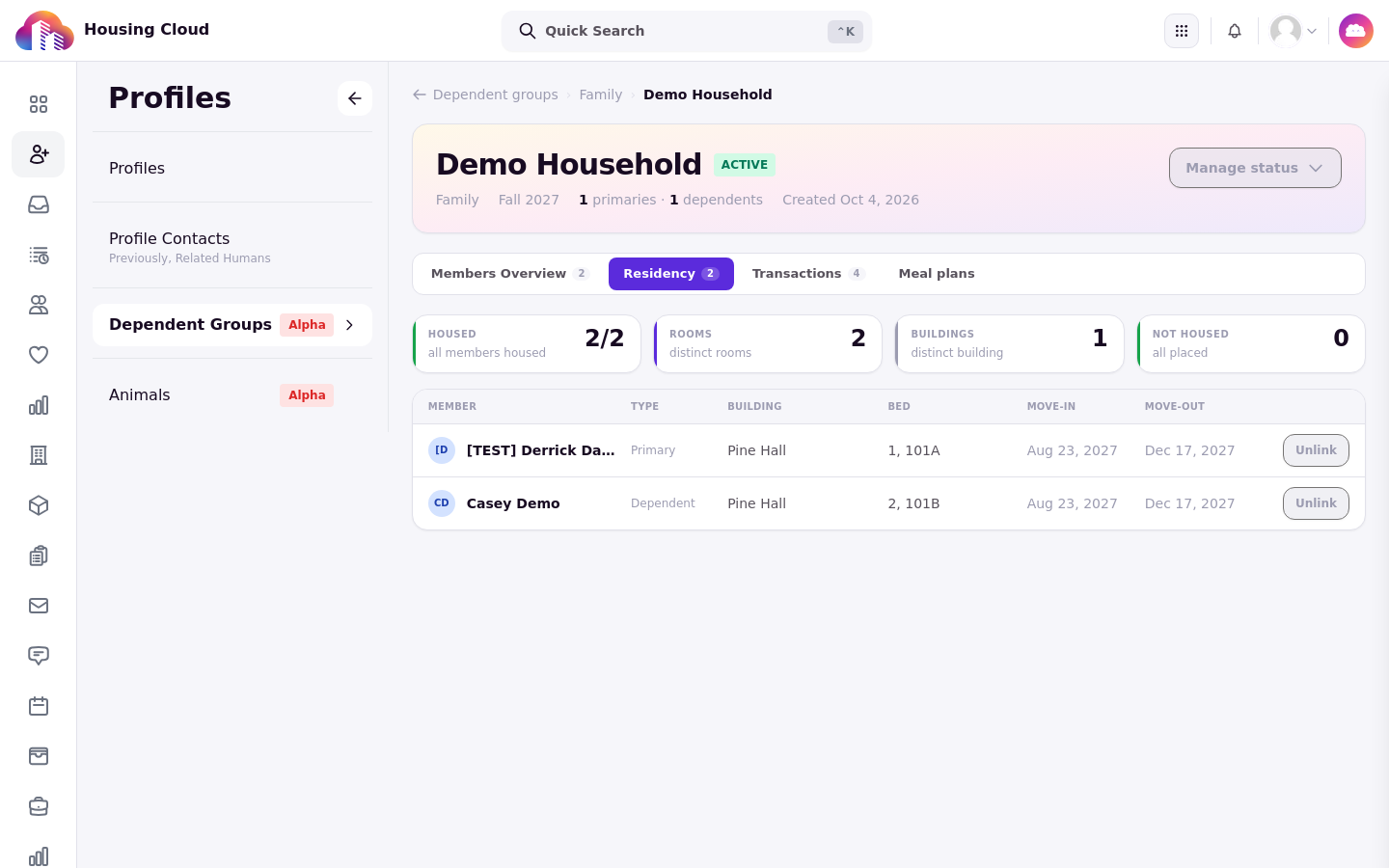
Housed counts members housed out of the total and carries supporting text such as "all members housed".
Rooms and Buildings count the distinct rooms and buildings the group occupies.
Not housed counts members without a space right now and reads "all placed" or "awaiting placement".
The member table lists every member with the columns Member, Type (Primary or Dependent), Building, Bed, Move-in, and Move-out. A member without a space shows Not housed, and a value the record does not have shows as "—".
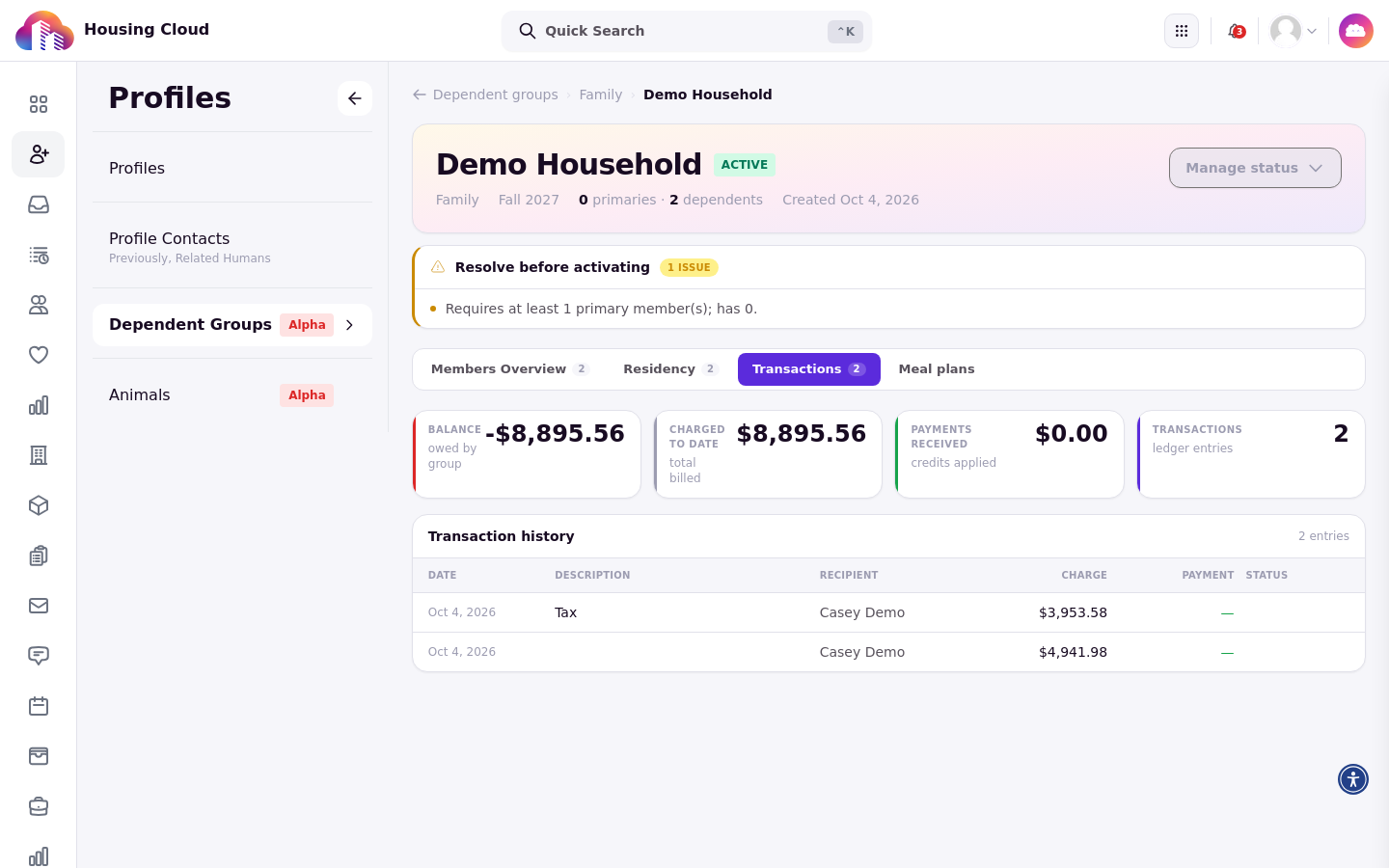
When something needs attention, a warning list appears above the member table. It flags a member who "has no linked residency", a group where "No primary member has a residency linked to this group yet", and a residency linked for a profile that is not an active member of the group, with the profile number included.

Related guides:
Assign a Household to Rooms
Check In and Check Out a Household
Unlink a residency
Use Unlink when a residency is linked to the wrong person or is a stale record. Every row with a linked residency has an Unlink button. The action requires the "Create and manage dependent groups" permission.
Unlink acts immediately, with no confirmation. The person keeps the bed and the residency itself isn't cancelled; it just stops counting for the household. There is no Link button on this page to undo it, so to link the bed to the household again, assign it from the primary's application.
After unlinking, the tab confirms with "Residency unlinked." and the group's occupancy refreshes; the summary cards and the member table then show the updated placement.

Transactions tab
The Transactions tab opens with four summary cards. Balance is the live group balance, credits minus charges, formatted in USD.
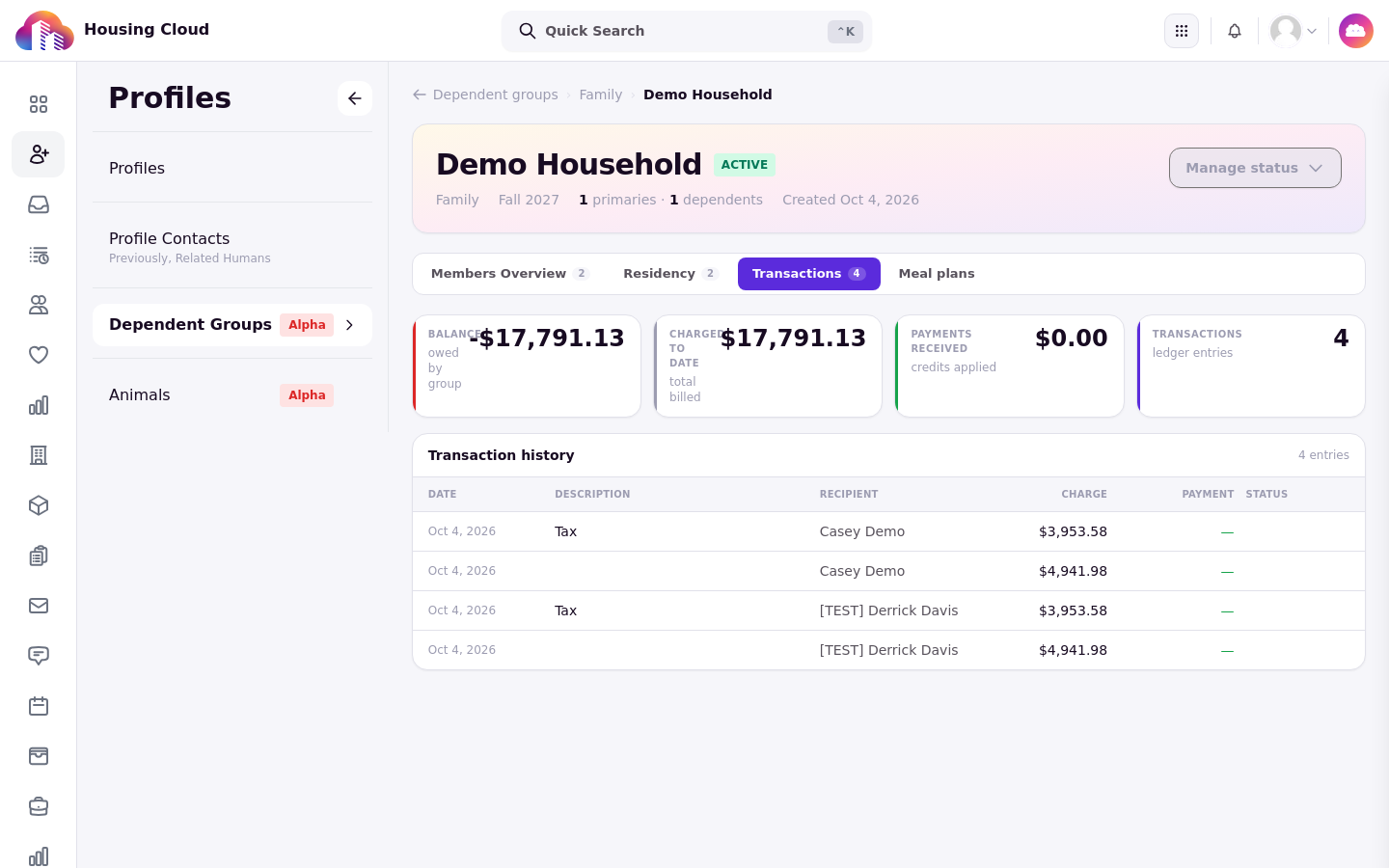
Balance reads "owed by group" when the balance is negative, "in credit" when it is positive, and "settled" when it is zero.
Charged to date shows the total billed.
Payments received shows the credits applied.
Transactions counts the ledger entries.
Below the cards, Transaction history lists the entries with the columns Date, Description, Recipient, Charge, Payment, and Status. Refunds show a status of Refunded, and Refunded takes precedence over Excluded: an entry that is both refunded and excluded from the balance displays Refunded. Test charges don't appear in the ledger, and credits count toward the balance only when they affect it; others that are not refunded show Excluded.
Meal plans tab
The Meal plans tab is a read-only, per-member view of meal plan information. It opens with four summary cards:
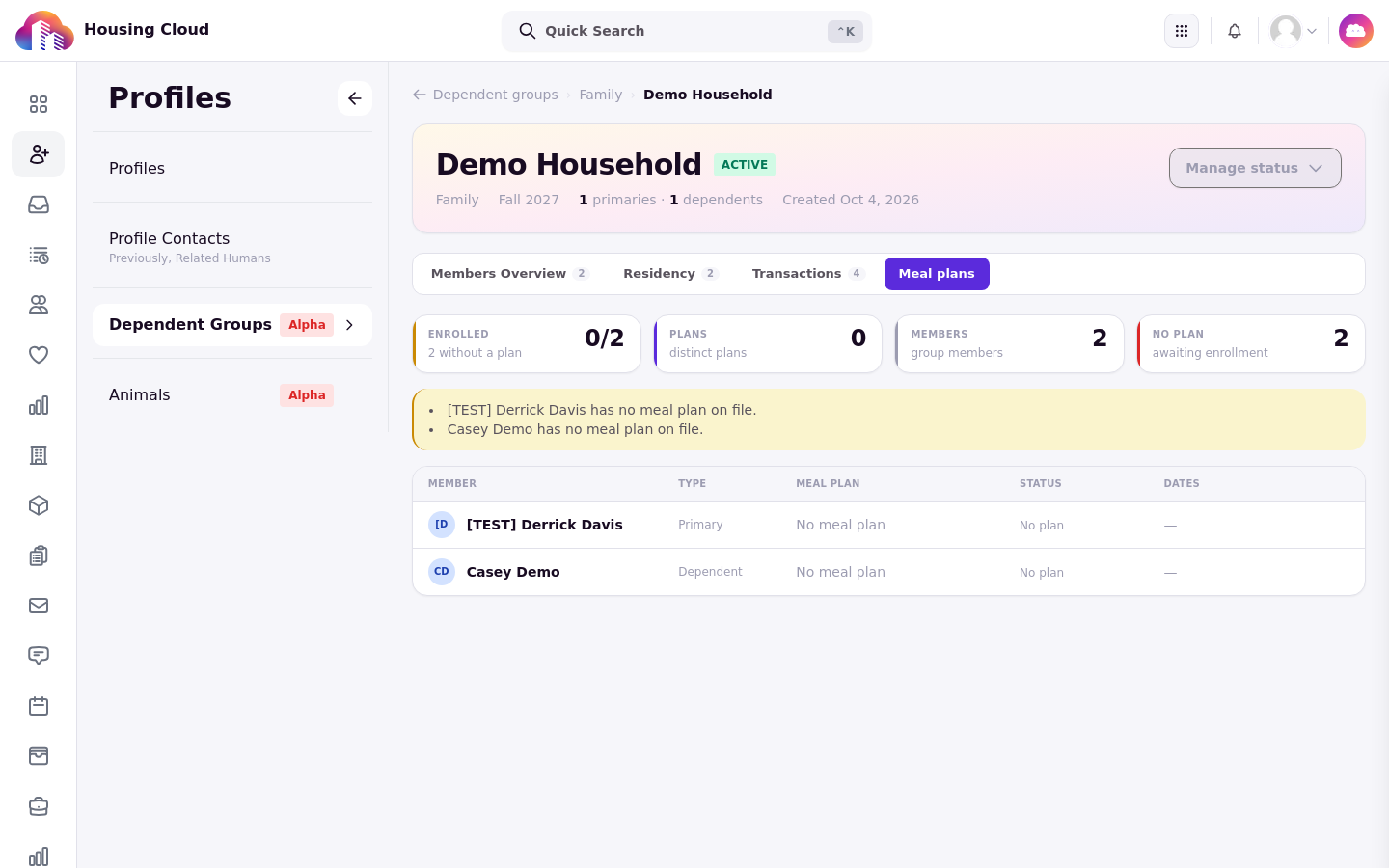
Enrolled counts members with a plan out of the total.
Plans counts distinct plans.
Members counts group members.
No plan counts members awaiting enrollment.
A warning list above the table flags the problems to fix: "[name] has no meal plan on file.", "[name]'s meal plan has been cancelled.", "[name]'s meal plan has expired.", or "No primary member has an active meal plan in this group yet."
Plans are assigned and cancelled in the usual meal-plan screens, never from the household page. Cycle-bound groups show each member's plan for the group's cycle; groups without a cycle are not cycle-filtered.