How to Manage Keys
Last updated: October 5, 2026
Managing keys in Housing.Cloud is easy. Admins can update key statuses, edit details, delete keys, and perform bulk operations. Below is a step-by-step guide to help you utilize these features effectively
How to View a Key's Details
Navigate to the Keys dashboard page on the portal. Click on the key in question.

Key details appear, including what door(s) the key opens, the key ID, a history of the key's holders as well as actions taken on the key (like issuing, returning, replacing, etc.)

How to Edit Key Properties
Click on the Edit button to edit the key properties.

These are the fields available for editing. See this article to learn about the different fields.

How to Delete a Key
On the "edit key" modal, click the Delete button to delete this key permanently.


How to Mark a Key as Borrowed, Broken, Lost, Returned or Archived
On the key detail page, click on the "update status" button to change the status to Borrowed, Broken, Lost, Returned, or Archived.

How to Take Bulk Actions on Keys
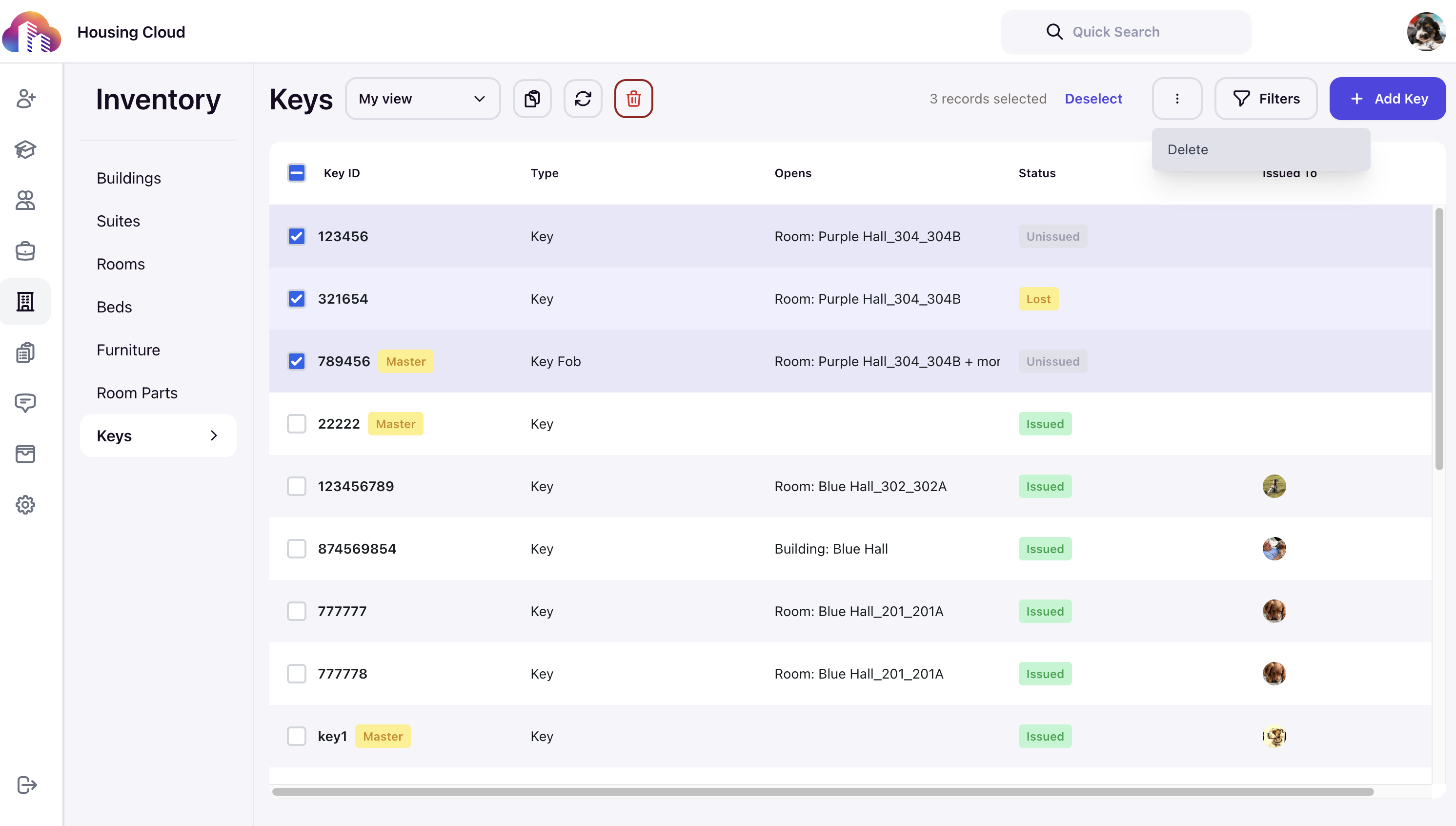
For efficiency, you can work with multiple keys at the same time. Select multiple keys using the checkbox beside each key, then click the three-dotted "kebab" button above the keys table to bulk options like deleting keys.


How to Filter Keys
You can apply filters to the keys view. Click on filters and check the filters you want to apply.


This is a filtered view with specific key types:

Learn how to create a new key here.