Check roommates, rules, residency and meal plans
Last updated: October 13, 2026
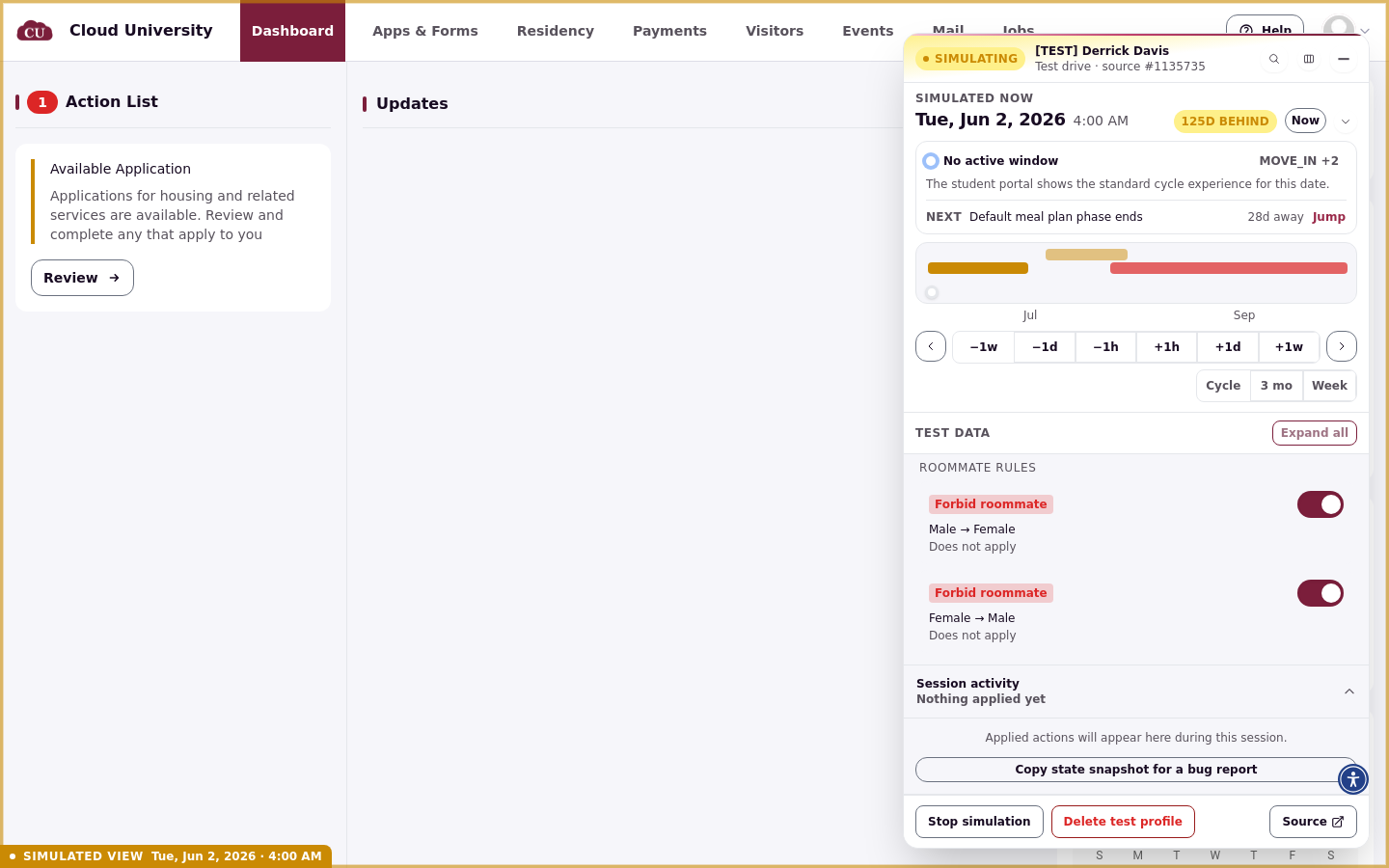
The Test data sections of the Test Drive panel hold everything the test profile copied from its source student. Each section expands to show the detail, and each lets you change the test profile's data for this simulation only. Every edit is staged first and waits for Apply, exactly like a date move.
Expand and collapse
Expand all and Collapse all sit next to the Test data heading. Collapsed sections show a one-line summary, for example No roommate group yet or No room assigned, so you can scan what exists without opening anything.
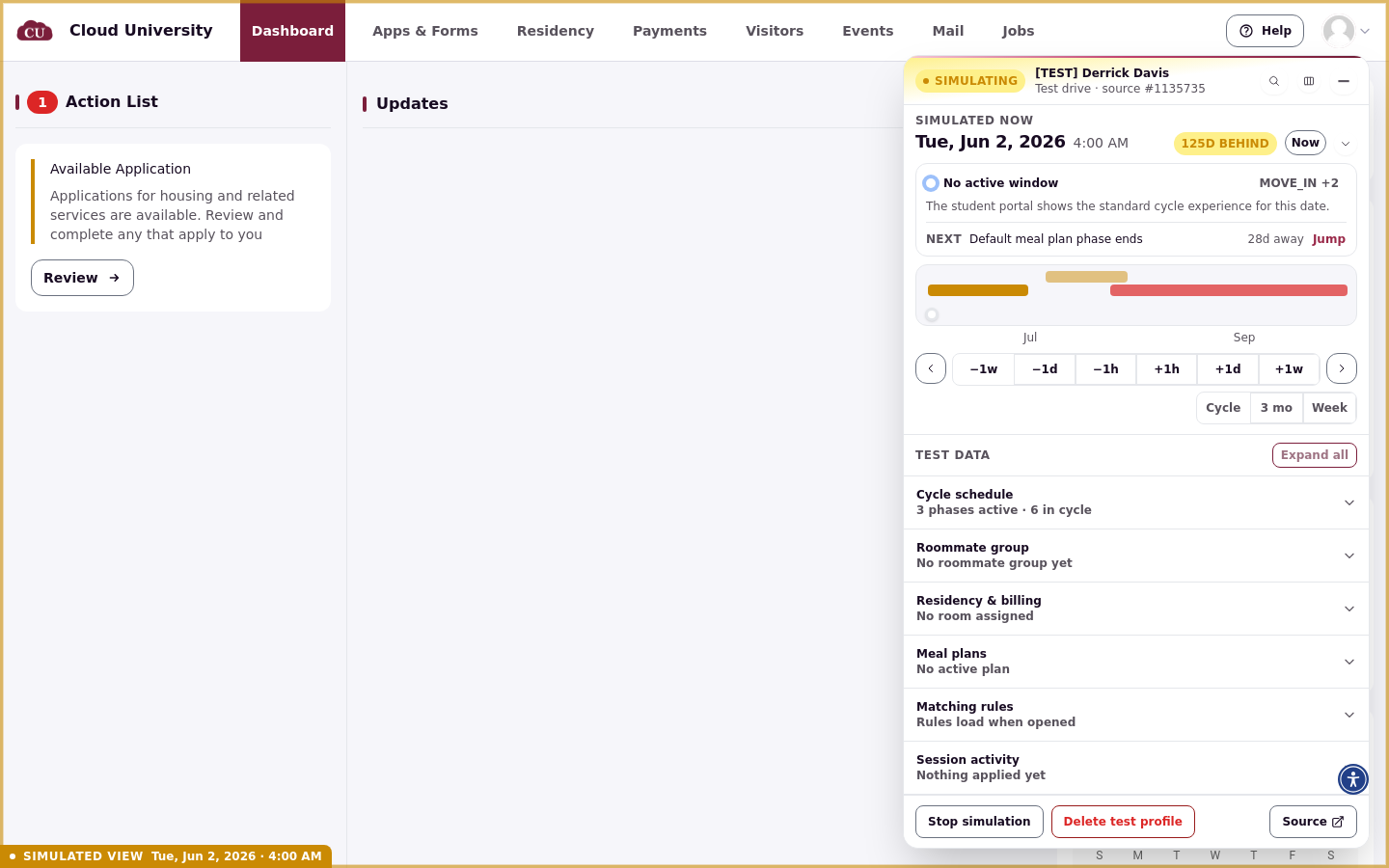
Roommate group
This section shows the test profile's matching group and its members, or No roommate group yet when none was copied. From here you can create a group or adjust the companions on the test profile; the changes stay inside the test drive.
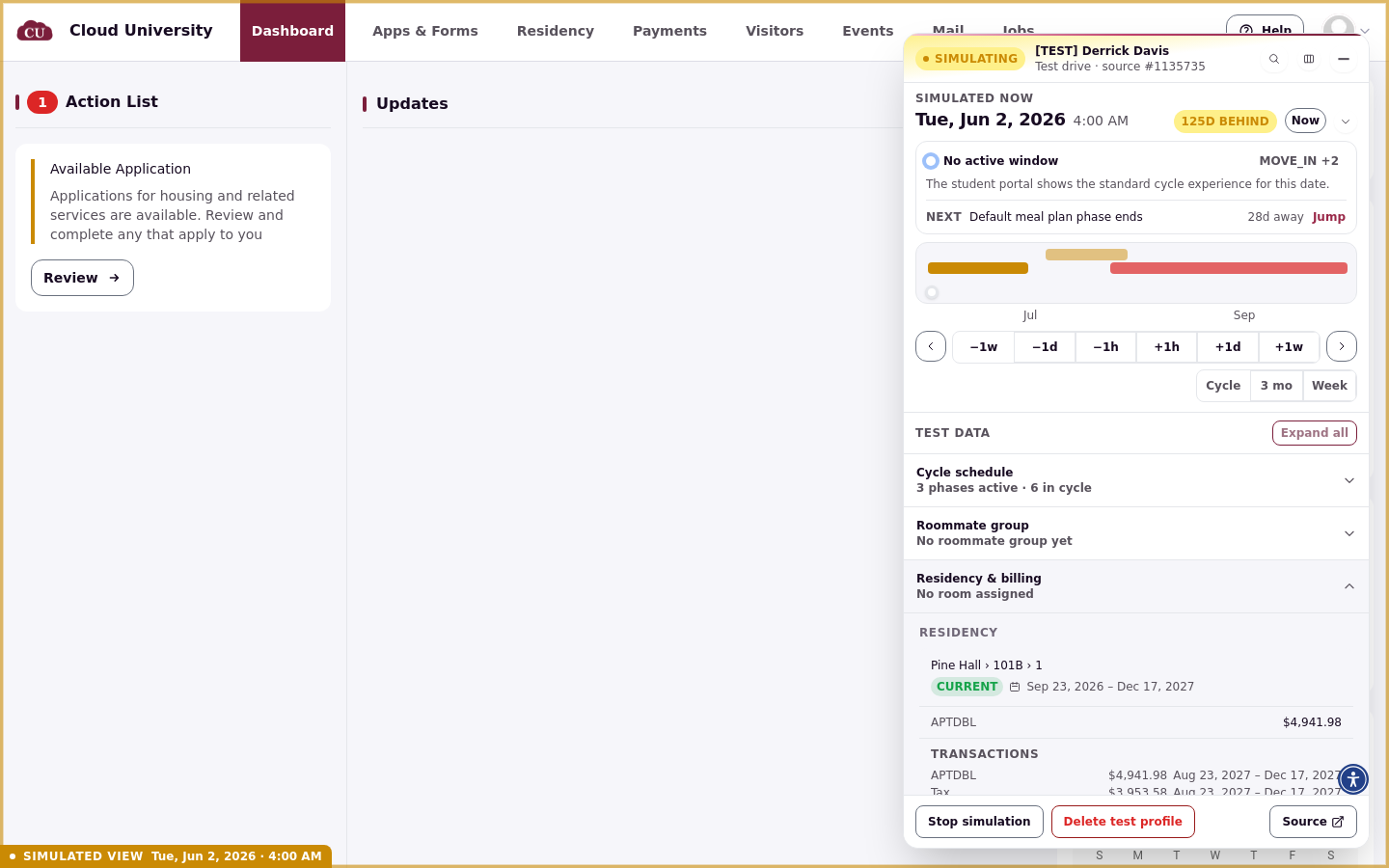
Residency & billing
This section shows the test profile's residency, its room and dates, and the charges and transactions attached to it. Actions such as Cancel residency and Delete residency act on the test residency only.
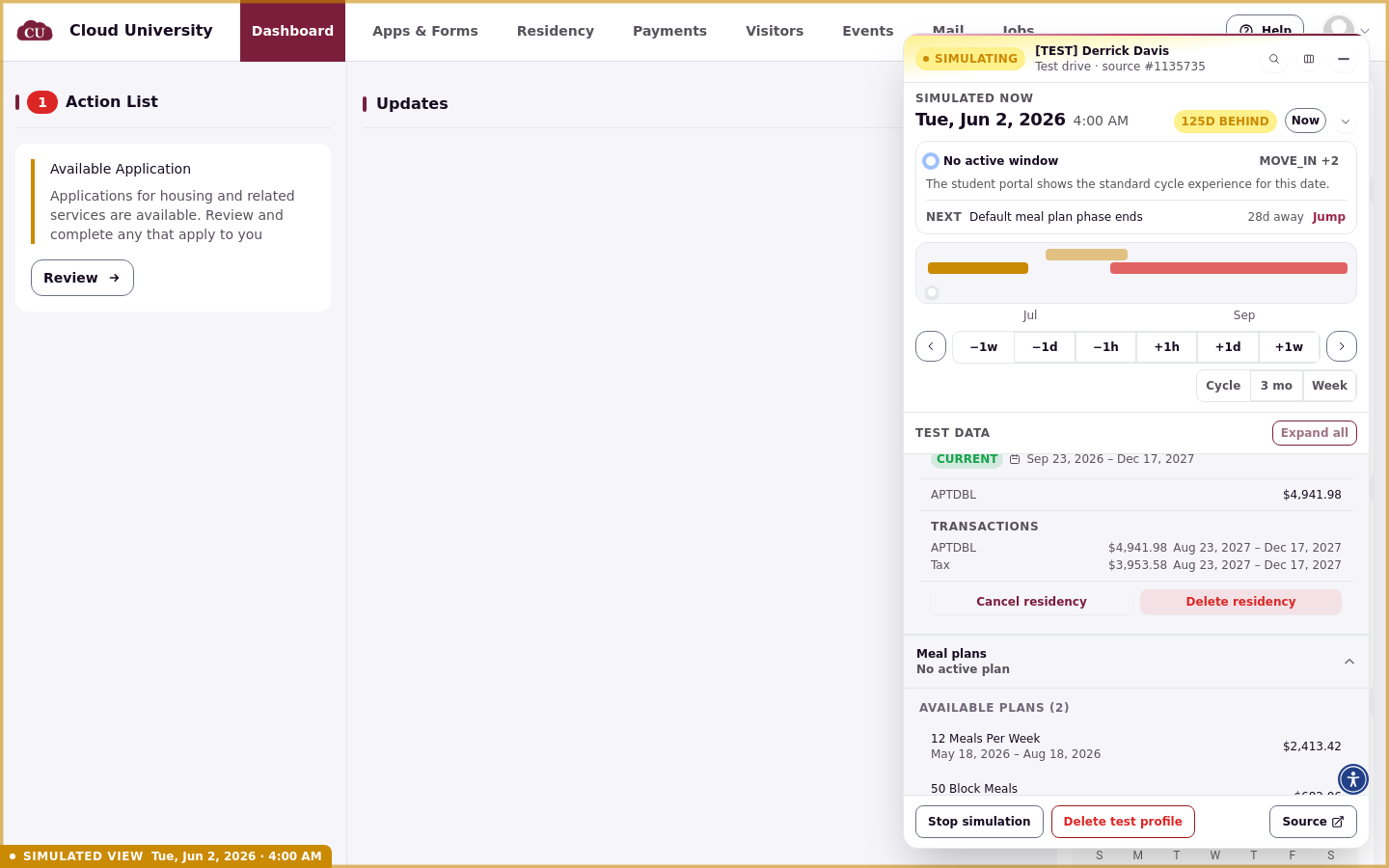
Meal plans
This section lists the meal plans available to the test profile with their prices and date ranges, plus any existing meal plan assignments. You can cancel or delete existing meal plan assignments on the test profile without affecting real students.
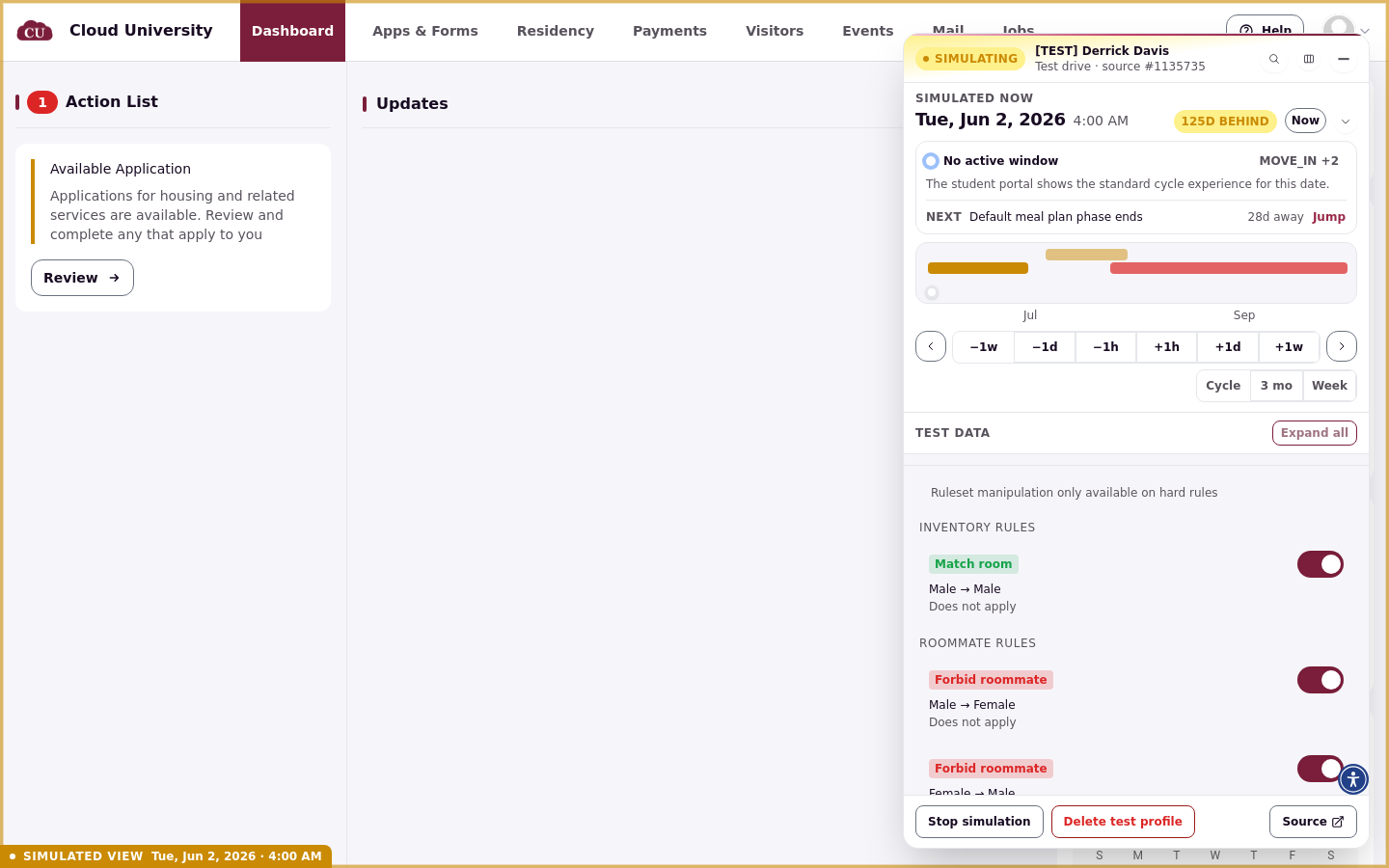
Matching rules
This section shows the matching ruleset as the test profile experiences it, grouped into Inventory rules and Roommate rules. Rules load when you open the section, and hard rules can be switched on or off for this test profile only; the panel notes that ruleset manipulation is only available on hard rules. Changes here apply to the simulation only; the real ruleset is untouched.
Session activity
This section lists the actions applied during the current session. The Copy state snapshot for a bug report button copies a test-drive snapshot of the test profile containing the profile ID, the simulated date, the application status, and any pending changes, so you can paste it into a support ticket.
Staged edits
Every edit in these sections lands in the same unsaved-changes bar as date moves: Review shows what is staged, Discard throws it away, and Apply writes it. Nothing changes in the portal until you apply.