Migrate Reports from Classic to Reports v2
Last updated: August 27, 2026
On Thursday, August 20, 2026, Reports (Classic) will be sunset and all reporting will be through Reports v2. The migration tool moves your existing GoodData Classic reports into the native Reports v2 library so they can be edited, shared, and scheduled from the new builder. Reports v2 replaces the legacy Reports (Classic) experience at Admin › Reports.
Migration is started from the Reports v2 library and runs as a background bulk operation. Each report is translated into the new format and placed in a dedicated folder. If a report cannot be translated automatically, it is flagged for review rather than skipped.
Reports (Classic) will remain accessible until the migration window closes on August 20, 2026 at 11:59 PM ET. After that date, Reports (Classic) will be retired and will not be accessible.
Before you start
Your account must have access to both the legacy and new reporting surfaces before the migration option is visible.
- The reporting permission must be enabled for your role.
Open the migration banner
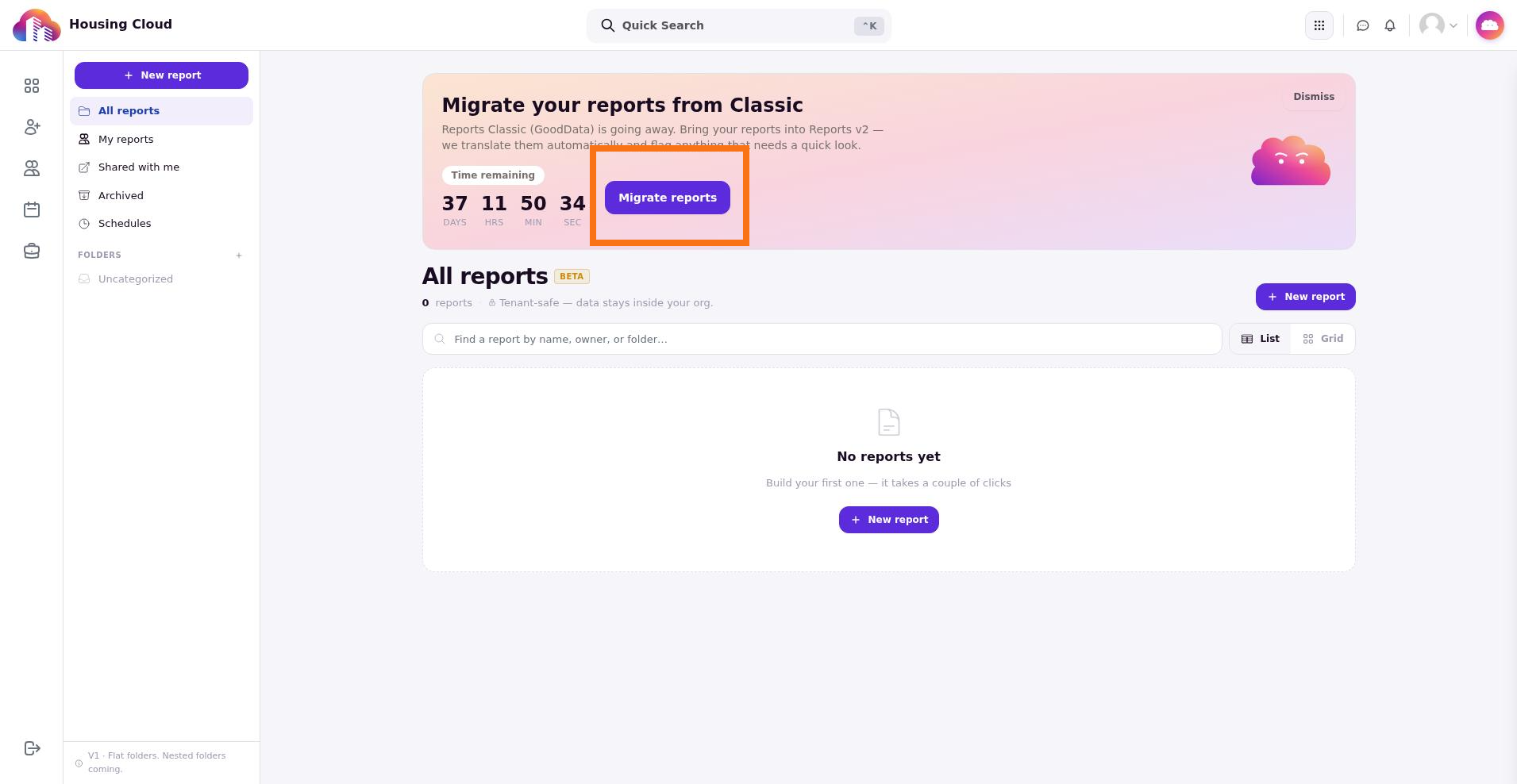
Navigate to the Reports v2 library at Admin › Reports v2. When migration is available, a banner labeled Migrate your reports from Classic appears at the top of the page. The banner shows a countdown based on the migration deadline.
Click the Migrate reports button inside the banner to open the migration modal.
Select reports to migrate
The modal titled Migrate reports from Classic lists all Classic reports that have not yet been migrated. Use the Search reports field to filter the list, or check the Select all checkbox to choose every available report.
Each report row shows a checkbox. Select the reports you want to migrate, then confirm the action to start the bulk operation.
If no Classic reports are found, the modal shows: No Classic reports were found to migrate. If every report has already been migrated, the modal shows: All of your Classic reports have already been migrated.
What happens during migration
The migration runs as an asynchronous background job. After you confirm the selection, you are routed to the bulk operation page at Admin › Bulk Operation where you can monitor progress for each report.
Each report can end in one of three states:
- Migrated — The report was fully translated and is now available in Reports v2.
- Partial (needs review) — The report was partially translated. Some fields, filters, or logic could not be mapped automatically and must be reviewed in the builder.
- Failed — The report could not be translated. You may need to rebuild it manually in Reports v2.
Find migrated reports
Reports that finish with the Migrated status are placed in a folder labeled Migrated from Classic inside the Reports v2 library. You can open any migrated report in the builder to edit, rename, or schedule it.
Reports marked needs review will open in the builder with missing or incomplete elements highlighted so you can finish the translation.
Rebuild a report manually (Optional)
If a report fails migration or produces unclear results after partial translation, you can build an equivalent report from scratch in the Reports v2 builder. Open Admin › Reports v2 › Builder, select your data source, and recreate the filters, columns, and groupings from the original Classic report.
Because the data model in Reports v2 differs from GoodData, some legacy fields and custom metrics may not have direct equivalents. In those cases, manual rebuilding is the most reliable path.
After the deadline
The migration window closes on August 20, 2026 at 11:59 PM ET. After that date:
- Access to Reports (Classic) is disabled.
- Previously migrated reports remain in the Migrated from Classic folder and are unaffected.
NOTE: It is not possible to access or recover a Classic report after the deadline.
Verify the results
After migration completes, confirm the outcome by checking:
- The Reports v2 library for the Migrated from Classic folder.
- The bulk operation page for per-report status.
- Any report marked needs review by opening it in the builder and checking for incomplete filters or columns.
Once migrated, reports can be scheduled for email delivery and shared with other staff members from the Reports v2 library.