Move the simulated date
Last updated: October 8, 2026
The Test Drive panel moves the test profile's clock. Shift it by hours, days, or weeks, drag along the cycle timeline, or set an exact date, then apply the change: nothing happens until you do.
Read the clock
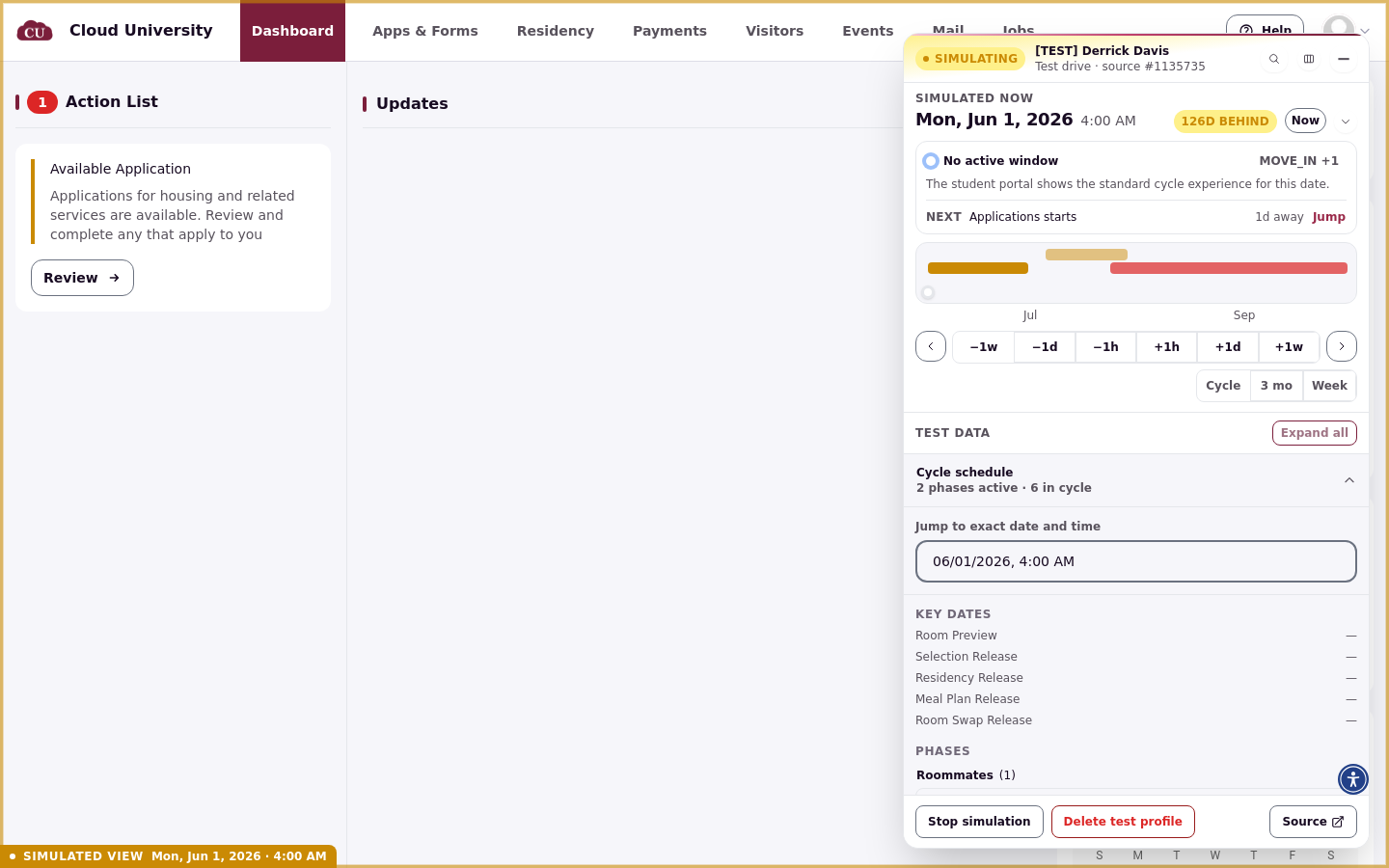
The top of the panel shows Simulated now with the simulated date and time, its offset from real time, a Now button, and a status line describing what the student portal currently shows (for example, that no window is active). Below it, the timeline spans the housing cycle with your current position marked.
Quick shifts and event jumps
The row of buttons below the timeline shifts the clock: −1w, −1d, −1h, +1h, +1d, +1w, with arrows on either end to move to the previous or next event on the cycle timeline. The Cycle, 3 mo, and Week buttons zoom the timeline so you can aim more precisely. You can also drag the marker along the timeline.
The clock belongs to the test profile, not to you. Any admin who impersonates the same [TEST] profile sees and moves the same simulated date. Create a separate test drive for each person testing.
Jump to an exact date and time
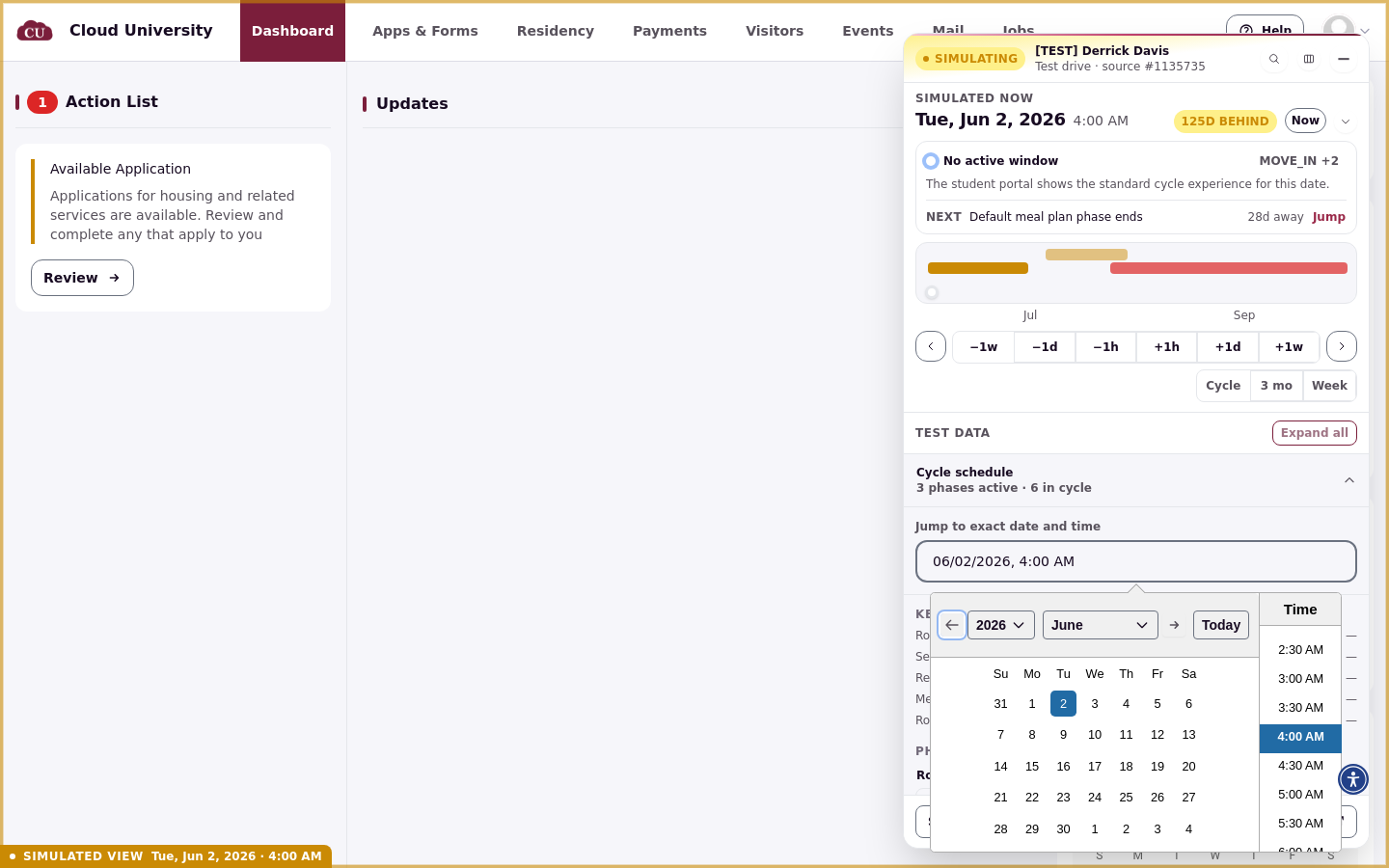
Open the Cycle schedule section under Test data. At its top, Jump to exact date and time takes a date and a time: pick them, and the change is staged like any other. To land on a specific phase or key date instead, see Jump to a housing phase or key date.
Review, apply, or discard
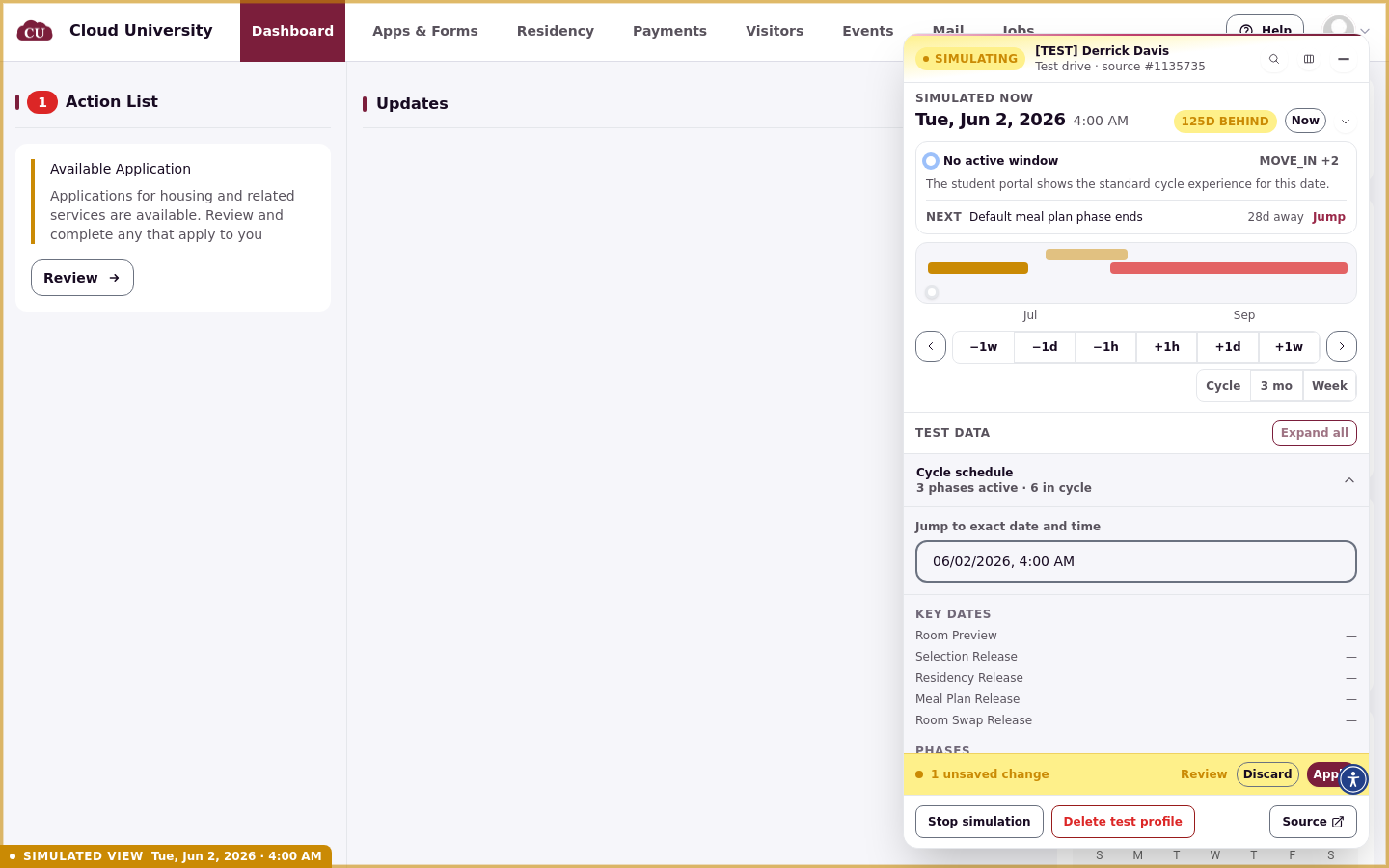
Every change you stage appears in a bar at the bottom of the panel counting your unsaved changes, with Review, Discard, and Apply.
Review lists every staged change with the note that nothing is written until you apply; each item has a Revert link, and Hide closes the list.
Discard throws the staged changes away.
Apply writes them. A Changes applied confirmation confirms it.
The SIMULATED VIEW label can show the new date before the portal behind it has caught up. Give the portal at least 20 seconds after applying; if it still shows the old state, reload the page once.
Keyboard shortcuts
Alt+Shift+← and Alt+Shift+→ move the clock one day at a time.
Return to real time
Click Now at the top of the panel to stage a return to the real date and time, then Apply. The offset disappears and the SIMULATED VIEW label shows today again.
Only the test profile's portal moves in time. Admin pages always show the real date, even while you have a Test Drive open in another tab, and scheduled background processes such as automatic reminders or nightly jobs also run on the real date.