How Households Show Up on Profiles, Applications and Residencies
Last updated: October 8, 2026
Household membership is marked in the places staff already work: a Dependent badge on a dependent's profile picture, banners on the group owner's and the dependent's profiles, and a Dependent Groups card on application review. Front desk, mailroom, and check-in staff can see at a glance who belongs together without opening the group.
These markers move by themselves as membership changes: the owner banner follows a Make owner change, and the dependent markers appear and disappear with dependent assignments.
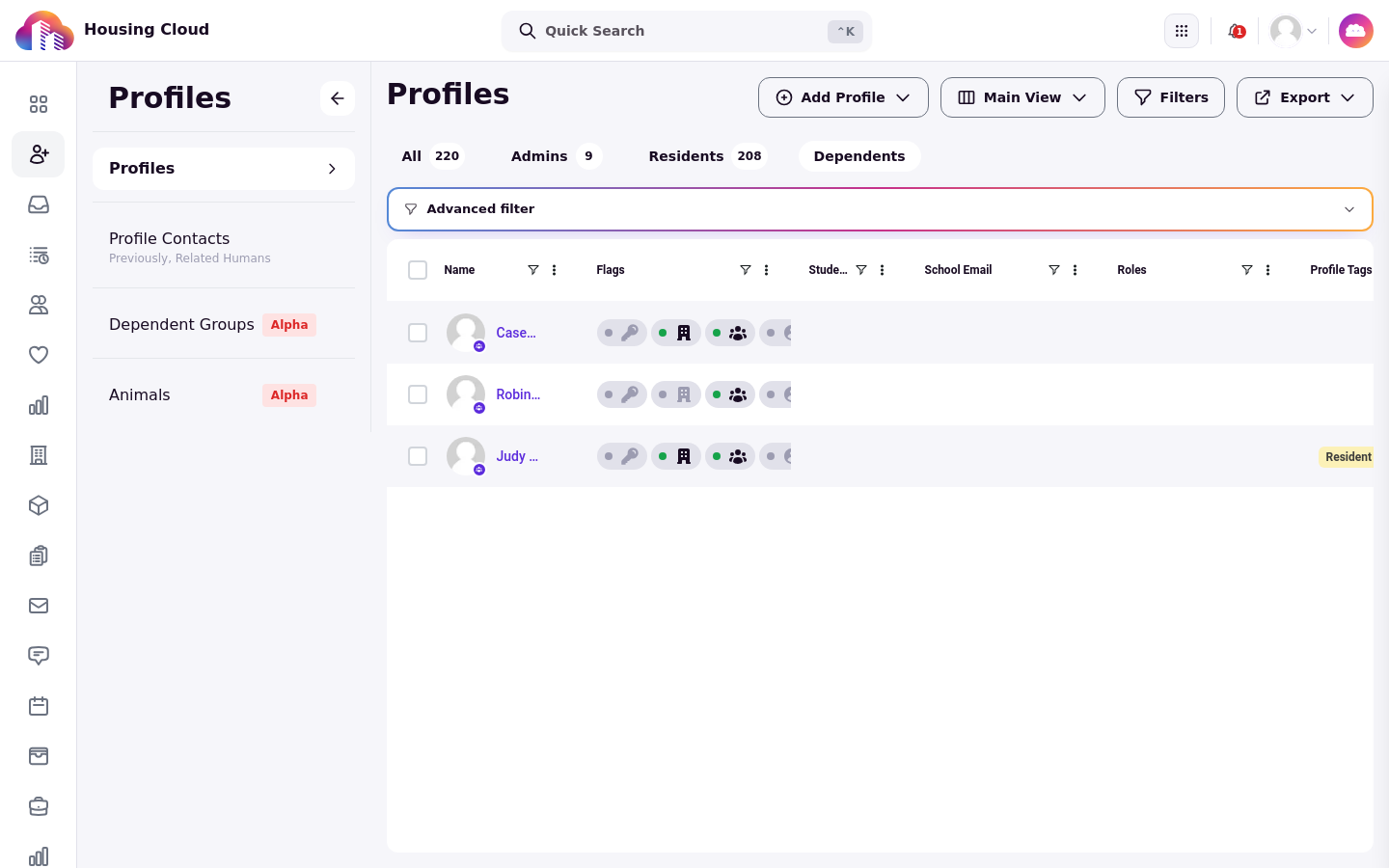
The Dependent badge
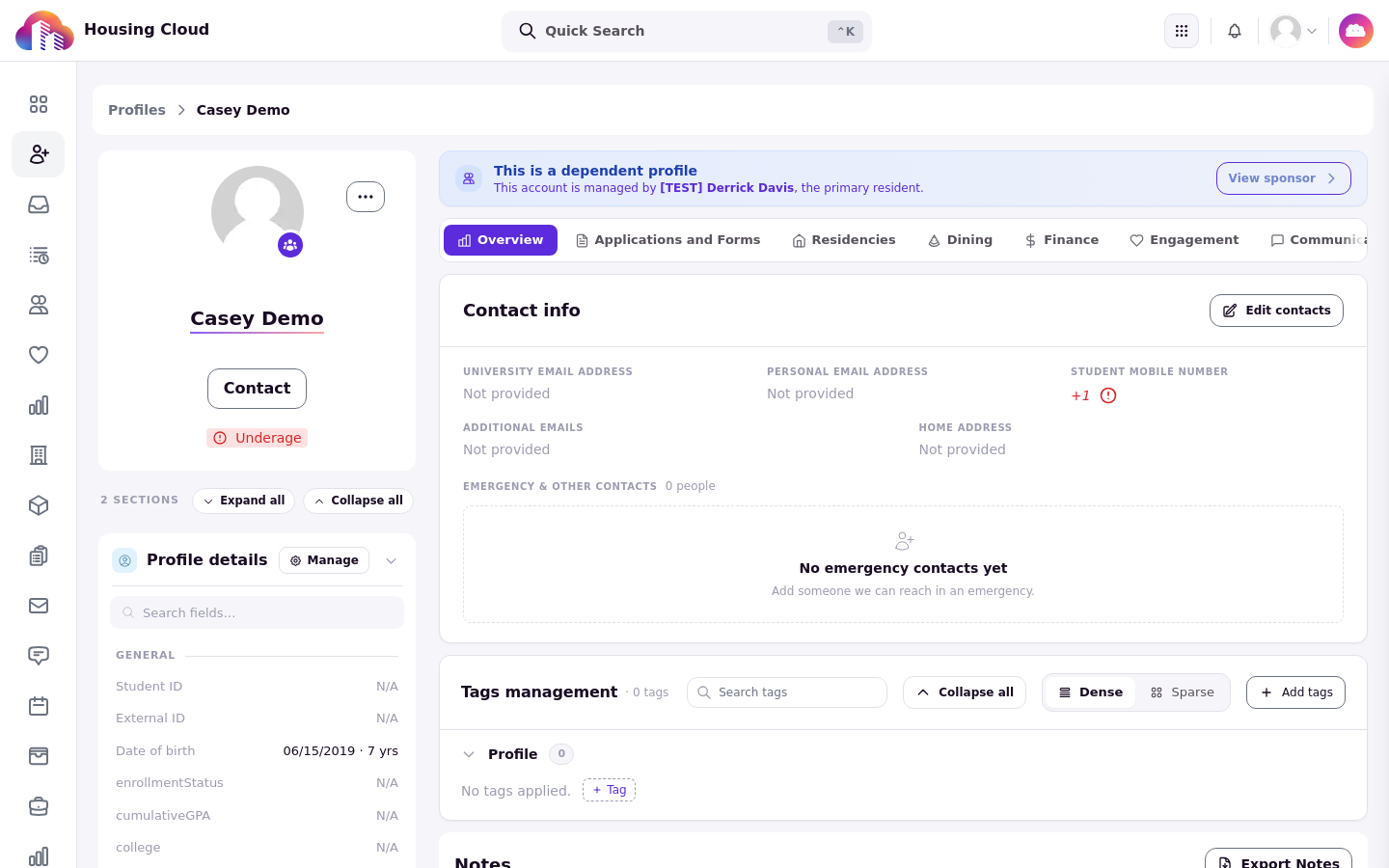
A dependent's profile picture carries a small Dependent badge wherever profile pictures appear, including search results.
The group owner banner
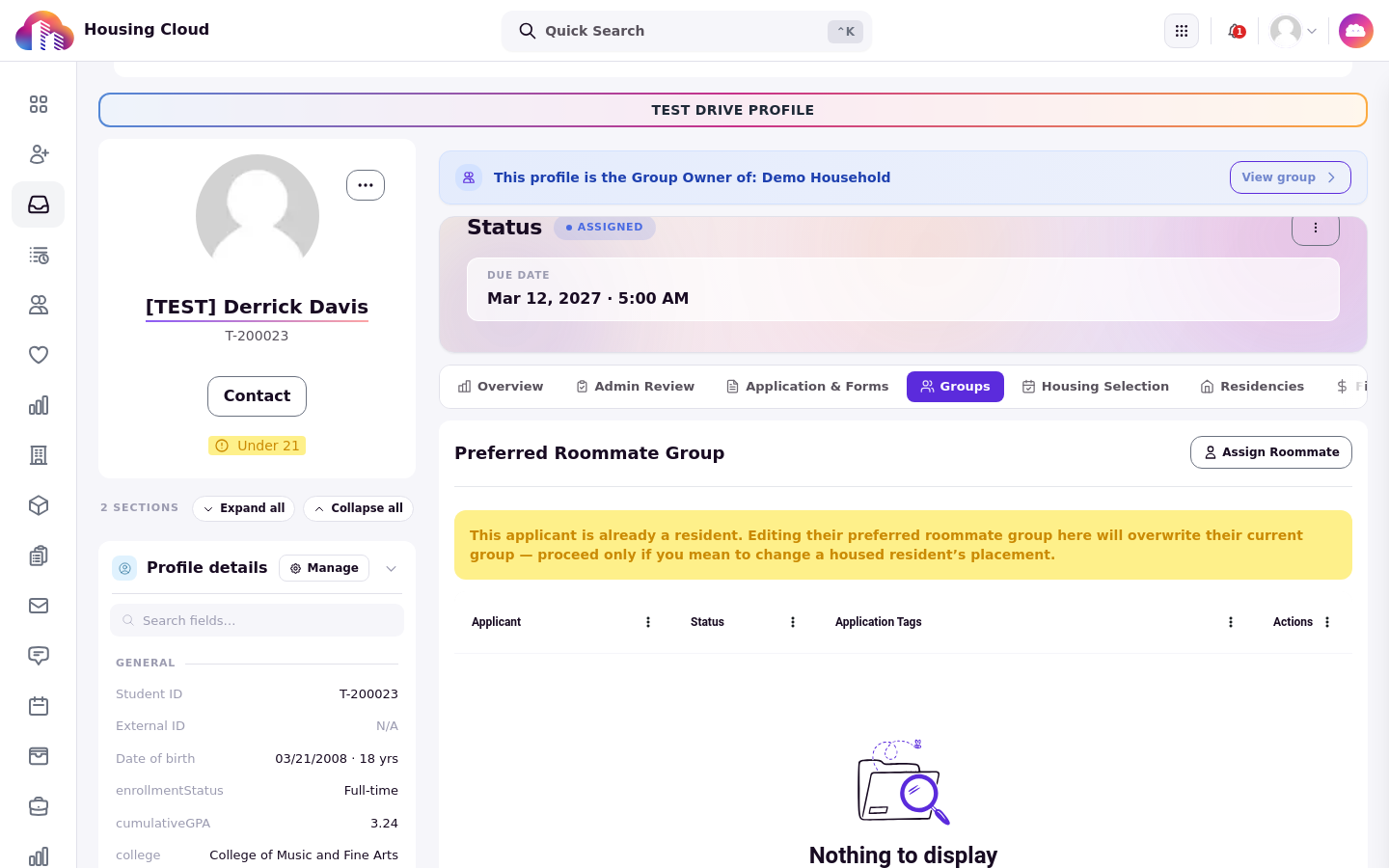
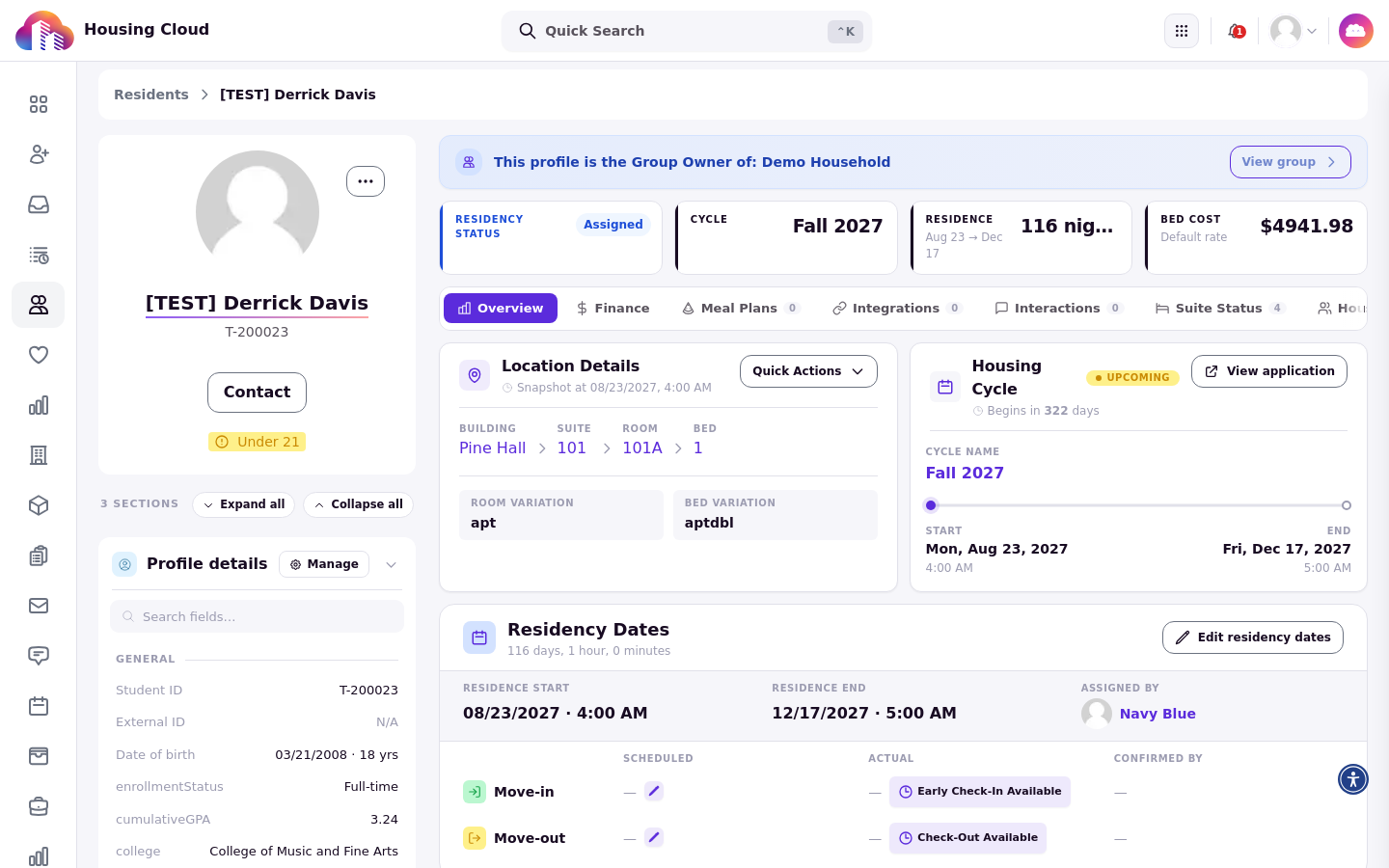
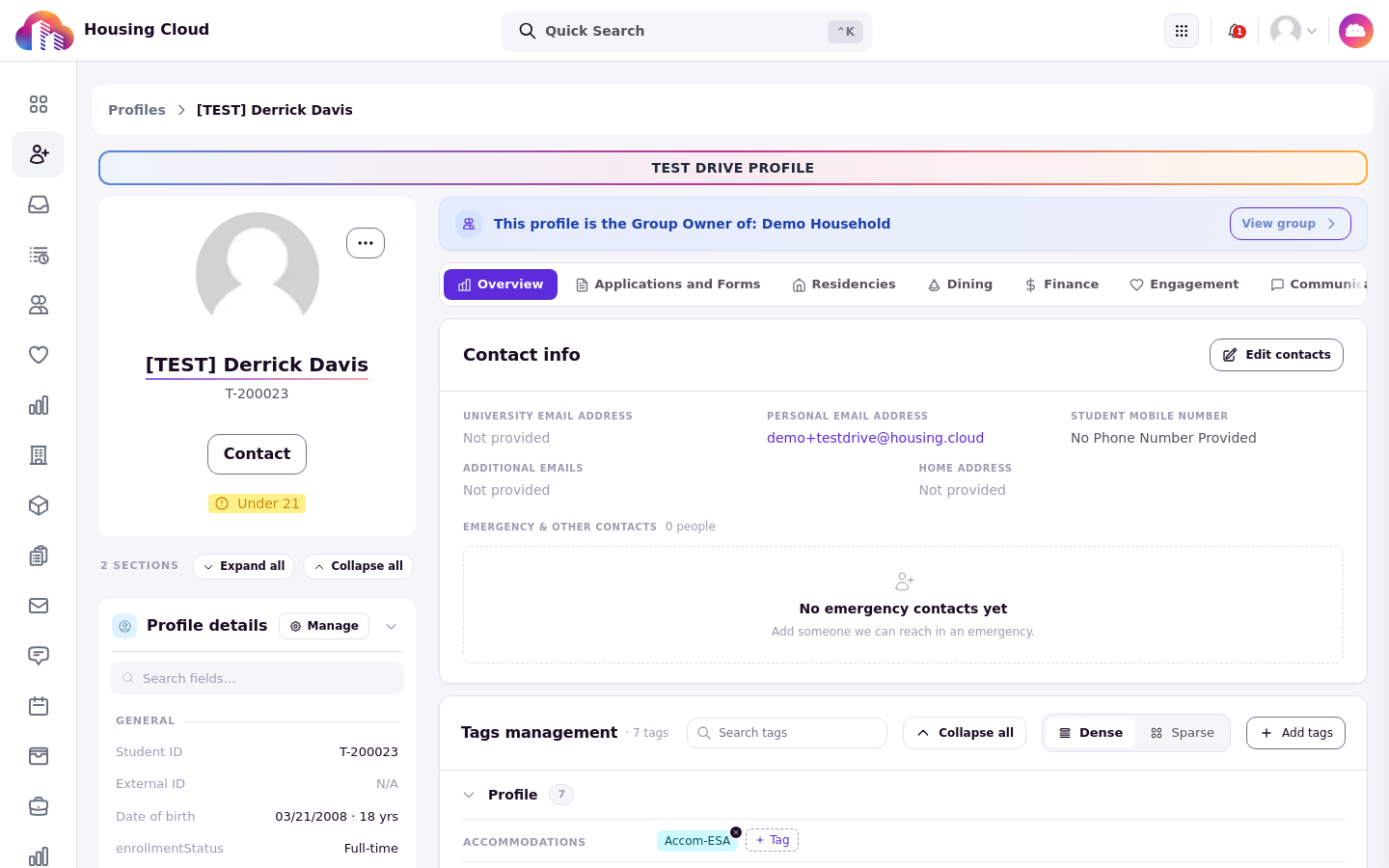
The profile of the group's owner shows the banner "This profile is the Group Owner of:" followed by the household name. The same banner appears on the owner's application review page and on their residency page. When the owner has one group, the banner includes a View group link to the household; with more than one group, it lists the group names without a link. It moves when ownership moves; see Change a Household Member's Role, Sign-in and Owner.
The dependent profile banner
A dependent's admin profile shows "This is a dependent profile" together with a line saying the account is managed by the primary resident. The banner identifies dependent accounts and the primary who manages them; see Add Dependent Profiles for how profiles become dependents.
The Dependent Groups card on an application
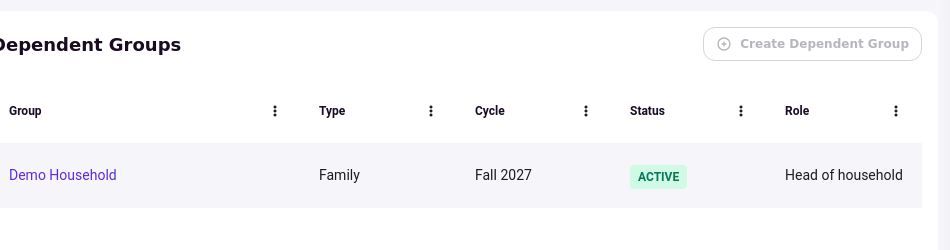
Application review shows a Dependent Groups card with Group, Type, Cycle, Status, and Role for the applicant's household. Create Dependent Group on the card is greyed out, with an explanation on hover, when the applicant already belongs to a dependent group in that cycle.
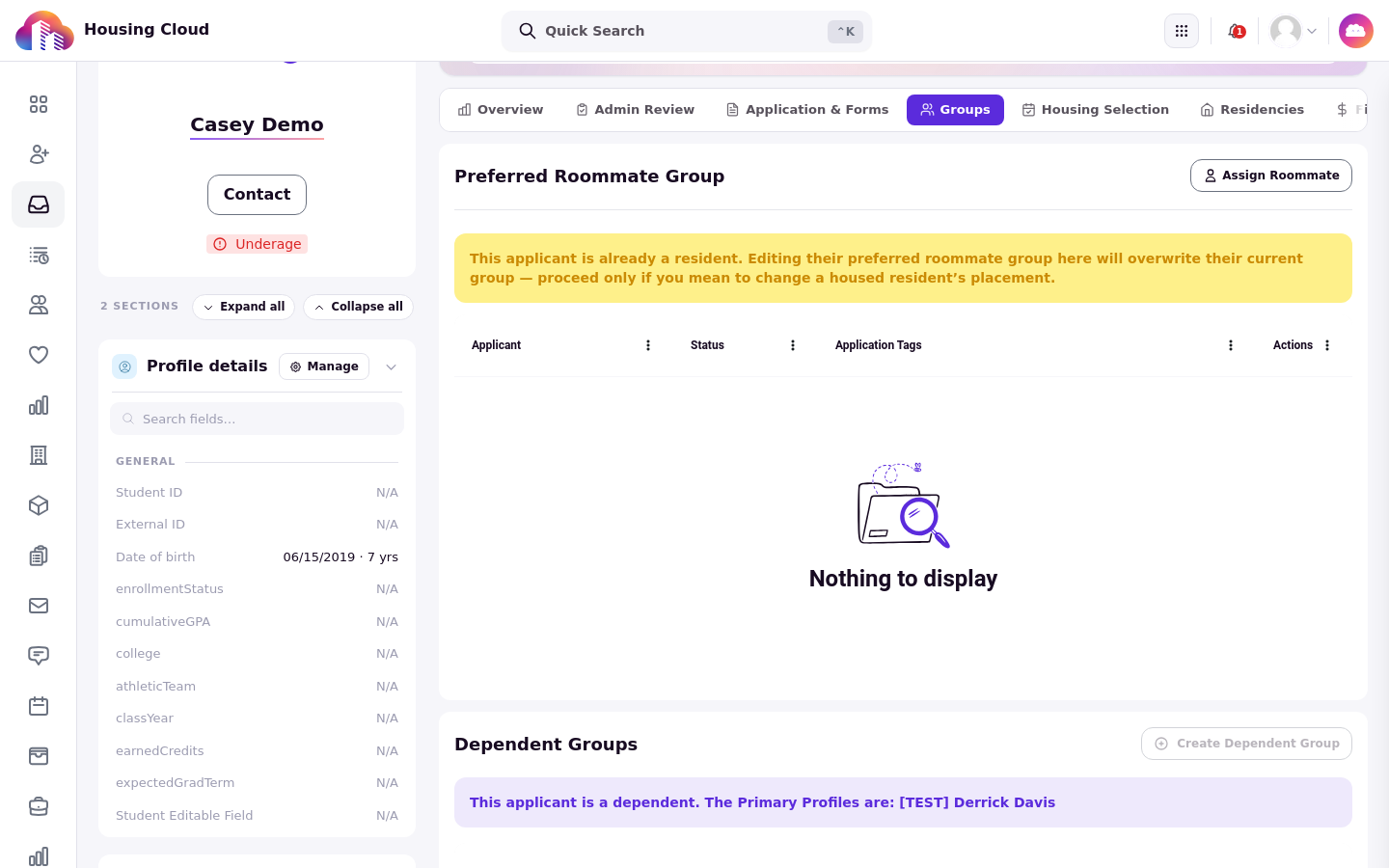
When the applicant is a dependent
When the applicant is themselves a dependent, the card shows a purple banner: "This applicant is a dependent. The Primary Profiles are:" followed by the primaries' names. Dependents usually get an application only when their household is assigned beds, so this banner typically appears after a household room assignment; see Assign a Household to Rooms.
The profile's Dependent groups card
The profile page carries a Dependent groups card with one row per household and the membership status, Active or Inactive, or "Not part of any dependent group" for profiles with no household.
Verify
Open a member's profile, application, or residency and check the badge or banner described above. After an ownership change, the banner appears on the new owner's pages and disappears from the previous owner's.