Add Dependent Profiles
Last updated: October 8, 2026
Three actions move a person into or out of the dependents population, all in the admin Profiles area: Add Dependent creates a new dependent profile from scratch, Convert to Dependent turns an existing full profile into a dependent, and Promote to Full Profile turns a dependent back into a full profile. Each path affects portal login differently, so the choice depends mainly on whether the person already has a profile in your community. Residents can also add dependents themselves on the My Household page; see Help Residents Use the My Household Page.
Before you start
All three actions require the same setup:
The Dependents feature is enabled for your instance.
Your account has the Create and manage dependent groups permission.
Add a new dependent
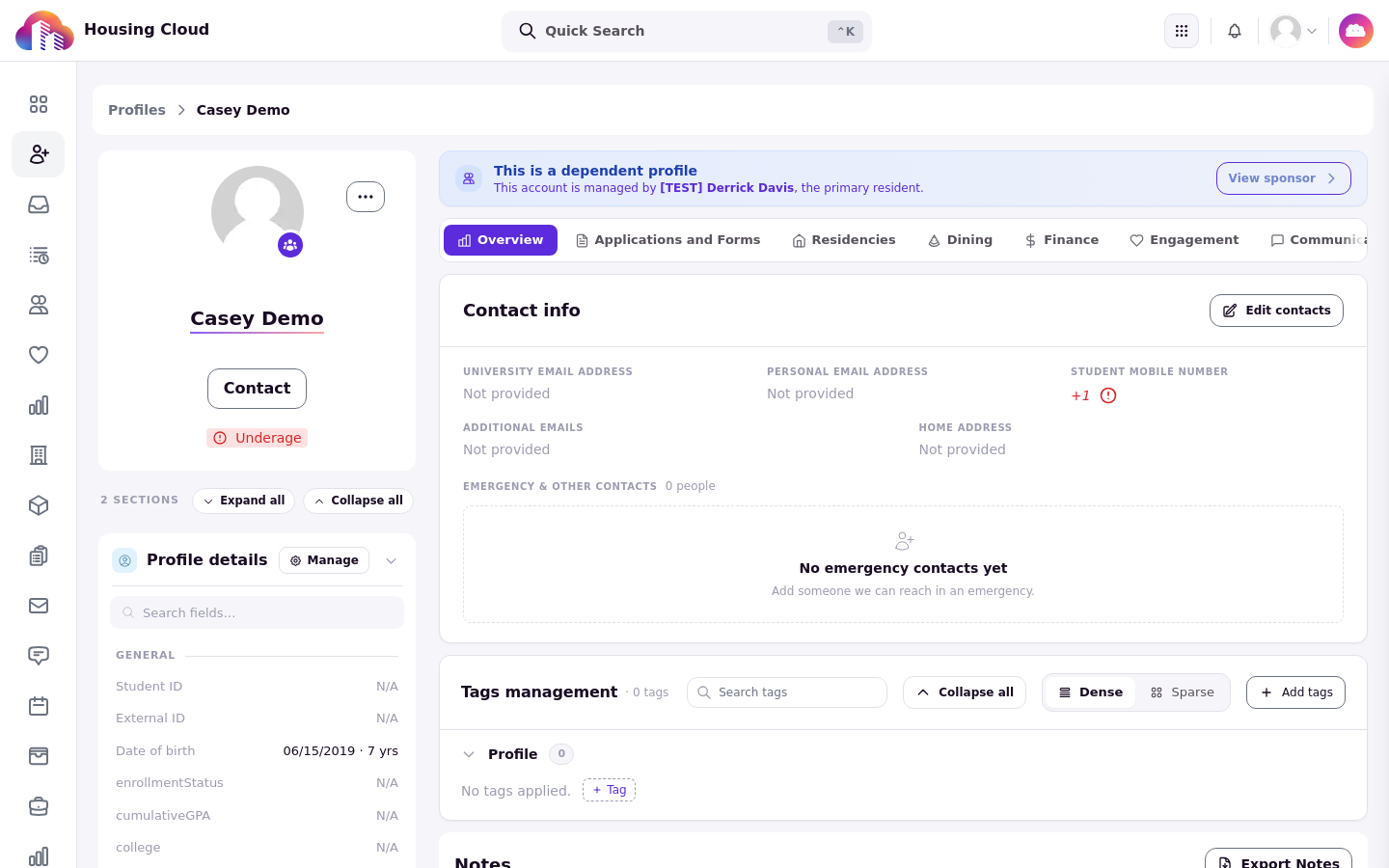
Use Add Dependent for a person who has no existing profile in your community. The new profile starts standalone: it is not seated in any dependent group, and it appears on the Dependents tab of the Profiles list.
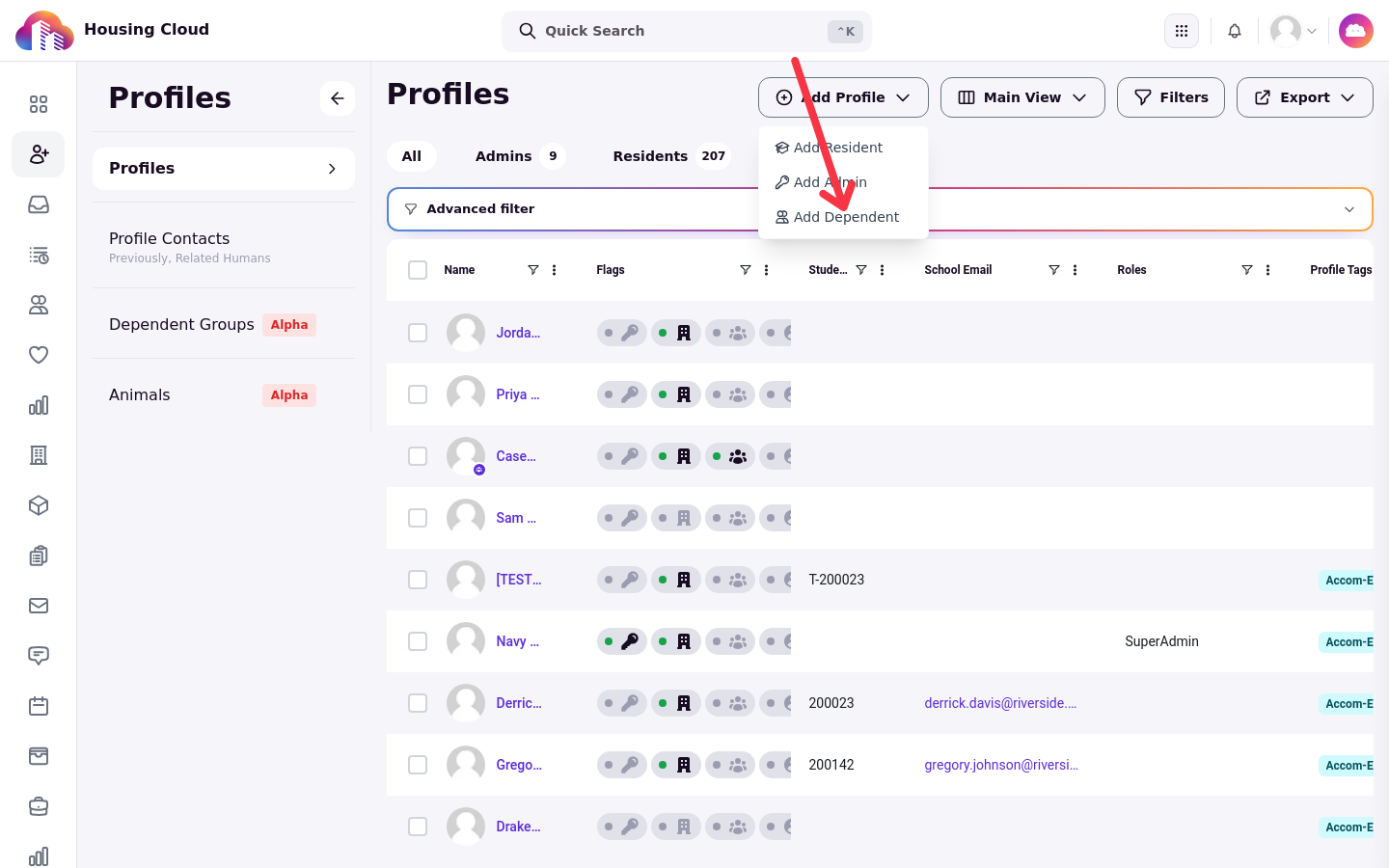
On the Profiles list, open the Add Profile menu and choose Add Dependent. The modal is titled Add New Dependent.
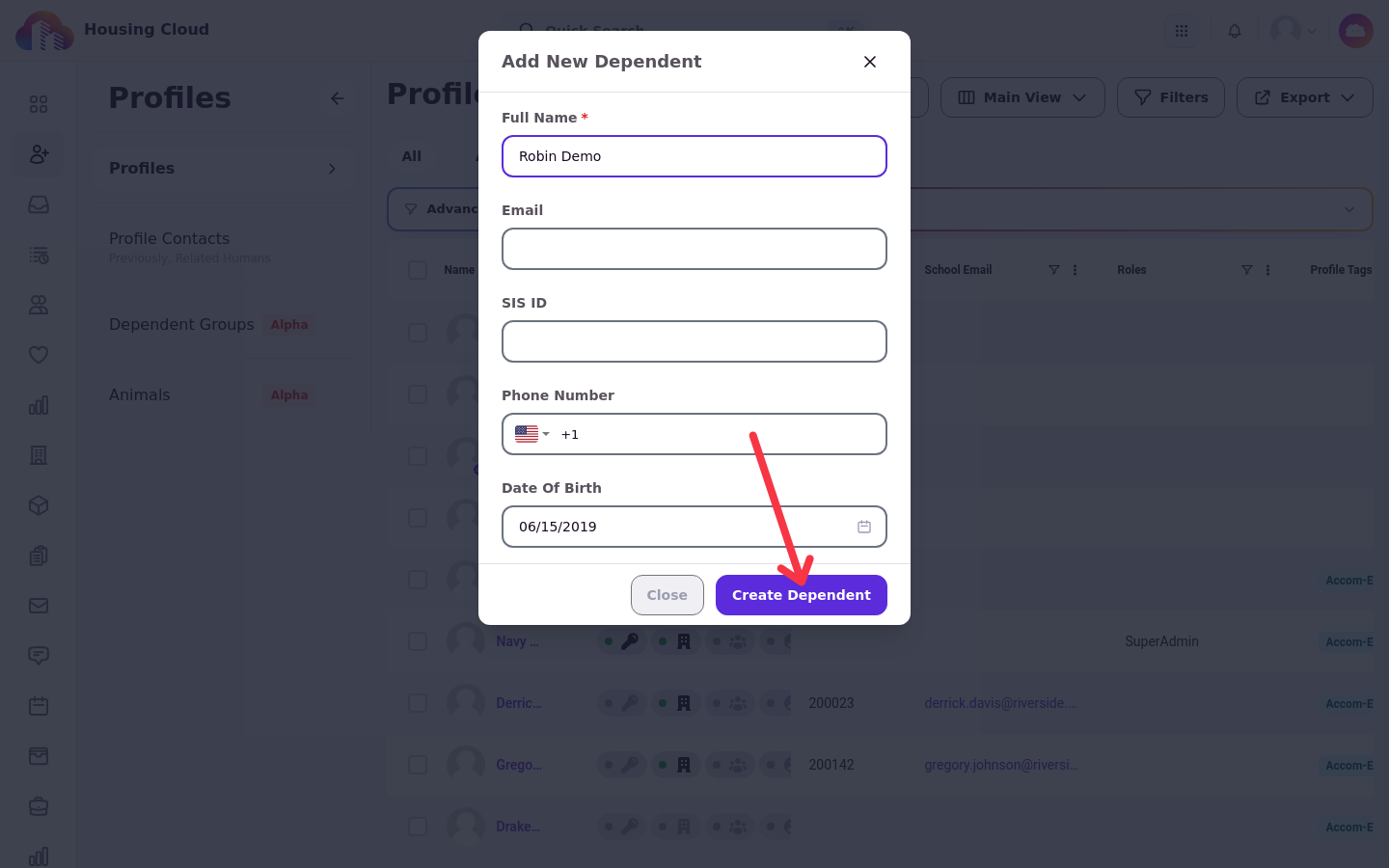
The form takes these fields:
Full Name, the only required field. Submitting without it shows Name is required.
Email, optional. If you enter one, it must be a valid address that no other profile already uses.
SIS ID, optional. If you enter one, it must be unique.
A phone number, optional.
Date of Birth, optional.
The admin-only Roles field does not appear on this form. A dependent can be created with neither an email nor a SIS ID. Select Create Dependent to save the profile.
Convert an existing profile to a dependent
Use Convert to Dependent when a person already has a full profile that should become a dependent instead. The action appears in the actions menu on the profile's details page only when the profile is not already a dependent.
The confirmation asks whether to convert the person, and explains two facts: you can add them to a dependent group afterwards, and portal login for dependents is granted through a group role. Seating dependents in groups is covered in Create and Manage a Dependent Group.
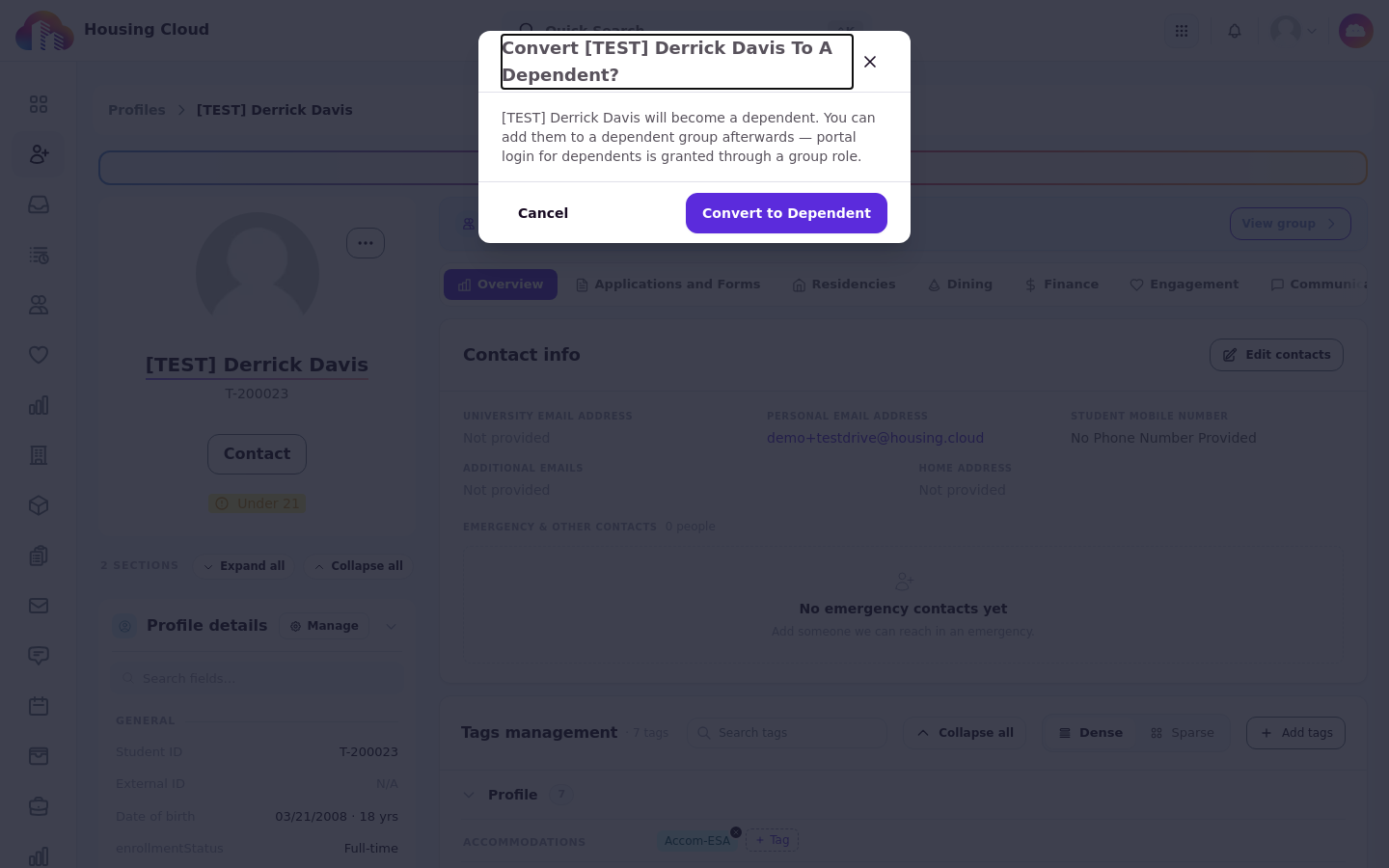
Converting sets the profile's dependent flag and turns dependent portal login off. It creates no dependent group assignment, and it does not remove an existing residency or roster entry. When you confirm, a toast confirms the change and a timeline event records the conversion.
Promote a dependent to a full profile
Use Promote to Full Profile when a dependent should become a full profile again. The action appears in the actions menu on the dependent's details page only when the profile is a dependent.
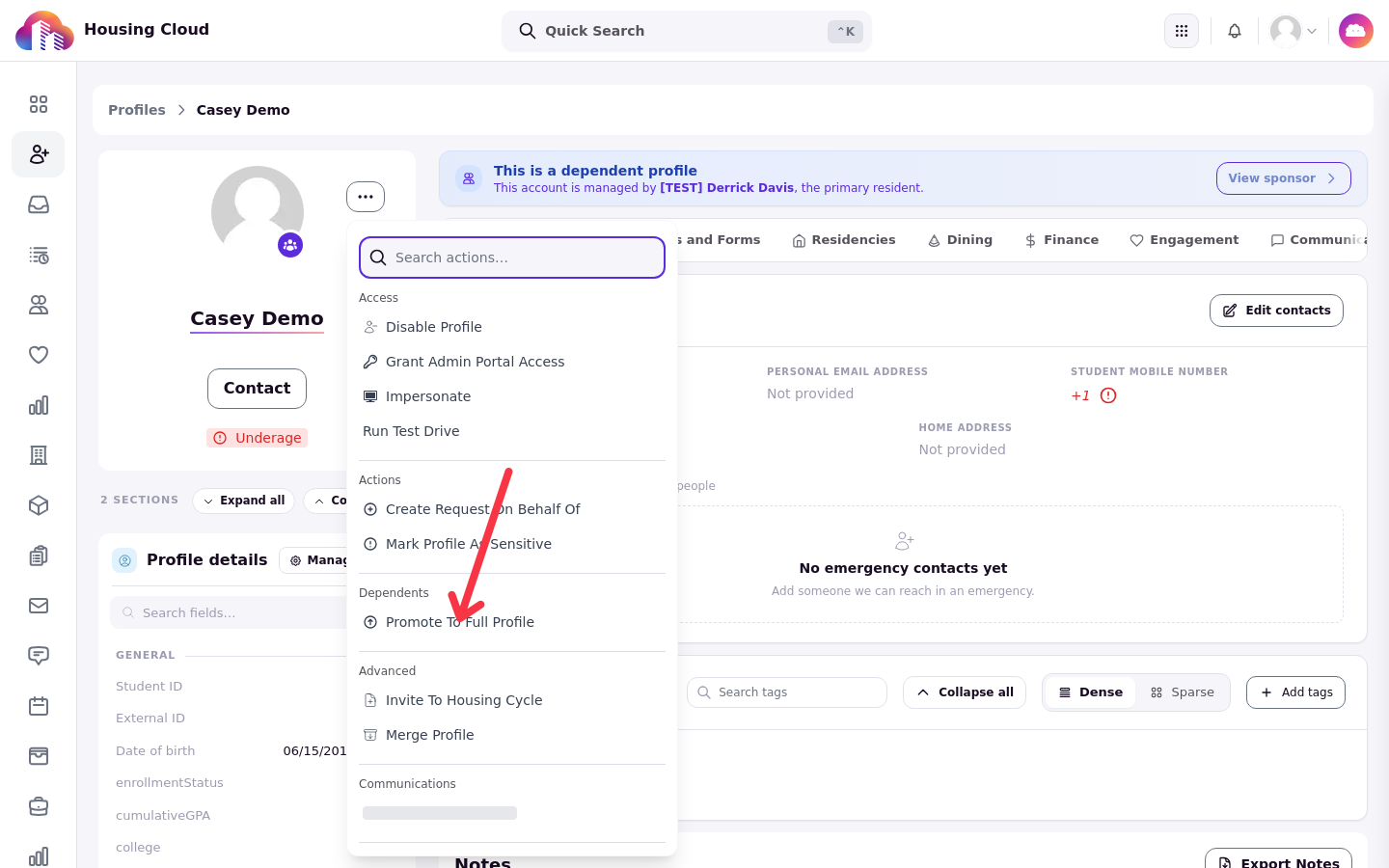
The confirmation states that the person will become a full profile and will no longer be a dependent. If the dependent belongs to one or more dependent groups, the confirmation instead states that promoting ends their dependent assignments and removes them from the affected groups, listed by group name and role.
Promotion ends every active dependent-type assignment across all groups, not only the group shown first. Each assignment is soft-ended with an end date, so assignment history is preserved. Primary-type assignments are untouched: if the person is a primary member of another group, promotion removes only their dependent roles.
Promotion requires an email. If the profile has no email on file, the dialog adds a required Email field, because a full profile must have one, and the address you enter is added to the profile. The promotion cannot complete until a valid email address is provided.
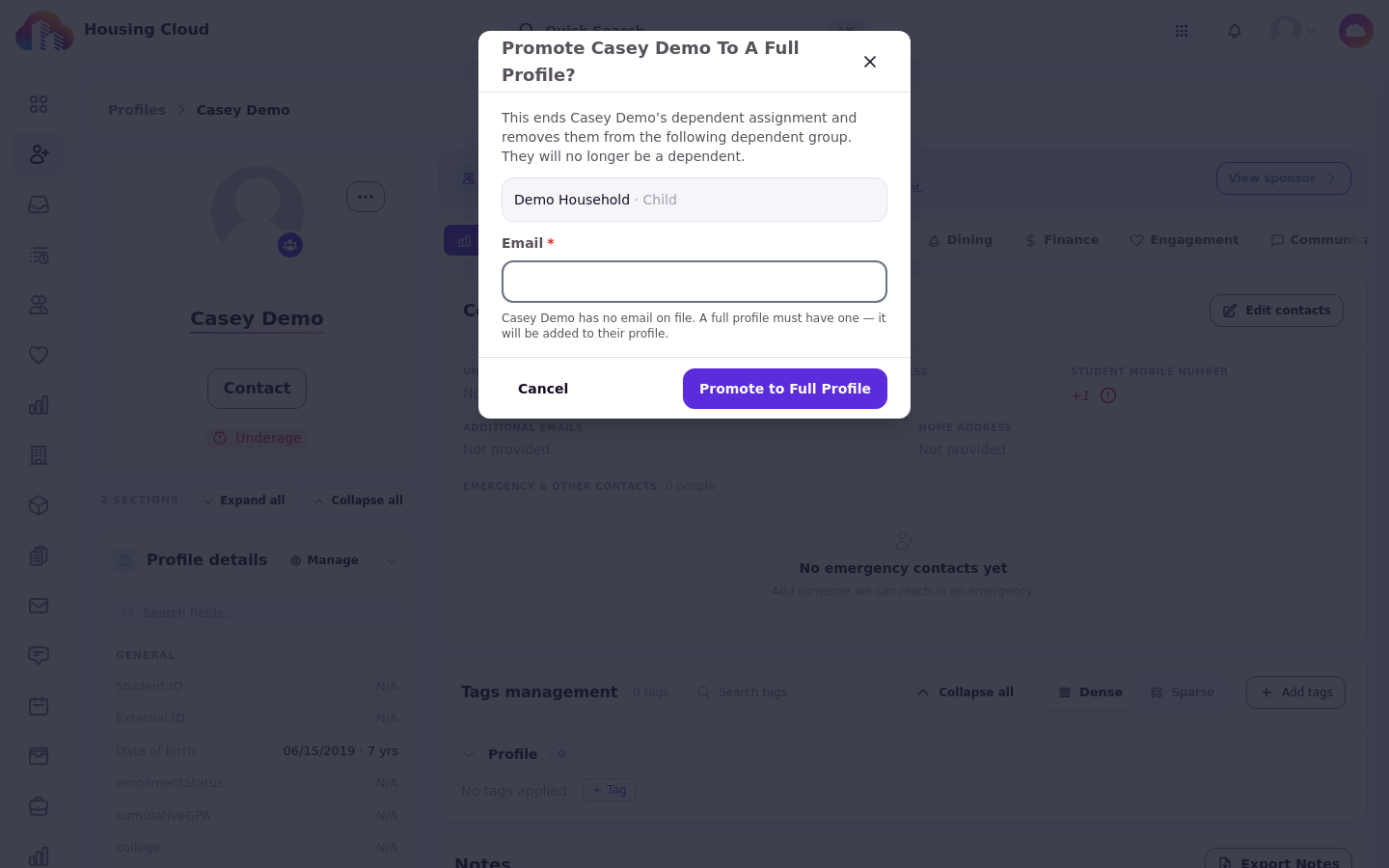
When you confirm, a toast confirms the promotion and a timeline event records it.
How each path affects portal login
The three paths change portal access differently, and those differences are the main reason to choose one over another.
A standalone dependent created with Add Dependent has no portal login of their own.
Converting a profile to a dependent turns dependent portal login off. Login returns only through a dependent group assignment that grants login access.
Promotion removes the dependent login block entirely, so the person is no longer gated by dependent login rules.
Verify
The Profiles area confirms the result of each action. A newly added dependent appears on the Dependents tab of the Profiles list. On a profile's details page, the actions menu shows Convert to Dependent for a full profile and Promote to Full Profile for a dependent, which confirms the profile's current classification. The profile's timeline records each conversion and promotion, including the dependent groups a promotion ended.