How To Reconfigure a Room
Last updated: October 5, 2026
Rooms are set up when institutions configure the initial inventory on Housing.Cloud, including the number of beds based on room type. To change the setup, like adding or removing beds, you can update it anytime. Follow this article to reconfigure a room:
Steps To Add a New Bed
Note: Before reconfiguring, ensure the bed you want to move to the room exists (search by bed ID in the inventory). If not, create a new bed.
1. Click Inventory on the navigation panel and click Rooms to see a list of rooms and the associated details.

On the Rooms screen, you have these details: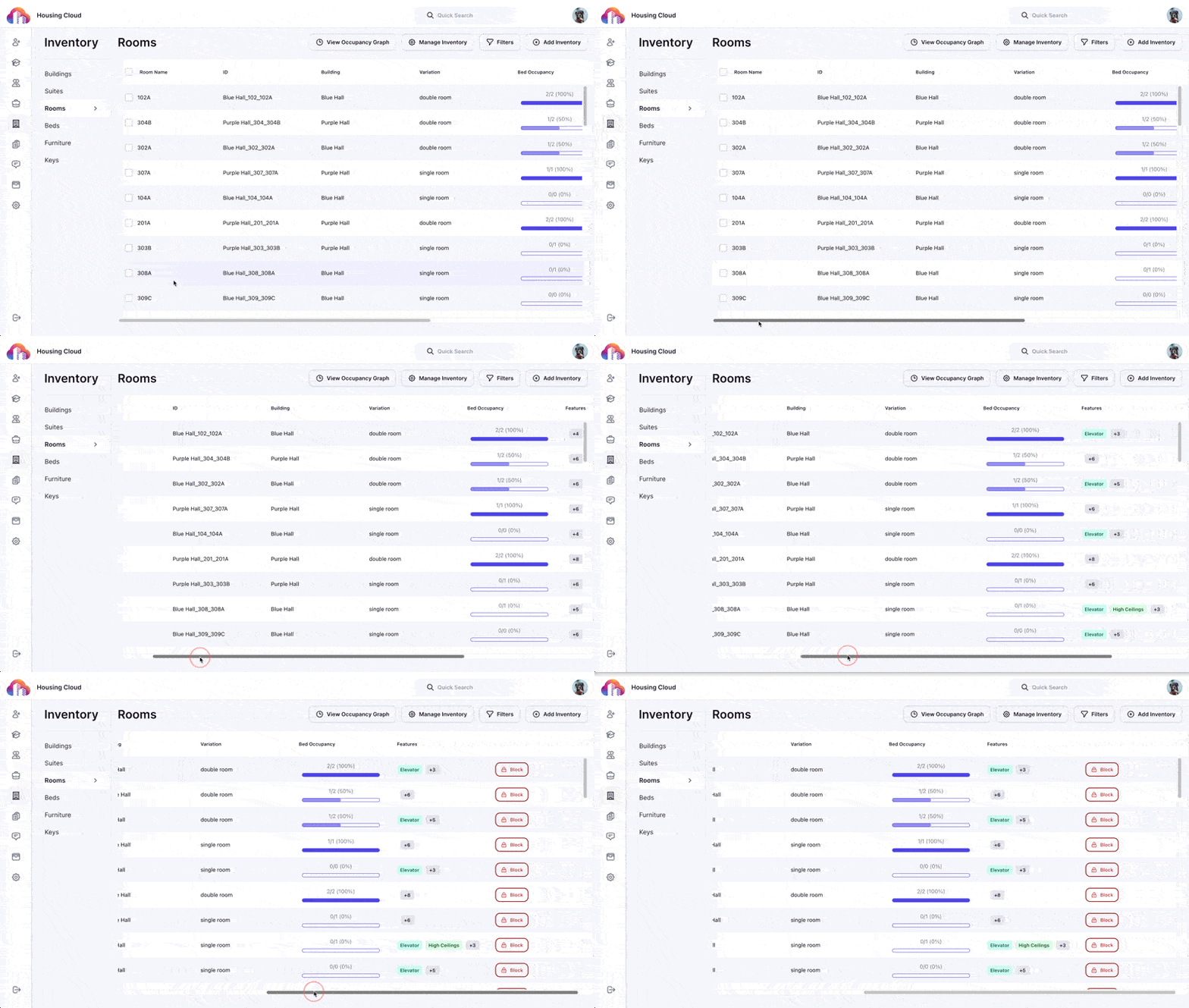

- Room name
- Room ID
- Building
- Variation (could be single or double)
- Bed Occupancy (could be 1 or 2 depending on the room type). Indicates the bed availability. For example, 0% means all beds are available.
- Features (room features)
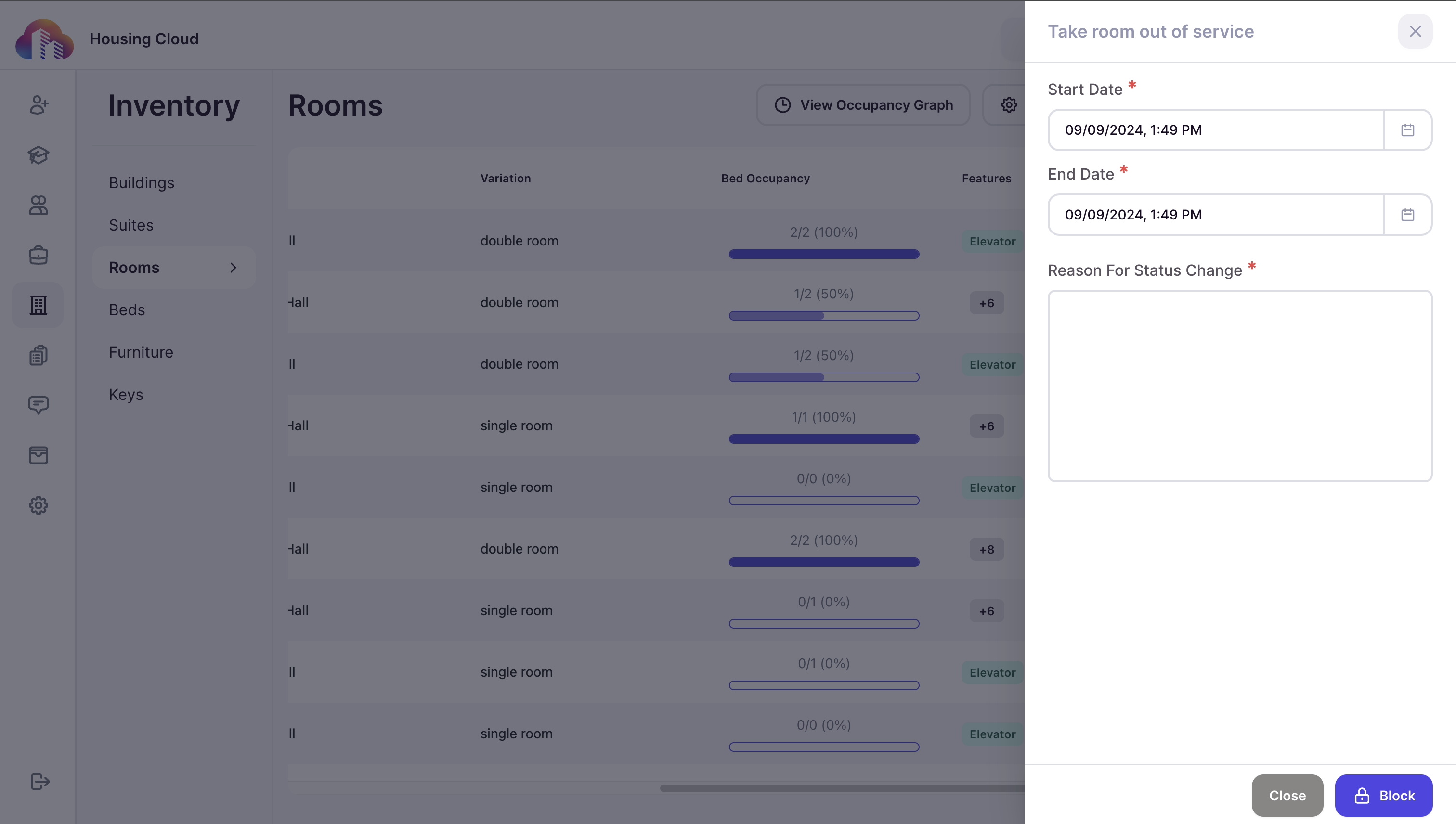
There is also a Block option to block the room from booking in cases of out-of-service or if you want to reserve it for someone. Exercise caution while doing any of this because the room won't be accessible for booking anymore.
After choosing the reason for blocking, you need to also specify the duration of the block and the reason for it in the right menu panel.
2. In the rooms list, click on the room in question.

3. Scroll down to find the Beds card or click on Beds.

4. Click on the Move Bed Into Room search bar and search for the bed ID you want to add to this room. The search results will show up as you start typing. Choose the appropriate bed from the dropdown.


5. Click the Reassign button.

6. You can now see that the room has been updated with a new bed.

7. If you do not see the Move Bed Into Room option, it is because:
- You do not have access to move a bed. Or
- The maximum bed occupancy of the room is met (you can also configure a single room to double and then move the bed in this case - Learn how).
Steps To Remove a Bed
You can remove a bed(s) from a room. Here's how:
1. Navigate to the room from which you want to remove beds.

2. Click Move Bed to Room to move the bed to another room.

3. Choose the building and room from the dropdown.

4. Click on the Assign button to assign the bed to a new room.

Note - Room assignment will be successful only if the room has the capacity for a bed. For example, you will get an error if you're trying to move a bed into a fully occupied double room.