The Task Page: Every Panel and Field
Last updated: October 8, 2026
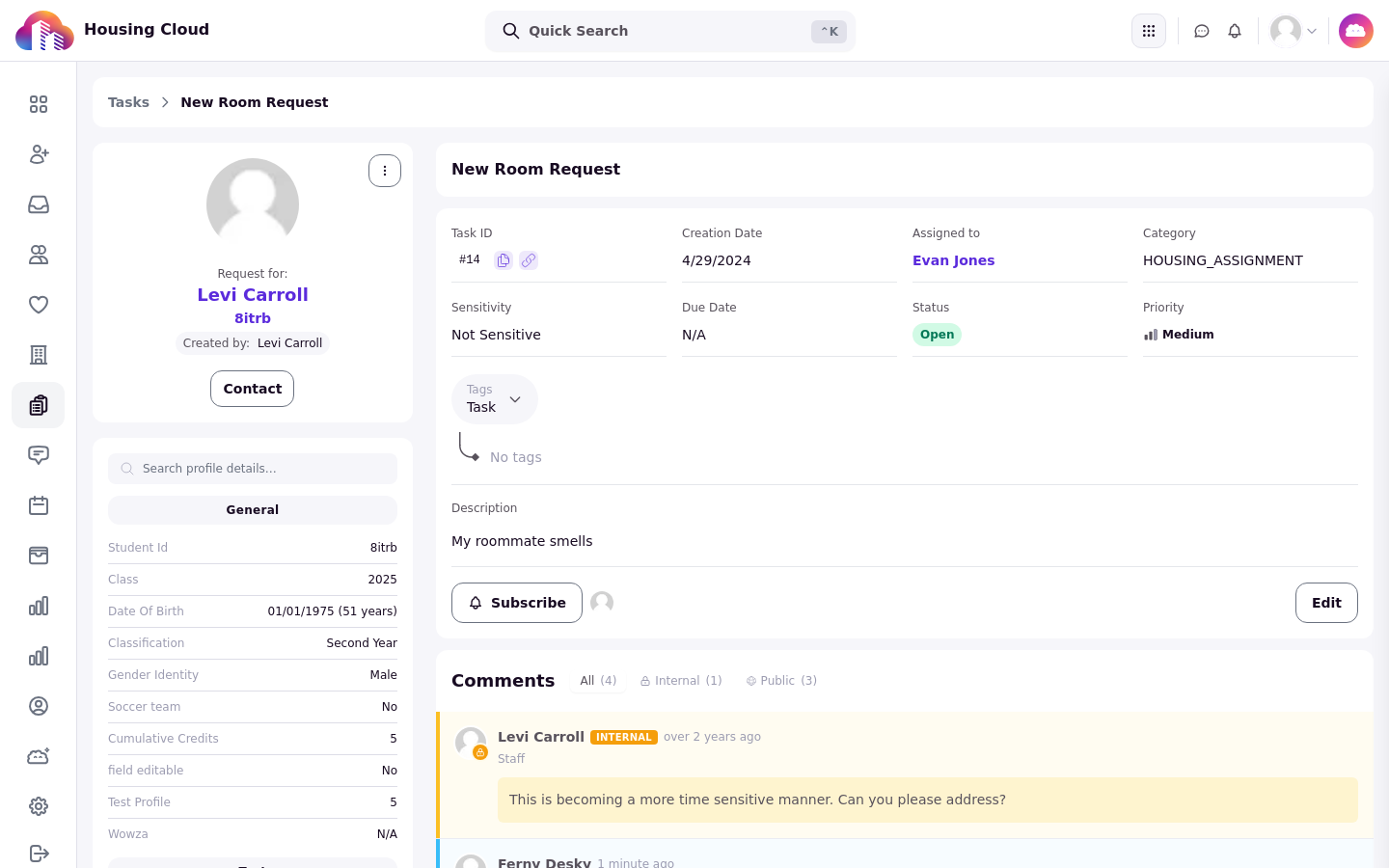
Every task in the admin portal opens on one page that holds the whole record: the header with its ID and edit history, the details card you edit in place, the resident's form answers, any linked records, the requester's profile and residency, subscribers, and the comment thread.
Before you start
Opening a task needs Read access to tasks. Parts of the page need more: editing the details card, subscribing and the subscriber windows need Edit tasks, the approval buttons need Approve or reject tasks, and a sensitive task is visible only to staff with Read access to sensitive tasks.
Opening a task
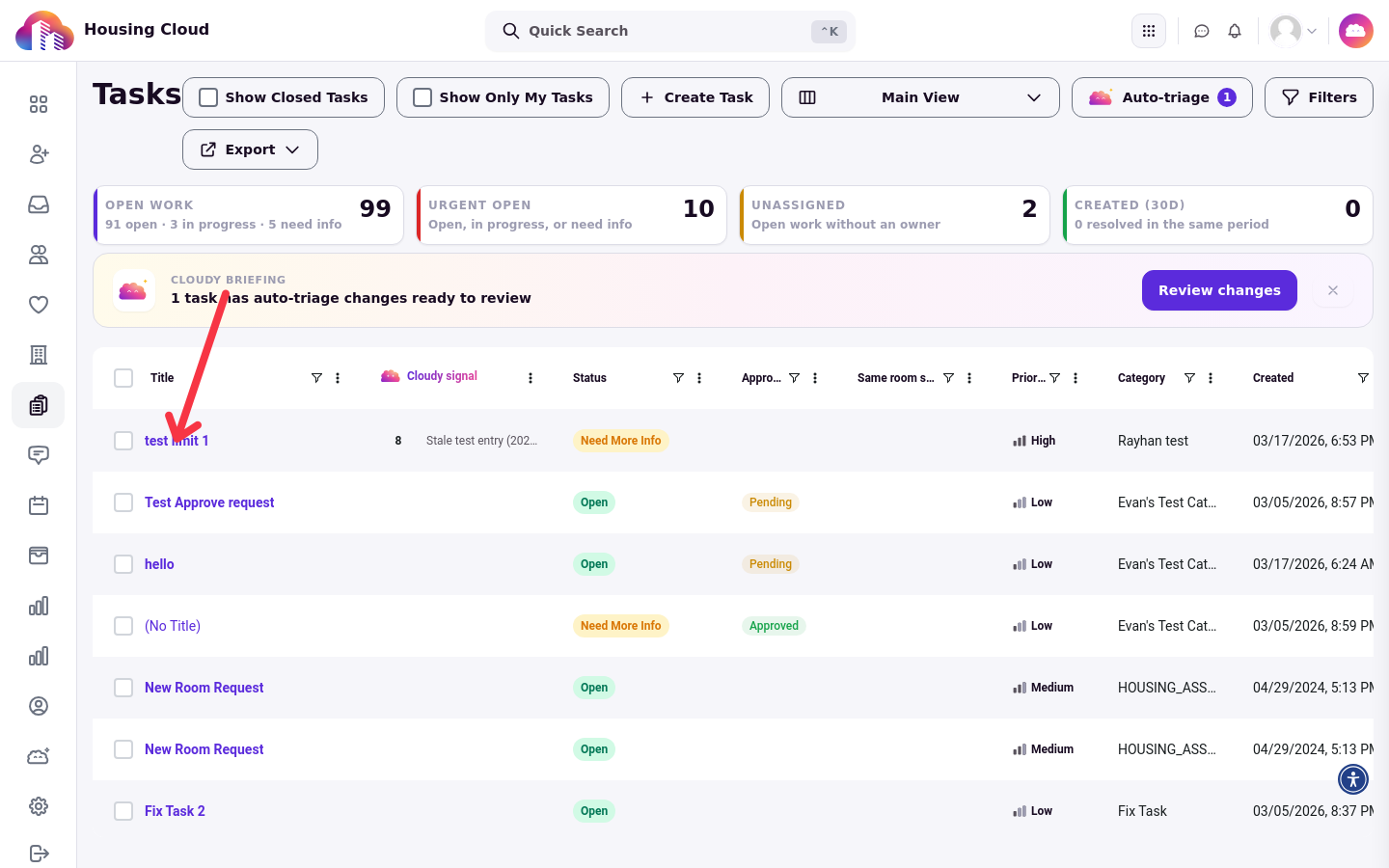
Open a task from the queue under Support → Tasks, or from the link in any task email. Either way you land on the task's own page; Copy task link in the Task ID row of the details card gives you its address.
The header
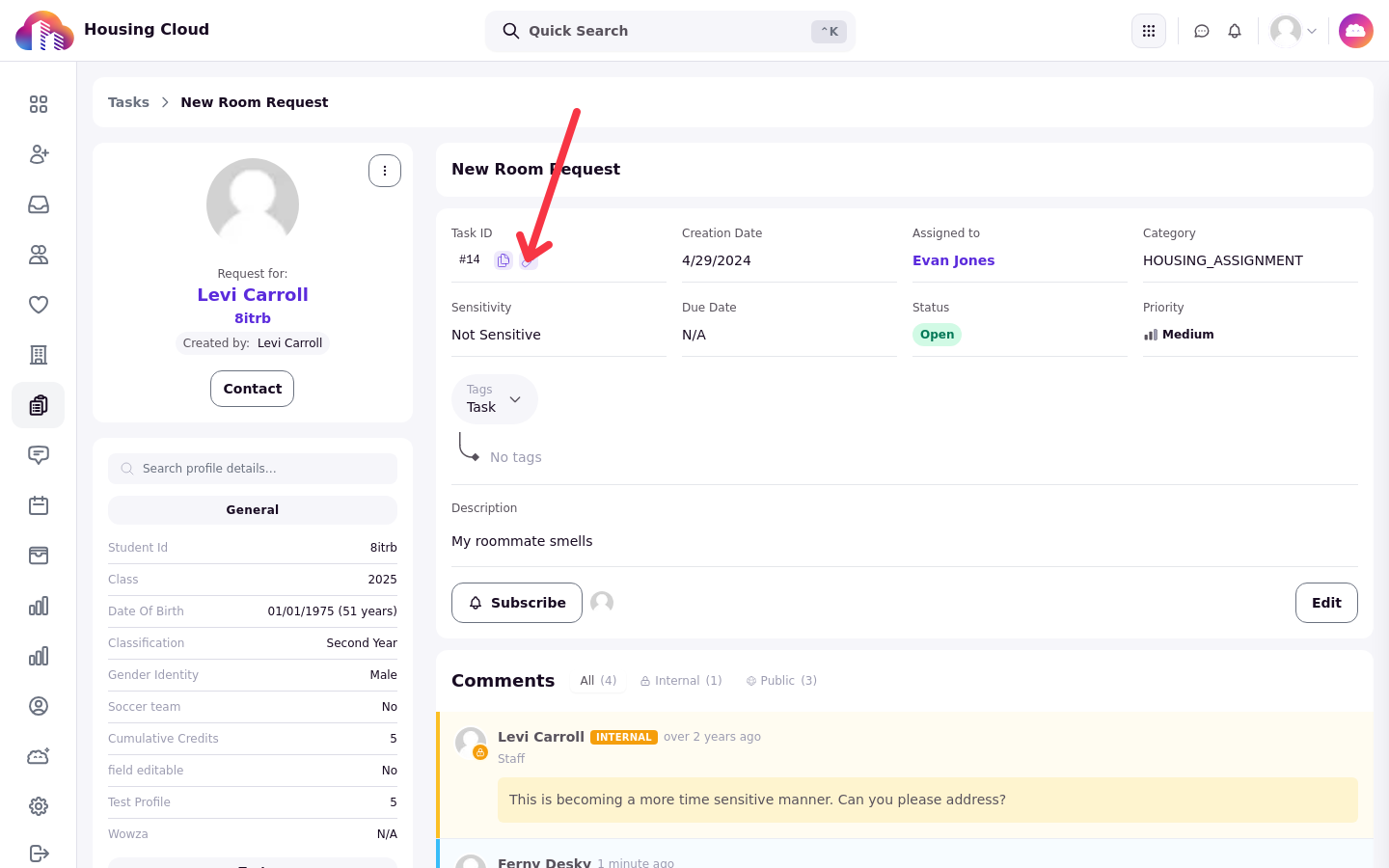
The header shows the task title, plus a sensitive marker when the task is sensitive. The Task ID row carries two copy buttons: Copy task ID copies the task's number and Copy task link copies the address of this page, each with a confirmation once copied.
Previous task and Next task appear only when you came from reviewing several selected tasks in the queue, with a counter of your position in that run between them. The first and last task in the run disable their button.
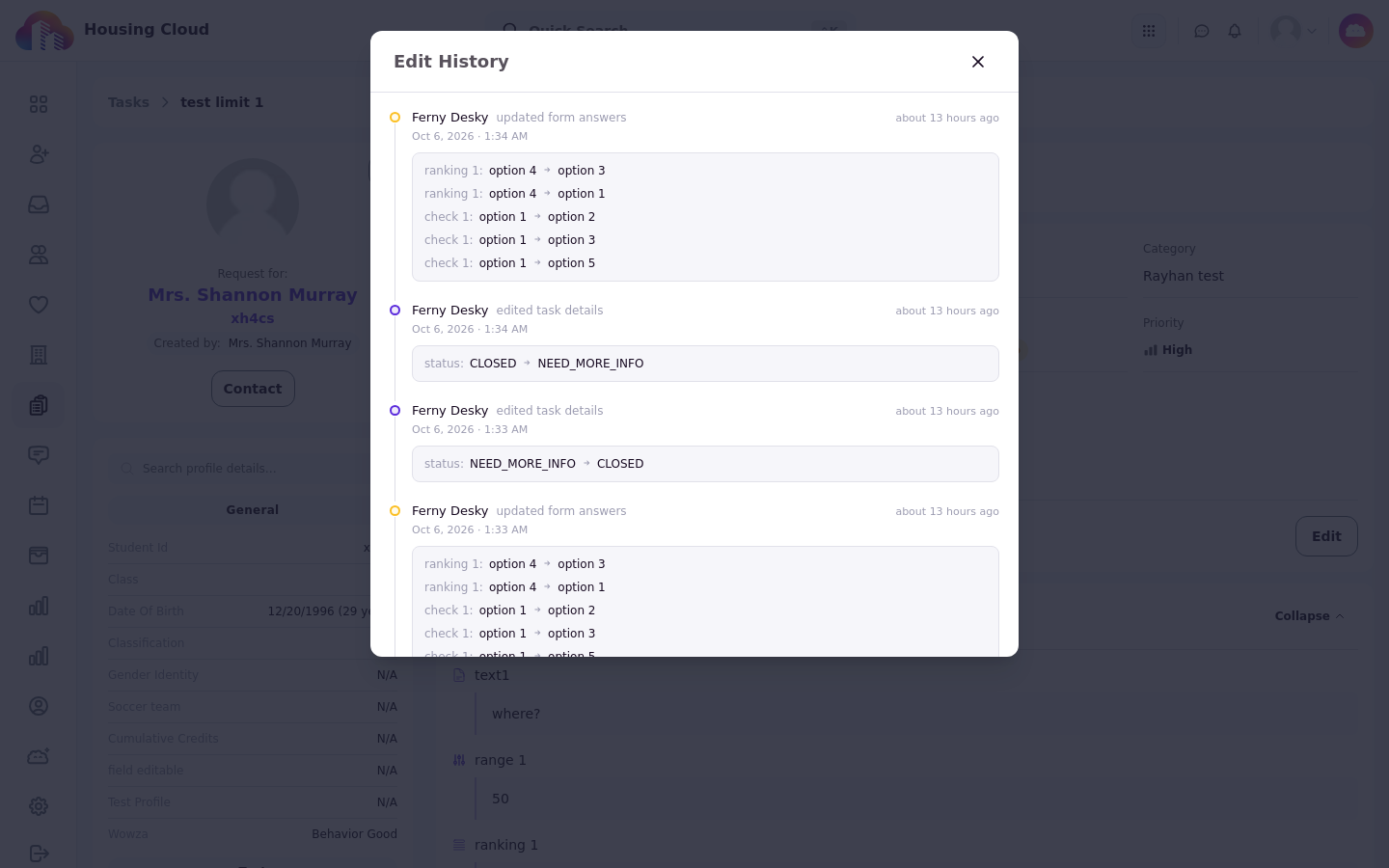
Beside the title, the Last edited by line names the last editor and how long ago they worked on the task. Clicking it opens Edit History.
Edit History
Edit History records every change to the task: who made it, when, and which fields or form answers changed. A task nobody has edited yet shows "No edits yet". Your own saved changes appear on the page immediately, and Edit History is where you check later who changed what.
Approval and the rating card
On a request type that needs sign-off, staff with Approve or reject tasks see Approve and Reject at the top of the task. Approving asks for confirmation and cannot be undone. After a decision, the buttons are replaced by an Approved or Rejected pill, and a rejected task shows a Request Rejected banner with the reason the requester received.
The Status row in the details card also shows the approval state as a Pending, Approved or Rejected pill. The Pending pill is hidden once the task is Closed or Cancelled.
Once the resident has rated the task, a Resident satisfaction card appears with the score. Ratings, the resident's side and the rating dashboard are covered in the Help Center, Requests and Satisfaction articles.
The details card
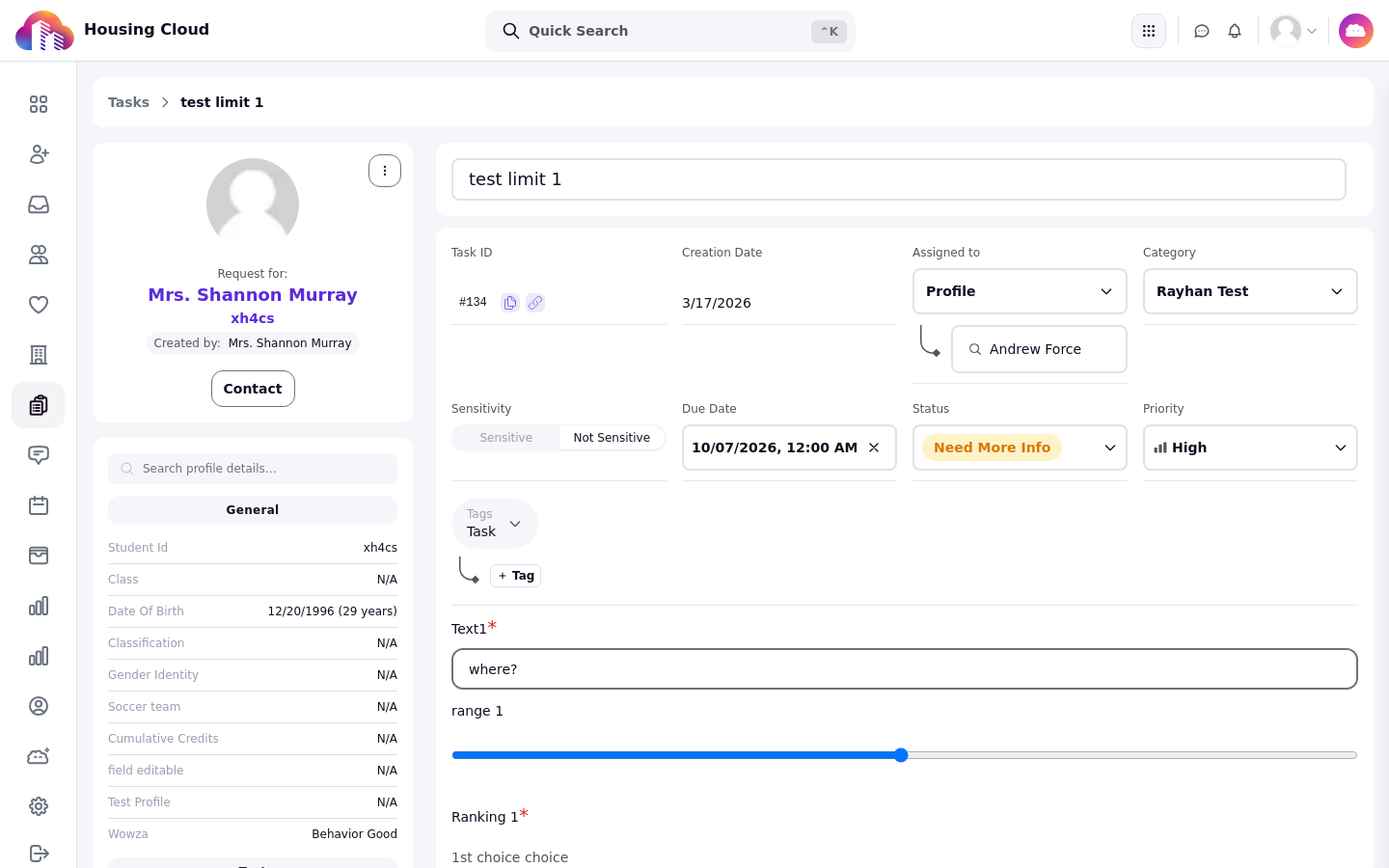
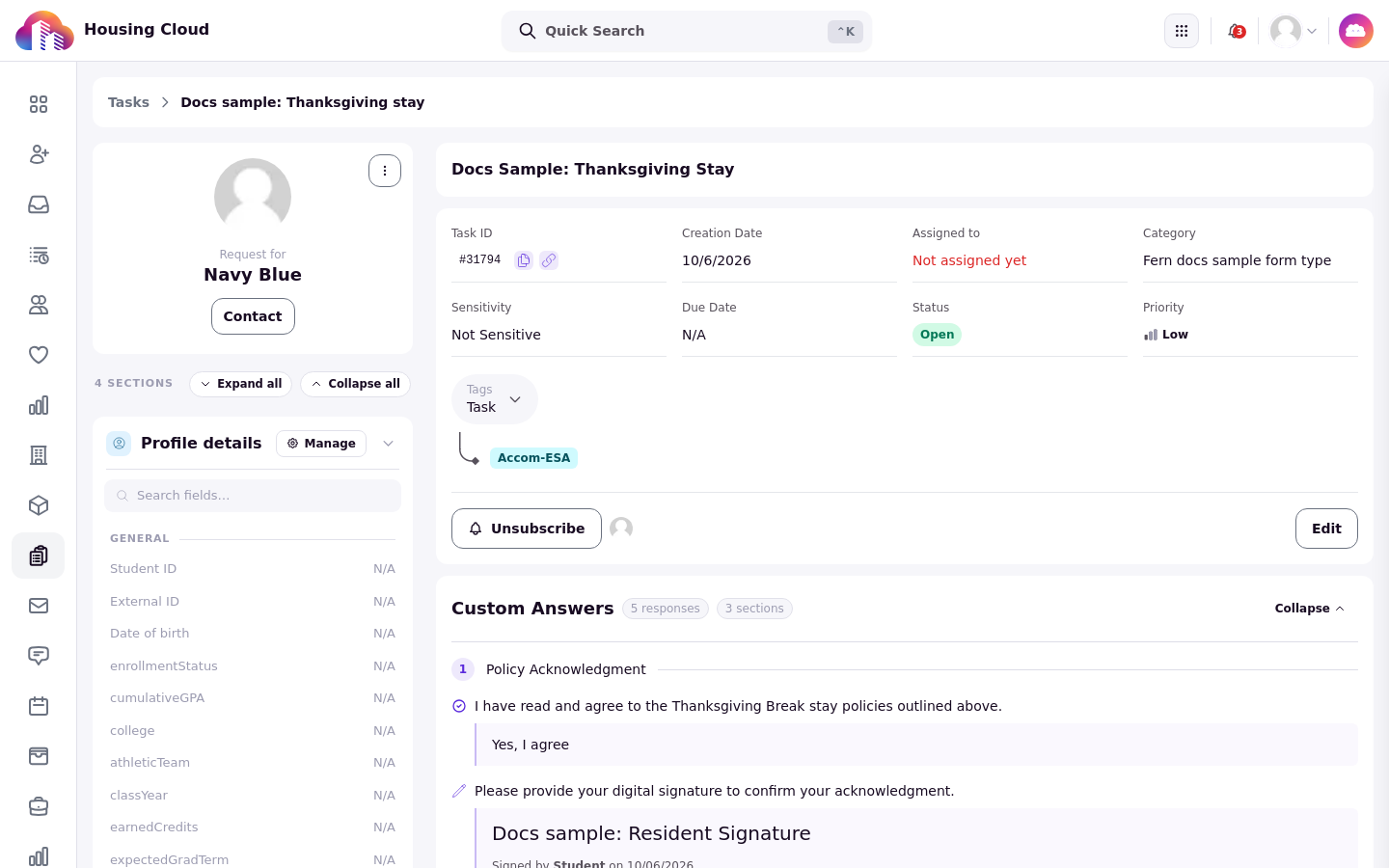
The details card holds the task's core fields: Creation Date, Assigned to, Category, Due Date, Status, Priority, Sensitivity, Tags (with Edit tags) and Description. Clicking Edit puts the whole card in edit mode.
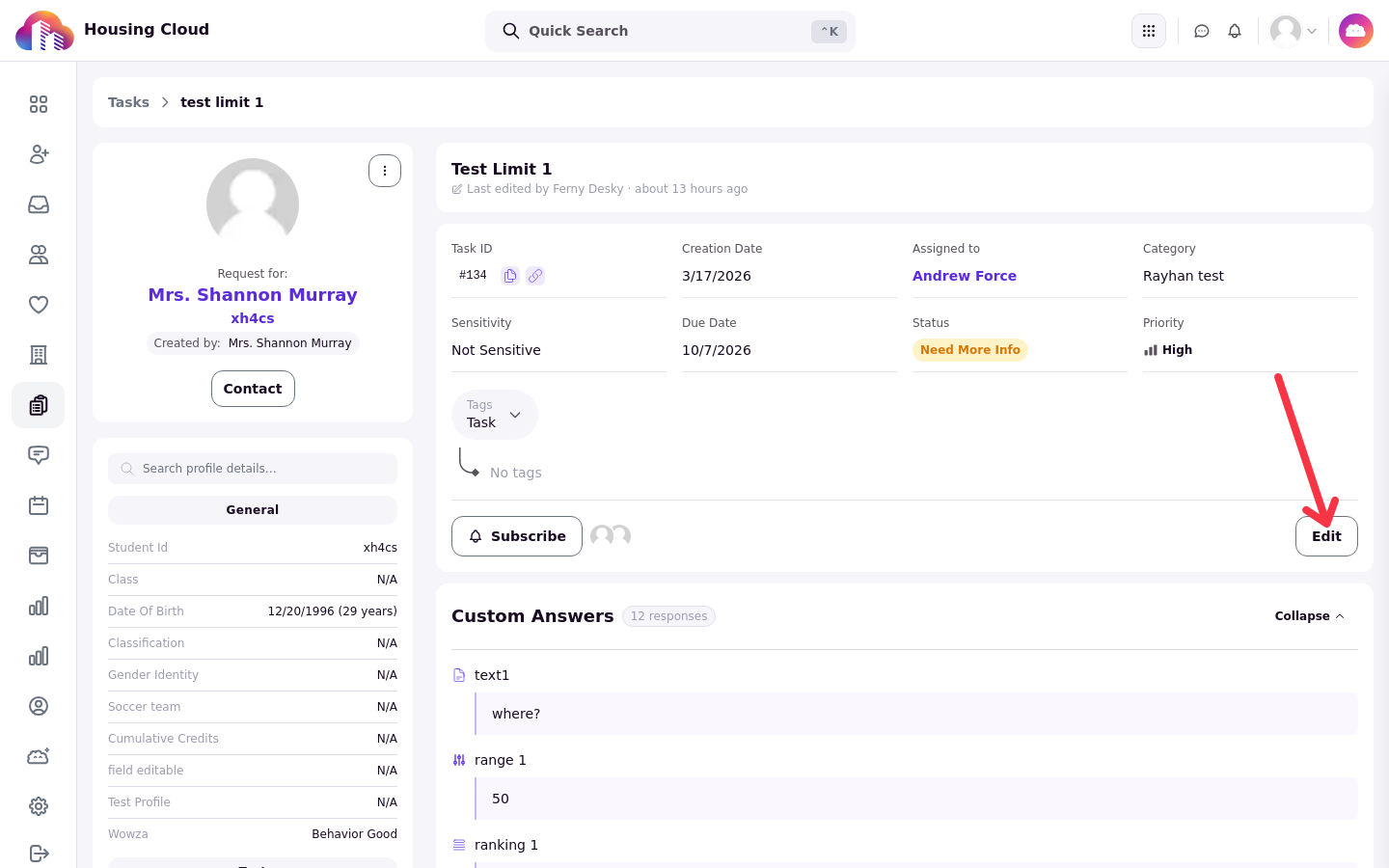
Save keeps your changes, or click Cancel to leave without saving them. Discard & Continue appears only when you use Previous task or Next task with unsaved changes: it discards the edits and moves to the next task.
Custom Answers
The Custom Answers card shows the request type's questions and the resident's answers and files, with a count such as "3 responses". It can be expanded or collapsed. A request type without a form shows no answers card.
Linked records
When the task came from another part of Housing Cloud, a card above or below the details shows the record it came from:
Related Condition Report for a task raised from a room condition report, with the report's ID, date, room, building and who submitted and reviewed it
A room swap summary with From and To residencies for a swap task
A room re-selection summary showing the selection outcome or roster
Escalated from check-in or Escalated from interaction for a task an RA escalation created
Related SMS History for a request filed from a text conversation, with Open Chat for the full conversation
A task with no linked record shows none of these cards.
The left column
The Request for card shows the resident the task is about, with a Profile actions menu: View Profile, Send Message, Impersonate and further items depending on your permissions. When someone filed the request for the resident, the card also shows Created by with the filer's name.
The Residency card lists the resident's Building and Room, plus Suite, Room variation, Student staff and Status when they apply, with a View residency link to the full record.
The Images panel collects every image on the task, from the form answers and the comments alike, and shows a file count. With no images it reads "No images added".
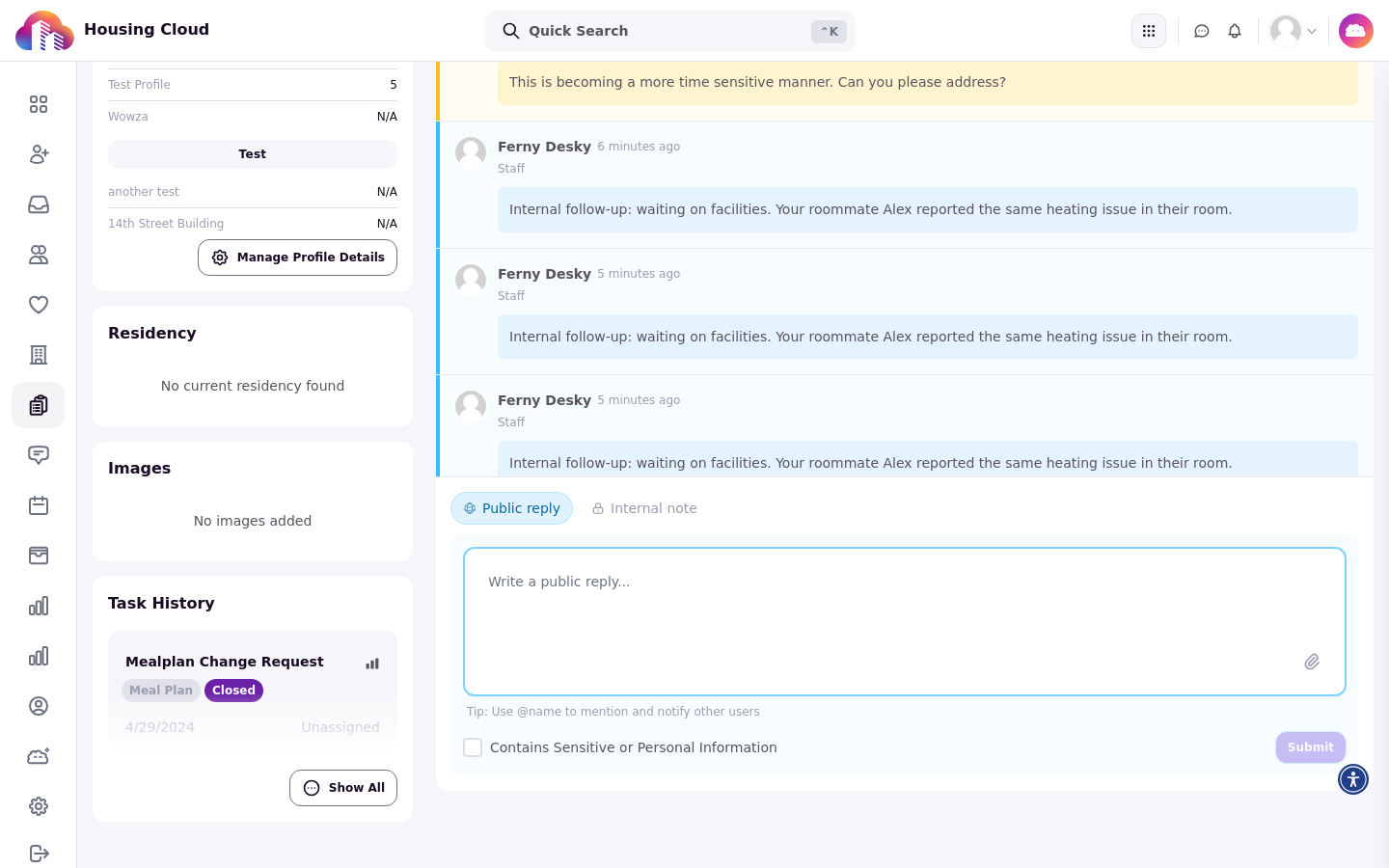
Task history lists the other requests this person has filed, each with its category, assignee, status and date. It is not a change log for this task; that record is Edit History.
Subscribers
Subscribe and Unsubscribe add or remove you, and need Edit tasks.
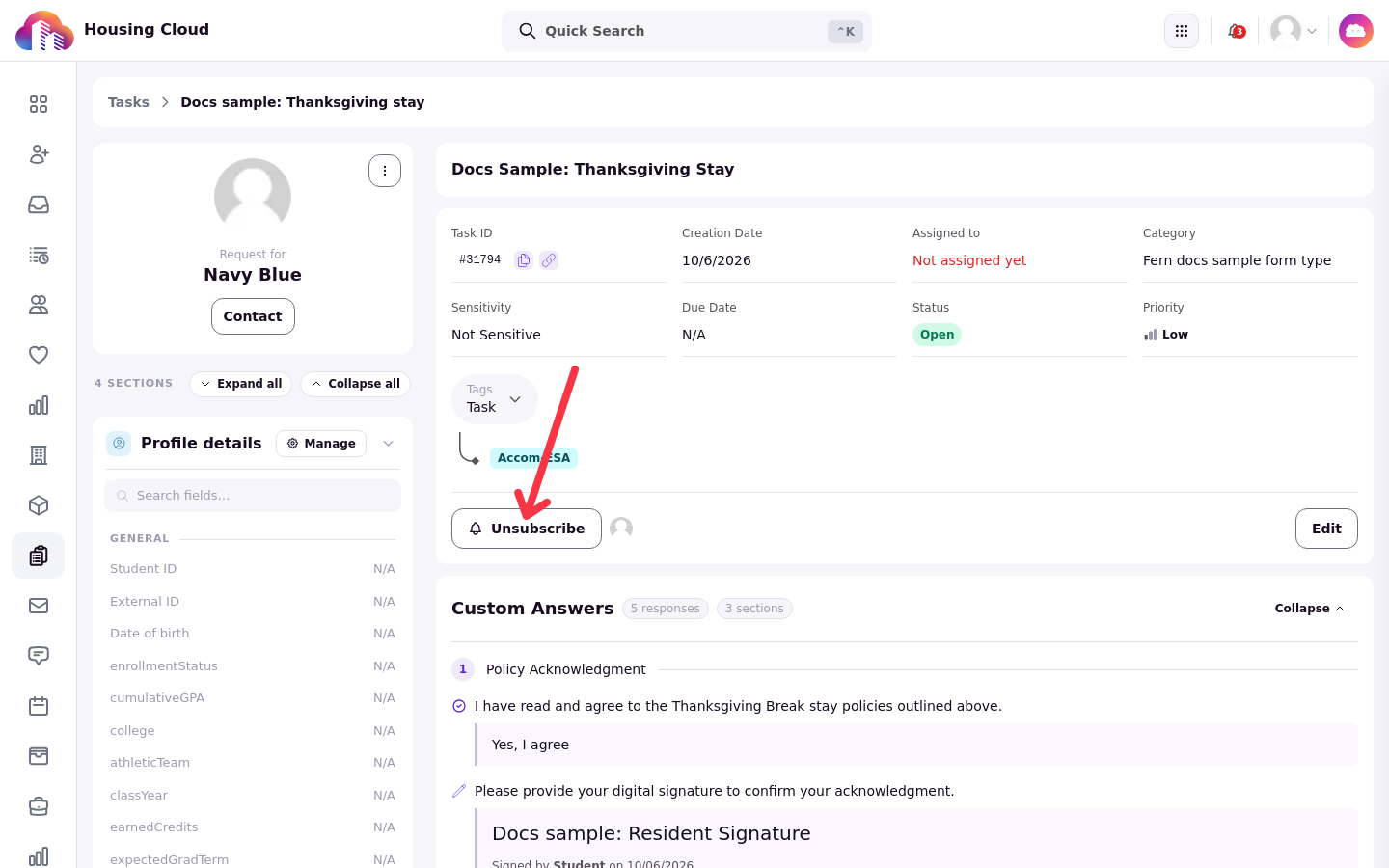
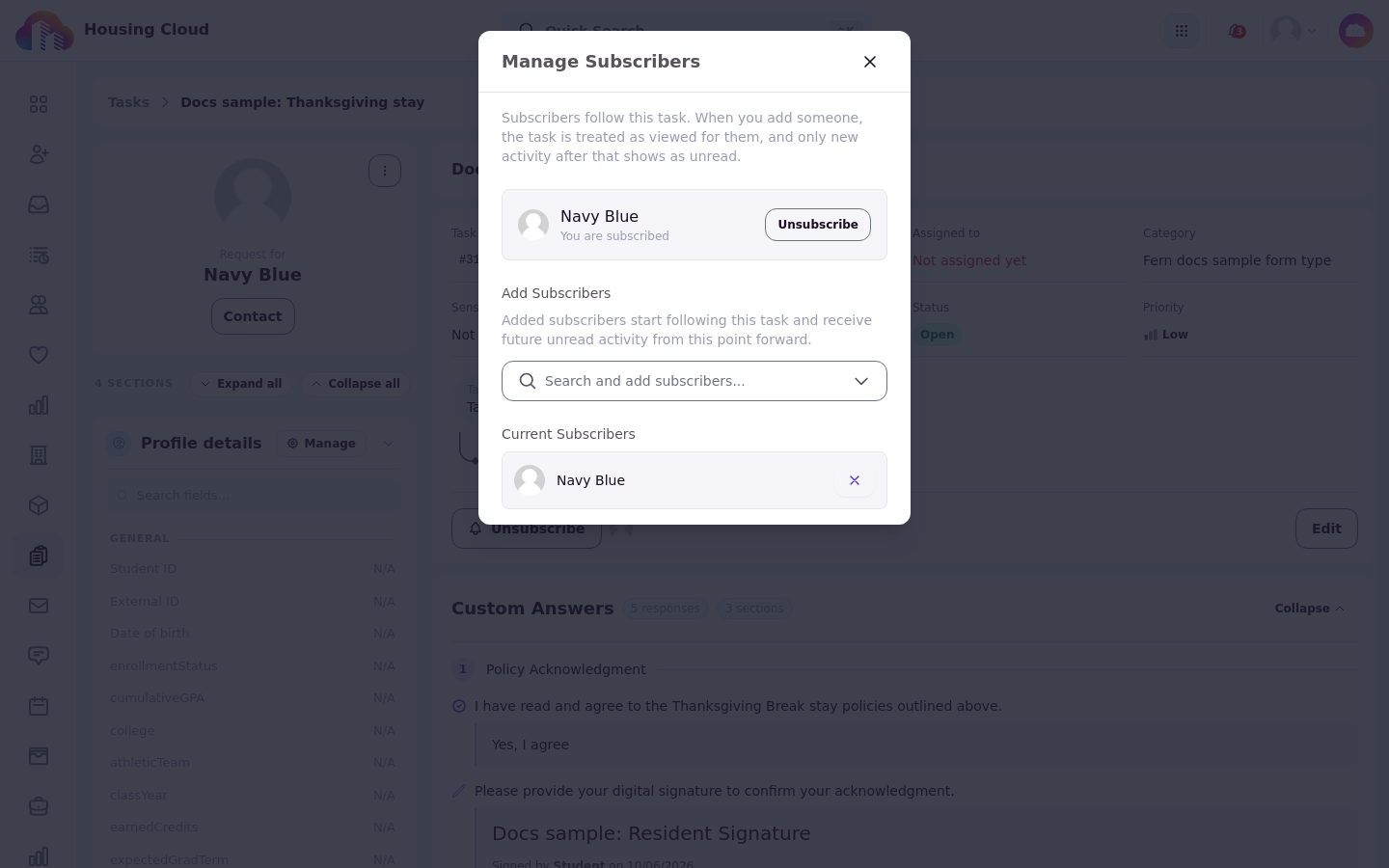
The avatar button beside them opens the subscriber window: it is titled Manage Subscribers with Edit tasks, and View Subscribers without it. Inside, your own state reads You are subscribed or You are not subscribed, and the Add Subscribers section searches with "Search and add subscribers...".
Who is subscribed automatically and what subscribers receive is covered in Subscribers: Follow a Task and Add Others.
Comments
The Comments section sits at the bottom of the page, with All, Public and Internal views over one thread. Residents see public replies and their own comments, never internal notes.
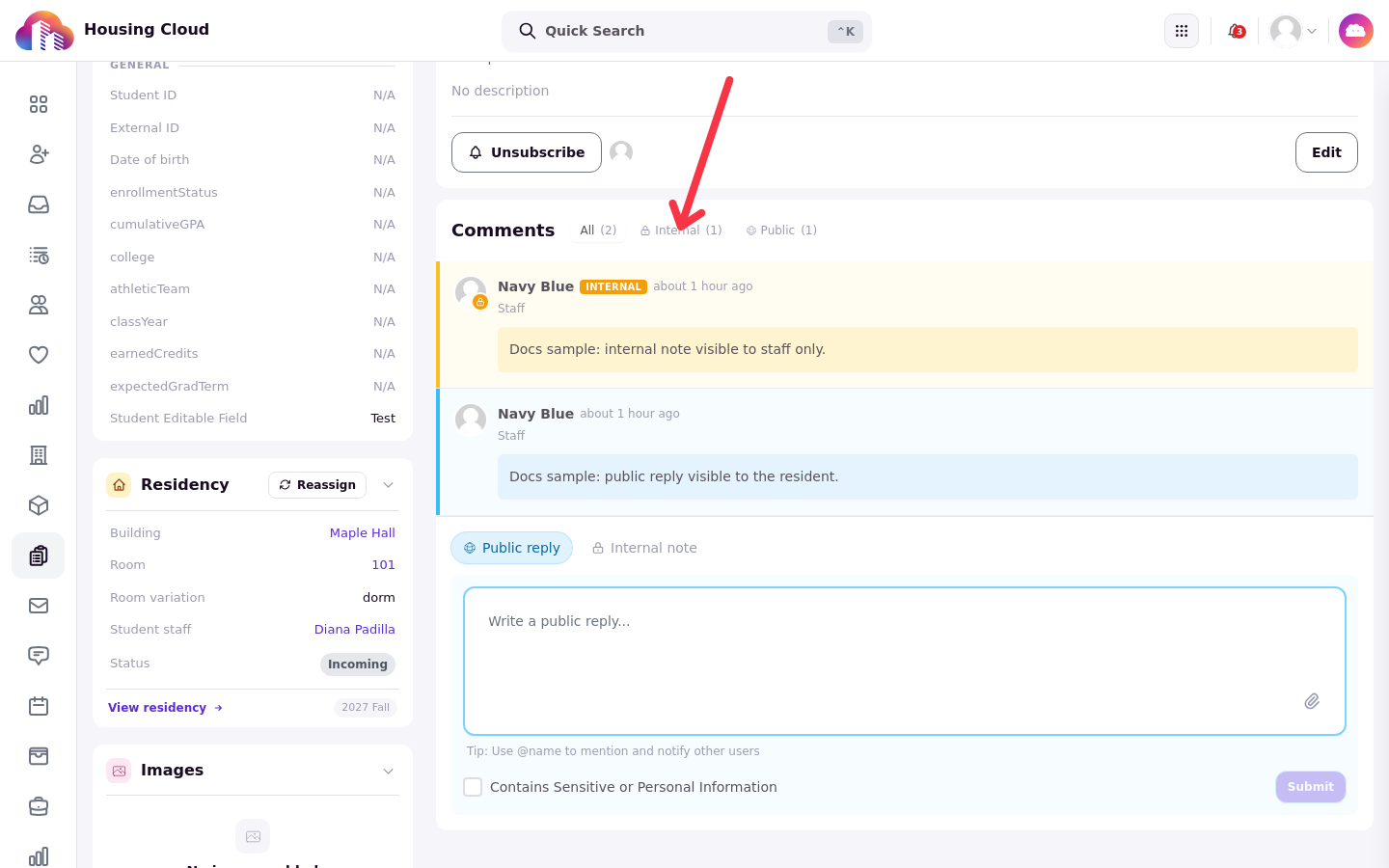
Switching to Internal shows only the staff-only notes in the thread.
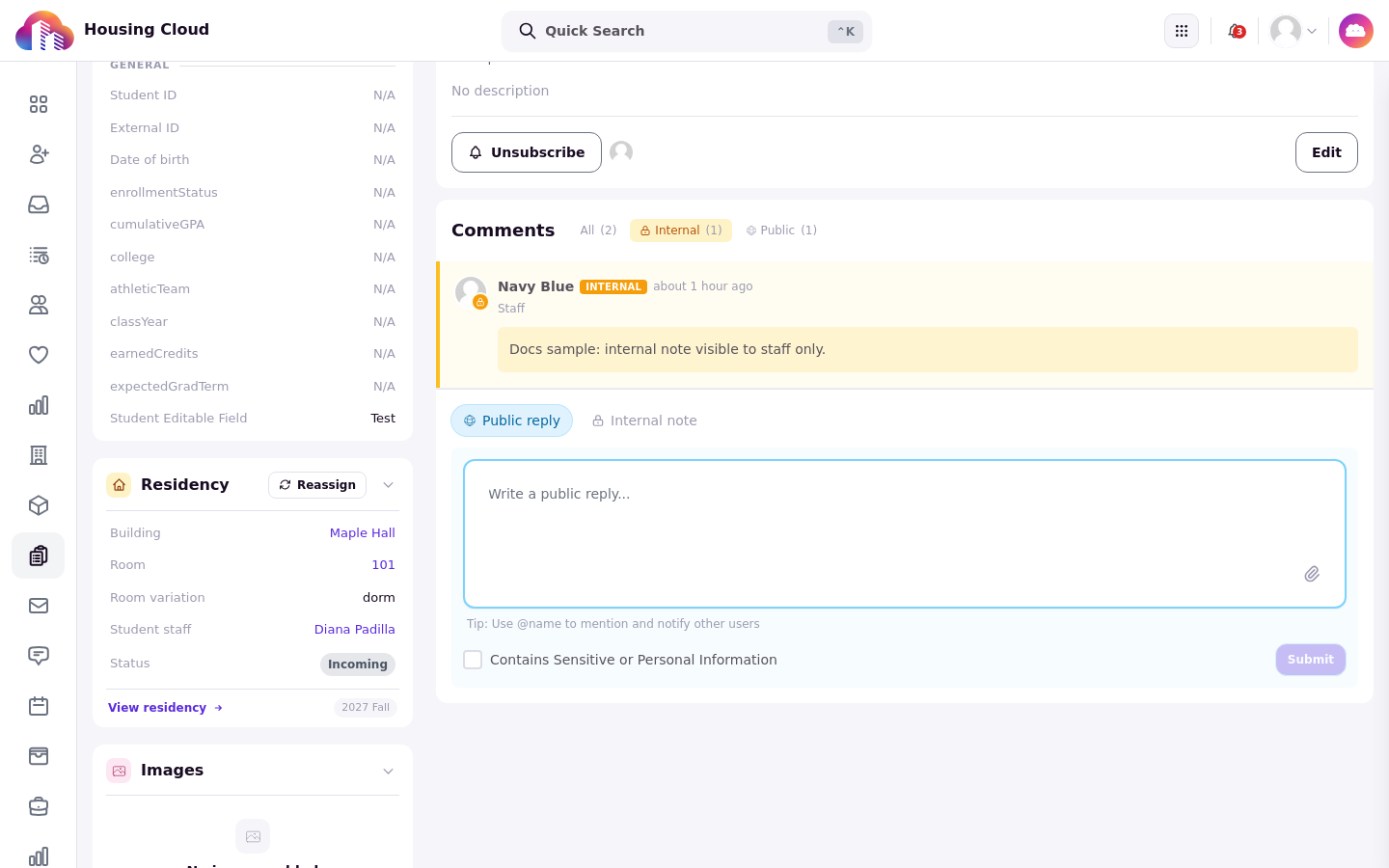
Writing the two kinds, and the check Cloudy runs before a public reply goes out, is covered in Comments: Public Replies and Internal Notes; when you write, Suggested Replies on Task Comments offers ready-made drafts.
Deleting a task
The Delete button sits in the task's edit form, beside the save controls. It opens a Delete Task confirmation and removes the task and its record for good. Only staff with the Delete tasks permission see it.
Banners about the resident's household
Two banners can appear above the task when the dependents feature is on. When the resident is a dependent profile, the banner reads "This is a dependent profile", with "This account is managed by , the primary resident." and a View sponsor button when a sponsor exists. When the resident is the primary member of a household group, the banner reads "This profile is the Group Owner of: ", with a View group button for a single group.
On a phone
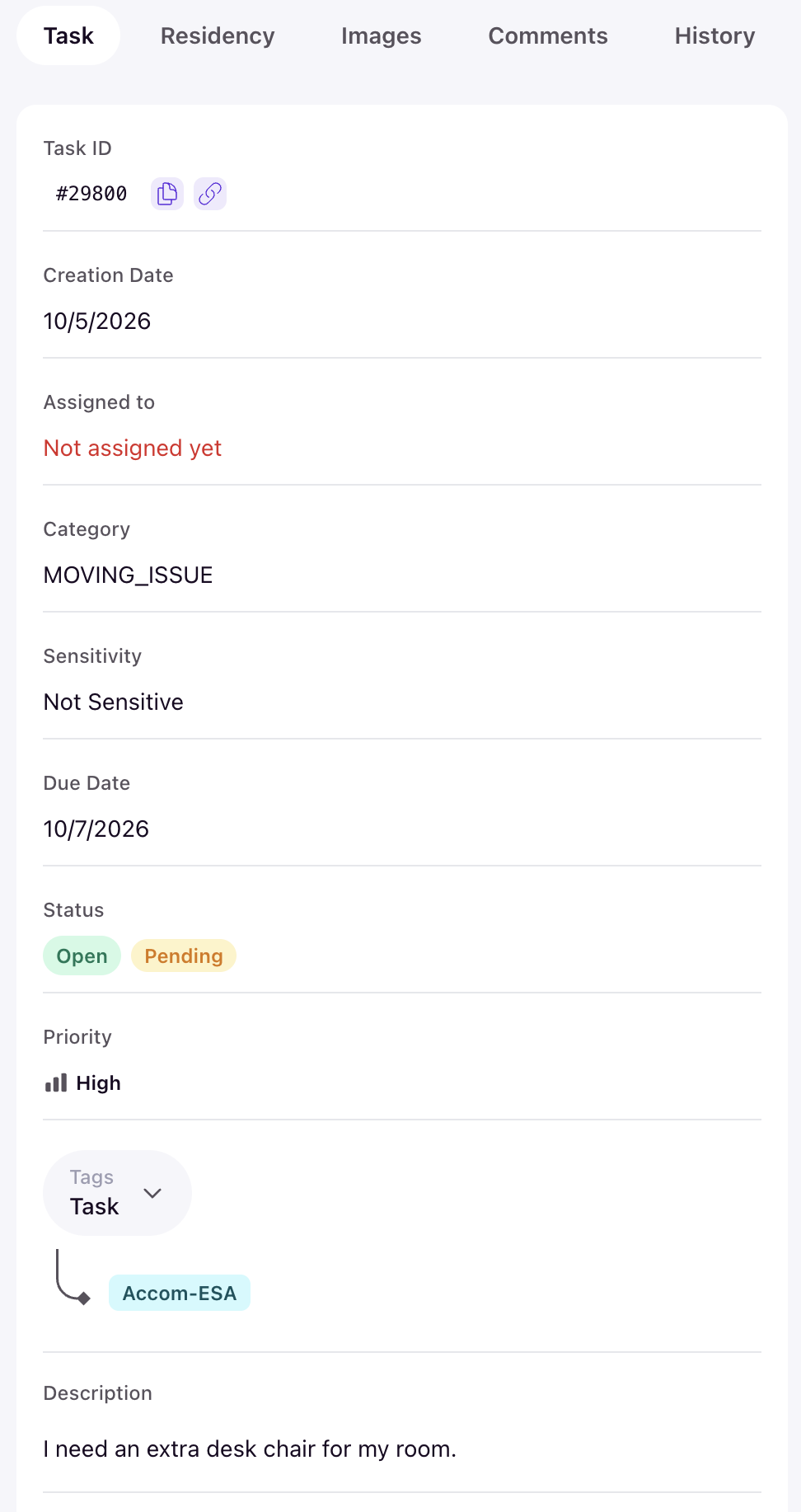
On a small screen the page becomes tabs: Task, Residency, Images, Comments and History.