Student Staff Access in the Resident Portal
Last updated: August 28, 2026
Student staff access gives RAs, desk staff, and student coordinators elevated permissions in the resident portal. When you create a staff tenure, they see a Staff link in their sidebar that opens a dashboard for managing residents. Staff can see and work with all residents whose residencies overlap with their own staff tenure dates. Room assignments control which residents appear in their dashboard by default and determine access to room-specific tasks like inspections.
What Student Staff Can Do
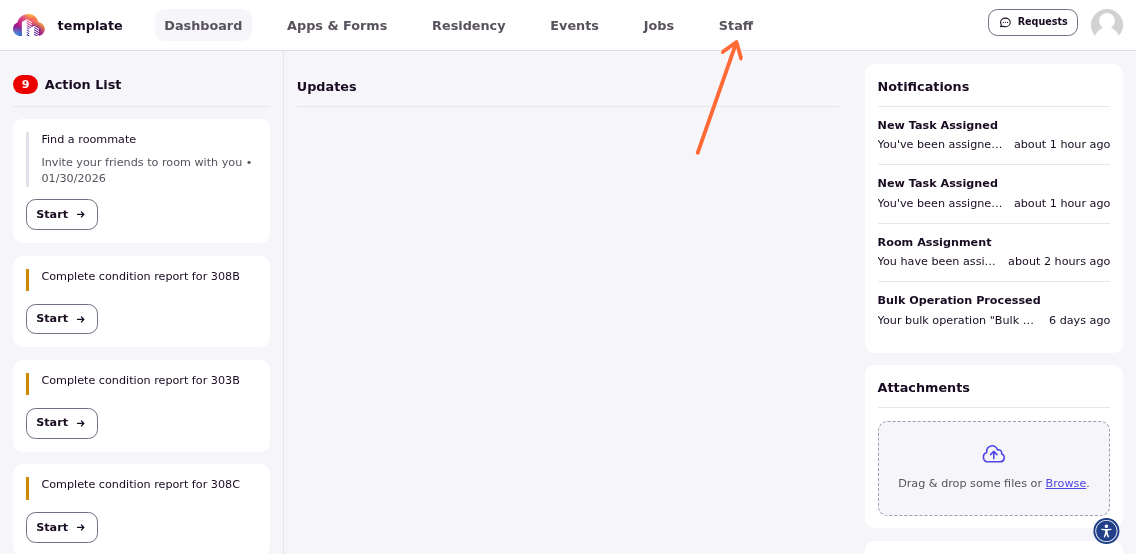
Student staff access their dashboard through the Staff link in the navigation bar. From there, they can look up residents, process check-ins and check-outs, manage requests, log interactions, submit daily notes, and conduct room inspections.
Look Up a Student
The staff dashboard shows all residents whose residency dates overlap with the staff member's tenure dates. Each profile card displays a photo, name, room number, and status badge.
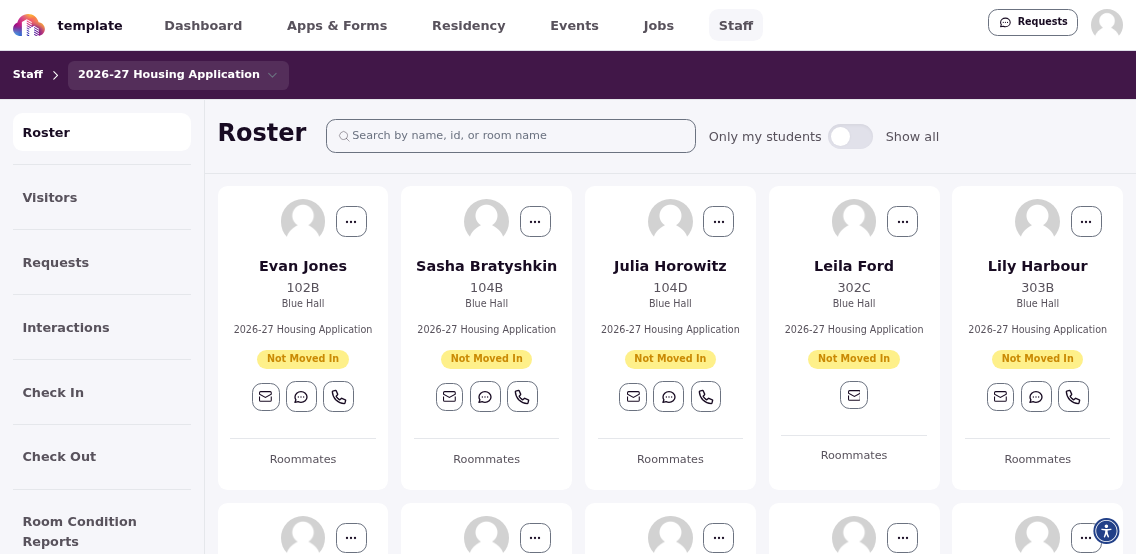
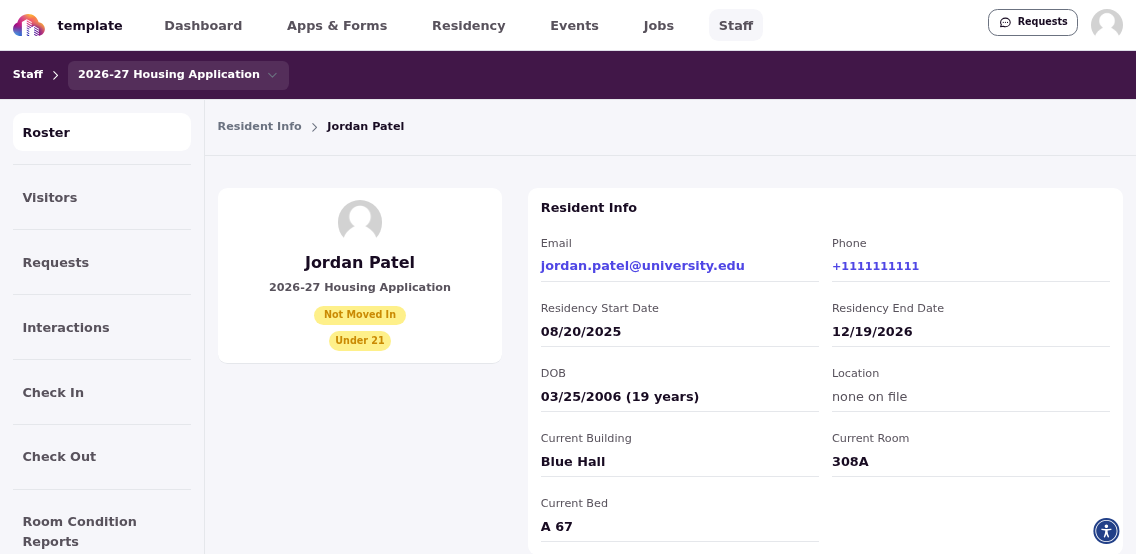
Staff can toggle between showing only residents in their assigned rooms or all residents with overlapping residencies. Clicking any resident opens the full profile with contact details, current residency, messages, and requests.
Process Check-Ins and Check-Outs
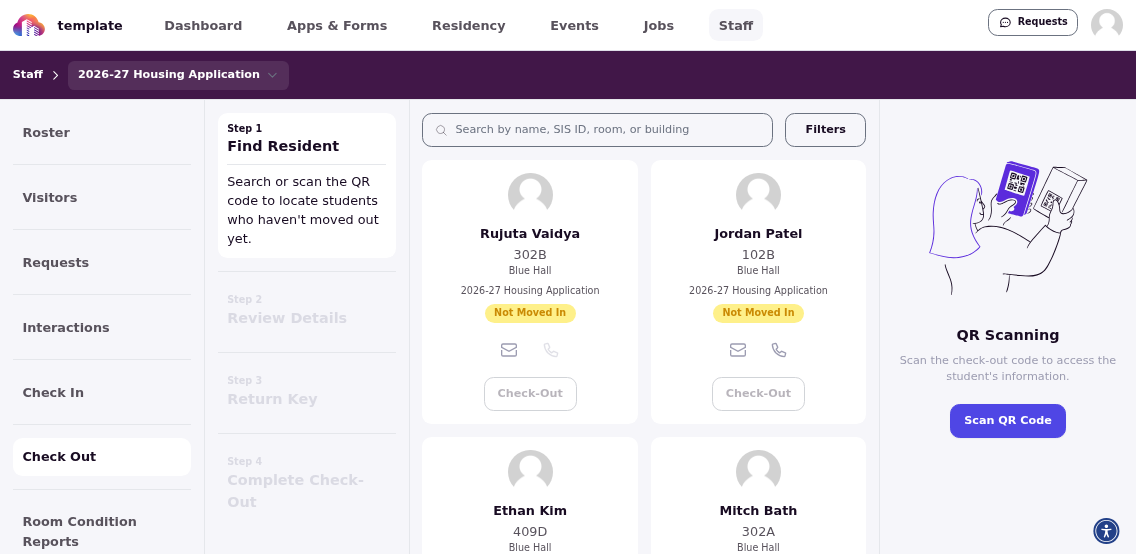
Student staff can check in or check out any resident whose residency overlaps with their tenure dates. Use the cycle setting Allow Student Staff to Check Students In/Out Early to control whether staff can process arrivals and departures outside the standard window. Setting it to 30 lets staff check in residents up to 30 days before the residency start date.
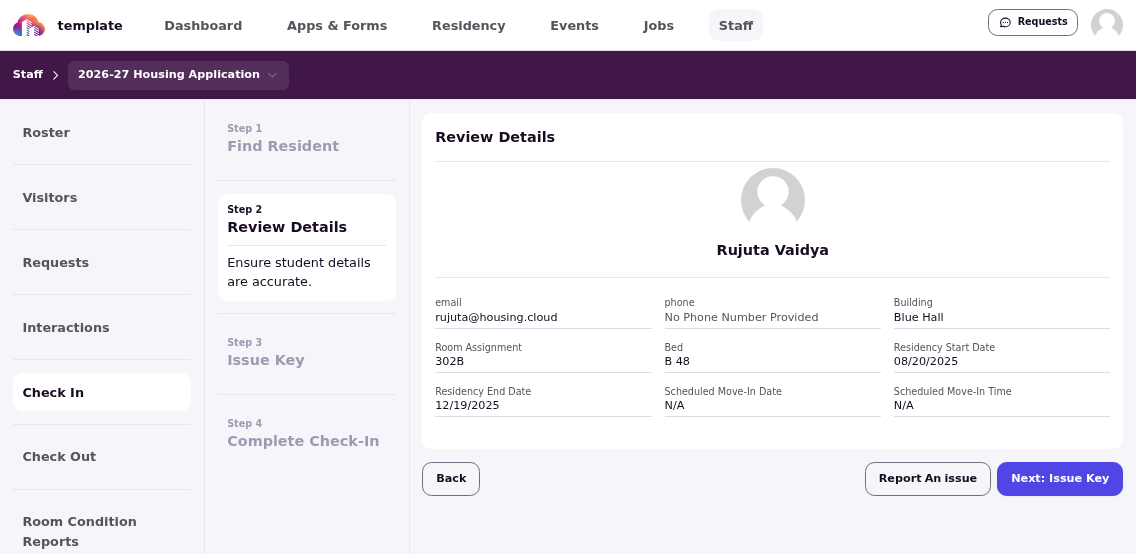
The check-in interface lets staff search for residents by name or room number. If a student has an assigned move-in time, your student staff can scan their QR Code to get quick access.
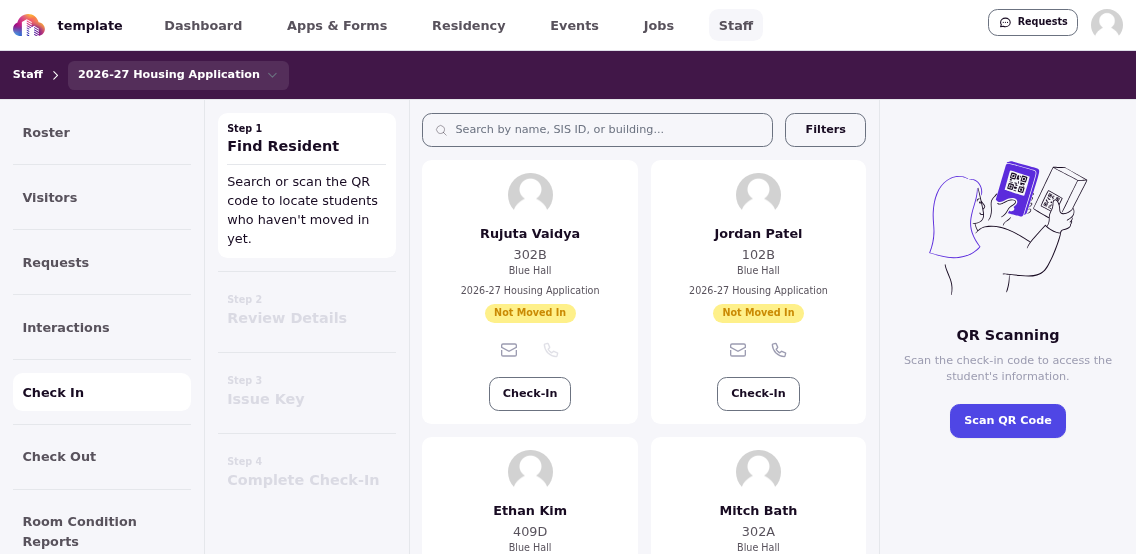
After finding a resident, staff complete the check-in form capturing arrival details and confirming room assignment. If a key is associated with the student's assigned space, they will also be able to mark that as assigned to the student.
Check-out works the same way. Staff process departures and trigger move-out inspections.
Manage Requests and Tasks
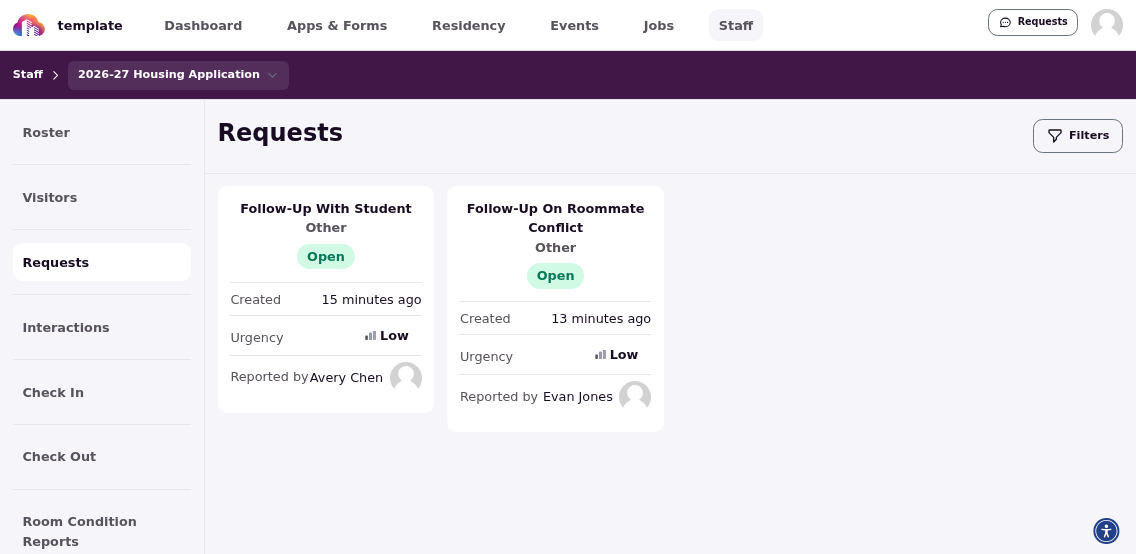
Student staff use the same task tools as admin. They can be assigned tasks, mark them resolved, and leave internal notes visible only to admins and other staff. The requests dashboard shows all resident-submitted requests with status and priority.
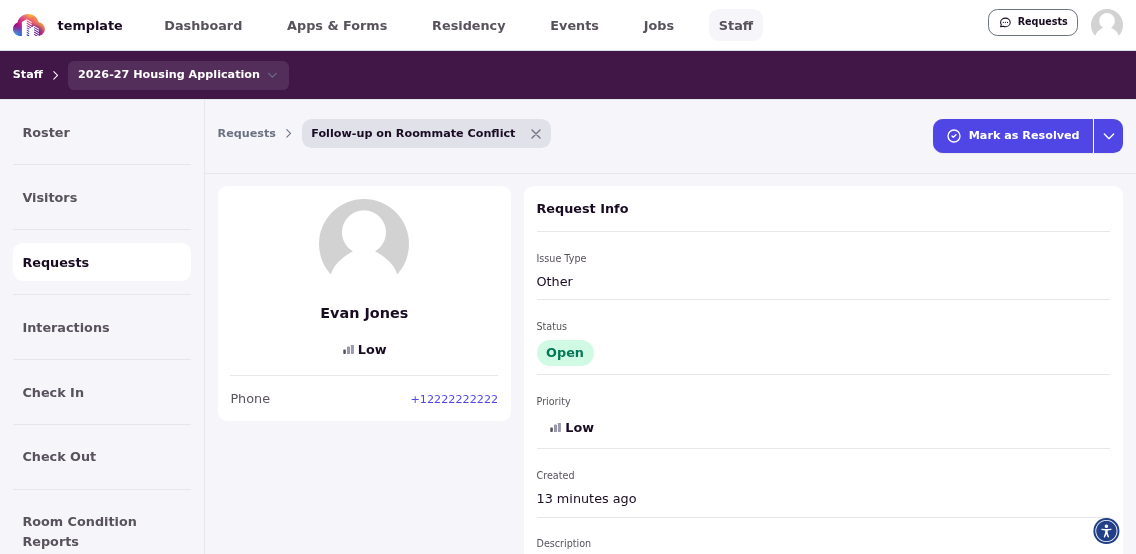
Staff open individual requests to view details, add updates, and close completed tasks. The system tracks status changes and maintains a history.
Log Interactions
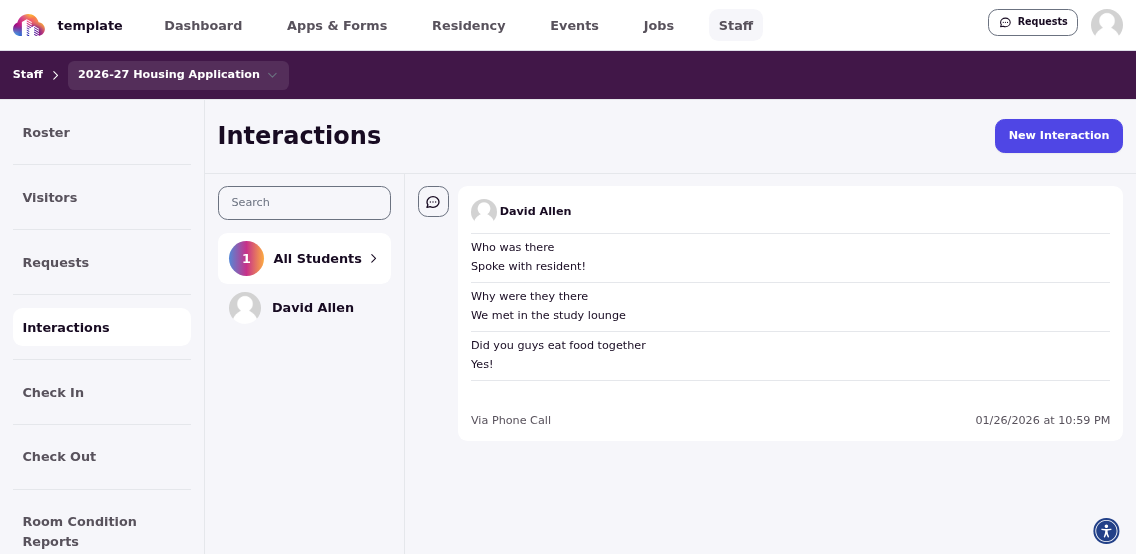
Student staff document conversations with residents through the Interactions section. Each interaction captures the method (phone, in-person, email), date, involved residents, description, and any follow-up needed. This creates a shared record across shifts so staff can review previous interactions for context.
Submit Daily Notes
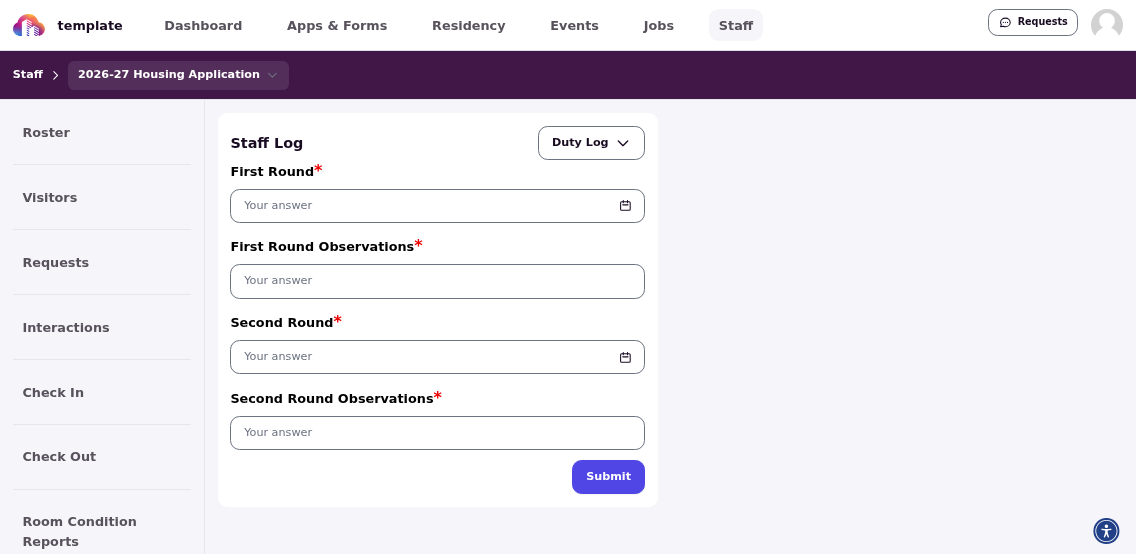
Daily notes are fully customizable by admins, allowing custom staff logs like duty logs.
Conduct Room Inspections
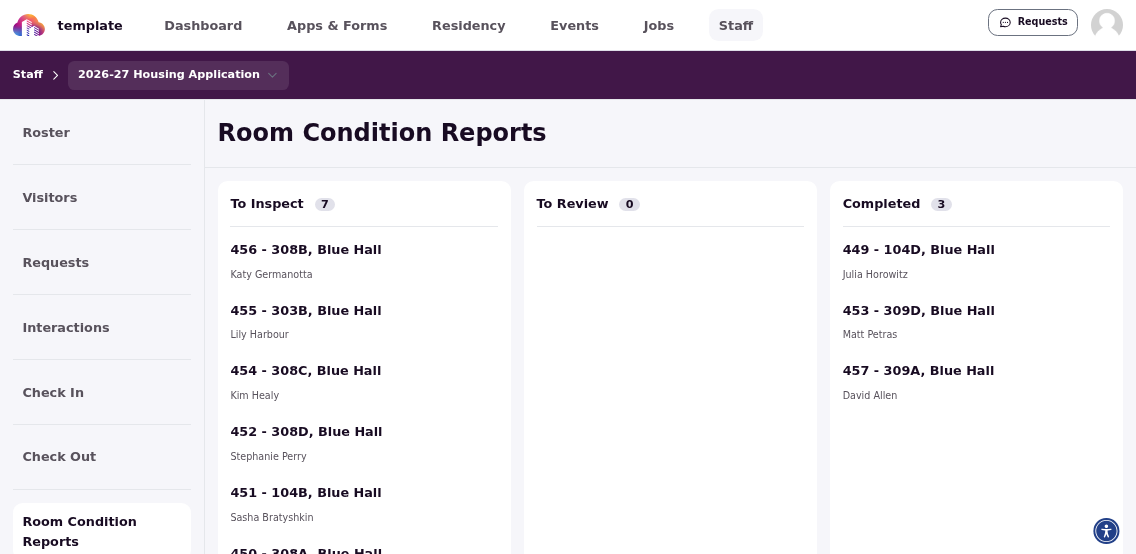
Room Condition Reports are scoped to assigned rooms. When you enable automatic RCR creation in cycle settings, the system generates inspection forms at check-in and assigns them based on room assignments. The RCR dashboard organizes inspections by status: pending initial inspection, awaiting review, and completed.
How to Assign Residents to Student Staff
When you create a staff tenure, you assign them to rooms or groups. These assignments control which residents appear in their dashboard by default. Multiple staff can be assigned to the same rooms.
Room assignments give staff access to specific rooms. Ideal for RAs with defined territories like floors or buildings. Manual changes apply immediately.
Group assignments use room block templates to assign multiple rooms at once. The system copies rooms from the template when you create the assignment. Later changes to the template don't update existing staff assignments—this prevents accidental changes to established territories.
Granting and Managing Access
Create student staff tenures through Admin → Student Staff. Each tenure requires a resident profile, start and end dates, and active status. The system grants staff portal access when the current date falls within the tenure date range.
After creating the tenure, assign the staff member to rooms or groups. These assignments determine how your residents see who their assigned student staff is. Room assignments can be adjusted anytime—additions apply immediately.
When a tenure is set to Inactive or Terminated, the Staff link disappears and the staff member loses elevated access. Use the "Show Active Only" filter in the student staff list to see who currently has portal access based on tenure dates and status.
When Residents Are Also Staff
Residents with active staff tenures see both their resident view and the staff dashboard. They access their own housing information, applications, and roommate details, plus staff functions for managing assigned residents.
The Staff link appears in the sidebar when their tenure is active. If they have multiple assignments or roles, they switch between contexts using the tenure dropdown.
Permissions and Limitations
Student staff can view and work with all residents whose residencies overlap with their tenure dates. Room assignments determine which residents appear by default and control access to room-specific tasks like inspections. Staff cannot perform bulk operations or use admin functions like creating housing cycles, managing applications, or changing room assignments.