Create a Task Form
Last updated: October 5, 2026
Creating custom forms and associating them with task categories allows administrators to tailor requests and tasks to match the specific needs of each category. For example, students submitting a "Maintenance Request" will encounter a different set of questions than those submitting a "Room Change Request." This ensures residents receive relevant and focused questions while staff gather the necessary information to process each request efficiently, streamlining workflows for both parties.
Go to Setup, Forms and click New Form just as you would do to create any other form. For guidance on creating forms, click here.
Task forms are specifically designed for use within tasks, ensuring compatibility and alignment with task categories. Other form types cannot be associated with task categories.
Create a Form
Click Setup in the navigation panel and elect Forms from the submenu.

Click + New Form and select Create New Form. Learn more about creating forms here.

Task forms can only have one section. Click + Add Section and name the section by editing the section header.
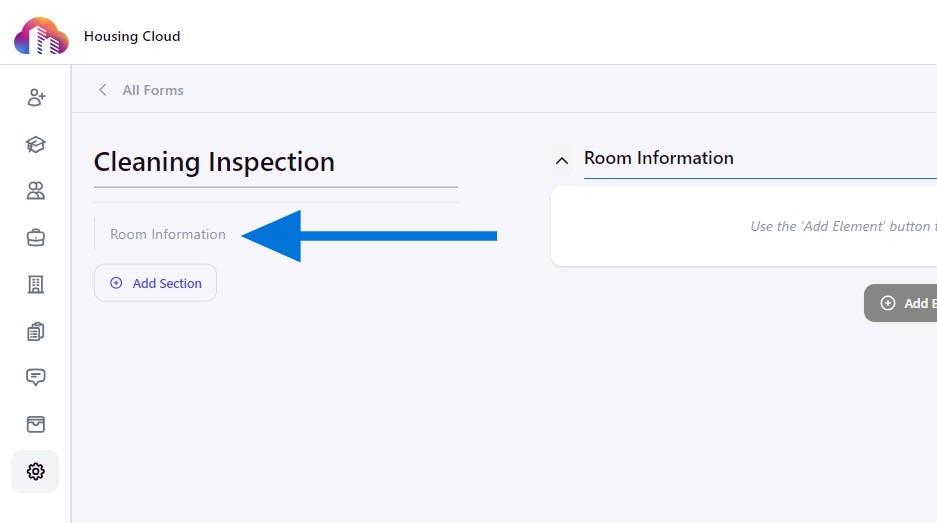
Once you have finalized your form, click Publish. Select Tasks as the form type and click Publish again to finalize it for use.

Associate a Task Form with a Task Category
To ensure your task form is used in the correct context, associate it with a specific task category. This ensures students and staff encounter the appropriate form based on the task type. Learn more about task categories here.
Choose the task form from the options and click Assign Form to input the form to the student request. Forms can be removed by clicking the red x.
