Share Additional Forms to the Resident Portal
Last updated: October 5, 2026
Schools often require additional information from students, and the Resident Portal provides a streamlined way to collect this data. Admins can create shareable links to additional forms and add them to the portal for student access.
Create a Shareable Link
Before sharing a form, ensure that it has already been created. See here for detailed instructions on creating additional forms.
Navigate to Additional Forms in the Forms section of the admin portal.

Locate the form you want to share and click the share icon.
Mark the form as required or optional and set a due date, if needed.

Click Create Link. The link will be automatically copied to your clipboard.

A notification will confirm the link has been copied successfully.

Add the Additional Form to the Resident Portal
To make the form accessible to students, add the copied link to the Resources section of the Resident Portal. See here for more on adding resources to the resident portal.

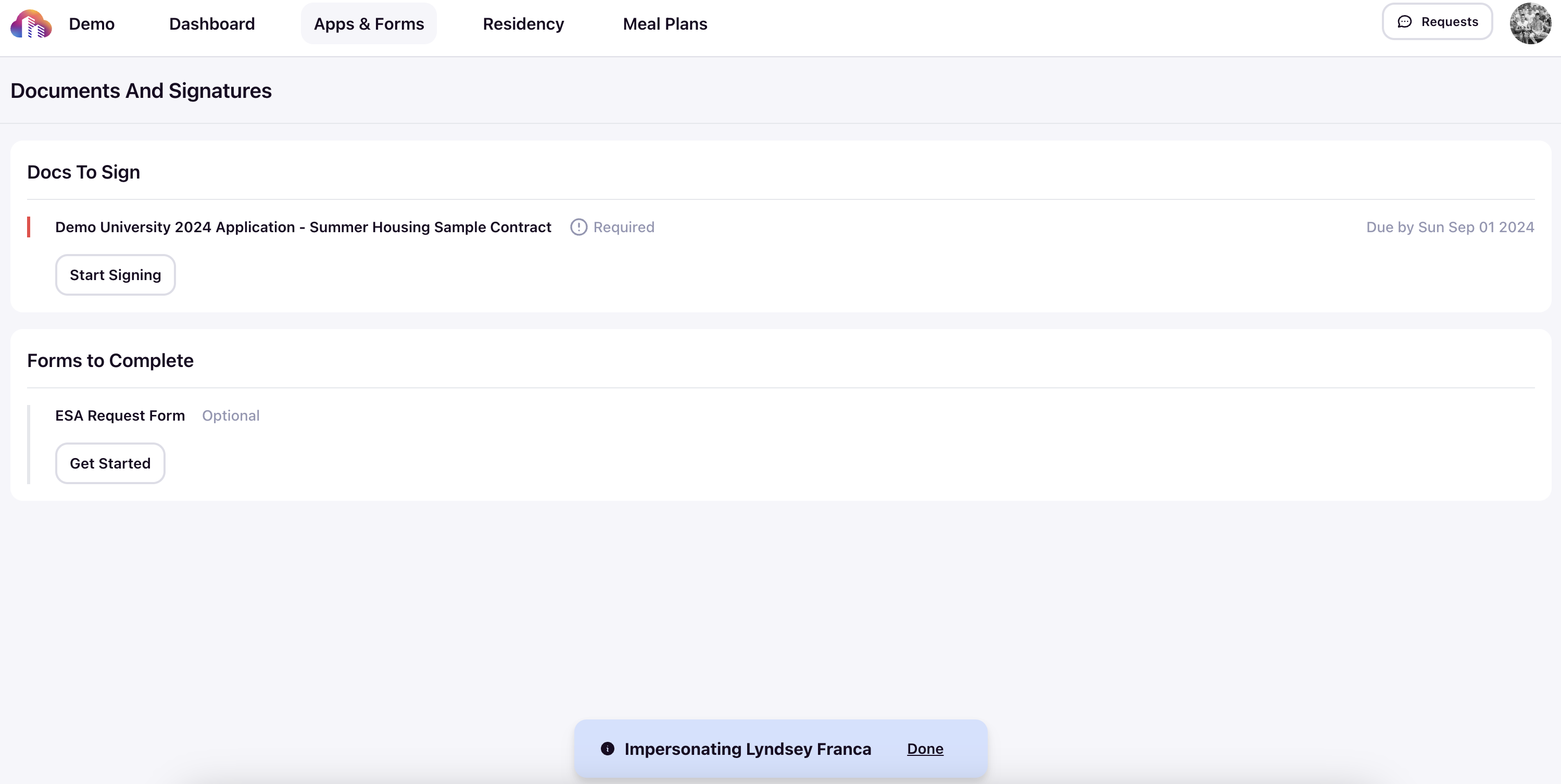
Resident Portal View
Once the link is saved, students can access the form through the Resident Portal.

Students can click the form name to open it directly for completion.

Additional forms will also appear under Forms to Complete.
View Additional Form Responses
After sharing your additional forms, you can easily review the responses submitted by students in a summary view, for individual respondents, or in spreadsheet format. See here for more information on viewing additional form responses.