Set Up Dependent Group Types and Roles
Last updated: October 8, 2026
Set up dependent group types and dependent roles in admin setup under Dependent Management, on the Dependent Group Types and Dependent Roles tabs. Configure both before staff begin assigning members to groups.
Group types and roles are the building blocks behind every dependent group, such as a family household or a conference delegation. The group type sets the composition rules for a kind of group: how many primary and dependent members it must have and how many it can hold. Roles describe what each kind of member is, such as Guardian or Child, and what they can do, such as sign in or receive communications.
For how dependent groups themselves work once configured, see Dependents and Households Overview.
Who can manage this page
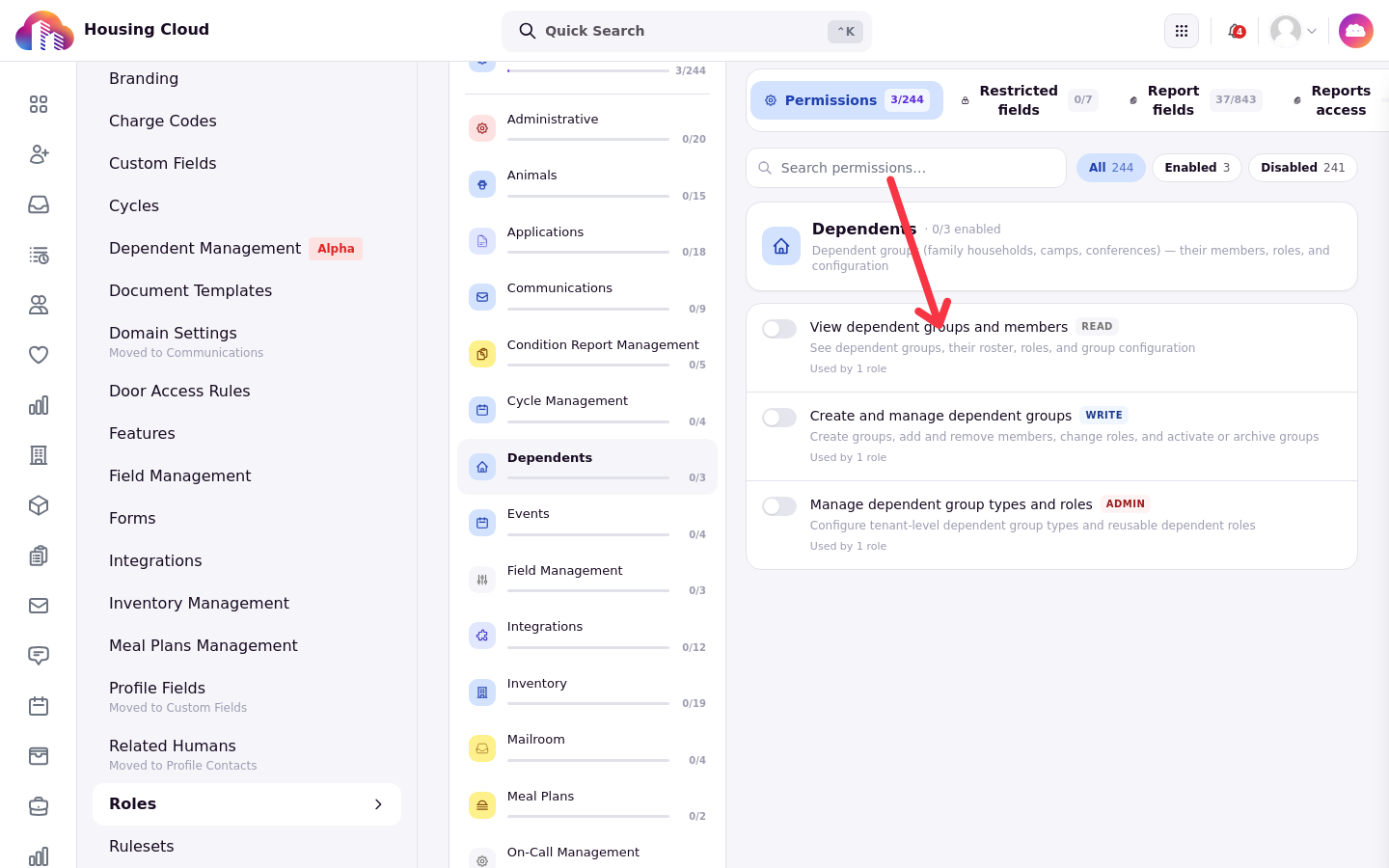
Three permissions in the dependents set control access, and viewing alone never allows changes:
View dependent groups and members allows viewing the Dependent Groups roster and group detail pages.
Create and manage dependent groups allows creating and editing groups, assigning and removing members, and converting and promoting profiles.
Manage dependent group types and roles allows setting up group types and roles on this page.
Working on this page also requires the Dependents feature.
The setup page
Open admin setup and go to Dependent Management. The page opens on the Dependent Group Types tab, with Dependent Roles as the second tab.
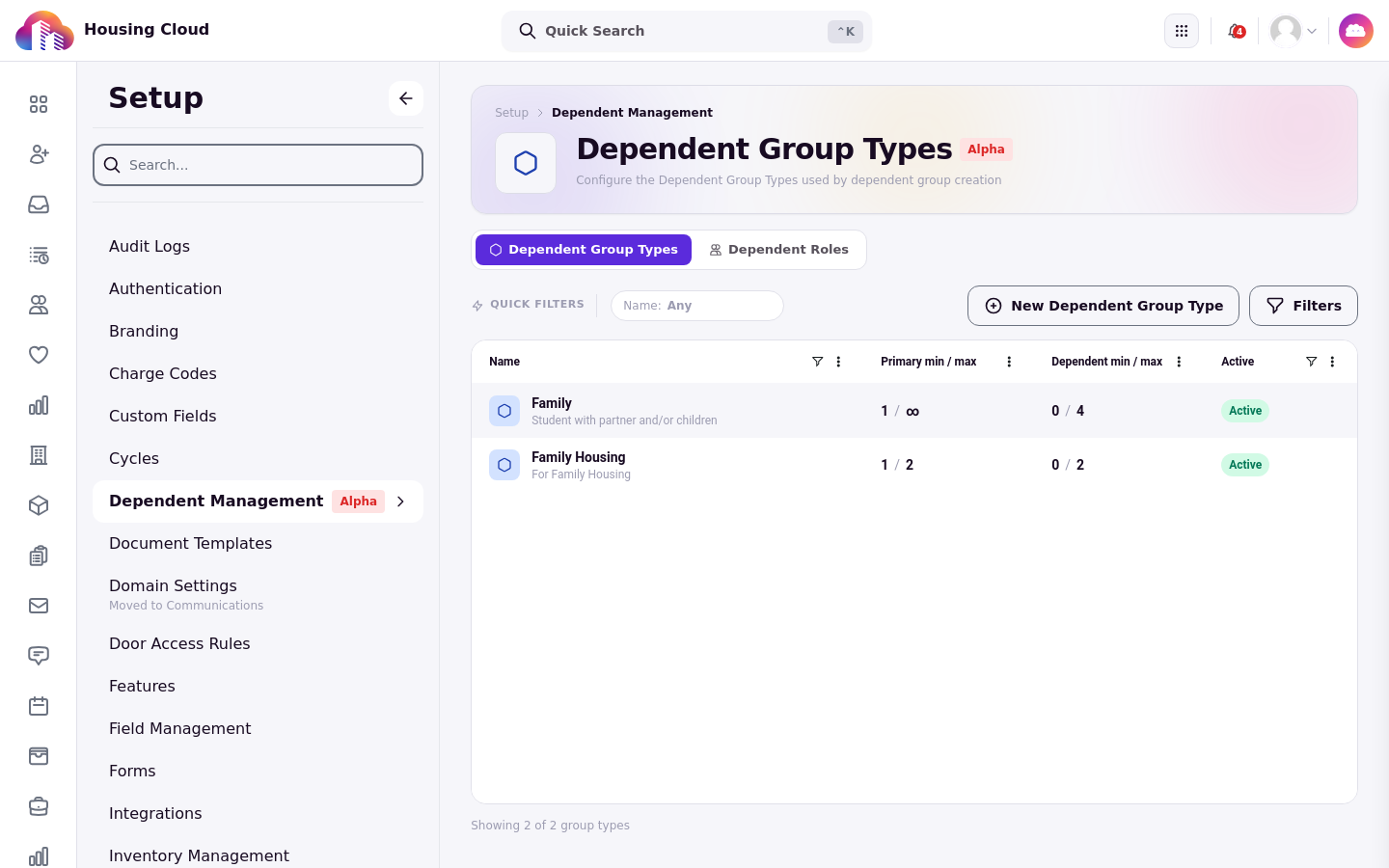
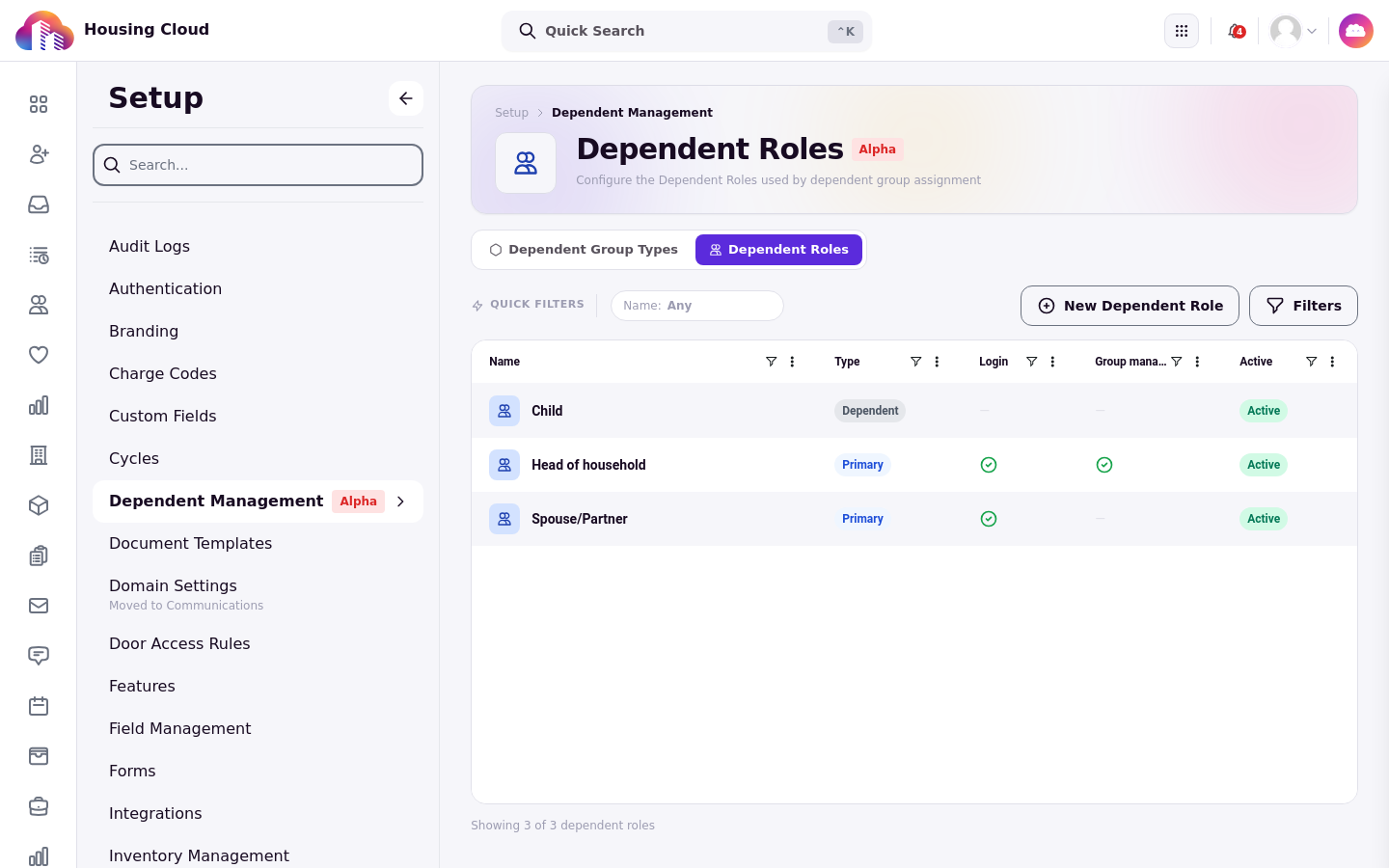
The group types list shows each type's Name, Primary min / max, Dependent min / max, and Active status. A Name quick filter and a Filter control narrow the list, and each name links to the type's detail page. The roles list shows Name, Type, Login, Group manager, and Active for each role.
Create or edit a group type
Click New Dependent Group Type above the group types list. The modal is titled New Dependent Group Type with the subtitle "Define role-composition rules for a dependent group type".
The Name is required. Leaving it blank shows the error "Name is required", and the placeholder reads "e.g. Family with minors". Display name and Description are optional; use the display name when you want friendlier wording than the internal name.
Set the composition with Min primary, Max primary, Min dependent, and Max dependent. Min primary defaults to 1 and min dependent to 0. A blank maximum means no limit; the field shows the placeholder "No limit" with the help text "Blank = no limit".
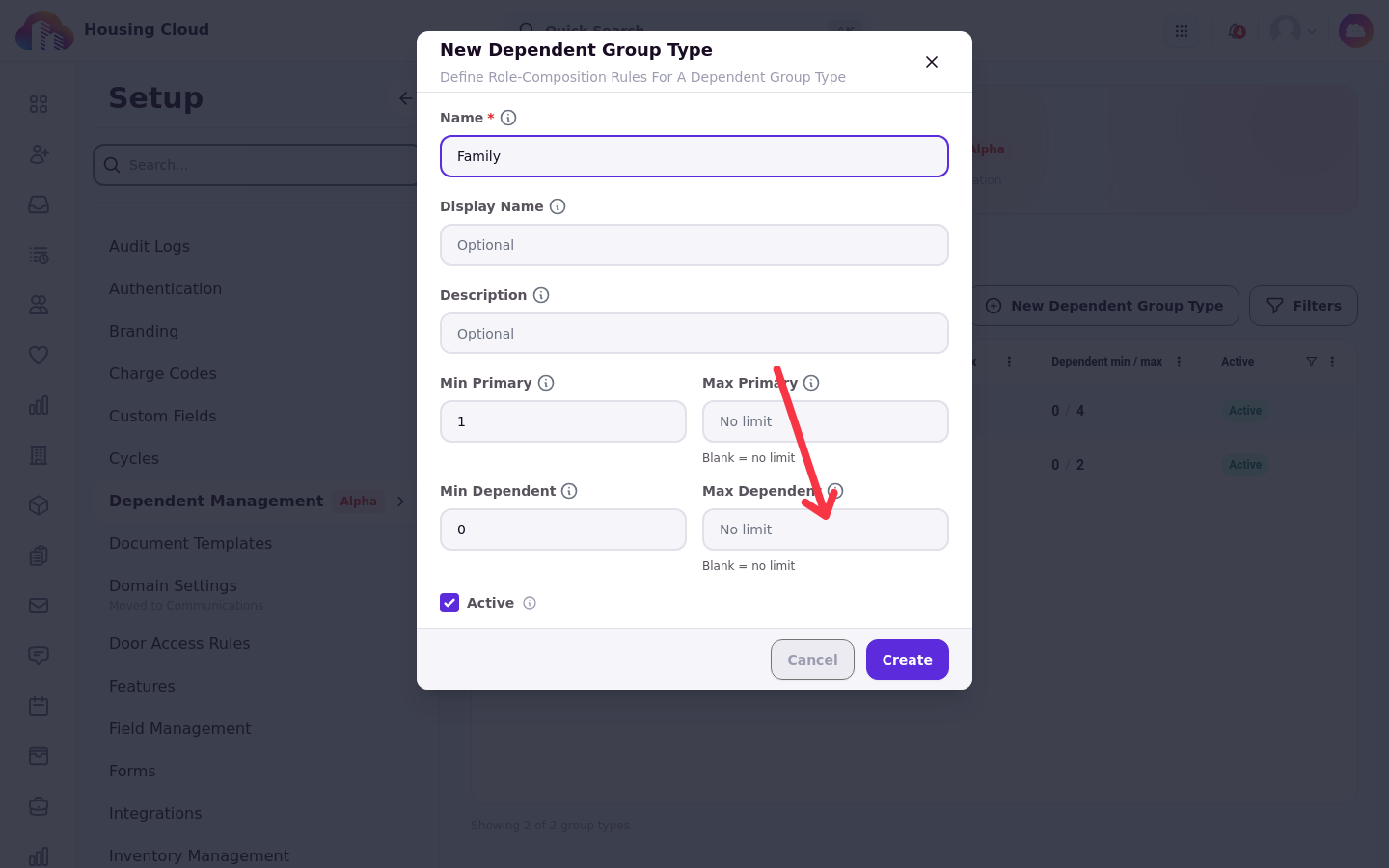
Active is checked by default. Its help text states: "Active dependent group types can be assigned. Inactive ones are hidden from assignment."
Click Create to save a new type or Save when editing, or Cancel to close without saving. While required input is missing, the submit button is disabled and reads "Please fix errors".
To change an existing type, select its name in the list. The modal opens as Edit Dependent Group Type with the same fields.
Create or edit a dependent role
Open the Dependent Roles tab and click New Dependent Role. The modal is titled New role with the subtitle "Define a dependent role and what its members can do."
The Name is required. Type is a required choice between Dependent and Primary and defaults to Dependent. Display name and Description are optional. Editing an existing role opens the same fields in an Edit role modal.
Switches control what members of the role can do:
Group manager by default, shown only for Primary roles: members assigned this role become the group owner, and only one member per group holds it.
Can receive communications: saved for the role and copied to each member. It controls whether an active member assignment receives communications sent to the dependent group, including notifications, emails, and announcements.
Can log in, shown only for Dependent roles: the member can sign in to their own account.
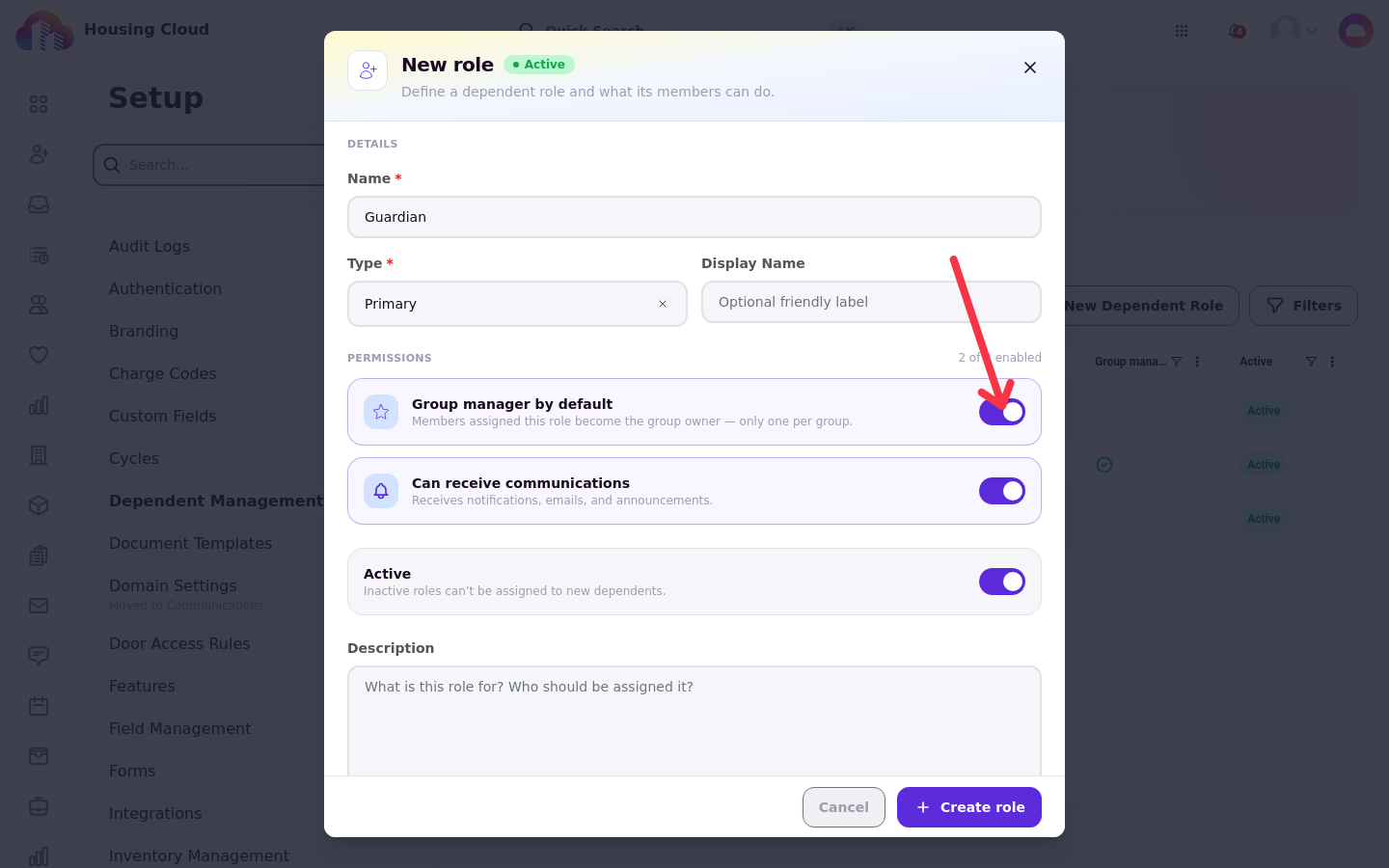
Selecting Primary as the type sets Can log in, Can receive communications, and Active on.
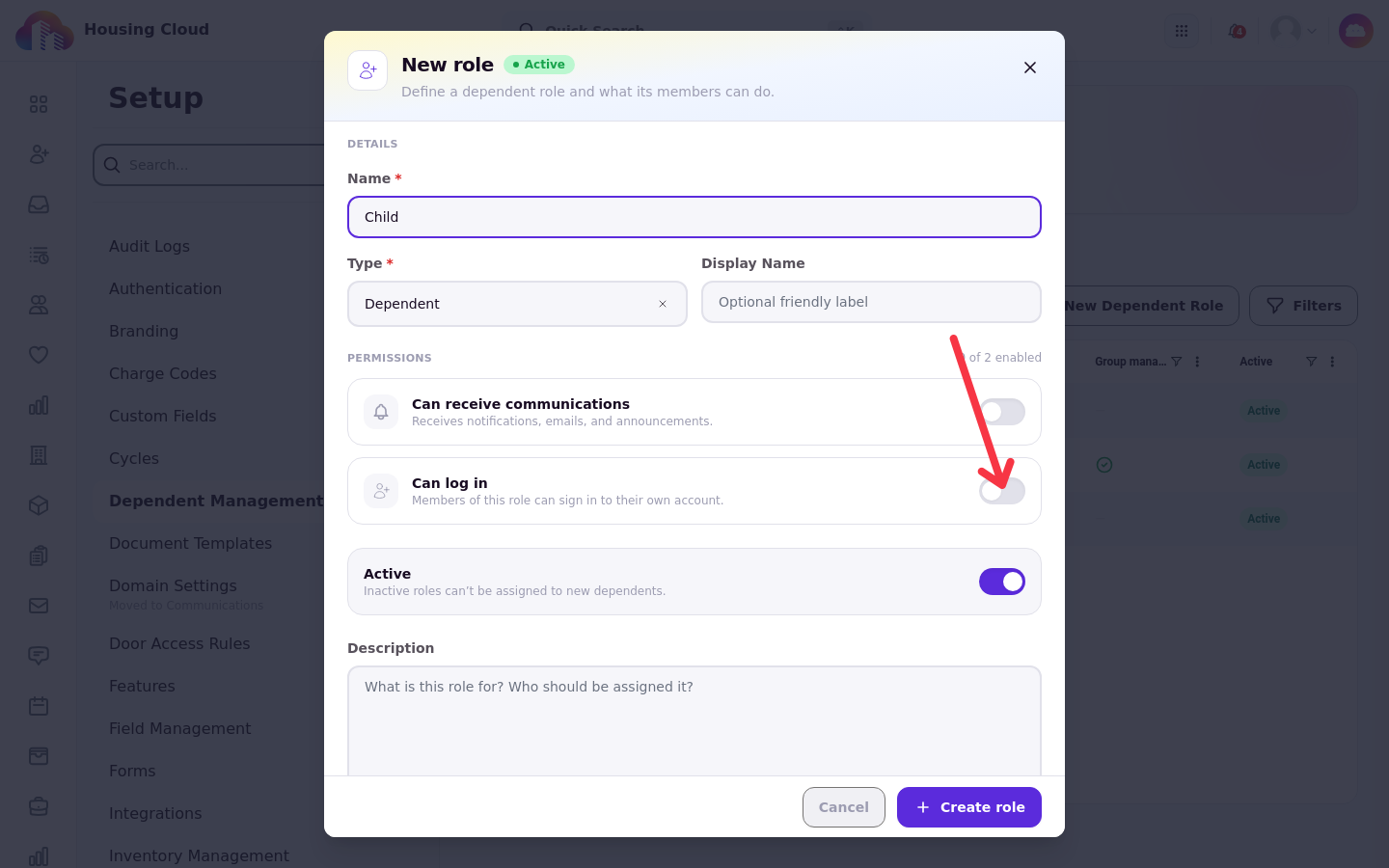
The Active switch controls availability: inactive roles can't be assigned to new dependents.
Role settings are copied to each person when they join a group. Changing a role later affects only people added or re-added afterwards; it does not reach people already in households. To change one existing member, use their member window; see Change a Household Member's Role, Sign-in and Owner.
Deactivate instead of delete
Group types and roles are retired by turning Active off, not deleted. Open the type or role for editing and clear the Active checkbox or switch to retire it. History stays intact, and existing records keep working.
Retirement affects new use only. Creating a group against an inactive type fails with the error "Cannot create a group against an inactive dependent group type." Assigning a member to an inactive role fails with "Cannot assign a member to an inactive dependent role."
Types and roles in use can't be deleted either: the delete action is refused while groups or members still use them. The detail pages and the exact refusals are in Edit, Retire or Delete a Group Type or Role.
Defaults out of the box
New environments start with seeded group types and roles you can use as-is or edit to match your operations.
Group type |
Primary min / max |
Dependent min / max |
|---|---|---|
Family Household |
1 to 2 |
0 to 6 |
Camp Registration |
1 to 2 |
0 to 12 |
Conference Delegation |
1 or more, no maximum |
No limits |
Role |
Type |
|---|---|
Resident |
Primary |
Spouse / Partner |
Primary |
Guardian |
Primary |
Child |
Dependent |
Adult Dependent |
Dependent |
Camper |
Dependent |
Verify your configuration
Open the Dependent Group Types and Dependent Roles tabs and confirm the new type or role appears with the values you set: composition minimums and maximums and Active status for types, and Type, Login, and Group manager for roles. An active group type can be selected when a group is created, and an active role can be selected when a member is assigned to one.
From there, staff with Create and manage dependent groups can create groups against the new type; the create flow lives in Create and Manage a Dependent Group.