View Responses to a Form
Last updated: October 2, 2026
In addition to housing applications and roommate questionnaires, your institution can create unlimited custom forms to suit various purposes, from collecting feedback to signing up for events. Once forms are submitted, you can easily review responses using the steps below.
Navigate to Your Form
Click Setup on the navigation panel and then click Forms from the submenu.

Choose the category of the form you’d like to review, such as Applications, Tasks, Biography, or Additional Forms.

Click the number of responses associated with the form to open the responses page.

Navigate Responses Views
The responses page offers multiple ways to view and analyze form submissions, helping you extract meaningful insights.
Summary View of Responses
The Summary view provides an overview of all submitted responses the a specific form.

Responses can be filtered by housing cycle and date submitted to help locate more specific data.

To view tags assigned to respondents based on their answer types, click the responses dropdown and select tag assigned.

Tag assigned view allows you to see what tags were associated with your response options.

Individual View of Responses
Individual view allows you to see a list of all students who have responded to your form. Responses may be filtered by student name, housing cycle, and date submitted.

Spreadsheet View of Responses
Formats data in a grid-like structure similar to Excel, with questions as columns and responses as rows.

Click filters to narrow down your data by specific criteria, such as viewing only students who selected a particular response to a question or even excluding specific response time periods.

Export Response Data
Exporting data can only be done in spreadsheet view. Click Export to download the form responses in either CSV or Excel format.

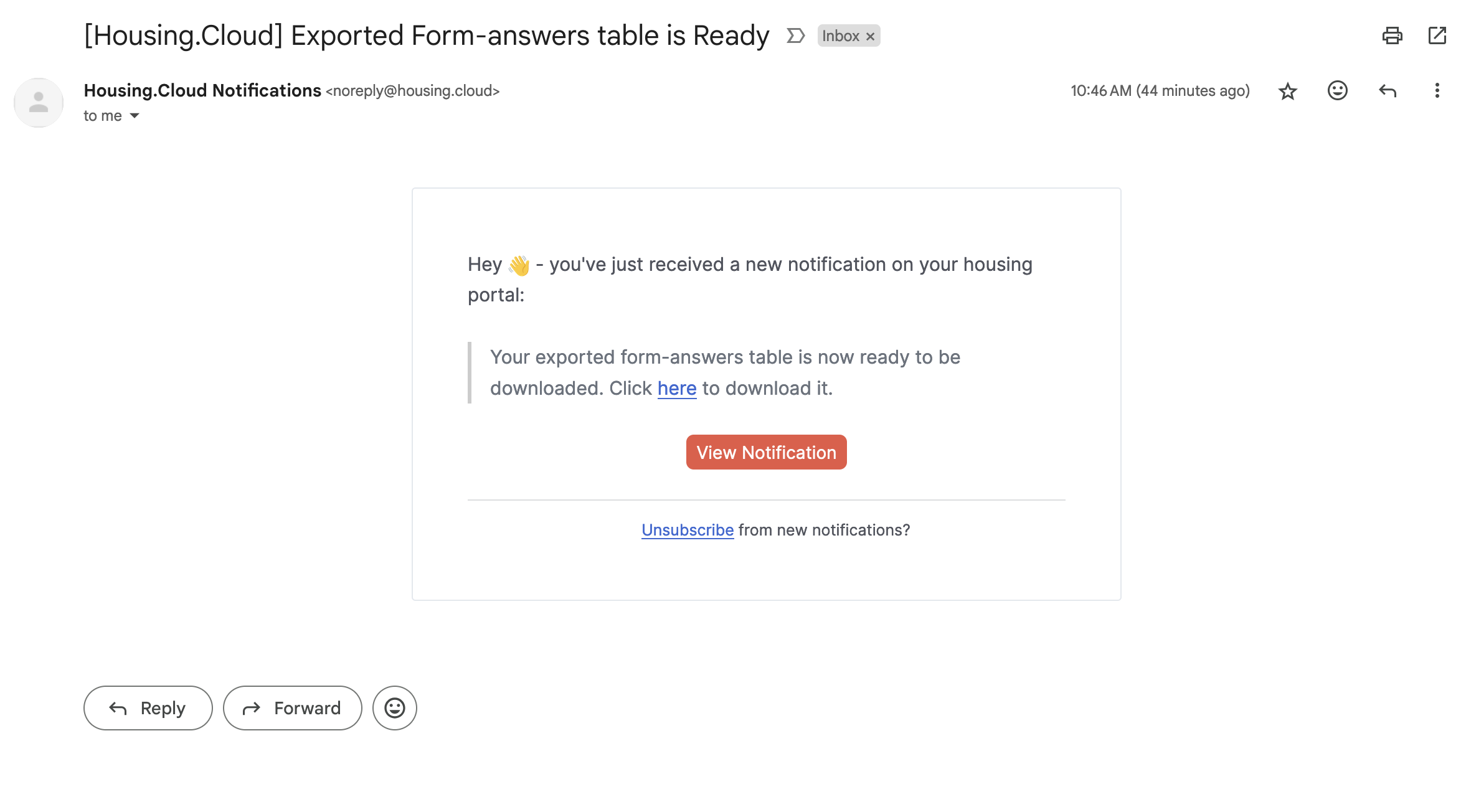
When your exported file is ready for download, you'll receive an email with a link to download.