Hand Mail to a Resident
Last updated: October 8, 2026
Hand mail over at Pickups in the operations portal: find the resident by their pickup QR code or a search, tick what they are taking, confirm their ID, and complete the pickup. The items move to Collected and the record shows who collected and who released them.
Find the resident
The Pickups page is headed Hand off packages and offers two ways in: Search recipient ("Search the directory, or scan their pickup QR") and Scan QR. The search reads "Search by name, student ID, or room..."; each result row shows the resident, their hall and room, and a badge with how many items are waiting.
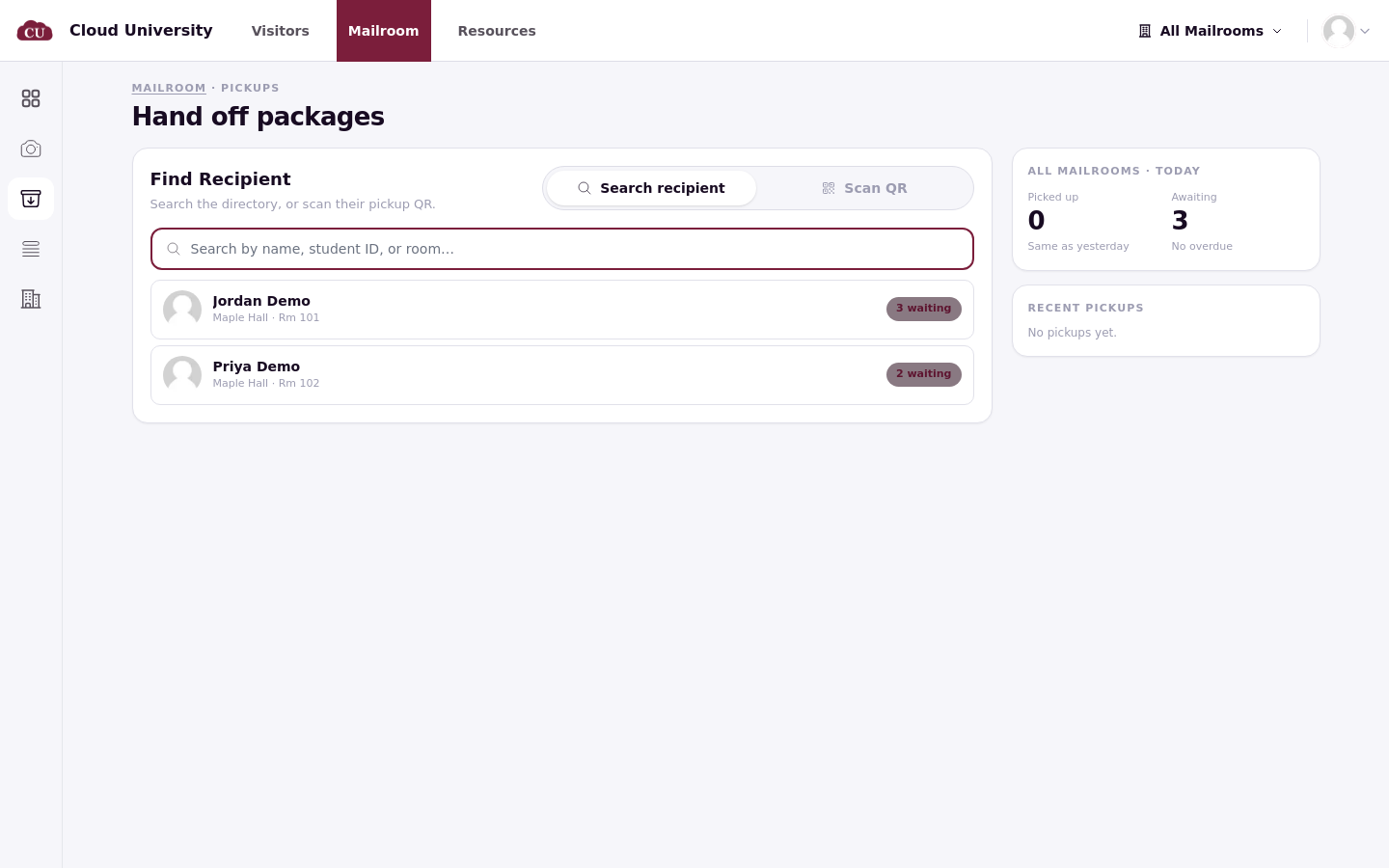
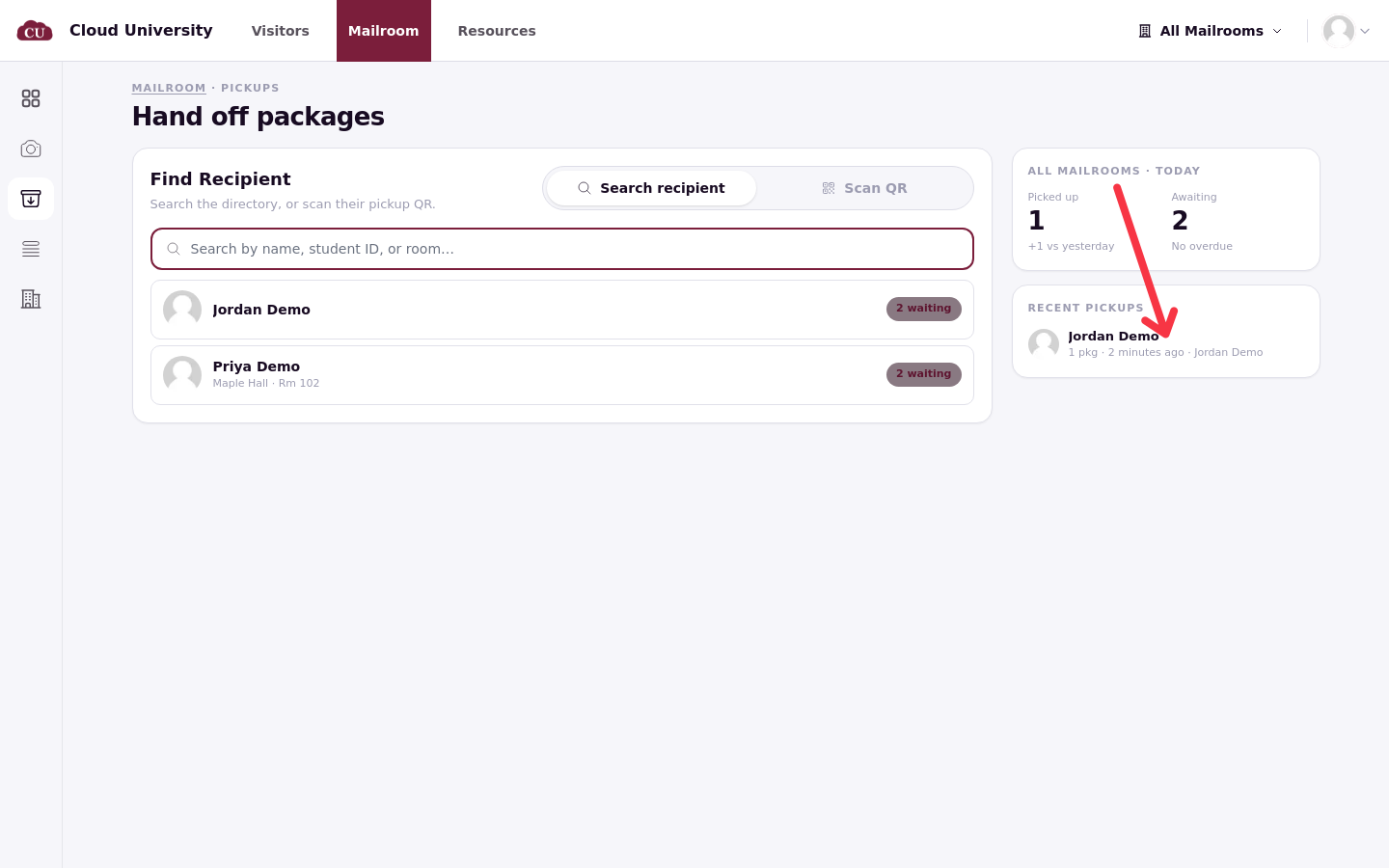
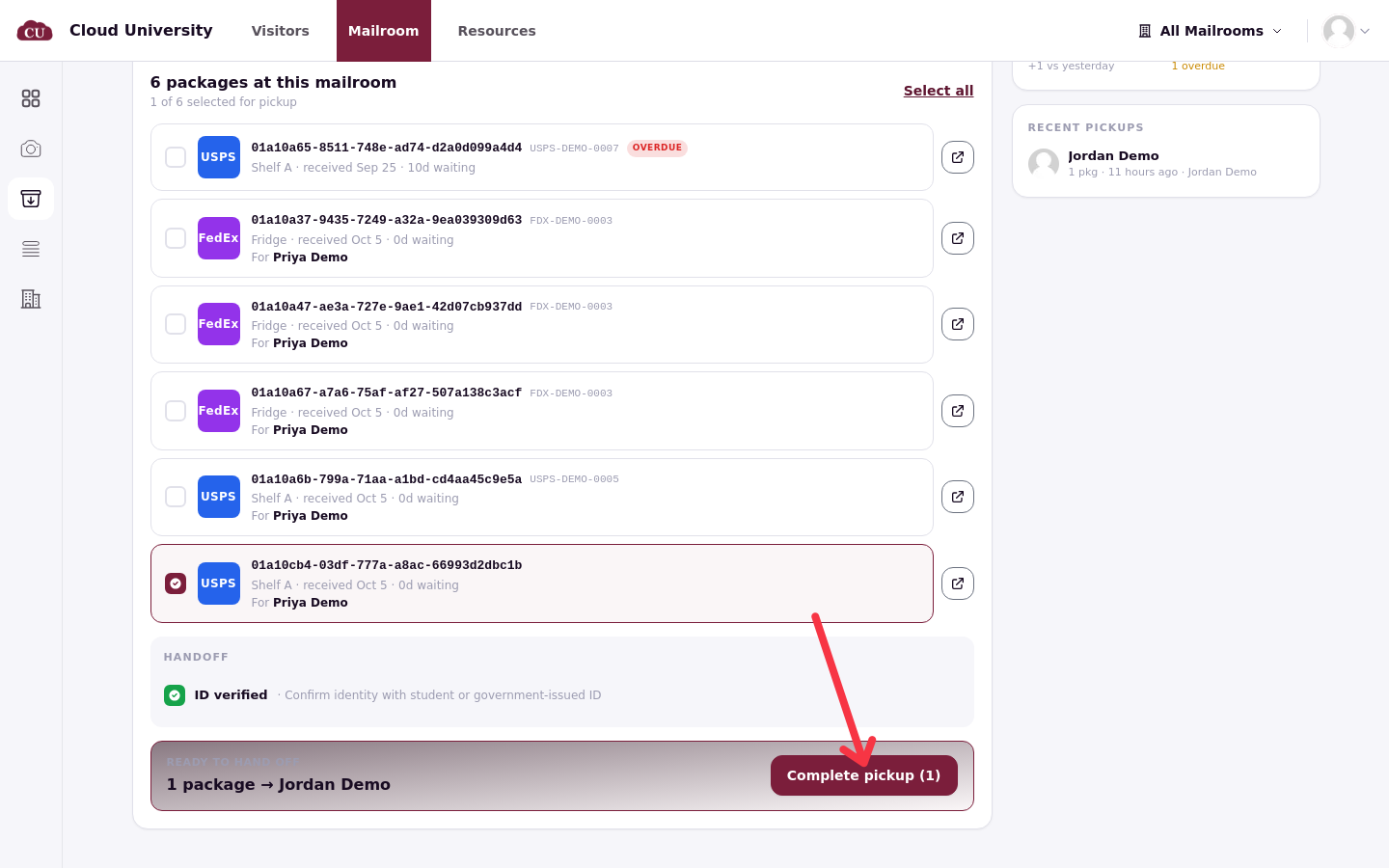
Scan QR opens the desk camera and reads the pickup code from the resident's portal, opening their pickup page straight away. If the camera is blocked, the page offers the search instead. The right-hand panel, [mailroom] · Today, keeps a running summary: Picked up with the change against yesterday, Awaiting with the overdue count, and Recent pickups naming the resident and the staff member who released.
Choose what they are taking
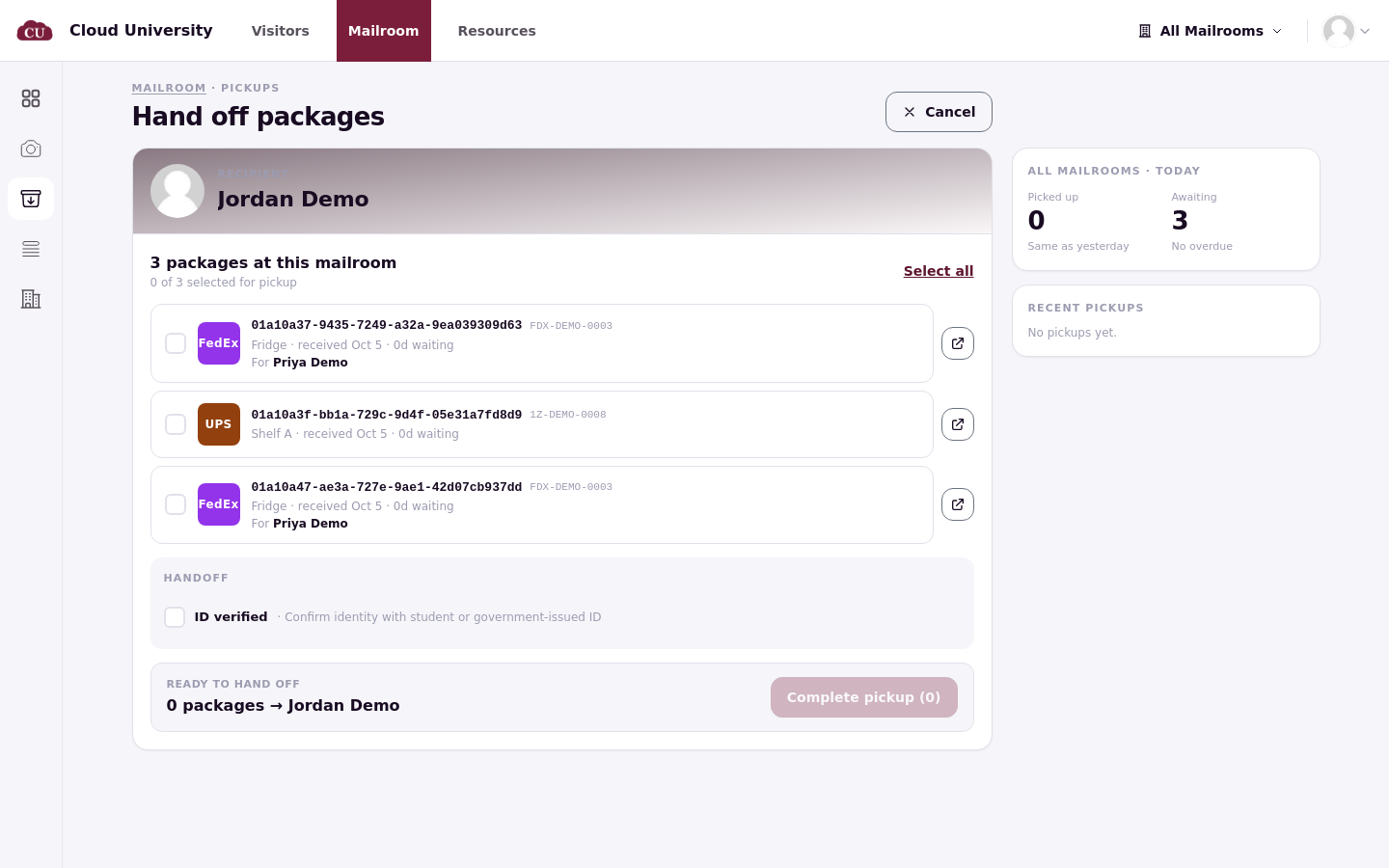
The resident's page lists their waiting packages: each row shows the mail ID, the carrier, the storage location, when it was received and how long it has waited. Tick what they are taking, or use Select all. The icon at the end of a row opens the item's full details. Mail a delegate is collecting appears on the same list, labelled For followed by the other resident's name.
Items held at a different desk appear in their own panel instead: "1 package at another mailroom", reading "This package can't be picked up here. Initiate a transfer, or send the resident to the correct mailroom to pick it up." Move the item by editing its mailroom (see Work Across Several Mailrooms).
Confirm identity and hand off
The Handoff section asks how identity was confirmed. With no release requirements switched on, it shows one checkbox, ID verified, "Confirm identity with student or government-issued ID". When the mailroom requires more, the section also asks for a Signature or a Photo of ID; one signature covers every item in the hand-off.
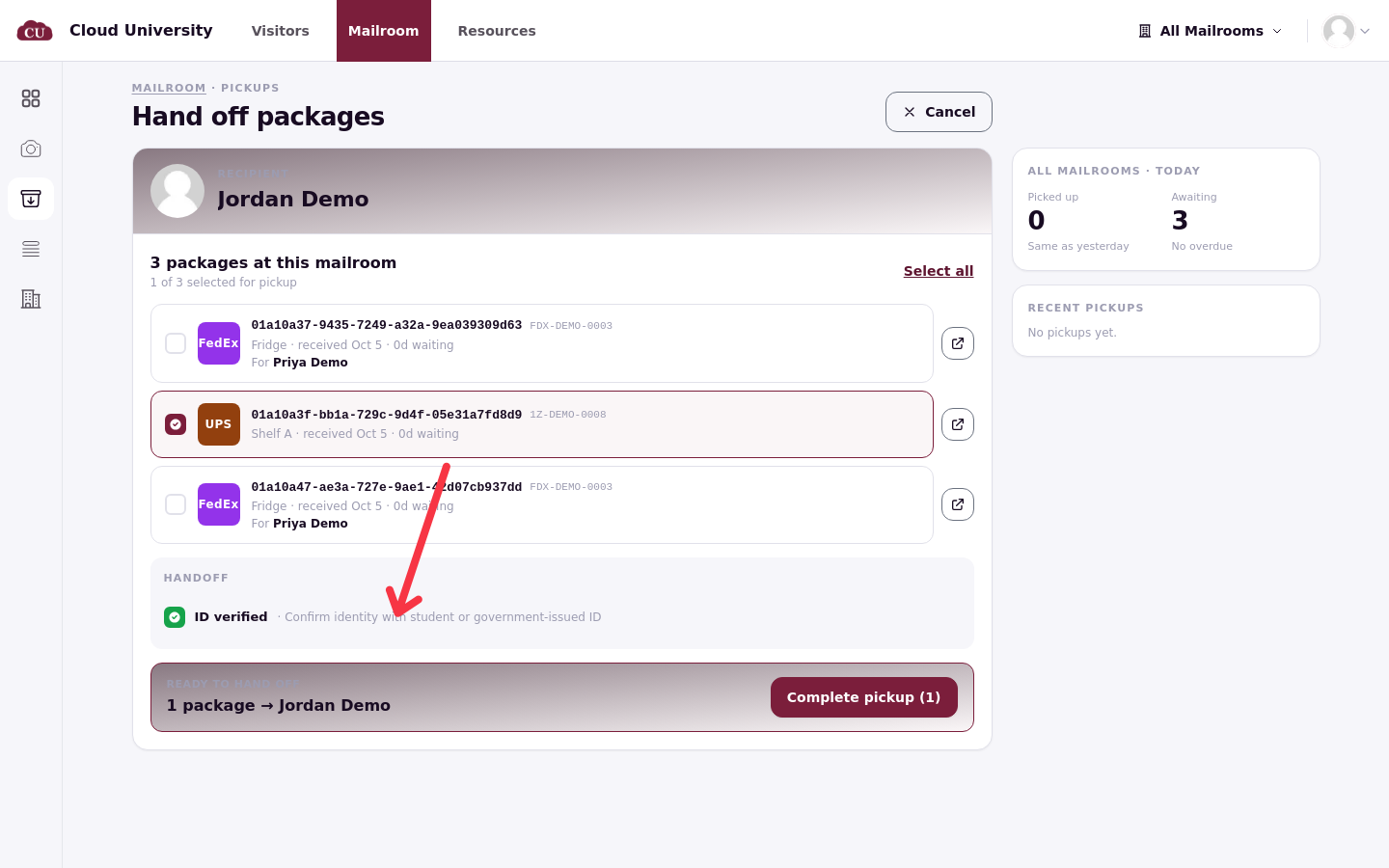
A bar above the button counts what is going to the resident, and Complete pickup (N) finishes the hand-off. Completing moves the items to Collected immediately.
Proof of pickup
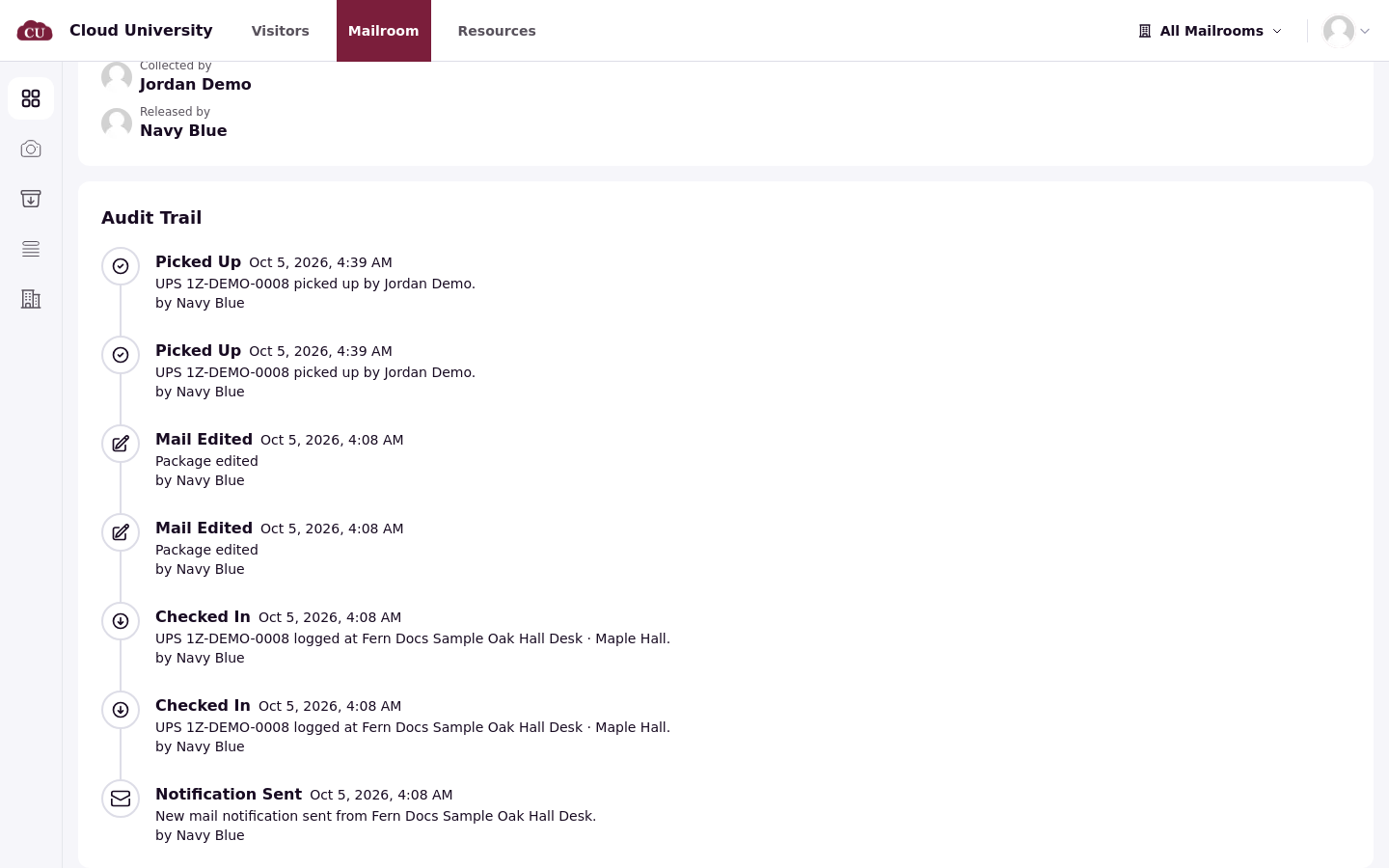
Every completed hand-off is recorded on the item: the pickup details show Collected by (the resident, or the delegate) and Released by (the staff member). The Audit Trail entry names both: ordinary pickups record a Picked Up event, and a delegate pickup records Released to Delegate, naming the delegate and the resident. This is the record to show when a resident says a package never arrived (see Look Up an Item and Proof of Pickup).
Good to know
One confirmation per hand-off. The signature or ID capture covers all items handed over in the same Complete pickup click, so a resident leaving with three boxes signs once.
Recipient-only items stay back. Items marked Only recipient may pick this up are not released to a delegate (see Large, Perishable and Recipient-Only Items).
Verify the hand-off on the item page under the Collected status, or on the Today panel's Recent pickups list.