Look Up Visitor Records and Visit History (For Staff)
Last updated: October 8, 2026
Every visitor on record lives in the Visitors pages of the operations portal. Search the All visitors list by name, email, or phone, open a visitor's profile to review their details and full visit history, and check their banned status before letting them into a building. Checking visitors in and out is a separate workflow, covered in Check Visitors In and Out (For Staff), and creating invitations is covered in Create Visitor Invitations (For Staff).
You need staff permission to view guest management to open the All visitors list and visitor profiles. The check-in desk queues require a separate permission, so someone who can look up visitors is not automatically able to work the desk queues.
Search the All visitors list
The All visitors page lists every visitor on record, not just today's arrivals. Search by name, email, or phone with the search box, or narrow the list with Filters.
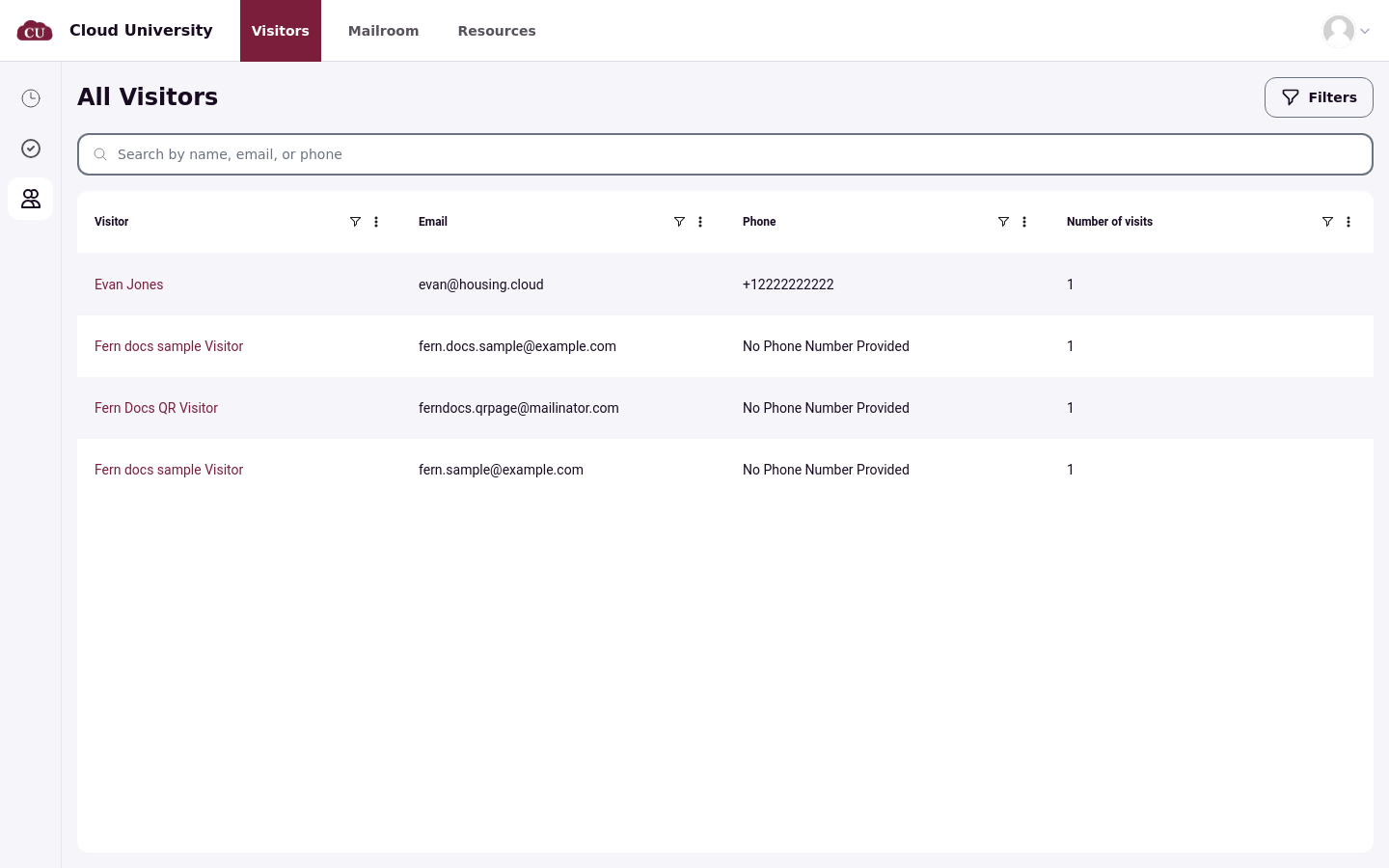
Each row shows the visitor's Visitor name, Email, Phone, and Number of visits. Click a visitor's name to open their profile.
The visitor profile
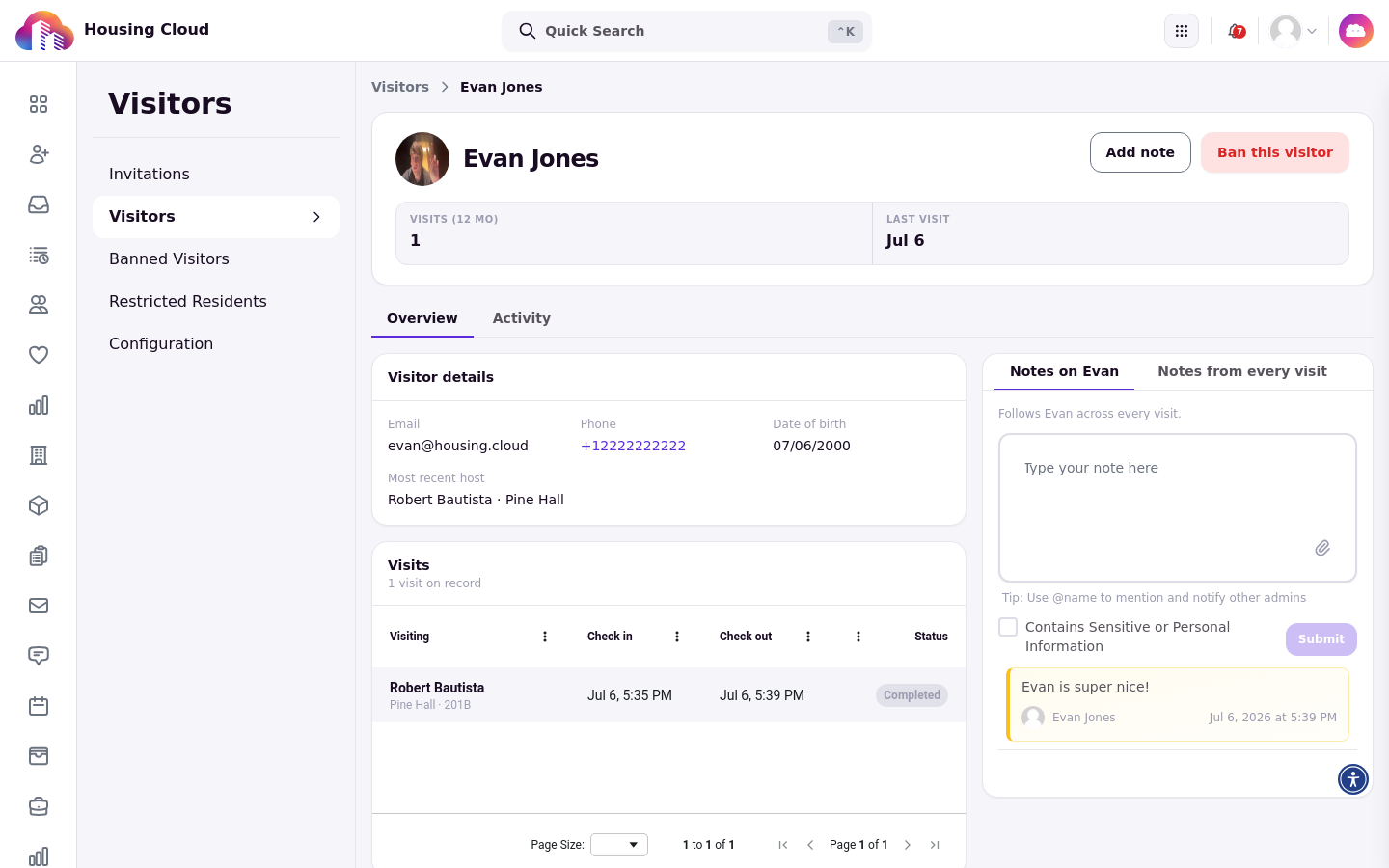
A visitor's profile opens from their name on any Visitors list. The header shows the visitor's name and photo, two stats (Visits (12 mo) and Last visit), and the Add note button. Staff who have the ban permission also see a Ban this visitor or Unban this visitor control here. Two tabs organize the page: Overview and Activity.
Visitor details and housing records
The Overview tab shows what the system knows about the visitor. External visitors have a Visitor details card with Email, Phone, Date of birth, and Most recent host. Visitors who are current residents have a Housing record card instead, with their matched profile, Student ID, Residence, standing, Phone, and age.
Some resident housing records are withheld from particular staff. When a resident's housing record is withheld from you, the card shows "This visitor's housing record isn't available to you."
Visit history
A visitor's full visit history lives in the Visits list on the Overview tab. The list counts the visits on record and shows each visit's Visiting, Check in, Check out, and Status. Each row links to that visit's invitation detail page, where the invitation itself is managed.
A visitor with no past visits shows "No visits yet". The Activity tab is currently a placeholder: it directs you to the Visits list on the Overview tab, where check-ins, check-outs, and cancellations are recorded.
Visitor notes and visit notes
The notes panel on the profile has two tabs: notes about the visitor, labeled with the visitor's first name, and Notes from every visit. Visitor notes follow the person across every visit they make, while visit notes are left on individual invitation pages.
When you write a note, the editor offers to mark it as containing sensitive or personal information and supports @mentions of other staff.
How banned visitors appear
A banned visitor still appears in search results, so you will see their ban when you open their profile. The profile shows a red Banned badge in the header and a banner stating the date of the ban and who placed it. The ban reason is shown only to staff who have permission to see ban reasons.
When a resident asks about their own guest invitations, they handle those themselves in the resident portal. See Managing Your Guest Invitations (For Students).