Check Visitors In and Out (For Staff)
Last updated: October 8, 2026
Front desk, security, and housing operations staff check visitors in and out in the Visitors area of the admin portal. The area has three queues: Expected visitors for upcoming visits, Checked-in visitors for guests currently on site, and All visitors for every visitor record. You can check a visitor in by searching the Expected visitors list or by scanning the QR code from their invitation. Residents send invitations from the student portal, so if a visitor has no invitation yet, see Inviting Guests and Visitors (For Students).
Open the visitor queues
Sign in to the admin portal and open the Visitors area. Every queue has a Search by name field and a Filters control, so you can find a visitor by name or narrow the list by visitor, invitation, or visit details. Some filters, such as building, room, and email, stay hidden until you add them to the view.
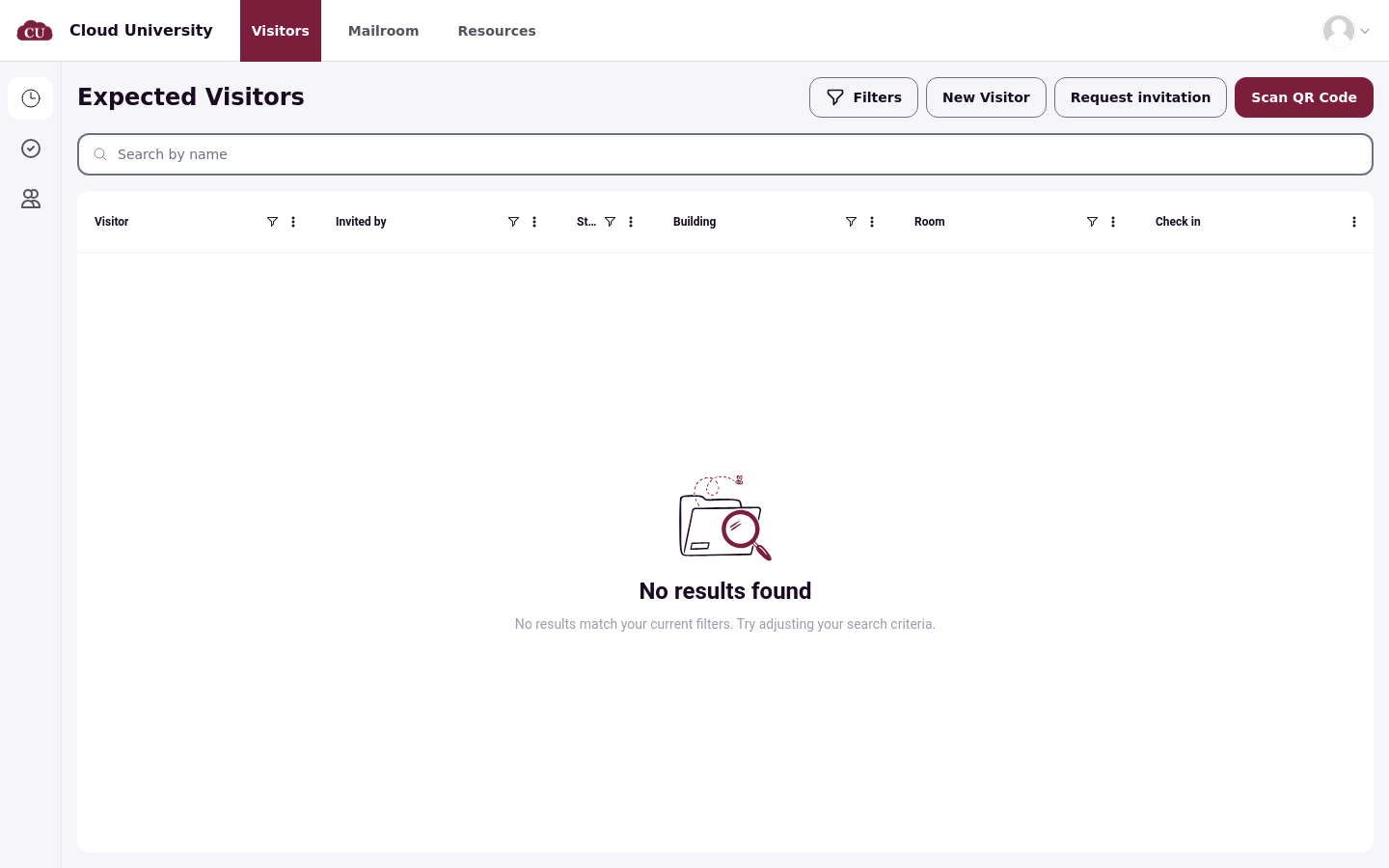
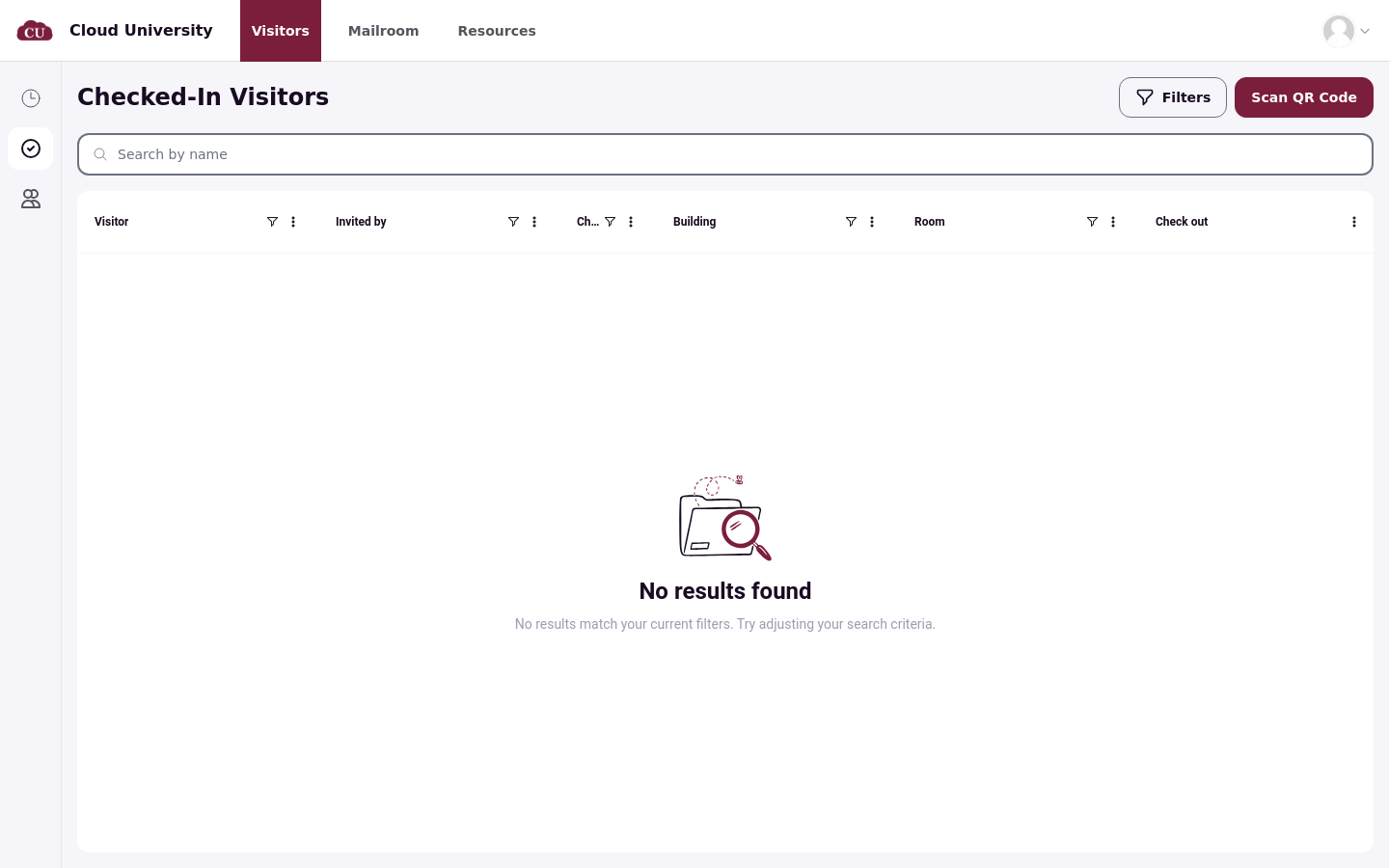
Expected visitors lists each upcoming visit with columns for Visitor, Invited by, Starts, Building, Room, and Check in. Checked-in visitors lists everyone currently on site. All visitors shows Visitor, Email, Phone, and Number of visits.
Check a visitor in
Check visitors in from the Expected visitors queue when they arrive at the desk. Find the visitor's row and select Check In. This opens the check-in dialog, where you confirm the visit and record what happened at the desk.
Complete the check-in dialog
The check-in dialog shows the visitor's email, phone number, visit date, and start and end times, so you can confirm you have the right person and the right visit. Select Add Photo to attach photos, and add notes about the visit before you confirm. Select Check In to complete the check-in, or Cancel to close the dialog without recording anything. The desk shows a confirmation naming the visitor, such as Checked in Evan Jones.
Scan a QR code instead of searching
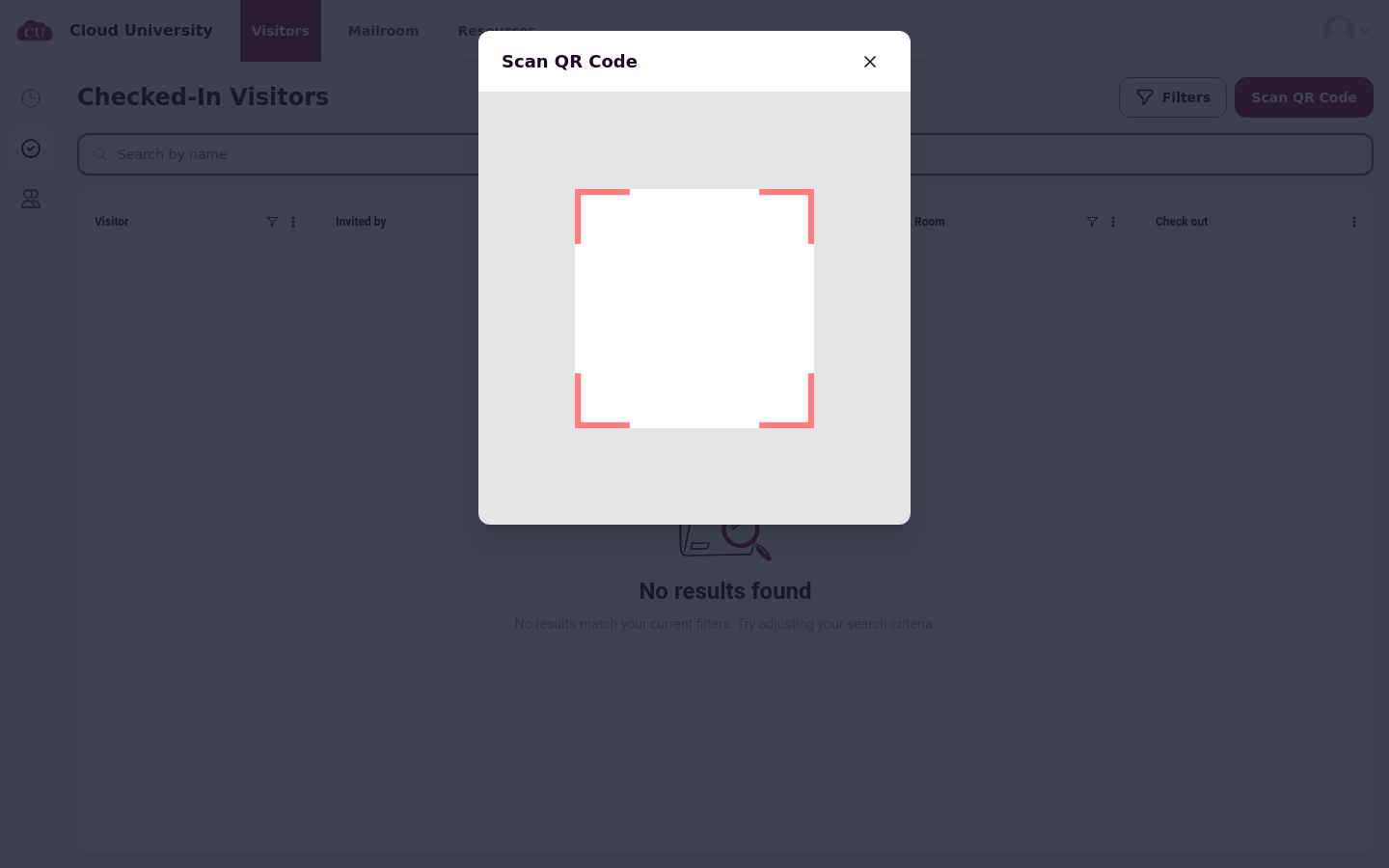
Each invitation comes with a QR code that the visitor shows at the desk. Select Scan QR Code on either the Expected visitors or the Checked-in visitors page to open the scanner, then scan the visitor's code. The scan opens that invitation's detail page, where you can review the visit and complete check-in. On a phone or tablet, the button reads Scan QR and opens a bottom drawer instead of a modal.
Visitors receive their QR code when the resident sends the invitation. Point them to Understanding QR Codes and Visitor Check-In (For Students) if they cannot find it.
Check a visitor out
When a visitor leaves, open the Checked-in visitors queue, find their row, and select Check Out. The desk shows a confirmation naming the visitor. Checking out ends the visit and updates the invitation's status badge.
Notify the host
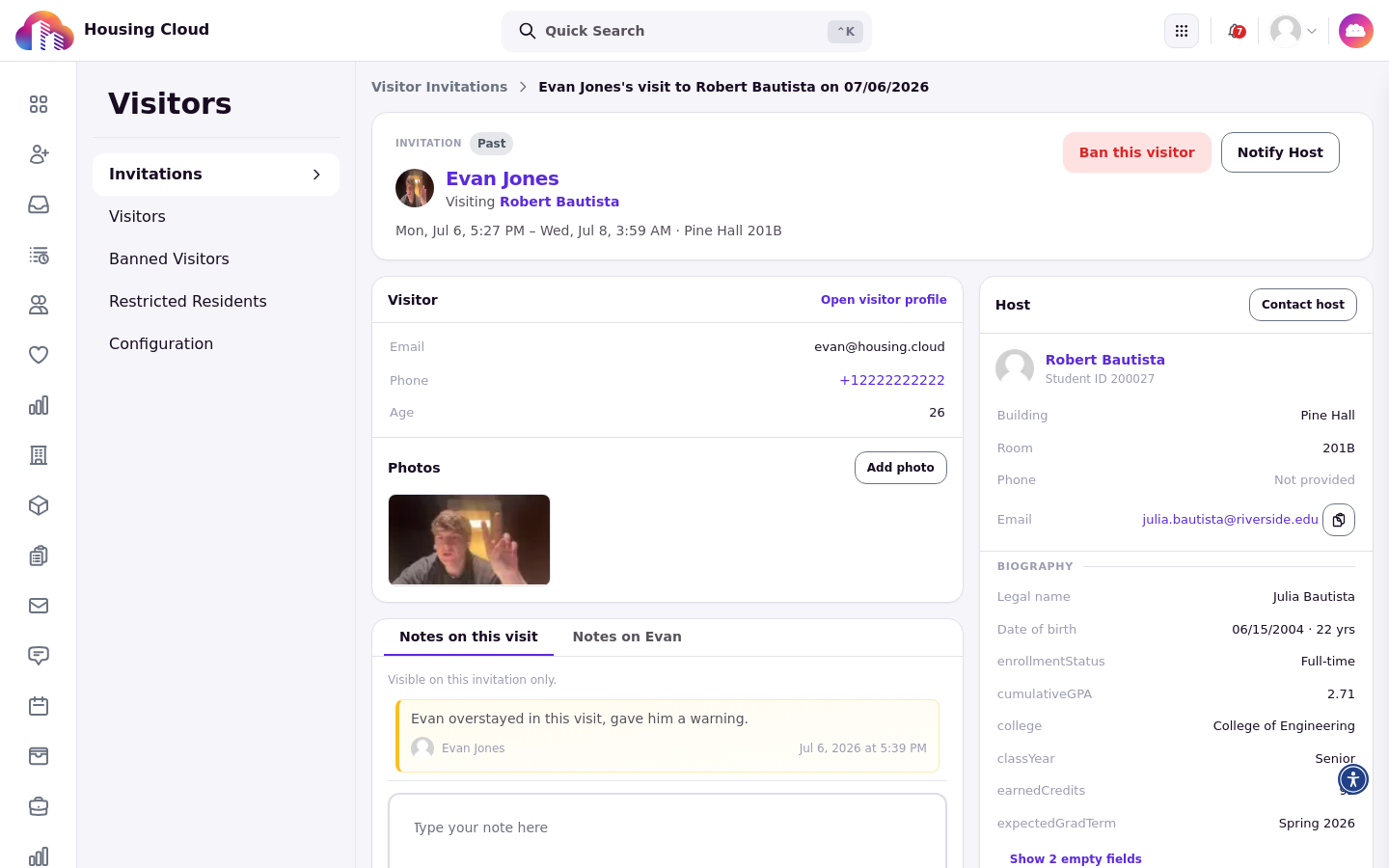
When a guest is waiting at the desk, open their invitation and select Notify Host to tell the resident that their guest has arrived. A confirmation appears once the notification is sent. To reach the resident directly, select Contact host on the Host card. It opens an email composer, and replies go to your school email address.
What the invitation detail page shows
Every invitation opens to a detail page headed INVITATION with a status badge. Statuses include Upcoming, Checked-in, Overstay, Past, No-show, and Canceled. The page also shows the visitor's name, the resident they are visiting, and the visit date, time, building, and room.
The Visitor card lists the visitor's email, phone, and age; visitors who are residents also show their Student ID and residence. The Photos card holds photos from the invitation or the desk and offers Add photo. Form answers appear when the invitation or the check-in included custom questions. The Notes card shows Notes on this visit together with notes saved on the visitor's record.
Banned visitors
Banned visitors show a red Banned badge on their invitation, and their invitation offers no check-in or check-out actions. The Notify Host button is also hidden for banned visitors.
Verify the result
After check-in, the visitor appears in the Checked-in visitors queue. Open the invitation from the queue or from a scan to confirm the status badge and the check-in details you recorded. The badge shows Checked-in while the guest is on site and Past once the visit ends.