Approve or Reject a Request
Last updated: October 8, 2026
A request waiting for a decision shows a "Pending approval" tag beside its status, and staff with the Approve or reject tasks permission see Approve and Reject at the top of the task. Approving tells the resident the request was accepted. Rejecting posts your reason on their request. Every decision is final.
Before you start
Approvals exist on request types where Require admin approval is switched on; see "Require Approval on a Request Type". Deciding them needs the Approve or reject tasks permission.
Find a request waiting for a decision
The "Pending approval" tag shows beside the status of every request waiting for a decision. Open the task from the Tasks queue to read it, then decide.
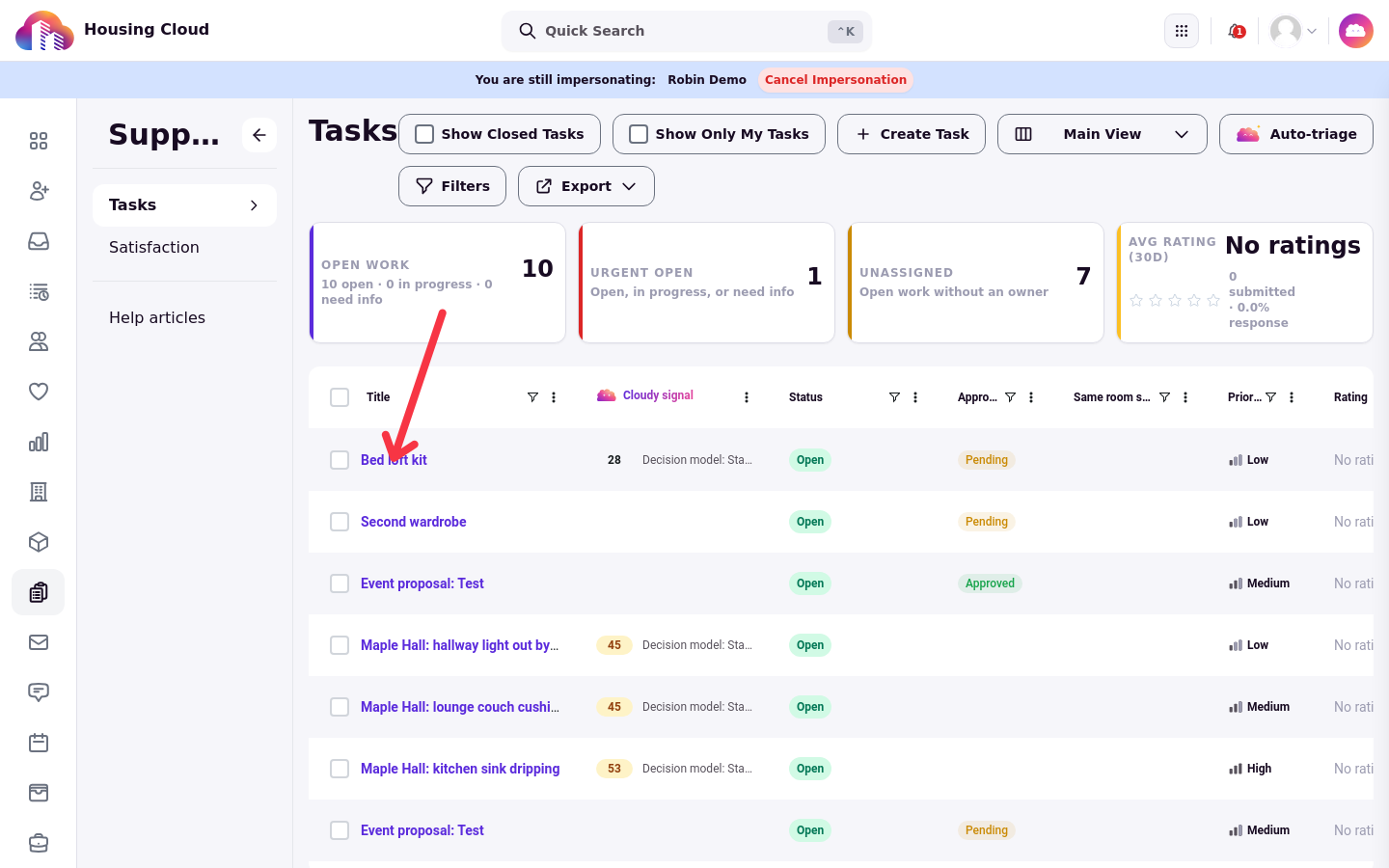
Approve a request
Press Approve at the top of the task.
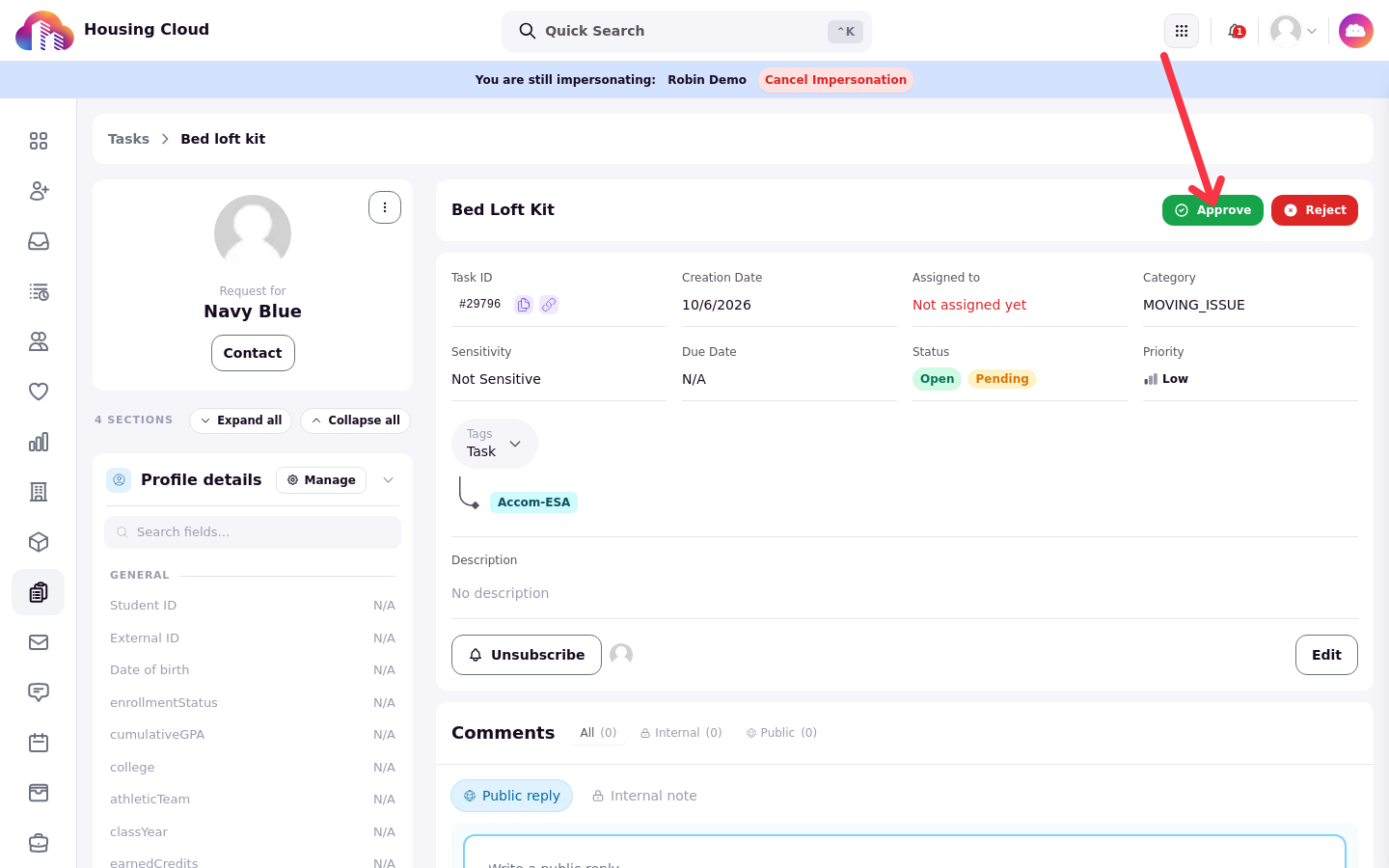
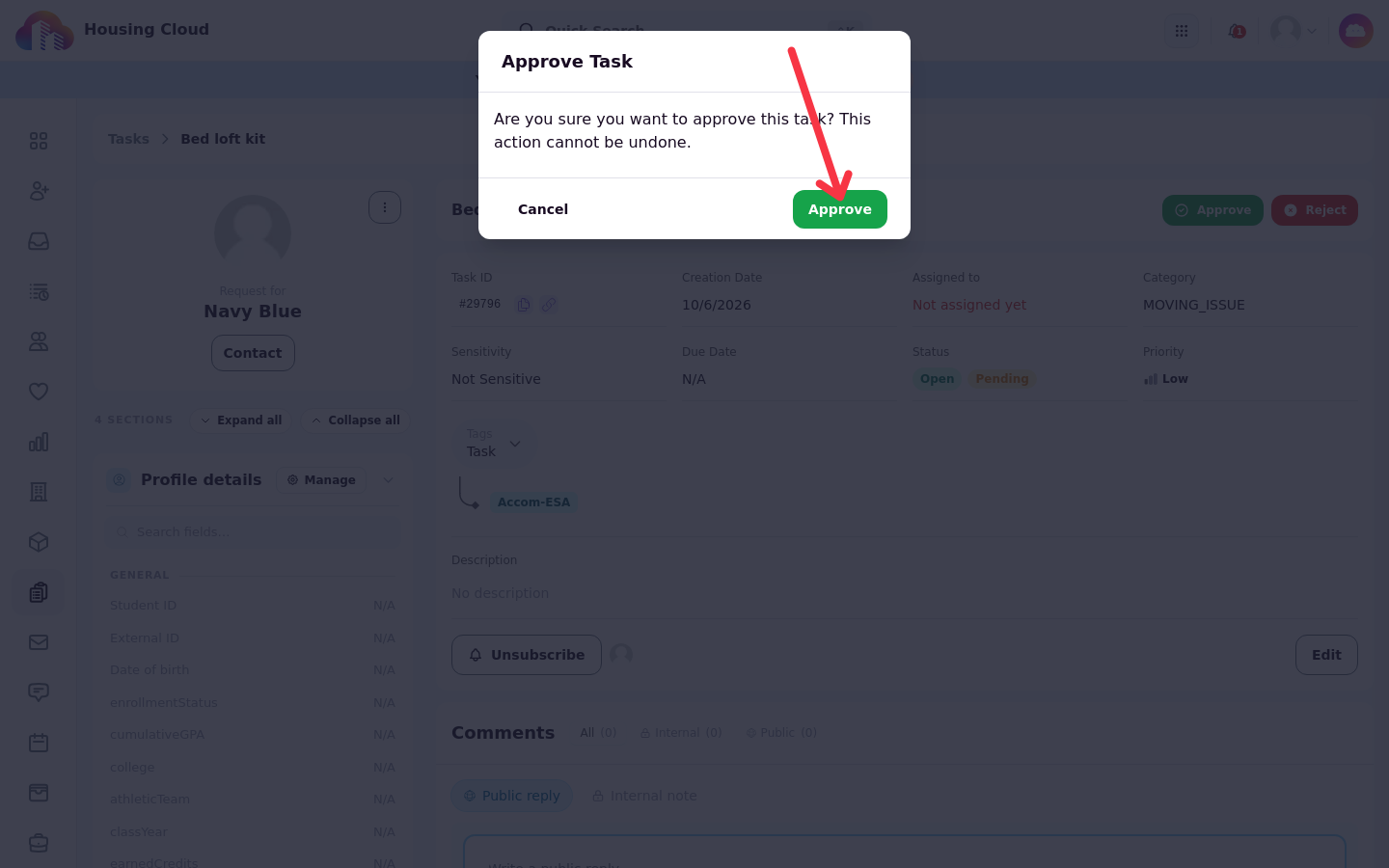
The Approve Task confirmation states "Are you sure you want to approve this task? This action cannot be undone.".
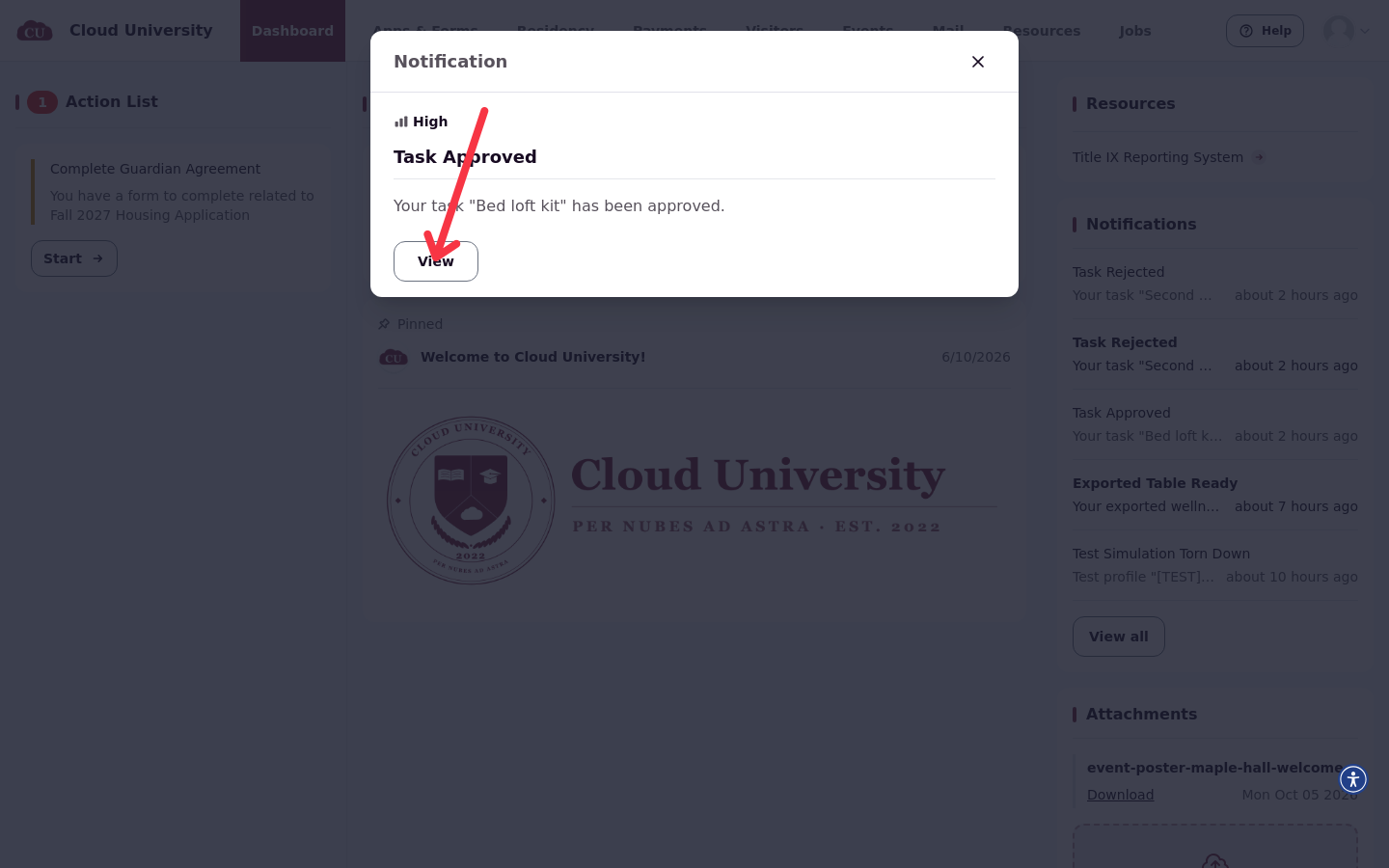
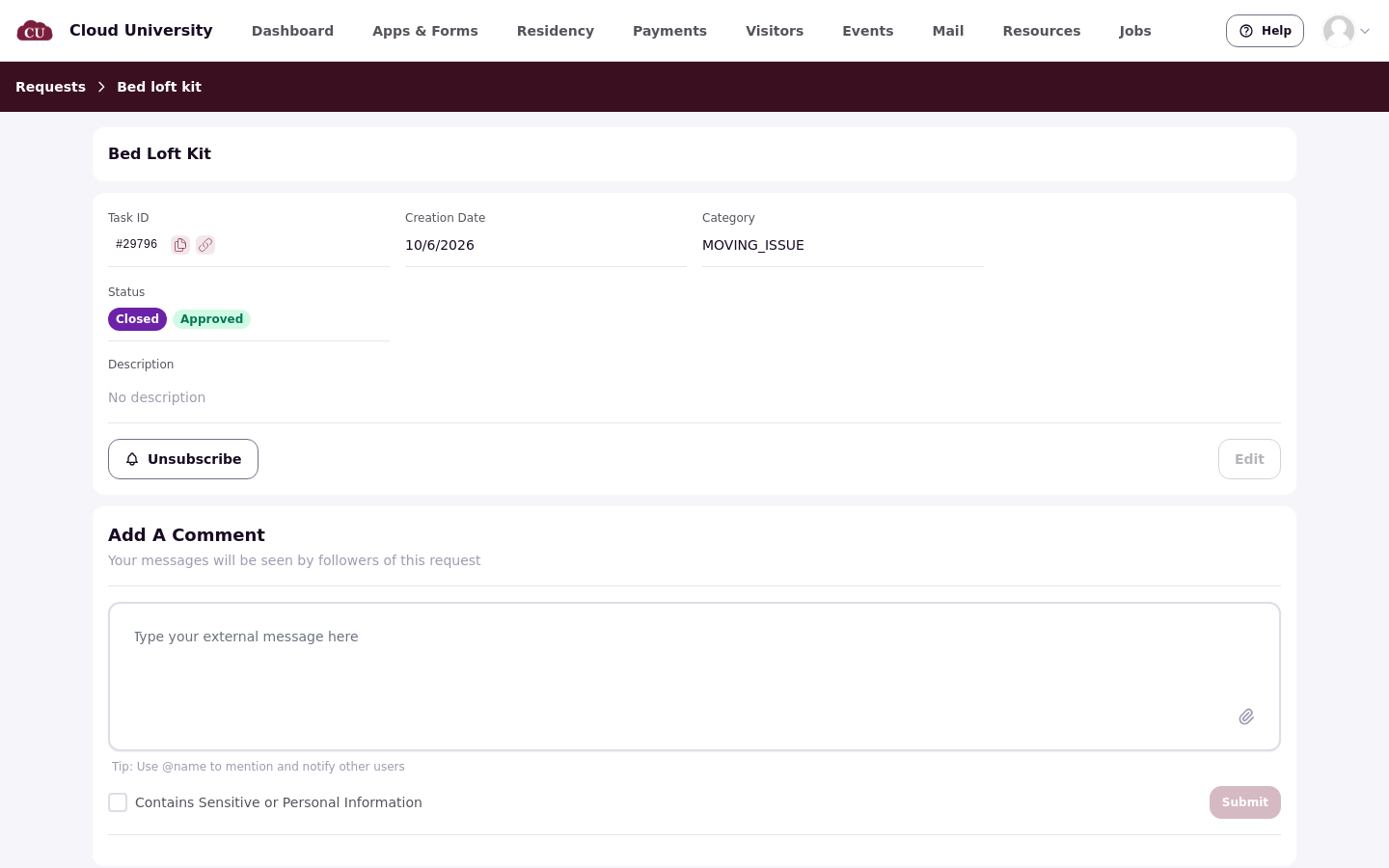
Confirming sets the tag to "Approved", and the resident gets "Task Approved" by email and in the portal.
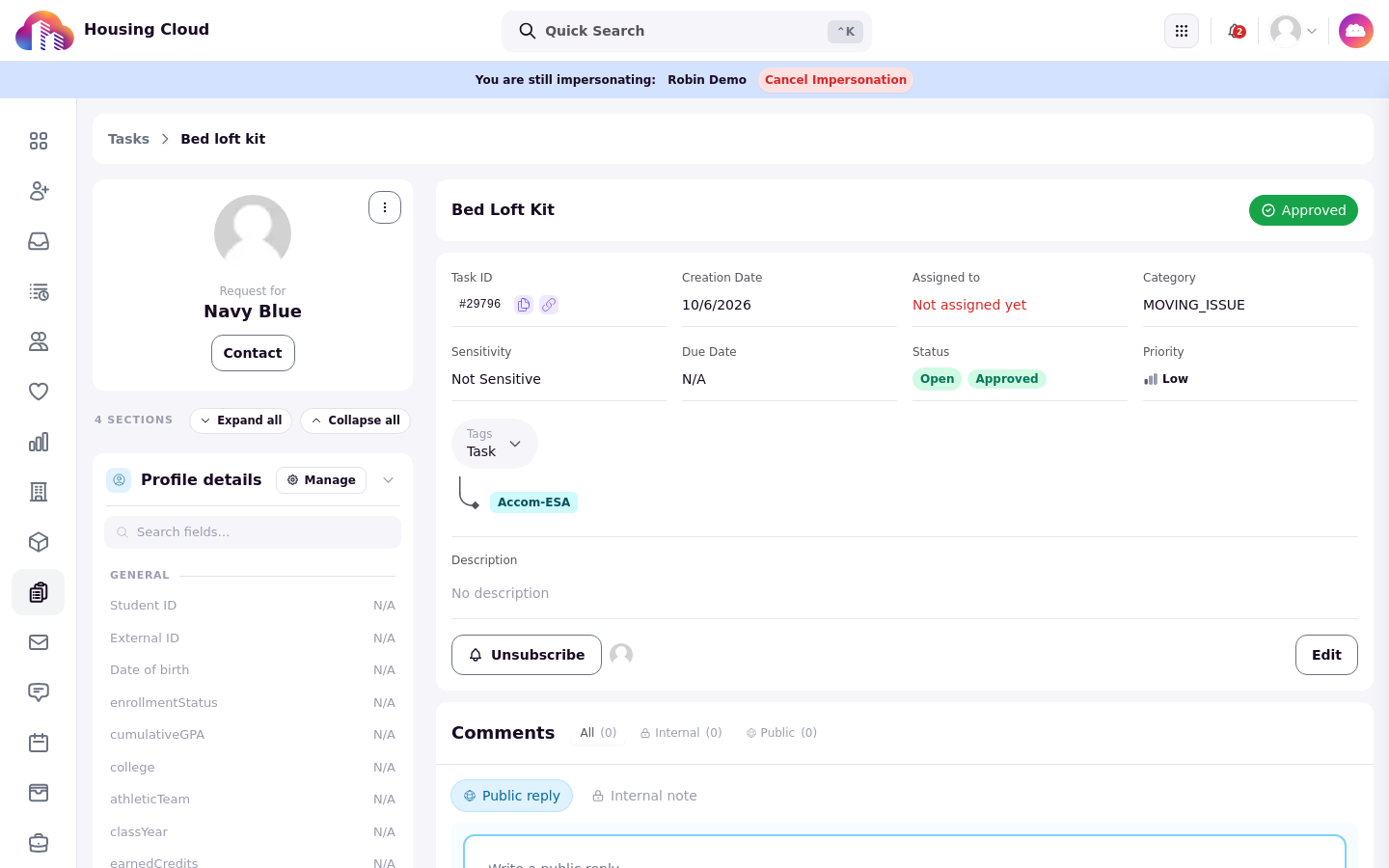
Approving changes nothing else. The status stays where it was and nobody is assigned: set the task to "In Progress" and work it as usual.
[SCREENSHOT 19-9: A19/09-approved-email.png — "Task Approved" in {EMAIL2}'s inbox.]
Reject a request with a reason
Press Reject at the top of the task. Rejection Reason is required, and the box prompts "Explain why this request is being rejected...".
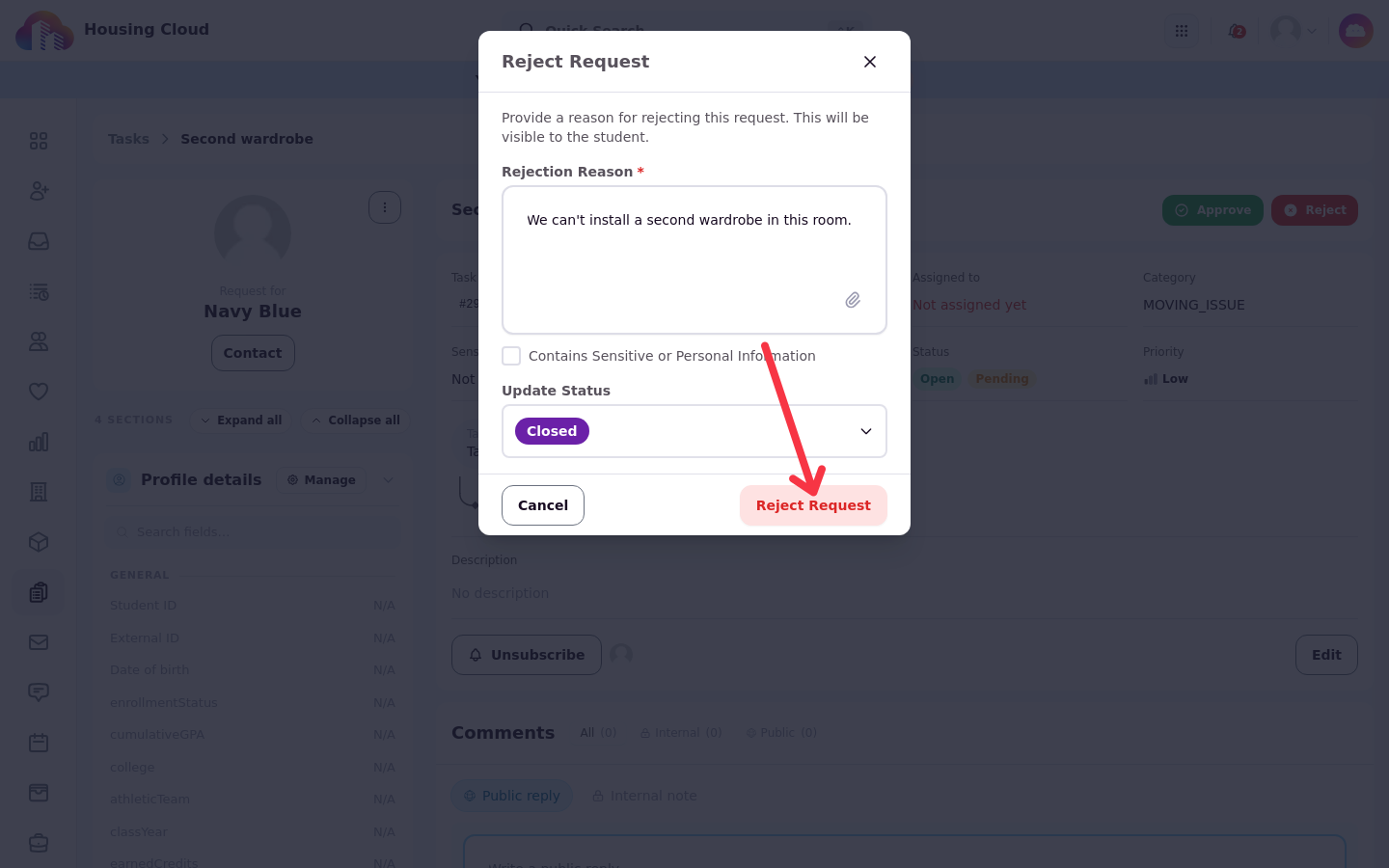
The same window has Update Status, which starts at "Closed". Pick another status if the request should stay open.
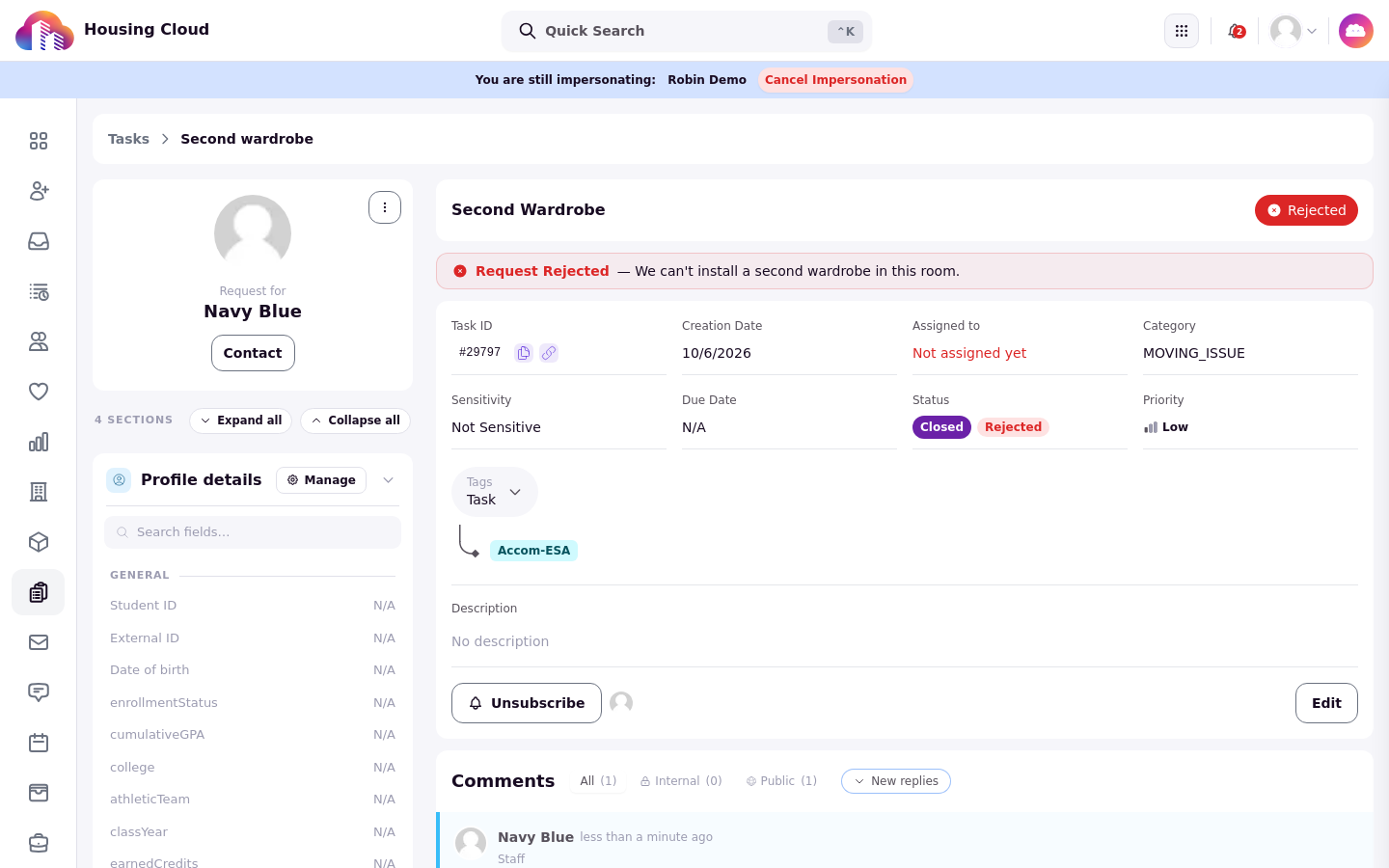
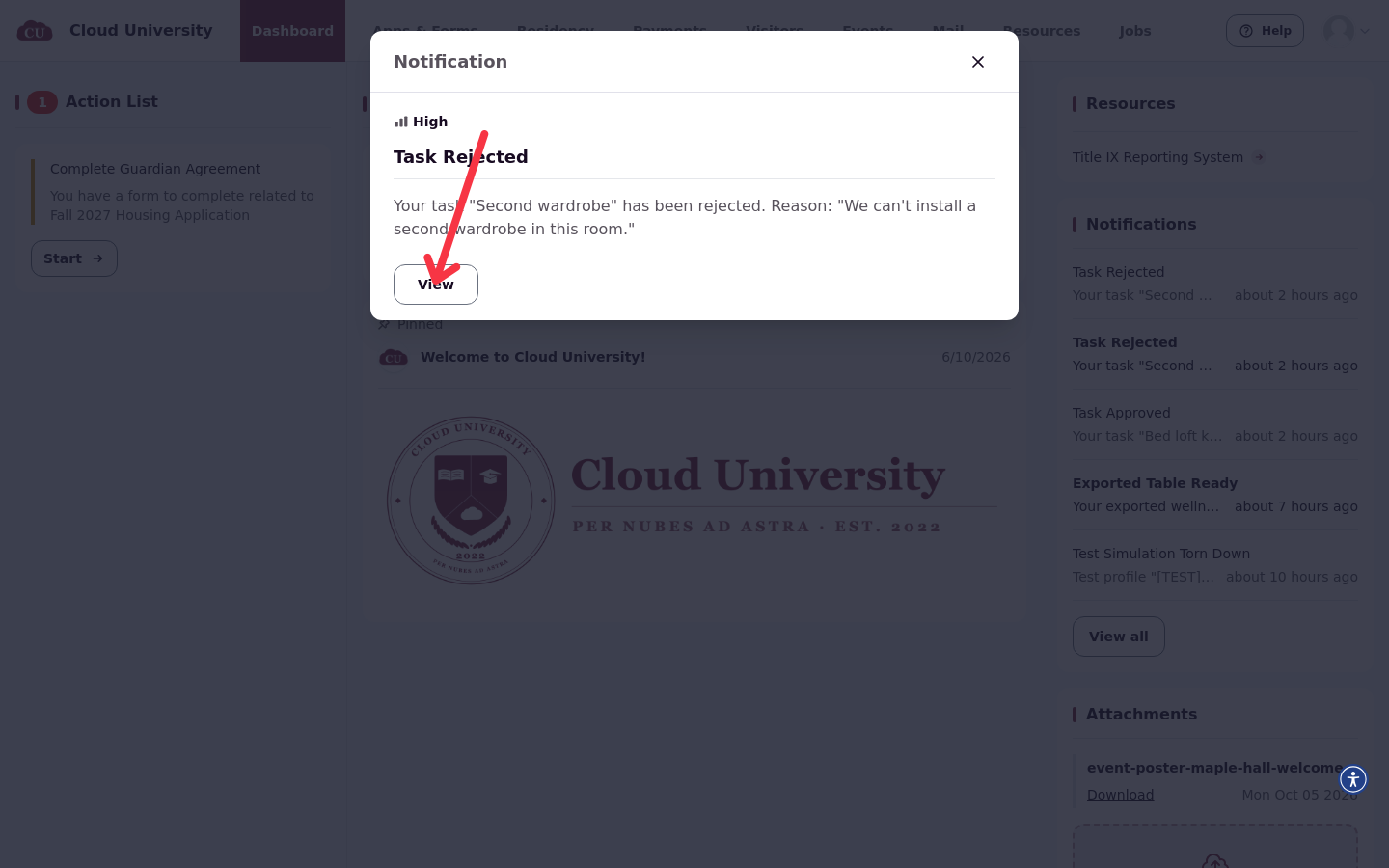
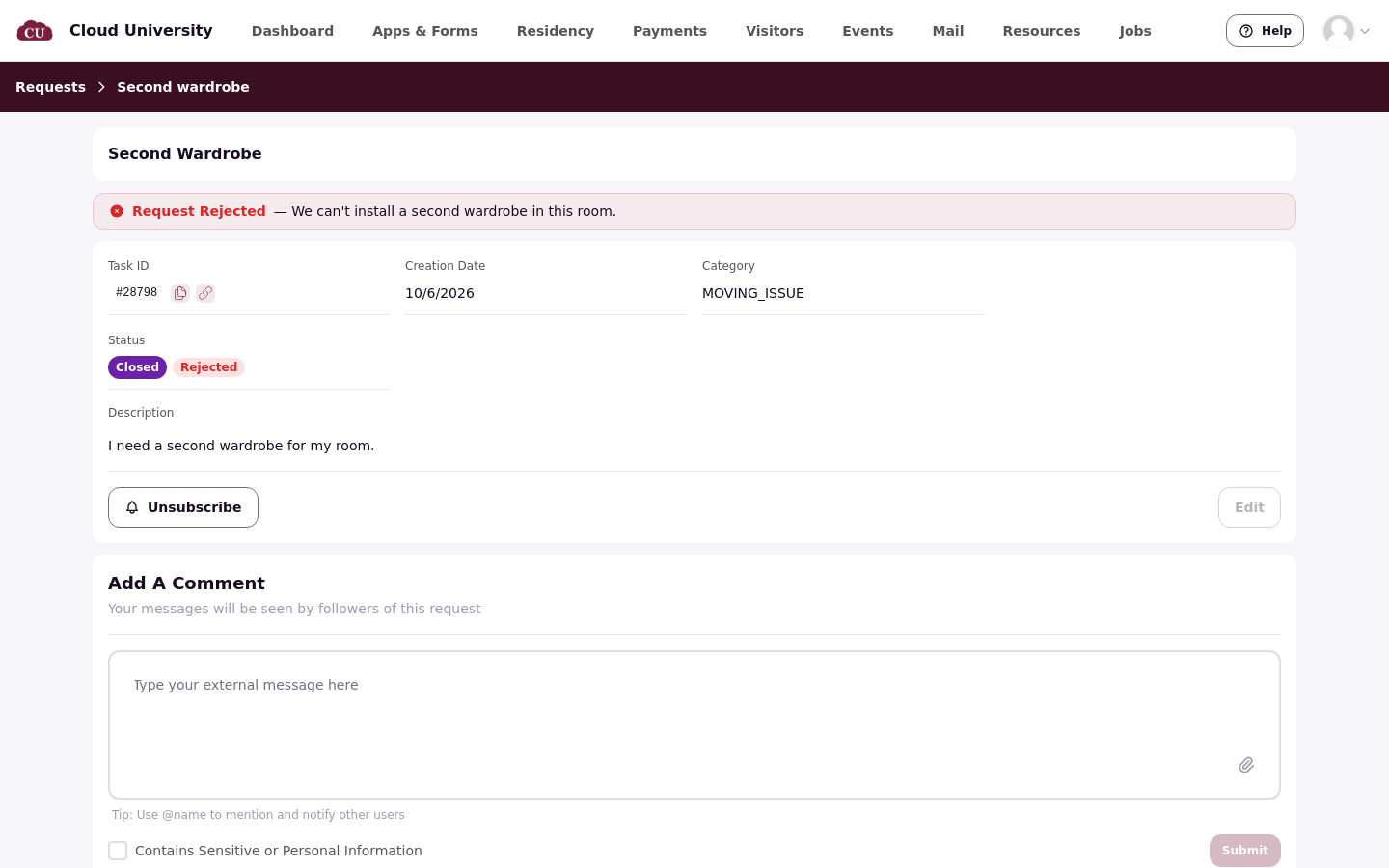
The reason is posted as a public reply: the resident sees "Request Rejected — " at the top of their request and gets "Task Rejected" with the reason.
[SCREENSHOT 19-8: A19/08-rejected-email.png — "Task Rejected" in {EMAIL1}'s inbox.]
Keep a reason private
Contains Sensitive or Personal Information shows in the reject window when you hold Read access to sensitive notes. Ticking it hides the reason from the resident: they see "Request Rejected" with no reason.
After the decision
Only the resident is told. The assignee and other subscribers get no notice, and @names typed in the reason aren't notified.
A decision can't be undone: there is no "back to Pending approval". Moving the task to another request type that needs approval resets it to "Pending approval"; moving it to a type that doesn't clears it. Decisions show in Edit History on the task and in the Approval Changed column on the queue.
What the resident can do
The resident sees the same "Pending approval", "Approved" or "Rejected" tag on their request and can cancel it while it is still "Pending approval". After a rejection there is no appeal in the product: the resident replies to the task, or files a new request, which counts toward the type's Max tasks per student.
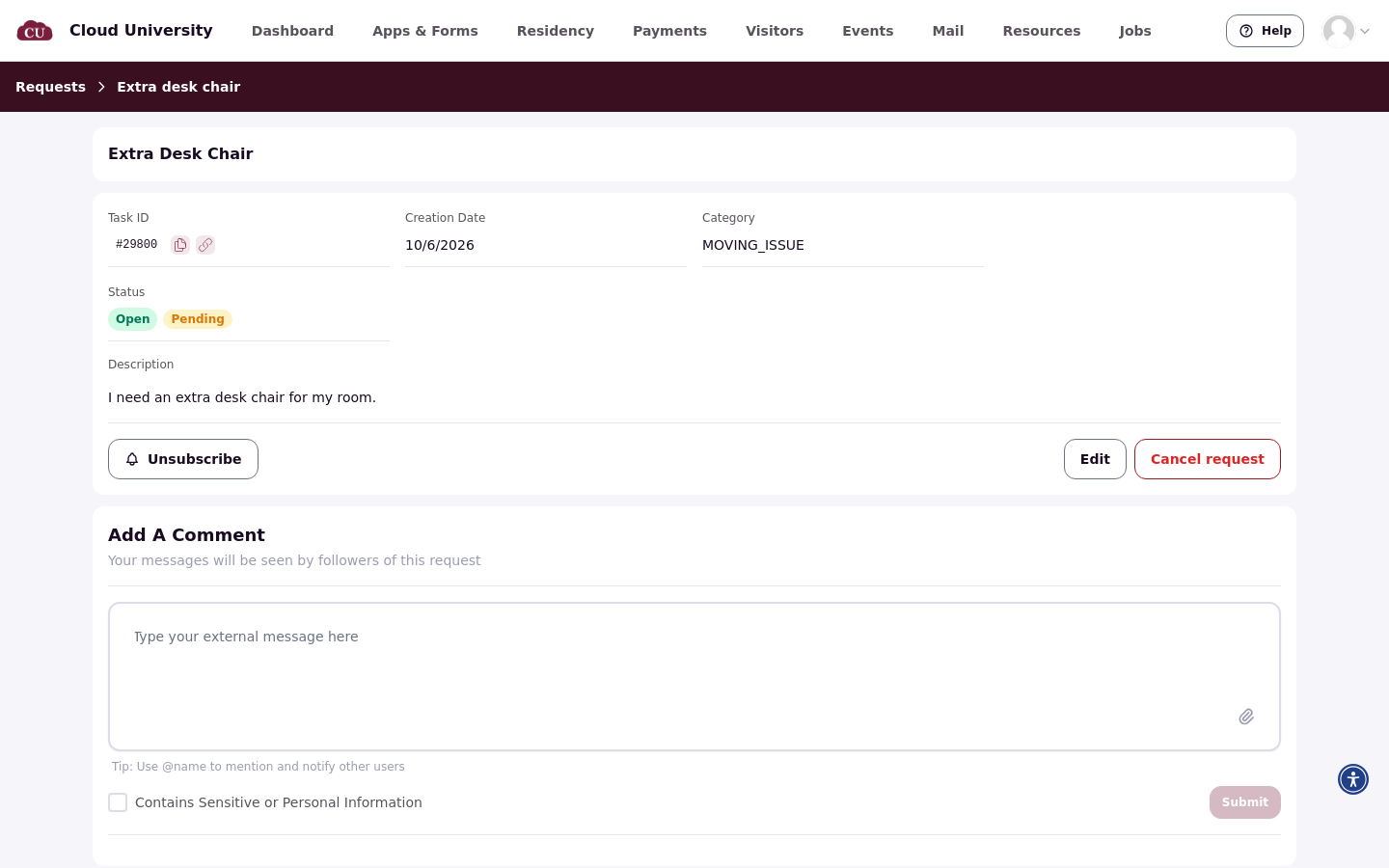
While a request waits for a decision, its page shows "Pending" beside the Open status.
An approval reaches the resident as a "Task Approved" notification on their dashboard.
Their request then shows the "Approved" tag beside its status.
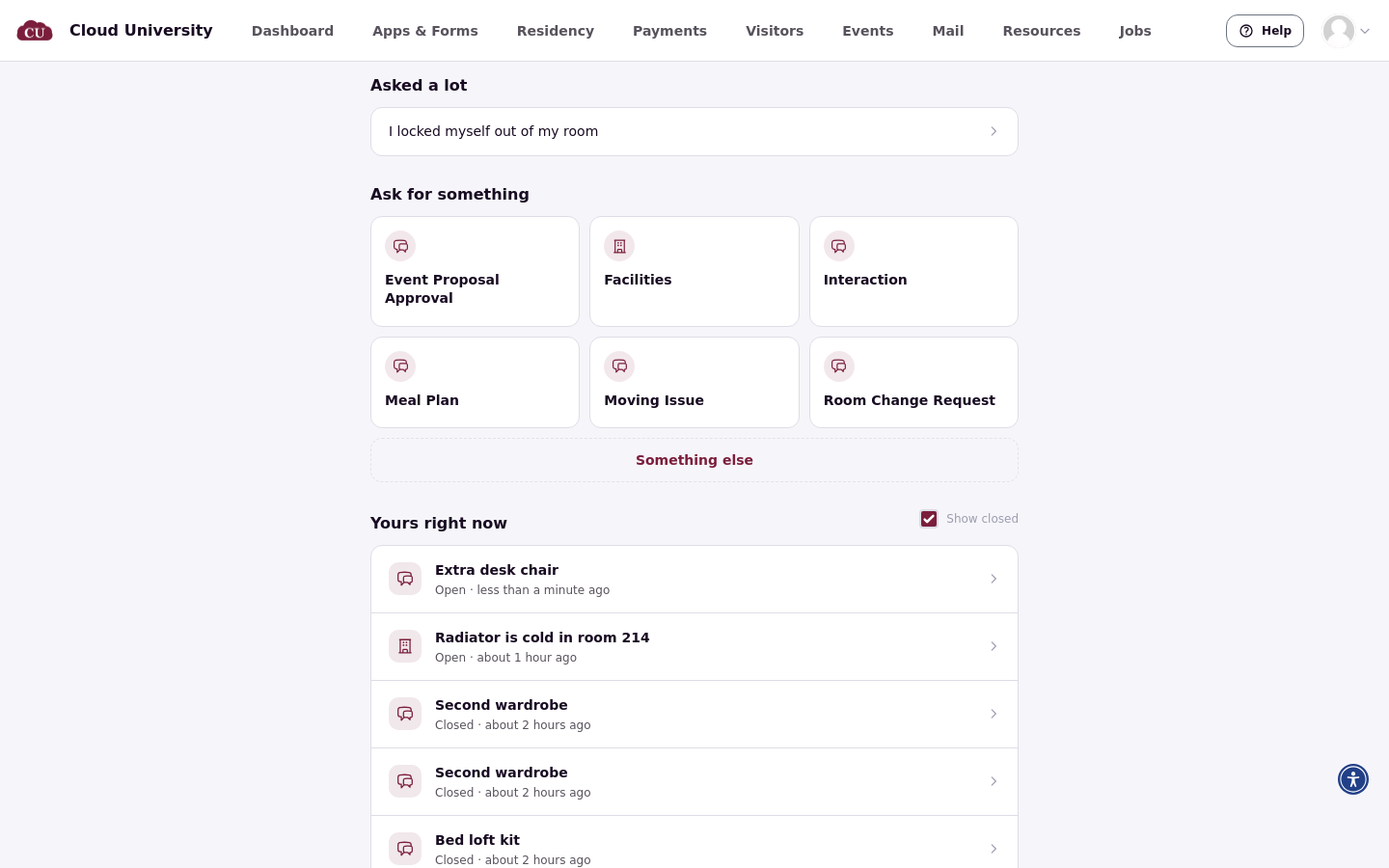
A rejection reaches them as a "Task Rejected" notification that includes the reason.
Their request shows the "Request Rejected" banner with the reason at the top.
Good to know
Decisions are final. There is no undo, no "back to Pending approval", and no "send back for more info" button. Staff can approve or reject several tasks at once with the bulk actions Approve Selected Tasks and Reject Selected Tasks. Bulk Update Status skips tasks that are pending or rejected, and Approve Re-selections in the bulk menu is for room re-selections only.
Only the resident hears about an approval decision. The assignee and other subscribers aren't told, @names typed in a rejection reason aren't notified, and a sensitive rejection emails an empty reason.
Max tasks per student never resets. It counts every request the resident has ever filed in that type, closed and rejected ones included.