Send Additional Forms to Students
Last updated: October 5, 2026
Admins can send additional forms, such as medical or personal documents, to individual students or groups of students. These forms offer flexibility beyond standard housing forms and allow institutions to collect specific information efficiently.
Send to an Individual Student
Navigate to Applications or Residents to Select the student you want to send the form to.

Scroll to the Additional Forms section, or click Additional Forms in the navigation.


From the dropdown, select the appropriate form from your list of created forms.

Optional: Set a due date for form submission, if needed.
To notify the student by email, check the Send an email notification box and select an email template.
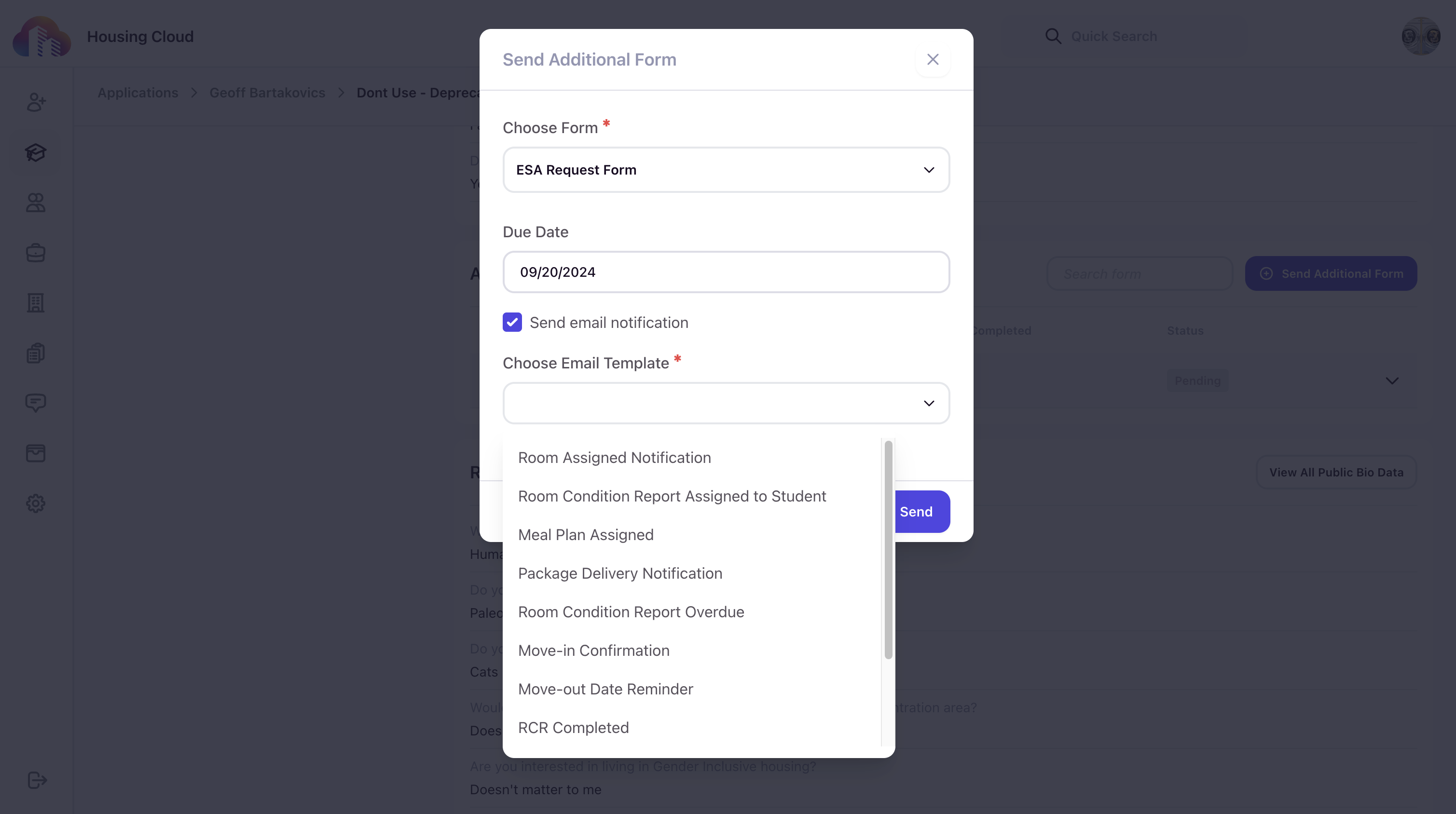
To mark the form as mandatory, select Mark as Required.

Click Send to assign the form to the student.

Send to Multiple Students
To send an existing form to multiple students, navigate to Applications or Residents from the sidebar.

Use the checkboxes to select individual students, or click the checkbox in the header row to select all students in the list.

Click the three-dot menu and choose Send Additional Form to open additional options.

Follow the same steps outlined for individual students to configure options and send the form.
Accessing Additional Forms in the Resident Portal
Students can access assigned forms through their resident portal, in addition to receiving email notifications if enabled.
