How Residents Track, Reply To and Cancel a Request
Last updated: October 8, 2026
Every request a resident files has its own page in the resident portal. That page shows the request's status, public replies from staff and the resident's own comments, and it is where the resident answers a question, adds files and can cancel a request that is still open. This article walks through the page from the resident's side, so staff know what residents see and can do on their own.
Before you start
The "More info needed" email and portal notice reach residents only when Housing Cloud has switched that notice on for the school. If residents are not receiving them, ask your Housing Cloud contact.
Where residents find their requests
Residents open Requests in the portal. The list groups requests under Needs your attention, Open and Closed, and a Show closed control reveals closed requests. The link in any email about a request opens that request's page directly. A request page's address is /v2/requests/<id>, and links in notification emails use that path when portal v2 is enabled. The earlier /contact/tickets/<id> path is the legacy address.
What a request page shows
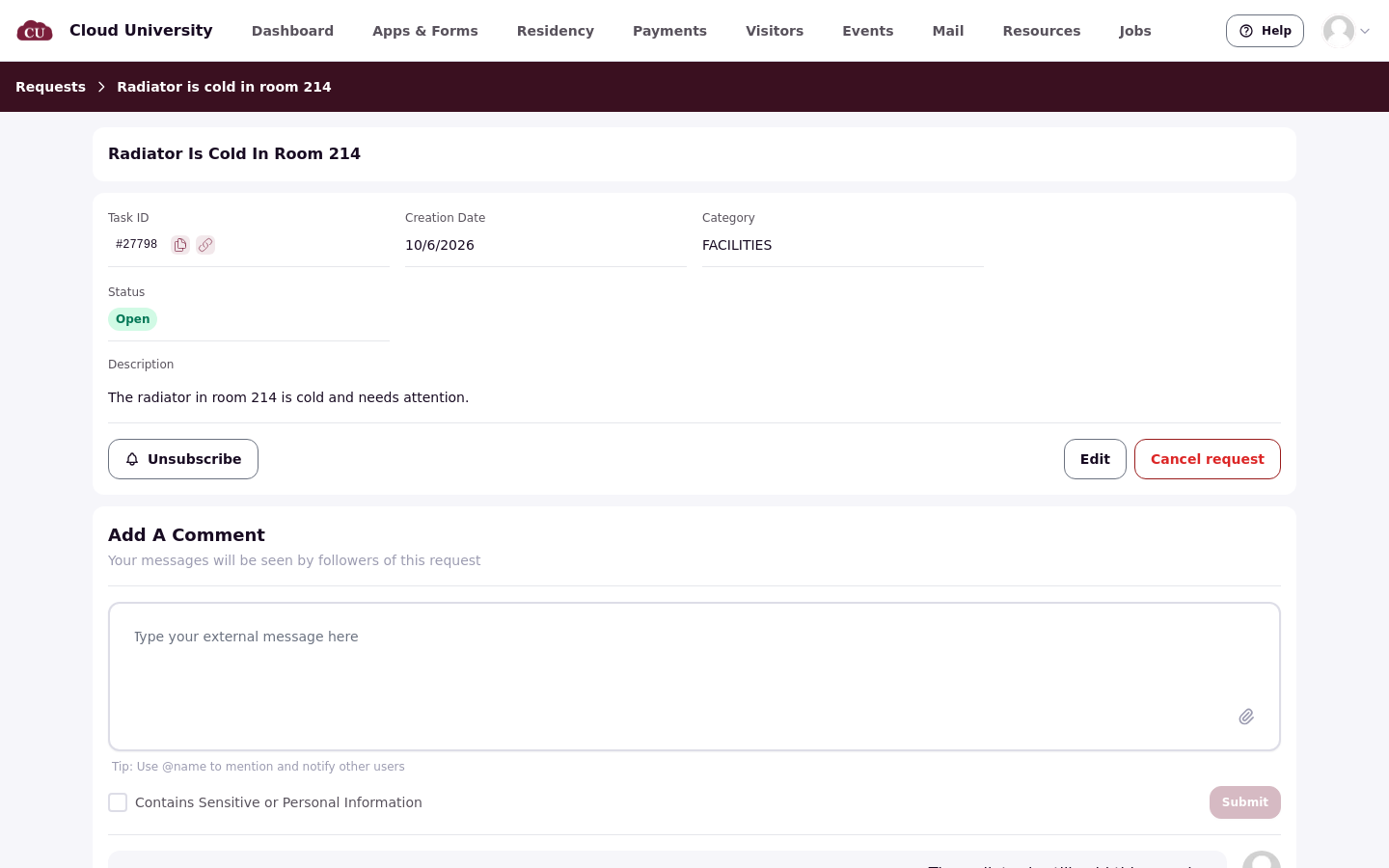
Opening a request from the list, or from the link in any email about it, opens the request's own page. The page below shows Radiator is cold in room 214 with its Open status, the request details and the conversation between the resident and staff.
Statuses residents see
A request shows one of five statuses: Open, In progress, Needs your reply, Closed or Cancelled. There is no "Resolved" status.
Replies and comments
When staff post a public reply, the resident receives it by email and sees it on the request page. Residents can post comments of their own the same way. Internal notes never reach the resident. Each comment can carry up to three files.
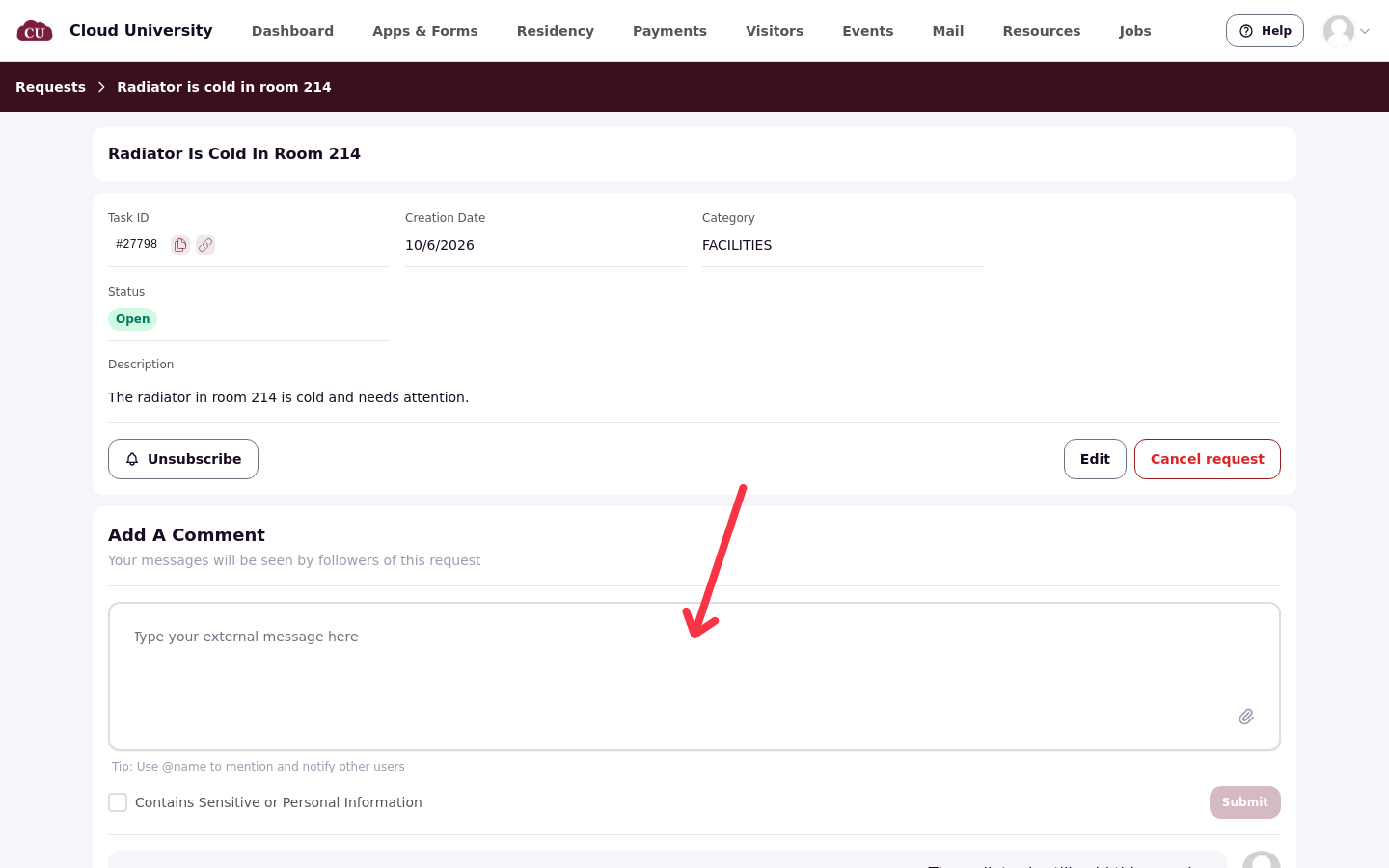
At the bottom of the request page, the Add a comment box is where the resident answers a staff question or adds information. Messages posted there are seen by the followers of the request.
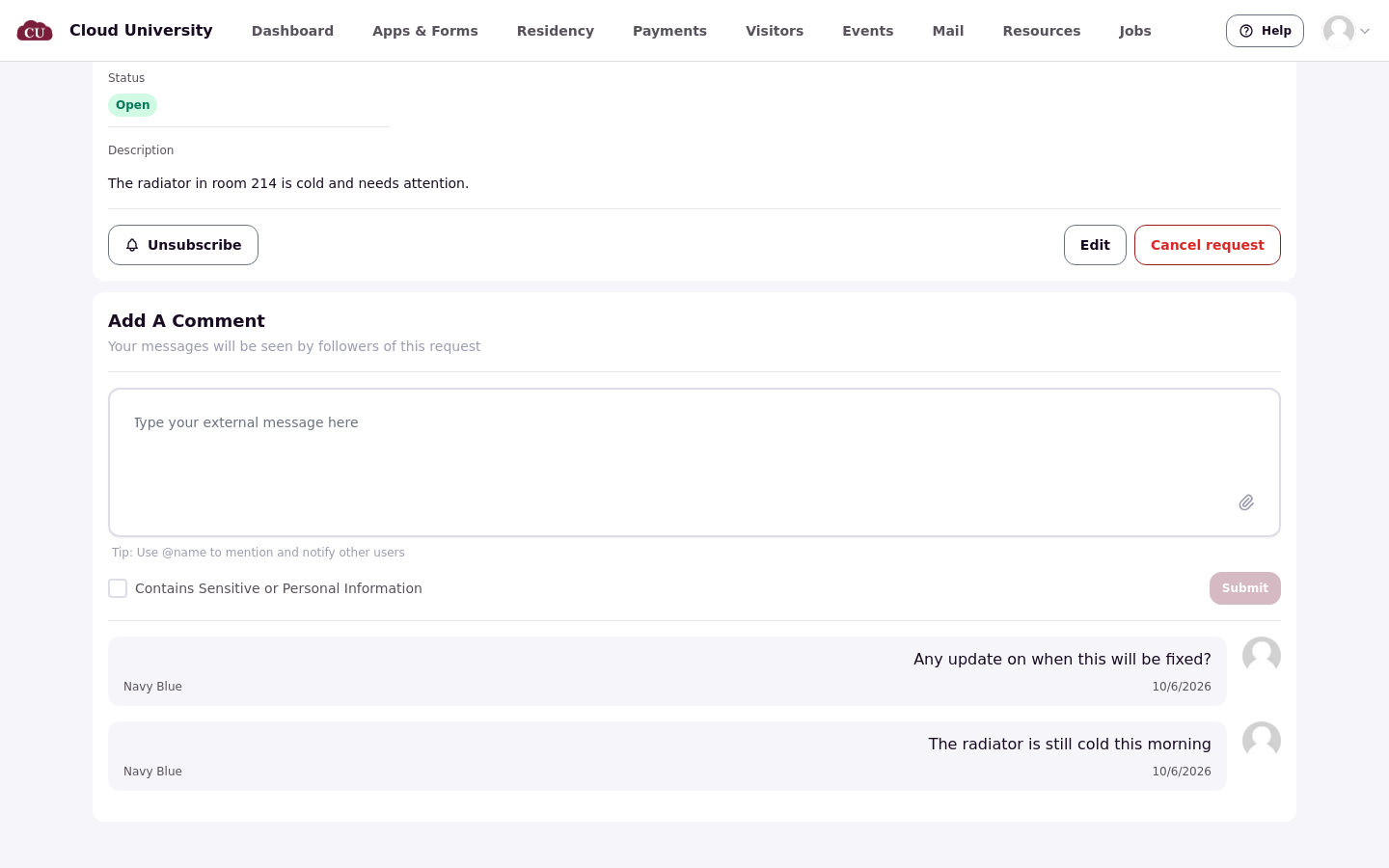
Once the comment is sent, it appears in the thread on the request page for staff to see.
When staff need more information
When staff set a request to Needs info, the resident gets a "More info needed" email and a portal notice saying the housing team needs more information about the request. The resident answers with a comment on the request page.
Editing a request
An Edit option appears on the request page when the request type allows editing and the request is still open.
Cancelling a request
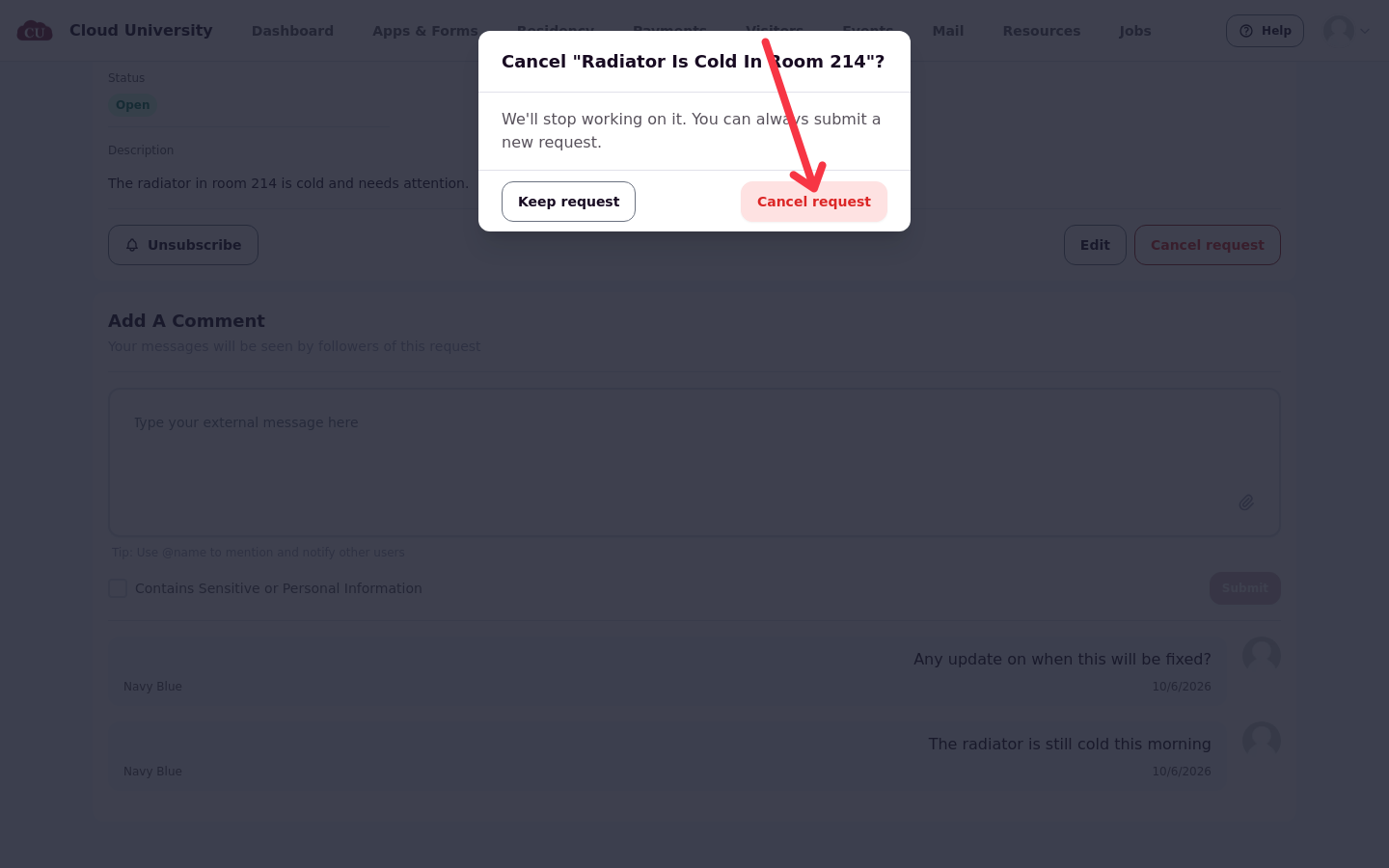
Cancel request lets a resident withdraw their own request. A confirmation window names the request's title, and the cancellation takes effect only after the resident confirms it.
Once staff have closed a request, the resident can no longer cancel it. A resident who cancels their own request is asked to rate it three days later when the request is eligible: its category must enable ratings and the rating feature must be on for the school. Cancelled is treated as a terminal status like Closed.
Good to know
Residents who cancel an eligible request are asked to rate it when ratings are enabled for its category and the rating feature is on for the school and the task category. The rating email treats Cancelled like Closed.
Each comment can carry up to three files.