Bulk Actions and Reviewing Several Tasks
Last updated: October 8, 2026
Bulk actions let you tick several tasks in the Tasks queue and act on them all at once: review them one after another, assign them, manage subscribers, change their status, approve or reject tasks that need approval, approve room re-selections, or message the residents. You work from the same queue you use every day, so anything you can do to one task you can do to a selection of them. This article covers selecting tasks and each action in the bulk menu.
Before you start
Bulk actions are part of the Tasks queue, which is switched on by Housing Cloud with the rest of the Support kit. Open Support → Tasks to use them. What your role can do with tasks depends on its permissions, covered in Turn On Support: Switches, Permissions and the Support Menu. Changing tasks in bulk needs Edit tasks: without it you can still read the queue, select tasks and use Review.
Select the tasks
Tick the checkbox on each row you want, or select all rows at once. The number of selected tasks shows beside the … menu at the top of the list, and a search box lets you find an action by name instead of scrolling the menu.
The actions in the menu
Open the … menu beside the selection count to see the actions, grouped by what they do.
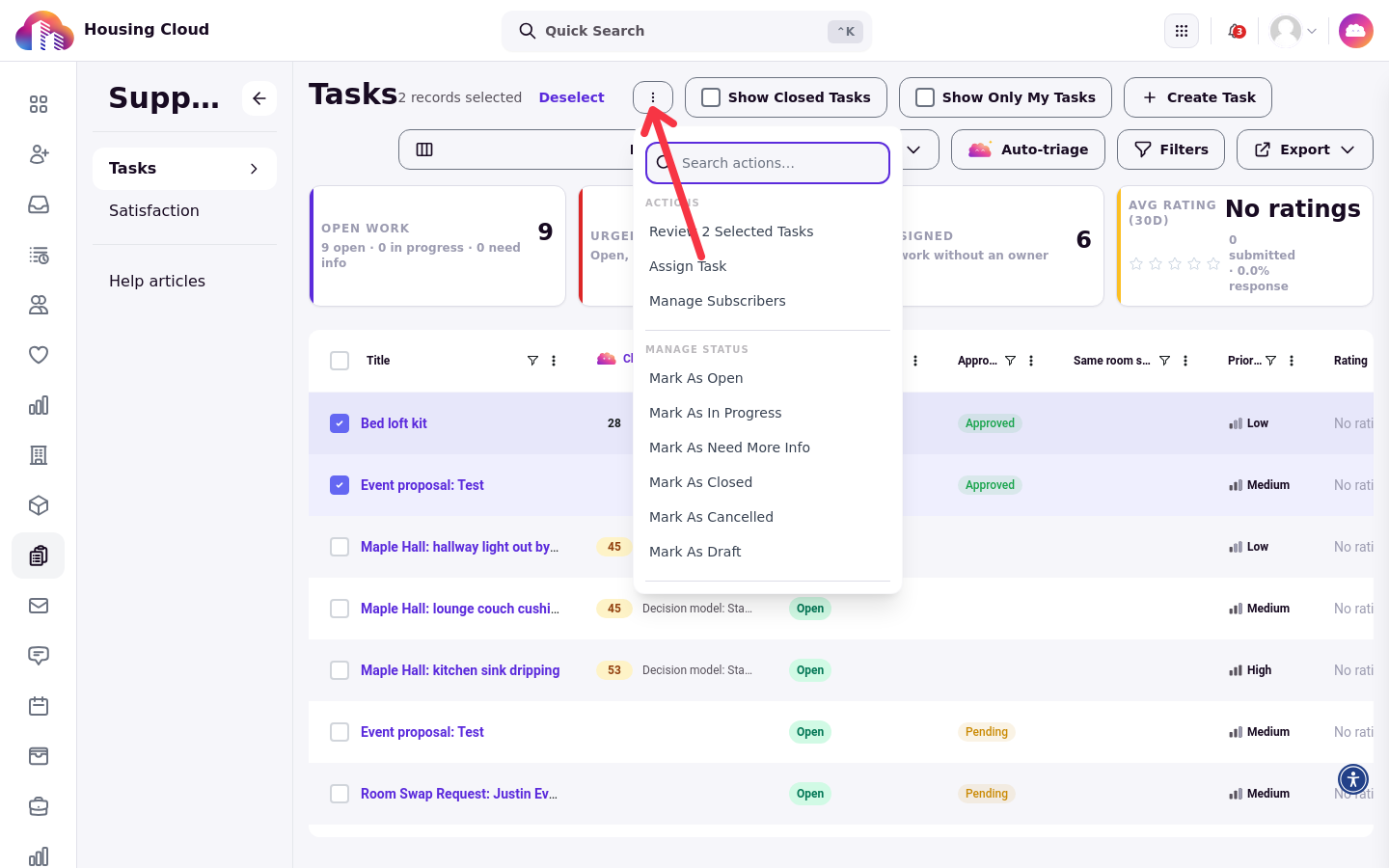
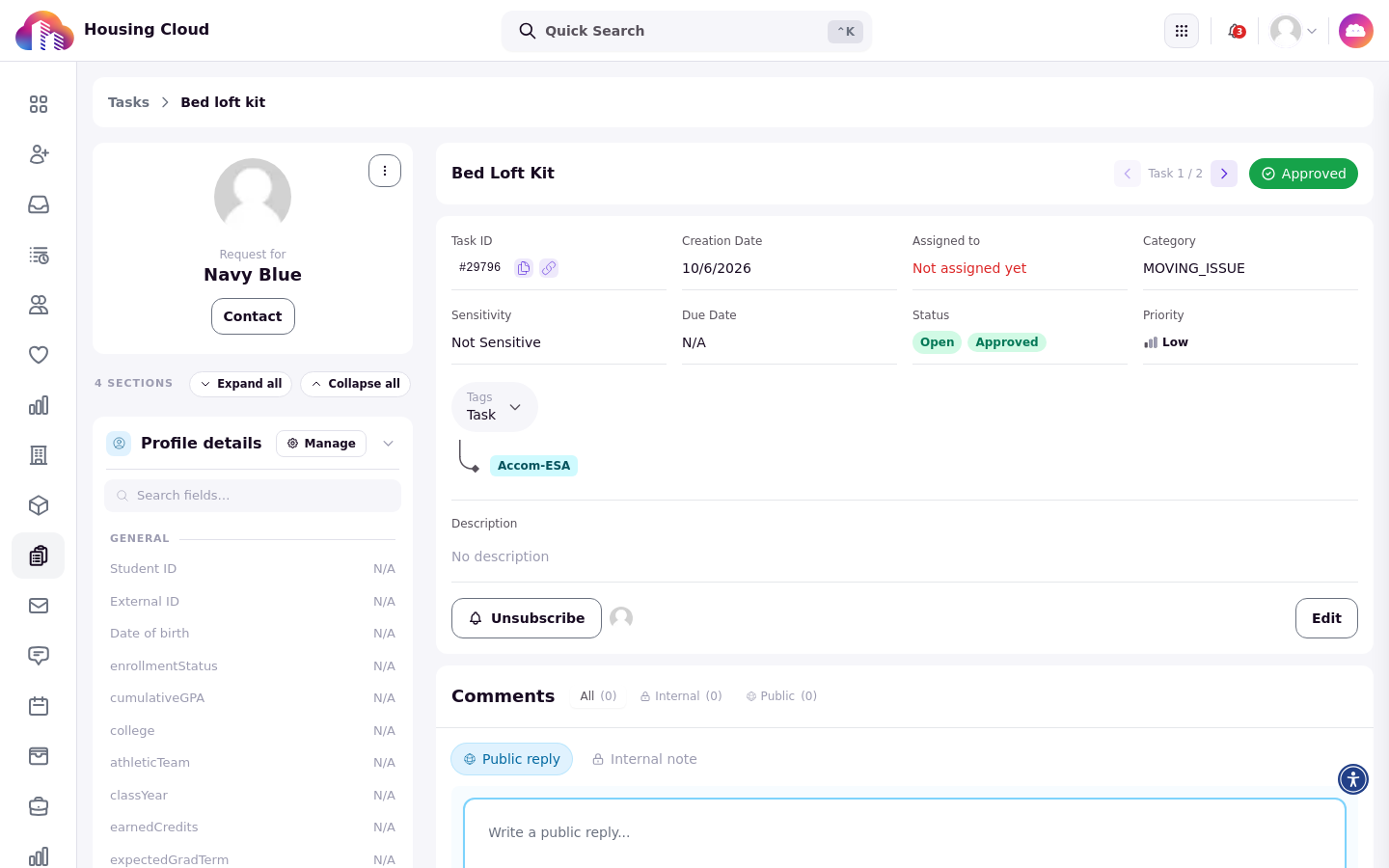
Review 2 Selected Tasks (the name shows your own count) opens the selected tasks one after another, so you can read through several without going back to the queue between each one. Your selection is still ticked when you return to the queue.
Assign Task sets the assignee on every selected task, and the new assignee is notified. Use it to hand a task that was assigned to a role to one person, because a task given to a role has no owner.
Manage Subscribers adds or removes followers on every selected task.
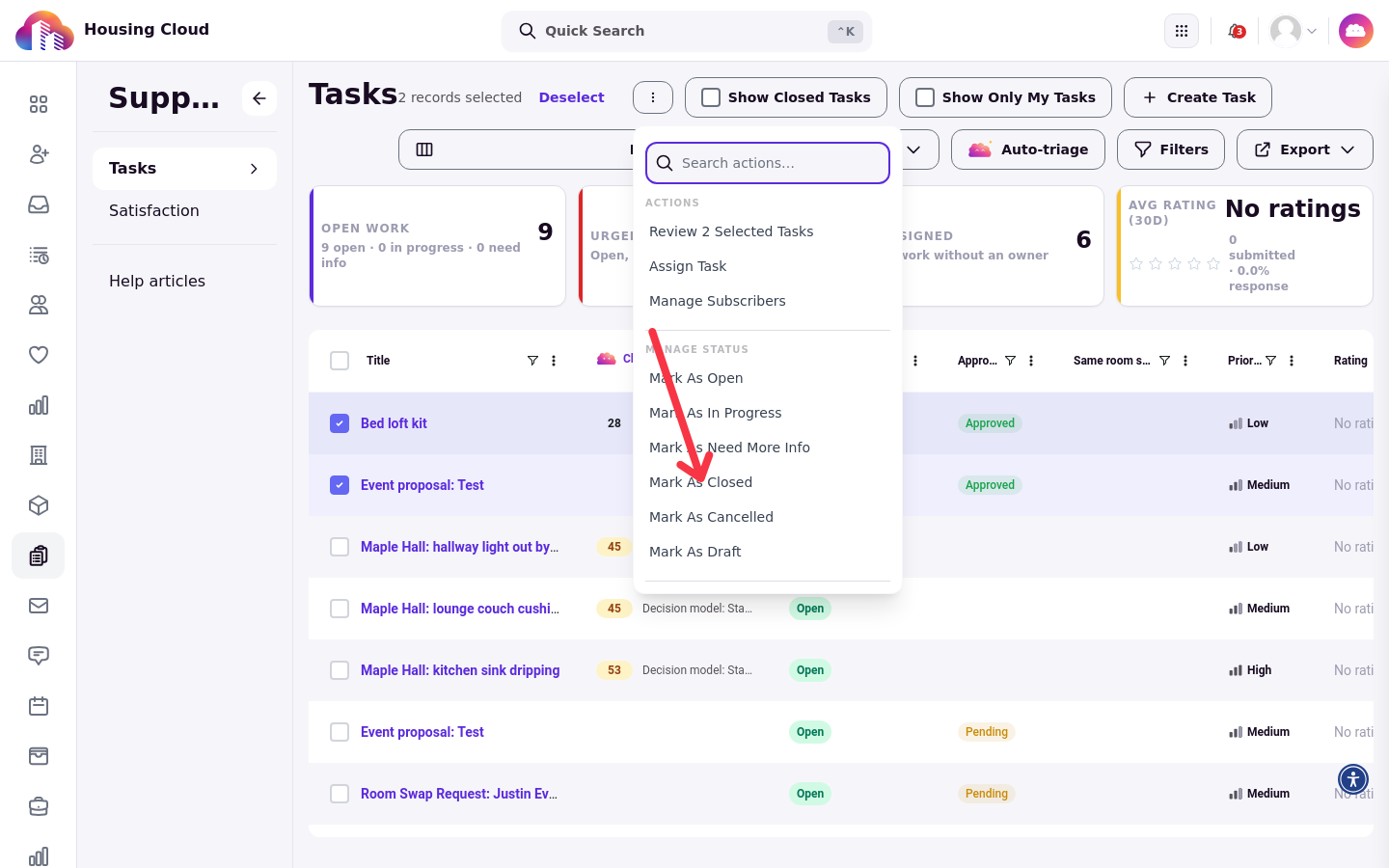
Update the status
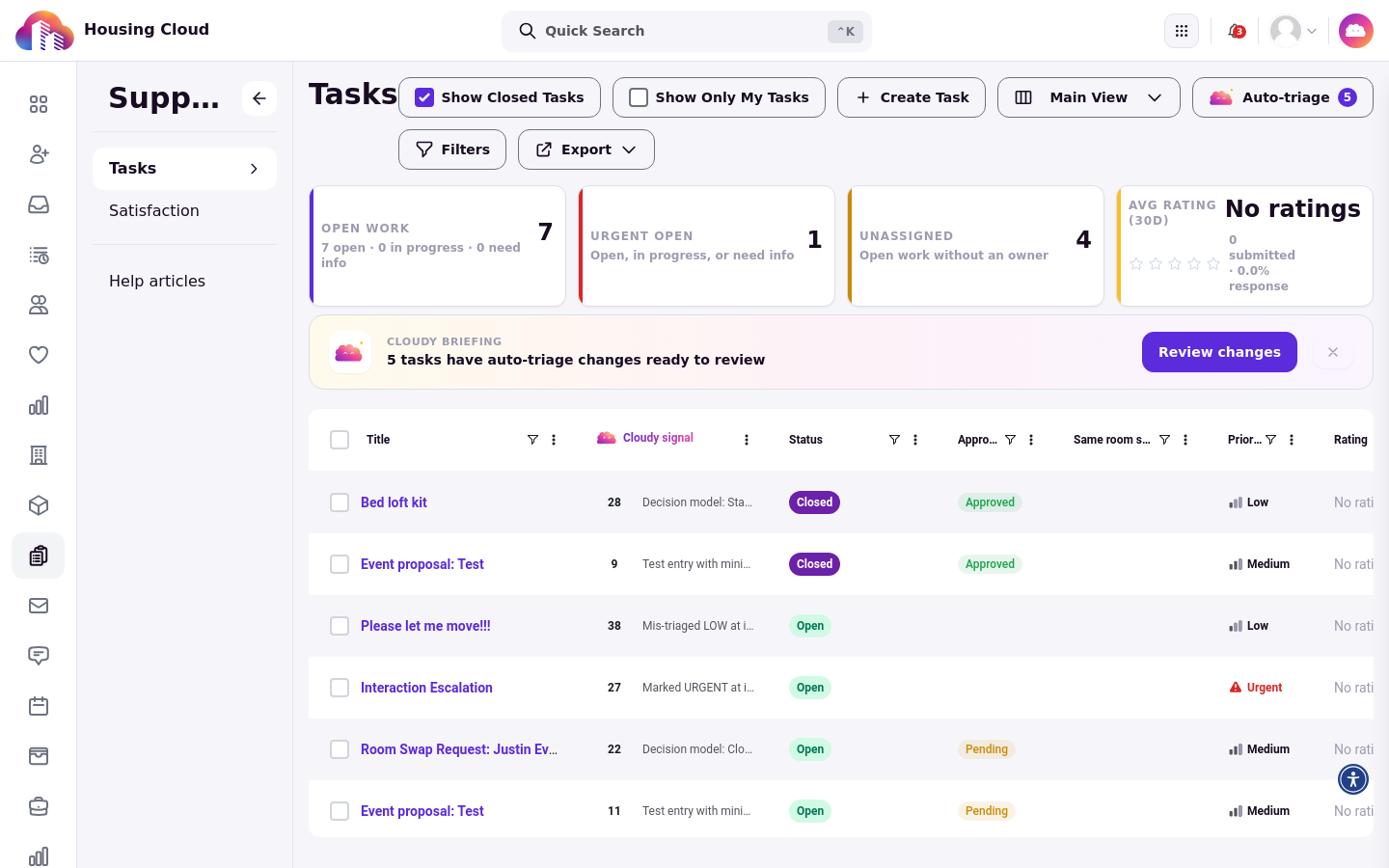
Choose Mark as Closed (or another Mark as … action) from the Manage Status group in the … menu. The Mark as actions are greyed out when any selected task in an approval type is not approved yet, rejected ones included; Cancelled is the exception. Decide the approval first, then run the bulk status change. Closed and Cancelled tasks drop out of the queue unless Show Closed Tasks is on, so turn it on to see the rows you just closed.
Approve or reject tasks
Roles with the tasks approval permission see an Approvals group in the … menu, below Manage Status, with Approve Selected Tasks and Reject Selected Tasks. Either action opens a confirmation window that shows how many of the selected tasks will be decided before anything is applied.
Only tasks still pending approval are decided here, and only in categories that require approval
Room swaps, event proposals and room re-selections are never included: they are decided from their own review flows
Selected tasks that are not eligible are skipped, and the rest are decided. Rejecting requires a Rejection Reason, and comments are limited to 5,000 characters. When none of the selected tasks are pending approval, the submit button is unavailable.
Approve re-selections
The Approve Re-selections action appears only when every selected task is a room re-selection. It approves the whole selection at once; with any other kind of task in the selection it is not offered.
Message the residents
Two actions reach the residents behind the selected tasks. Add Communication logs a communication on each task, and Send Message emails or texts the residents. Add Communication opens Add Bulk Communication with Admin Only Comment ticked, so the message defaults to an internal note; untick it to send a public reply the resident can see.
Good to know
Bulk changes behave like one-at-a-time changes. They send the same notices and start the same rating clock as changing each task on its own.
There is no bulk change for priority, due date or category. Open each task and change those fields one at a time.