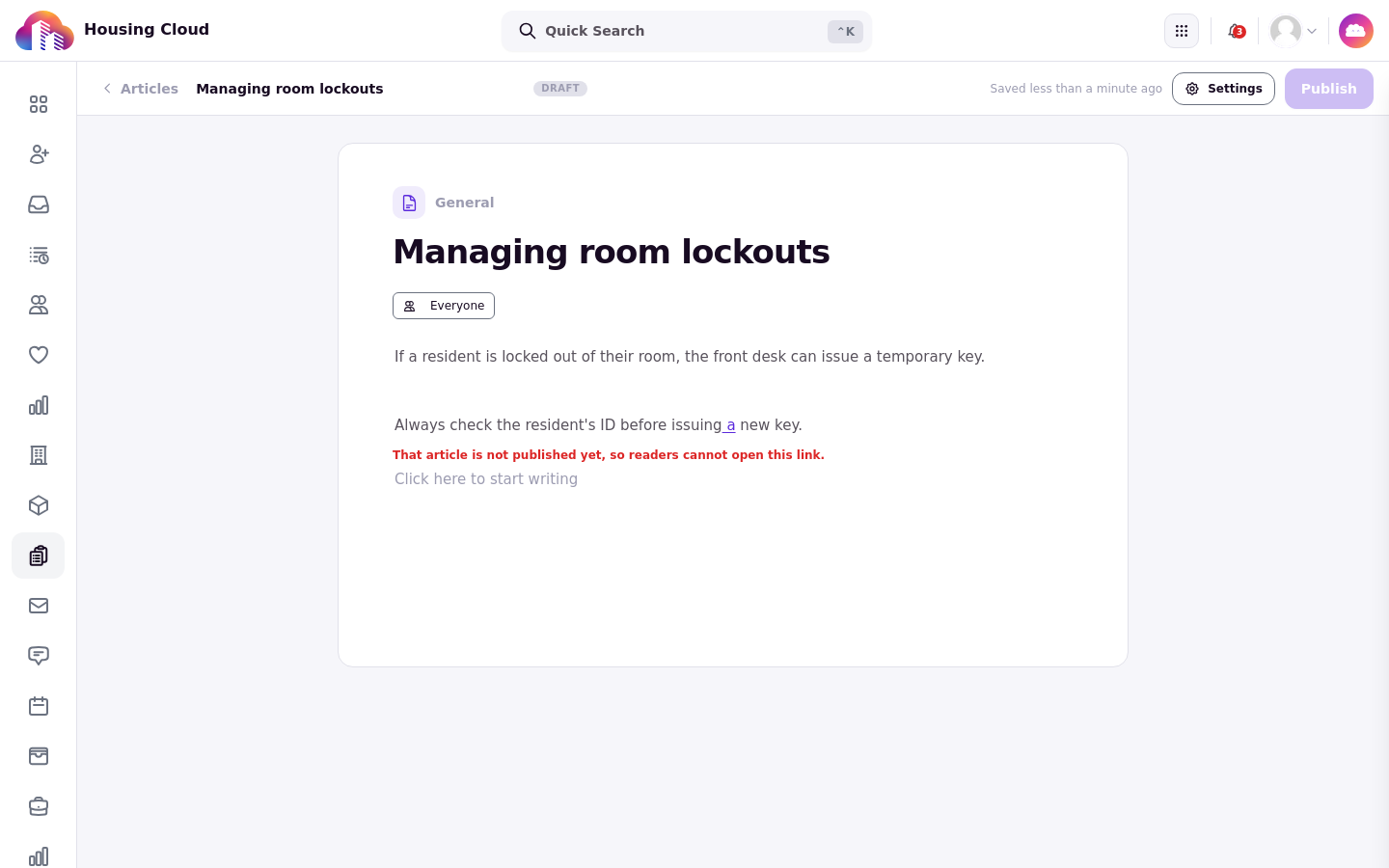
Link to Portal Pages, Request Forms and Other Articles
Last updated: October 8, 2026
Links inside a help article come from the article editor's link picker. It offers four kinds of destination: another help article, a resident portal page, a request form, or an outside website. Links to Housing Cloud pages are internal links, so they keep working when the destination moves or is renamed. Internal links can still become unreachable if the target is deleted, unpublished, or inaccessible to the article's readers.
Before you start
You add links while writing an article in the article editor at Support → Help articles. This needs the help center switched on for your school and the "Manage help-center articles" permission. A link in a published article goes live when you publish the article or click Publish changes.
Add a link
Select the text to turn into a link, then click the link button in the format bar. The picker opens with four tabs: Help articles, Student portal, Start a request and External URL. Use Search to find a destination by name instead of browsing.
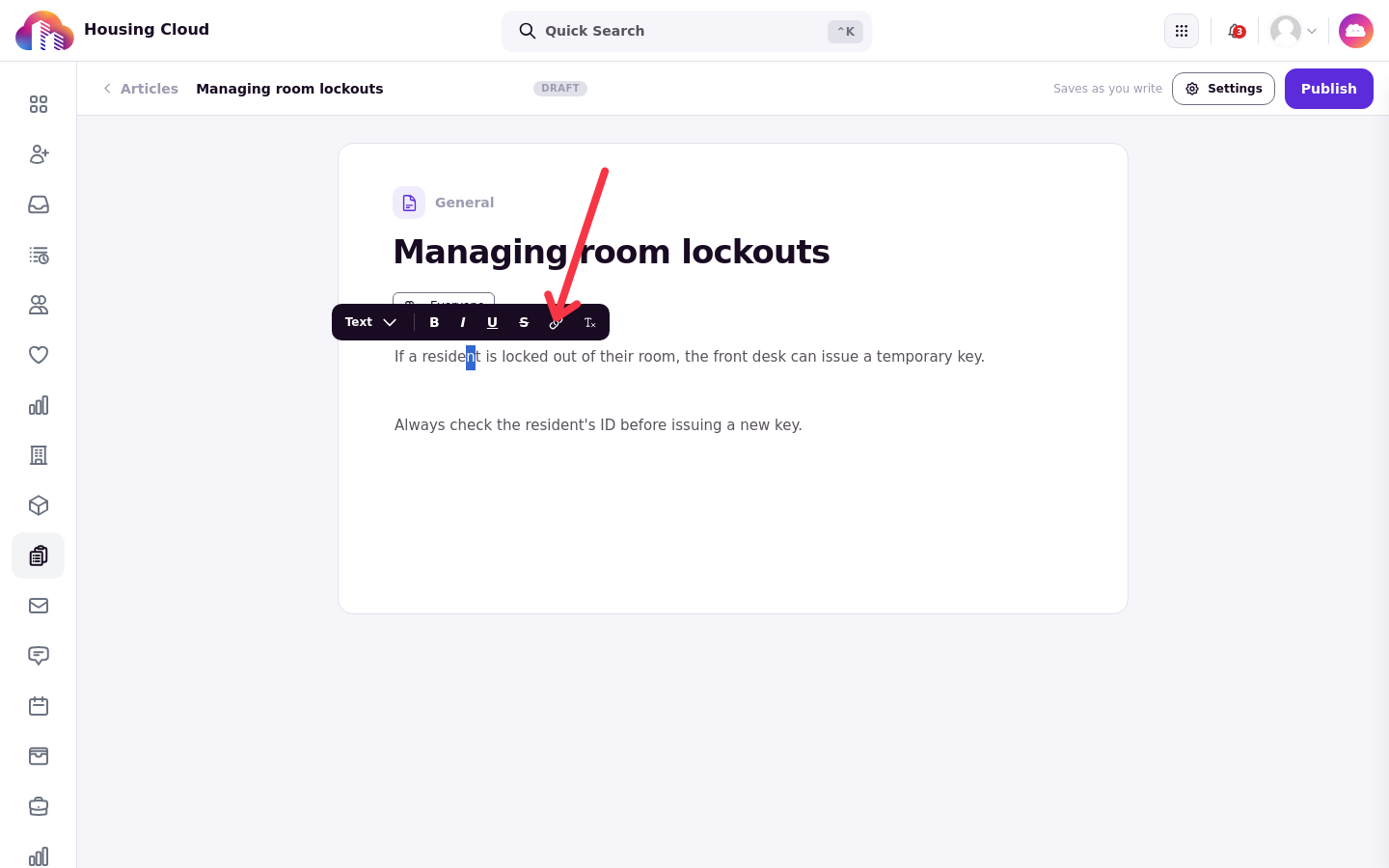
Link to a help article or category
The Help articles tab links to one article or to a whole category. Draft articles are offered in the picker and marked as drafts. The link starts working when the draft is published, so you can link ahead to an article you are still writing.
Link to a portal page
The Student portal tab links to pages like the resident's room condition report or meal plan. The link always opens the reader's own record, so one link works for every resident who reads the article.
Link to a request form
The Start a request tab opens the request form with a request type already picked. If the reader can't file that type, they get the normal picker instead.
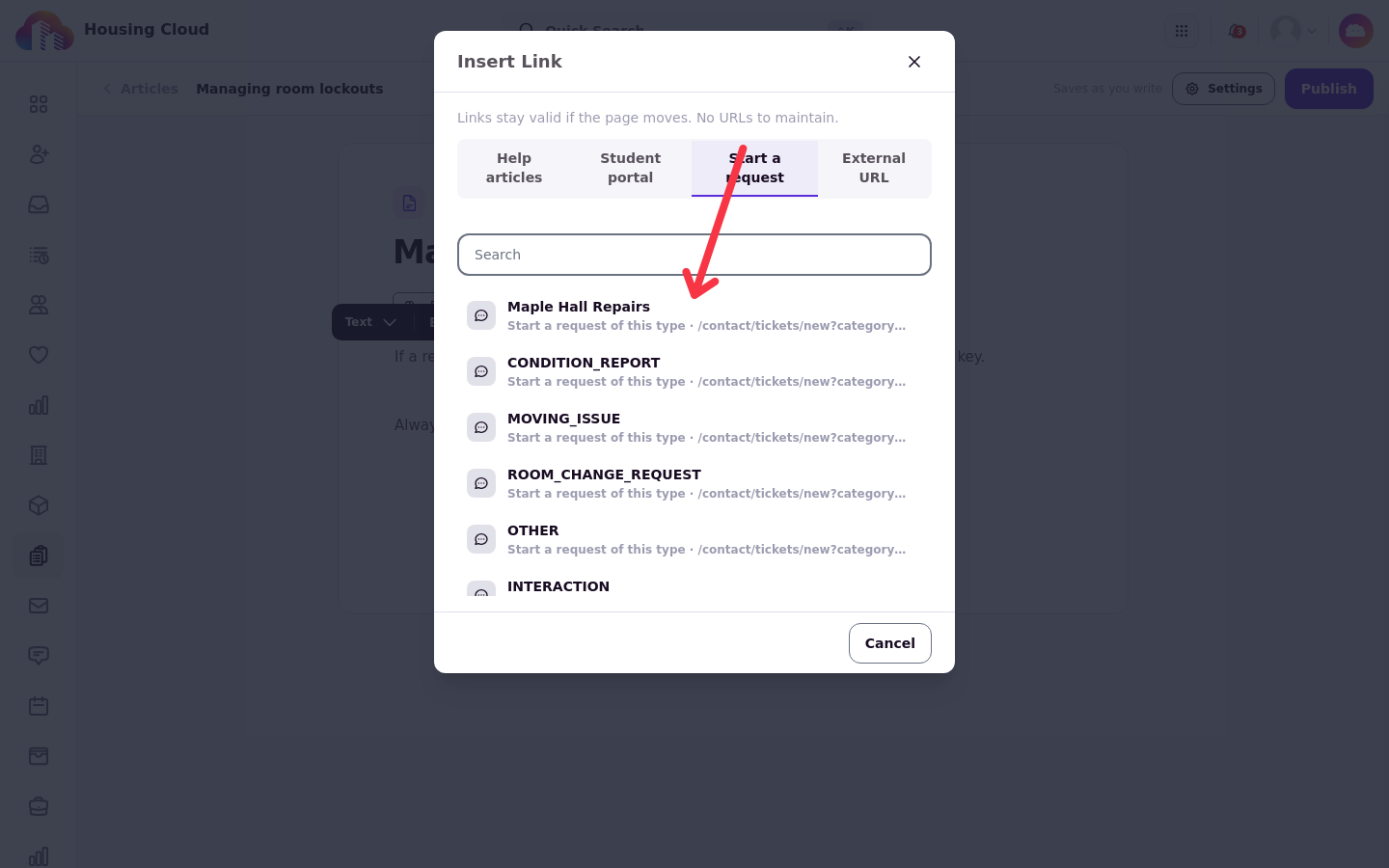
Link to an outside website
The External URL tab links to a page outside Housing Cloud. The address must be an absolute http:// or https:// URL. The link opens in a new tab and can break if the other site changes.
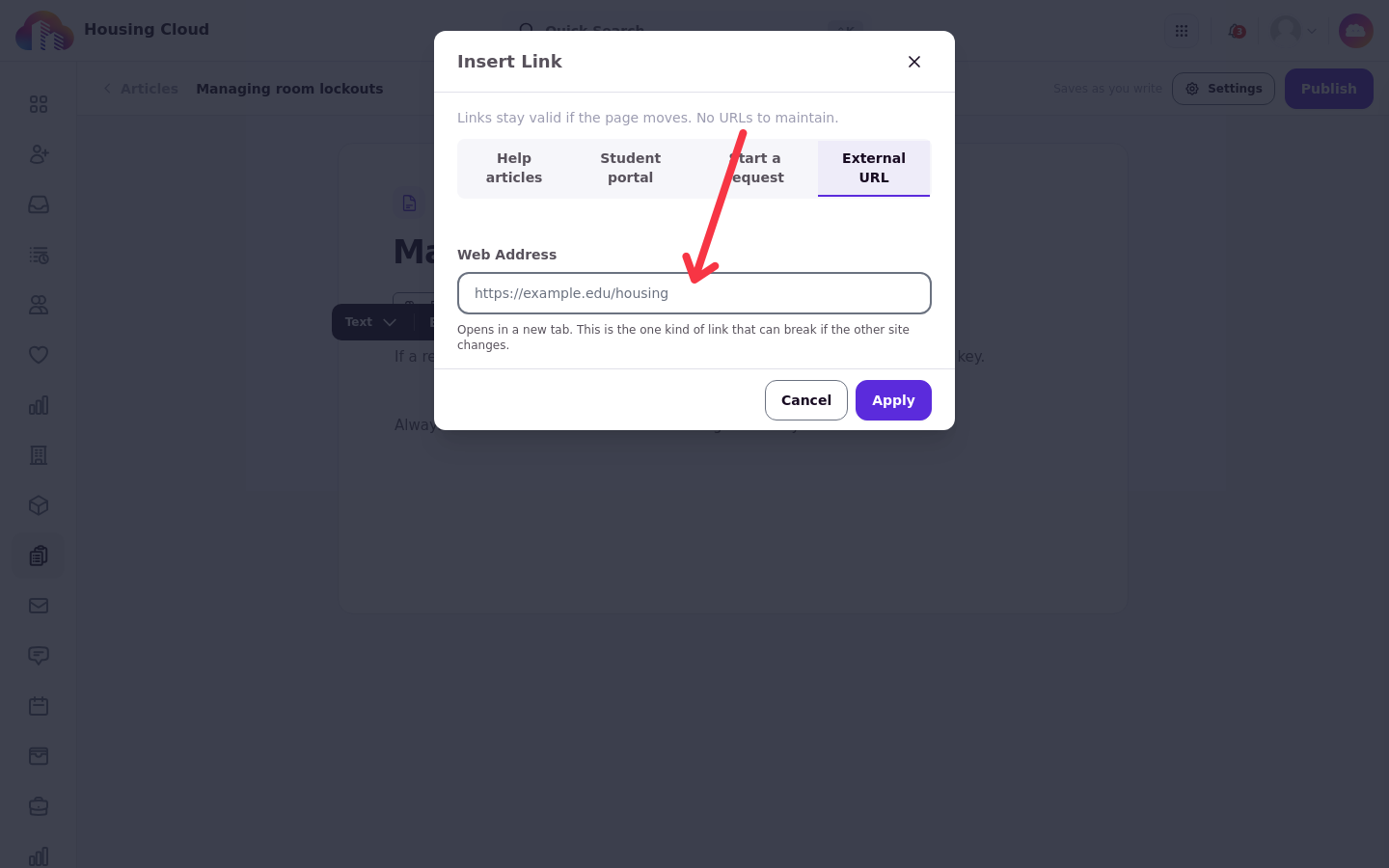
Check or change a link
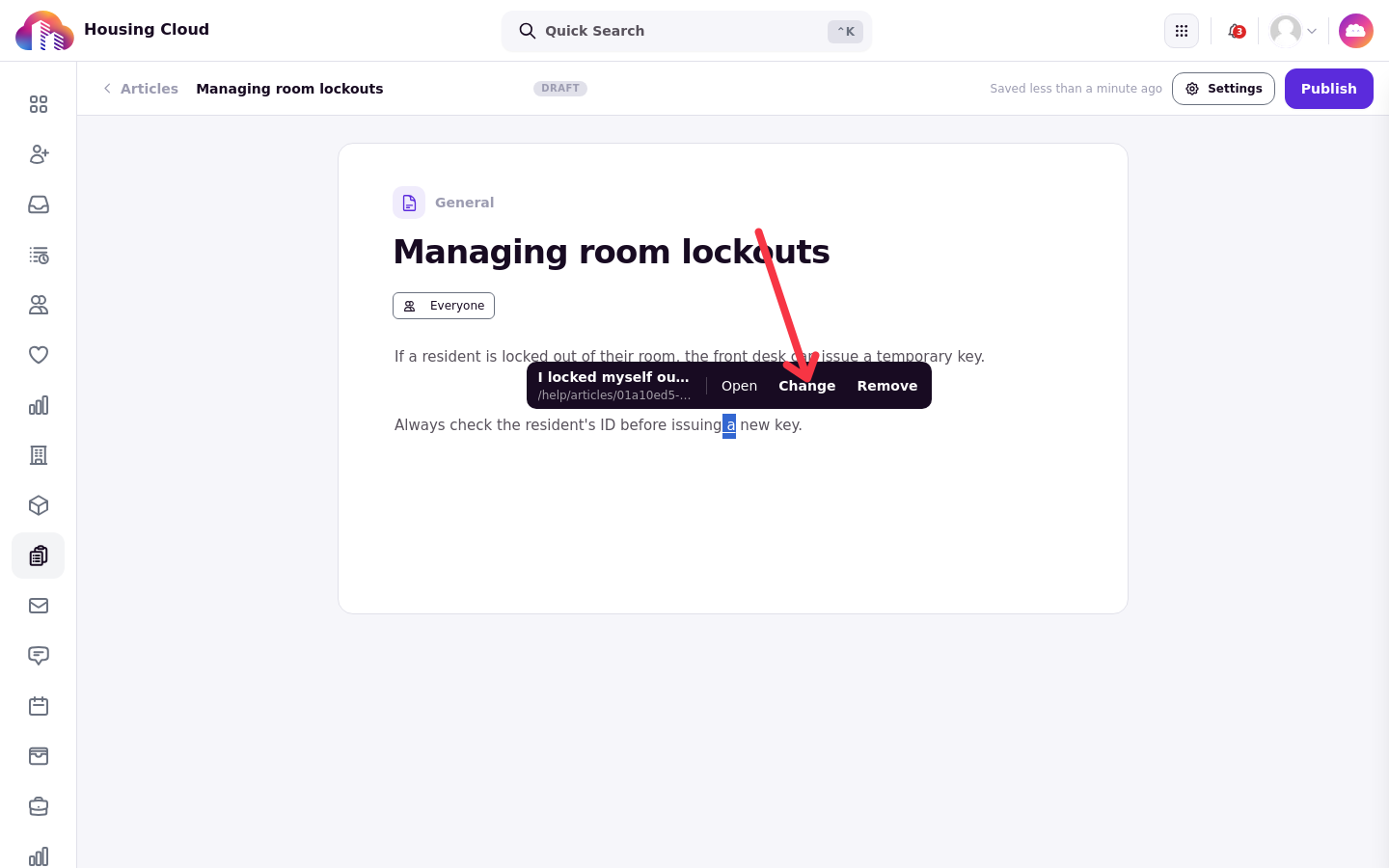
Click a link in the editor to see where it goes. The link's inspector shows its destination, and from there you can click Change to pick a different destination or remove the link.
Links that block publishing
Publishing is refused while the article holds a link its readers can't open: a link to a draft, a deleted article, or a staff-only article in an article everyone can read. The problem is marked under the paragraph that holds the link. Remove or change that link, then publish.