Change or Mute Task Notifications
Last updated: October 8, 2026
Change task notification wording, priority, delivery methods, or mute status for the whole school from Communications → Manage, or turn email and SMS notifications off for your own account from Notifications → Preferences.
Before you start
To change task notifications for the school, you need the Edit automated notifications permission. Personal notification preferences do not require you to change the school-wide settings.
Change a task notification for the whole school
Open Communications → Notifications Management at /admin/communications/manage, then find the Task Management & Communications section.
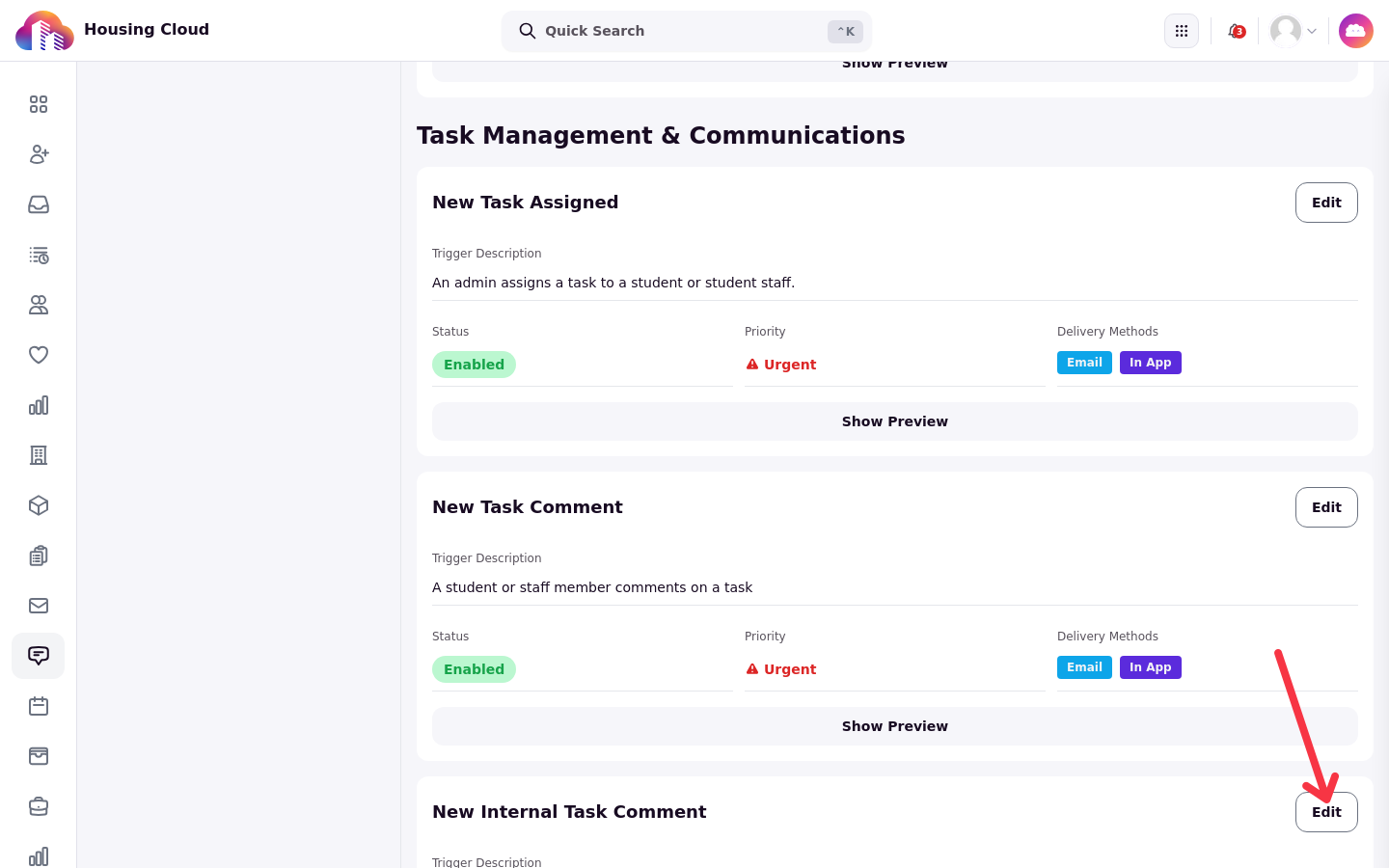
The section lists these task notices:
New Task Assigned
New Task Comment
New Internal Task Comment
New Task Created For You
Following Task
Task Updated
The @mention notice
New Chat Assigned
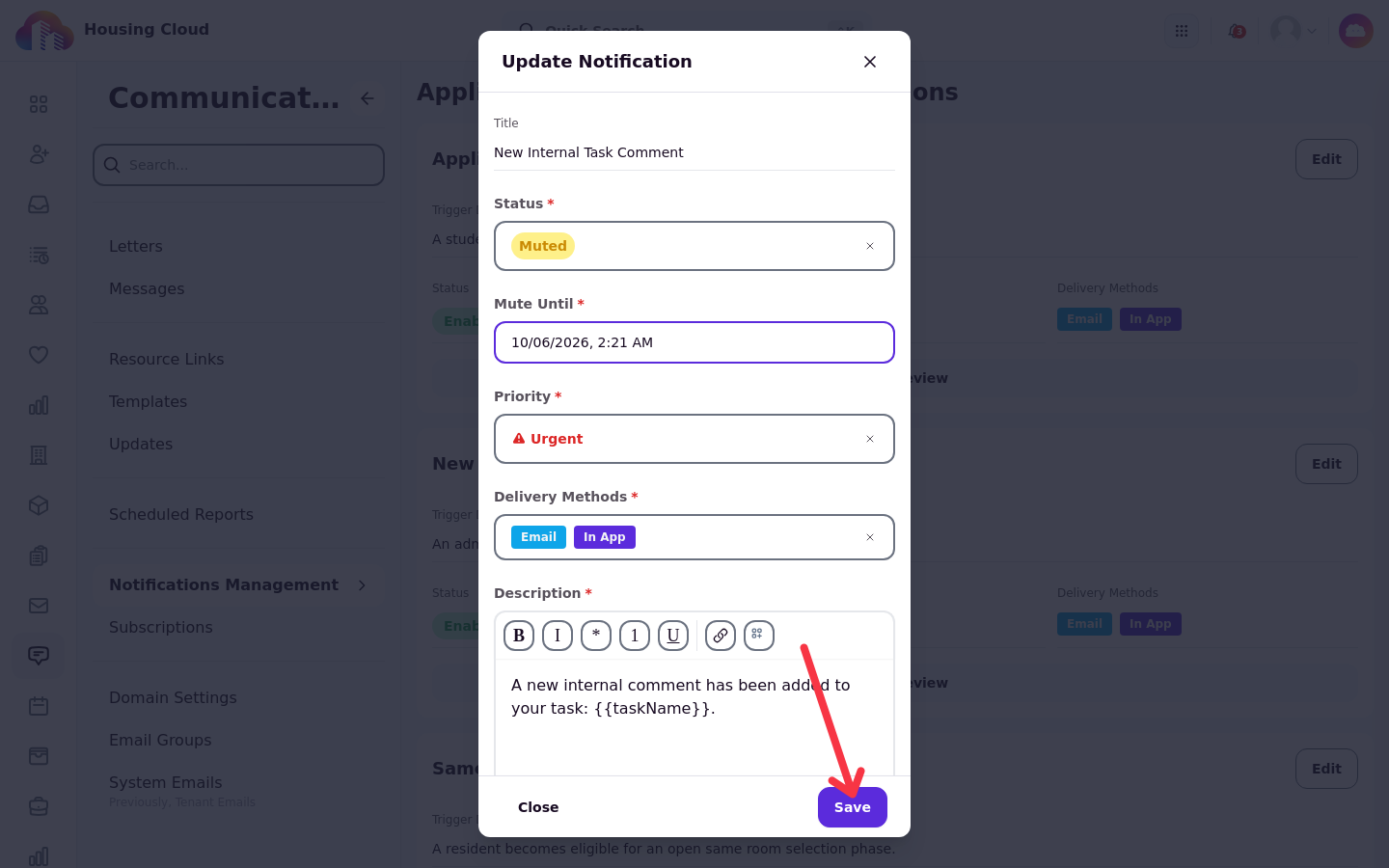
Open the task notice you want to change. Its settings include Title, Description, Priority, Delivery Methods, Status, and Mute Until.
Use Description to change the message text, including fields such as the task name. Use Priority to choose Low, Medium, High, or Urgent. Use Delivery Methods to choose In App or Email. Use Status to set the notice to Enabled, Muted, or Disabled. Muted pauses delivery until the time in Mute Until, which starts one hour out and can be changed; after that time the notice turns Enabled again by itself. Disabled stops delivery until an administrator chooses Enabled again.
In the Update Notification dialog, click Save. The change applies to everyone.
Some task notices cannot be changed or muted. More info needed, Task Approved, Task Rejected, Task Deadline Reminder, and the rating email are not listed on Communications → Manage.
Change notifications for your own account
Use personal preferences when you want to stop receiving email or SMS notifications without changing what other staff receive.
Open Notifications → Preferences at /admin/notifications/preferences. Turn Enable email notifications or Enable SMS notifications off for your account.
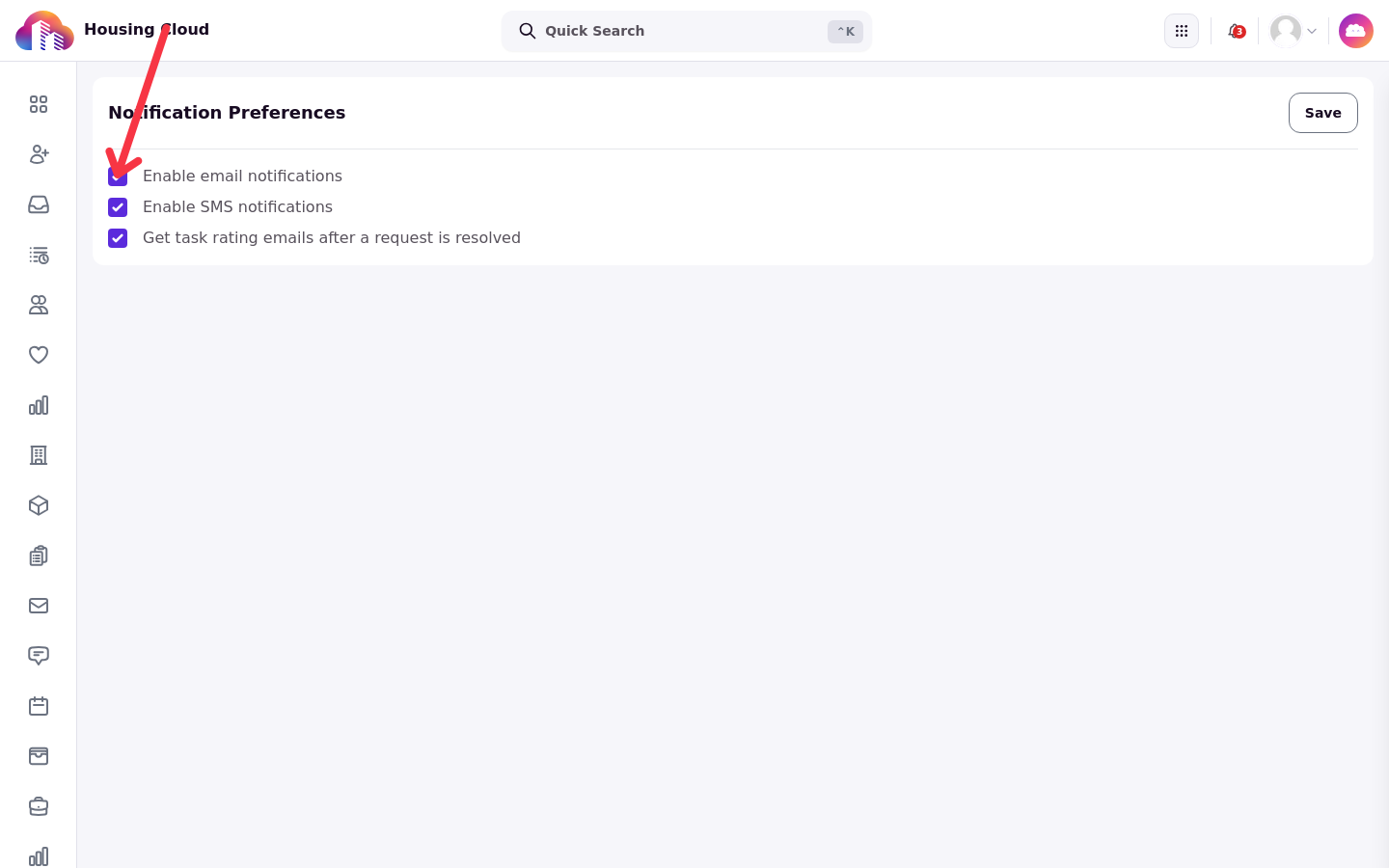
Personal notification settings are all-or-nothing. You can turn email or SMS off entirely, but you cannot turn off one task notice while keeping other task notices on.
Resident rating emails
Residents can turn off rating emails with Get task rating emails after a request is resolved, or by selecting Unsubscribe in the rating email.
Request-type email templates
A request type can send its assigned staff member an email template when a task of that type is created. Configure that message through the request type's Email Template setting.
Good to know
Some task notices cannot be changed or muted: More info needed, Task Approved, Task Rejected, Task Deadline Reminder, and the rating email are not on Communications → Manage.
Personal notification settings are all-or-nothing. Staff can turn email or SMS off entirely, not per task notice.