Sensitive Tasks and Who Can See, Edit or Assign Them
Last updated: October 8, 2026
A sensitive task is hidden from every staff member who does not hold Read access to sensitive tasks: it stays out of the queue, search, exports and counts until someone with that permission opens it. The resident the task is about can still open it; its assignee and its subscribers need Read access to sensitive tasks to open it. Task permissions decide who can see, edit, create, assign and delete tasks.
What makes a task sensitive
A task becomes sensitive in three ways: the resident chose Sensitive when filing it, its request type is marked Sensitive, or staff set Sensitivity in edit mode on the task page. Moving a task into a sensitive request type makes it sensitive too.
Residents choose this while filing a request: on the new request form, the Sensitivity field offers Not sensitive and Sensitive.
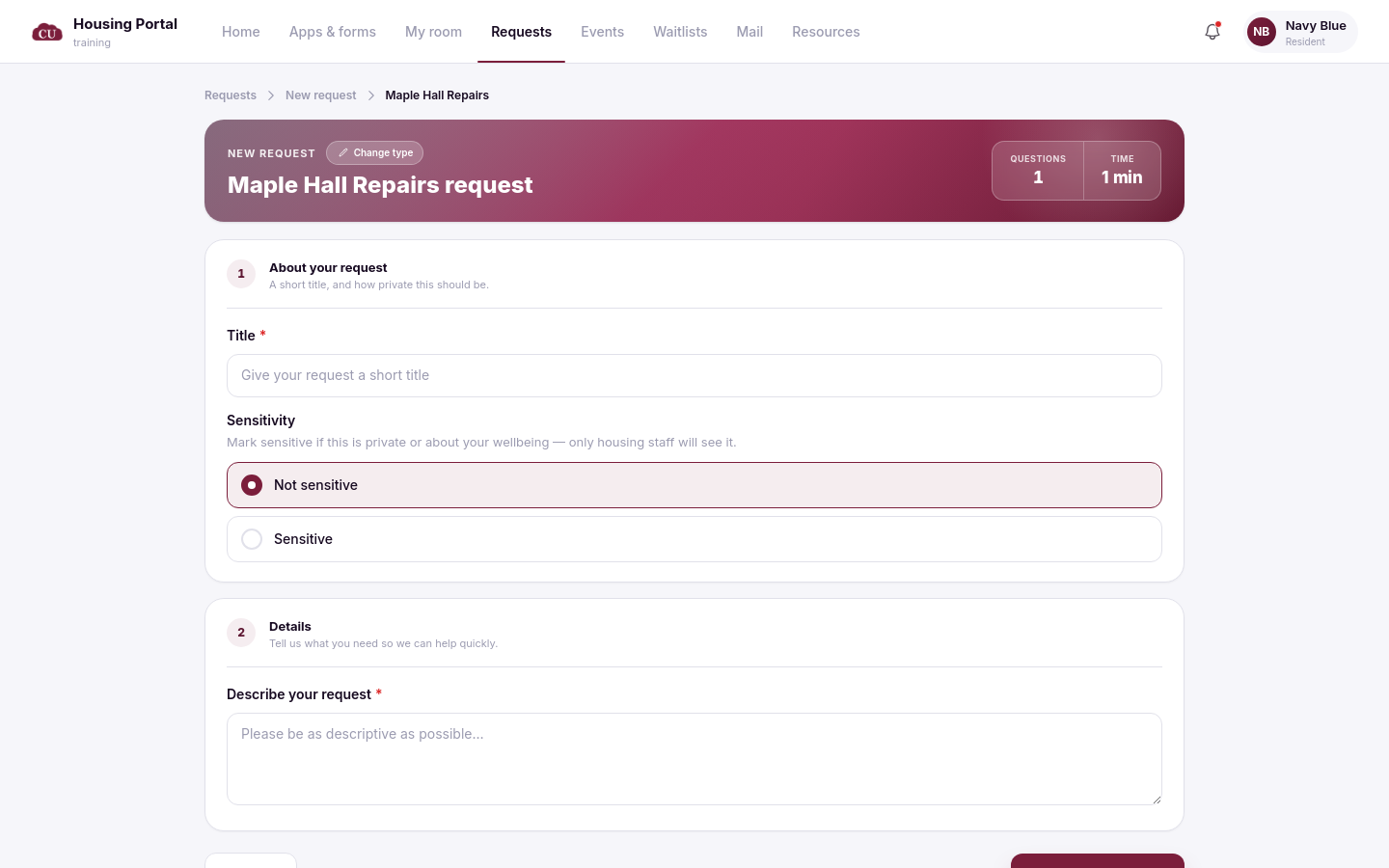
The Sensitivity choice at the start of the resident request form.
An admin can mark a whole request type as Sensitive: in Setup → Task Management, open the request type for edit and tick Mark as sensitive in its Workflow section.
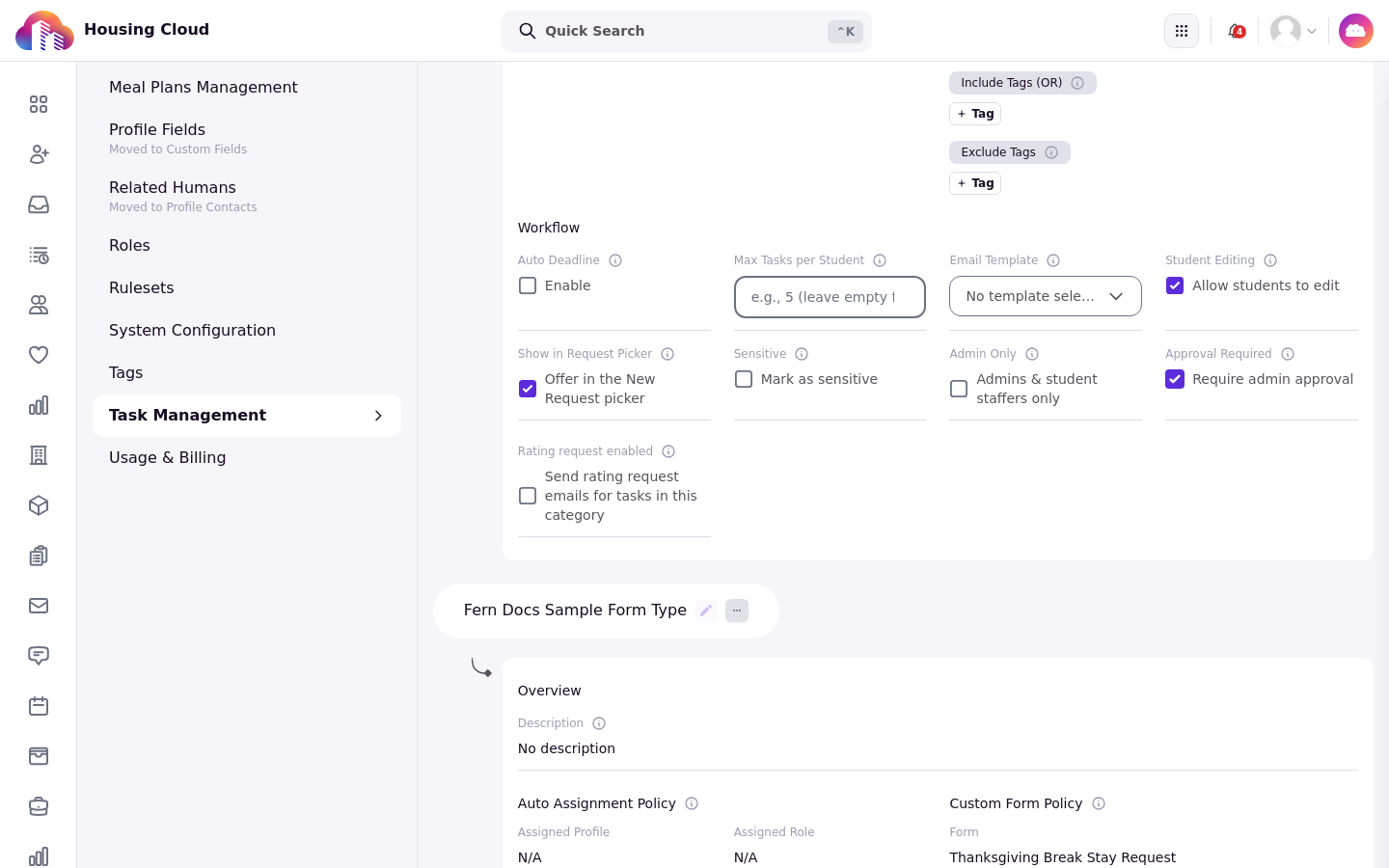
The Workflow section of a request type in Setup → Task Management, with Mark as sensitive.
On an individual task, the details card on the task page shows Sensitivity, and staff set it in edit mode.
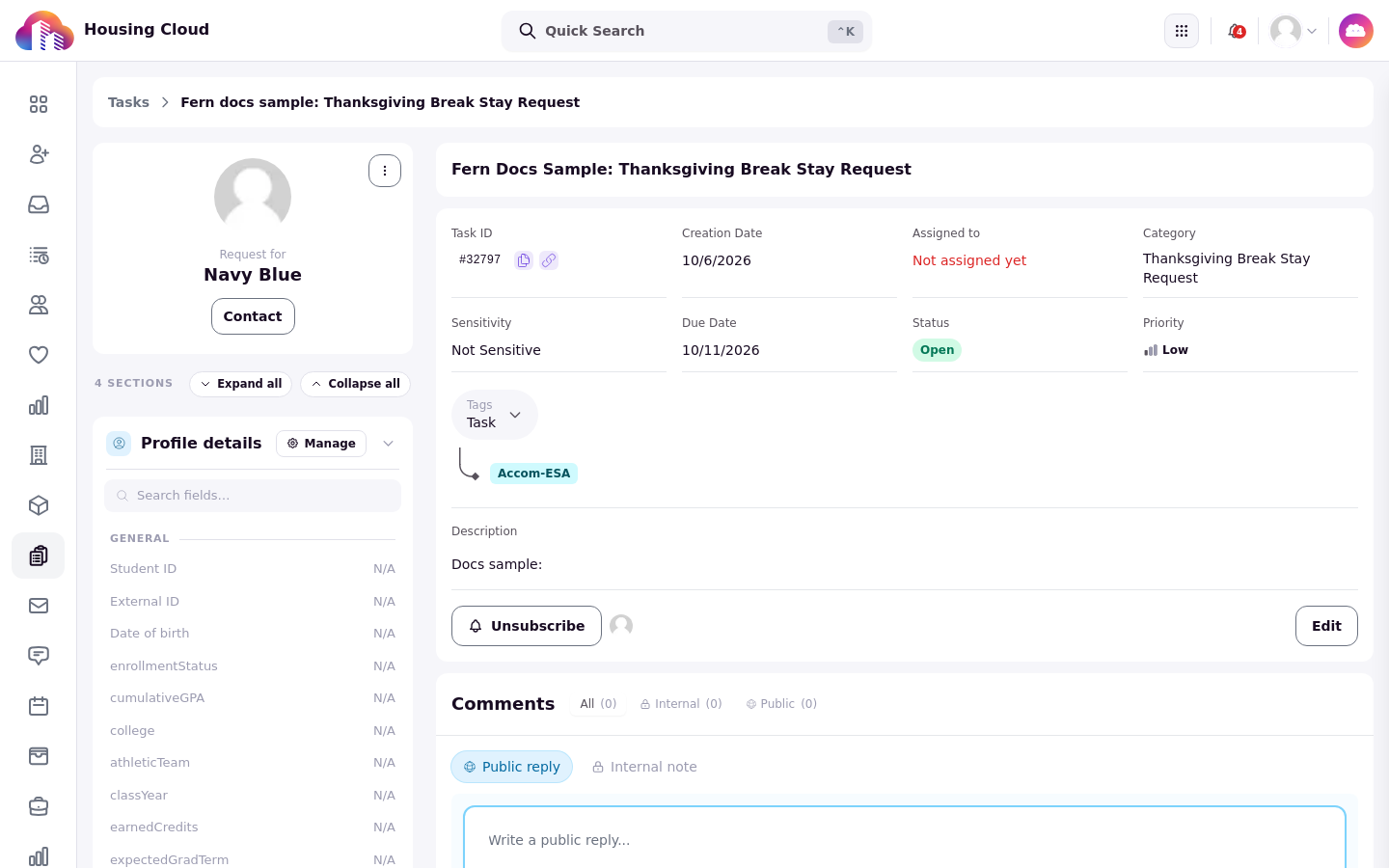
A task page with its Sensitivity row in the details card.
Who can see a sensitive task
Only staff with Read access to sensitive tasks see a sensitive task in the queue, search, exports and counts. Its resident can still open it. Staff assignees and subscribers can open it only when they hold Read access to sensitive tasks.
Staff open the Tasks queue from Tasks in the admin navigation. It lists only the tasks that staff member can see, so a sensitive task appears there only with the permission above.
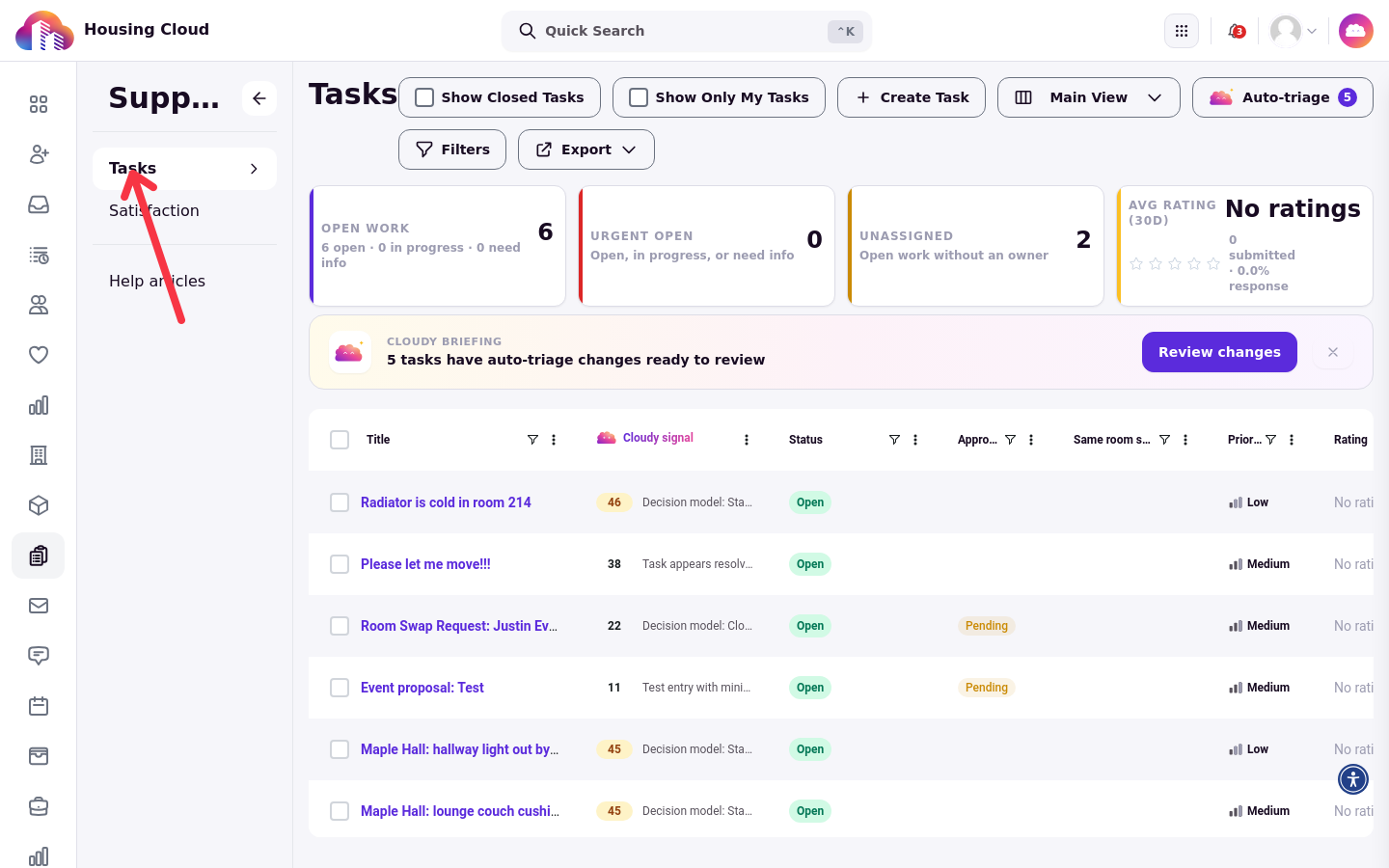
The Tasks queue. A sensitive task appears here only for staff with Read access to sensitive tasks.
Cloudy never reads a sensitive task
Sensitive tasks are never sent to Cloudy, so they get no AI Importance Sort score, no auto-triage suggestions and no comment-theme analysis.
Sensitive comments are a separate setting
Marking one comment as sensitive needs Read access to sensitive notes, a different permission from Read access to sensitive tasks. Residents never see a sensitive comment, even when it is posted as a public reply.
Task permissions
Give these permissions through roles in Setup. They decide what each staff member can do with tasks.
Permission |
What it unlocks |
|---|---|
Read access to tasks |
The Tasks queue and task pages |
Edit tasks |
Changing tasks, subscribing, bulk actions and auto-triage |
Add tasks |
The Create Task button, and filing a request on a resident's behalf |
Delete tasks |
The Delete button |
Approve or reject tasks |
Approving or rejecting requests on types that require approval. There are no named approvers: anyone with this permission can decide any type's approvals |
Read access to sensitive tasks |
Seeing and opening sensitive tasks |
Read access to sensitive notes |
Reading and posting sensitive comments |
Ability to configure task settings |
Setting up request types, and @mentioning a resident in a public reply |
View task satisfaction ratings and dashboard |
Task satisfaction ratings and the satisfaction dashboard |
Delete task comments & attachments |
Deleting a comment or a file permanently, when the school's record-deletion feature is switched on by Housing Cloud |
Edit automated notifications |
Editing task notices for the whole school on Communications → Notifications Management |
To give either permission, open the staff role in Setup → Roles and search the permission list for sensitive.
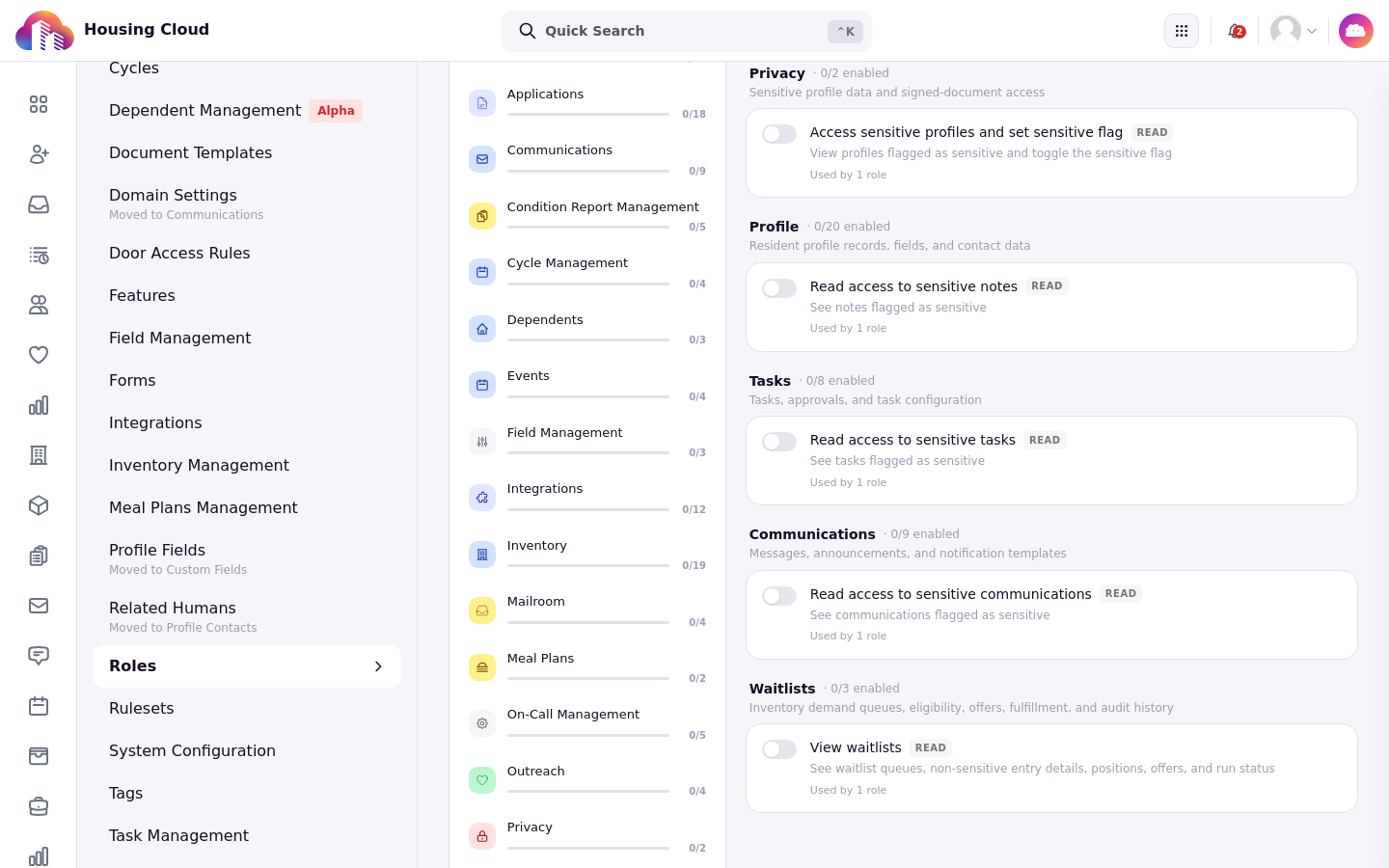
A staff role searched for "sensitive": the sensitive permissions are off.
Student staff
Student staff see tasks assigned to them by name on the staff portal's Requests page and can change those tasks' status. Tasks given to a role do not appear there. The My residents tab never includes sensitive requests.
Good to know: A sensitive comment is not a sensitive task. A sensitive comment hides one comment from staff without Read access to sensitive notes; a sensitive task hides the whole task from staff without Read access to sensitive tasks.