Set Up Request Types (Task Categories)
Last updated: October 8, 2026
A request type is the bucket every request of one kind goes through: residents pick it when they file, and everything filed under it shares the same form, switches and automatic assignee. Setup calls the same record a task category. This article covers creating a type and setting every switch on its card: icon and description, who can file it, whether it is offered in the picker, sensitivity, approval, limits, due dates, tags and rating emails.
Before you start
You need the Ability to configure task settings permission. Turn On Support: Switches, Permissions and the Support Menu lists the full set of Tasks permissions.
Rating request emails also need the Task satisfaction ratings switch, which Housing Cloud turns on per school. See How Satisfaction Ratings Work.
Where request types live
Open Setup Task Categories at /admin/setup/tasks to reach Task Category Management, where each request type is a card. Click Add Category to create one, then edit the card with the pencil and click Save.
Task Category Management lists every request type as a card, and the badges on each card summarize how that type behaves.
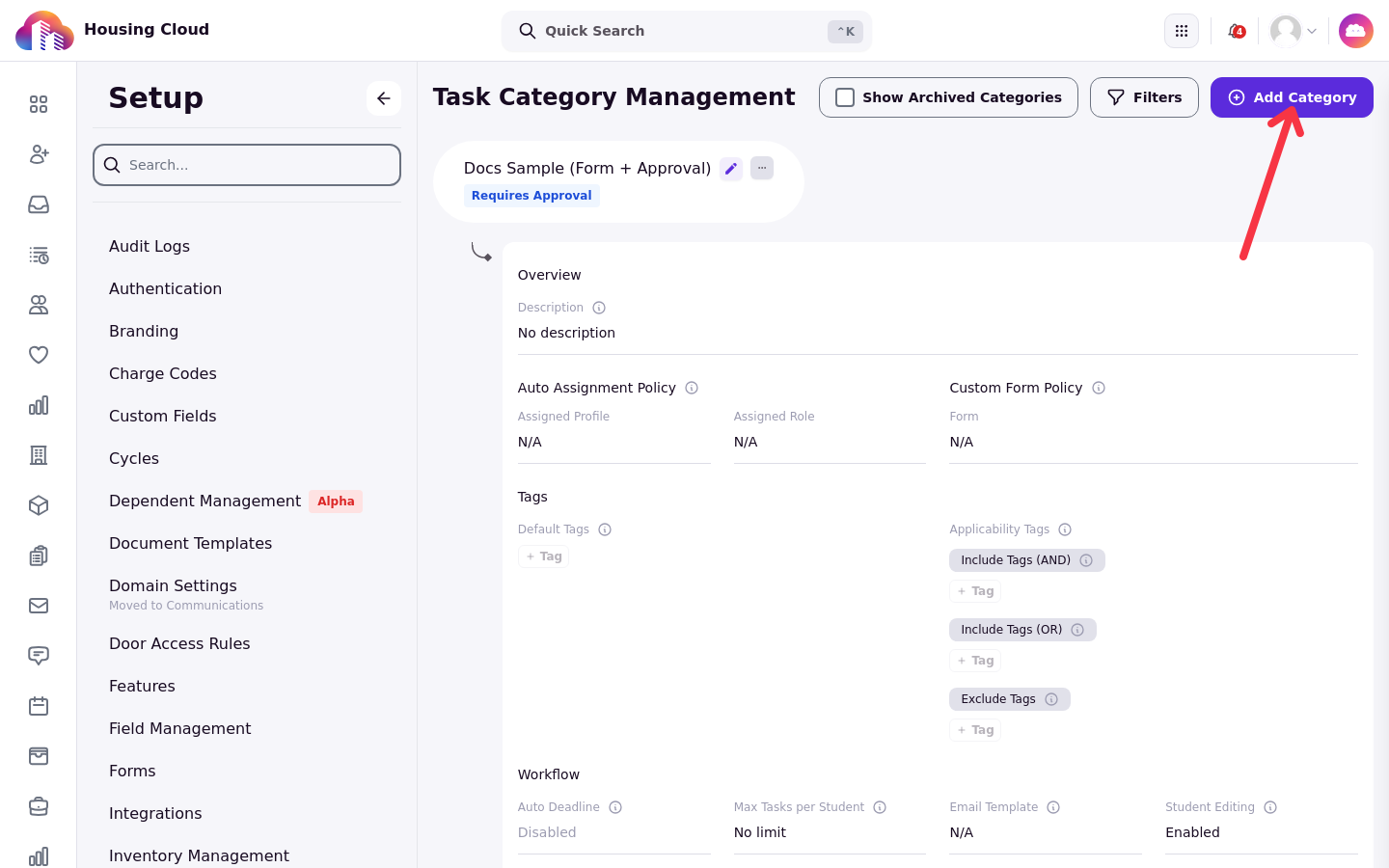
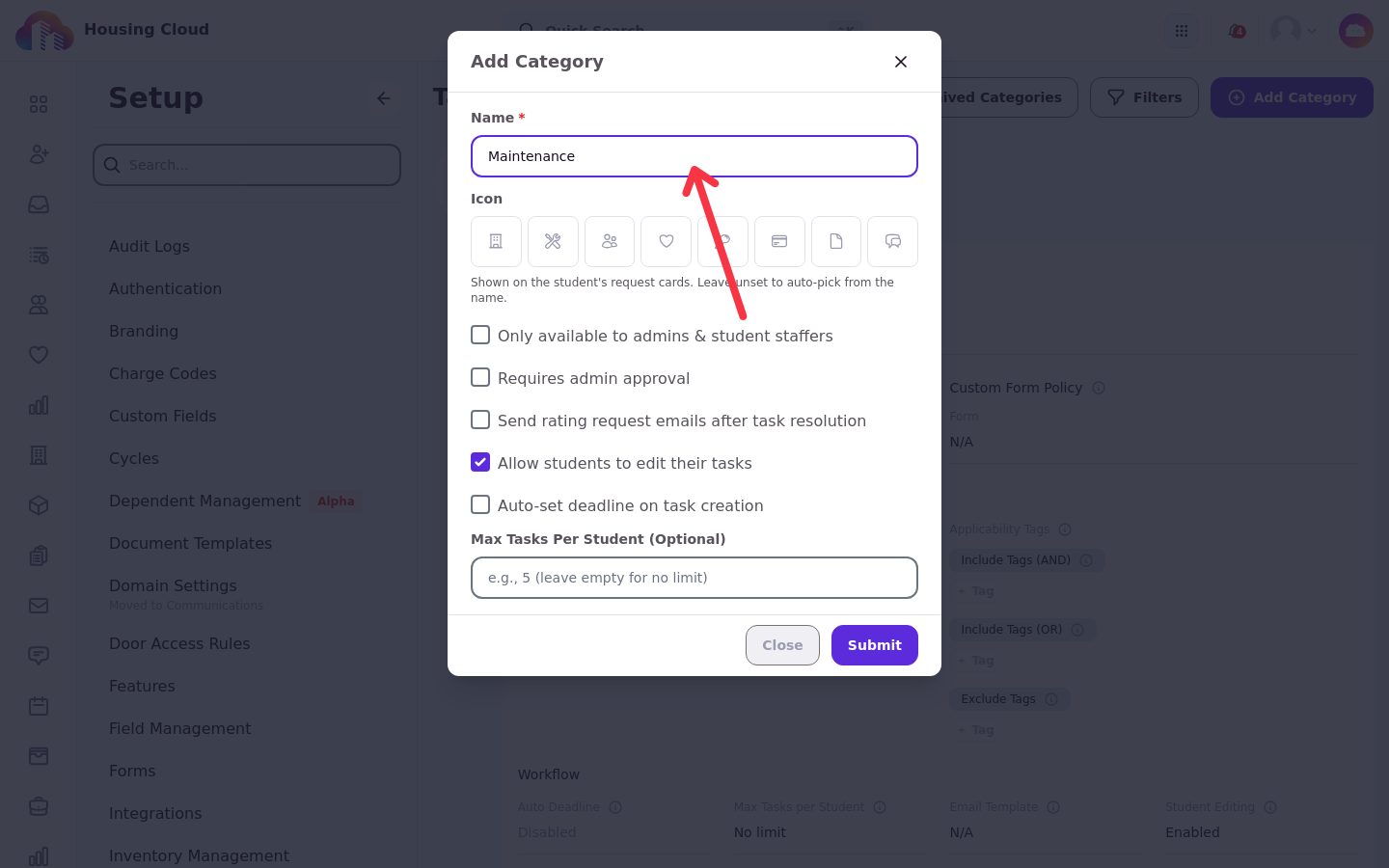
Click Add Category to open the creation window and enter the type's name.
Badges on each card
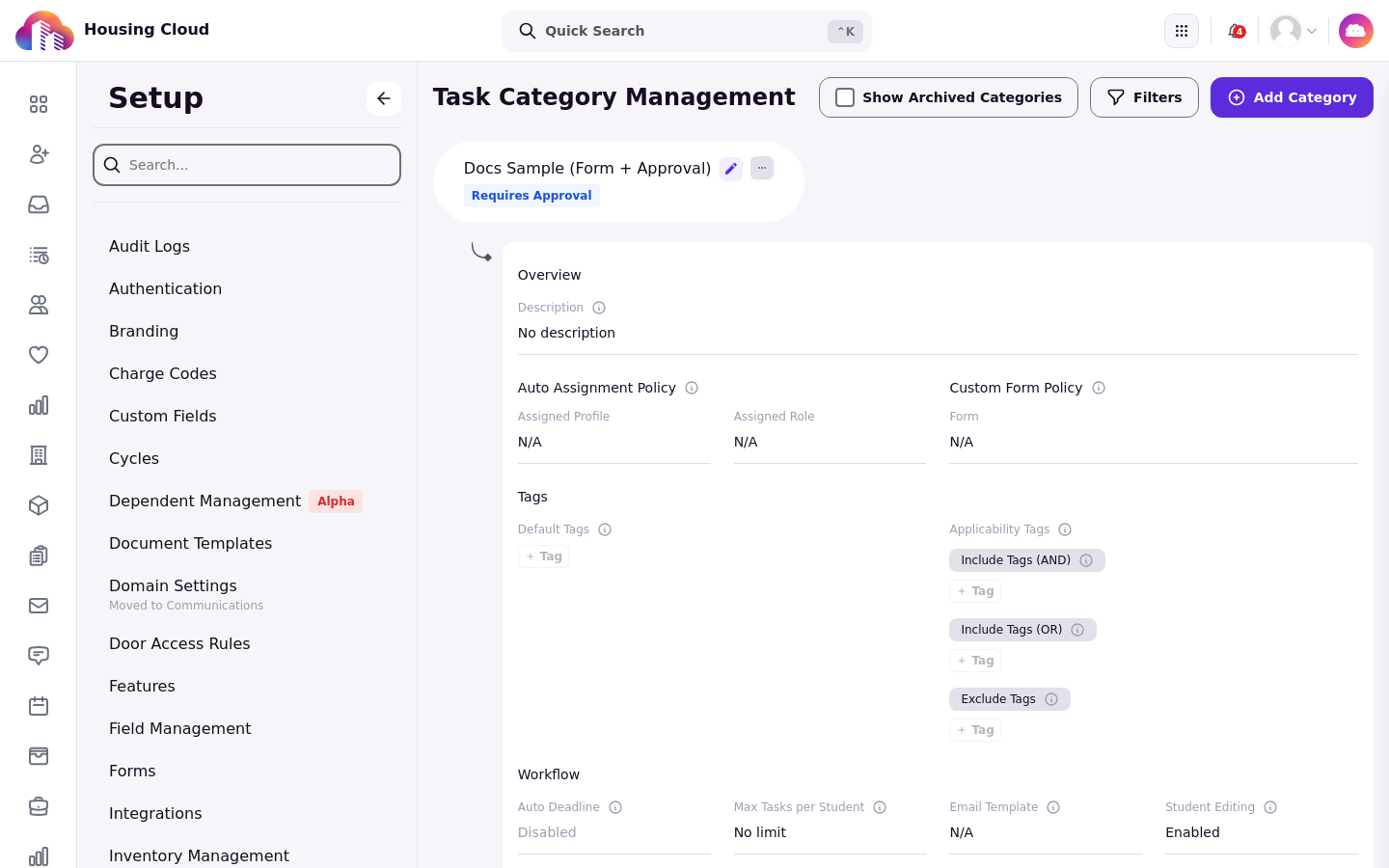
Each card carries badges that summarize the type: System, Admin, Sensitive, Requires Approval, Read-Only, Hidden From Picker and Archived. Filter the page by badge, and tick Show Archived Categories to include archived types in the list.
The Show Archived Categories toggle sits beside the page heading.

Name, icon and description
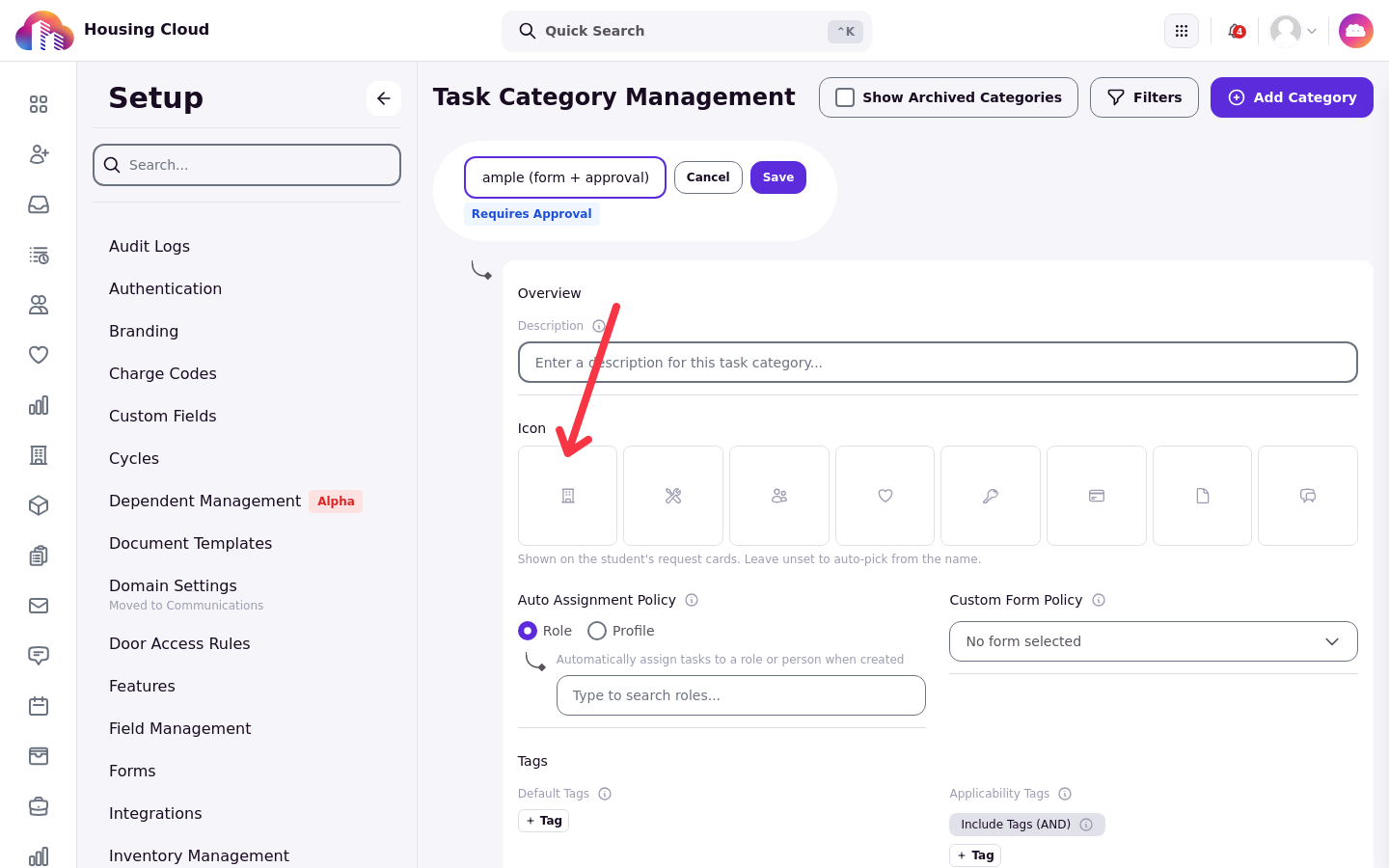
The overview part of the card is the type's identity. Pick an icon residents will recognize and write a Category description that says what belongs in this type.
The card opens in edit mode from the pencil, with the icon picker and the description field at the top.
Workflow switches
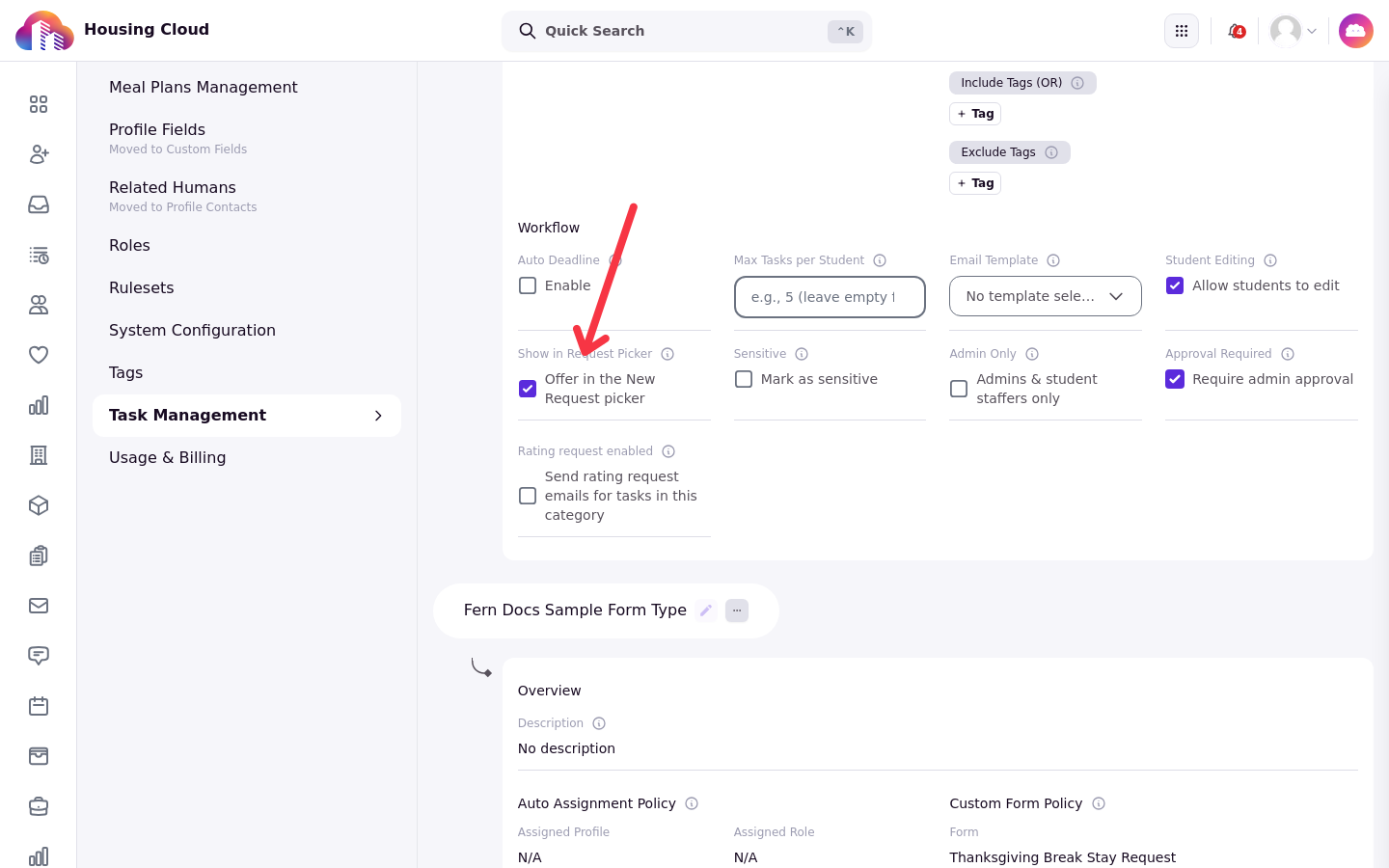
The Workflow section decides who can file the type and what happens to what they file.
Show in Request Picker: whether the type is offered to residents. Turning it off hides it from new requests only; existing requests stay visible and editable.
Admin Only: marks the type "Admins & student staffers only"; residents never see it.
Sensitive: hides every request of this type from staff without sensitive access.
Require admin approval: new requests wait for approval, with a backfill option for existing ones.
Allow students to edit tasks: lets residents edit their requests.
Rating request enabled: "Send rating request emails for tasks in this category".
Here is the Workflow section on a card in edit mode, with all of these switches in one place.
Max tasks per student
Max tasks per student caps how many requests one resident can file in this type. When a resident has reached the cap, filing is blocked in the resident portal, and staff see a Student at Task Limit confirmation before the task is created anyway; Create Anyway files it.
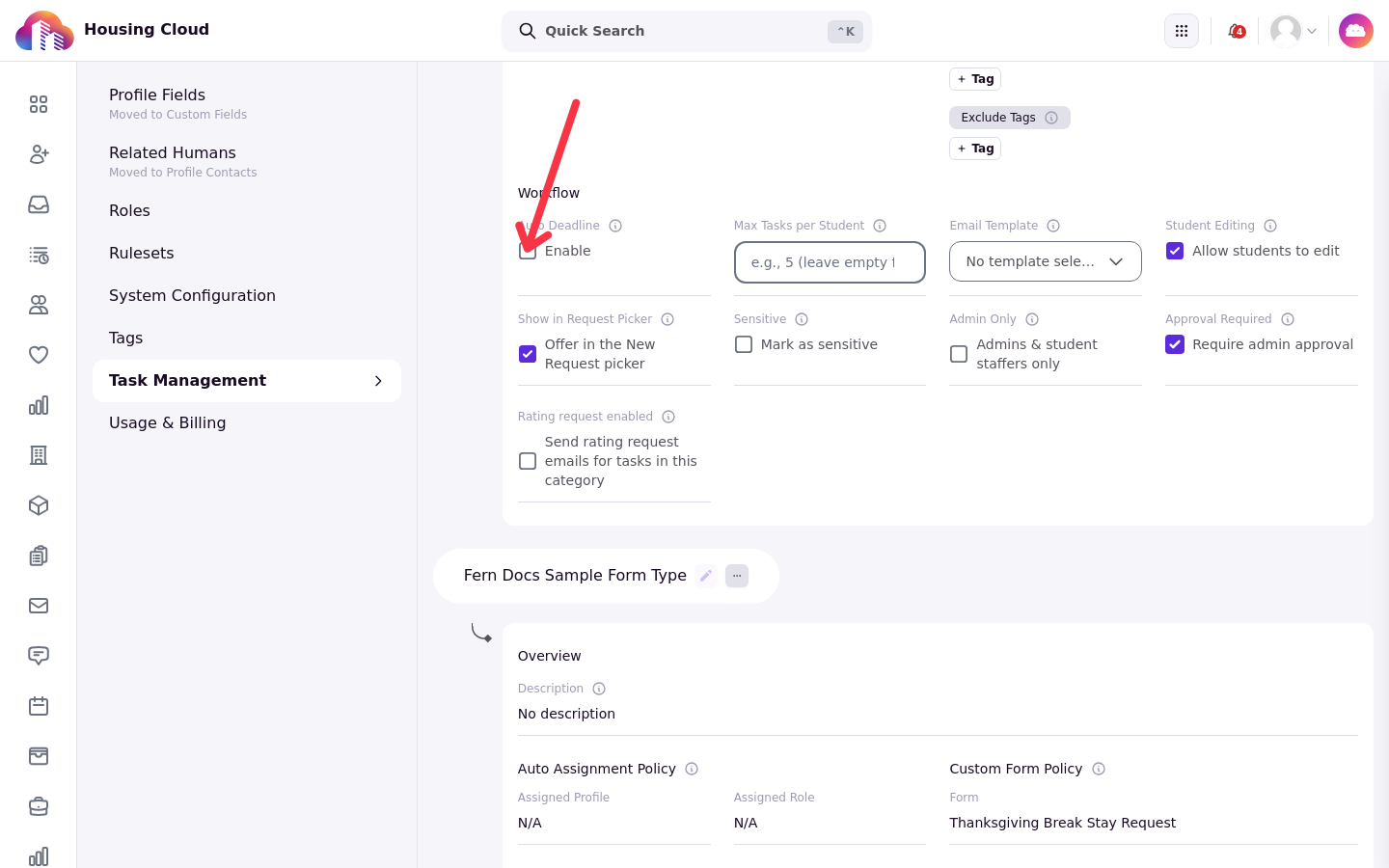
Auto Deadline
Tick Enable auto-deadline and set Days Until Deadline to give every request of this type a due date counted from the day it was filed. This is the closest thing to an SLA. Deadline reminders are part of the daily Task Deadline Reminder email, which reaches the assignee while the task is Open or In Progress and due within the next three days.
The Auto Deadline controls sit alongside Max tasks per student on the card.
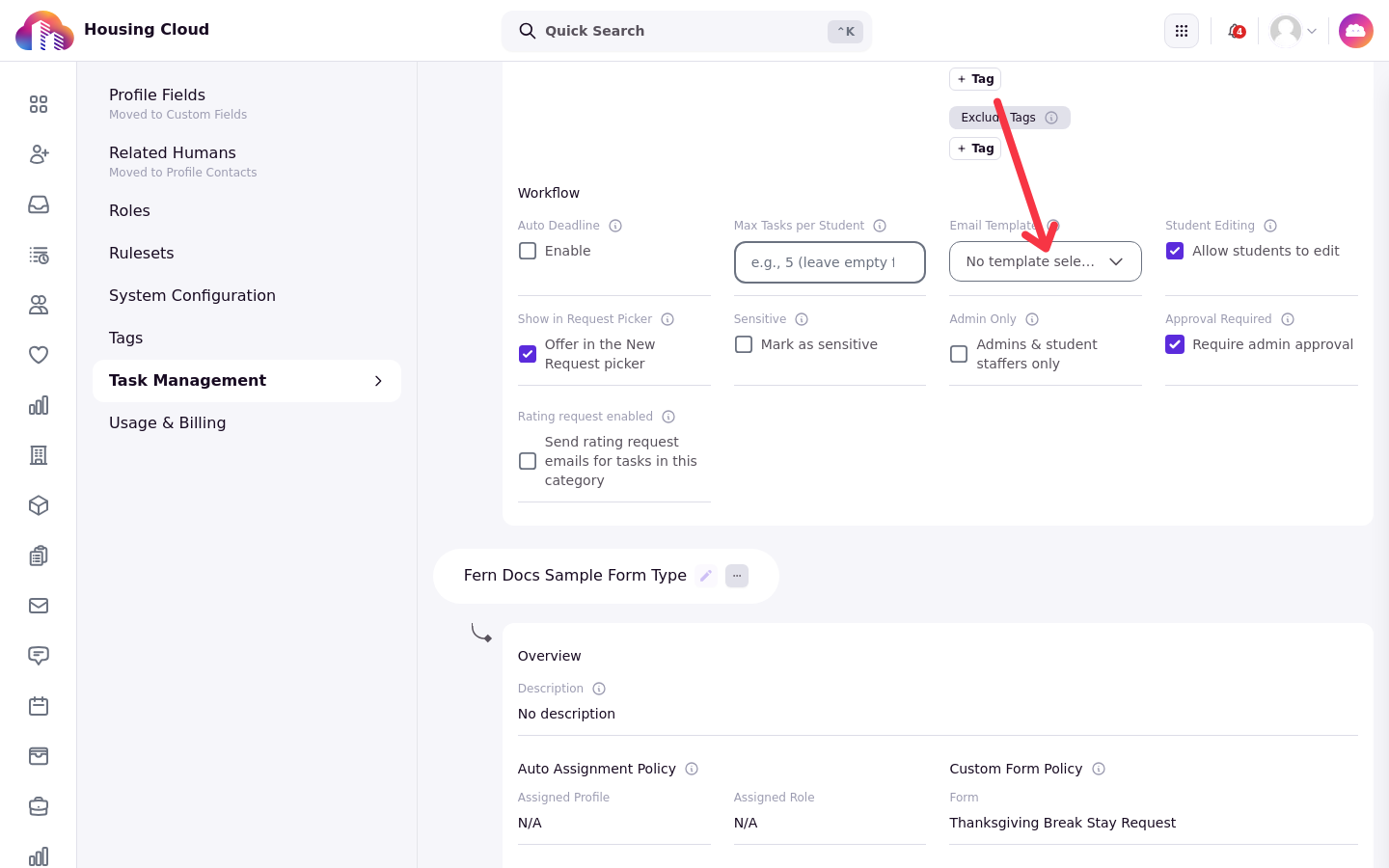
Email Template
Pick an Email Template and the submitting student or task creator receives that email whenever a task of this type is created.
The Email Template dropdown sits in the Workflow section of the card.
Tags and Exclude Tags
The Tags section of the card holds four controls. Two of them stamp tags onto requests, and two decide whether a resident sees the type in the request picker at all.
Default Tags: tags automatically applied to tasks created under this category. These use tags of the Task type.
Include Tags (AND): students must have all of these tags to see this category.
Include Tags (OR): students must have at least one of these tags to see this category.
Exclude Tags: students with any of these tags cannot see this category.
The four controls as they appear on a card in edit mode.
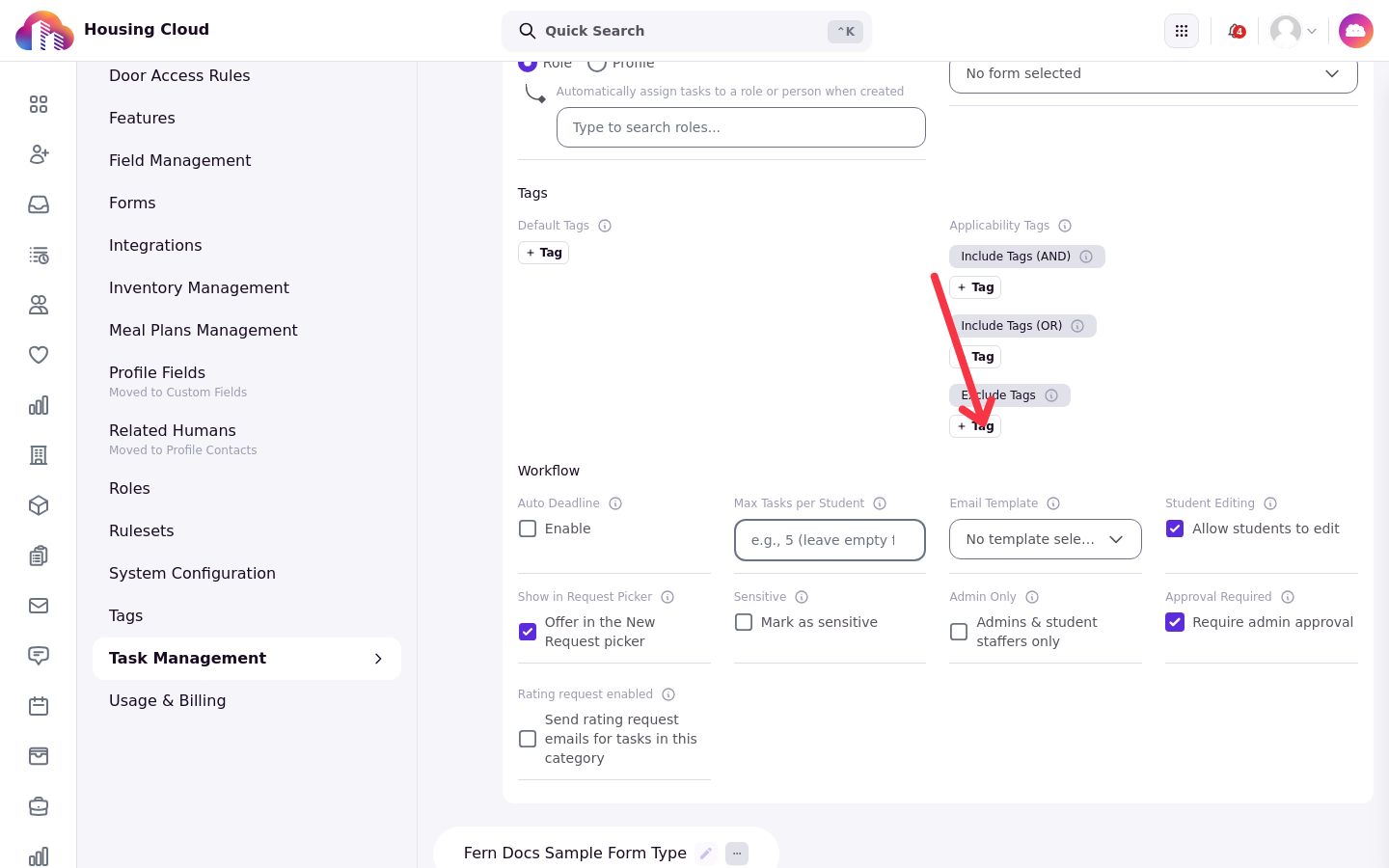
The three visibility controls use tags of the Profiles/Applications type, and they combine: a student who has every AND tag and at least one OR tag passes both tests, while a single matching Exclude tag keeps the category hidden no matter what the include tags say. A category filtered out this way is removed from the resident's request picker entirely, not shown disabled. Staff profiles bypass this filtering and always see the category. When both include lists are empty and there are no exclude tags, every resident sees the type.
Each control picks from existing active tags rather than free text. If the tag you need does not exist yet, use the plus control in the tag selector to open Create new tag, set its Name, Color, Tag Category and Applicability, and the new tag is selected automatically.
Assignment and forms
Two parts of the card have their own articles: the Auto Assignment Policy, which routes every new request of the type to a person or role, and the Custom Form Policy, which attaches a form with questions for residents to answer. Route Requests Automatically to a Person or Role and Add a Form to a Request Type cover each one.
Archive instead of delete
There is no delete for a request type: choose Archive in the Category actions menu to archive it instead, and archived types come back with Show Archived Categories and the Un- Archive action. Use Copy student request link to clipboard in the Category actions menu on a card to share a link to the type: residents who open it land on the request form with that type already chosen, as long as they can see and select that category (hidden, archived, admin-only, sensitive or otherwise non-pickable categories are not preselected).
Once you save, the card returns to view mode with its badges on display.
Good to know
Max tasks per student never resets. It counts every request the resident has ever filed in that type, closed and rejected ones included.