Build Mailroom Reports in the Report Builder
Last updated: October 8, 2026
Build and save your own mailroom report in the admin Report Builder at Reports, so a list like "everything still waiting at the desk" can be re-run on demand instead of rebuilt every week. Package data lives in the Packages source, with the recipient's profile and the mailroom reachable through linked data.
Start from the Packages source
Click the control that starts a new report and pick Packages under Operations in the START WITH picker; the caption confirms "Every row will be one package".
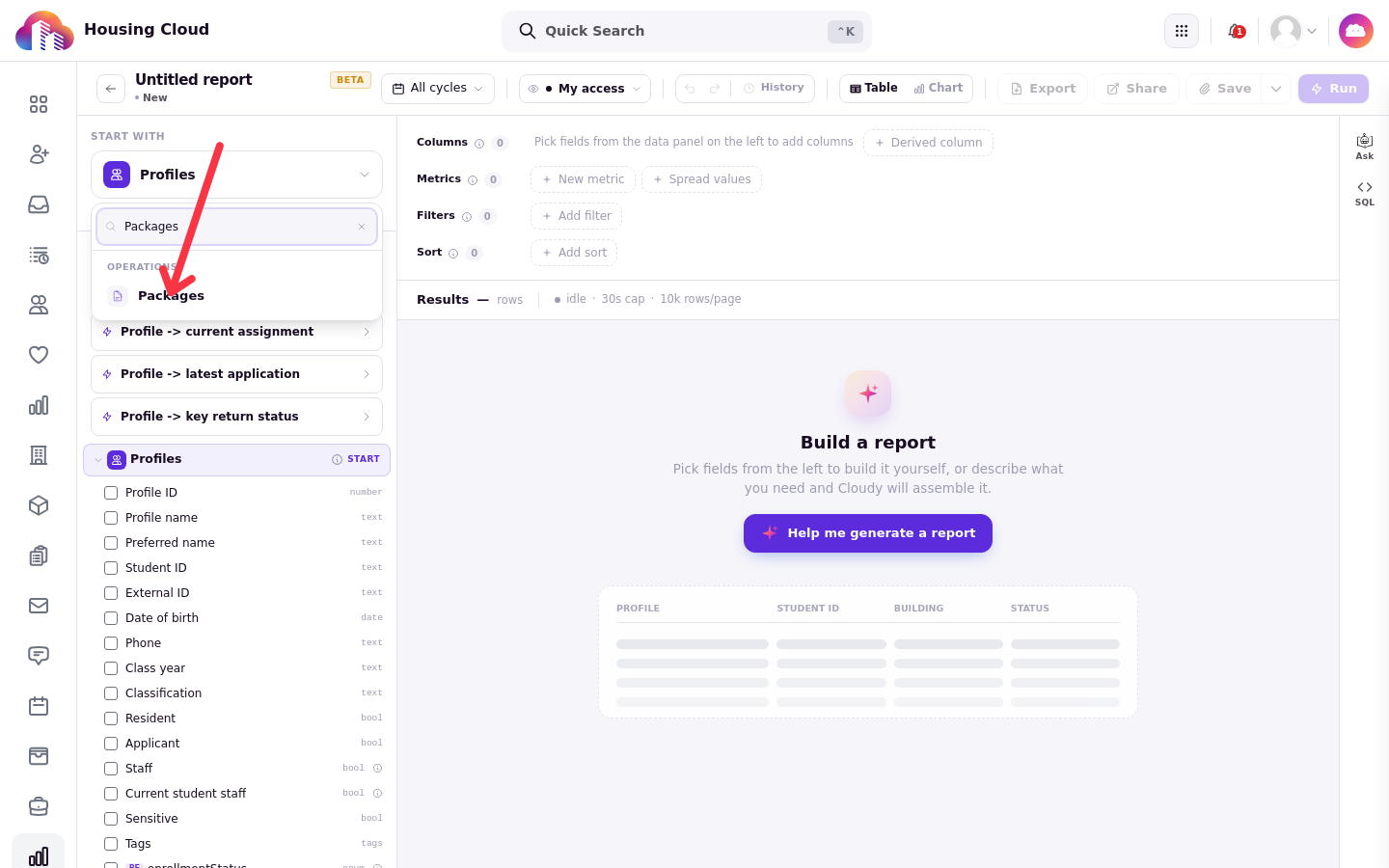
The left data panel lists the package fields: Package ID, Carrier, Tracking number, Mail type, Package status, Storage location, Shipped from, Checked in, Checked out and Cancelled at, each with its type (text, enum, date).
Add the recipient and the mailroom
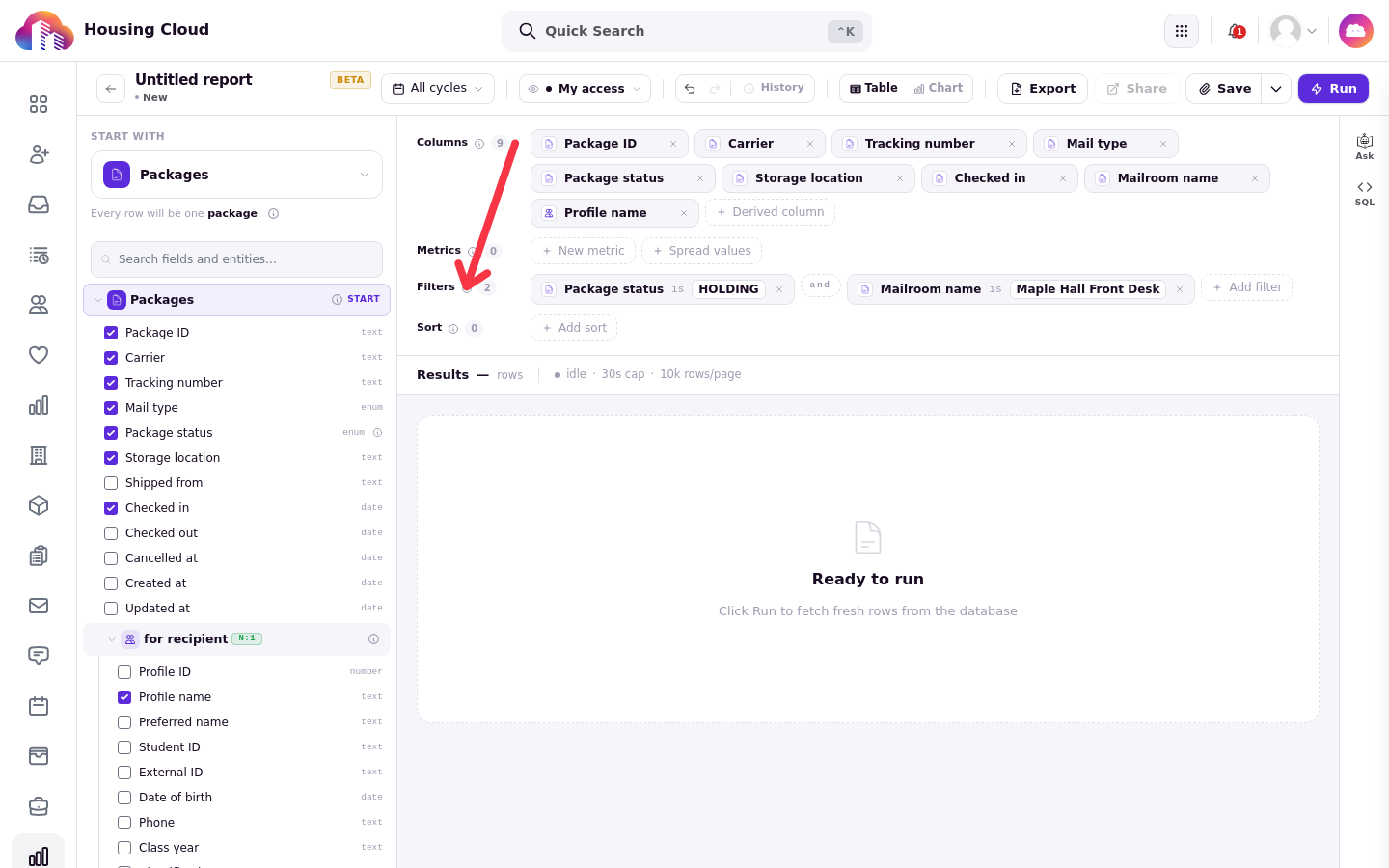
The panel also holds linked sources. Under for recipient (marked N:1), tick Profile name to pull the recipient's name into the report; the rest of the resident's profile fields are there too. Search the panel for mailroom to find the Mailrooms link with Mailroom name. Tick the fields you want and they appear as column chips under Columns.
Filter to what is still waiting
Click Add filter. The New filter dialog offers Describe in plain English (type what you want and the assistant drafts it) and Build it myself, where you pick the field, the operator and the value. Two filters give the "still waiting" list:
Package status is Holding
Mailroom name is your desk's mailroom
Package status here is the saved status: mail that shows as Ageing on screen still reads Holding in a report, because Ageing is a display label, not a stored status.
Click Run to fetch the rows.
Save the report
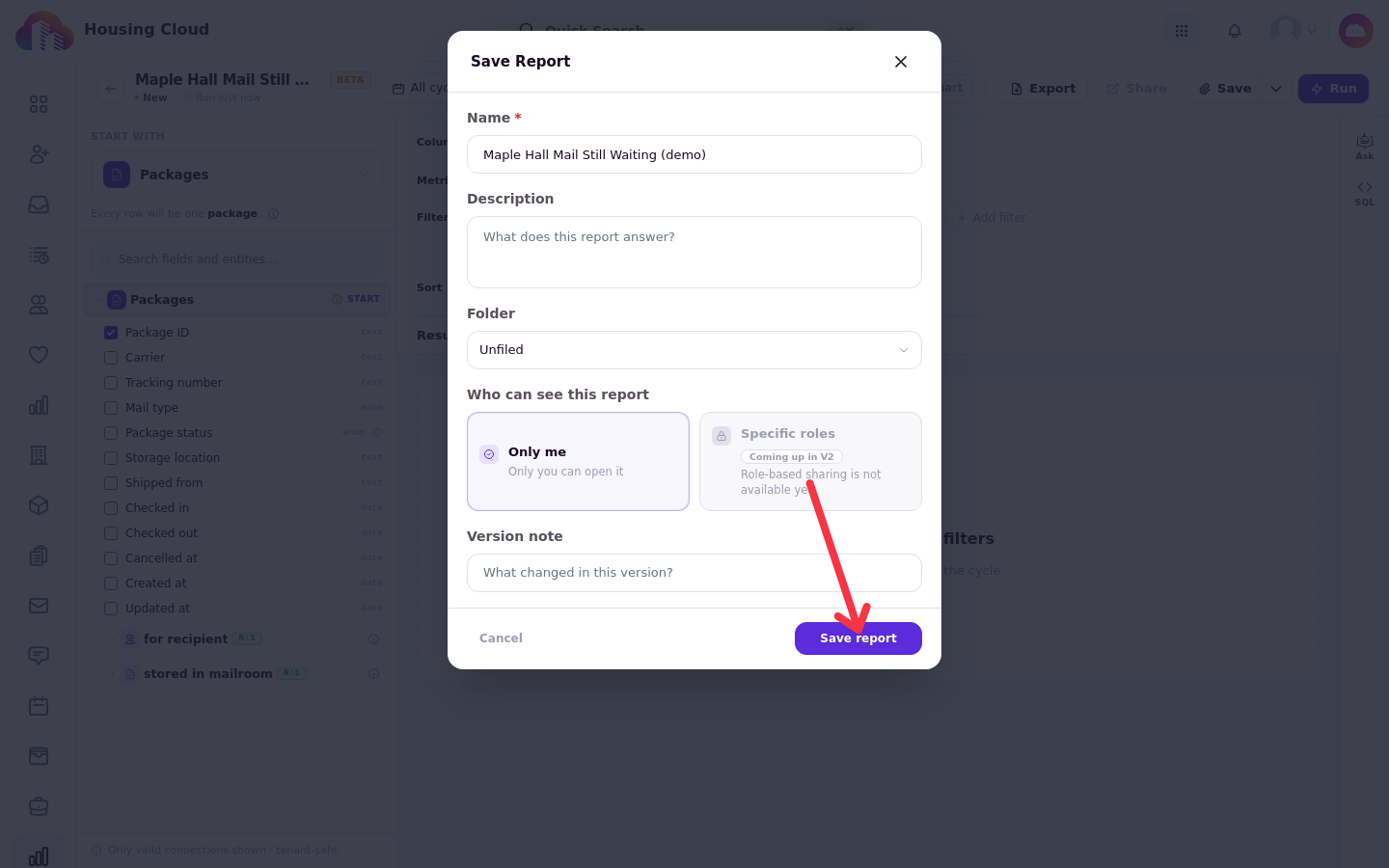
Click Save in the toolbar. The Save Report dialog asks for a Name, an optional Description and Folder, and who can see the report (the Save Report dialog initially saves it as private; use the separate Share action to configure broader visibility).
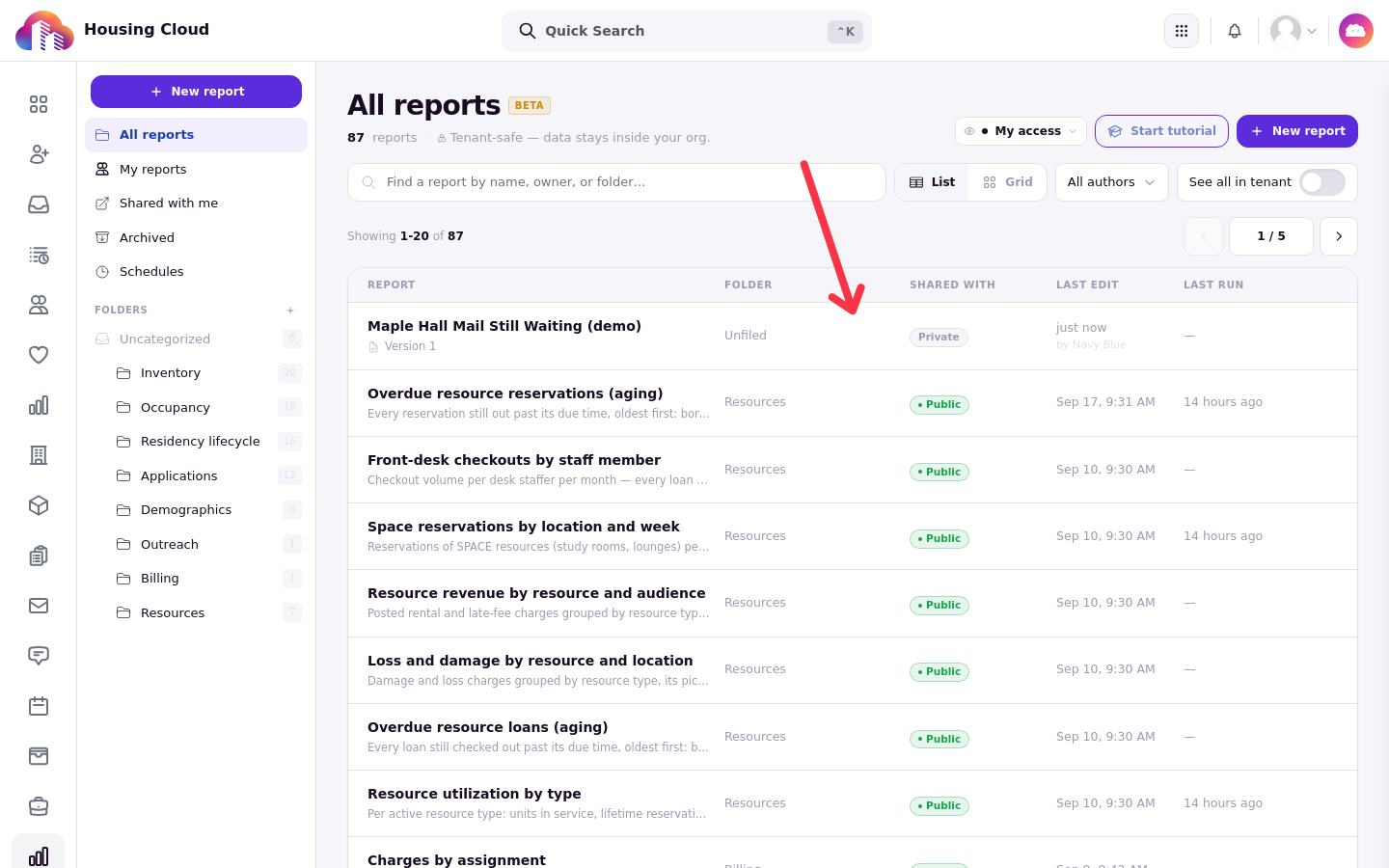
The saved report appears in the report library for re-running. The All cycles selector at the top controls which housing cycles the report reads, and Export on the toolbar takes the results out as a file.
Other ideas
Items per carrier this month: group by Carrier over a date range
Mail still waiting at each desk: filter on Package status, add Mailroom name
Days to pickup: compare Checked in and Checked out
Staff who logged or released an item, and item photos, are not in the report data.