Priority, Due Dates and Deadline Reminders
Last updated: October 8, 2026
Set a task's priority and due date from its edit view, then use the Due column and deadline reminders to track tasks that need attention soon.
Before you start
You need permission to edit tasks. Sign in and choose Admin portal on the portal selection screen, then open the task you want to update. Decide the priority and due date before you open its edit view.
Set a task's priority
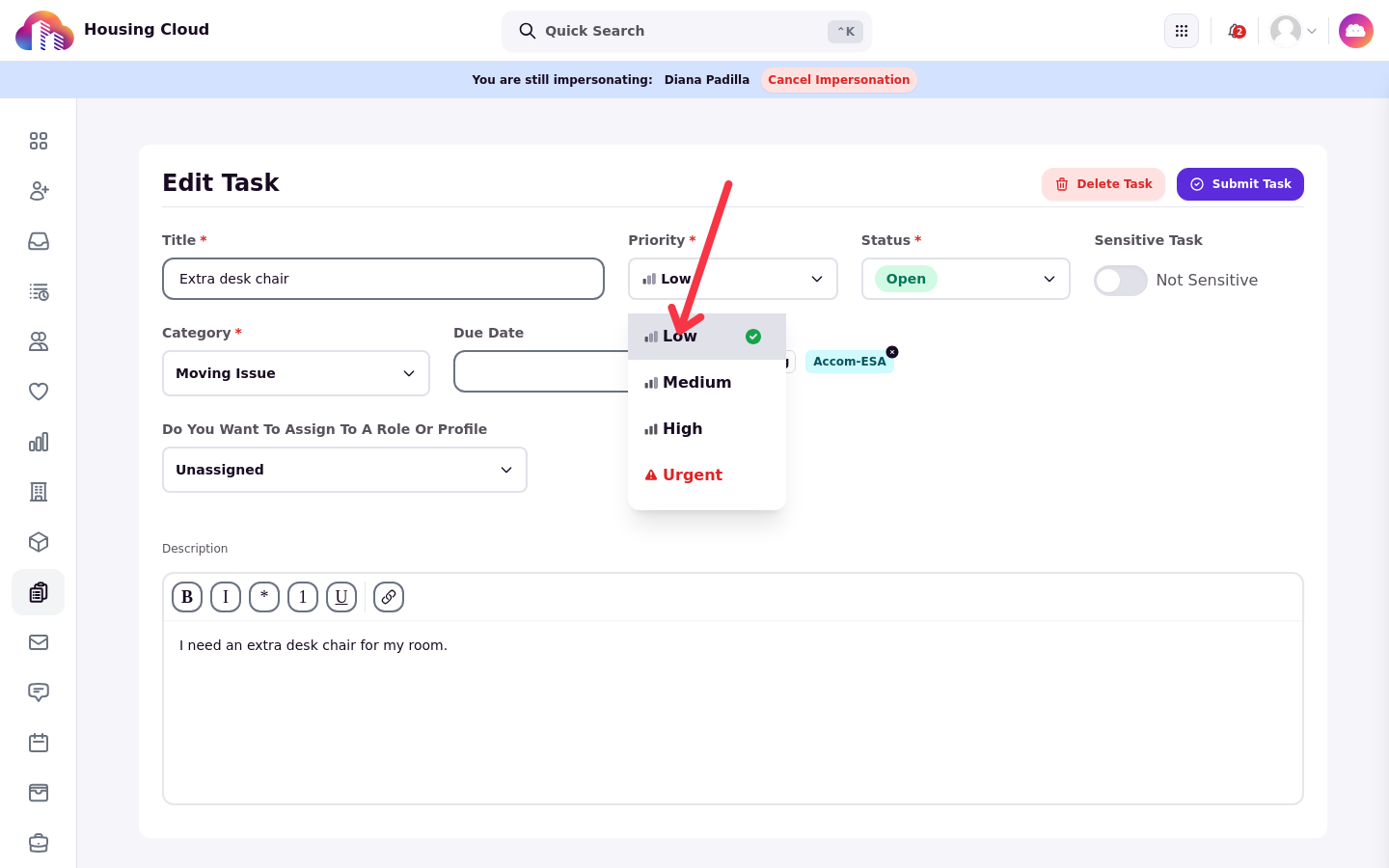
Use Priority in edit mode to set how urgent the task is. The available priorities are Low, Medium, High, and Urgent.
Open the task, select Edit, choose a value from Priority, and save the task. Cloudy can also suggest a priority change through auto-triage. Review Cloudy's proposed change before applying it.
The Urgent open stat card on the task queue counts urgent tasks that are Open, In Progress, or Need More Info.
Residents do not set priority. Requests filed in the newer resident portal start at Medium; requests from the legacy help form and tasks staff create start at Low.
Set or clear a due date
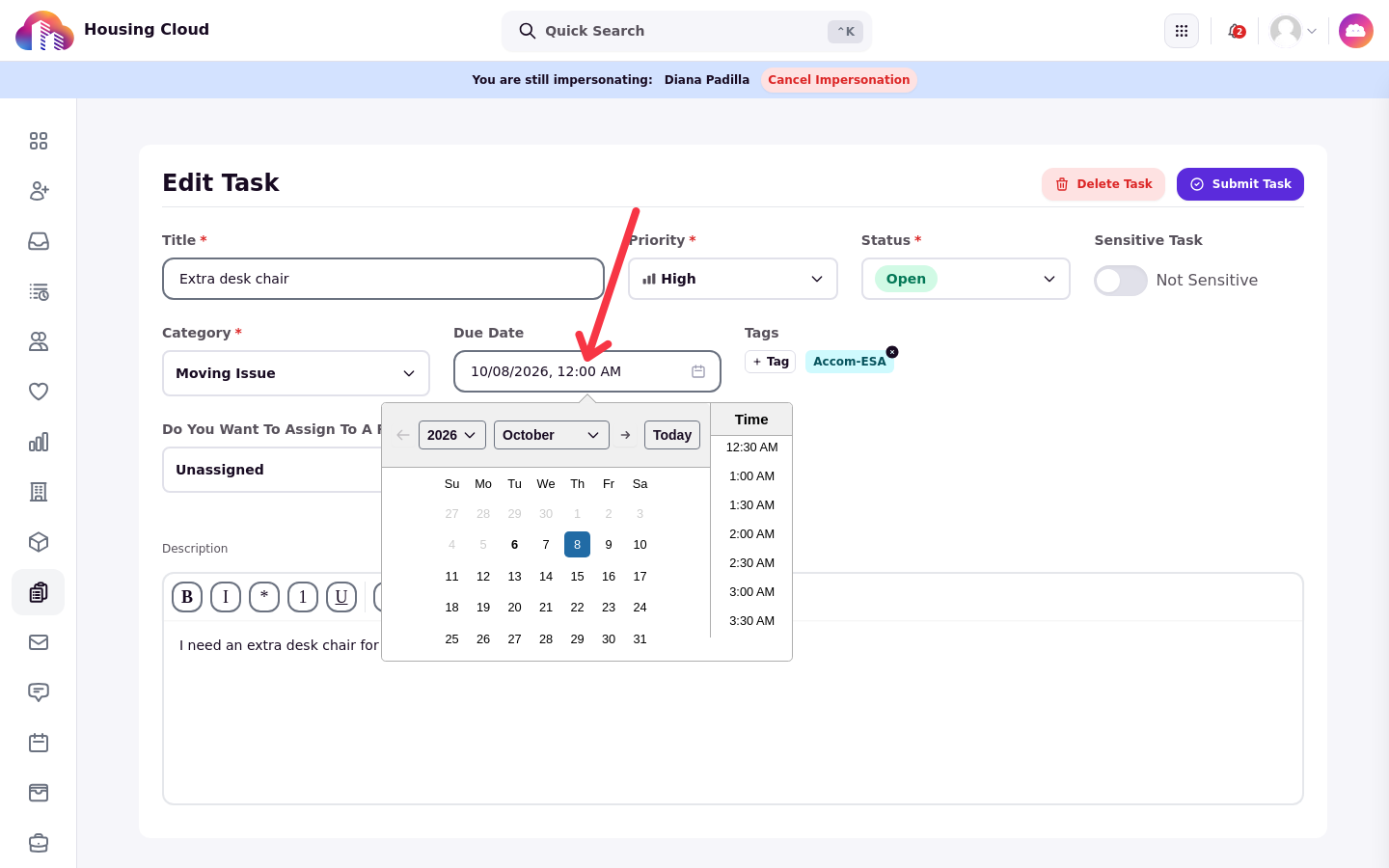
Use Due Date when a task needs a deadline. A request type can set the date automatically with Auto Deadline and Days Until Deadline, or you can set the date by hand in the task's edit view.
Open the task, select Edit, choose the date in Due Date, and save the task. Select Clear due date when the task should no longer have a due date.
Housing Cloud does not provide a separate SLA timer for this task workflow. The due date and the Due column are the task's tracking points.
Track deadlines in the queue
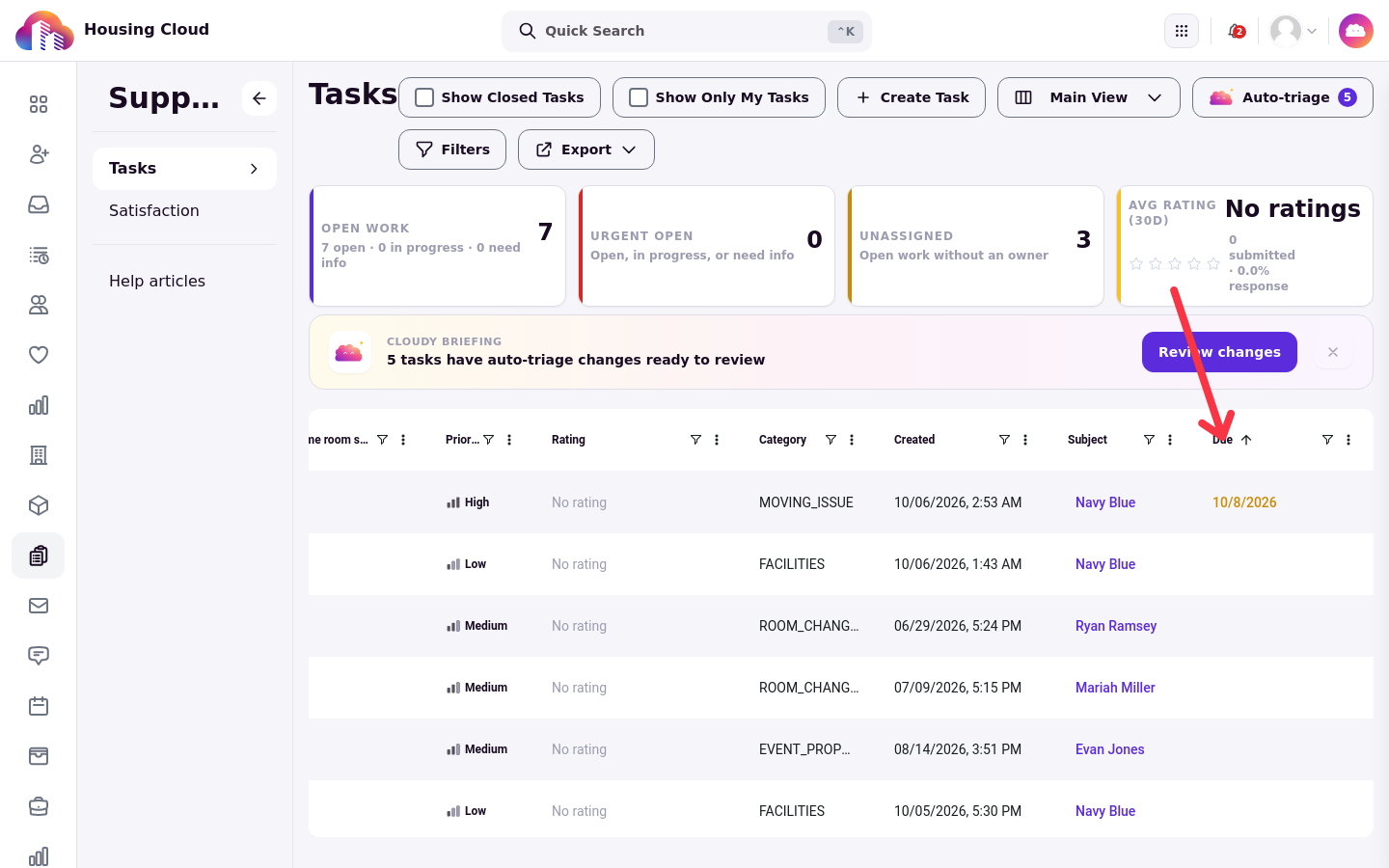
Use the Due column to find tasks by their recorded due dates. If the Due column is not visible in your current view, scroll the table horizontally or pick a view from the Main View selector.
Status, priority and category changes notify task subscribers with Task Updated and ask Cloudy to re-score the task.
Understand deadline reminders
Housing Cloud sends one Task Deadline Reminder each morning around 6 AM Eastern for tasks that are Open or In Progress and due within the next three days.
The reminder lists the tasks due soon and goes to the task's assignee, every member of an assigned role, and every subscriber. A subscribed resident can receive the reminder as well.
Deadline reminders do not go out after a task is overdue or while the task is at Need More Info.