Require Approval on a Request Type
Last updated: October 8, 2026
Ticking "Require admin approval" on a request type makes every new request of that type wait for a yes or no before anyone works it. You set it in the request type's edit form in Setup Task Categories, and it applies to requests residents file and requests staff file alike.
Before you start
Changing a request type needs the permission to configure task settings ("Ability to configure task settings"). Deciding the requests is a separate permission: "Approve or reject tasks", covered under Who approves a request below.
Turn on approval for the request type
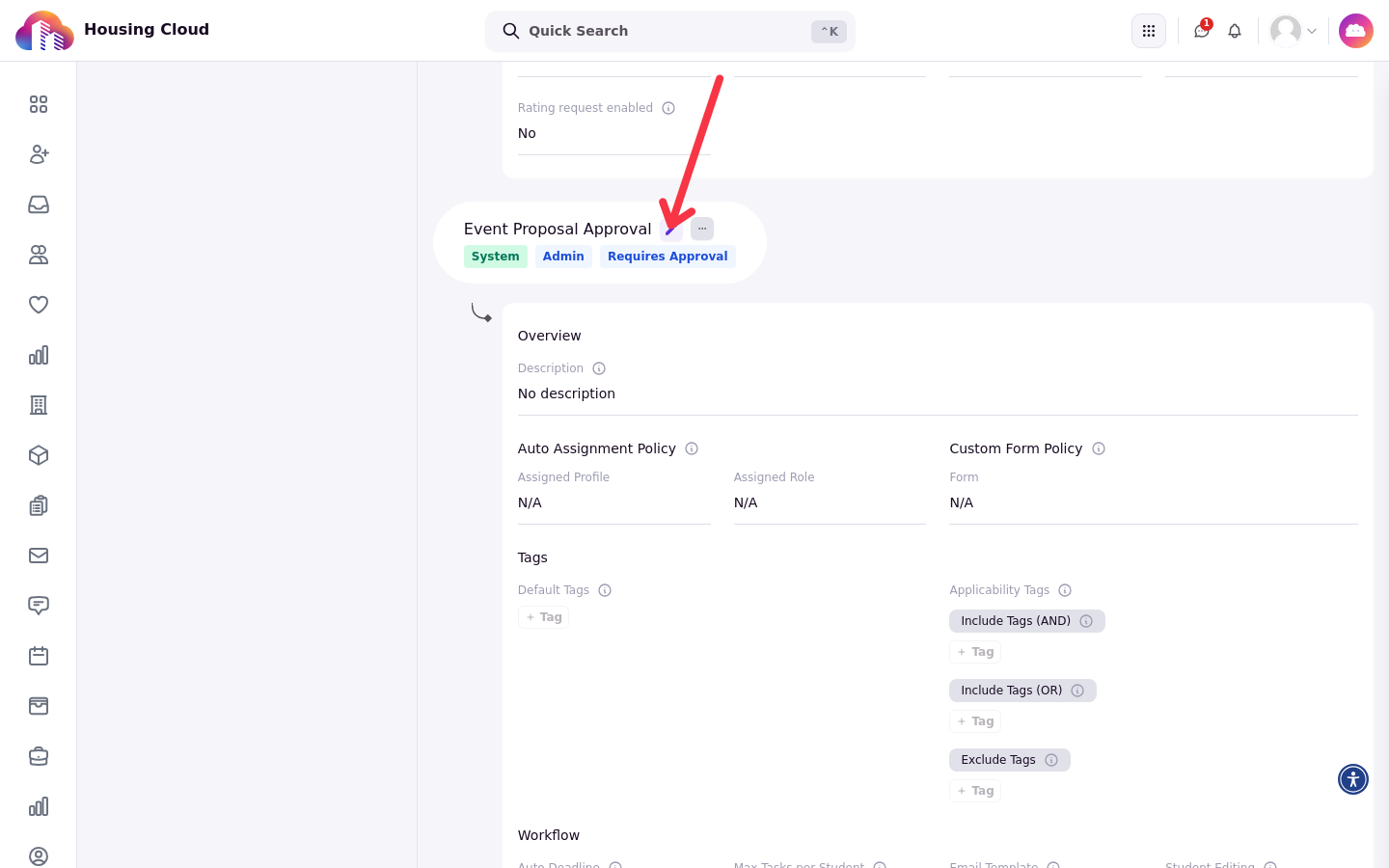
Open Setup Task Categories, find the request type's card and click its pencil (edit) button. Once approval is on, the card carries a Requires Approval badge:
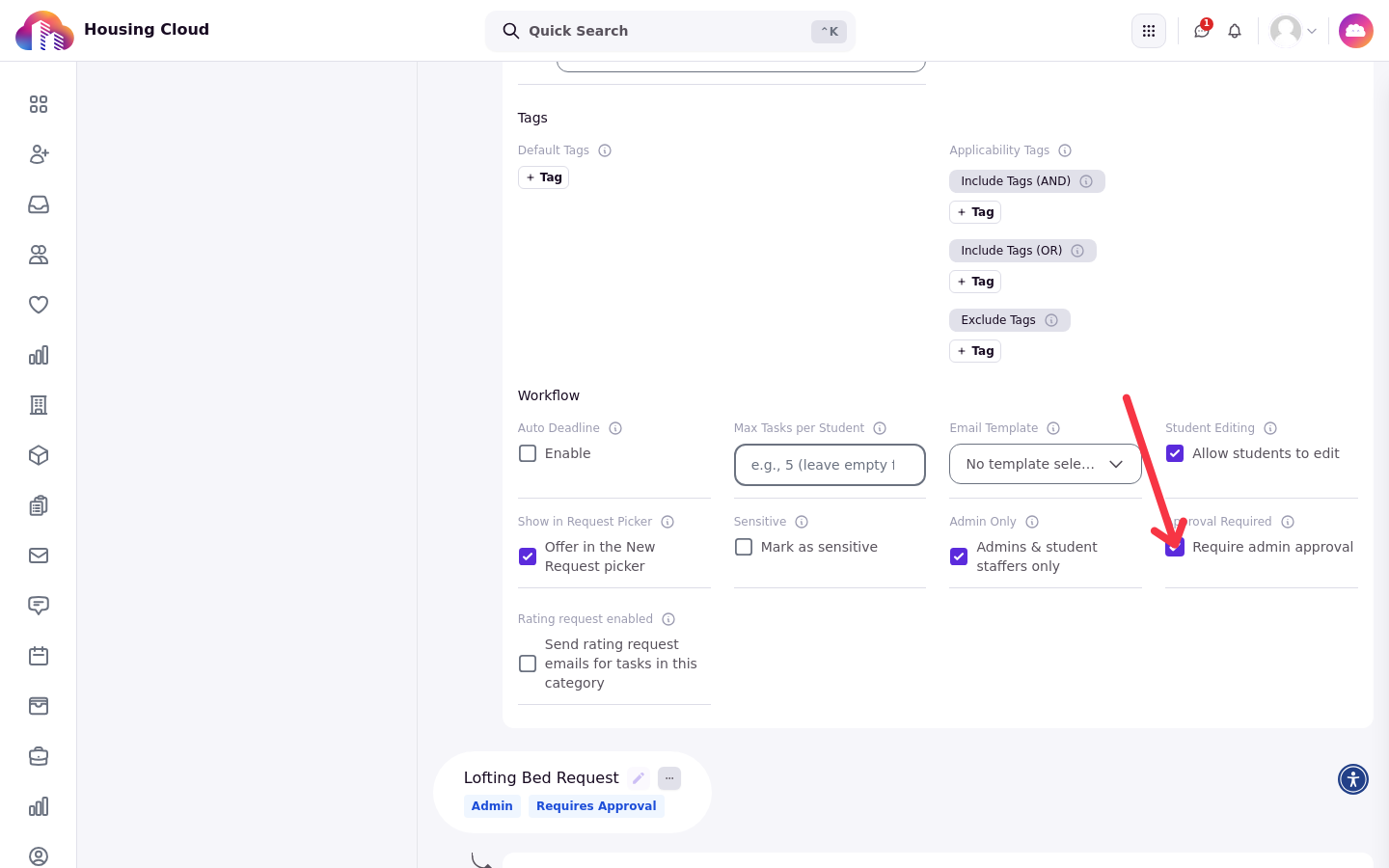
The switch itself sits in the type's edit form. In the Workflow section, find the Approval Required setting and tick Require admin approval, then click Save:
What Pending means for new requests
From then on, every new request of that type starts with approval "Pending", whether a resident or staff filed it. Moving a task into the type sets its approval to "Pending"; moving it to a type without approval clears the approval.
Requests already open
Changing the switch can also reach requests that are already open, but only if you ask it to. When you turn approval on and the type has open requests, a line appears beneath the switch: "Also set N open tasks to pending approval", with N the number of open requests. When you turn approval off, it reads "Also clear pending status from N open, pending tasks". Leave it unticked to change only new requests.
Who approves a request
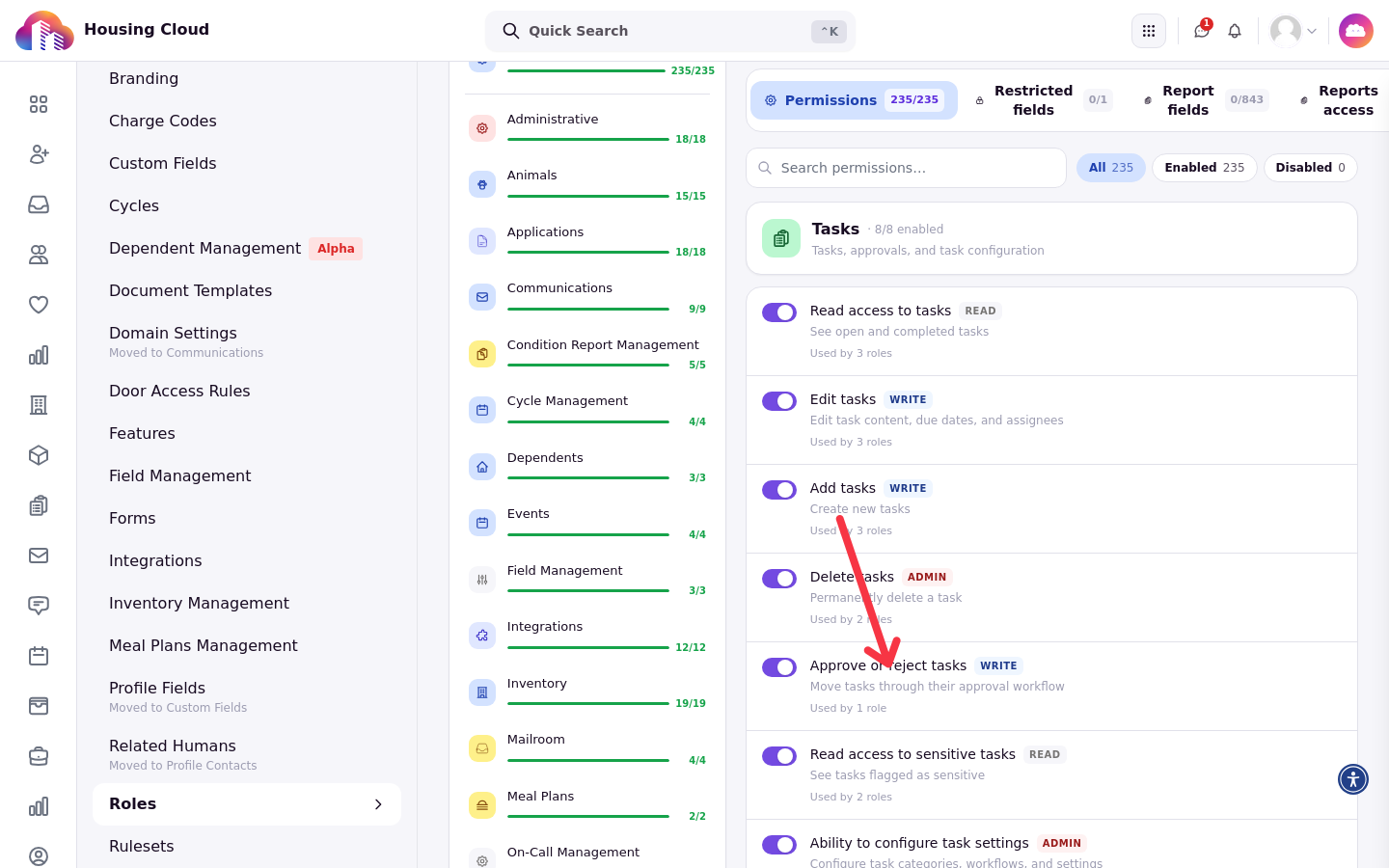
Anyone with the Approve or reject tasks permission can decide a request, and the approver doesn't have to be the task's assignee.
There are no named approvers per request type. Anyone who holds "Approve or reject tasks" can decide any request type's approvals.
Give the permission only to the people who should decide. To make sure each new request reaches one of them, set one of them as the type's automatic assignee in its Auto Assignment Policy.
What Pending holds back
A "Pending" approval holds back bulk status changes, not the task page. Bulk Update Status refuses any selected task that isn't approved yet, rejected ones included; "Cancelled" is the exception.
Pending approval holds back a single task's status change as well. The task's page stays editable, subject to your normal permissions, but its status cannot change while the approval is "Pending"; "Cancelled" is the exception. Decide the approval before working the task.
Find the requests waiting
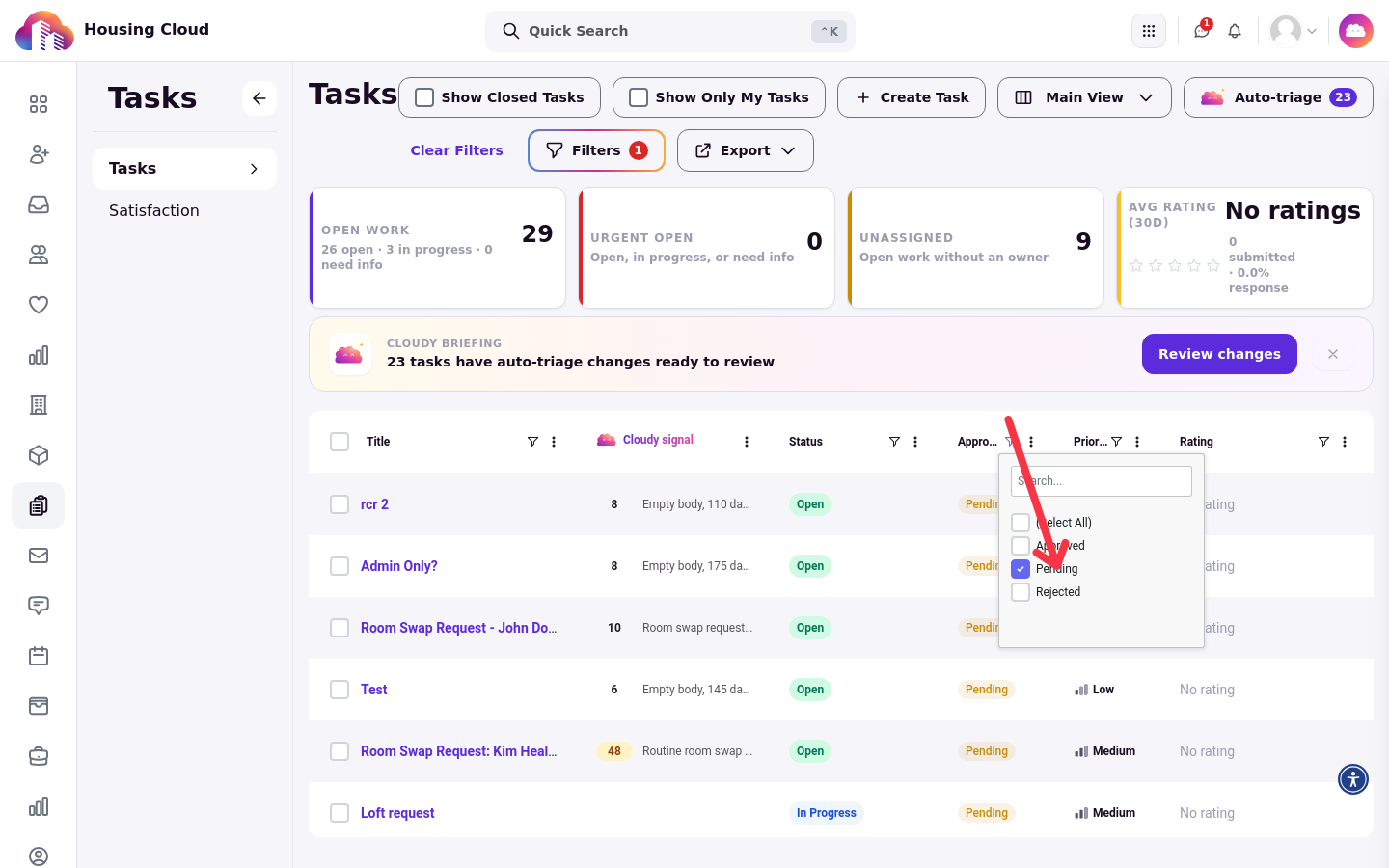
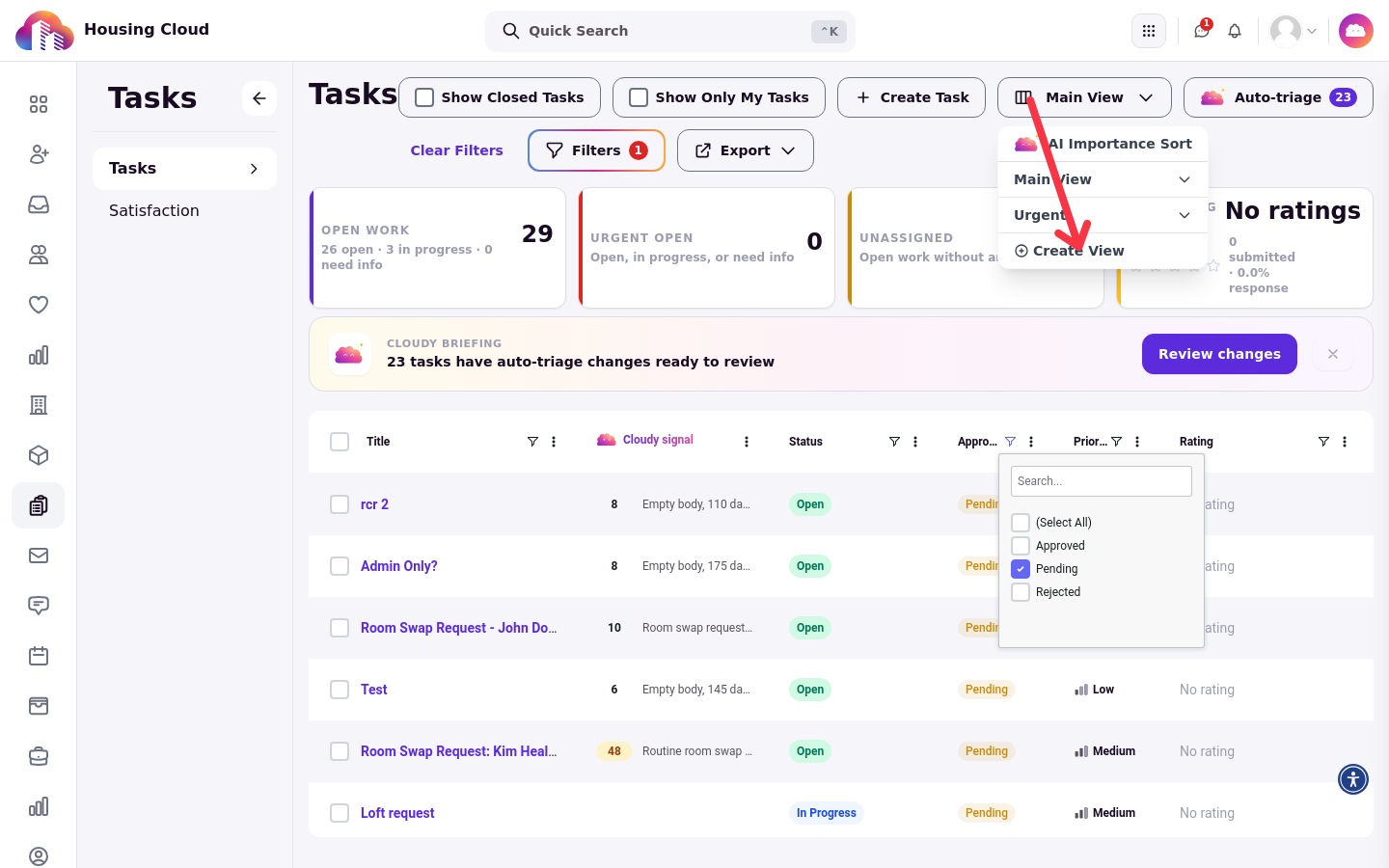
The queue's Approval column shows "Pending", "Approved" or "Rejected" for each task, and stays blank for request types without approval. If the column is hidden, show it from the views menu (Choose Columns). Filter it to "Pending" to see everything waiting:
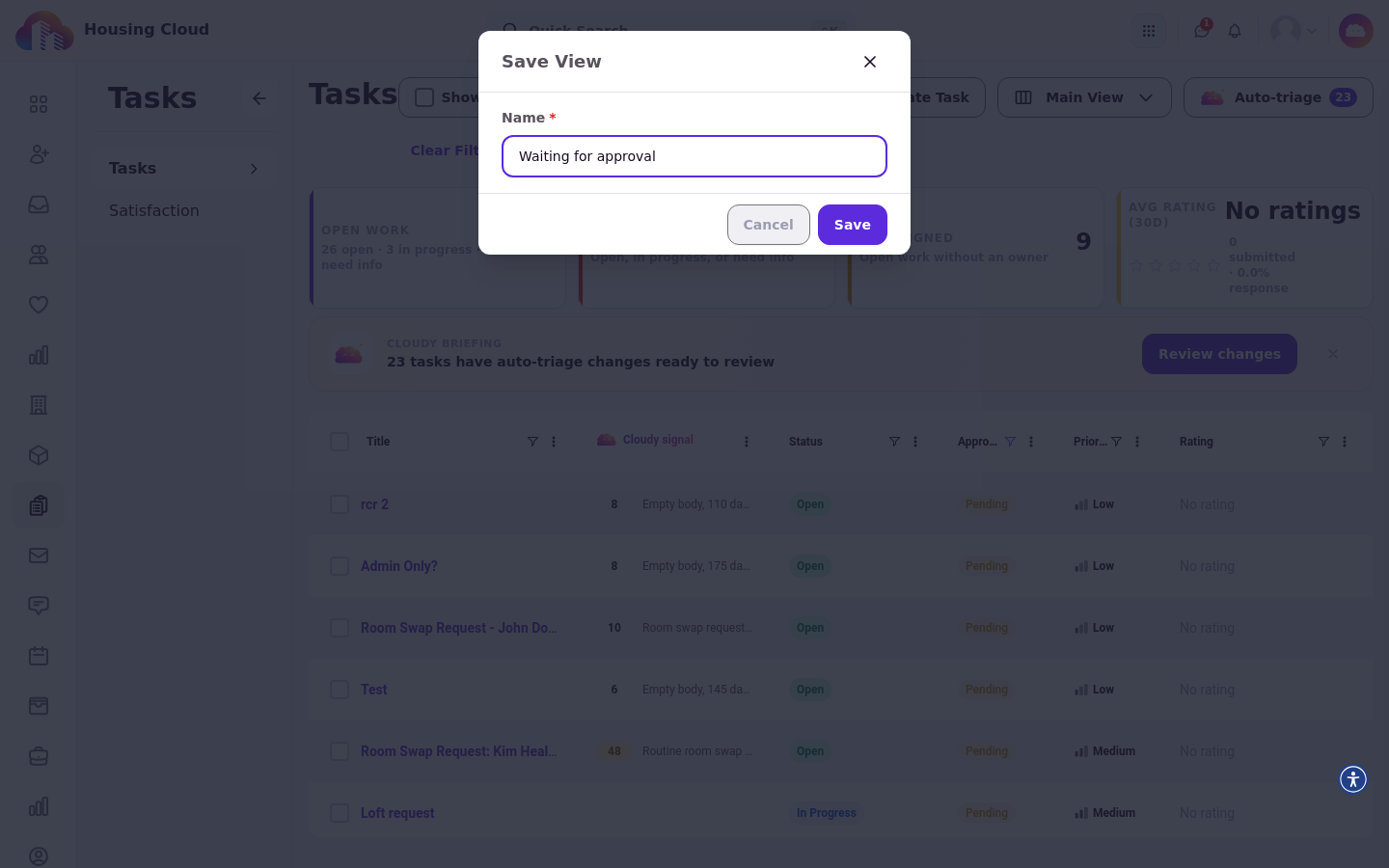
Save the filtered list as a view so it's one click away: open the views menu above the table and choose Create View:
Enter a name such as "Waiting for approval" in the Save View dialog:
The hidden Approval Changed column shows when each decision was made. There's no stat card for pending approvals.
Exports and reports
Exports include an Approval column. In Reports, tasks have Approval status and Approval changed at.
Ratings on approval types
With Rating request enabled on the request type, the resident is asked to rate the task three days after the decision, a rejection included. Most approval types should leave ratings off.
Approvals that don't use this switch
Room swaps, re-selections and event proposals have their own approve screens on the task and don't use this switch.