The Tasks Queue: Filters, Stat Cards and Saved Views
Last updated: October 8, 2026
The Tasks queue is the admin-side list of the requests residents file. Two toggles decide which tasks the list shows, stat cards and column filters narrow it further, saved views keep a setup you like, and export downloads the list you see.
Before you start
Working in the queue needs task read access. The Avg rating (30d) stat card also needs the Satisfaction permission and the task rating feature; without them, the fourth card shows Created (30d) instead.
Show Only My Tasks
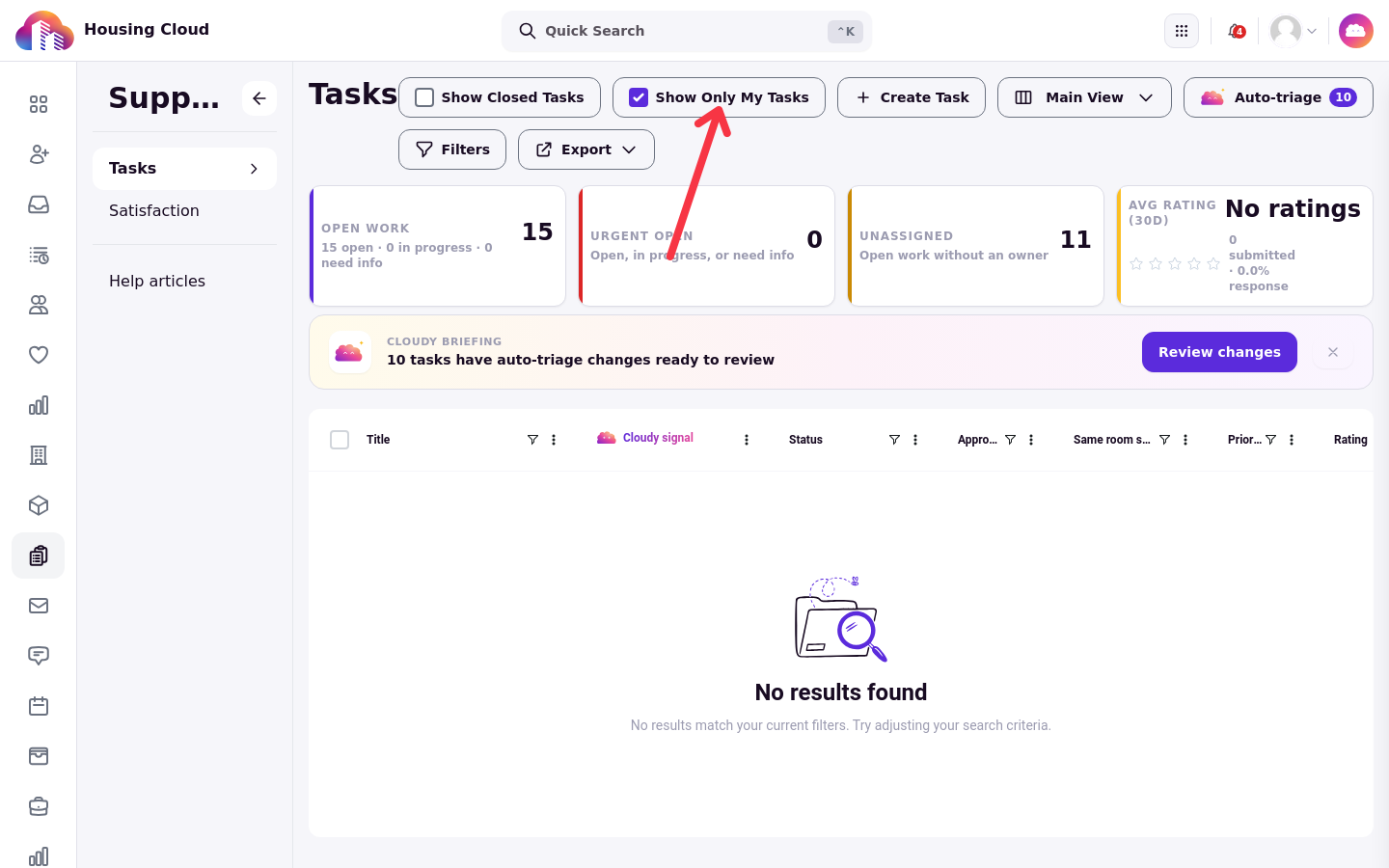
The Show Only My Tasks toggle sits beside Create Task and starts ON for everyone. It shows only tasks assigned to you by name; a task given to your role never appears here. The setting is remembered per browser.
With the toggle on and no tasks assigned to you by name, the queue shows no results:
Show Closed Tasks
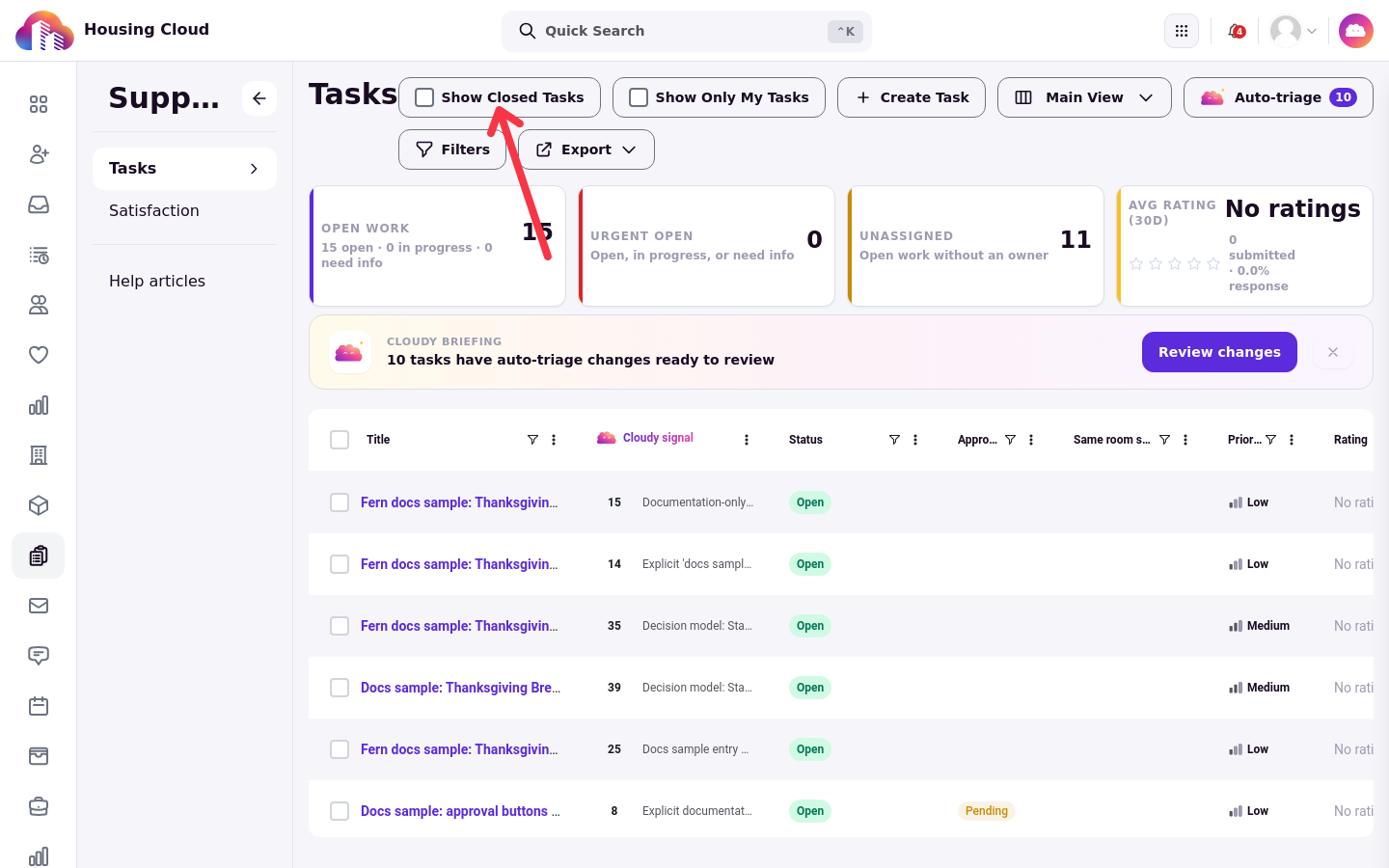
The Show Closed Tasks toggle beside Create Task adds Closed and Cancelled tasks to the list.
With Show Only My Tasks off, the queue lists every task you can see:
Stat cards
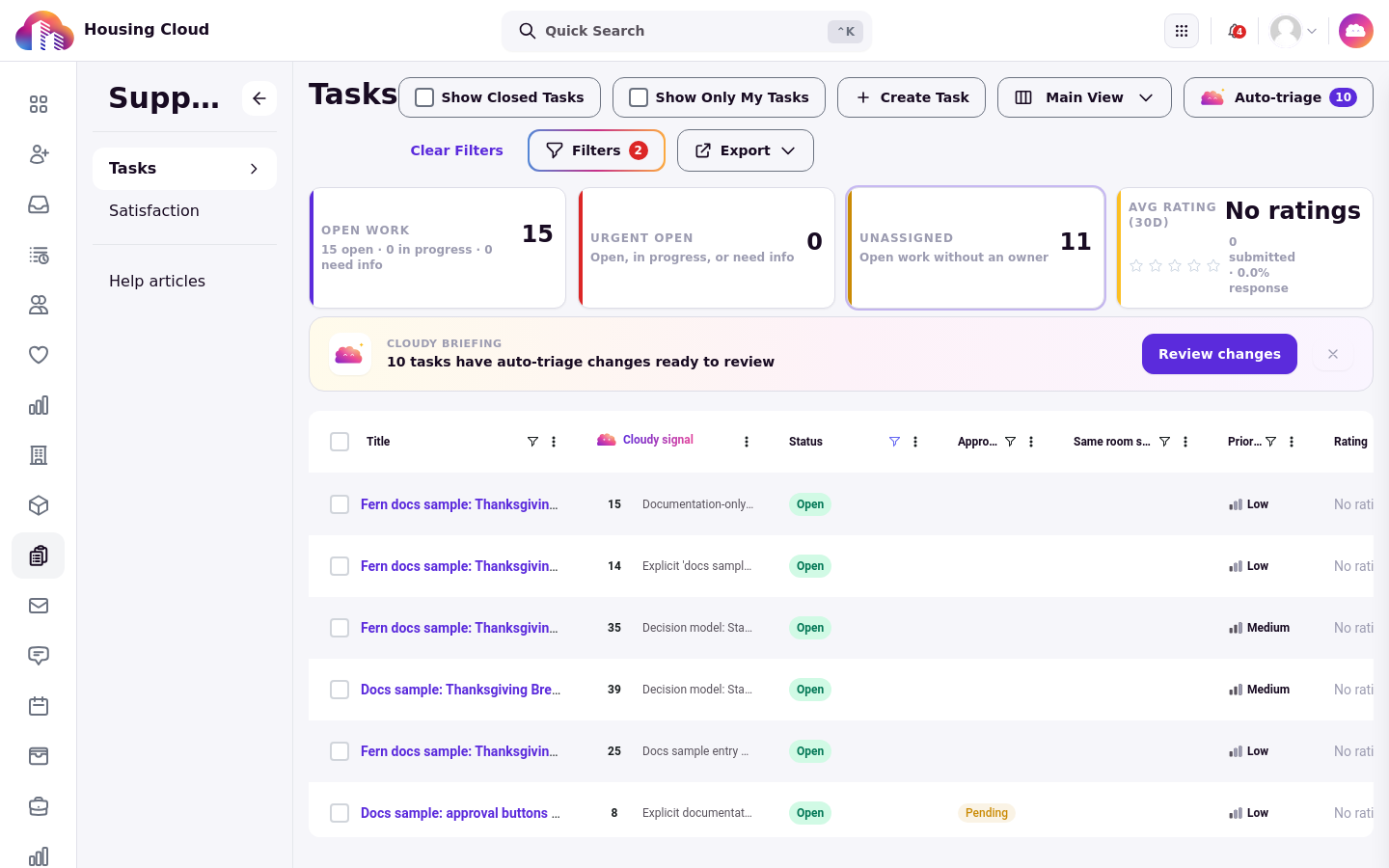
Four stat cards sit above the grid: Open work, Urgent open and Unassigned, plus a fourth card that shows Avg rating (30d) or, as a fallback, Created (30d). Clicking a card filters the grid to the tasks it counts, and the queue switches Show Only My Tasks off so the list matches the card's number.
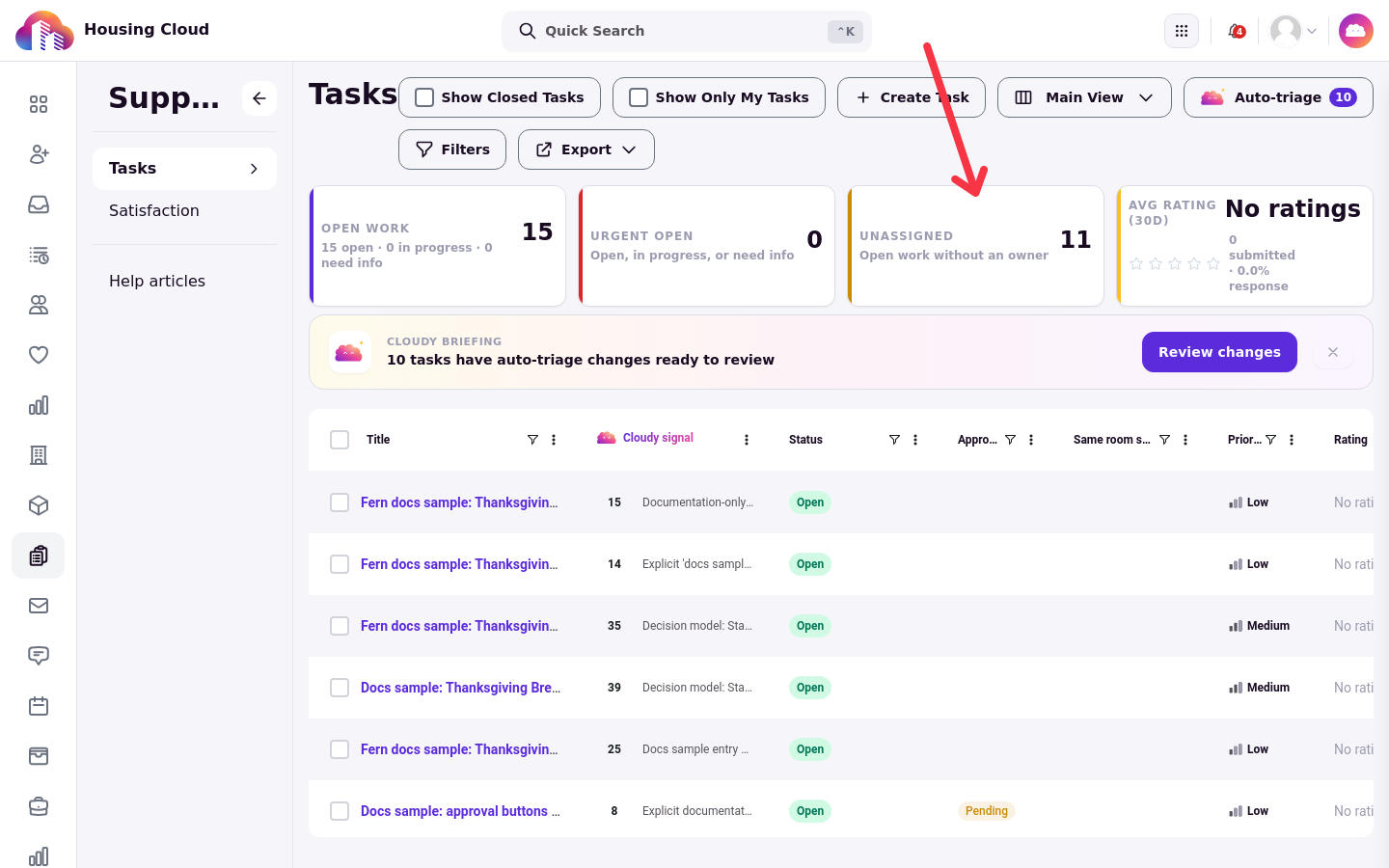
Clicking Unassigned, for example, leaves only the tasks with no assignee:
Columns
The grid's columns are Title, Status, Approval, Priority, Rating, Category, Created, Subject, Due, Assignee, Tags, Followers, Latest Subject Building and Latest Subject Room. Six columns, Created By, Student ID, Category Type, Last Edited, Approval Changed and Updated, stay hidden until you turn them on with Choose Columns. When room re-selection is enabled for your site, the grid also shows a Same room selection column. When AI sort is on, the queue adds a Cloudy signal column.
Filters
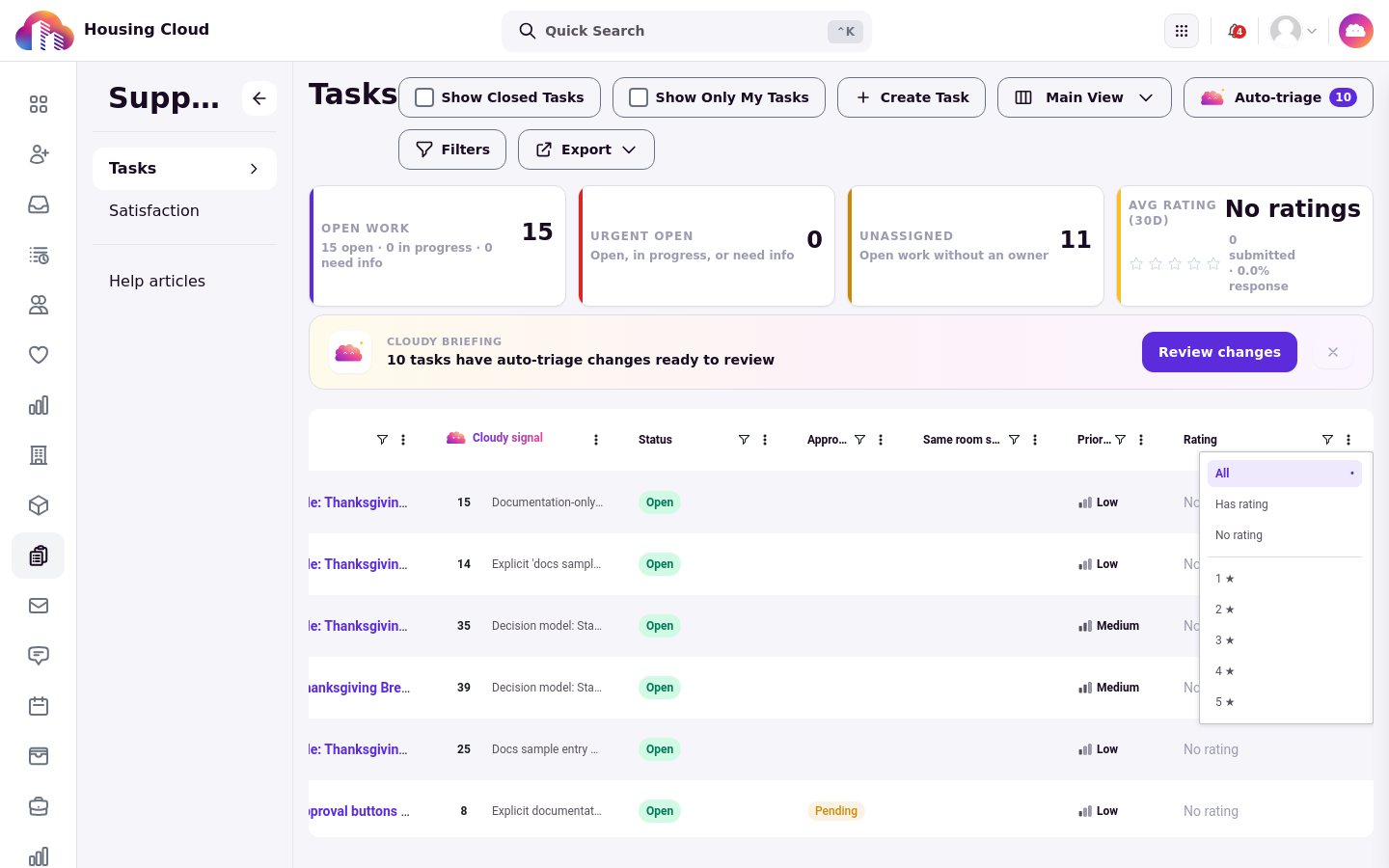
Every column has its own filter, and you can filter for blank values too. The filter button shows a count of the filters in use.
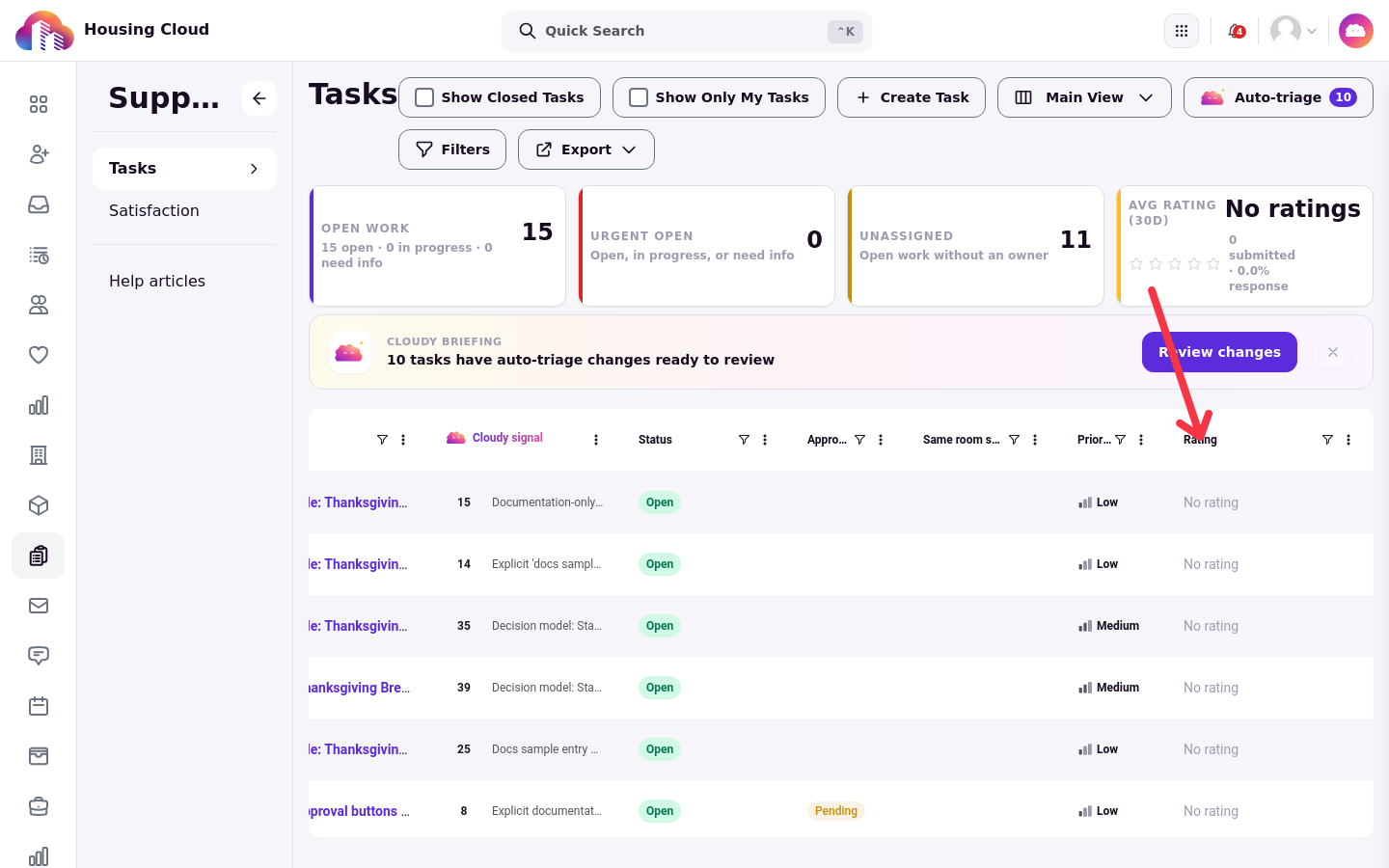
Opening the filter on Rating, for example, offers Has rating, No rating or a particular score from 1 to 5:
When filters are active, a Clear Filters option appears in the toolbar above the grid, before the Filters control.
The grid remembers your setup
When you come back to the queue, it still has the filters, sort order and column order you left.
Saved views
A saved view keeps the current filters and columns under a name you choose, and you switch between views from the views menu beside Create Task. Views are visible to everyone, so name them clearly.
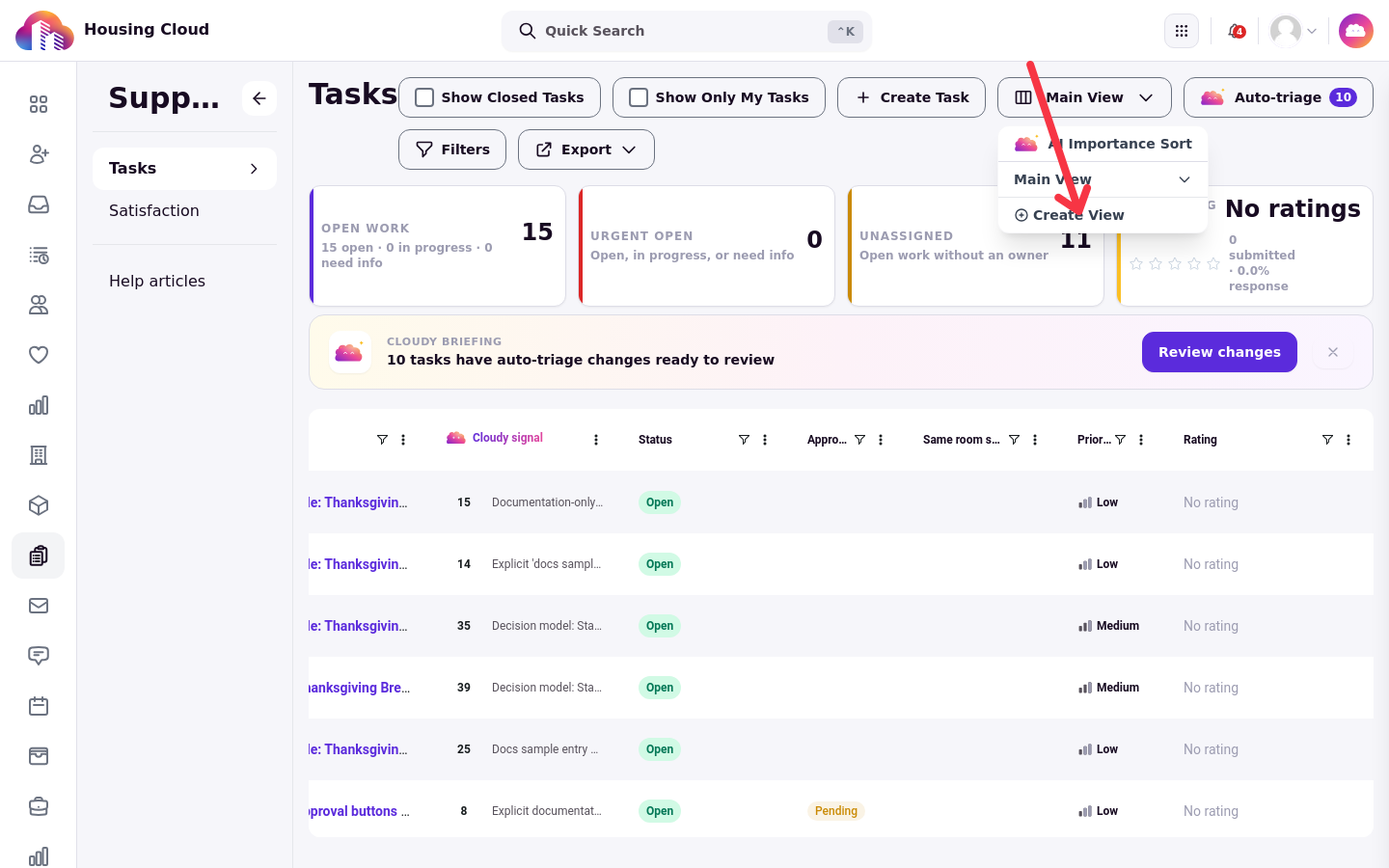
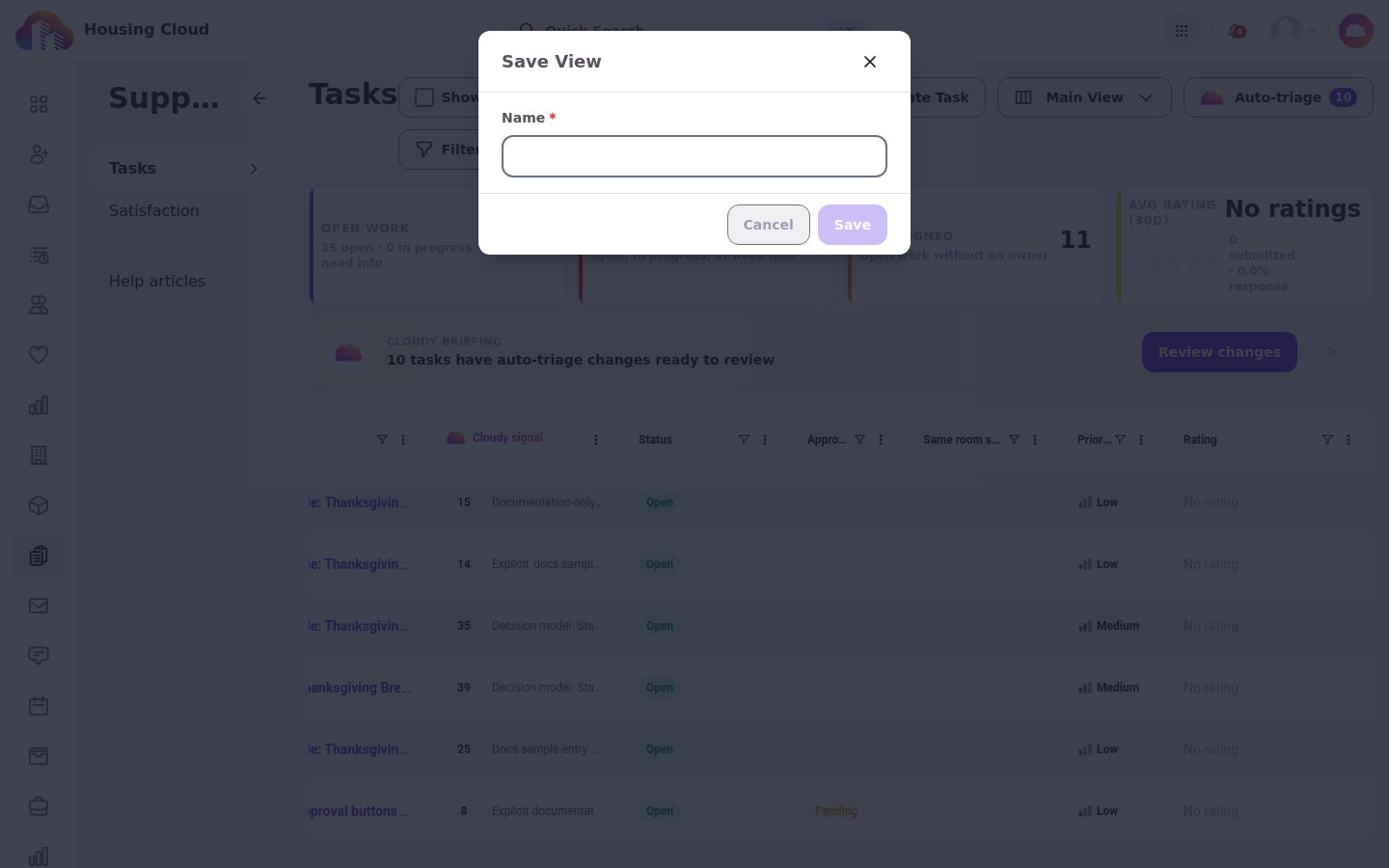
Choosing Create view opens the Save View dialog, where you name the view before saving:
Export
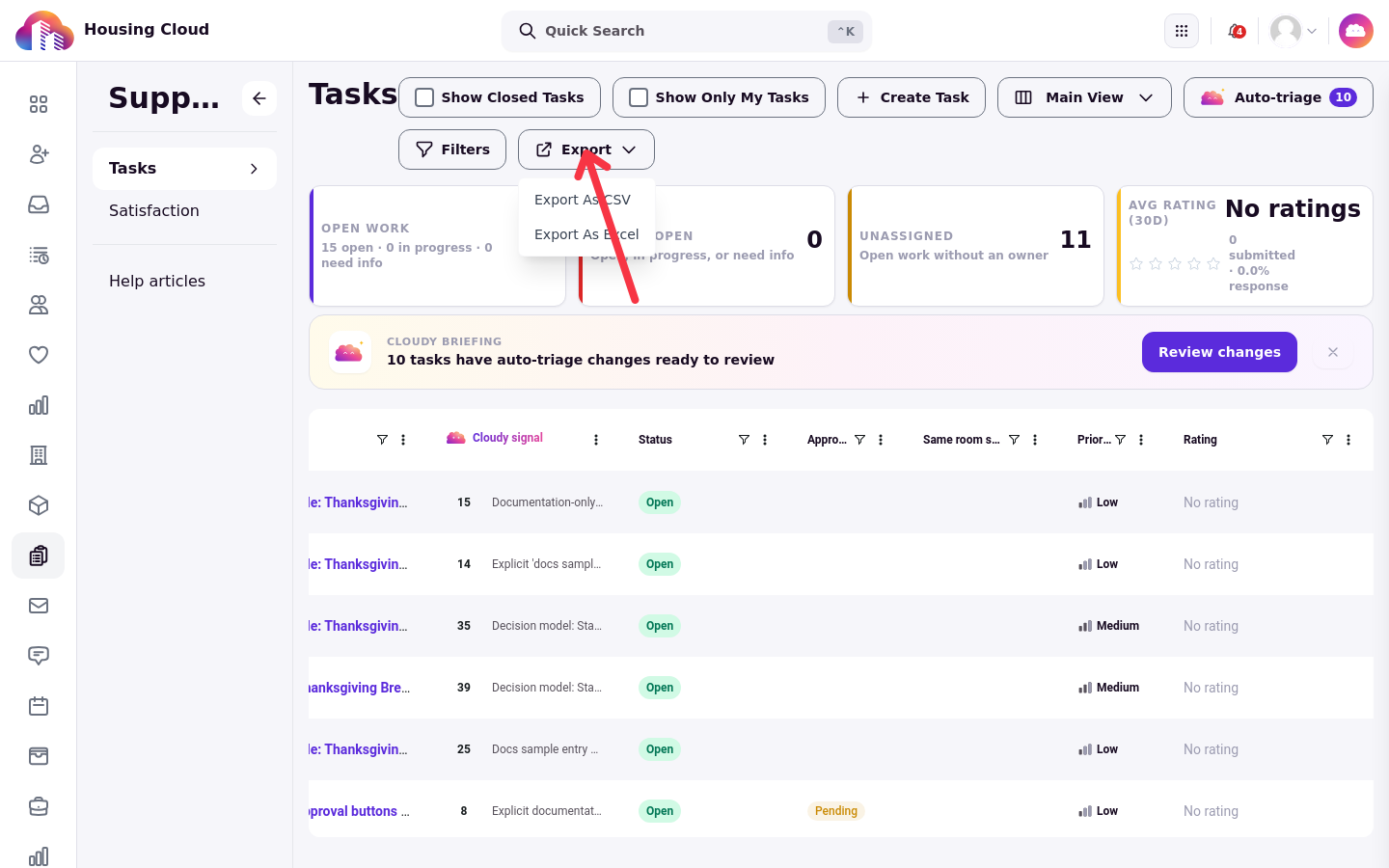
The Export button downloads the list you see as a CSV or Excel file. The export honors both toggles, so the file matches the list on screen.
Sensitive tasks
Sensitive tasks show in the queue only to staff with sensitive access.
On a phone
On a phone, the queue switches to a list. Show Only My Tasks also shows tasks you created yourself, so your own tasks are never lost.
Good to know
Show Only My Tasks starts on, per browser. New staff often see an empty queue.
A task given to a role has no owner. It never shows under Show Only My Tasks.