How to Return, Replace, or Mark a Key as Lost
Last updated: October 5, 2026
Admins have the ability to mark keys as lost, issue replacement keys, and charge a replacement fee if necessary. Students can return their keys, including broken ones, for further action. Here’s a quick guide to managing keys—whether returning, replacing, or reporting them as lost:
1. Navigate to the student profile you want to return/replace a key. You can do a global search or go to Profiles section to find the student. Click on Keys on the navigation panel.

2. In the keys card, select the key in question.

3. The Return/replace key button is enabled. Click on it.

4. A pop-up appears. Choose the appropriate action from the dropdown. That is, either return, replace broken key, or mark the key as lost.
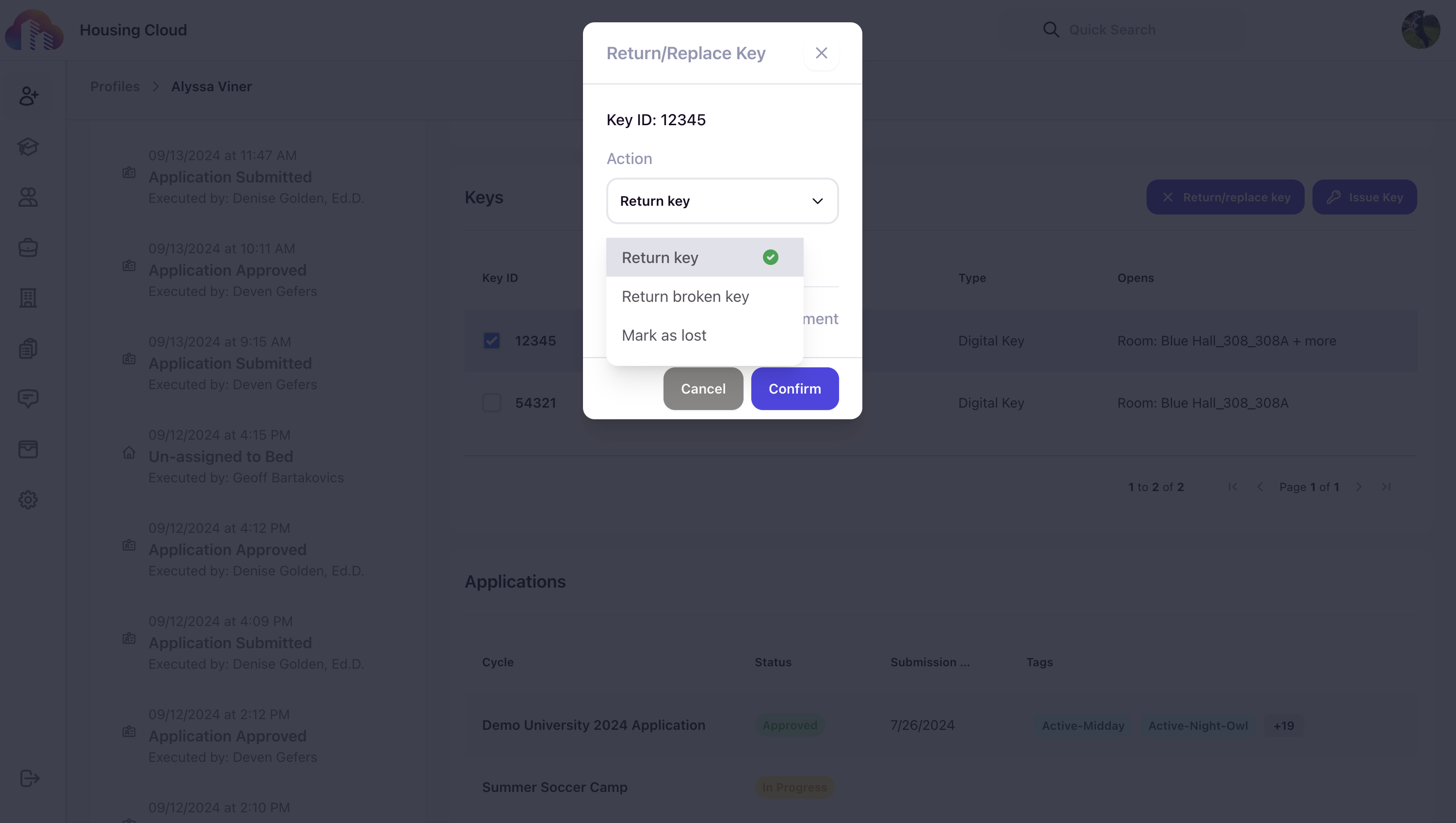
5. You can also issue a replacement by sliding the toggle.

6. Search for the key and click on it to issue a replacement key.

7. You can charge for replacement by sliding the toggle.
Note - Replacement charges are predefined. Click here to learn how to define charges.

8. Click on the Confirm button.

Check this article to learn how to issue a key.