How Residents Submit a Request
Last updated: October 8, 2026
Residents submit a request through the step-by-step request form on the resident portal's Help page: they pick a request type, read a suggested article if one matches, fill in the details, and send it. This article walks through the form from the resident's side, so staff know where requests come from and what residents are asked before a request reaches the queue.
Before you start
The step-by-step form is part of the help center, which Housing Cloud switches on for each school. A school without the help center has the older one-page form instead, described at the end of this article.
Suggested articles appear on the form only where staff have chosen them for the request type.
Where residents start the form
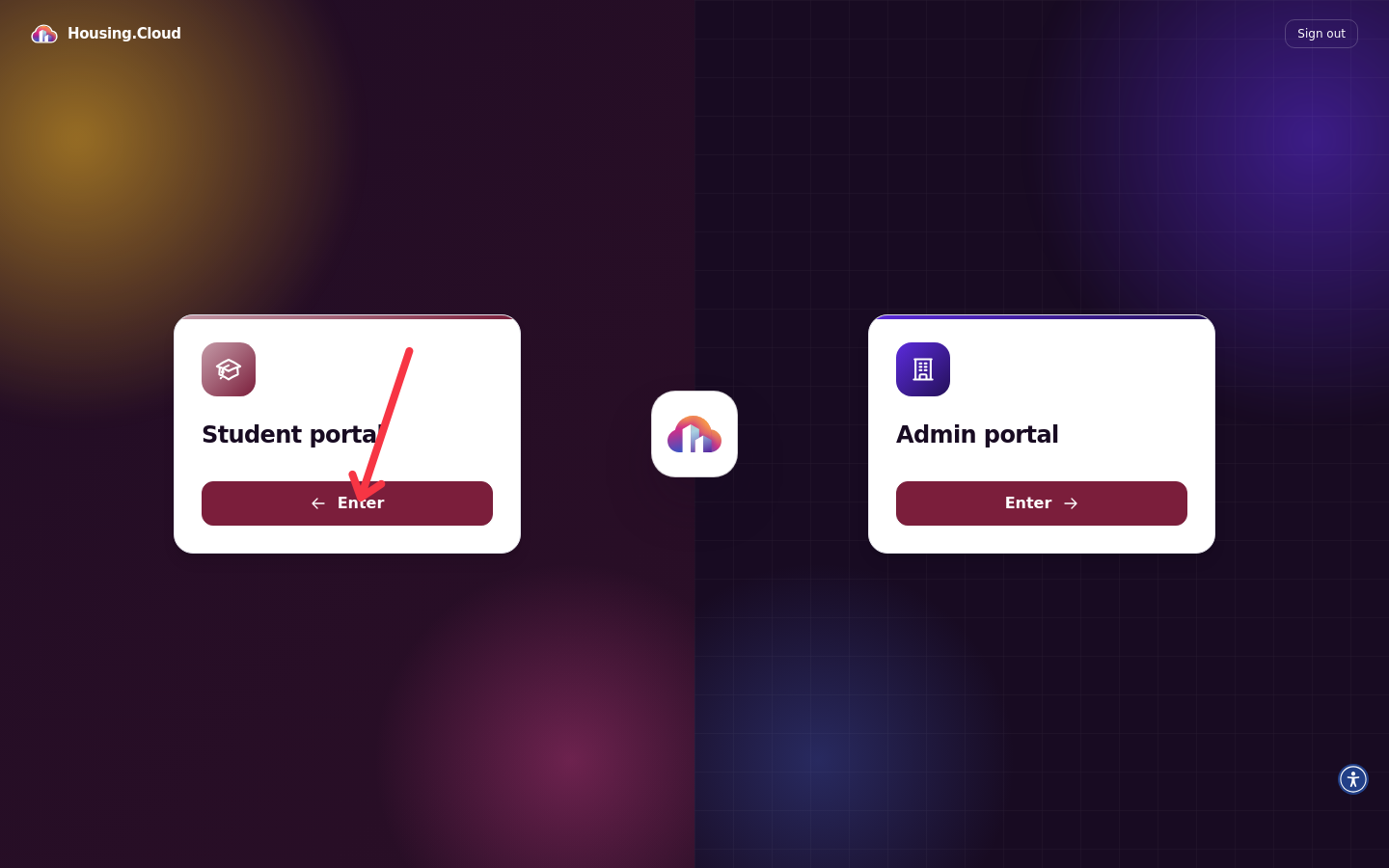
After signing in, residents who land on the portal selection screen choose Student portal.
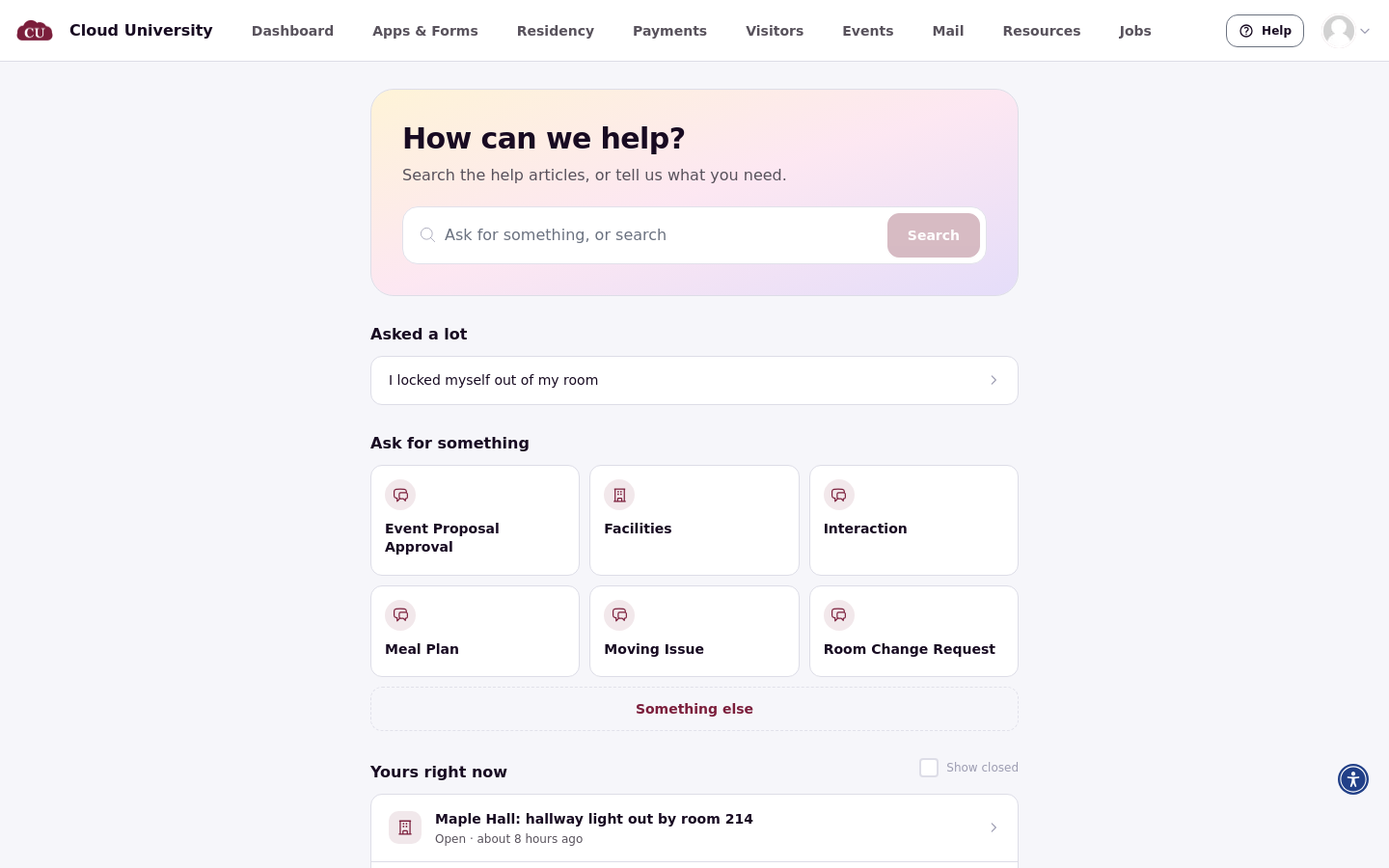
From the Help page, residents choose a request category in the Ask for something section, or select Start a request on a help article.
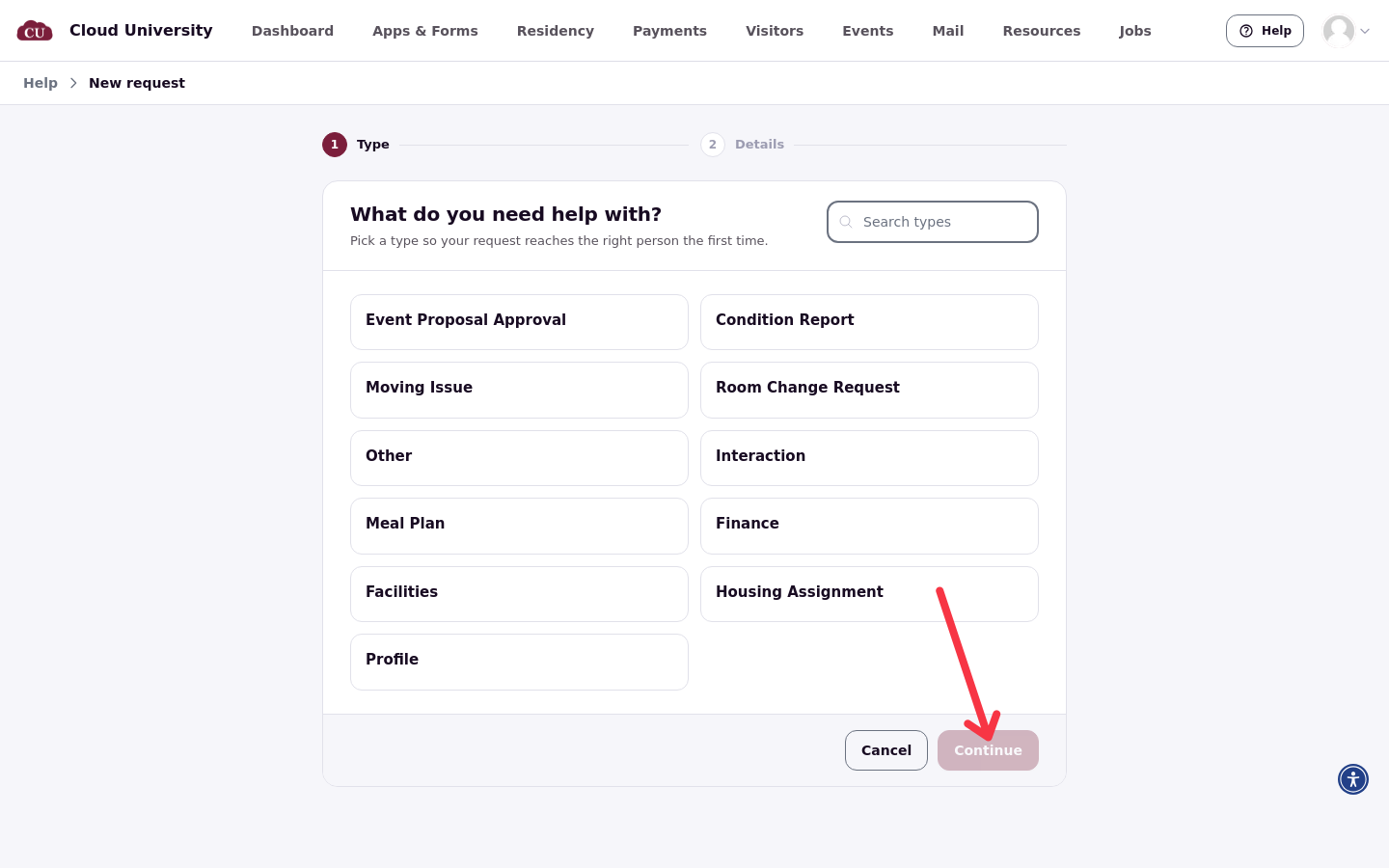
The form then runs in steps: Type, Details, then Request sent, and the stepper marks the resident's position in the form.
Pick the request type
On the Type step, the resident picks a request type, then clicks Continue. Picking a type doesn't move the form forward on its own, so a wrong tap is easy to fix before continuing. When the school offers more than eight types, a search box for the types appears.
This may already be answered
Before the details, the form can show up to two help articles under This may already be answered. These are articles staff chose for that request type, not articles matched to what the resident typed.
If an article answers the question, the resident may not need to file at all. Saying Yes to "Was this article helpful?" on the article brings up a thank-you message: "Thanks, that helps us keep the handbook current."
Fill in the details
On the Details step, the resident gives the request a Title.
If the request type has a form, its questions appear under Form questions, and a file question lets the resident attach a photo.
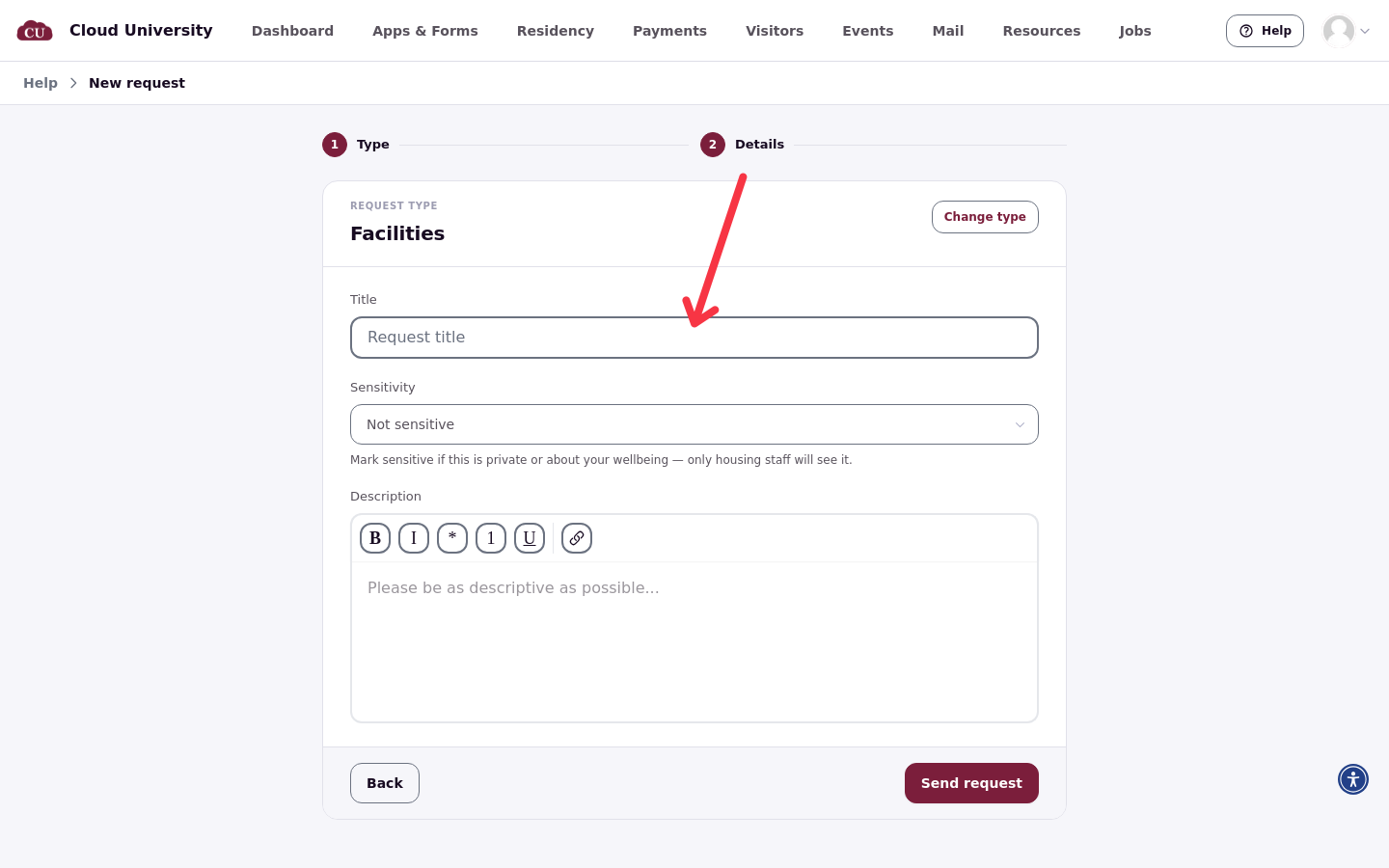
If the type has no form, the resident writes a Description instead, prompted to be as descriptive as possible.
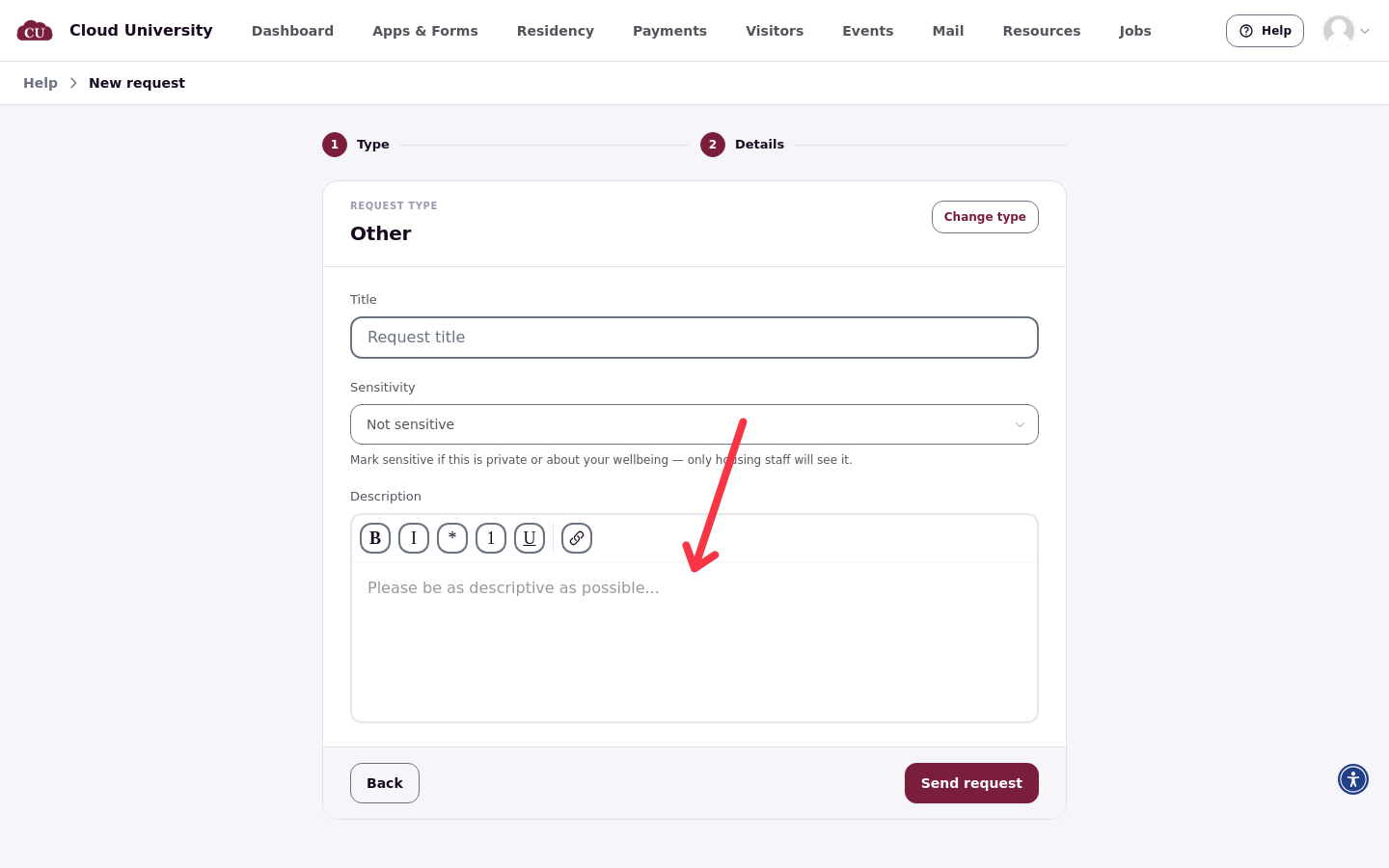
Every request also carries a Sensitivity choice: Not sensitive or Sensitive — housing staff only.
Who sets the priority
Residents don't choose a priority. The starting priority depends on the path the resident files through: requests created in the resident portal start at Normal (Medium), and requests from the older Help form start at Low. Staff (or Cloudy) raise the priority from there.
Send the request
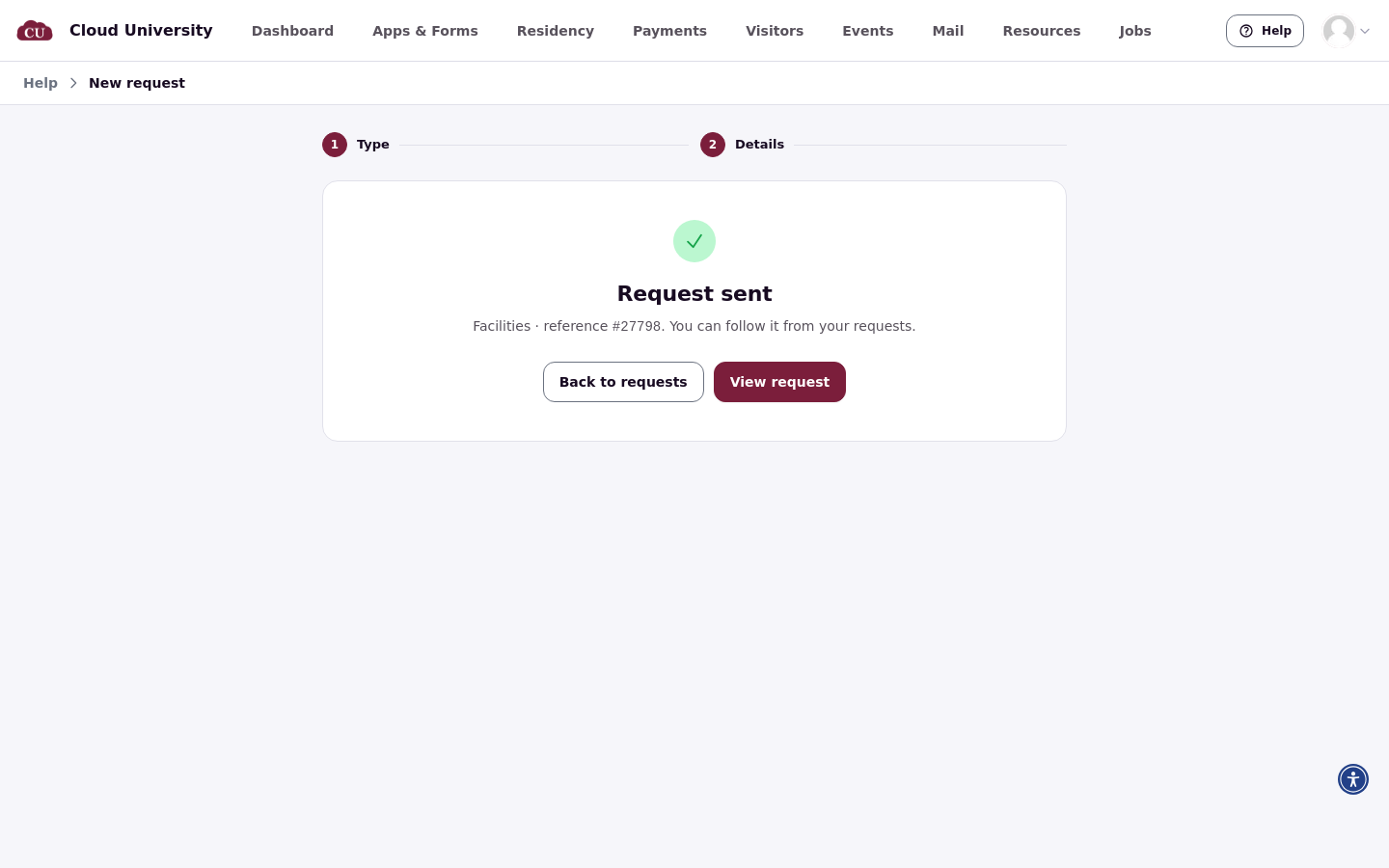
The resident clicks Send request. The form confirms with Request sent and a reference number for the request, and offers View request or Back to requests.
If the form is interrupted
A half-filled request survives a page reload or a closed tab on the same device.
When the type has a limit
A request type can limit how many requests each resident can file in it. When a resident reaches the limit, the form shows "You have reached the maximum number of requests".
What happens next
After sending, the request is assigned automatically when its request type has a default profile or role configured, and the resident gets updates by email when the request type has an email template and the resident has an email credential. Route Requests Automatically to a Person or Role covers automatic assignment, and Task and Request Notifications: Who Gets What covers the emails residents receive.
Without the help center
Schools without the help center keep the older one-page request form at /contact/tickets/new. It has the same fields as the step-by-step form, but no suggested articles.
Good to know
A request type with a form has no Description box. Add an "anything else?" question to the form.
Residents don't set priority. The starting priority depends on the request path.
Suggested articles follow the request type, not what the resident types. There are up to two, and only the step-by-step form shows them.