Public Replies, Internal Notes and Sensitive Information
Last updated: October 8, 2026
Every comment on a task is one of two kinds: a Public reply, which the resident reads, or an Internal note, which stays with staff. Choose the kind before you write, and mark comments with personal details as sensitive.
Before you start
You write comments on a task's page. Two behaviors depend on switches:
The public reply check runs only when it is switched on for your school.
Deleting a comment needs the deletion switch and permission.
Public replies and internal notes
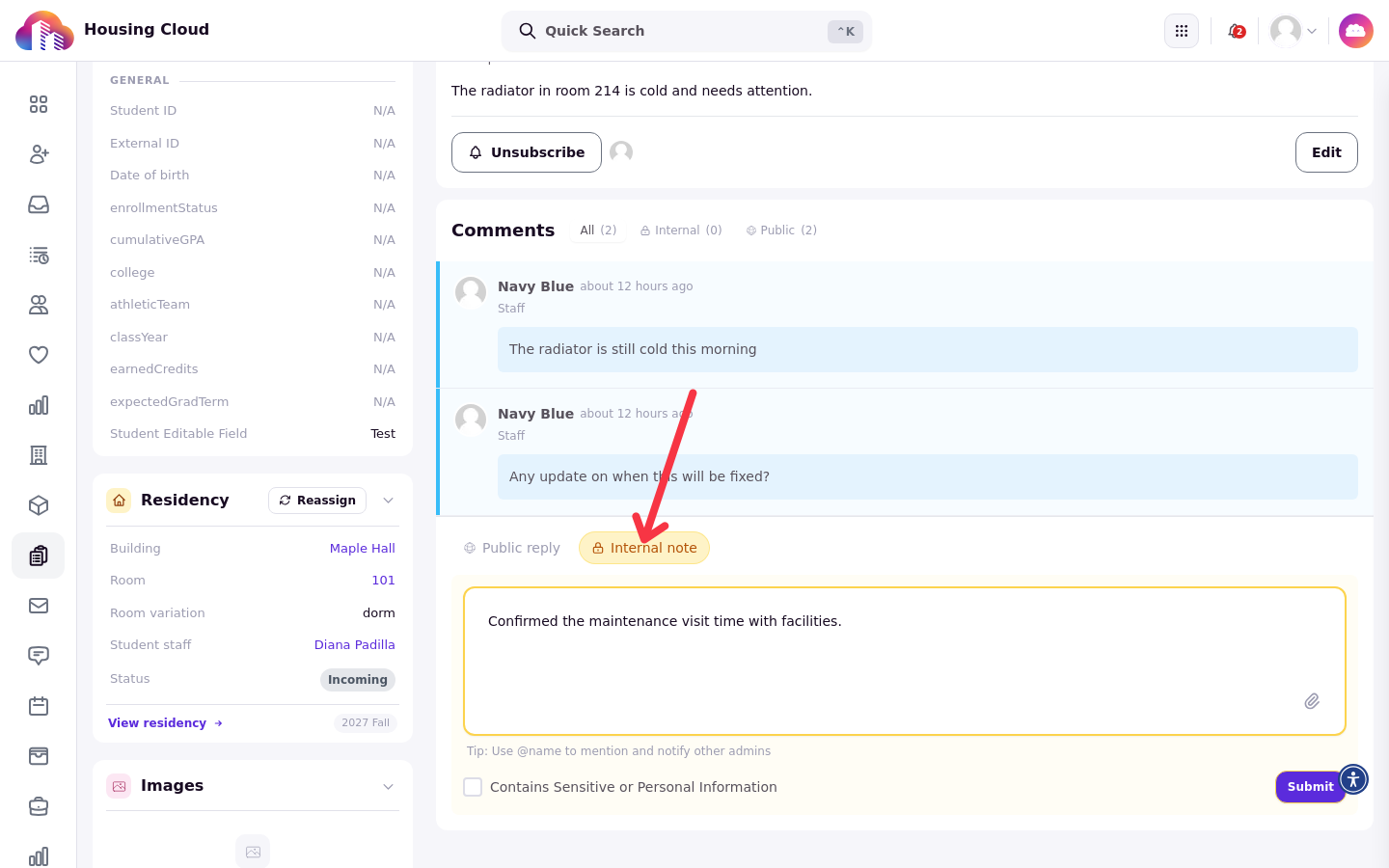
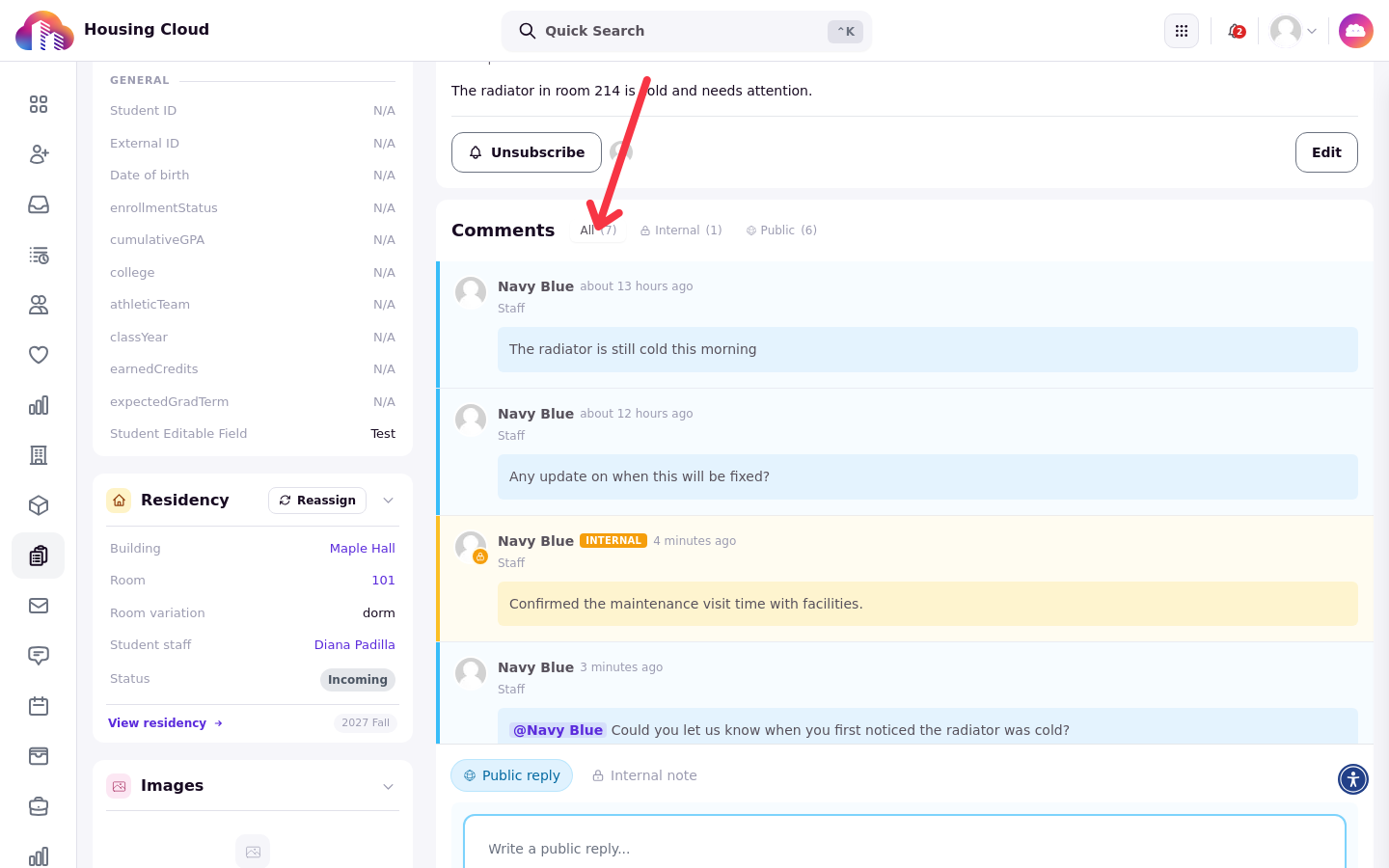
The Comments area of a task has All, Public and Internal views. Two pills sit above the comment box: Public reply in blue and Internal note in amber. Click a pill to choose the kind of comment you are writing.
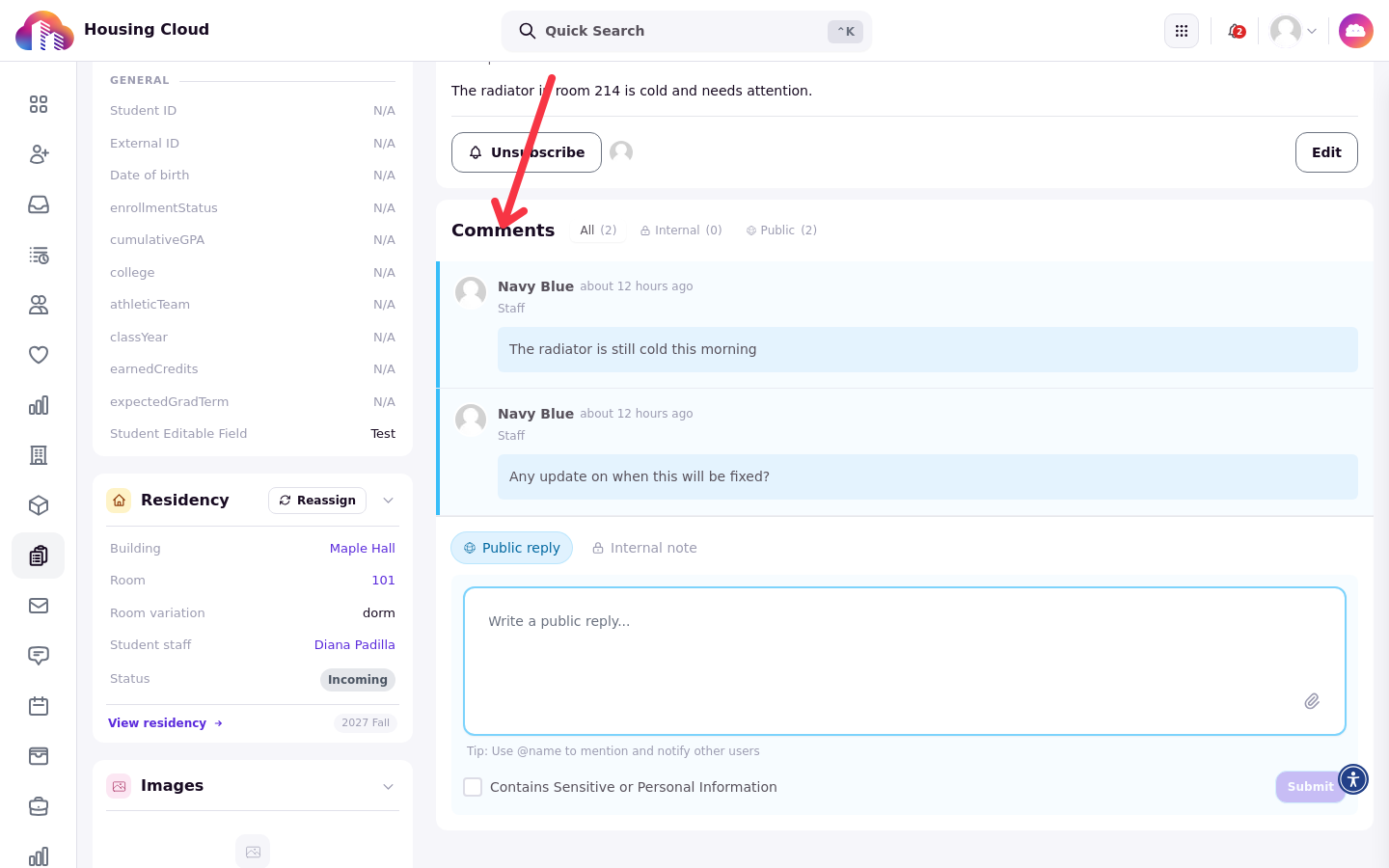
An internal note stays on the staff side. The resident never gets it by email and never sees it on their request page.
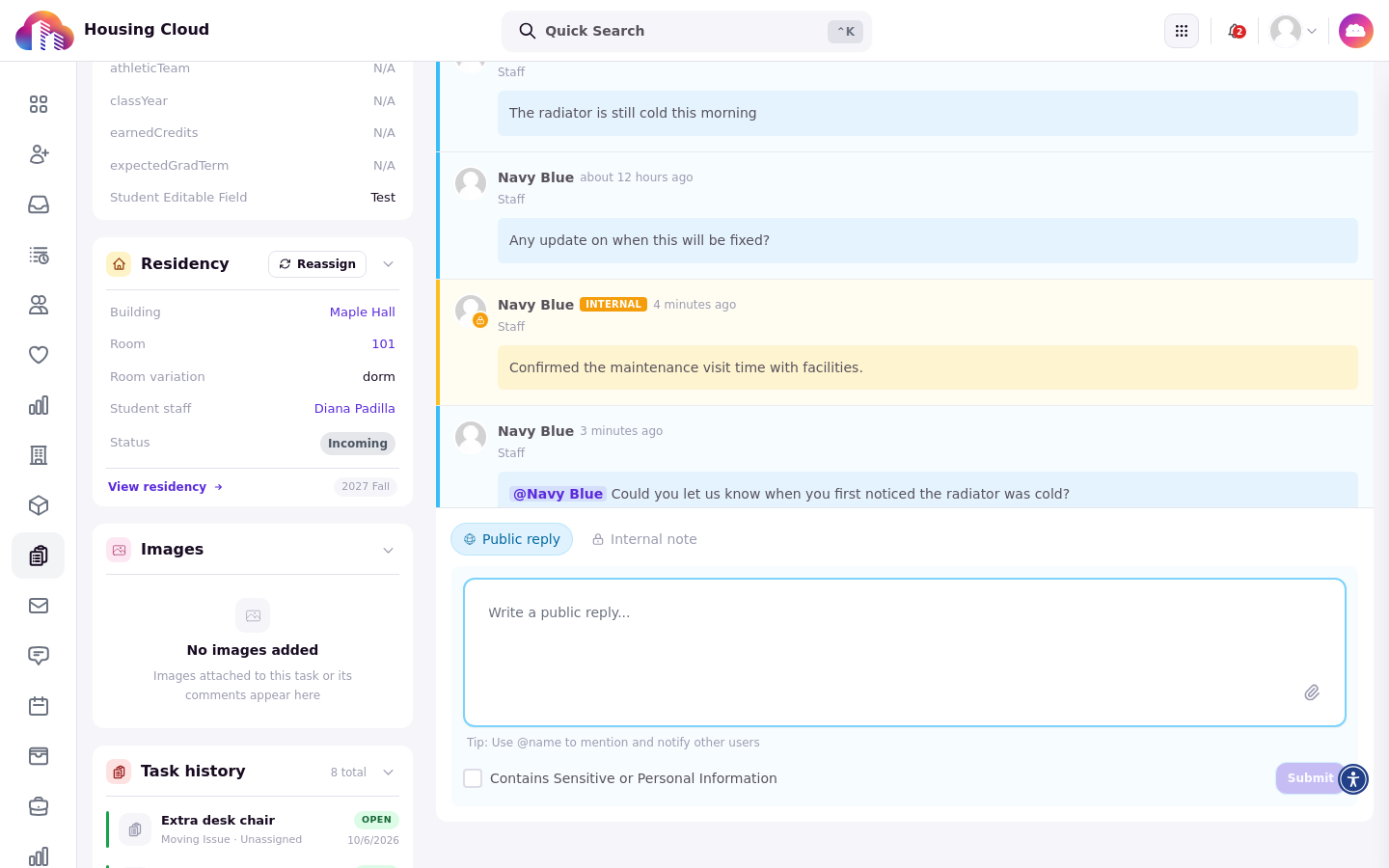
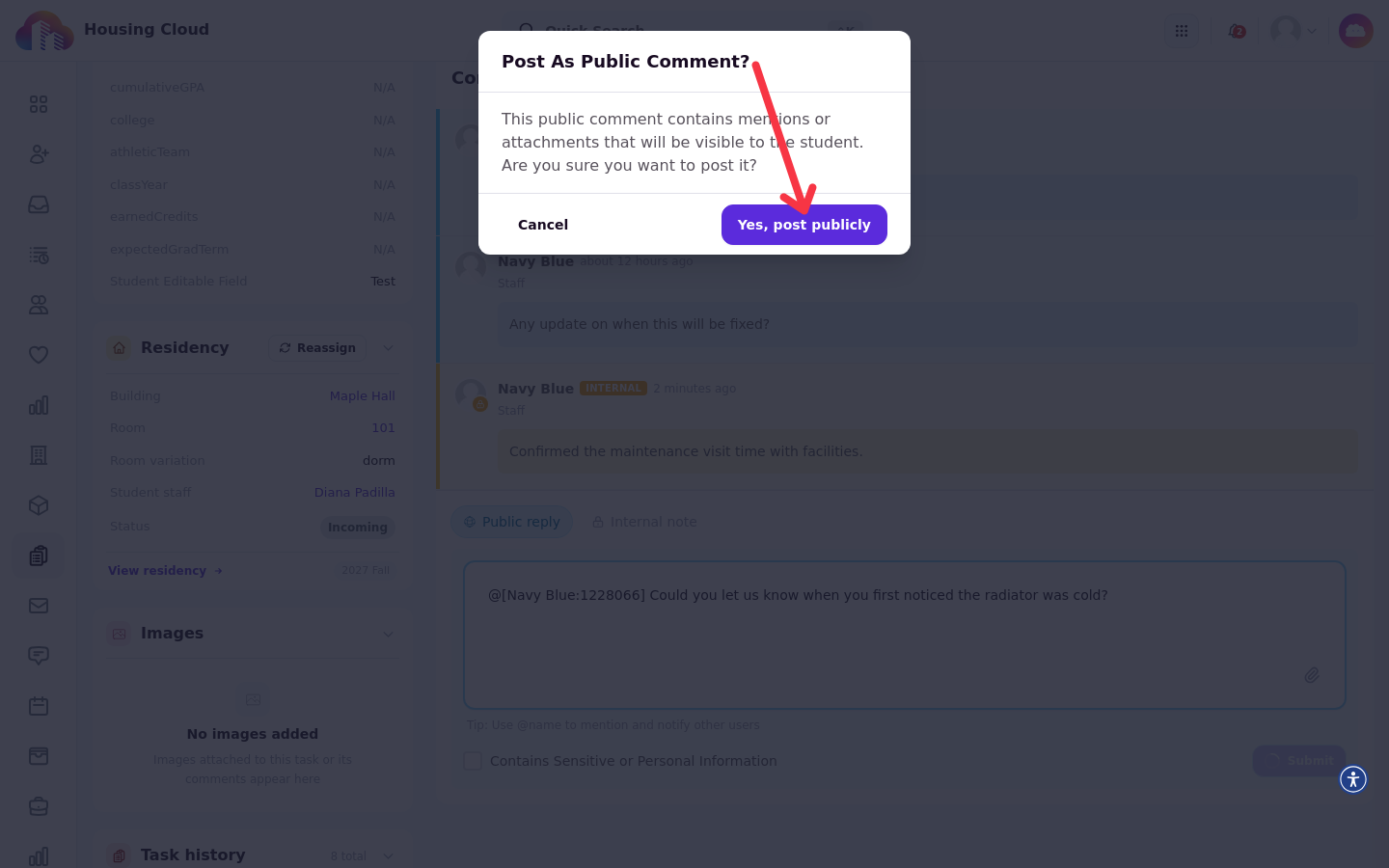
A public reply reaches the resident twice: by email and on their request page. When a public reply carries a mention or a file, a Post As Public Comment? window appears first. Confirm there to post the reply.
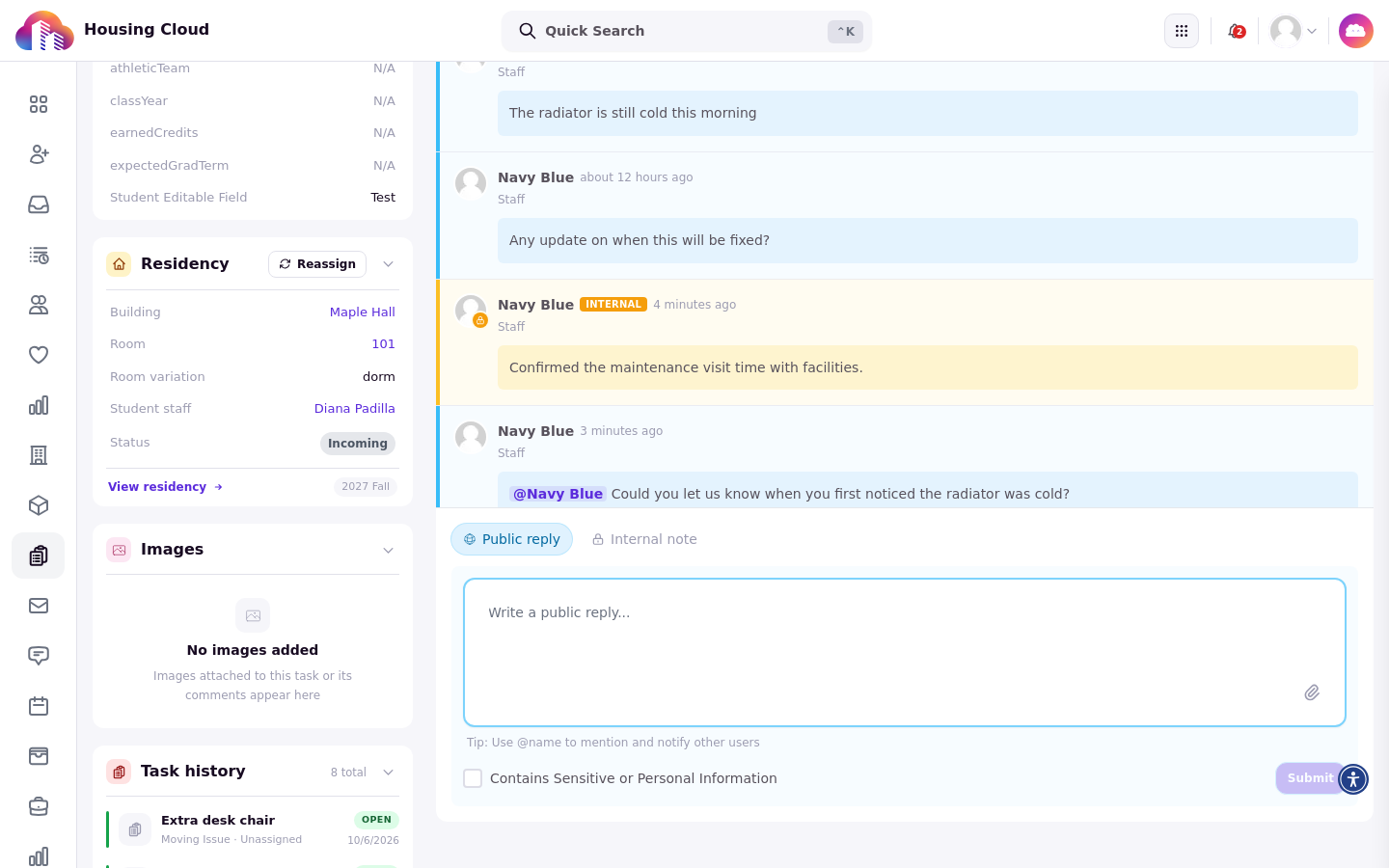
The All view shows both kinds together in one thread, so you can read the whole exchange in order.
Mark a comment as sensitive
Choose Contains Sensitive or Personal Information on a comment that carries personal details. The comment is then hidden from staff without sensitive access, and residents never see it.
Files and images
A comment can carry up to 3 files. Images attached to comments also collect under Images on the task.
Mention a colleague
Type @name in a comment to mention another admin and notify them. In an internal note, only staff can be mentioned.
The public reply check
When the public reply check is switched on, Cloudy reads a public reply before it posts and asks when it looks like an internal note or shares someone's private details. The window offers three choices: Make admin-only and post, Post to resident, and Keep editing. The check is advice only. Short comments and sensitive tasks are not checked.
Delete a comment
A comment posted by mistake, such as one carrying personal data, can be deleted. Click the comment's delete button, then select Delete permanently in the Delete this comment? confirmation dialog.
Deleting is permanent and removes the comment's files with it. It needs the deletion switch and permission.
Make a whole request sensitive
Sensitivity can cover more than one comment. Use the request's own sensitivity setting to mark a single request, or mark the request type Sensitive so that every request of that type is hidden from staff without sensitive access.
Good to know
A comment can carry up to 3 files.
Deleting a comment is permanent and removes its files.