Subscribers: Follow a Task and Add Others
Last updated: October 8, 2026
Subscribers follow a task and hear about everything that happens on it: new comments, status, priority and category changes, reassignments and deadline reminders. Some screens call them followers. Subscribe yourself to keep an eye on a task, or add a colleague or a resident so the right people stay informed.
Subscribing someone adds them to the notices; it doesn't give them the task. A task has one individual assignee or one assigned role, and any number of subscribers who follow along.
Before you start
Subscribing yourself, and adding or removing other subscribers, need the Edit tasks permission.
Who is subscribed automatically
Some subscribers are added without anyone choosing them.
the resident the task is about
whoever filed the request on their behalf
the assignee
every member of a role the task is assigned to
anyone validly @mentioned in a comment
A previous assignee stays subscribed until someone removes them. Only valid mentions become subscribers: the standard task-comment composer supports staff mentions by default, and mentions of others need a configuration that allows non-staff mentions.
Follow a task yourself
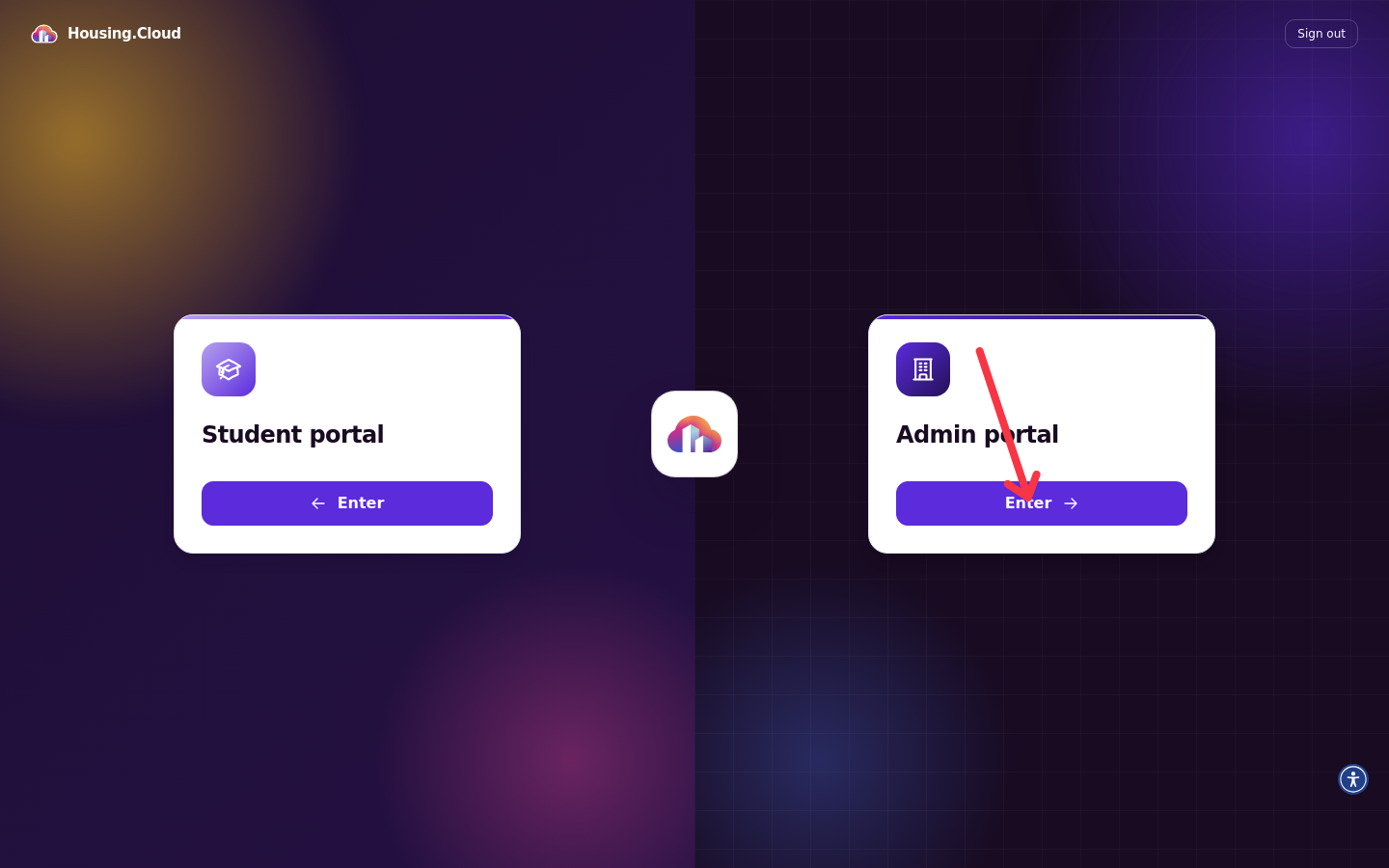
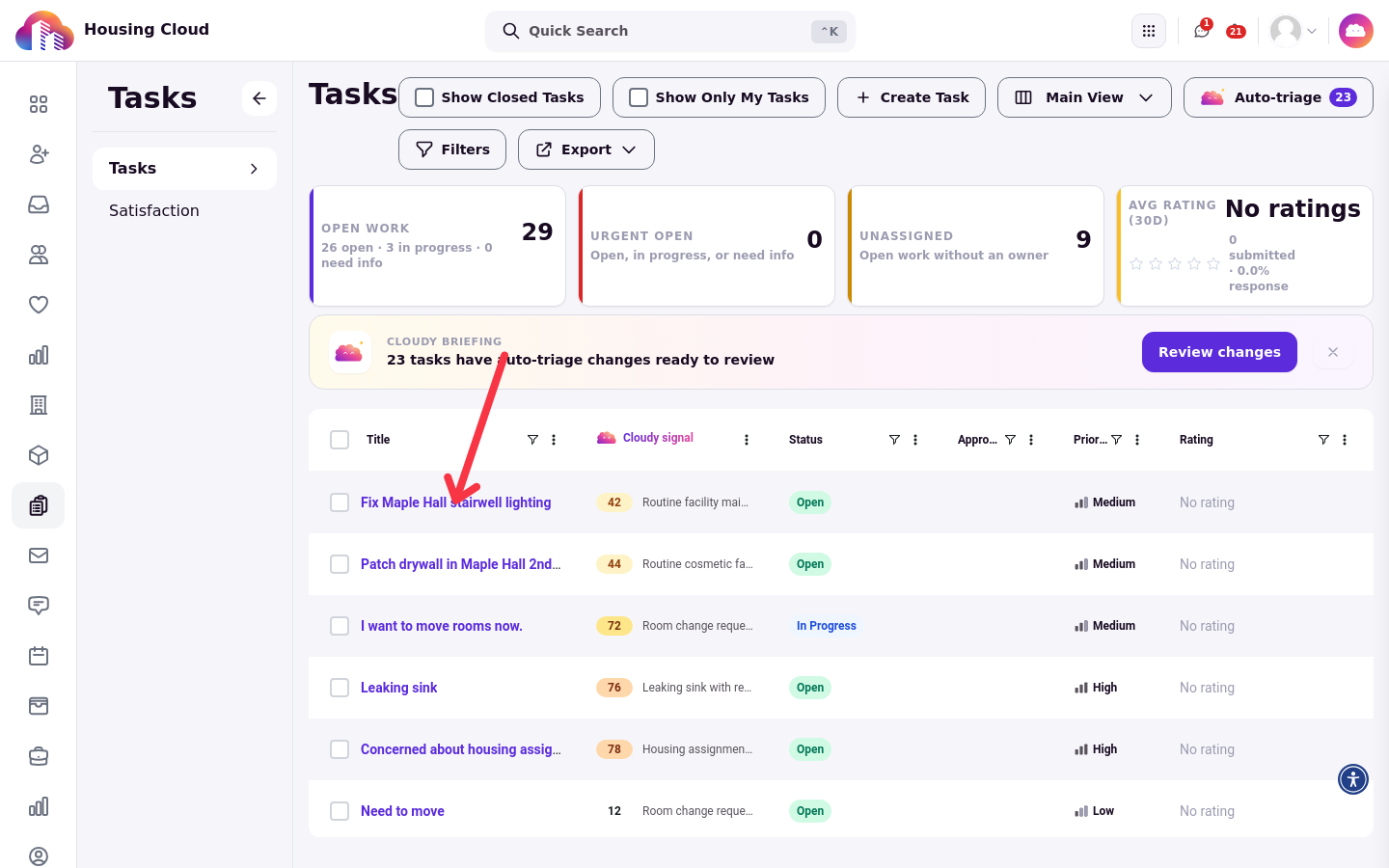
Open the task from the Tasks queue in the Admin portal. If the portal selection screen appears after you sign in, choose Admin portal.
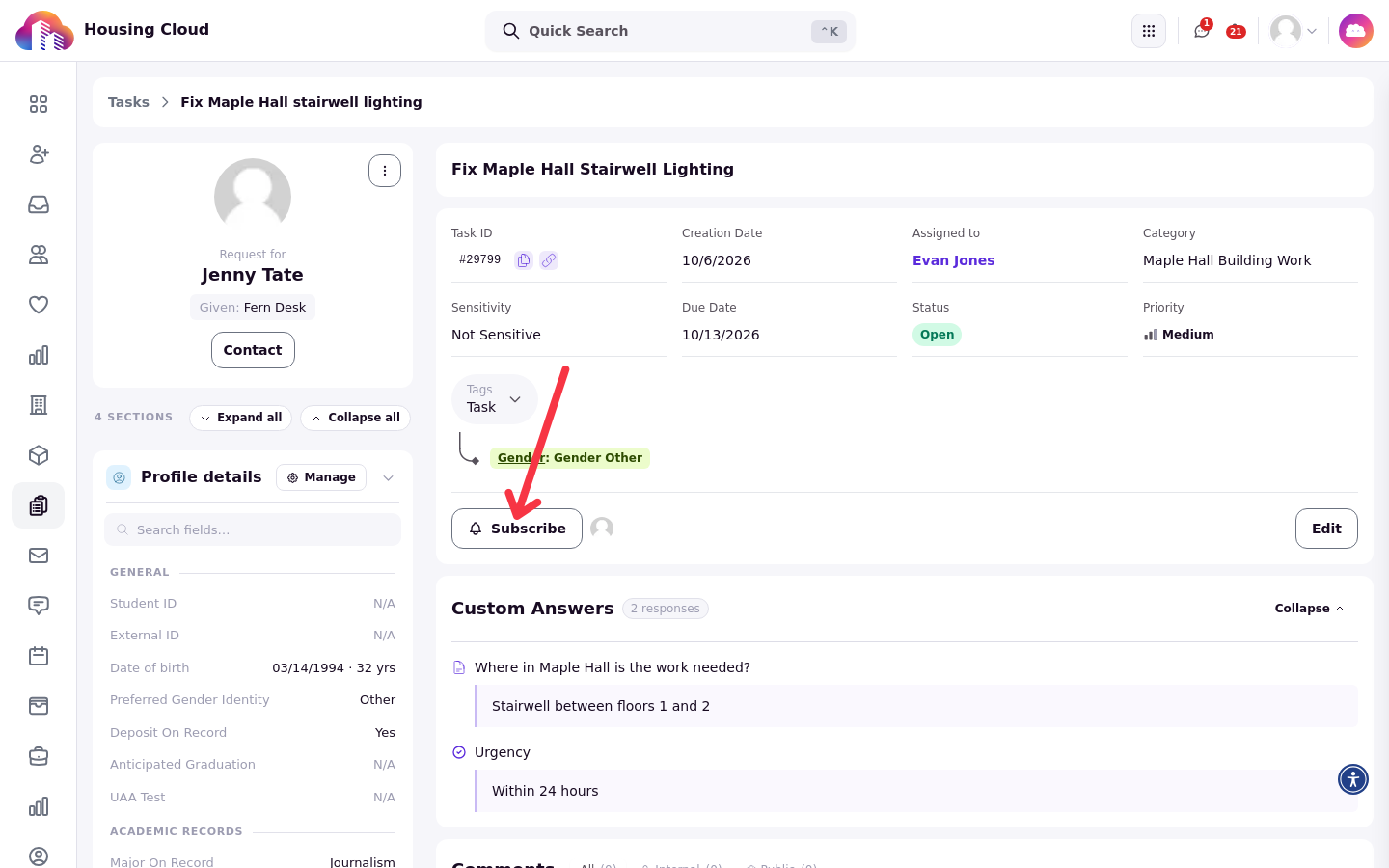
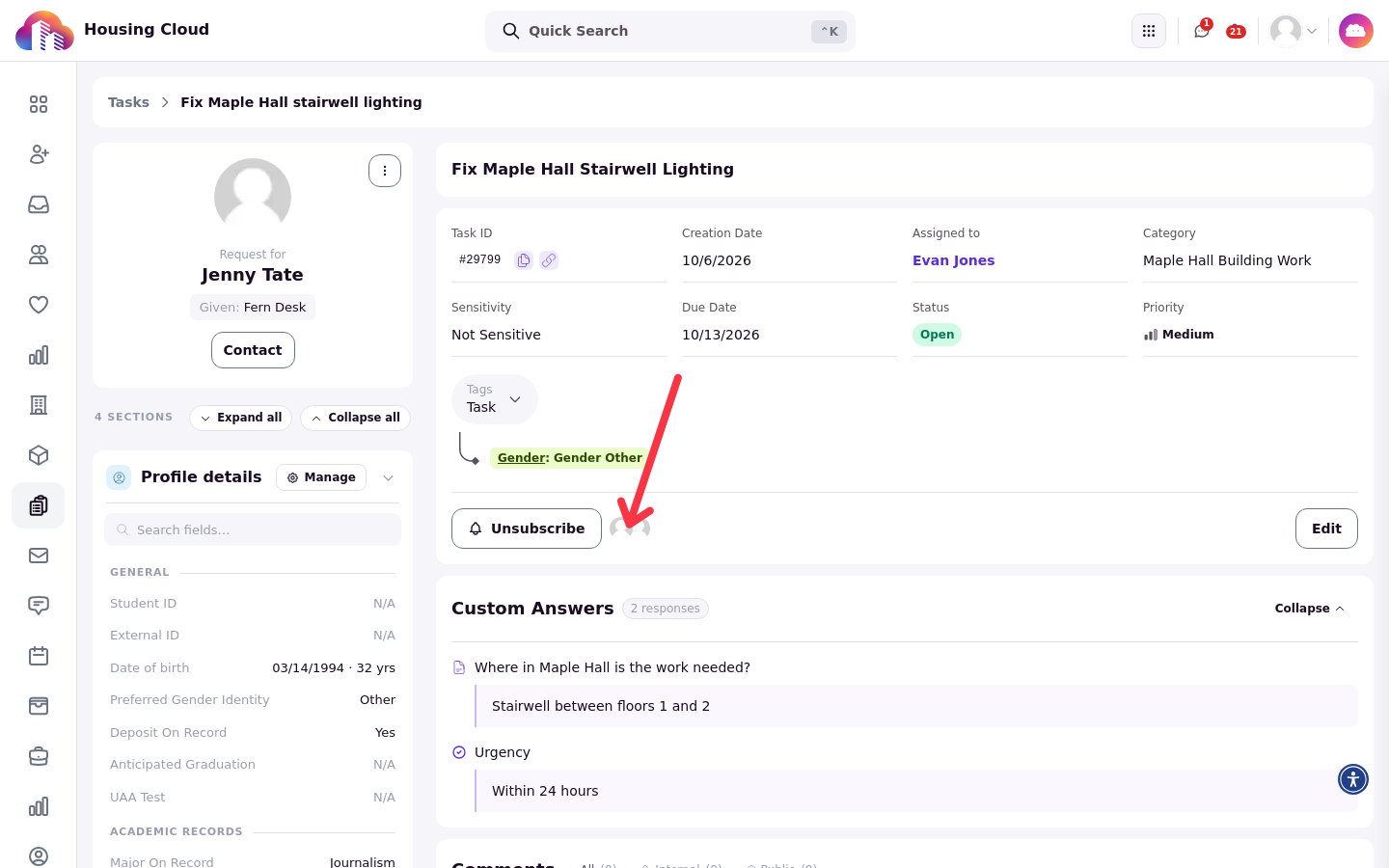
In the task's subscribers area, click Subscribe. Your own state reads "You are subscribed", the button becomes Unsubscribe, and your avatar joins the list. Click Unsubscribe to stop following.
Add or remove another subscriber
To add or remove someone else, open Add subscribers or View subscribers in the subscribers area. Both open Manage Subscribers, where you can search for anyone to add them, or remove someone who is already there.
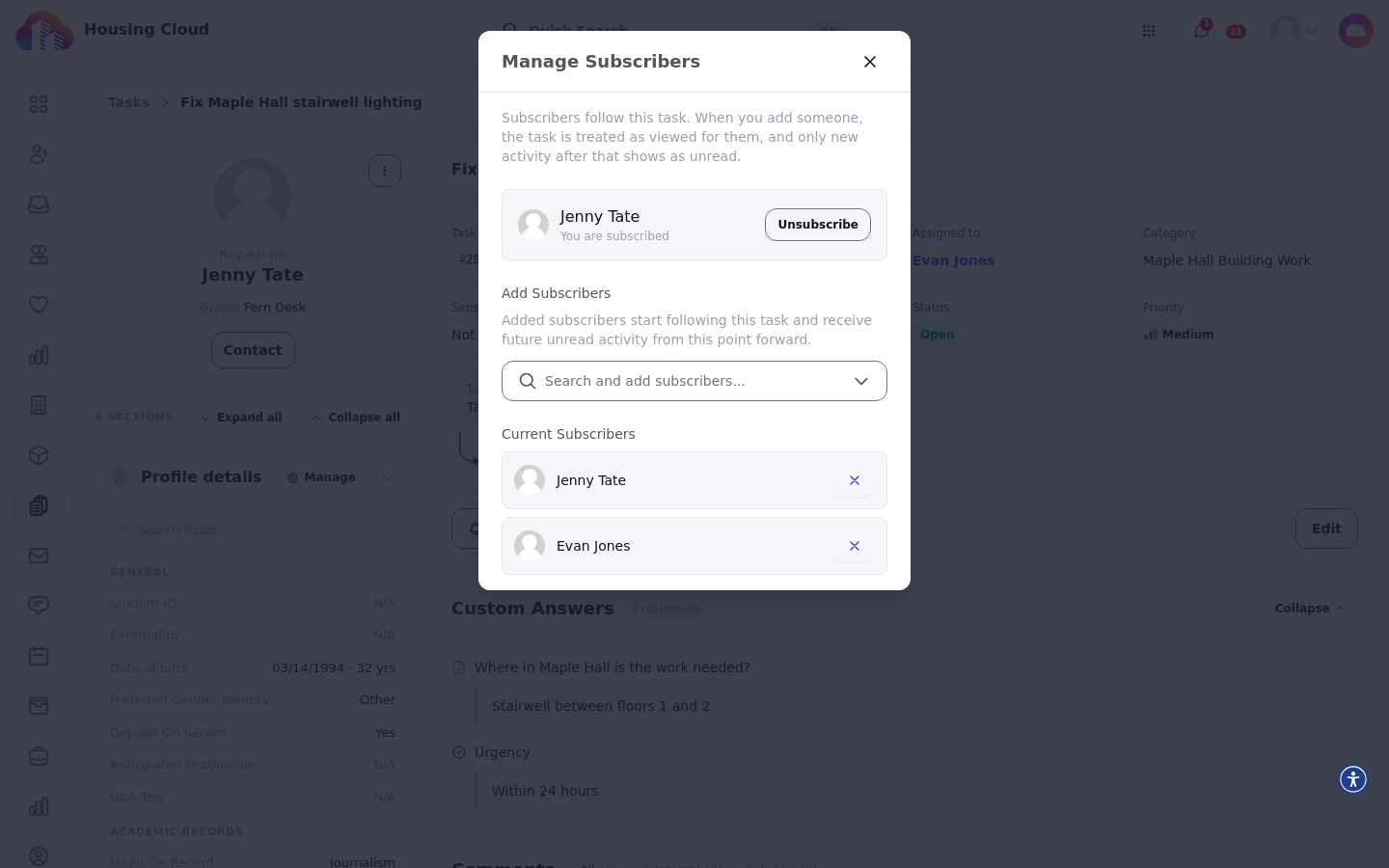
A resident you add as a subscriber can open an eligible resident-visible task and read its public replies. Only add residents the request is about, or one reporting the same problem.
Follow many tasks at once
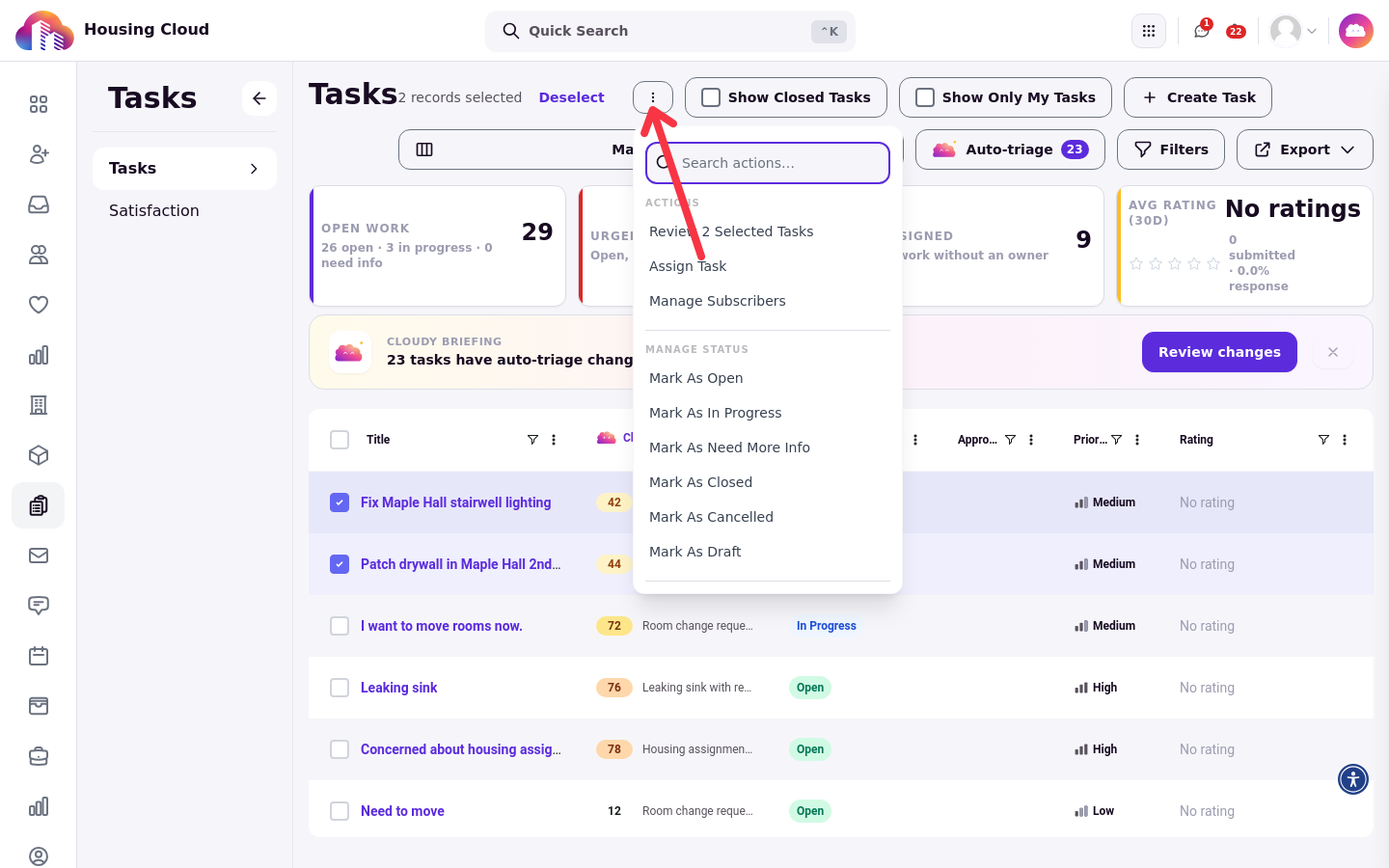
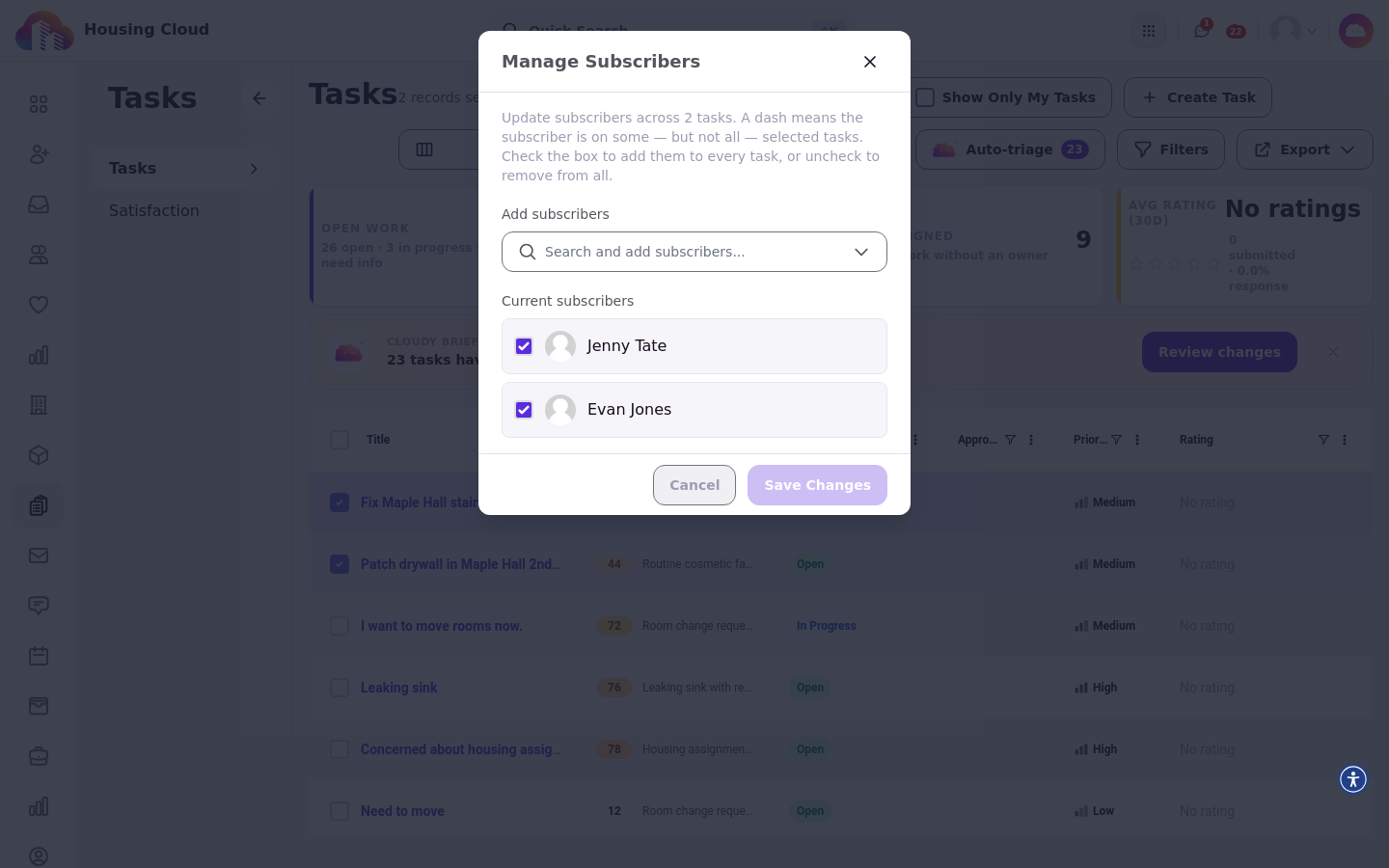
To manage subscribers for several tasks together, tick the tasks in the queue, open the "…" menu, and click Manage Subscribers. Use "Search and add subscribers..." to add someone; each person shows whether they are on all, some or none of the selected tasks.
What subscribers are told
Subscribers hear about everything that happens on a task.
Public replies: every subscriber is told about each new public reply.
Internal notes: staff subscribers only. Residents are never told and never see the note.
Task updates: a "Task Updated" notice for every status, priority and category change, reaching every subscriber except the person who made the change.
Reassignments: a notice when the task is assigned to someone new.
Deadline reminders each morning for tasks due in the next three days.
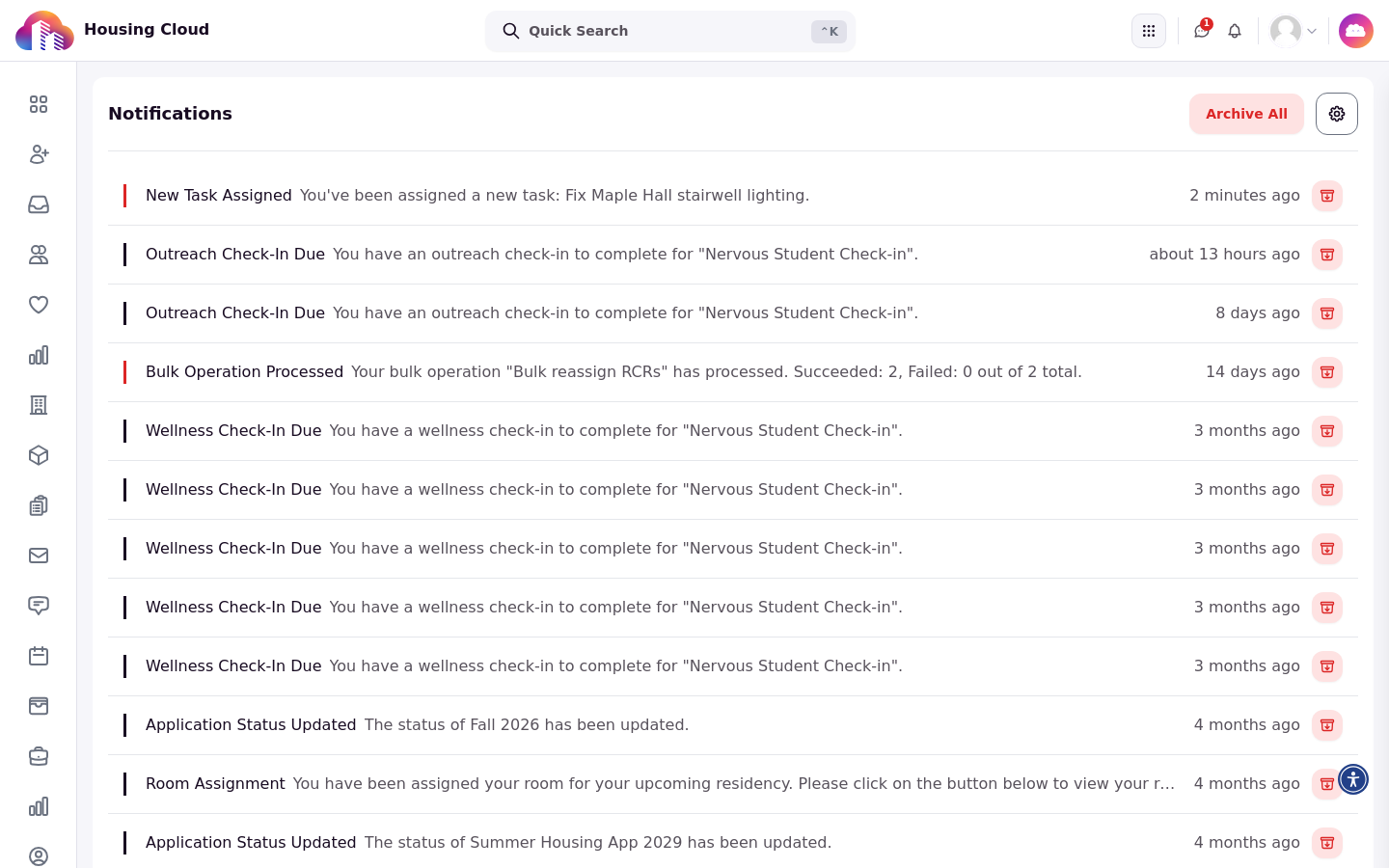
Adding a subscriber, or reassigning the task, sends a notice that currently reads "New Task Assigned". The person added gets one, and on a reassignment so does every other subscriber, even though nothing was assigned to them.
What subscribed residents and student staff can do
Subscribing doesn't grant general task editing. Residents and student staff who are subscribed can open the task and read it; a student-staff assignee may update its status, and the creator may edit eligible task fields. A subscribed resident sees its public replies and never its internal notes.
After you've added subscribers
The task's subscribers area shows their avatars, and View subscribers shows everyone following the task. From then on they are told about everything that happens on it, until someone removes them.