Task Management in Housing Cloud: Overview
Last updated: October 8, 2026
Task Management connects resident requests and staff work in one record, from arrival and assignment through comments, approval, and closure.
Requests and tasks are the same record
A request is what a resident files, and the same record is a task for staff. Staff can also create a task that no resident filed. Other parts of Housing Cloud can create tasks from RA escalations, room condition reports, and on-call activity.
Where task information lives
Use the queue to find work, the task page to work on one record, and the related setup and communication areas to configure how tasks enter and move through the system.
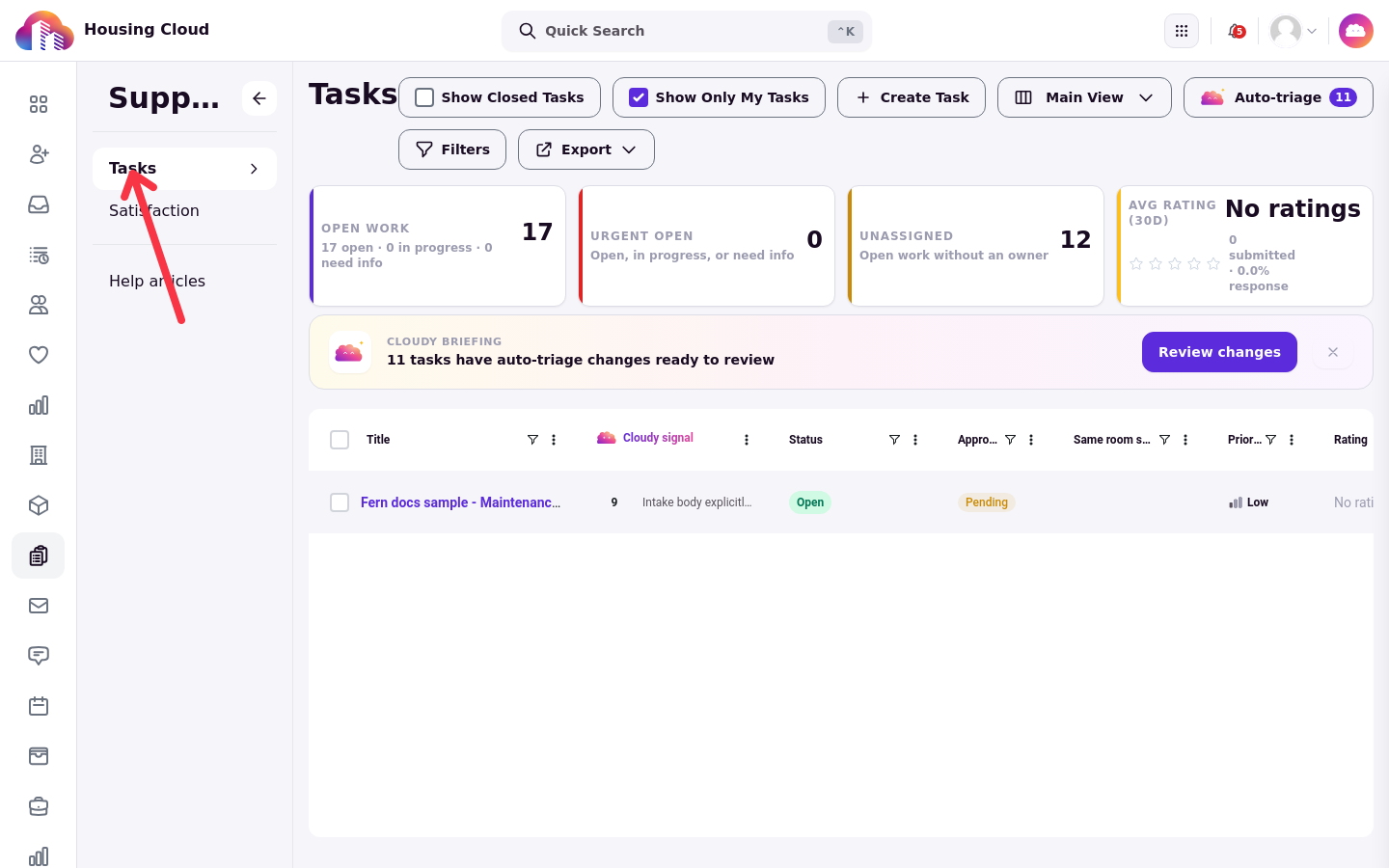
Support → Tasks is the queue at
/admin/tasks. The navigation entry is Tasks for staff who cannot write help articles.Each task has its own page under the queue.
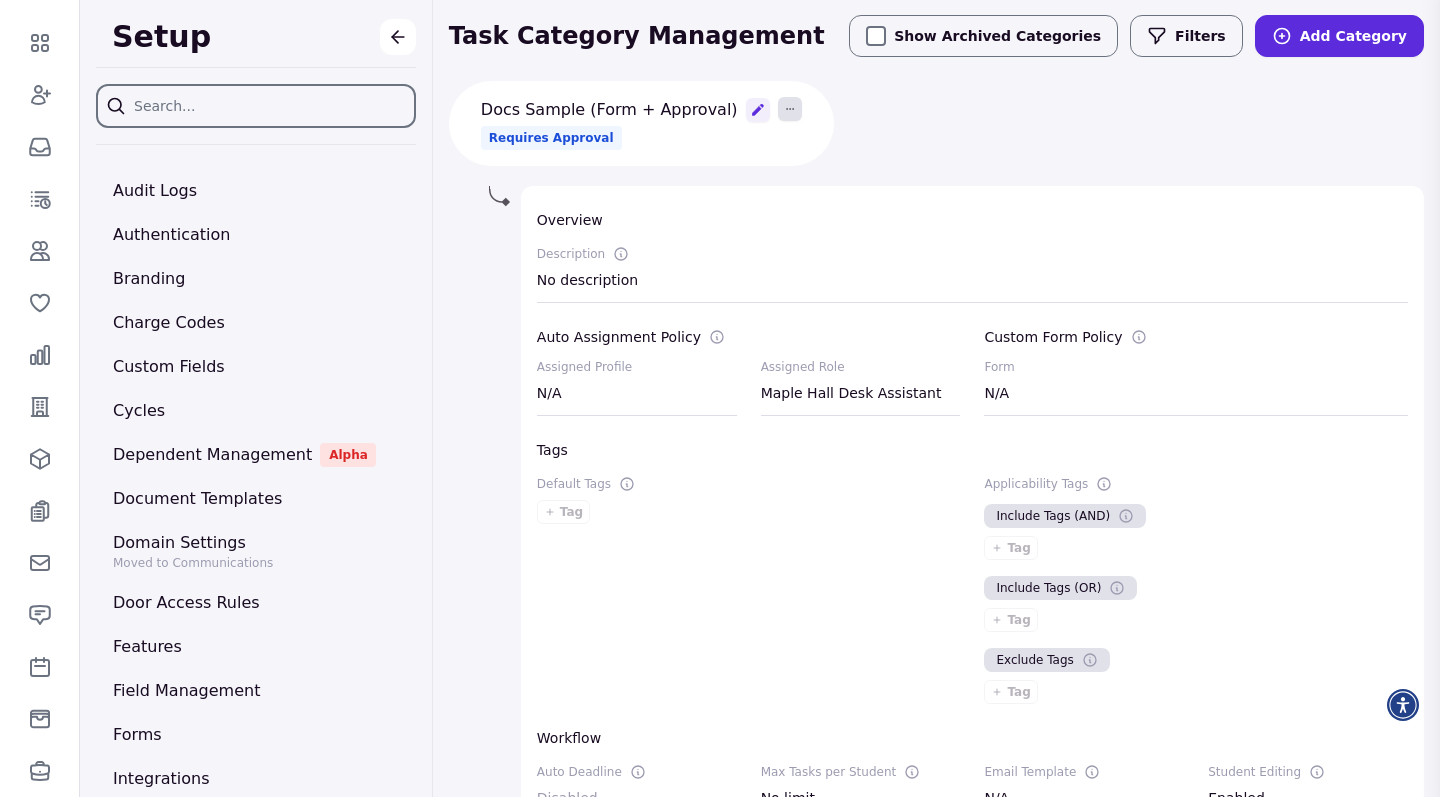
Setup → Tasks contains request types.
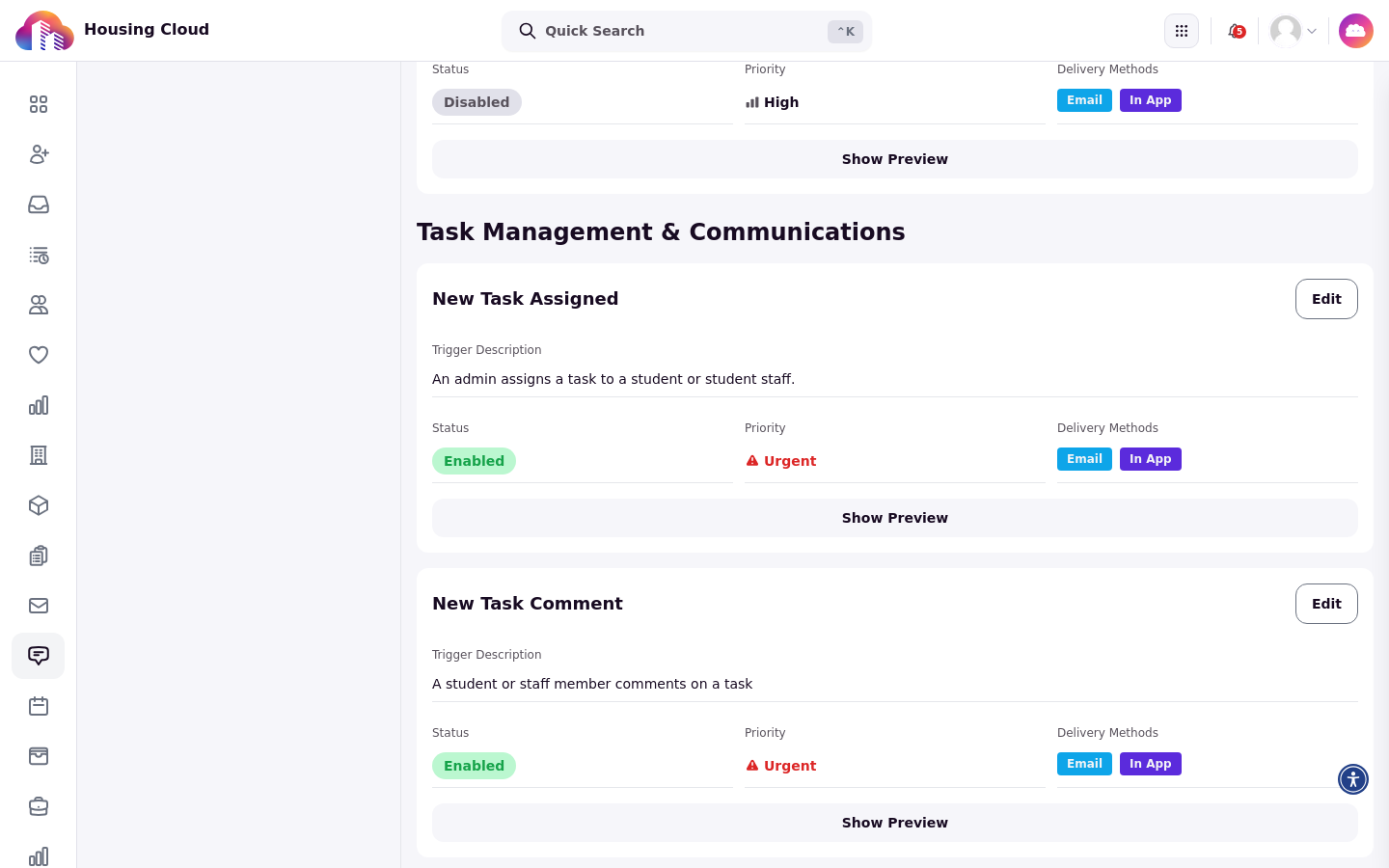
Communications → Manage contains configurable task notifications, and Notification logs shows notification delivery records.
Student staff use the staff portal's Requests page.
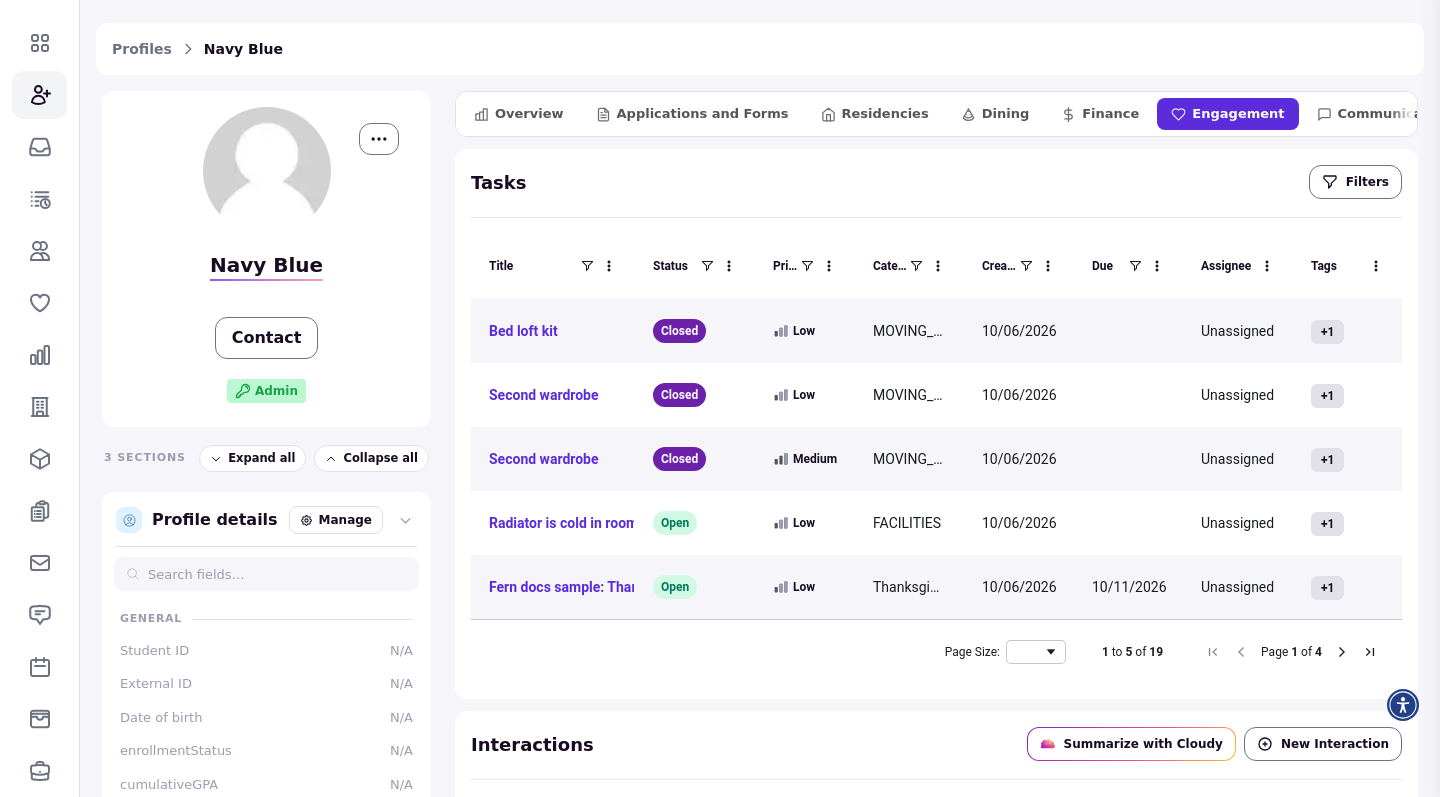
A resident's profile has a Tasks section with a Status filter.
The queue at Support → Tasks is where staff find their work. Stat cards give a quick view of the work, filters narrow the list, and each row opens that task's page.
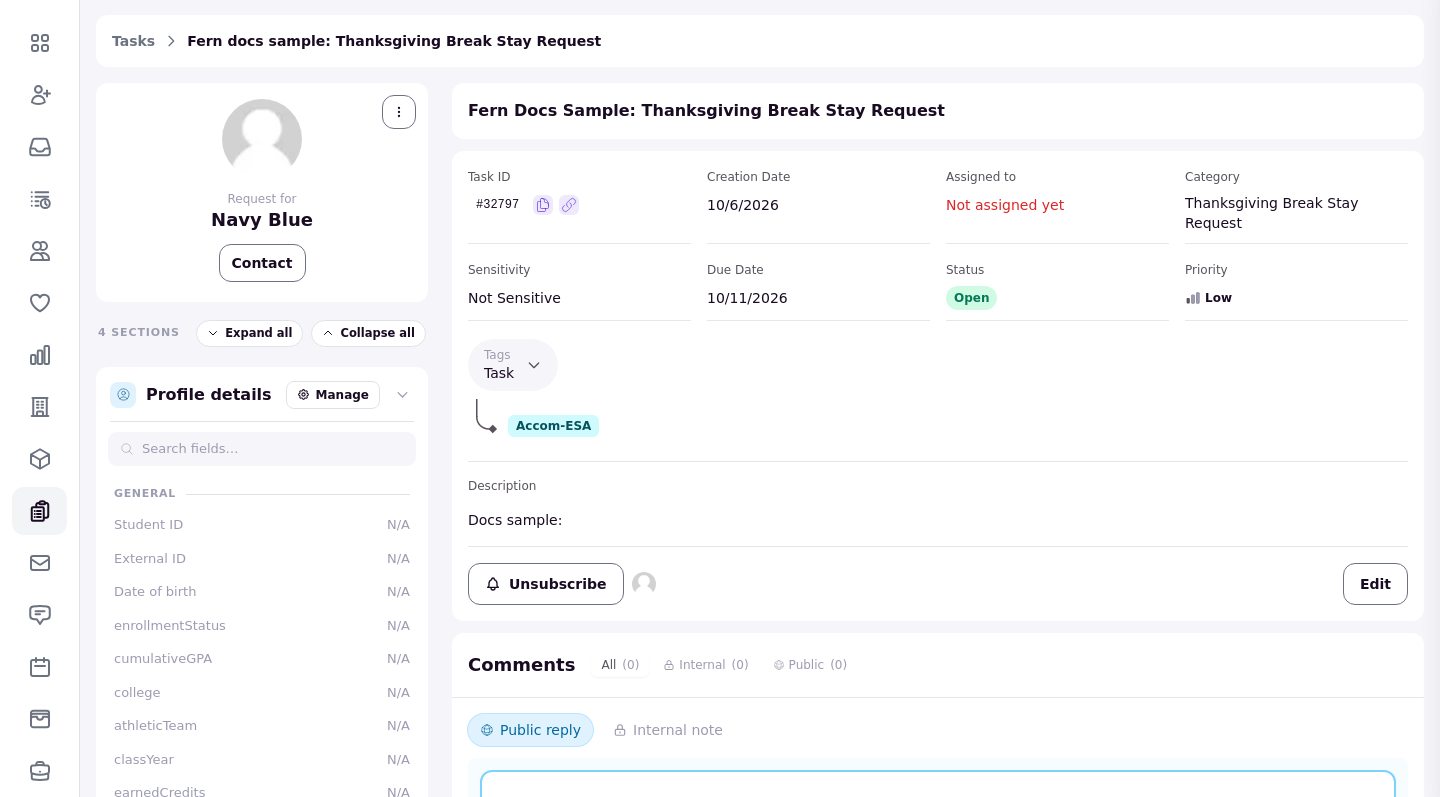
Click a task in the queue to open its own page. The requester's history sits on the left, and the task's status, tags, and comment thread sit on the right.
A resident's task history lives on their profile. The Tasks section lists the requests that resident filed, with a Status filter.
Request types are configured in Setup → Tasks. Each type carries its overview, automatic assignment, form, tags, and workflow.
Task notifications are configured in Communications → Manage. Each notice lists its trigger, priority, and delivery methods.
Task management terms
Use these terms to distinguish how a task enters the system, who can work it, and who can see its updates.
Request type: also called a task category.
Assignee: a person or a role responsible for the task. A role can receive a task without making one person its owner.
Subscriber: also called a follower.
Public reply: a comment shared with the resident.
Internal note: a comment for staff.
Sensitive: a task or comment with restricted visibility.
Approval: the decision state for a request type that requires approval.
Statuses, priorities, and approval states
Staff use the task status, priority, and approval state to describe where work stands and what needs attention.
Status: Open, In Progress, Need More Info, Closed, Cancelled, or Draft.
Priority: Low, Medium, High, or Urgent.
Approval: Pending, Approved, or Rejected.
How a task moves through the workflow
A task arrives with the automatic assignee configured for its request type. The owner then works it by changing its status, priority, and due date, and by talking with the resident and colleagues in comments. The task closes when the work is complete. Approval controls the approval decision on request types that require it. A task with Pending approval is still workable for staff with task-edit permission.
Feature switches
Basic tasks need no switch. Housing Cloud switches on the More info needed notice, the public reply check, permanent comment deletion, auto-triage, AI sort, and on-call.
Recommended setup order
Set up the task system in this order so staff permissions and request behavior are in place before the team begins working the queue.
Create request types, set their automatic assignment, and attach forms.
Set staff permissions.
Set up the queue.
Teach the team to work a task.
Require approvals where needed.
Check task notifications.
Good to know
Routing is by request type only. There are no building, floor, or community rules. Each request type has one automatic assignee.
A task given to a role has no owner. Every member is emailed and subscribed. It never shows under Show Only My Tasks or on an RA's Requests page. The Unassigned card does not count it, and there is no claim button.
RA-filed requests start unassigned. The request type's automatic assignee is not applied unless the RA changes the type while filing.
Show Only My Tasks starts on, and the setting is per browser. New staff often see an empty queue.
Auto-triage's count and its window disagree. The count is school-wide and includes closed tasks. The window shows only your current view, from the newest 600 tasks.
A request type with a form has no Description box. Add an "anything else?" question to the form.
Max tasks per student never resets. It counts every request the resident has ever filed in that type, including closed and rejected requests.
Residents do not set priority. Every resident request starts at Low.
There is no bulk change for priority, due date, or category. The bulk menu covers assignee, subscribers, status, and comments only.
Comments cannot be edited. Each comment allows three files. Deleting a comment is permanent and removes its files.
Adding a subscriber or reassigning sends New Task Assigned. The person added, and every other subscriber on a reassignment, gets a notice that says the task was assigned to them.
People you @mention stay subscribed. They hear about everything afterwards until removed, even when a sensitive comment meant they were not told about the mention.
A resident added as a subscriber can read the task and its public replies. Only add residents the request is about.
A resident's answer does not move the task on. Replying leaves the task at Need More Info until staff change it.
Deadline reminders stop once a task is overdue. They go out only for tasks due in the next three days, and they also reach residents who are subscribed.
Some task notices cannot be changed or muted. More info needed, Task Approved, Task Rejected, Task Deadline Reminder, and the rating email are not on Communications → Manage.
Personal notification settings are all-or-nothing. Staff can turn email or SMS off entirely, not per task notice.
A sensitive public reply still emails the resident. They get New Task Comment but cannot see the comment.
Approval only holds back bulk status changes. A single task's status can still be changed in edit mode while its approval is Pending. Decide the approval first.
Approval decisions are final. There is no undo, no back to Pending, and no send back for more info button. Bulk approve and reject are available when the bulk-approval feature switch is on and you have Approve or reject tasks permission. A rejected resident files a new request.
Only the resident hears about an approval decision. The assignee and other subscribers are not told. @names typed in a rejection reason are not notified. A sensitive rejection emails an empty reason.
There are no named approvers. Anyone with Approve or reject tasks can decide any request type's approvals.
Resident-facing requests and ratings
Help articles, the help center, how residents file and track requests, and satisfaction ratings are covered by Help Center, Requests and Satisfaction.