Task Statuses: Open to Closed, Reopening and Cancelling
Last updated: October 8, 2026
Every task carries a status that tells staff and the resident where the work stands: Open, In Progress, Need More Info, Closed, Cancelled or Draft. This article explains what each status means, how to move a task through them, and what closing, reopening and cancelling set off.
Before you start
Changing a status takes the Edit tasks permission. Being assigned the task by name does not replace the permission: assigned users still need Edit tasks to change a status from the staff portal. Subscribers can read a task but not change it, and residents cannot change a status at all: their only action is cancelling their own request.
The six statuses
Each status describes one stage of the work, from the moment a request arrives to the moment it leaves the queue.
Status |
What it means |
|---|---|
Open |
New and not started. |
In Progress |
Someone is working on it. |
Need More Info |
Waiting on the resident to answer a question. See Ask the Resident for More Information. |
Closed |
The work is done. |
Cancelled |
No longer needed. |
Draft |
A staff task saved but not sent. Only the person who made it sees it. |
Resident-facing labels can differ from the staff-facing status words: in the newer student portal, Need More Info is shown to the resident as Needs your reply.
Change a task's status
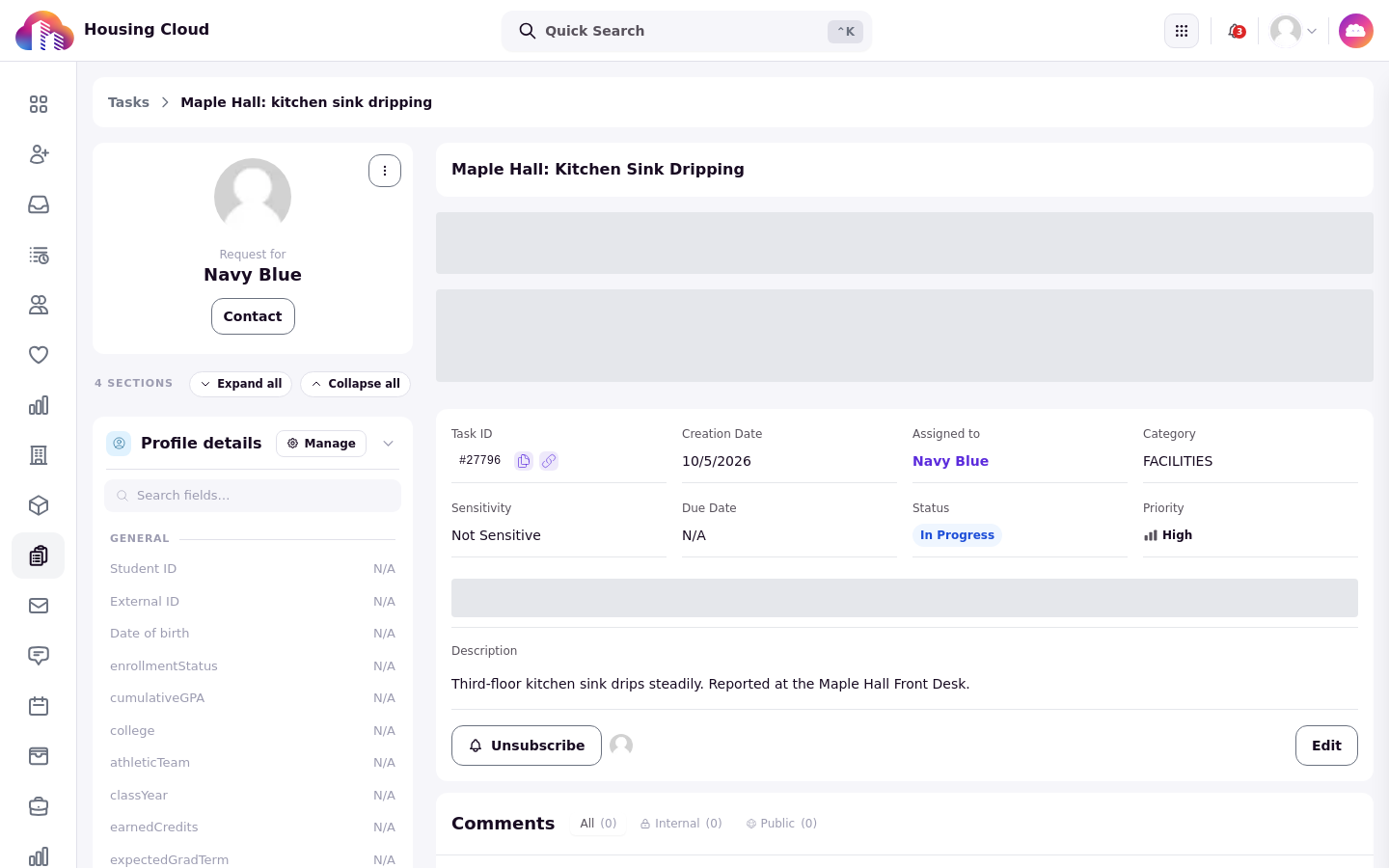
On the task page, click Update Status, then choose the Mark As action for the new status. The task keeps the new status immediately, and every subscriber except the person who made the change gets a Task Updated notice by email and in-app.
Change several statuses at once
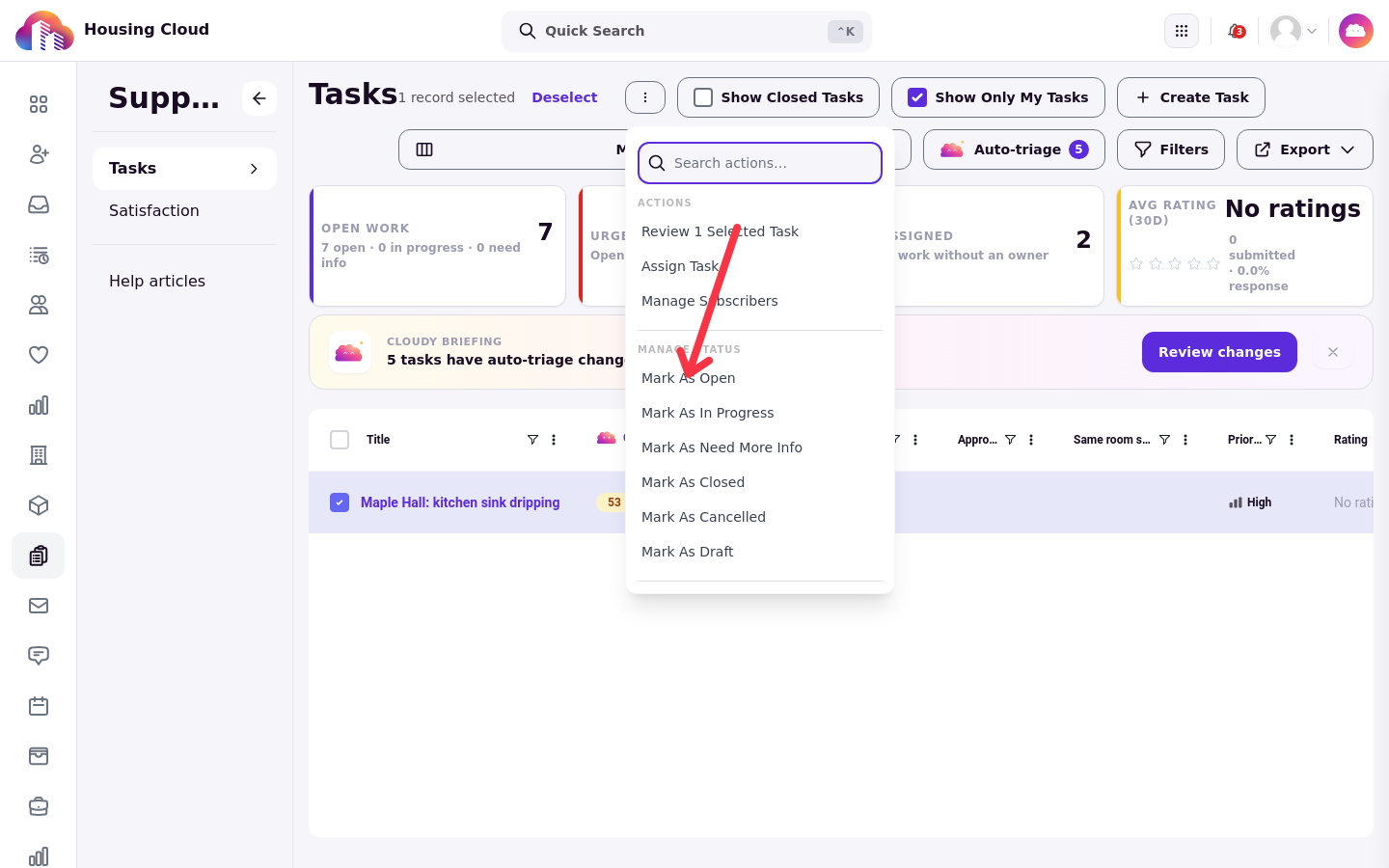
To move several tasks with one action, tick them in the queue and use the Manage Status group in the bulk menu, then choose Mark As the new status. Bulk changes send the same notices and start the same rating clock as one-at-a-time changes. See Bulk Actions and Reviewing Several Tasks.
Good to know: Approval holds back a task's status change, single or bulk, until the approval is decided. Bulk changes refuse tasks in an approval type that are not approved yet, rejected ones included, and the task page's Update Status is blocked while the approval is Pending. Cancelled is the exception.
What closing or cancelling sets off
Closing or cancelling does three things. The task leaves the active queue. Its subscribers get a Task Updated notice. And the rating clock starts: three days later the resident is asked to rate the request, if the request type has rating emails on and the resident filed it themselves. See How Satisfaction Ratings Work for the rating rules.
Reopen a closed task
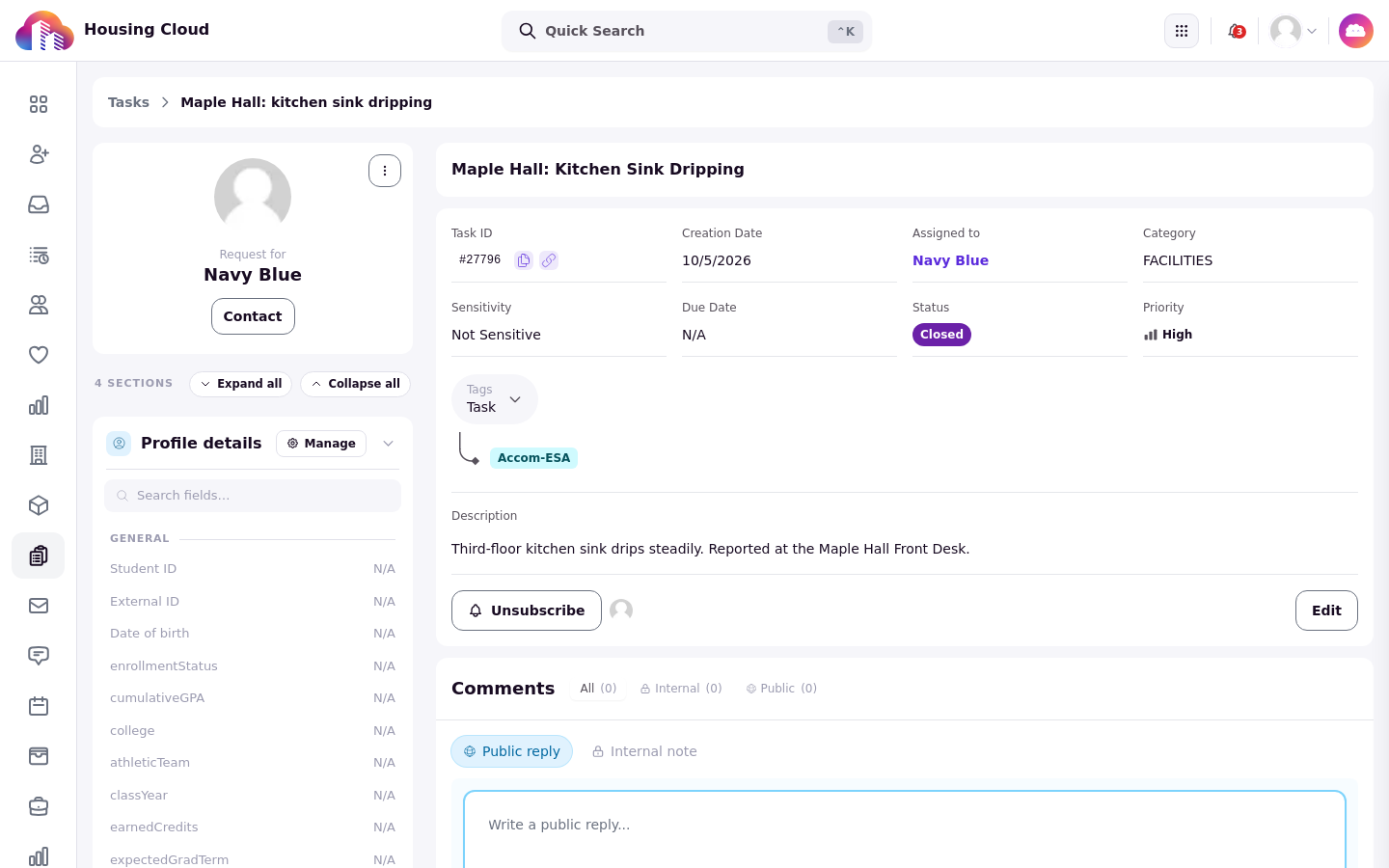
There is no Reopen button. Open the task, click Update Status, and choose Mark As Open or Mark As In Progress. If the rating email has not gone out yet, reopening cancels it, and the resident is not asked to rate the request.
Cancelling
Staff cancel a task the same way they change any status. Residents can cancel their own request with Cancel request on their request page, but not once staff have closed it. See How Residents Track, Reply To and Cancel a Request for the resident's side.
Where closed and cancelled tasks go
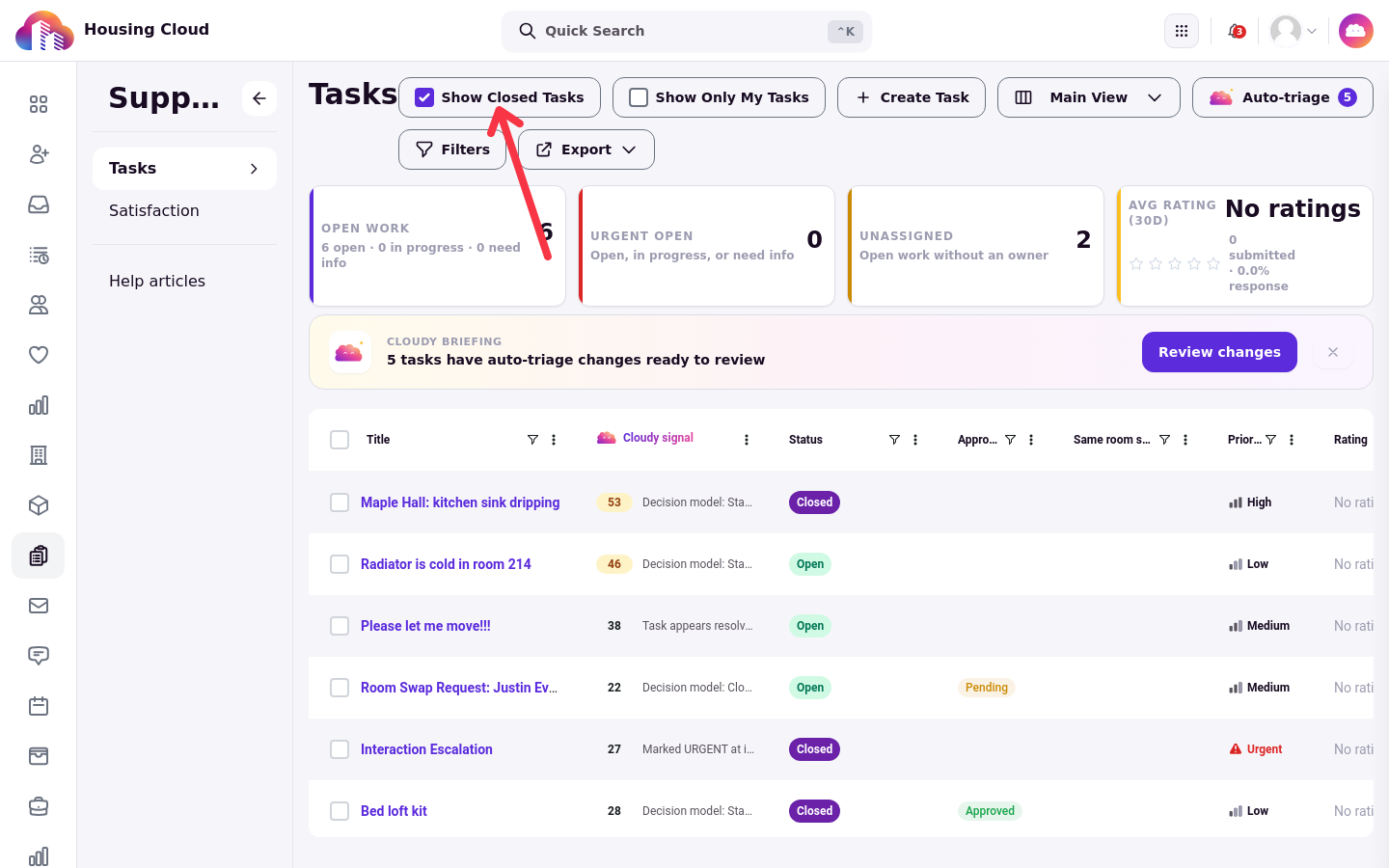
Closed and Cancelled tasks drop out of the queue unless Show Closed Tasks is on. Turning it on adds both statuses back to the current view, which is how you find a closed task to reopen it.