Use the Reports Library
Last updated: August 28, 2026
The report library is where every report your organization can access lives. Use it to locate a pre-built report, find one a colleague shared with you, or pick up a report you saved earlier. Once you’ve found the right report, you can open it to run, edit, share, or schedule it.
Open the Report Library
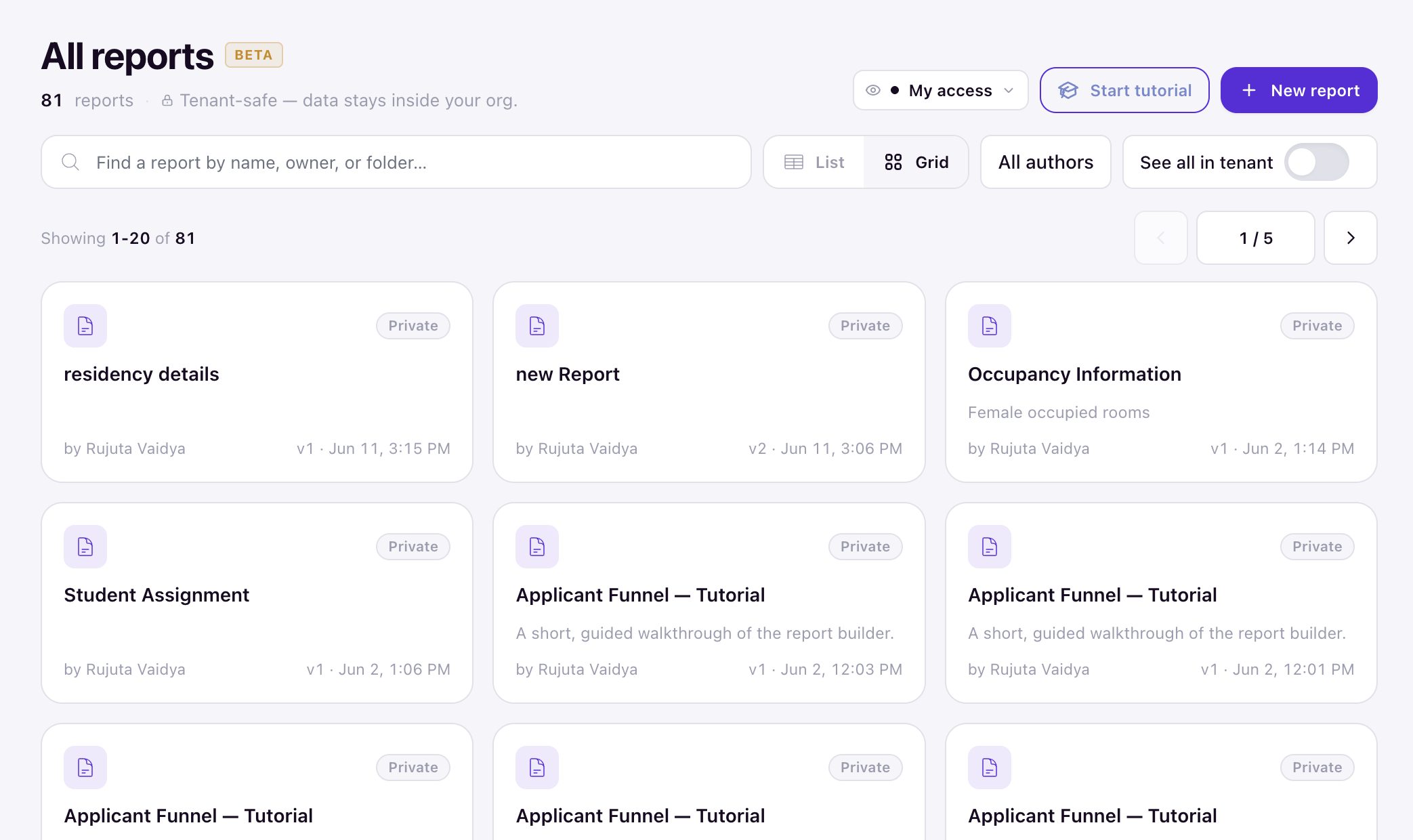
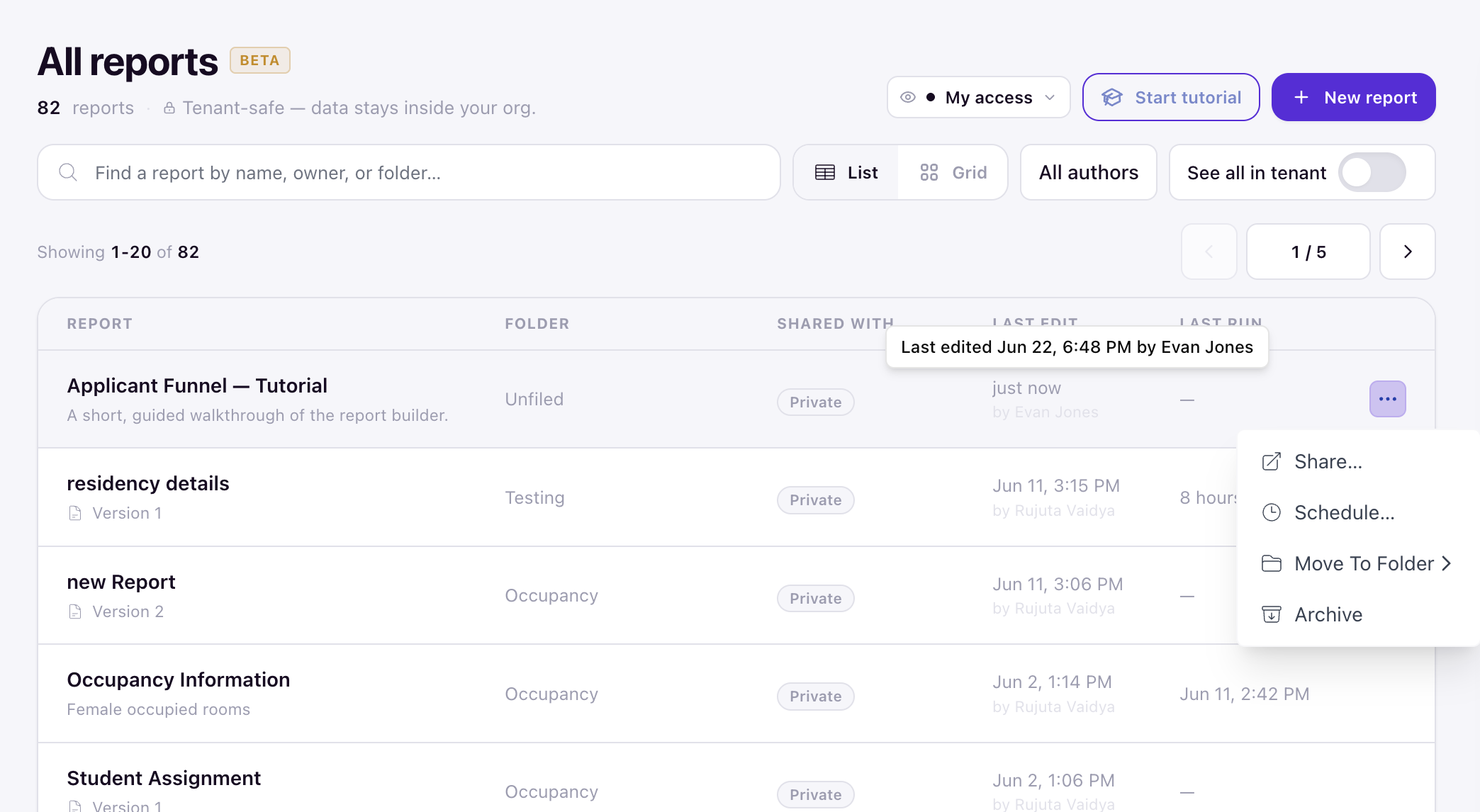
Open Reports from the navigation menu. The library lists every report you can access, along with a count of how many there are.
Browse and Narrow the List
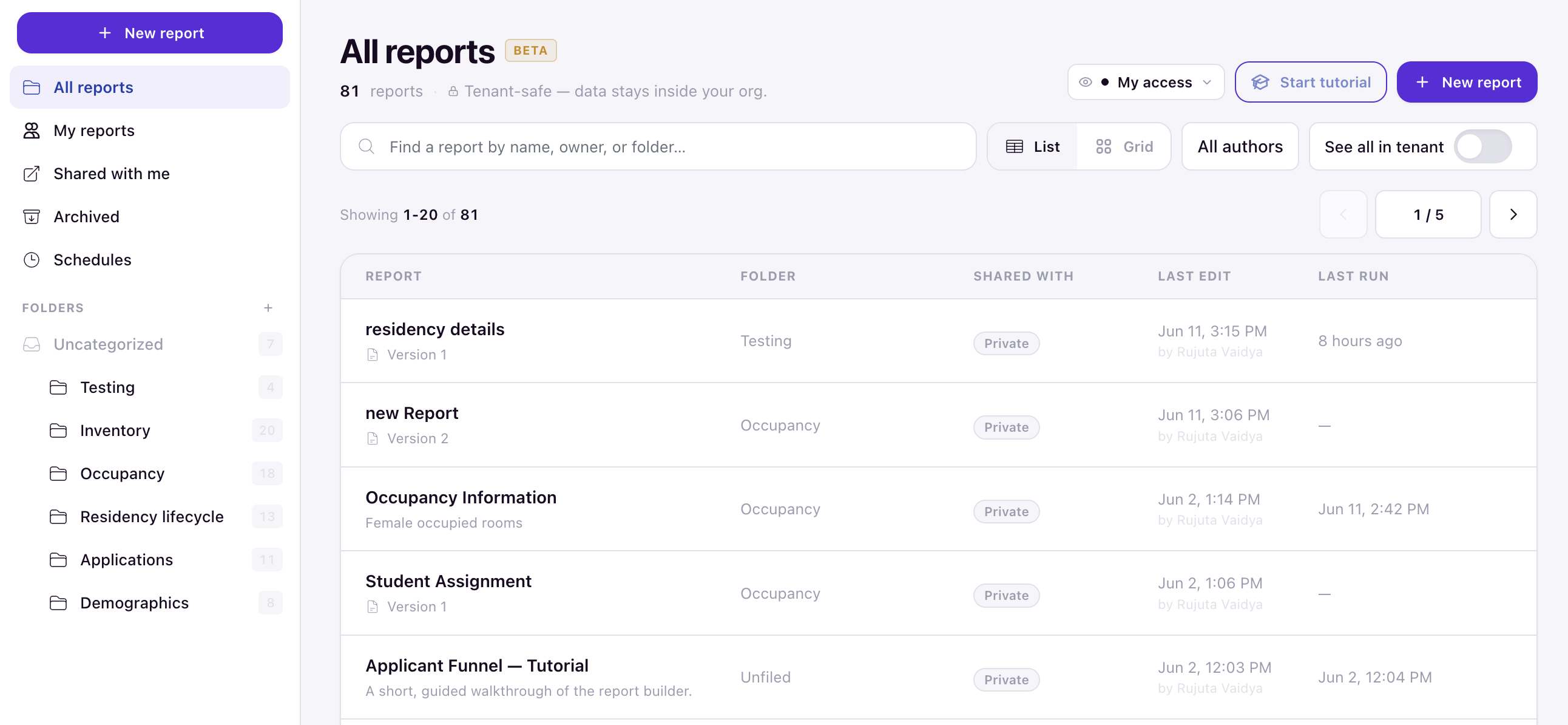
By default the library shows All reports. Use the left navigation to narrow what you see:
- All reports — every report you have access to.
- My reports — reports you created.
- Shared with me — reports another person or role shared with you.
- Archived — reports that have been archived and hidden from the main list.
- Schedules — reports set to run and send automatically.
Your folders also appear in the left navigation. Select a folder to see only the reports filed in it.
Switch Between Grid and List
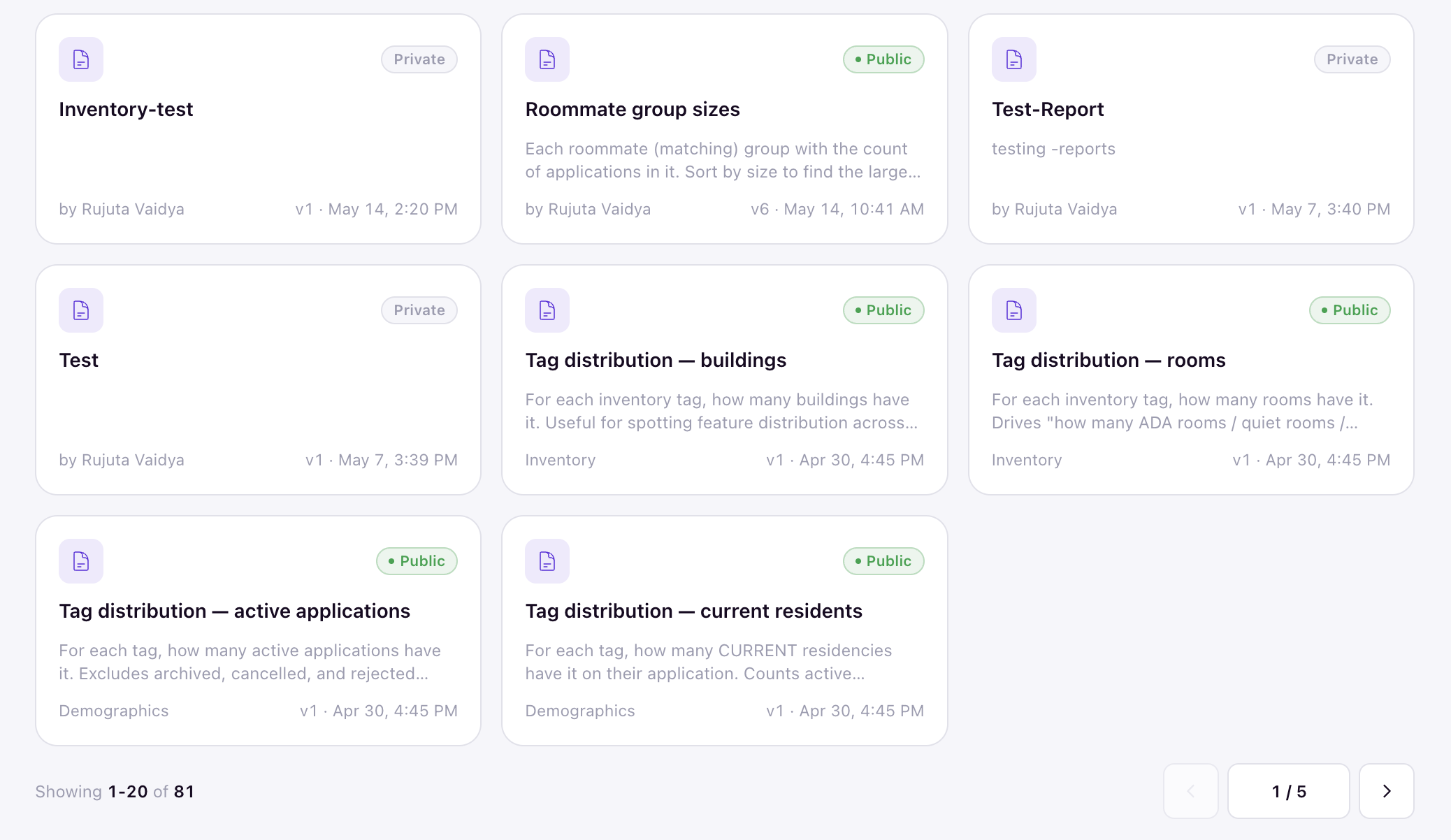
Use the Grid / List toggle to change how reports are displayed. Grid shows larger cards; List is denser and easier to scan when you have many reports.
Search and Filter
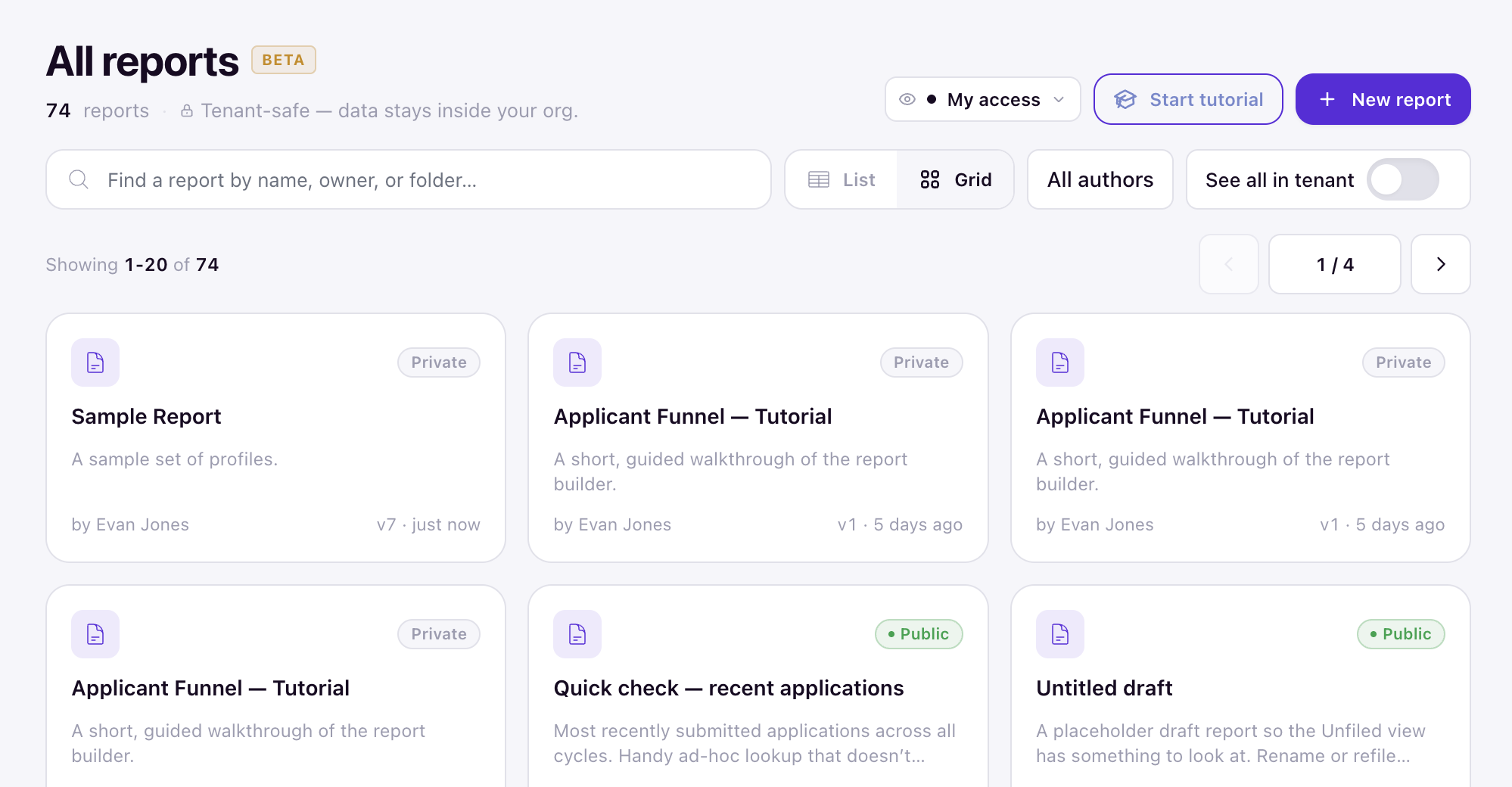
Use the search box to Find a report by name, owner, or folder. Filter by who created a report with the All authors menu, and turn on See all in tenant to include every report across your organization. Each report card shows a Private or Public badge, its version, its author, and when it last changed.
Pre-Built and Custom Reports
The library holds two kinds of reports.
Pre-Built Reports
Pre-built reports come with Housing.cloud and cover common operations, such as current occupancy or application status. If you are not an admin, these are read-only — you can run them but not change them.
Custom Reports
Custom reports are built by admins in your organization. Run them exactly as you run pre-built reports.
New to Reports? Start with the Tutorial
Click Start tutorial in the library. It walks you through building a real report that you’ll own and keep — a good way to learn the builder before creating one from scratch. See Take the Guided Tutorial.
Once You’ve Found a Report
Each report has an actions menu, opened from its row or card, with options to Share…, Schedule…, Move To Folder, or Archive it.
To go further:
- Run it and read the results — see Run a Report and Read the Results.
- Change what it shows — see Build a Report.
- Share it with people or roles — see Share Reports and Control Access.
- Have it run and send automatically — see Schedule Reports.
- File it or archive it — see Organize Reports: Folders, Pin & Archive.