Create a Task for Staff
Last updated: October 8, 2026
Some work never starts with a resident request: a door closer that keeps slamming, a follow-up note the resident shouldn't see, a job for the maintenance team. You log these as staff tasks from the Tasks queue, under a request type residents can't see, so the work gets an owner, a status and a record without appearing in anyone's request list.
This article covers the staff-only task: how to create one, how to keep it away from residents, and the other places tasks come from besides the queue.
Before you start
Creating a task needs the Add tasks permission.
Open the Create Task form
On the Tasks queue (Support → Tasks), click Create Task. The form opens on its own page and waits for the task's details.
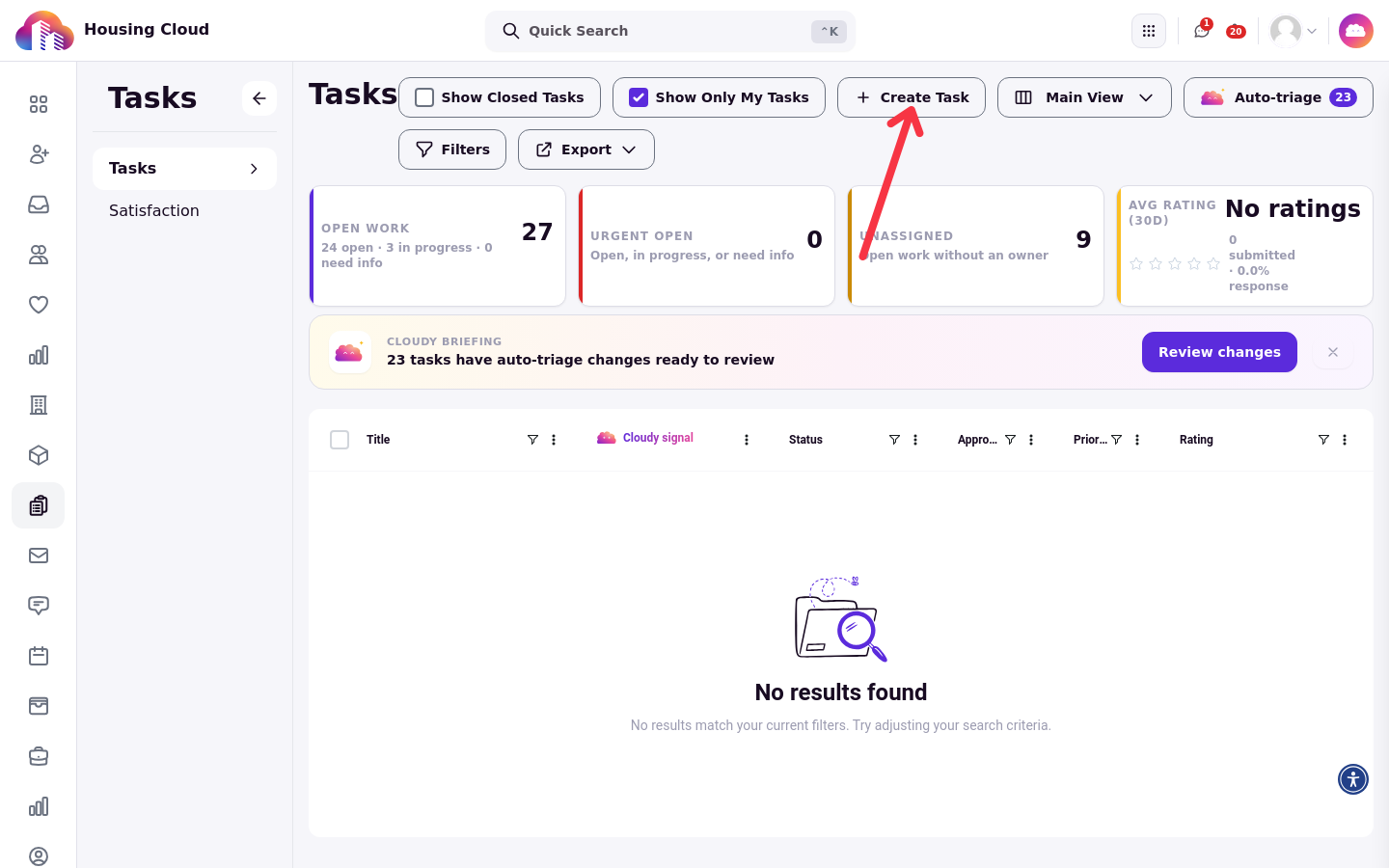
The Tasks queue with the Create Task button in the toolbar.
Leave the resident out of staff-only work
Leave Request on behalf of empty. That is what makes the task staff-only: no resident is attached, so no resident sees it or hears about it.
Fill in Request on behalf of only when you are filing a request for a resident. That resident then sees the task on their request list and is notified. Filing for a resident is covered in Help Center, Requests and Satisfaction.
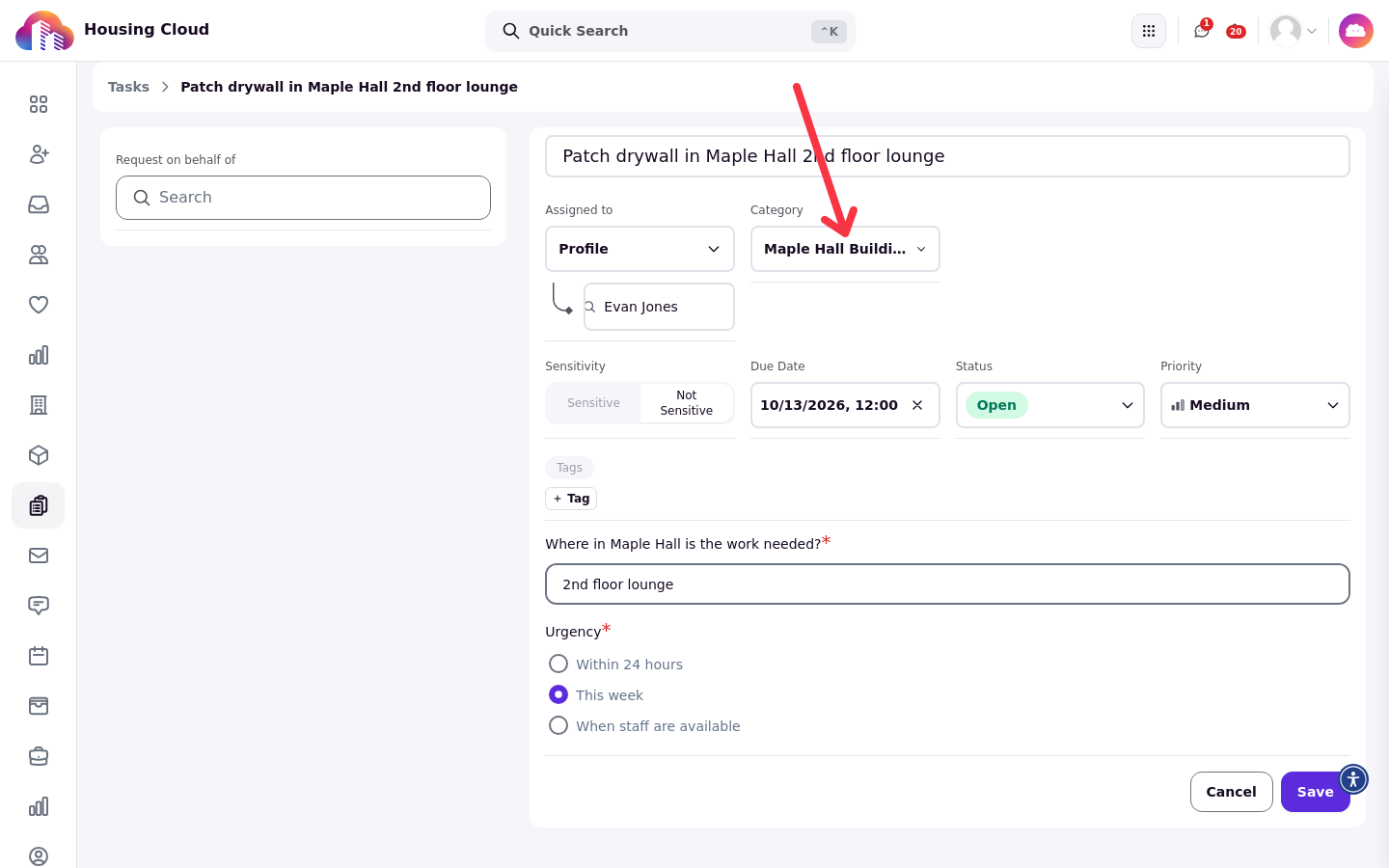
The new task form with the request type Maple Hall Building Work selected. Its custom form questions replace the description editor, and the task is assigned to an admin.
Pick an admin-only request type
Choose a request type marked Admin Only, with the form wording Only available to admins & student staffers. Residents never see this type in their request picker, so a task filed under it stays invisible to them even if it mentions their building or their room. You set up these types in Setup Task Categories (/admin/setup/tasks).
When you pick the type, its automatic assignee fills in Assigned to. Change it if the work belongs to someone else.
Fill in the task details
The fields are the same ones every task has:
Title is required.
Category is the request type.
Assigned to is a person or a role.
Due Date comes from the type's auto-deadline if it has one, or you set it by hand; Clear due date removes it.
Status starts at Open and Priority starts at Low until you change them.
Tags and Sensitivity (Sensitive or Not Sensitive) round out the record.
Description takes the free text, unless the request type has a form attached, in which case the form's questions replace it.
The Task Page: Every Panel and Field explains what each field does on a saved task.
Click Save and the task opens on its own page, ready to work.
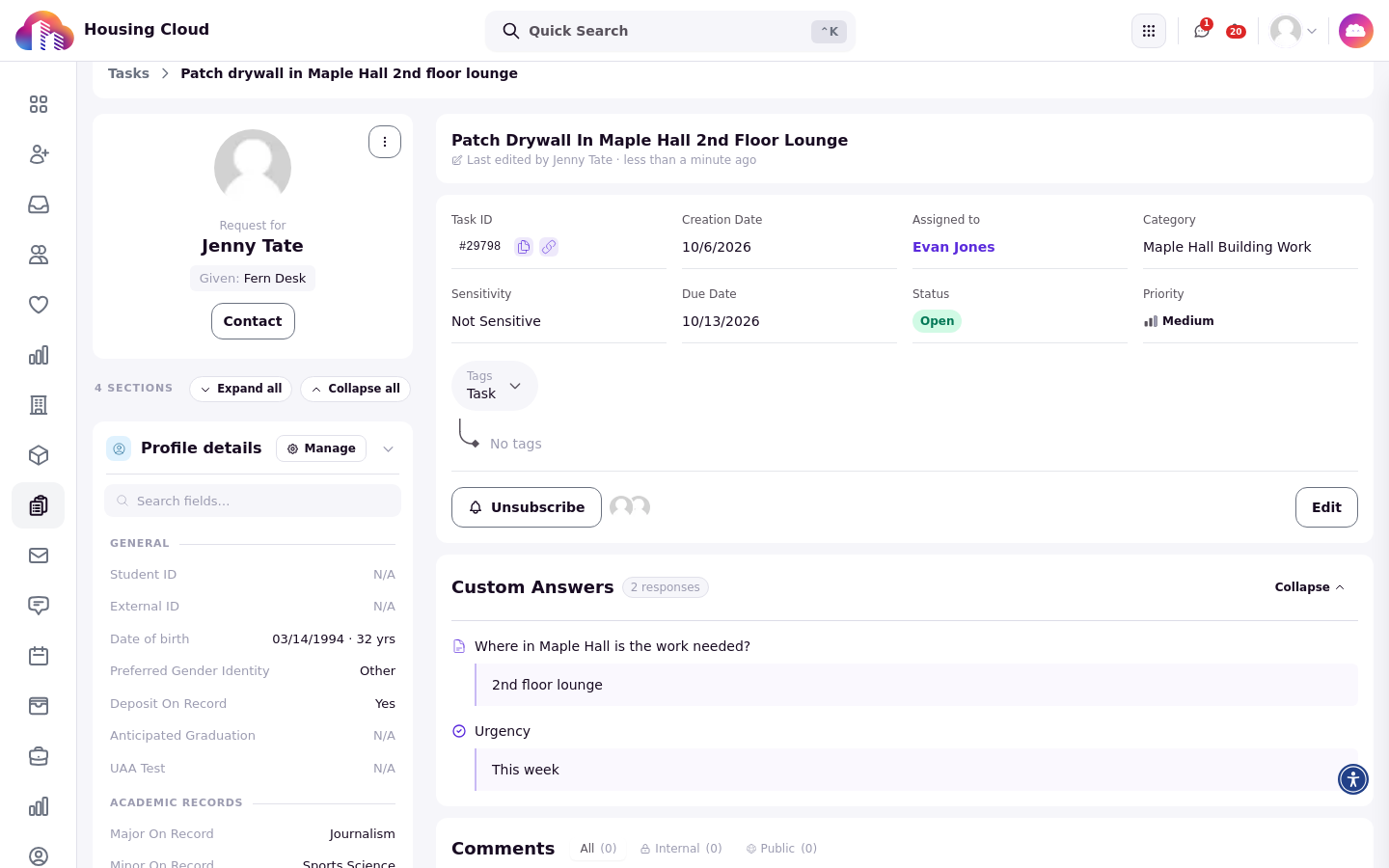
The saved task shows its details card and the Custom Answers card with the form responses.
Keep a private follow-up off the resident's record
For a follow-up about a resident that they mustn't see, use an admin-only request type and leave Request on behalf of empty, so the resident isn't named as the subject. The task then never reaches their request list.
When the resident has reached the type's limit
A request type can limit how many requests a resident may file in it. If you name a resident in Request on behalf of who has already reached that type's limit, the form asks "Are you sure you want to create this task anyway?" before it saves, so you can confirm or stop.
Good to know
Tasks you create as staff never get a rating email.
Where tasks also come from
The queue is not the only source. A task also appears when someone uses Create Task in a text conversation, when an RA escalates a check-in, when a room condition report calls for follow-up, when an on-call escalation pages staff (see On-Call Escalations and Tasks), when a Resources item goes overdue, and when Cloudy creates one.