Understanding Parts of a Task
Last updated: October 7, 2026
The task details page provides all the essential information and actions needed to handle a task from start to finish. Here's a breakdown of the key features on the task details page.
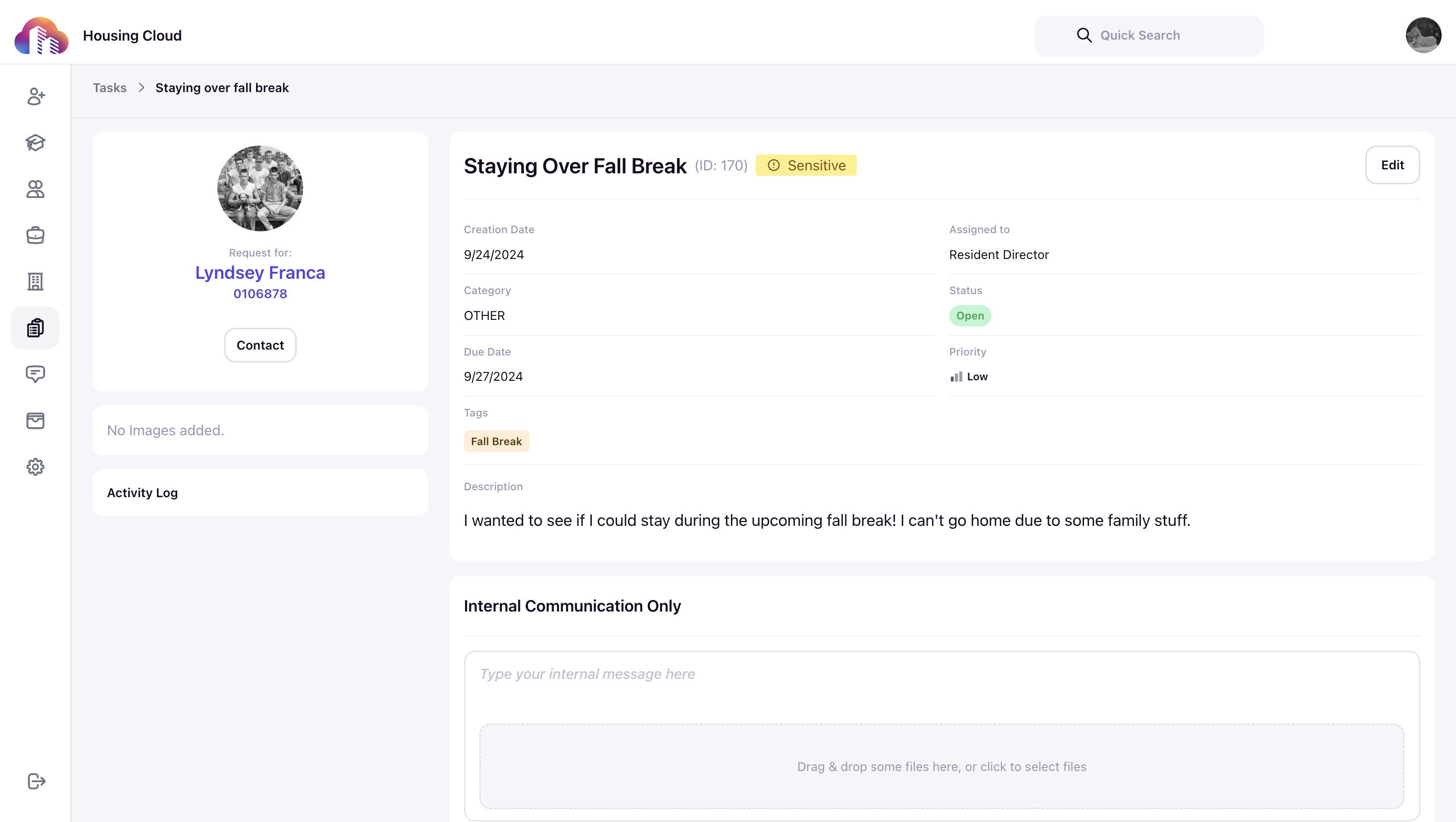
Title Name, ID, and Flags: All tasks are generated with an ID. IDs are searchable in the universal search bar to help quickly access and navigate your records.
Creation Date: Shows when the task was created, helping track its timeline and urgency.
Assigned To: Displays the current person responsible for the task, ensuring accountability and easy reassignment when needed.
Role allows you to choose a Housing.Cloud role type by typing the role name like "Room Manager" or "Dining Manager".
Profile allows you to type a specific admin portal user name to assign the task to.
Category: Organizes tasks by your previously created task category. Click here for more on task categories.
Status: Indicates the task's current state (e.g., "Open," "In Progress," "Closed"), providing a quick view of progress.
Due Date: Sets a deadline for task completion, helping prioritize work and manage time-sensitive needs.
Priority: Highlights the task's importance (e.g., Low, Medium, High), guiding staff to focus on the most critical tasks first.
Tags: Tags are customizable labels that help you organize tasks by themes, specific projects, or unique identifiers. They enable easy filtering and searching, making it simple to group similar tasks or highlight particular needs, such as "Maintenance" or "Event Prep." Click 📄 Create and Manage Tagsfor more details on tags.
Description: Offers detailed information about the task, including instructions or notes that assist staff in completing the task accurately.
Internal Communications: Used for team-only messages within the admin portal. These communications are private and help staff coordinate without involving residents.
External Communications: Allows staff to communicate directly with the resident, visible in both the admin and resident portals. This feature keeps residents informed about the task's status and updates.
For more information on managing tasks, see Manage Tasks in the Admin Portal.