Work tasks as student staff
Last updated: October 2, 2026
Requests is where you manage the work assigned to you in Housing.Cloud. Your student staff view shows the requests you need to review, reply to, and keep moving.
You do not need the full admin task queue to do your job. This page gives you the request details, comment tools, and basic actions you need for day-to-day work.
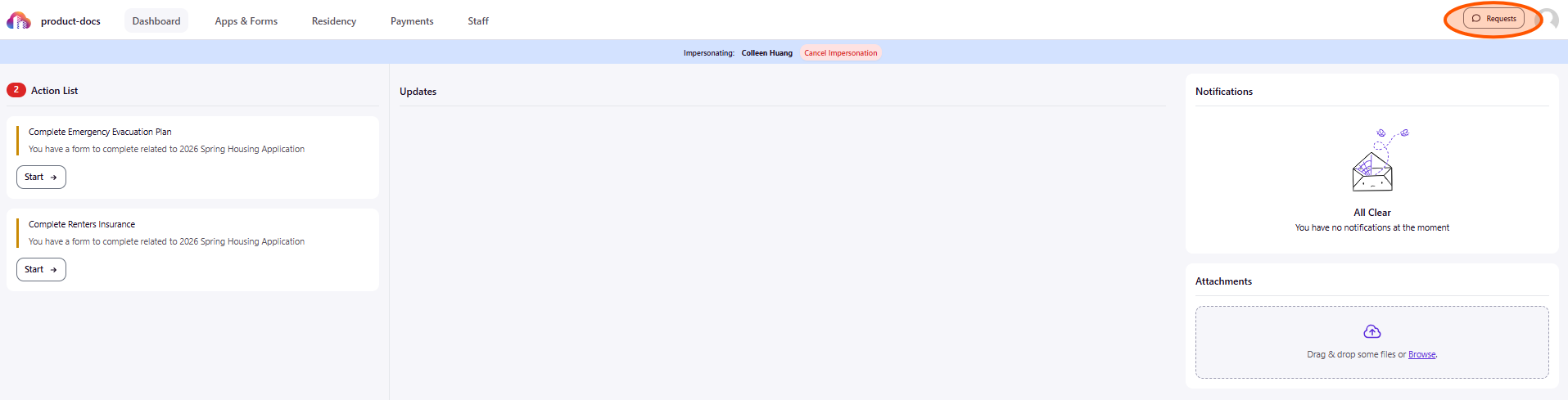
Check what is in your queue
Open Requests to see your request list. This is the student staff view, not the full admin queue.
Each request card shows the title, category, status, urgency, and created date. Use that information to decide what needs your attention first.
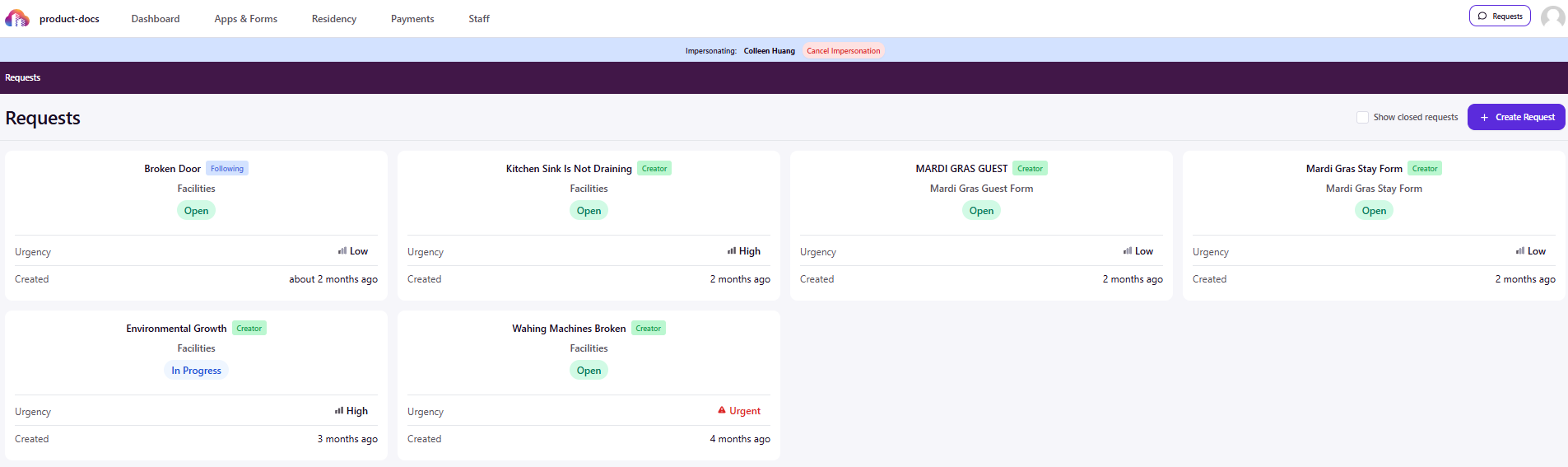
Open the request before you respond
Select the request and review the details at the top of the page. Start with the title, Creation Date, Category, Status, and any description that was submitted.
This gives you the context you need before you answer the student or make any changes. Reading the full thread first also helps you avoid repeating questions that were already asked.
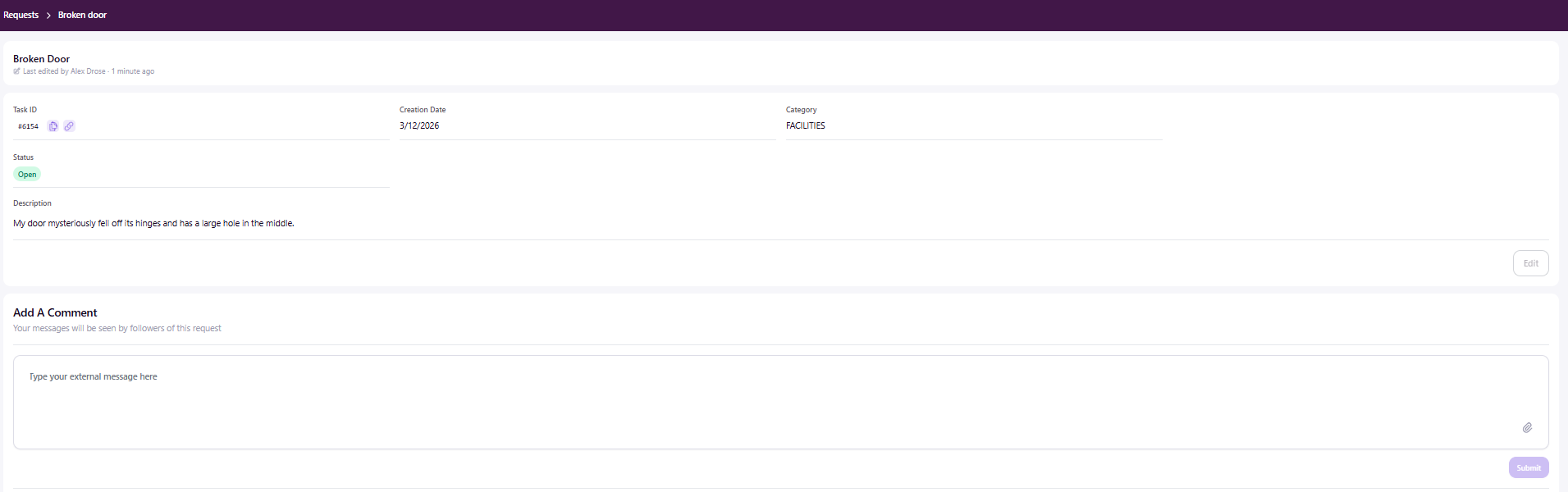
Use the tools available in your view
From the student staff request detail page, you can add a public comment, mention another staff member with @name, mark a message with Contains Sensitive or Personal Information, and use Unsubscribe if you no longer need updates.
You may also see an Edit button on the request detail page. If that option is available, only use it for the updates your team expects you to handle.
Send a public reply
Use Add A Public Comment when your message should be visible to the student. This is the right place to answer a question, ask for missing details, or explain what happens next.
Keep your reply clear and short. If your message includes private details, use the Contains Sensitive or Personal Information checkbox before you submit it.

Ask for help when something needs more access
If you do not see the control you need, do not guess. Leave a clear comment with the situation and ask your supervisor or a full admin to take over that part.
This is the safest option when a request needs a permission that is not available in your view, a decision you should not make on your own, or a change that affects another person’s work.
Keep the request moving
After you reply, check that your comment appears in the thread and that the next step is clear. If someone else needs to act, mention them in the comment so the request does not stall.
Your job is not just to answer. It is to make sure the request has enough context for the next person, including the student, to know what happens next.
What to read next: Creating a Support Request, for Students; Parts of a Request, for Students