How to Join or Leave a Roommate Group, for Students
Last updated: October 5, 2026
Have you received an invitation from another student, asking you to join their roommate group? This guide explains how to accept or decline the invitation and, if desired, how to leave an established roommate group later if you change your mind. Your student biography does not need to be made public to join or form a roommate group.
See How to Form a Roommate Group, for Students to learn more about generating a unique URL invitation.
1. Log in to your Resident Portal using the URL provided by your school.
2. The roommate group invitation you received includes a unique URL sent by your group leader. Copy and paste the link into your web browser.
3. The invite page will display your group leader's name with options to either Accept Invite or Decline.
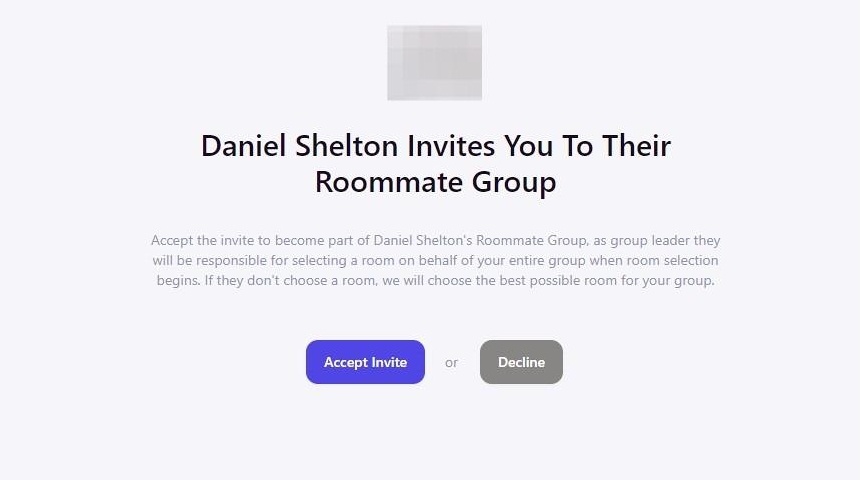
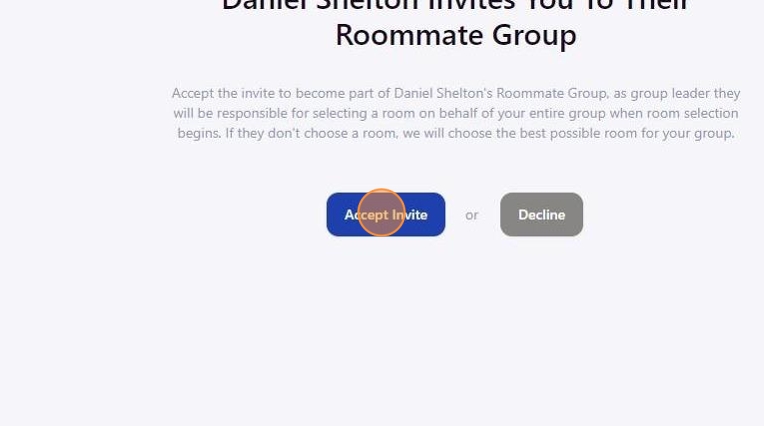
4. Click Accept Invite to join the roommate group.
Note: You cannot accept the invite if you have outstanding documents or payments. Access your Application to fulfill any requirements, if necessary, in order to continue.
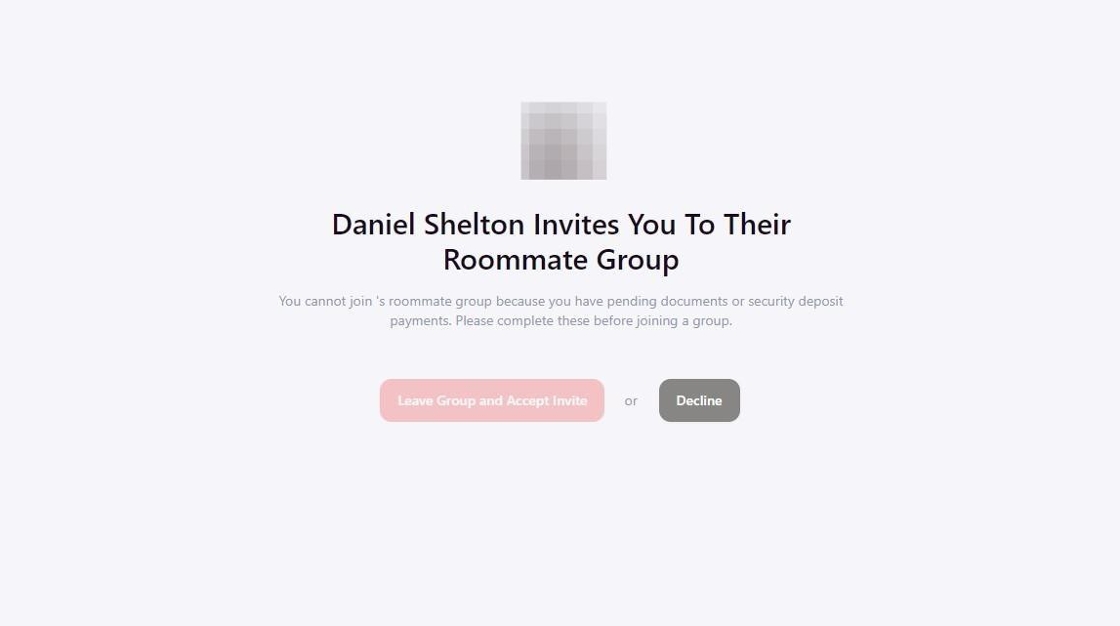
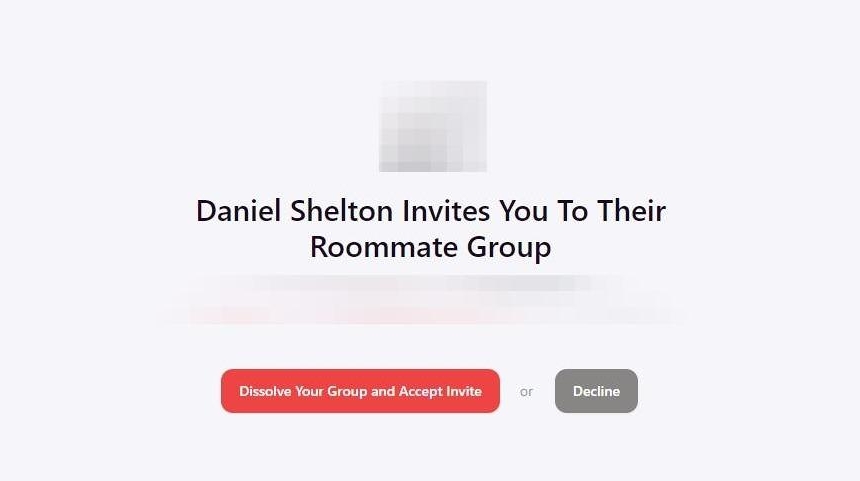
Note: You can only be part of one roommate group at a time. If you already accepted another invitation, you'll be prompted to leave that group in order to join this new group. Or, if you are already an established group leader of another group, you will be prompted to Dissolve Your Group and Accept Invite. Dissolving your group will delete the group and all members will be returned to a single applicant status.
5. You will automatically return to your housing application to view your newly joined group after accepting the invite.
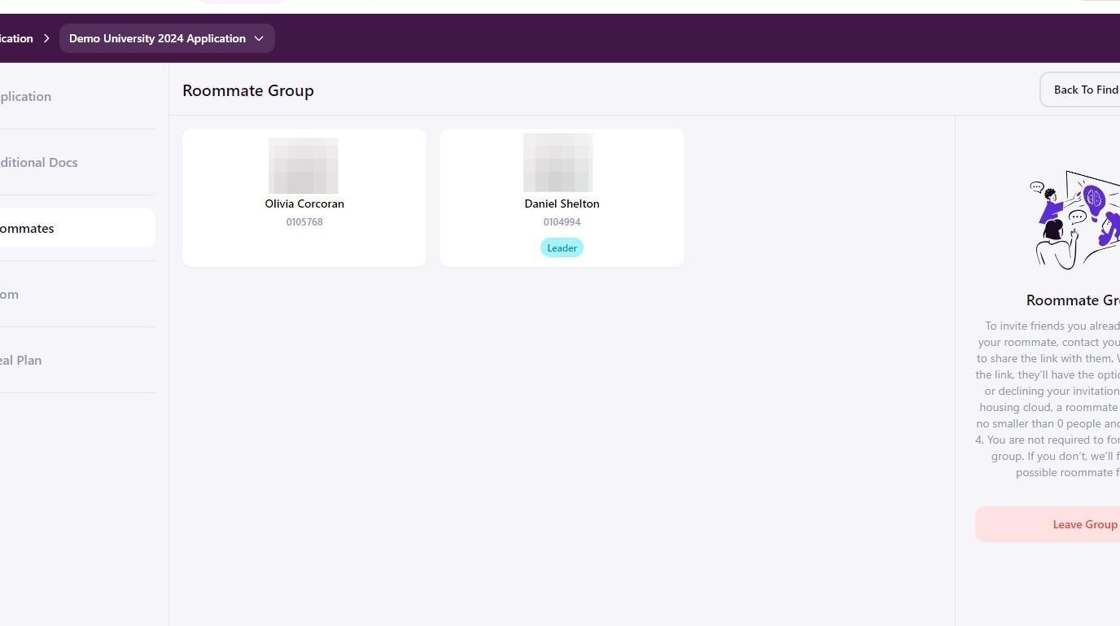
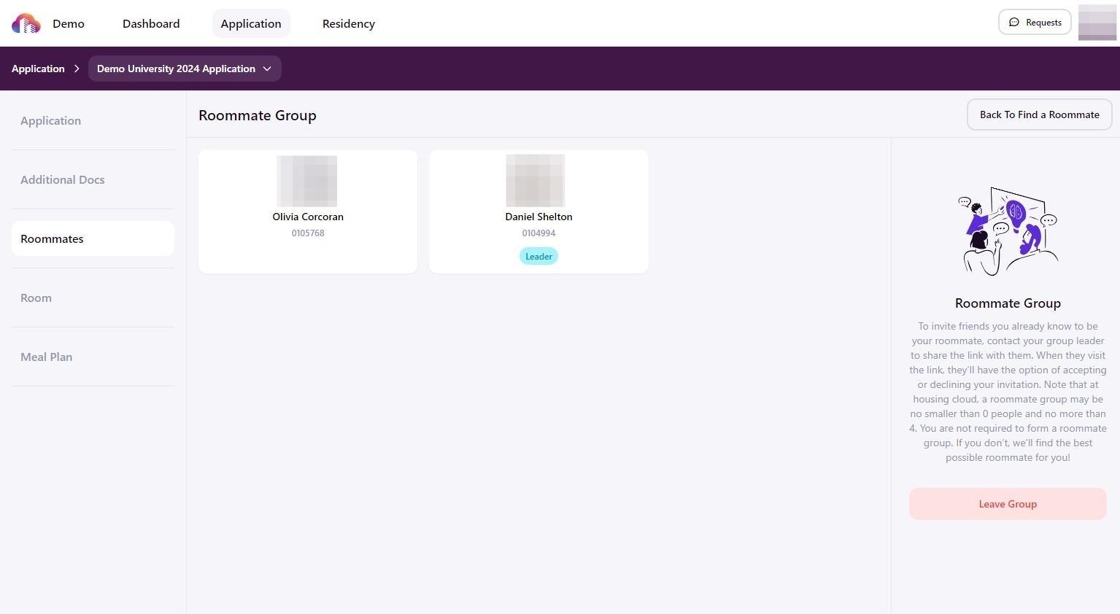
6. If your housing plans change in the future, return to this page and click Leave Group to remove yourself.
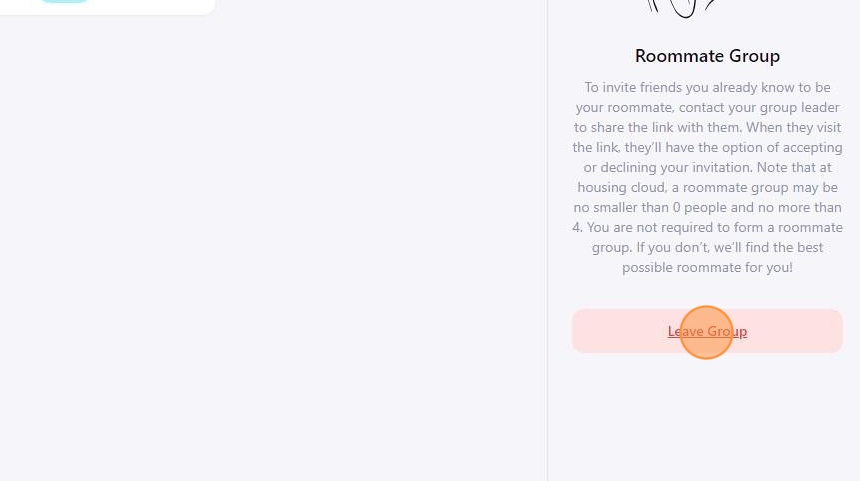
7. Click Confirm to finalize your removal. Your applicant status will return to single and you can create or join new roommate group.
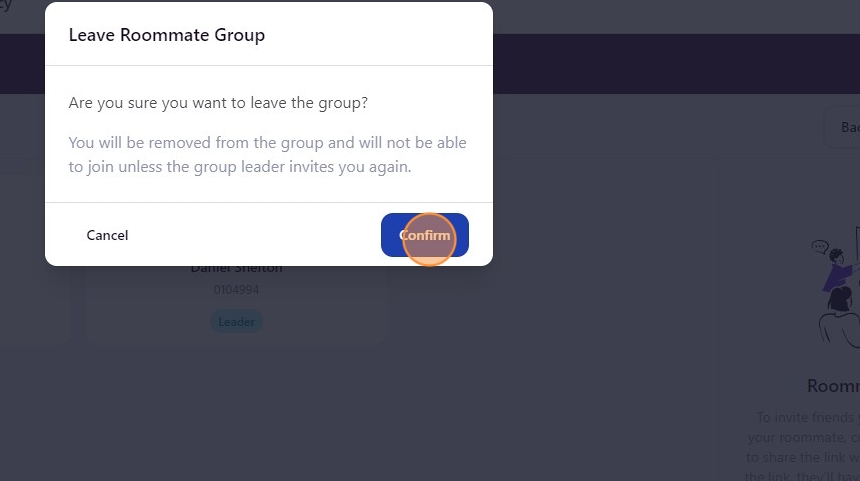
8. Your roommate group status will always be visible from the Roommates section of your active housing application.
Not in a Roommate Group
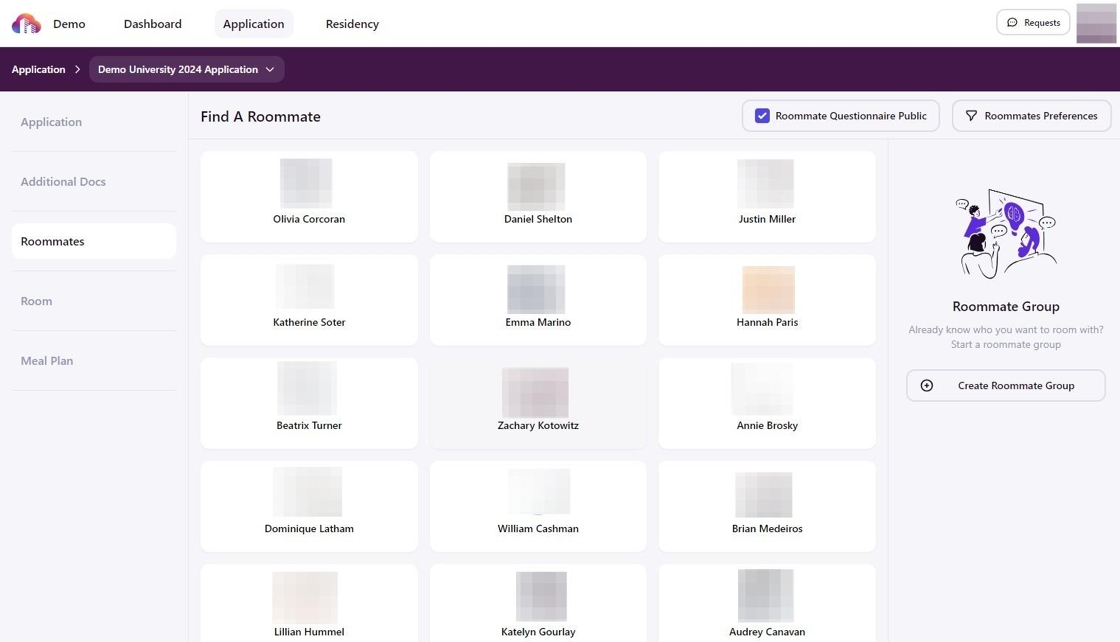
In a Roommate Group
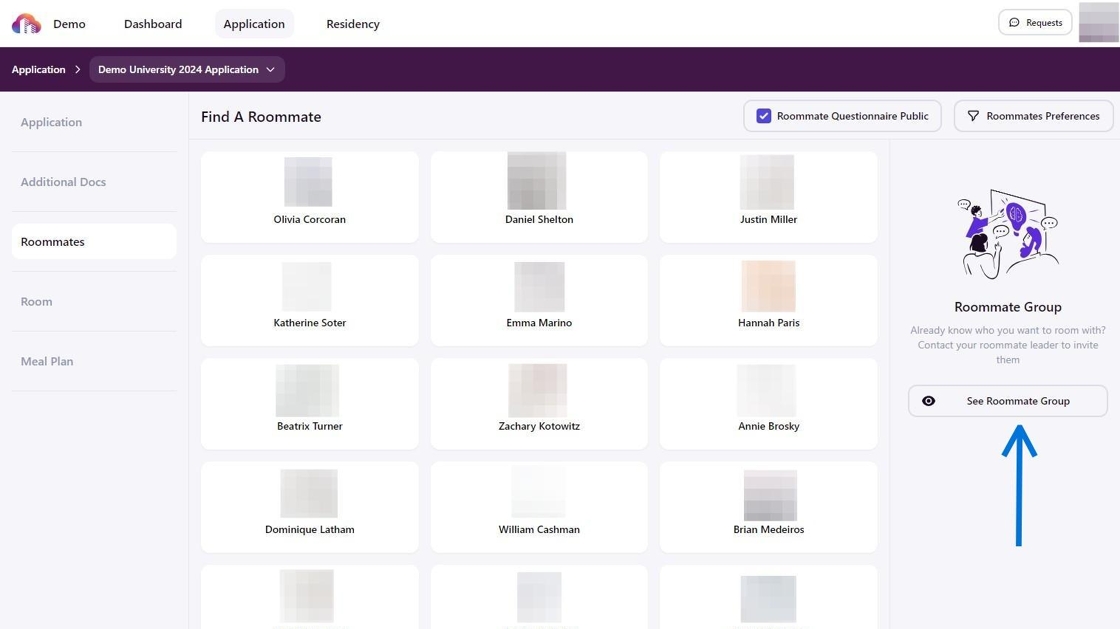
After clicking See Roommate Group
Attachments
- How To Invite Roommates on Housing Cloud - Step 27 (1).png
- Staging-Housing Workflow - Step 2 (10).png
- How To Accept Roommate Invitation And Leave Group - Step 3.png
- Staging-Housing Workflow - Step 2 (15).png
- How To Invite Roommates on Housing Cloud - Step 27 (1).png
- How To Accept Roommate Invitation And Leave Group - Step 3.png
- Staging-Housing Workflow - Step 2 (10).png
- Staging-Housing Workflow - Step 2 (15).png
- How To Invite Roommates on Housing Cloud - Step 44.png
- How To Invite Roommates on Housing Cloud - Step 45 (1).png
- How To Accept Roommate Invitation And Leave Group - Step 6.png
- Staging-Housing Workflow - Step 2 (16).png
- Staging-Housing Workflow - Step 2 (14).png
- How To Accept Roommate Invitation And Leave Group - Step 6.png
- Staging-Housing Workflow - Step 2 (12).png
- Staging-Housing Workflow - Step 2 (14).png
- Staging-Housing Workflow - Step 2 (16).png
- Staging-Housing Workflow - Step 2 (12).png


