Feature Management Settings
Last updated: August 28, 2026
Feature Management turns entire functions on or off in your Housing.Cloud environment. When you disable a feature, it may completely disappear from visibility in the system. Many features impact student experiences, rather than admin portal settings.
Use this to control which tools are available based on what your institution actually uses. For example, if you don't offer or manage meal plans in Housing.Cloud, disable that feature so students never see meal plan options in their portal.
What You Can Control
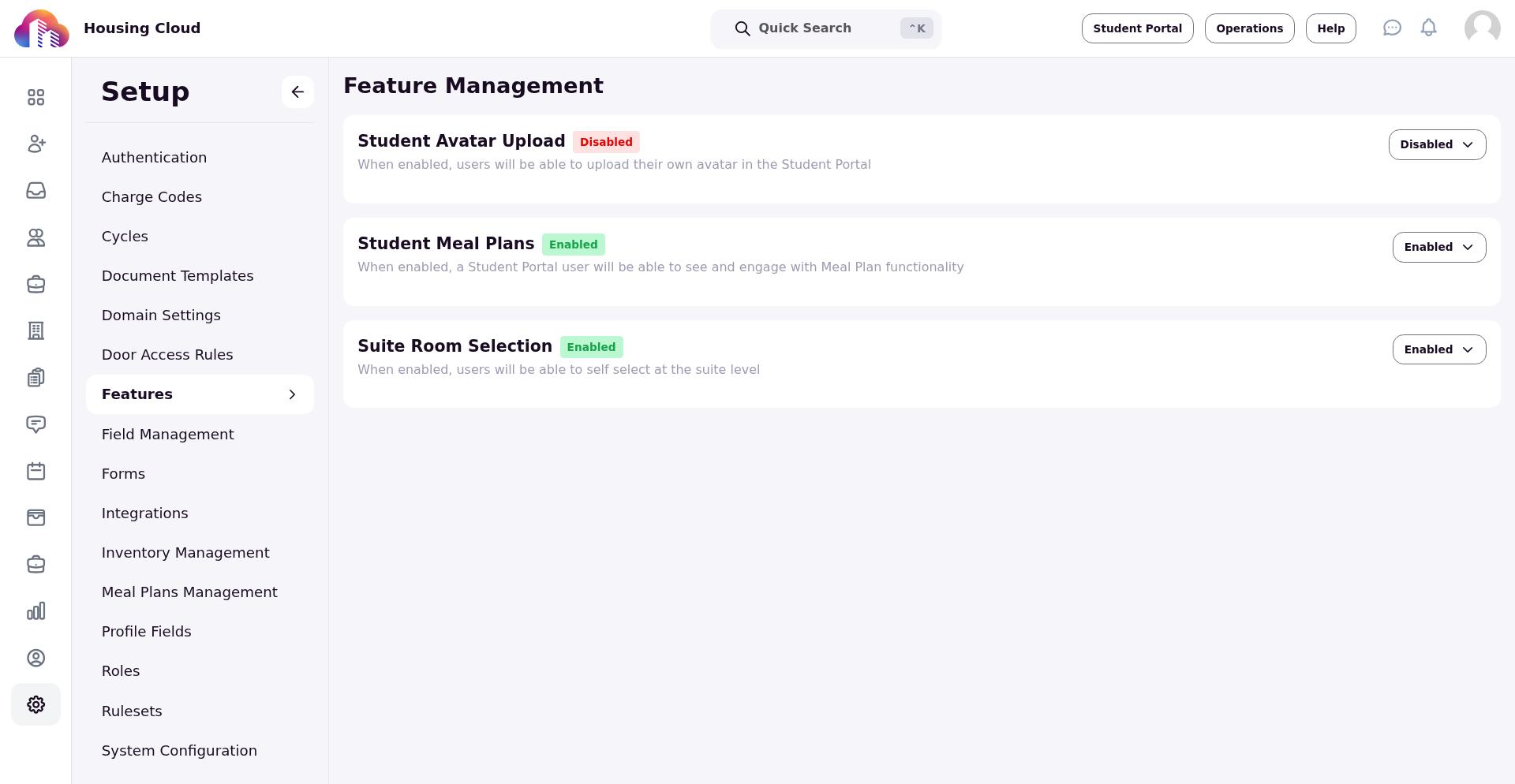
Student Avatar Upload lets students add profile photos in the Student Portal. Disable this feature if you don't want students uploading profile pictures.
Student Meal Plans adds meal plan selection and management to the Student Portal. Disable this feature if you do not want meal plan features to be visible in the Student Portal.
Suite Room Selection allows students to choose their specific room within an assigned suite during housing selection. Disable this if you assign specific rooms to students rather than letting them self-select.
Available features are subject to change. More features will be added in the near future.
Find Feature Management
Navigate to Admin > Setup > Feature Management. Each feature appears as a card showing its name, description, current status (Enabled or Disabled), and a toggle button.
Note: You need the Manage Features permission to access this section.
Toggle A Feature
Click the dropdown button on any feature card and select Enabled or Disabled.
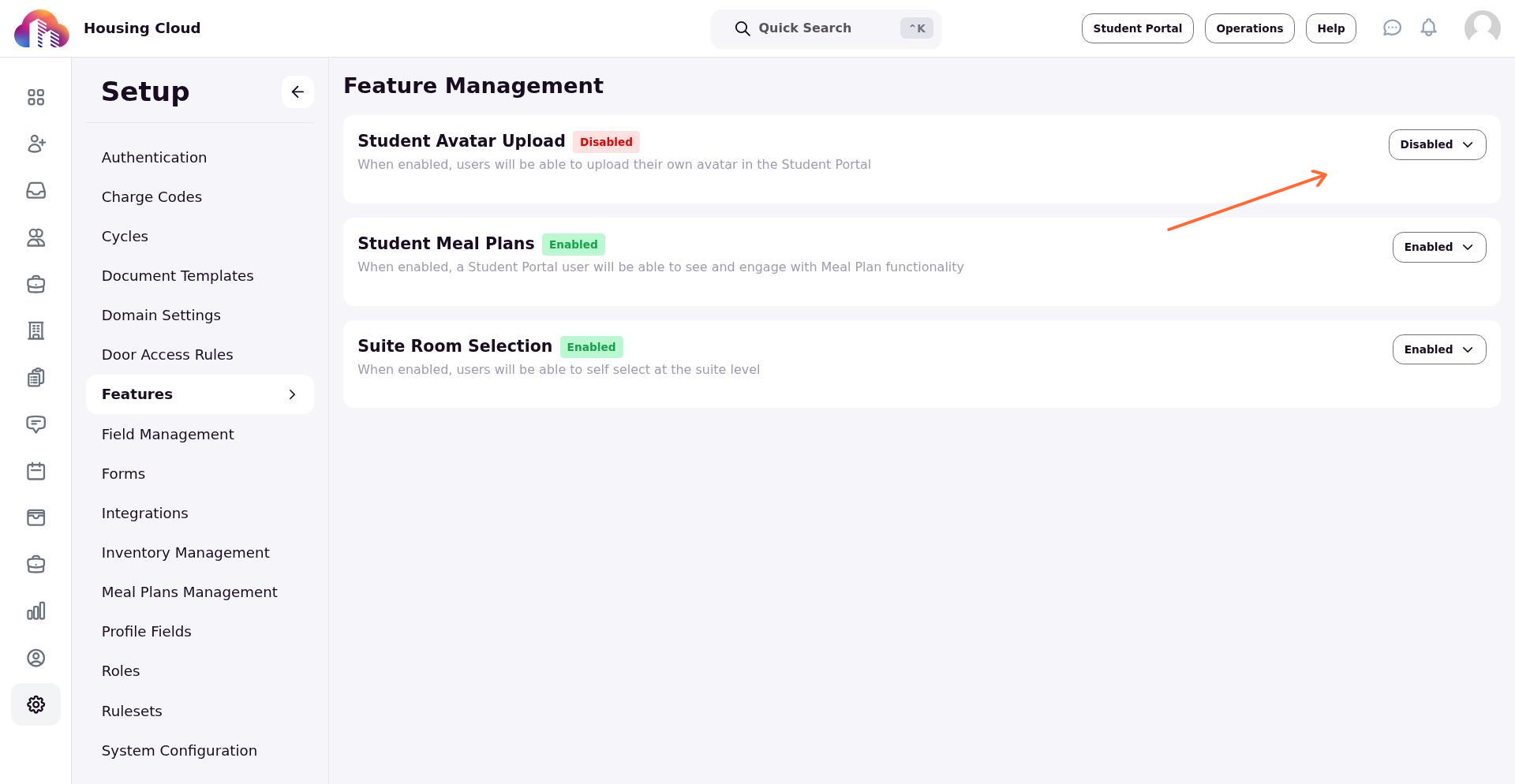
Note: Feature changes take 1-2 minutes to propagate across the system. Students and staff may see inconsistent behavior during this brief window.
A confirmation banner appears after you make a change. The status tag updates immediately, but the actual feature won't activate or deactivate until the system processes the update.
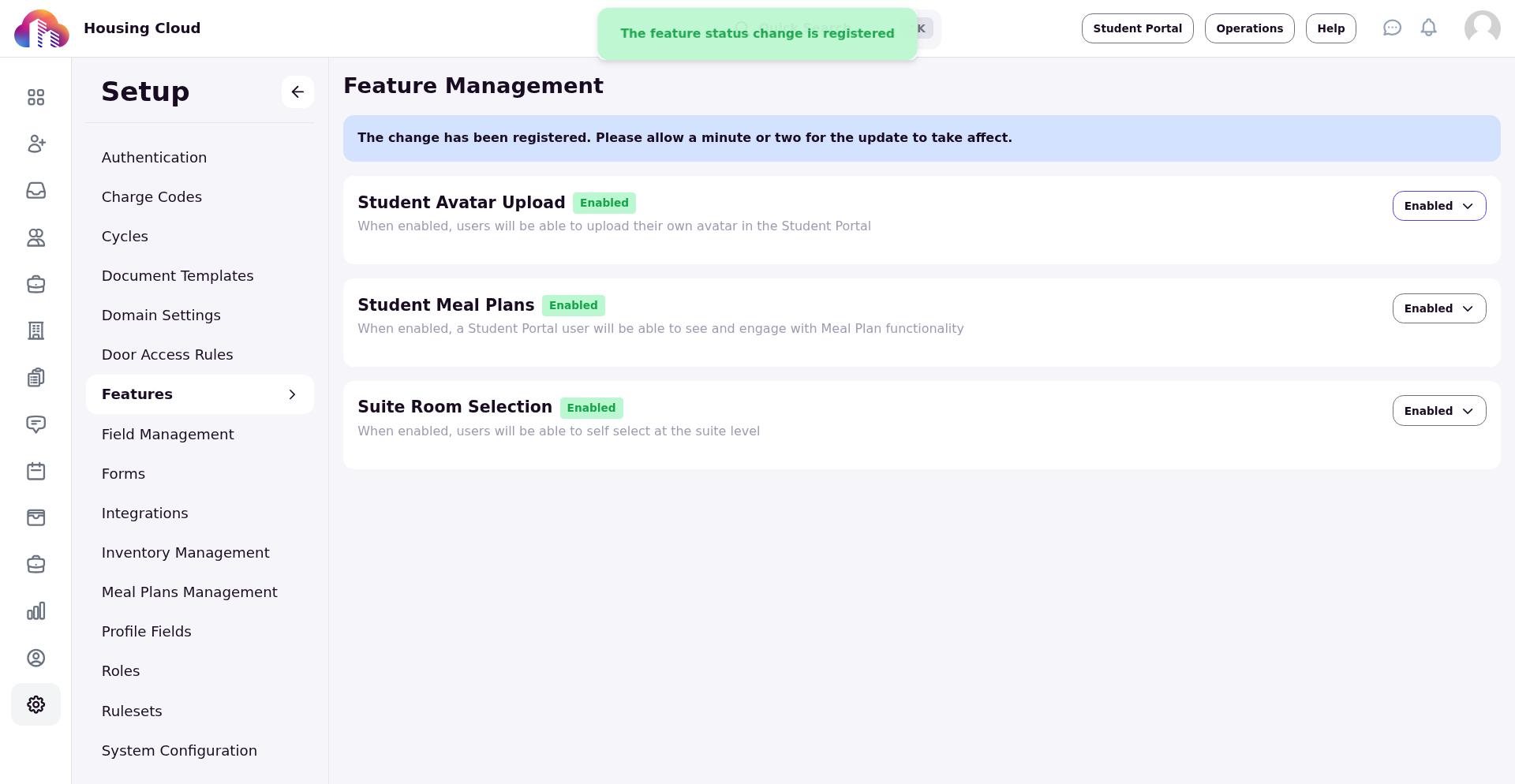
The feature card now reflects the new status.