Review a Housing Cycle with Cycle Audit
Last updated: August 27, 2026
What Cycle Audit does
Cycle Audit is a health check for a housing cycle. It evaluates the cycle's configuration and reports findings before release, and for resident cycles it reconciles each resident's assignments against their financial transactions.
The Audit tab lives inside a cycle's editor. Open Housing Cycles, select a cycle, and choose Audit. The tab opens on Cycle configuration; resident cycles also show a Resident records sub-tab.
How the configuration audit works
The configuration audit evaluates the cycle's current settings and reports findings at three severities: Critical, Warning, and Notice.
Findings are grouped in order: critical issues need fixing, warnings need review, and notices are settings worth knowing. Each finding shows its severity, area, title, evidence, a Cloudy recommendation, and the setup tab where it can be fixed.
The check set covers general settings, applications, phases, move management, meal plans, release dates, integrations, fees, self check-in, roommates, room condition reports, and inventory and reservation coverage. It currently includes 46 checks: 16 critical, 22 warning, and 8 notice. Twenty-four checks are resident-only and skipped for non-resident cycles, and some checks only apply when the cycle is active or a related setting is configured; a check that does not apply simply returns no finding — there is no separate per-check not-applicable state.
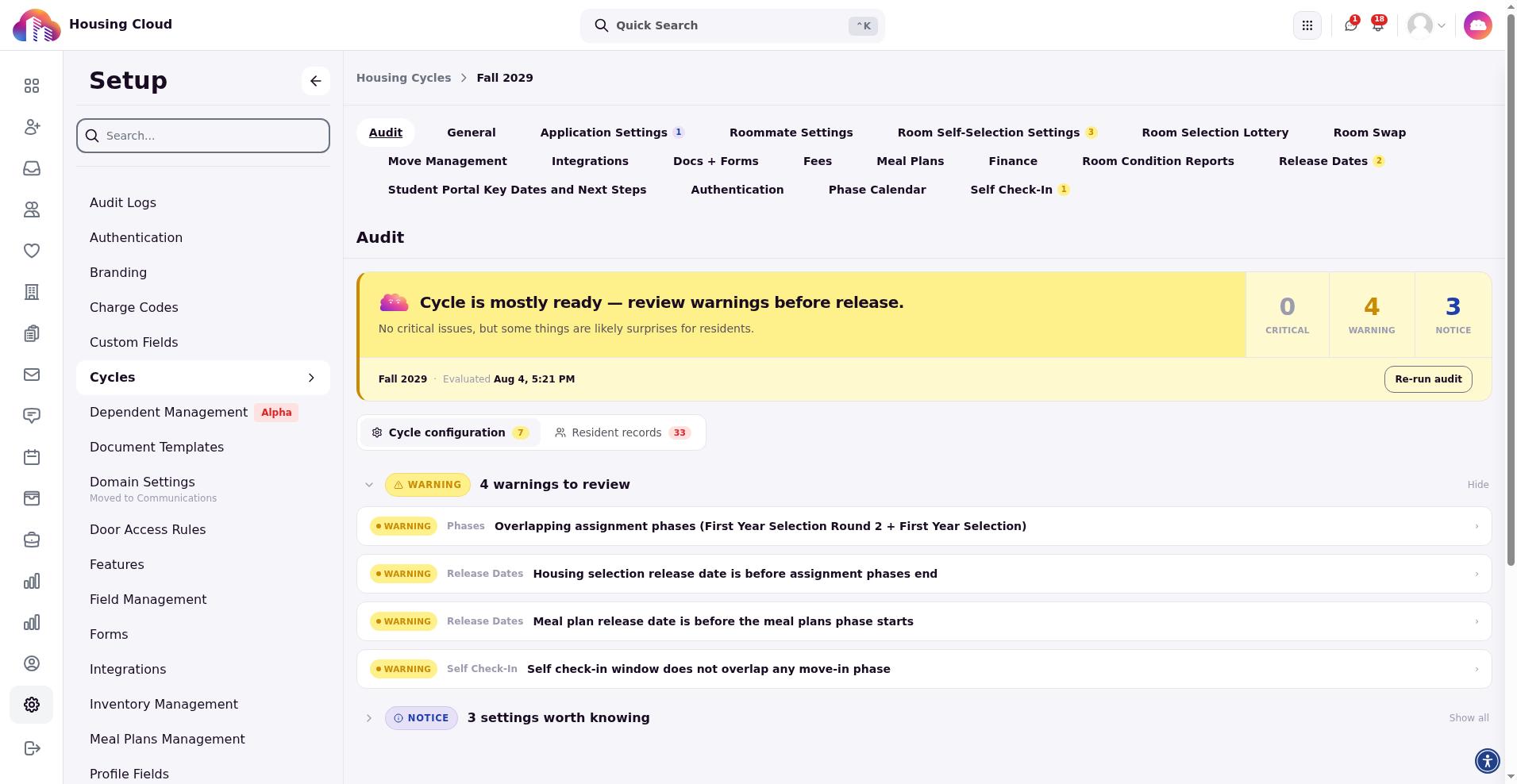
Review findings and act on them
Expand a severity group to review its findings. Each finding offers these actions.
- Fix in cycle setup — opens the finding's target setup tab so you can correct the setting. The audit itself does not edit configuration, and the action is hidden for archived runs and for target tabs that are incompatible or feature-gated.
- Ask Cloudy — opens the AI assistant with a question about the finding. It is available only when the AI assistant feature is enabled.
- Dismiss — records the finding as intentionally accepted. Reasons are Intentional configuration, Will address in a later cycle, Not applicable to this cycle, Accepted risk — signed off, False positive, or Other; choosing Other requires a note.
- Restore issue — brings a dismissed finding back.
Findings also appear on their target setup tabs as an inline banner that says Cloudy found issues here with the count of findings in that section, so you can fix issues while working in cycle setup. After you change a setting, re-run the audit to evaluate the updated configuration.
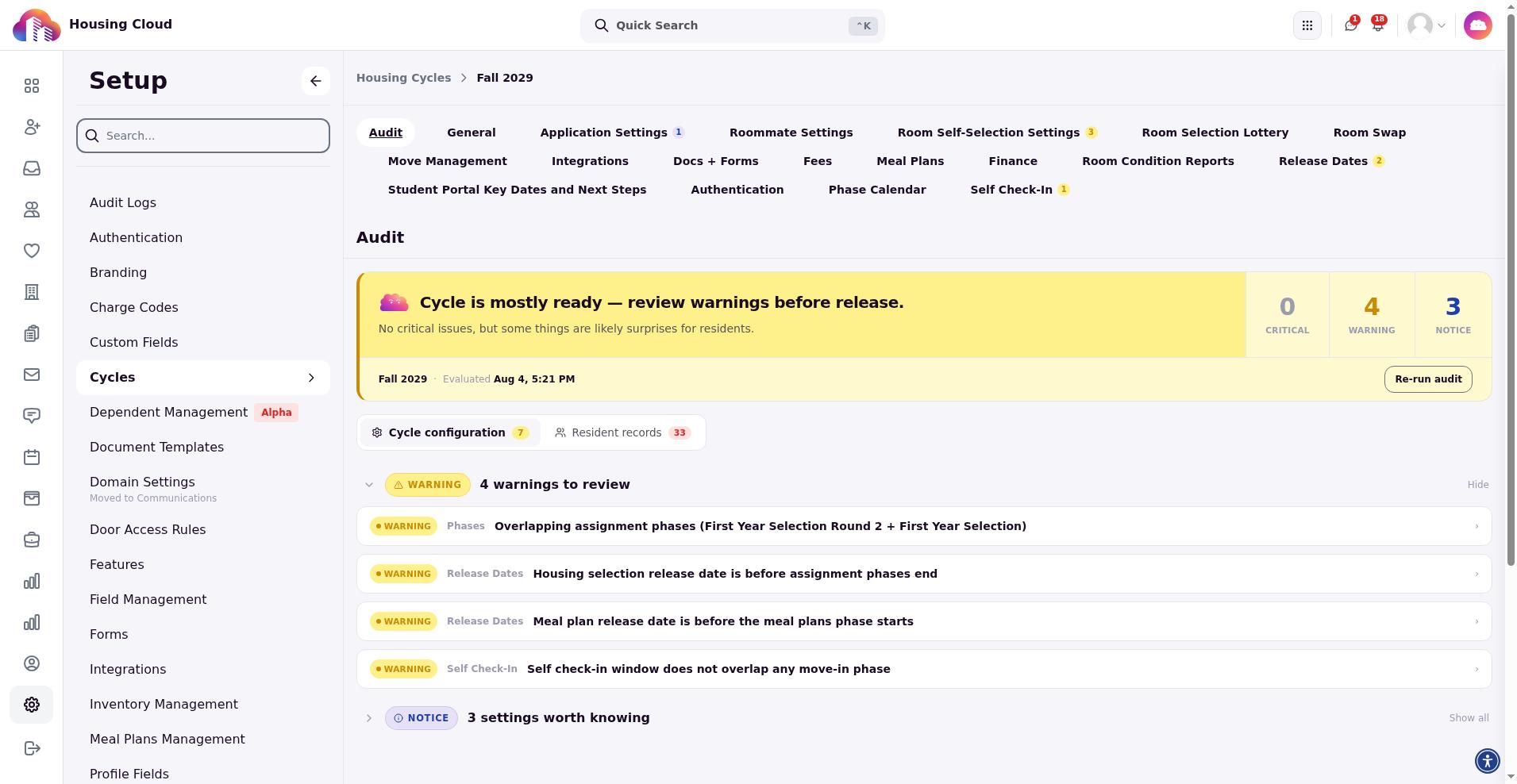
Re-run the audit and view saved versions
Re-run audit evaluates the current configuration and saves an immutable snapshot of the findings as a new version, recorded with the trigger Manual re-run.
When saved runs exist, the tab shows an Audit run selector with Latest and a Version number for each older run. Archived snapshots are read-only: Fix in cycle setup, Dismiss, and Restore issue are not available, and the tab notes You're viewing an archived audit. It's read-only. Use Back to latest to return to the live configuration.
Reconcile resident records
For resident cycles, the Resident records sub-tab reconciles each resident's assignments and transactions. The table shows Resident, Housing, Meal plan, Flex, Issues flagged, Exposure, and Action, and flags issue types including Missing charge, Missing assignment, Duplicate charge, Cancelled w/o refund, Not synced, Duplicate assignment, and Orphan charge.
Filter by status (All, Flagged, Clean), assignment type (Housing, Meal plan, Flex points), or issue type, and search residents in the cycle. Select a row to open the resident's detail view with Cycle total, Active flags, and the assignment and transaction ledgers. A record with no discrepancies shows No discrepancies with the note This record reconciles — assignments and charges line up.
Flagged rows offer corrective actions: Generate charge, Assign bed, Refund duplicate, Generate refund, Retry sync, Cancel assignment, and Refund charge. Retrying a sync shows Retrying the external sync for this charge. Assigning a bed requires the cycle to have a room ruleset; without one, the audit can't assign a bed from here, and you set one up in cycle configuration first.
What Cycle Audit does not change
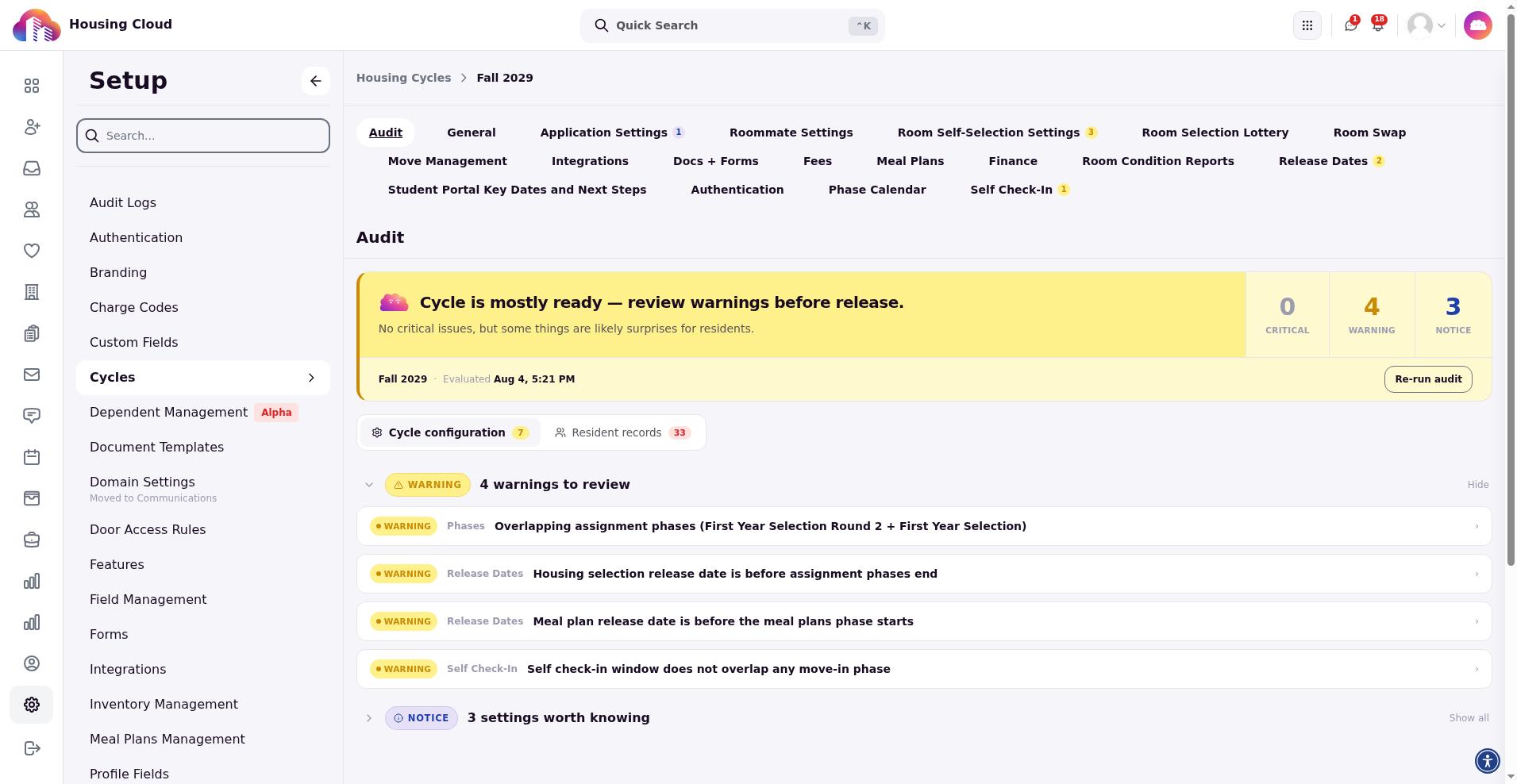
Cycle Audit is a reviewer, not an editor. Fix in cycle setup only opens the tab where a setting lives, and the resident-records corrective actions are the only changes the audit itself can make. Resolve a configuration finding by changing the setting in cycle setup, then re-run the audit.