Submit and track requests in the Resident Portal
Last updated: August 28, 2026
Use requests in the Resident Portal to ask your housing office for help and follow updates in one place. You can submit a new request, check its status, and read replies without leaving the portal.
Before you choose a request type, read each description carefully. The name and description help you pick the right request so your housing office can review it faster.
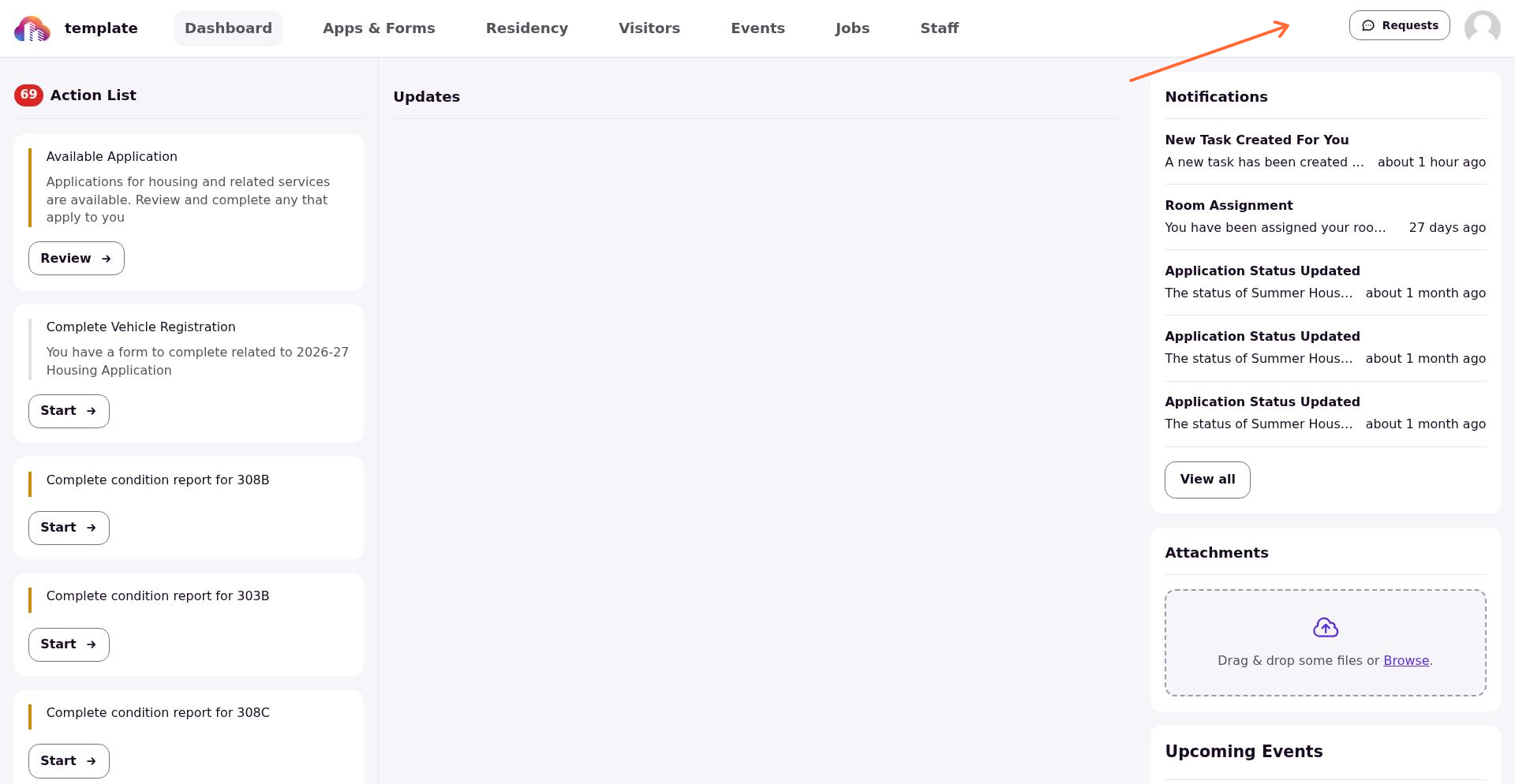
Open Requests from the top navigation to view your requests or start a new one.
Find your requests
Sign in to the Resident Portal and select Requests from the top navigation. This opens the menu where you can see requests you already submitted and start a new one.
You may also be added to an existing request. For example, you may be added to a room swap request that was submitted by another student. If your housing office adds you to a shared request, it will also appear in the same Request menu.
Choose the right request type
When you start a new request, you will see a set of request cards. Each card represents a request type, with a name and short description to help you choose the right one. Each card includes a name and a short description from your housing office.
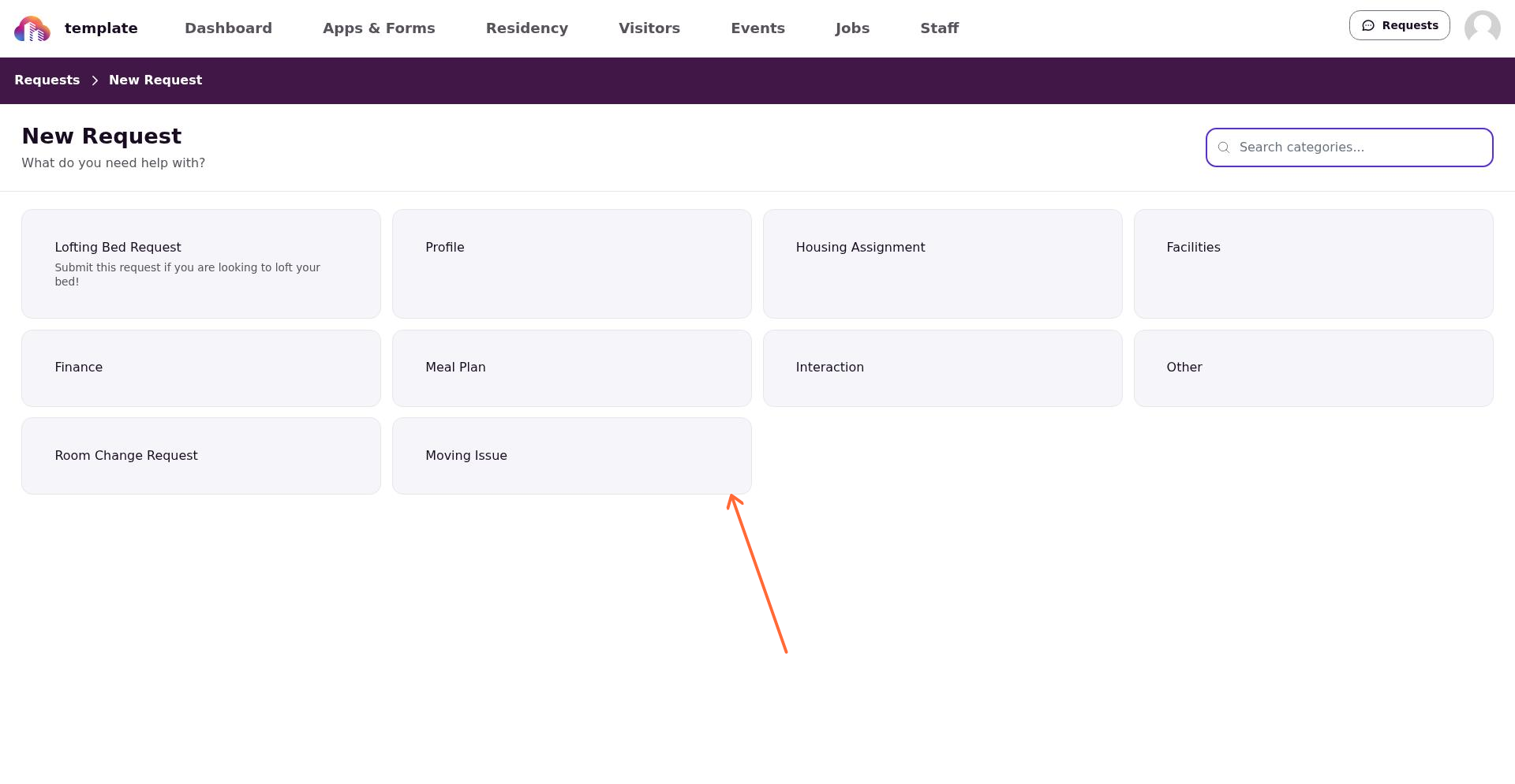
Read the description before you choose a card. If you are not sure which one fits, choose the closest match instead of sending the same request more than once. You will be able to include details in the request itself.
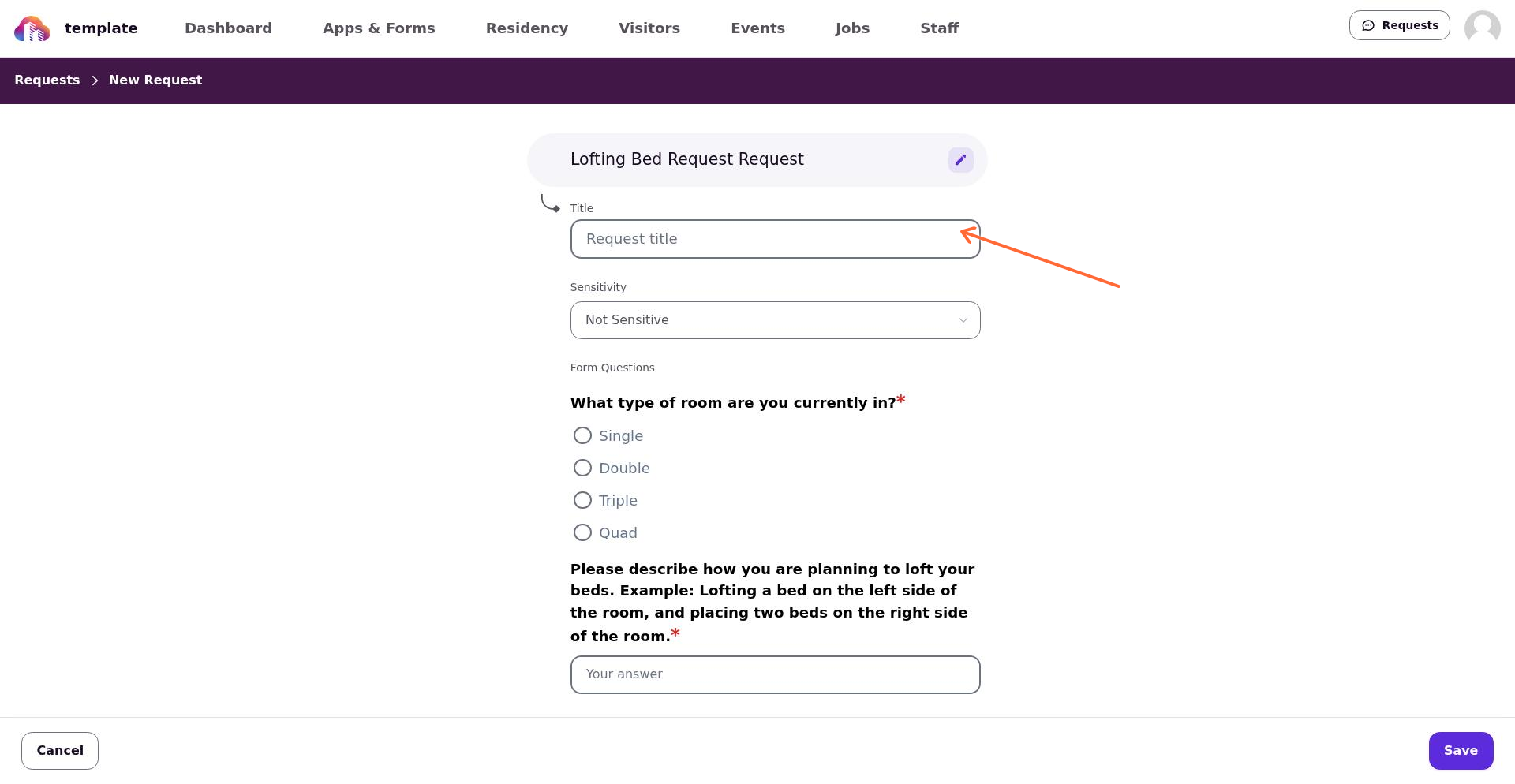
After you choose a request type, fill out the form and submit your request.
Submitting your request
Select a request type, complete the form, and submit it. Include the details your housing office needs so they can understand your request fully and clearly.
If you want more help with the form itself, see Creating a Support Request, for Students.
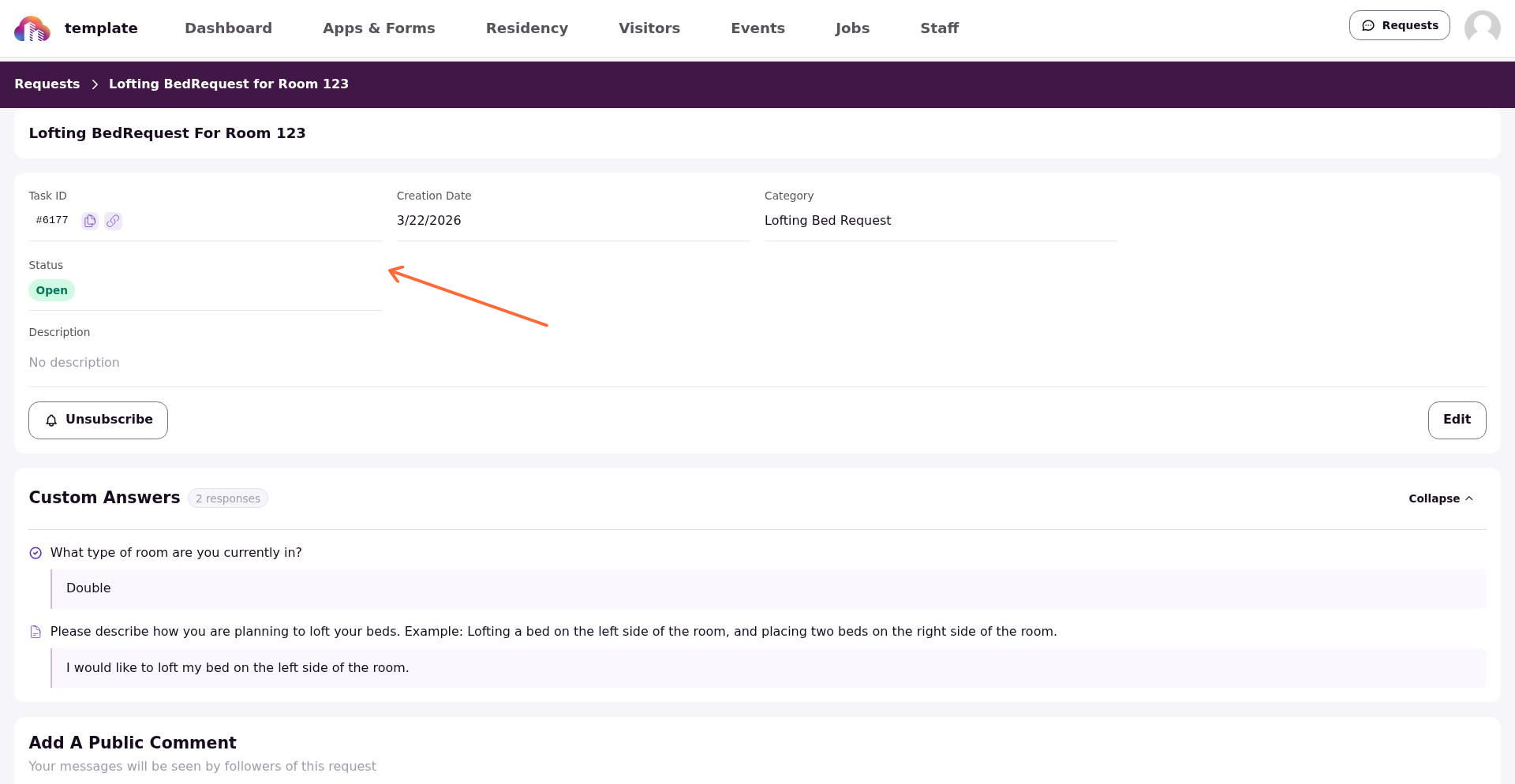
After you submit a request, you can open it to check its current status.
Track updates on a request
You can open any of your requests to see its current status and any replies from the housing office. This is the main place to check progress on your request after you submit.
Replies from the housing office appear in the request conversation so you can follow updates in one place. You can also add your own comment to the request to provide updates or additional information to housing staff.
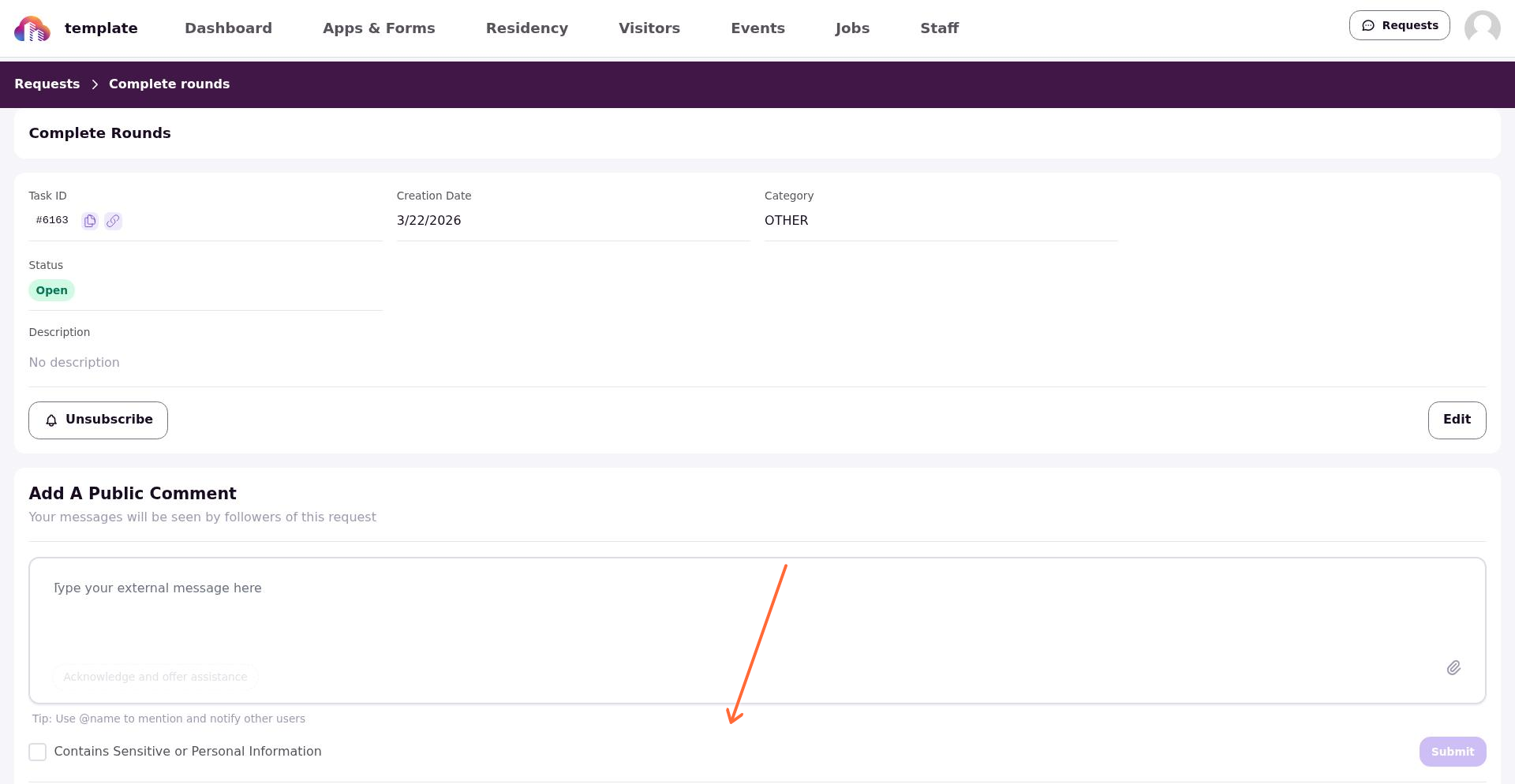
Edit a request before work begins
Depending on your institution's settings, you may be able to edit your request while the request's status is Open (i.e., before any action has been taken). After the housing office begins work on a request, the form is locked.
Some institutions may not allow editing of a request after it has been submitted. If you need to share new information after that, reply in the request conversation instead through a Public Comment.
Understand approved and rejected outcomes
If your housing office approves or rejects your request, you will see a clear label on the request. The label shows the outcome, but it does not explain the reason by itself.
If you do not understand why a request was rejected, look for a message from the housing office in the conversation. If there is no explanation there, contact your housing office directly.
Do not submit a duplicate request for the same issue. Reply to the existing request or contact your housing office instead.
If you were added to someone else’s request
You may see a request that you did not submit yourself. This usually means your housing office added you to a shared request that involves you.
You can read the conversation and follow updates, but you will not have editing controls since the request originated from another profile. If you do not recognize the request, contact your housing office.
For more help, see Parts of a Request, for Students and Navigating the Resident Portal, for Students.