Dependents and Households Overview
Last updated: October 8, 2026
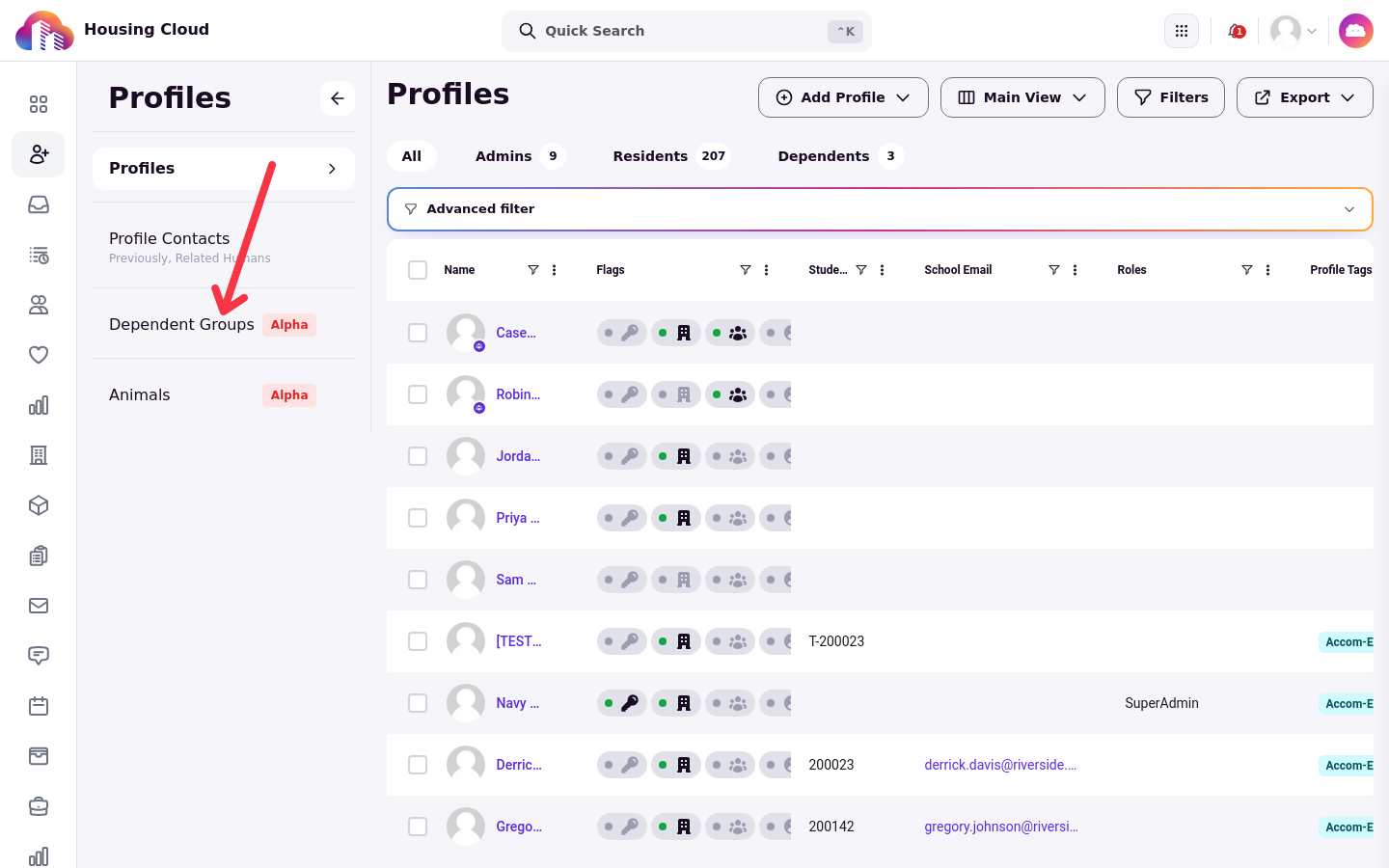
Dependents is Housing.Cloud's feature for managing the non-student people connected to your residents and applicants: children, spouses and partners, guardians, campers, and conference attendees. You manage them as dependent groups on the Dependent Groups page under Profiles.
Every group pairs two kinds of members. Primary members are your residents and applicants; dependents are the family members and others tied to them, such as a student's household or a guardian's camper. Three pieces work together: a group type defines what a group must look like, a role defines what a member can do, and each group belongs to one housing cycle.
What a dependent group is
A dependent group is the roster of people who belong together for a housing cycle: the primary members responsible for the group and the dependents tied to them. A student's family household, a guardian registering a camper, or a delegation attending a conference can each be a group. The people in a group are profiles; the group is what connects them. Create dependent profiles first (see Add Dependent Profiles), then place them in a group (see Create and Manage a Dependent Group). The setup order is: group types and roles, then dependent profiles, then the group, then activating it, then assigning beds.
What a group type is
A group type defines what a group of that kind must look like: minimum and maximum counts for primary members and dependents, with a blank maximum meaning no limit. Types are configured under Setup > Dependent Management, on the Dependent Group Types tab.
Three types ship out of the box: Family Household (1-2 primary, 0-6 dependents), Camp Registration (1-2 primary, 0-12 dependents), and Conference Delegation (1 or more primary, no limits). If you do not see these, set up the types your campus needs on the same tab. See Set Up Dependent Group Types and Roles.
What a role is
A role defines what a member can do in a group. Each role has a Type of Primary or Dependent, a Group manager by default switch (primary roles only; the member with this role becomes the group owner, and a group has only one owner), a Can receive communications switch, and an Active switch. Only dependent roles carry a Can log in switch. Roles are configured under Setup > Dependent Management, on the Dependent Roles tab.
Six roles ship out of the box: the primary roles Resident, Spouse / Partner, and Guardian, and the dependent roles Child, Adult Dependent, and Camper. If you do not see these, set up the roles your campus needs on the same tab.
How groups and cycles interact
Admin-created groups require a housing cycle, chosen in the Cycle field when the group is created. Some groups, such as non-term or onboarding groups like camps and conferences, may not have a cycle. A profile can belong to only one non-archived dependent group per cycle. Archived groups don't count toward this limit, so a profile can remain in an archived group and belong to another group in the same cycle. See Create and Manage a Dependent Group for the full workflow.
Group statuses
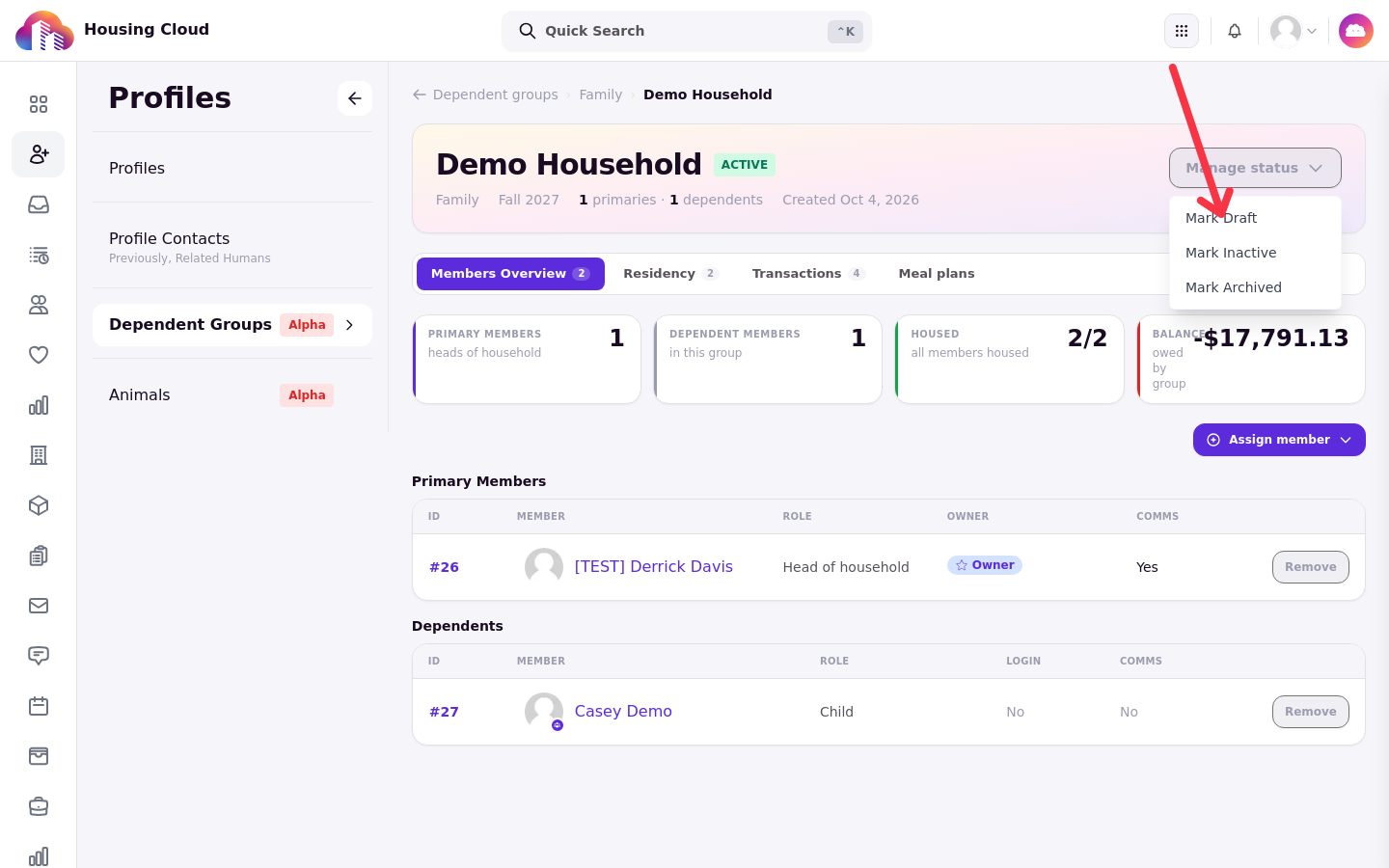
Every group has one of four statuses: Draft, Active, Inactive, or Archived. New groups start as Draft. Only Active groups enforce the composition rules from their group type, so set a group to Active once its membership matches the type. If a group is not enforcing its type's limits, check its status first; Dependents Troubleshooting covers this and other common problems.
The Manage status button on a group's page moves it to any other status, and every move can be undone: an Inactive group can be marked Active again as long as it still meets the type's member limits, and even an Archived group can be brought back from Manage status. Only moving a group to Active is checked against the type's member limits.
Where Dependents live
The Dependent Groups page sits under Profiles, next to your student lists. Opening a group shows four tabs: Members Overview, with the primary member and dependent tables; Residency, for the spaces the group occupies; Transactions; and Meal plans.
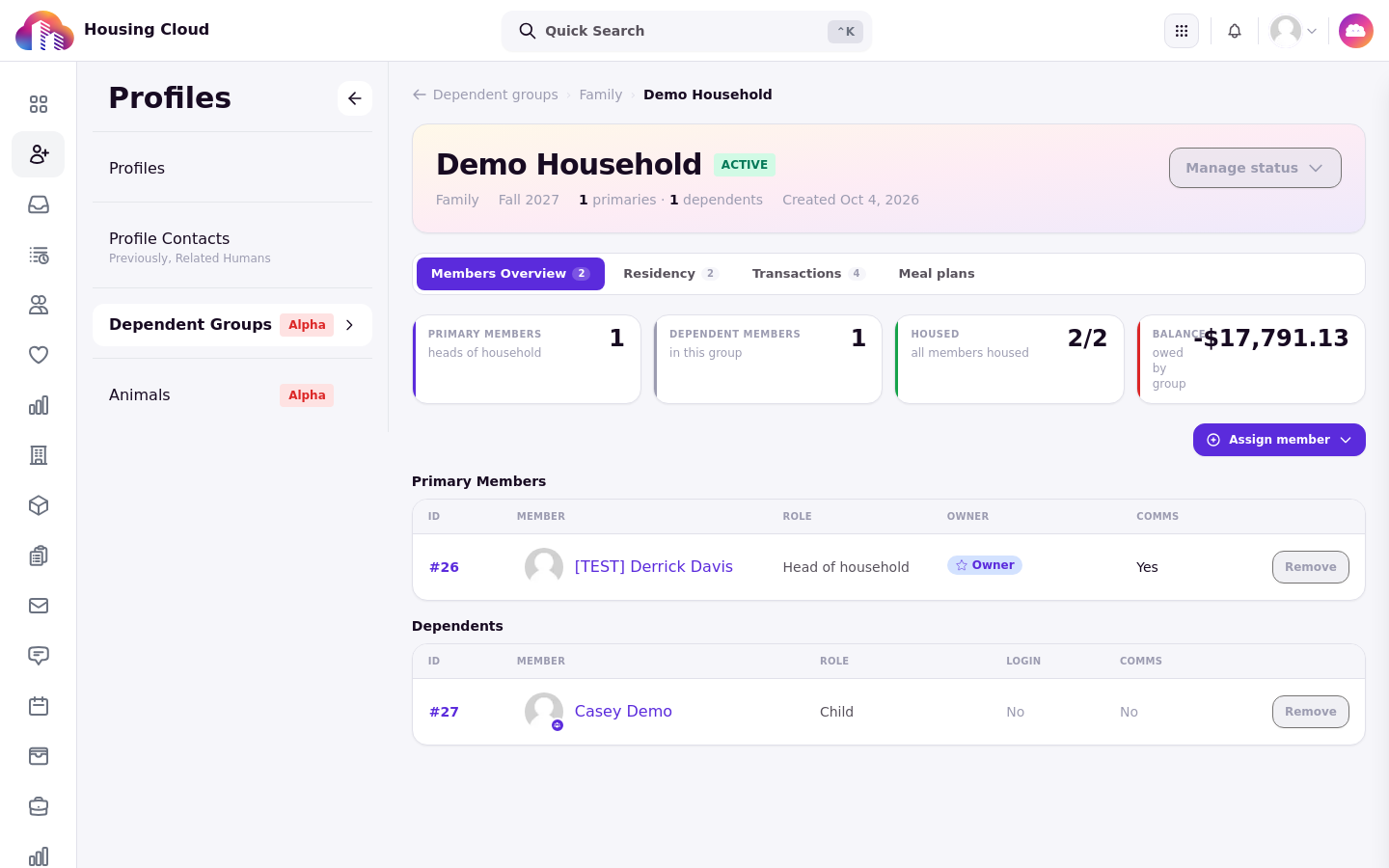
The rest of the suite follows those tabs. Whole-group bed assignment starts in application review, where you use Assign Bed and then Assign Dependent Group. The group's Residency tab is where you review the group's occupancy details and unlink residency links. Check In and Check Out a Household covers move-in and move-out, and Track a Household's Residency, Charges and Meal Plans covers Transactions and Meal plans. For reporting across groups, see Find and Report on Dependents. Help Residents Use the My Household Page covers the resident-facing My Household page.
How households show up elsewhere
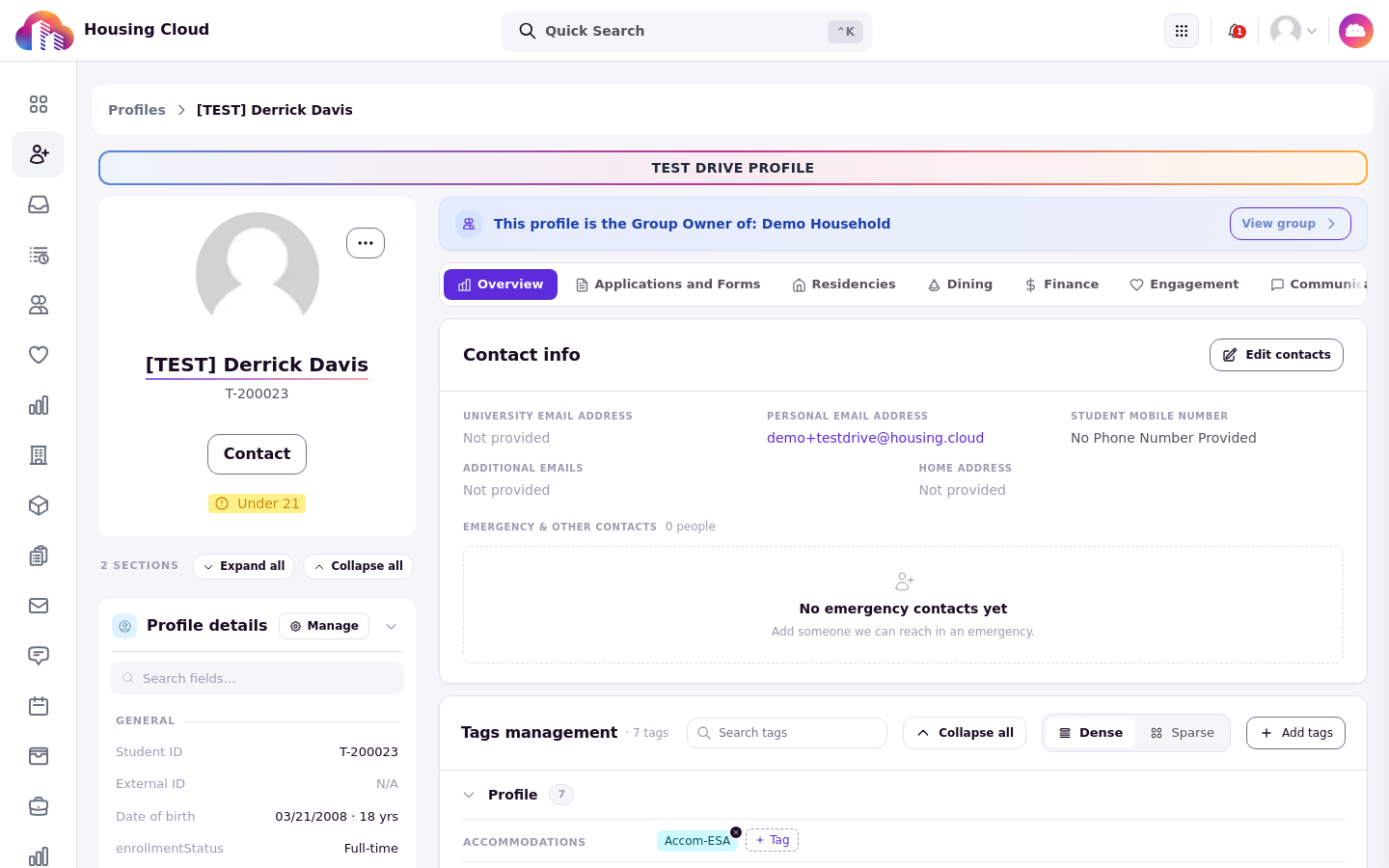
A small Dependent badge on a dependent's profile picture, and a banner reading "This profile is the Group Owner of:" followed by the household name on the owner's profile, application, and residency, tell staff at a glance who belongs together.
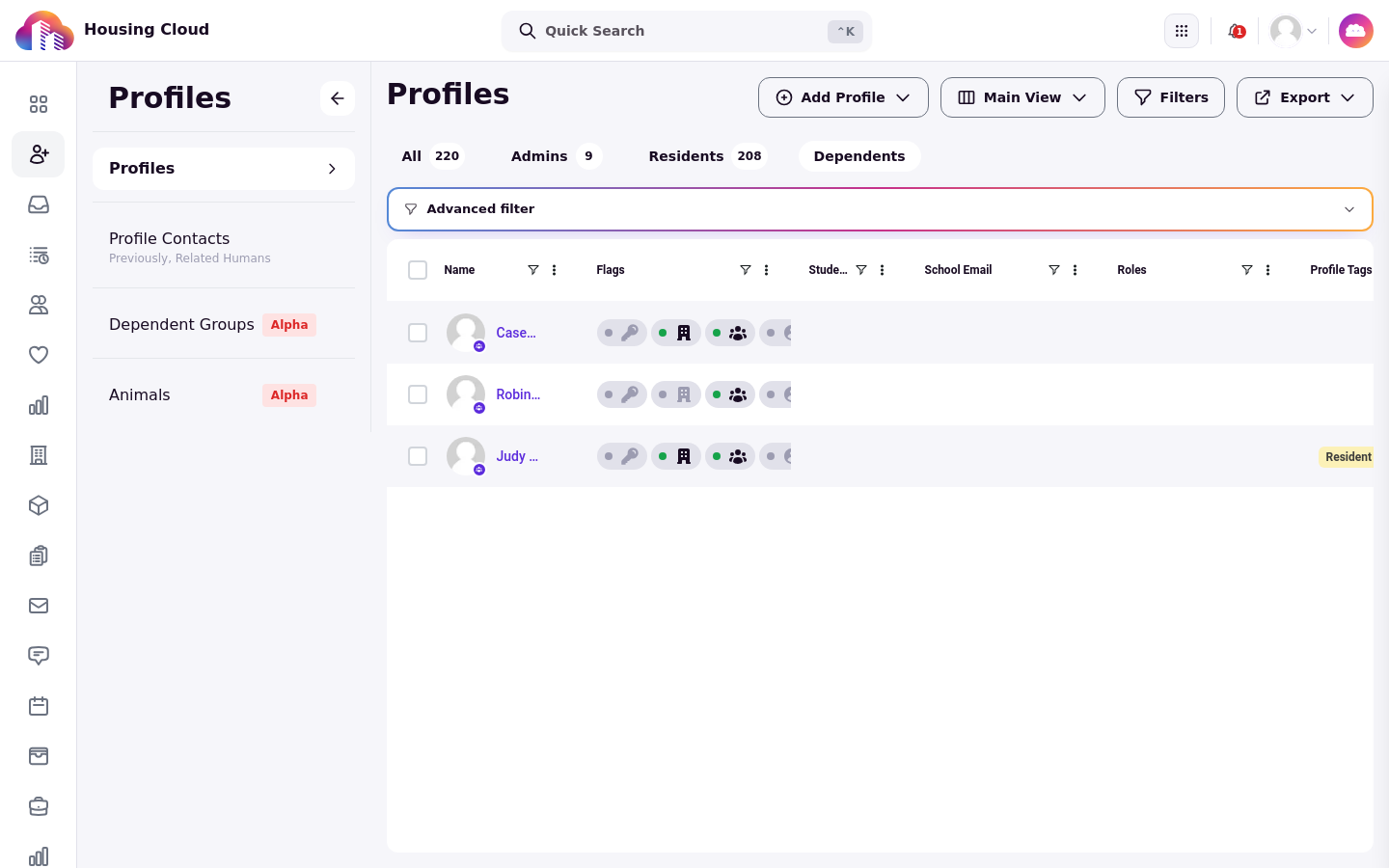
The full set of markers is in How Households Show Up on Profiles, Applications and Residencies.
Turning Dependents on
Dependents is turned on per campus by Housing.Cloud. There is no school-side setting that enables it, so if you do not see Dependent Groups under Profiles, contact us and we will turn it on.
Not available yet
There is no way to message a household yet: the message composer can't target a dependent group or role, so message members individually.
A whole household can't join a waitlist; waitlist entries are per person.
Students can't list their household on an application. Admins create groups, or primaries add dependents on My Household.
Every household change is logged against each member; you can read the entries in the Recent activity card on the member's residency page.