Use custom metrics to track key numbers
Last updated: October 2, 2026
The custom metrics dashboard pins live counts from your saved views, giving you quick access to key numbers without running reports. Each metric card displays a real-time quantity pulled from a saved Residents or Applications view.
You need staff access and the appropriate permissions to create public or private metric cards. If the Custom Metrics tab isn't visible, your institution hasn't enabled this feature yet.
Access the custom metrics dashboard
Navigate to Dashboard in the left sidebar, then select the Custom Metrics tab.
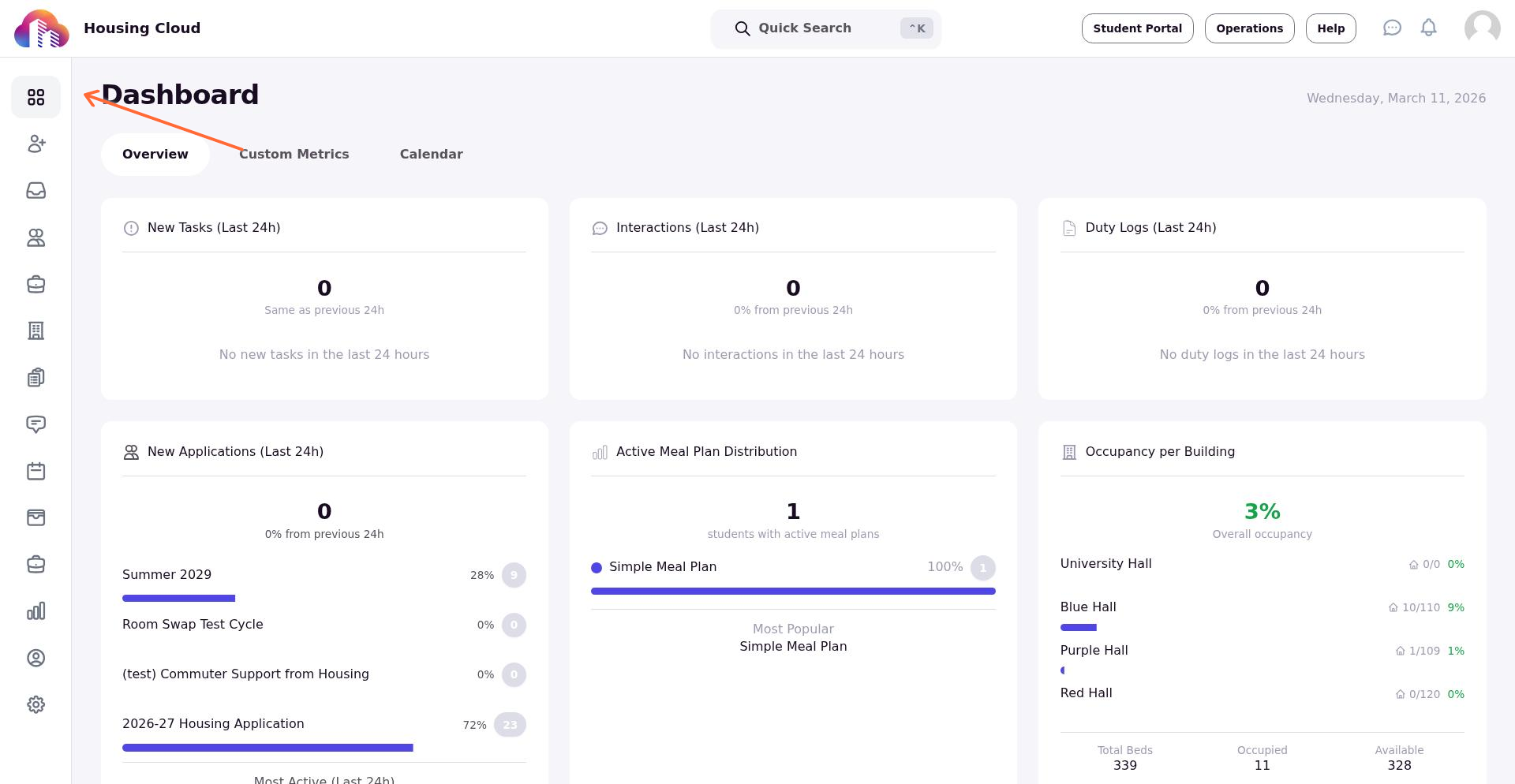
The Custom Metrics tab appears between Overview and Calendar tabs when the feature is enabled.
Create a metric card
Click Add Card (the + icon in the tab bar) to open the metric card form.
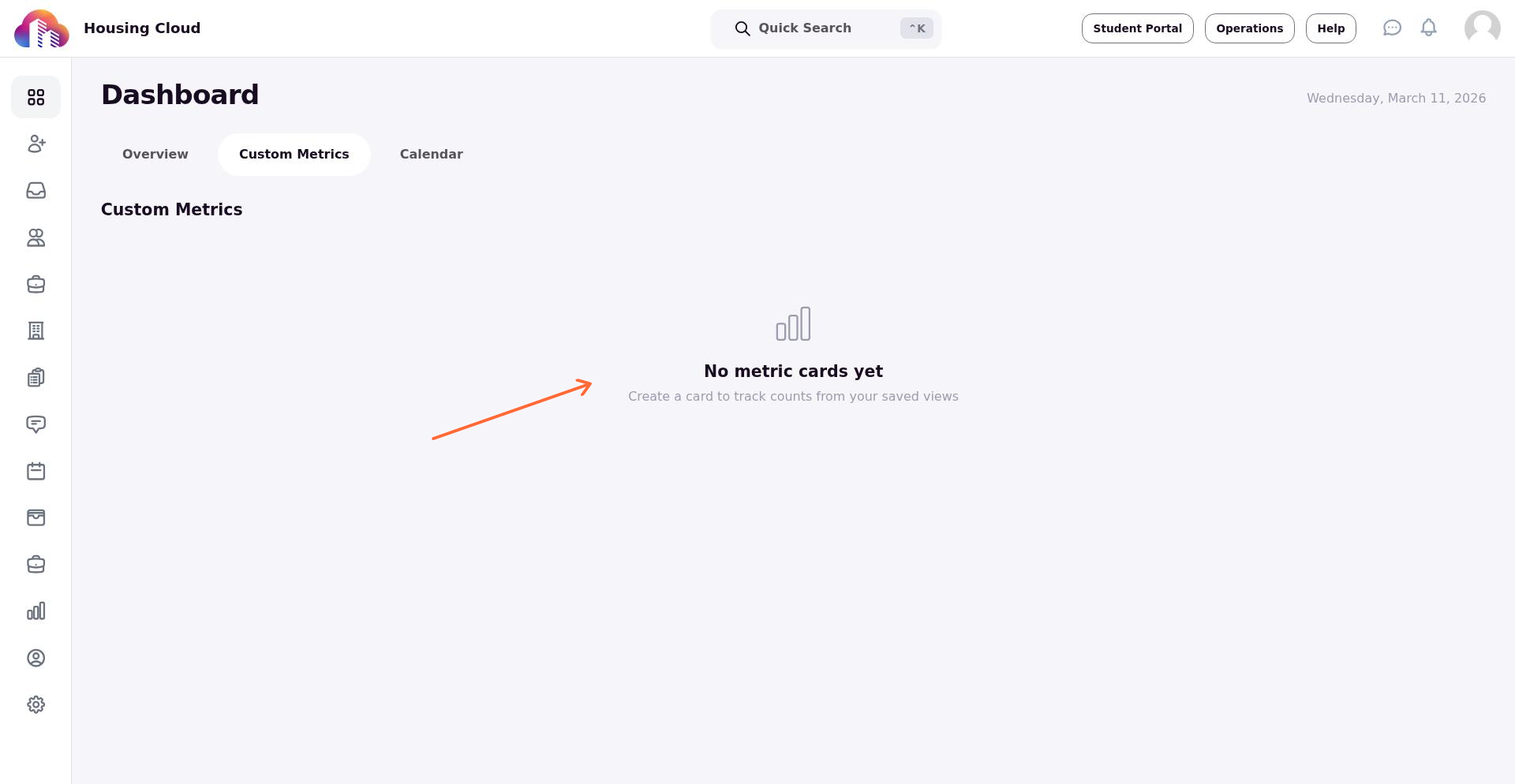
In the Add Metric Card modal, configure your card:
- Card Label — Give the card a descriptive name (e.g., "Active Residents" or "Pending Applications")
- View Type — Choose Residents or Applications
- Saved View — Select which saved view to pull the count from
- Visibility — Set to Public (visible to all users) or Private (visible only to you)
Click Create Card to add the metric to your dashboard.
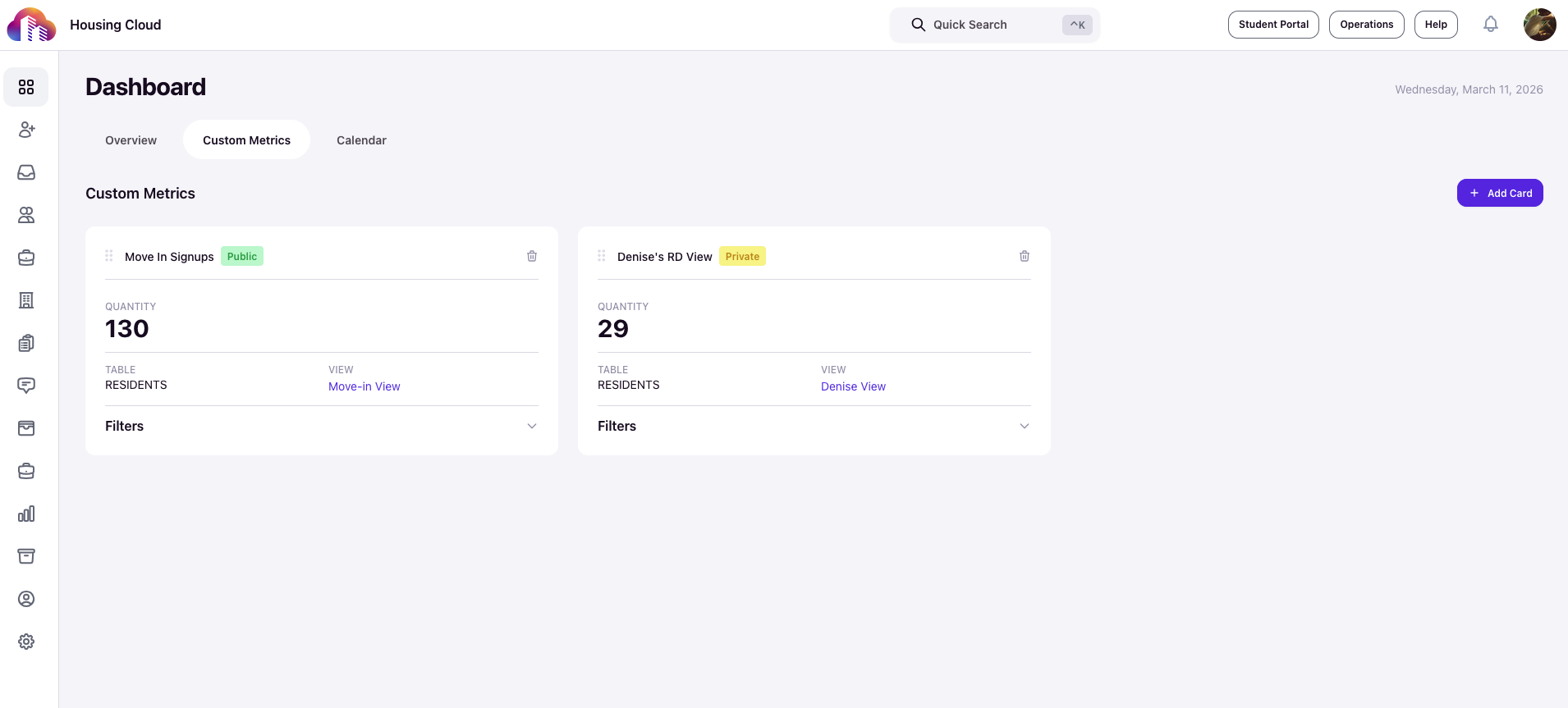
Create saved views with the specific filters you want to track before building metric cards. The card will always reflect the current count matching that view's filters.
What each card shows
Each metric card displays:
- Quantity — The live count of records matching the saved view's filters (or "N/A" if the count can't be calculated)
- Table — Whether it's tracking Residents or Applications
- View — The saved view name, which links directly to the filtered table
- Filters — An expandable accordion showing which columns, operators, and values are applied
Click the saved view name on any card to jump directly to that filtered view in the Residents or Applications table.
Manage your cards
Drag cards to reorder them on the dashboard. Public cards can be reordered by anyone with the appropriate permission.
To delete a card, click the trash icon on the card and confirm the deletion. This action cannot be undone.
Deleting a metric card only removes the dashboard widget. It doesn't delete the underlying saved view or any resident or application data.