Creating a Check-In Hold in Move Management
Last updated: August 28, 2026
A check-in hold is a block-reason you configure on a Housing Cycle to stop matching residents from completing check-in. You create and manage holds in the Move Management tab of a resident Housing Cycle, and each hold applies to every resident whose profile or application tags it matches.
When a hold applies, the resident's Move-In Appointment page shows You cannot check in followed by the hold description, and staff see Resident cannot check-in during the check-in review with Next, Issue Key, and Complete Check-In disabled. Removing the hold restores those actions.
Check-in holds are scoped to the check-in flow only. They do not control a resident's moving time slot, their schedule page, or their self check-in, so they are a different tool from holds placed on individual beds.
Before you start
You need access to the Housing Cycle setup area, and the cycle must include a move-in phase. The Check-in Holds card appears in Move Management only when the cycle has a move-in phase.
How holds match residents
Holds apply through tags. Add tags to specify which residents a hold applies to; a resident must have all assigned tags for the hold to apply. A hold with no tags matches every resident.
You can configure more than one check-in hold on a cycle. When several holds match a resident, the resident's banner shows the first matching hold.
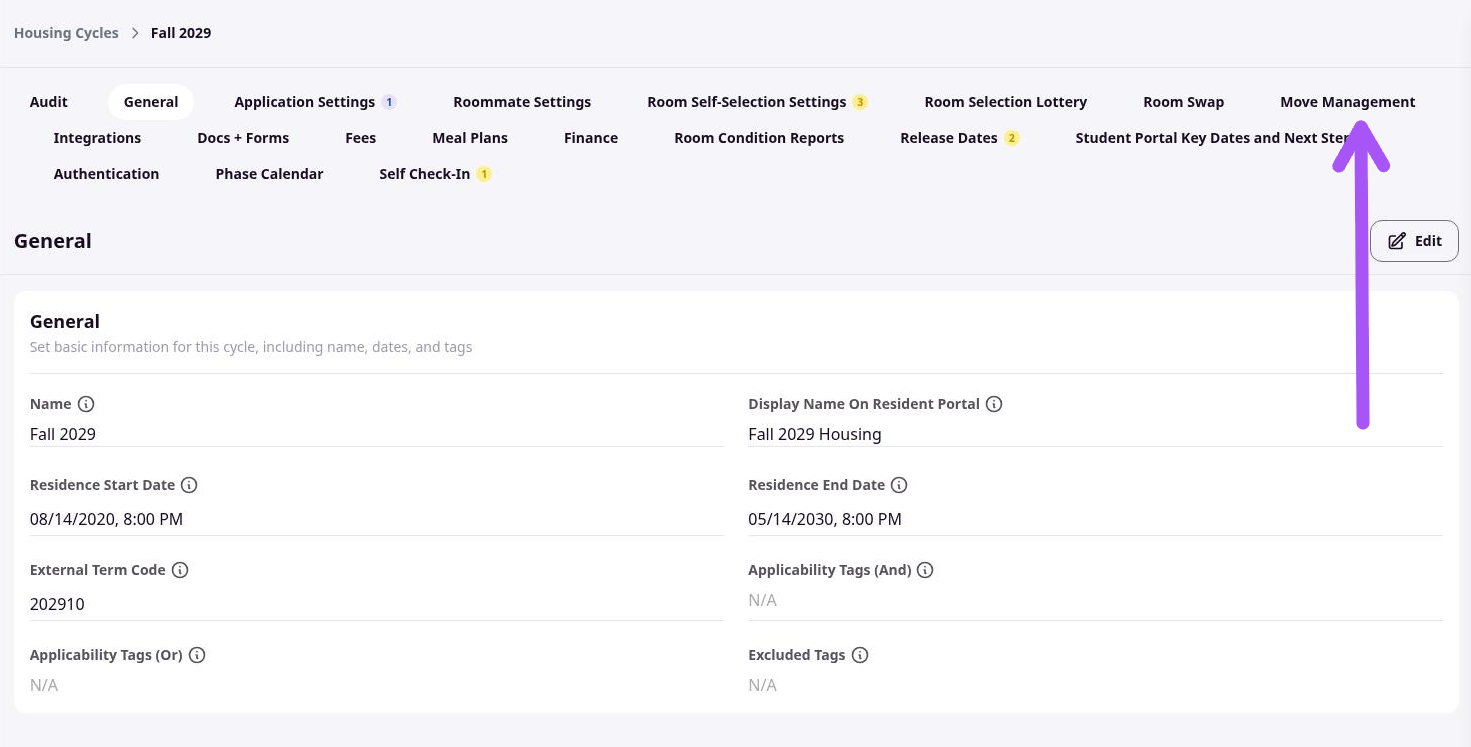
Add a check-in hold
Open a resident Housing Cycle and select Move Management in the sidebar, then locate the Check-In Holds card and enter edit mode.
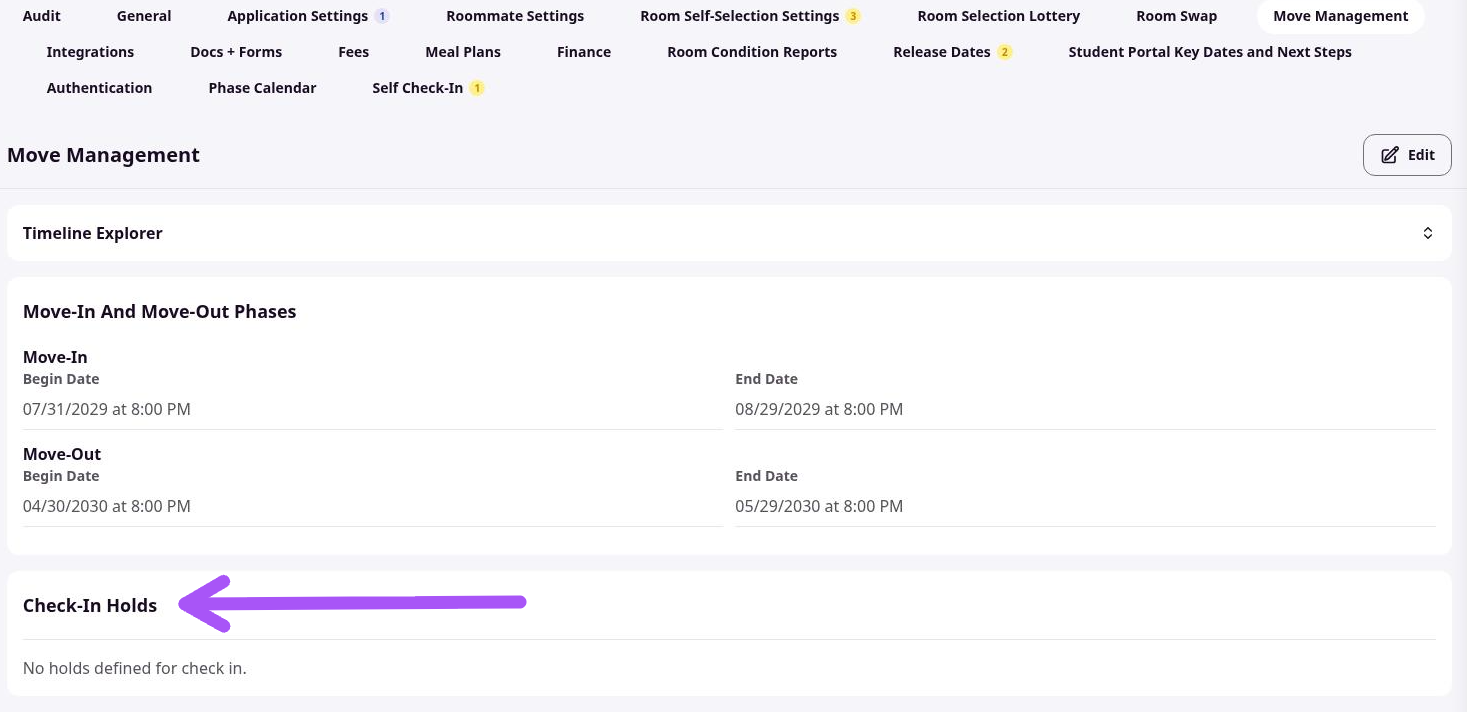
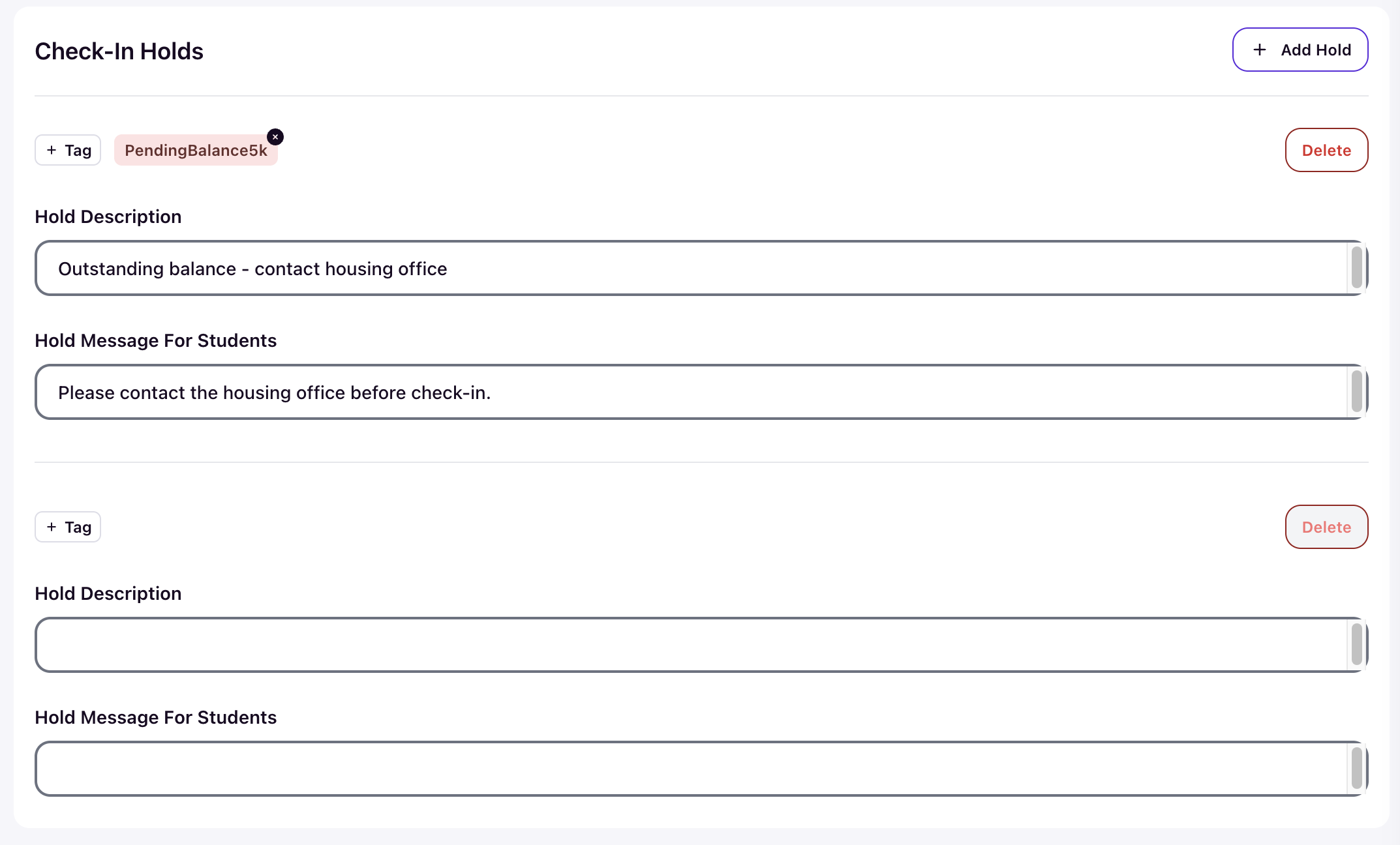
Click Add Hold and enter a Hold Description. This is the text residents and staff see when the hold applies. You can also enter a Hold Message for Students. Add tags to control which residents the hold applies to.
Save the Housing Cycle with the cycle-level Save control. The hold takes effect once the cycle is saved, and a successful save shows Save successful!. If the cycle's phases start before today, saving makes the cycle active immediately and locks all cycle settings except phase dates.
Edit a check-in hold
Open the Check-in Holds card in edit mode and change the Hold Description, Hold Message for Students, or tags. Changes update the unsaved cycle draft and apply when you save the Housing Cycle.
Remove a check-in hold
Open the Check-in Holds card in edit mode, click Delete on the hold row, and save the Housing Cycle. The hold is removed only when the cycle is saved; the resident's banner disappears once the hold no longer matches.
Removing a hold does not notify the resident automatically. Contact the resident directly if they need to know they are cleared to check in.
What holds do not affect
Check-in holds do not control moving time slots. A matching hold does not disable a resident's time-slot cards on the Move-In Schedule page and does not remove the Change Date action from an existing appointment.
Check-in holds are a separate mechanism from holds placed on assigned beds or inventory. A bed hold can block check-in for a specific bed, which is different from the cycle-wide blocking this card applies.
Frequently asked questions
Can a resident have more than one check-in hold?
Yes. You can configure multiple check-in holds on one Housing Cycle, and there is no one-hold-per-resident limit. When several holds match a resident, the banner shows the first matching hold.
Does a hold affect the resident's moving time slot?
No. A check-in hold does not cancel or modify a moving time slot, and it does not disable the resident's time-slot cards or the Change Date action.
Will the hold carry over to future terms?
No. Holds are scoped to the Housing Cycle they are created on and do not carry forward to future cycles.
Who can create and remove holds?
Administrators with access to the Housing Cycle setup and Move Management area can add, edit, and delete check-in holds.
After you save the cycle, the hold applies to every matching resident. Verify it by opening a matching resident's Move-In Appointment page or the staff check-in review, where the hold description appears and the check-in actions are disabled. Removing the hold and saving re-enables check-in.