Roll Households Into a New Cycle
Last updated: October 8, 2026
Rolling over households carries each selected resident's whole household (their dependent group) into the target cycle with the same type, name, tags, owner, and every member re-seated under the same role. The option appears in cycle rollover only when dependents and household rollover are enabled for your institution and your account has the Manage Dependents permission.
The whole household rolls together
Select any one member, the primary or a dependent, and the entire household is carried. You do not need to select every member; if you do, the review page shows one Success for the household and the other members as skipped. Every active member is re-seated under the same role with their Can log in and communications settings carried along, and the group owner stays the same.
Start the rollover
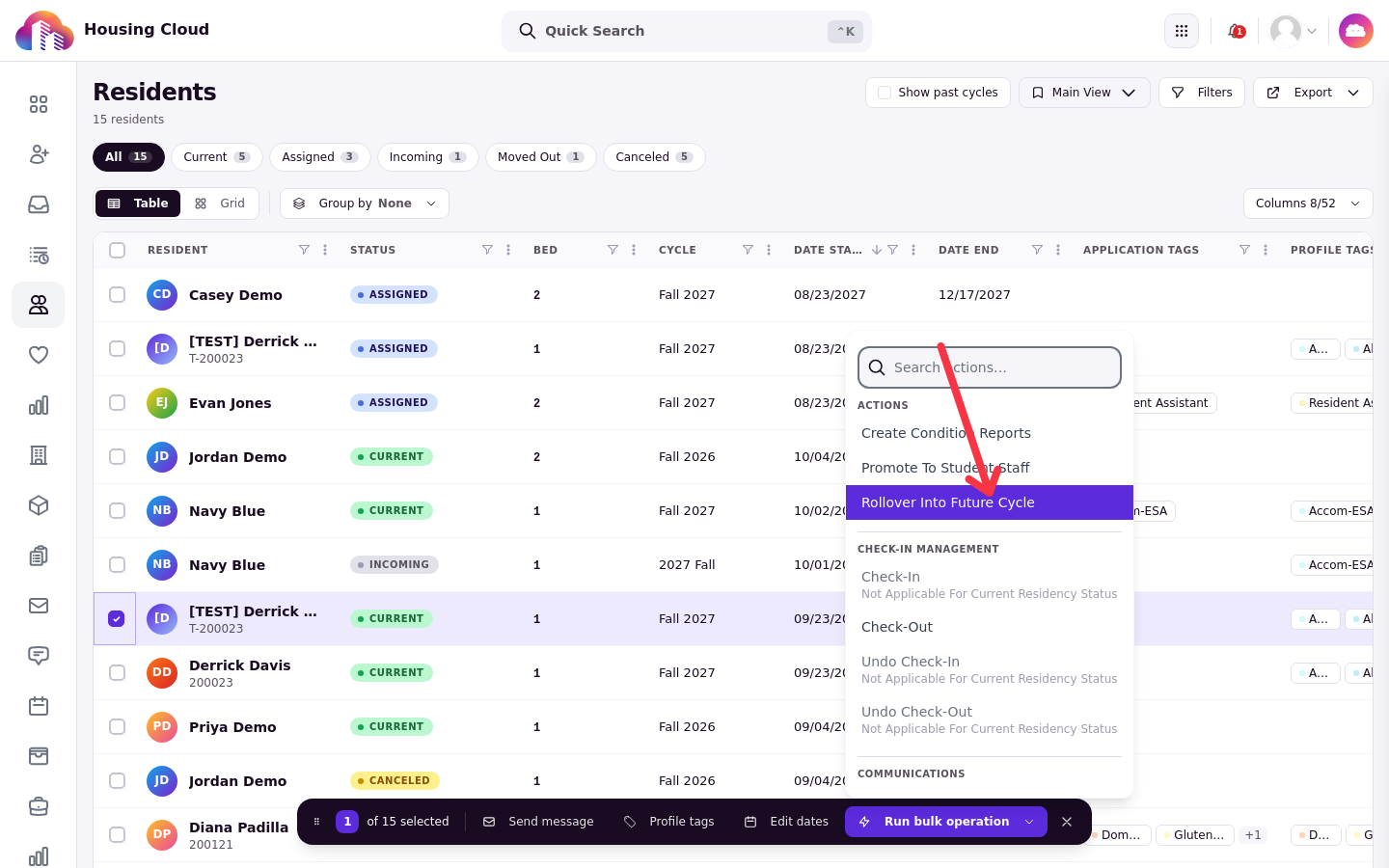
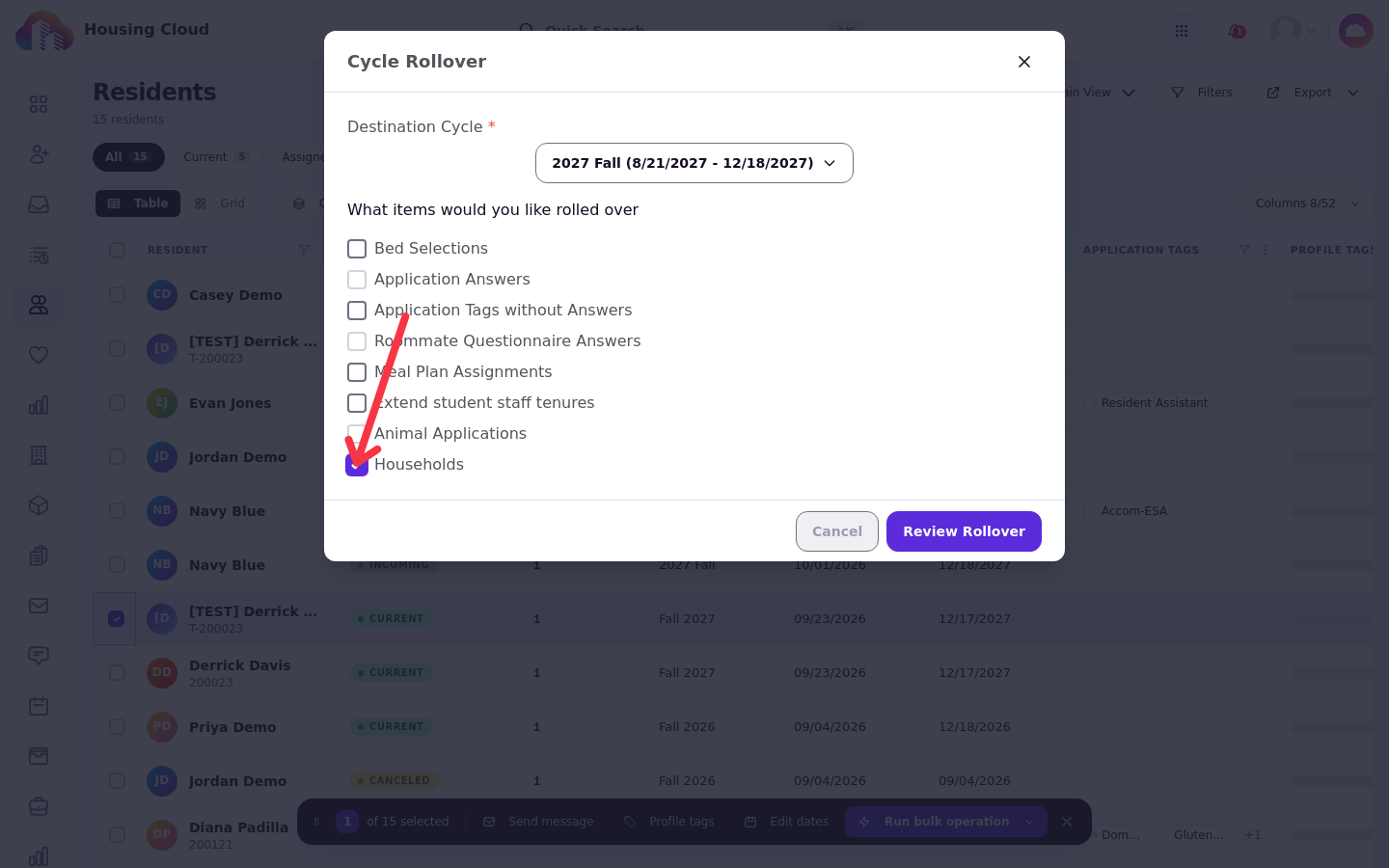
On the Residents grid, turn on Show past cycles if the resident you need is not listed, select their row, and choose Rollover Into Future Cycle from the bulk actions menu. In the Cycle Rollover window, pick a target cycle first: the Households checkbox is greyed out until a destination cycle is chosen. Tick Households, then click Review Rollover to see the review table.
The new household lands in Draft
A rolled-over household arrives in Draft, exactly like a household created by hand, and your staff activate it in the target cycle. The household type's maximum primaries and dependents are checked before the copy is made: a household over the limit reads Over Household Type Limit on the review page and is not copied. The minimum is checked when staff activate the new household.
Charges do not carry
The household's transactions are historical and stay with the outgoing household. New-cycle bed charges created by the rollover are posted to each resident exactly as for any bed rollover; they are not attributed to the new household. It is the new residency, not the charge, that links the bed to the household.
Roll the household before, or with, its beds
A household member's bed can only be carried once the household exists in the new cycle. Tick Households together with Rollover bed selections and the system handles the order for you. Tick beds alone and every household member's bed reads Blocked by Household on the review page. Dependents are housed without an application of their own, just as they are when you assign a household to beds from application review.
Dependents have no application
The review page shows No Application for dependents housed through a household: this is expected, because they have no application of their own, and their bed still rolls over with the household. For the same reason a dependent's residency is hidden by the residents grid's default cycle filter: turn on Show past cycles to select it.
Re-running is safe
A household that has already been carried reads Already Rolled. No duplicate household is created: the existing target household is reused, and its member flags may be reconciled. Rollover never creates a second copy.
Household Status meanings
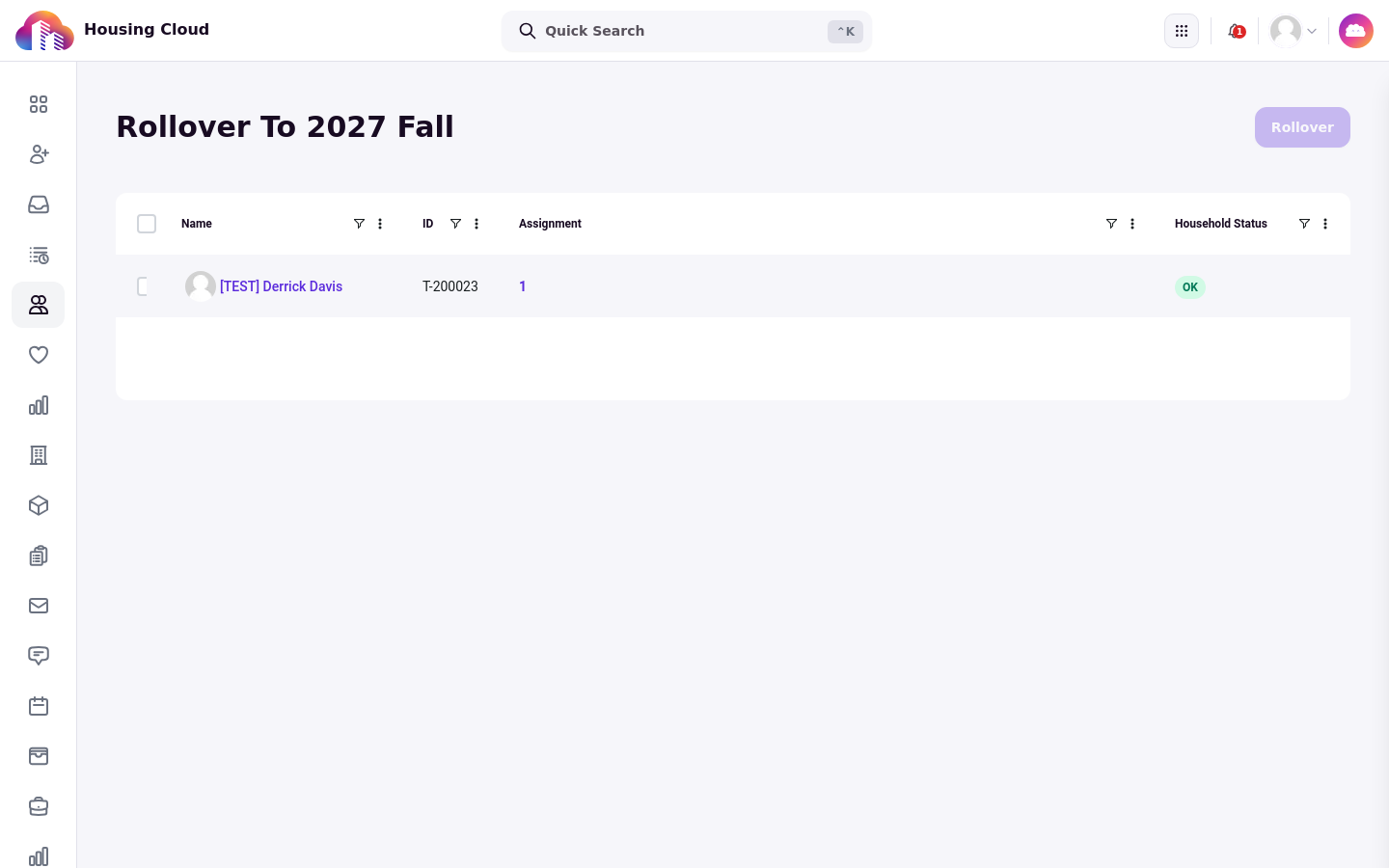
The review table shows a Household Status column for each selected resident. Hover a status to see the household's name.
OK (green): the whole household will be carried into the target cycle as a new Draft household.
No Household (grey): the resident is not a member of a household. This is the normal status for most residents.
Non-Term Household (yellow): the household is not tied to a housing cycle, a camp or conference group for example, so there is nothing to carry between cycles.
Already Rolled (yellow): the household has already been carried into the target cycle. Nothing is created and nothing is overwritten.
Household Type Inactive (yellow): the household's type has been deactivated. Reactivate the type under Admin, Setup, Dependent Management, or leave the household behind.
Role Inactive (yellow): a member's role has been deactivated, so they cannot be re-seated. Reactivate the role or change that member's role in the outgoing household first.
Over Household Type Limit (yellow): the household holds more primaries or dependents than its type now allows. Adjust the type's limits or the household's members before rolling over.
Member In A Roommate Group (red): a member already belongs to a roommate group in the target cycle. A person cannot be in both; remove them from the roommate group or leave the household behind.
Member In Another Household (red): a member already belongs to a household in the target cycle. A person may hold one household per cycle; remove them from that household first.
No Households Access (grey): your account does not have the Manage Dependents permission, so this column cannot be filled in for you. It says nothing about the resident or the cycle. Ask an administrator for the permission, or have a colleague who has it roll the households first.
Blocked by Household
A household member's bed shows Blocked by Household when the household is not being carried into the target cycle, either Households was not ticked or the Household Status column shows why the household cannot roll. Tick Households alongside Rollover bed selections and run again; the household is carried first and the beds are linked to it. Nothing is created for a failed bed, so re-running is safe.
The Households option is missing or greyed out
The Households checkbox is hidden when your account lacks the Manage Dependents permission, and a rollover that requests households without it is refused. If no one at your institution sees it, dependents or household rollover may not be enabled; contact Housing.Cloud support. When it is greyed out rather than missing, pick a target cycle first; in the bulk modal it also greys out when none of the selected residents is in a household that can roll, and hovering it shows the reason.
The rolled-over household is in Draft
This is expected and is not a defect. Open the household under Admin, Profiles, Dependent Groups, filtered to the target cycle, and activate it. Activation applies the household type's composition rules, which is the moment to fix anything that changed over the year.
For family housing renewals, roll over beds and households together: the household is carried into the new cycle in Draft with every member and the same owner, and each member's bed is carried and linked to it. A household is ready to roll when it is tied to the outgoing cycle, its household type and every member's role are still active, and no member already belongs to a household or roommate group in the target cycle.
The non-resident path
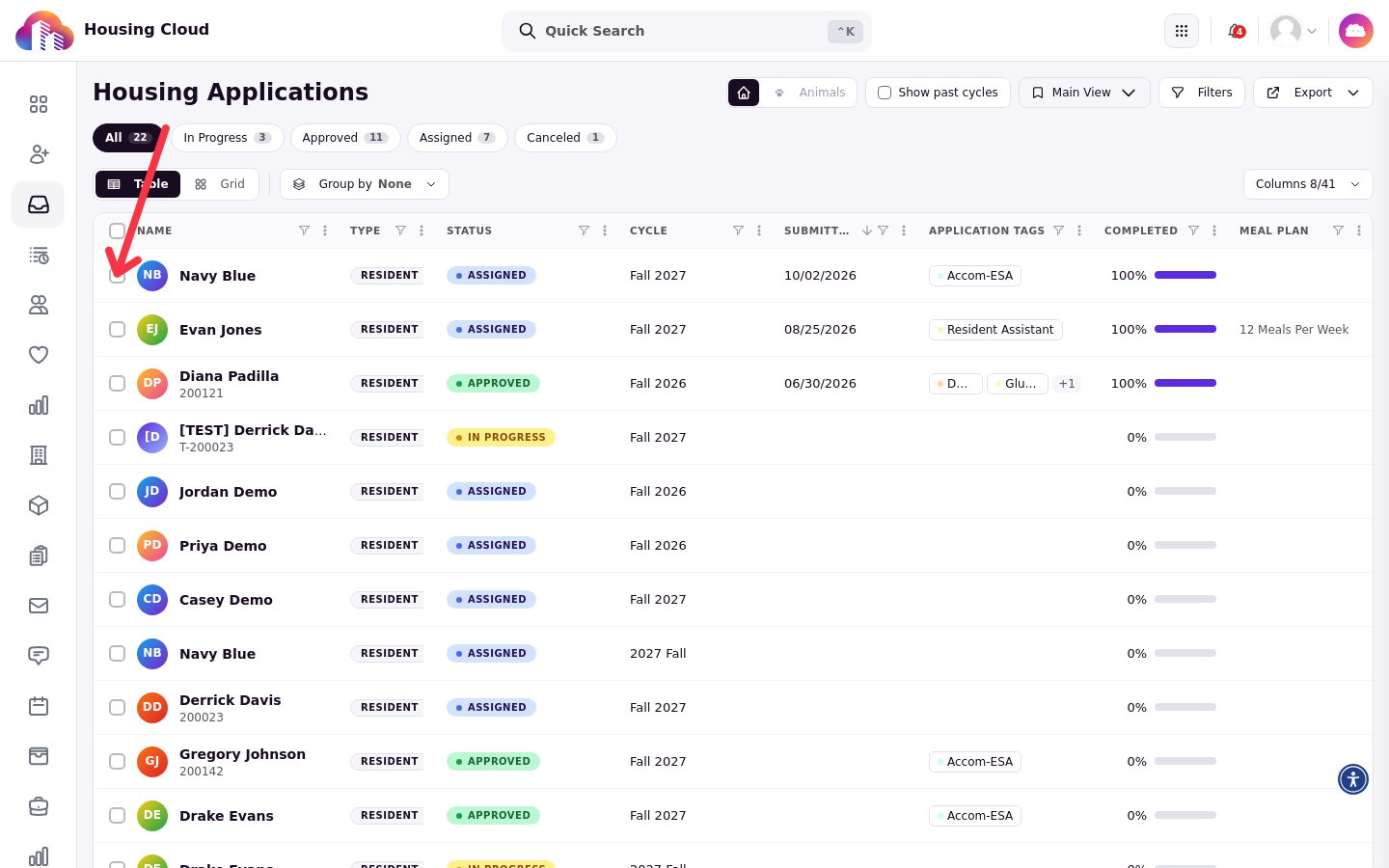
Schools with non-resident cycles have a second path: on the Applications list, tick one or more applications and choose Rollover. This window has its own Households checkbox.
Tick the checkbox on each application you want to carry into the target cycle.
With applications ticked, open the bulk actions menu: the rollover action is listed under Actions.
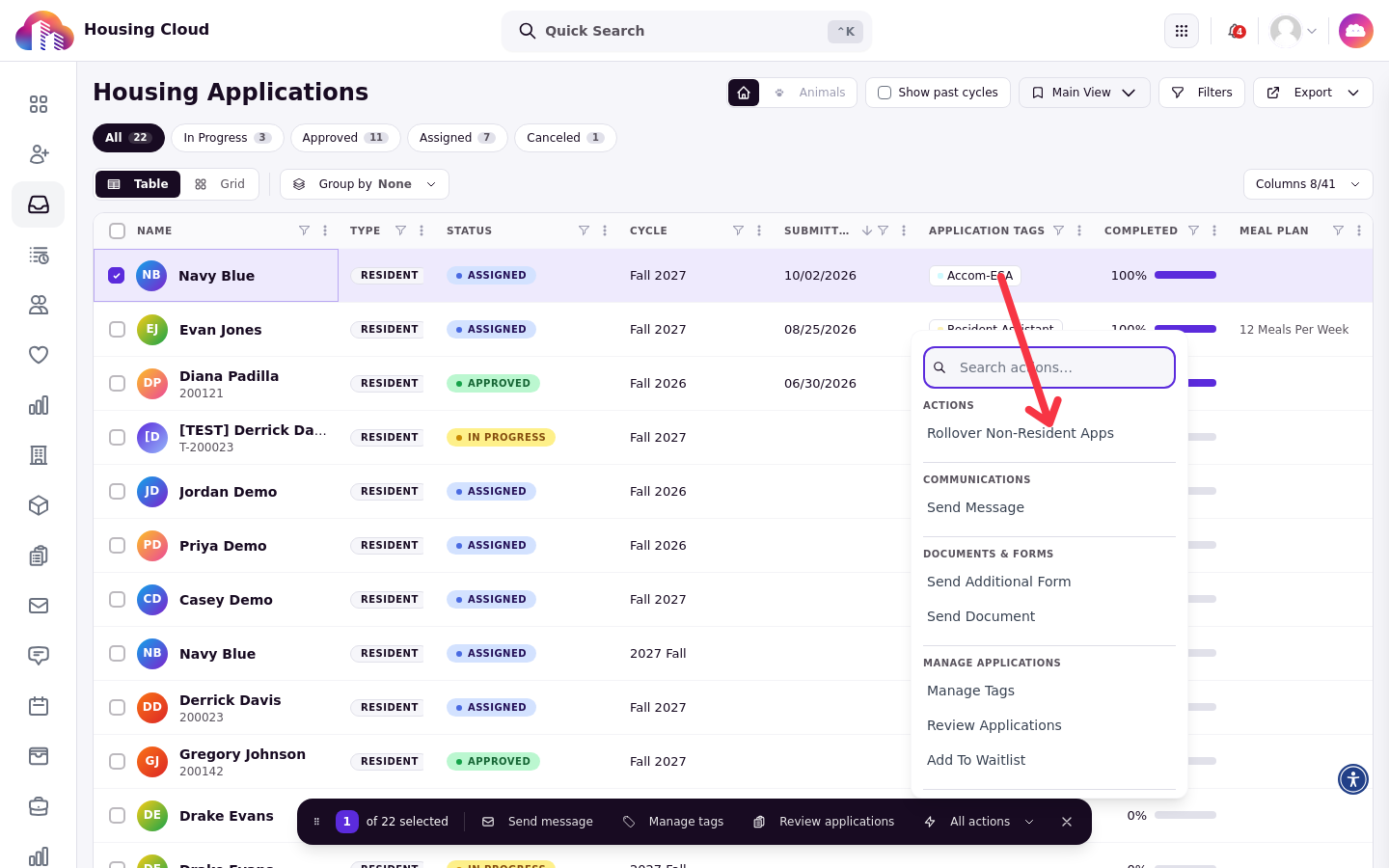
Choosing it opens the rollover window. Pick the Destination Cycle first, then tick Households under the list of items to roll over.
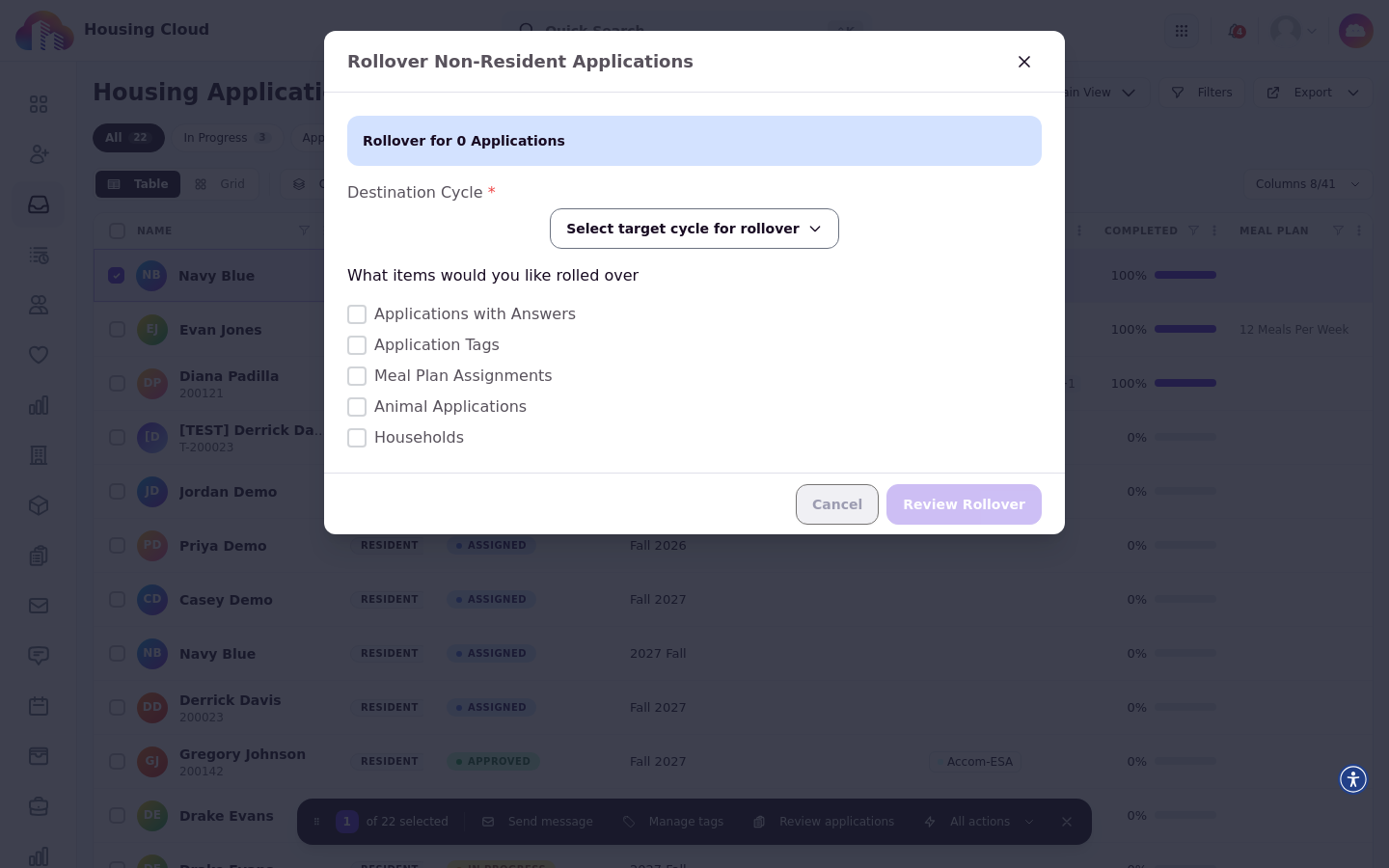
With several applications selected the Households checkbox is greyed out when "No applicant in this rollover is in a household that can roll over."; with a single application it stays greyed out with "Pick a destination cycle first." until you choose one.
The option appears only where non-resident cycles are switched on, and only for staff allowed to roll over non-resident applications.