How To Open a Request on Behalf of a Student
Last updated: October 5, 2026
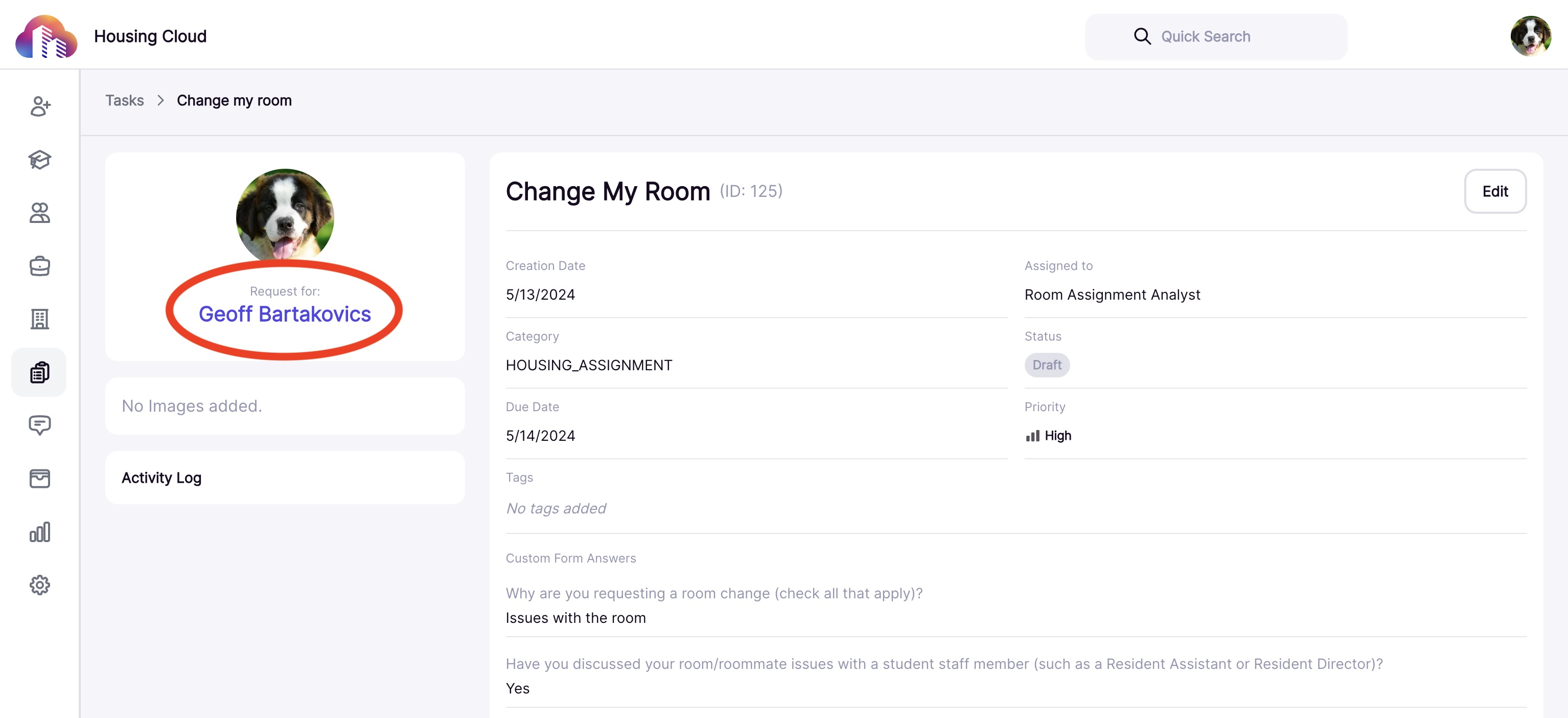
Most student requests are initiated by the students themselves. They access the resident portal, tap the “Requests” button, and complete the form. Once submitted, the request appears in the Tasks section of the admin portal. Each task displays the subject of the task—the individual who benefits from the completion of the task:
Sometimes, though, administrators may want to open a task on behalf of a student. Housing.Cloud allows admin portal users to do that.
Important Note: If you open a request on behalf of a student, the request will be visible to the student on their Resident Portal. Do not use the "open on behalf of" feature for internal-only tasks that should not be visible to the subject student.
There are two ways to open a request on behalf of a student:
Option 1: Open a Request From the Student Profile
Click on Profiles on the navigation panel.

Click on the student name for whom you want to open a request.

Go to the kebab menu and click Create Request On Behalf Of.

You can see that you're now opening a request on behalf of the student you selected. You can also change the student here if required.

Complete the task form as normal.
Click here to learn about the parts of a task
Once the task form is complete, click Save

Option 2: Open a Request From the Tasks Page
Click on Tasks from the navigation panel.

Click Create Task.

Search for the student in the search bar, then follow the steps described in the previous section.
