Task Ratings
Last updated: August 28, 2026
Task Rating allows your housing team to collect satisfaction feedback on completed tasks. When a task is closed, Housing Cloud schedules a rating invitation email to be sent 3 days later. This delay gives staff time to address any follow-up issues before requesting feedback. The email is sent to the resident who submitted the original request.
Ratings appear directly in your tasks list and on a dedicated satisfaction dashboard. You can see at a glance which tasks have been rated, filter by rating score, and view resident comments alongside task records.
This feature is available only when the TASK_RATING feature gate is enabled for your institution. You must also have the taskSatisfactionAccess permission to view ratings and the satisfaction dashboard. If you do not see the Rating column or satisfaction dashboard, contact your Housing Cloud account manager.
Where ratings appear
Tasks list
When task rating is enabled, the tasks list includes a Rating column. Navigate to Admin › Tasks to see it.
Each row shows:
- No rating — The task has not been rated
- Star rating + numeric score — A star display with the score value, such as 4/5
- Comment button — A pale button appears when the resident left a comment. Hover over the button to see a preview of the comment text, or click to open the full comment.
You can filter the tasks list by rating using the column filter. Options include showing all tasks, only rated tasks, only unrated tasks, or tasks with a specific score (1–5 stars).
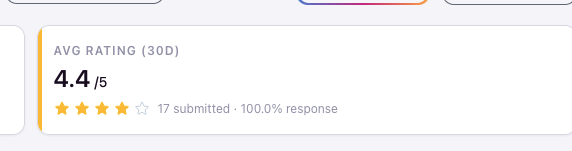
At the top of the Tasks page, a summary card shows AVG RATING (30D) with the average score, number of submitted ratings, and response rate for the past 30 days.
Task detail page
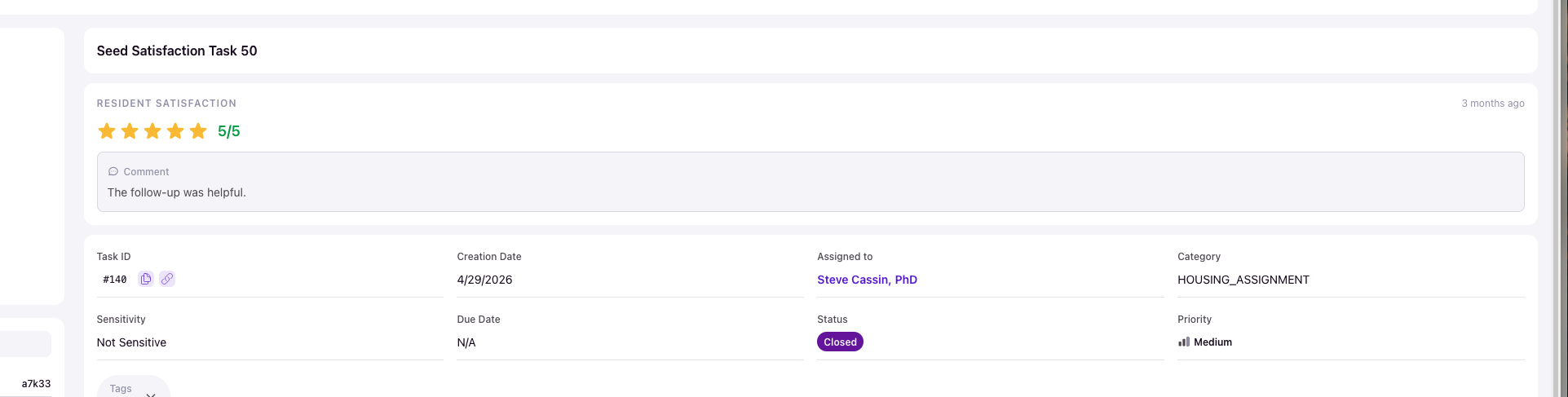
When you open a completed task that has received a rating, the rating appears at the top of the task detail page. The display includes the star rating, numeric score, a timestamp showing when the rating was submitted, and the comment if the resident provided one.
Task Satisfaction dashboard
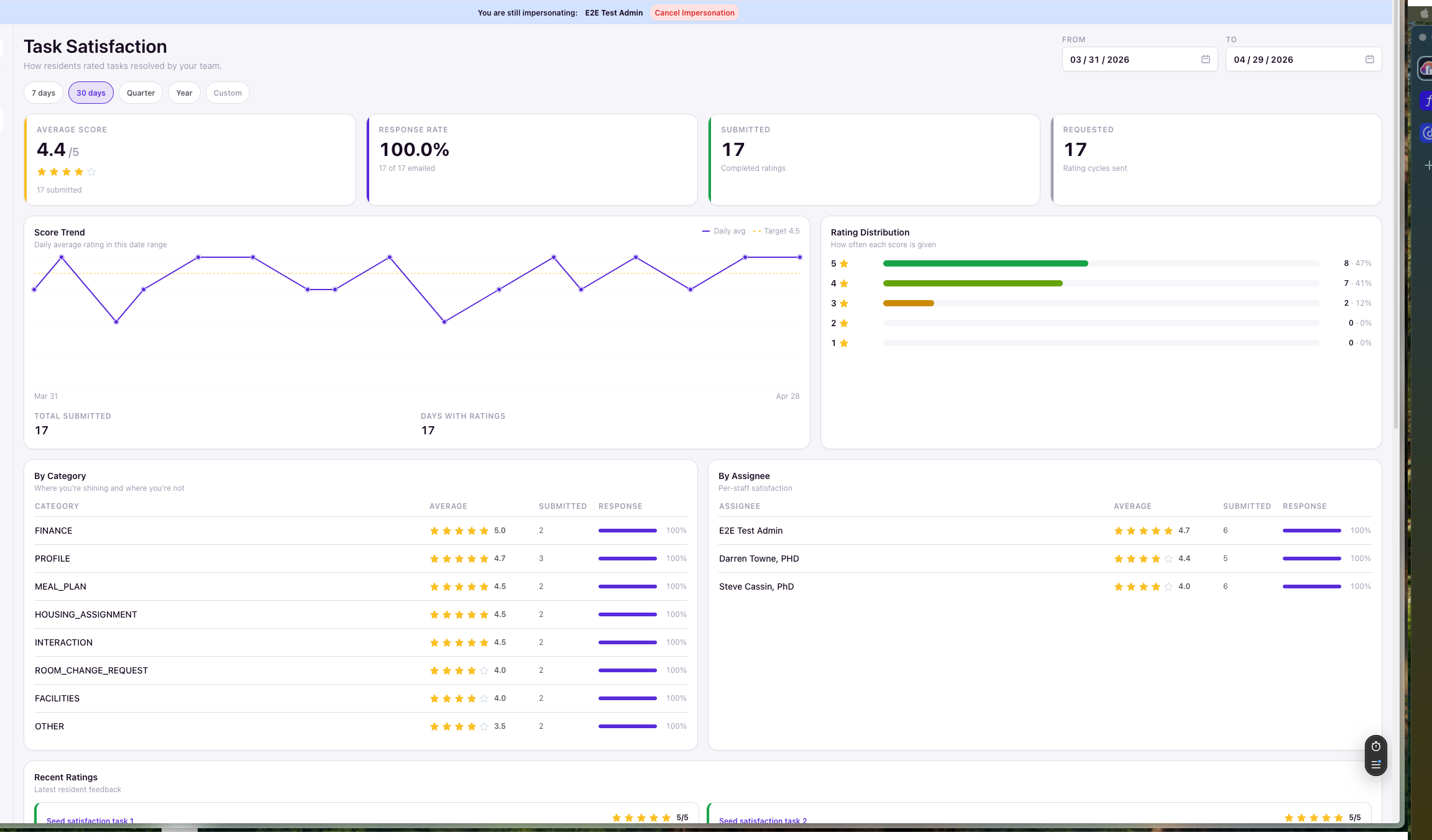
For aggregate metrics and trends, navigate to Admin › Tasks › Satisfaction. The page title is Task Satisfaction with the subtitle How residents rated tasks resolved by your team.
Date range filters
Use the FROM and TO date pickers to select a custom range, or choose a preset:
- 7 days
- 30 days
- Quarter
- Year
When you select a custom range, a Custom pill appears to indicate the active filter.
Summary cards
- AVERAGE SCORE — The mean rating with a star display and the count of submitted ratings (e.g., "4.4 /5" with "17 submitted")
- RESPONSE RATE — The percentage of resolved tasks that received a rating (e.g., "100.0%" with "17 of 17 emailed")
- SUBMITTED — The total number of ratings received (e.g., "17" with "Completed ratings")
- REQUESTED — The total number of rating invitations sent via email (e.g., "17" with "Rating cycles sent")
Score Trend chart
A line chart titled Score Trend showing the daily average rating over the selected date range. The chart includes:
- Daily avg line — The actual daily average score
- Target 4.5 dotted line — A benchmark for comparison
- Footer metrics: TOTAL SUBMITTED and DAYS WITH RATINGS
Rating Distribution
A bar chart showing how often each score (1 through 5 stars) is given, with both counts and percentages. This helps you see whether feedback trends positive, negative, or mixed.
By Category table
Shows average satisfaction grouped by task category (e.g., FINANCE, PROFILE, MEAL_PLAN, HOUSING_ASSIGNMENT, FACILITIES). Columns include Average, Submitted, and Response.
By Assignee table
Shows per-staff satisfaction scores. Columns include Average, Submitted, and Response. This helps you recognize team members who consistently receive positive feedback or identify training opportunities.
Recent Ratings feed
A list of the most recent feedback with the subtitle Latest resident feedback. Each entry shows the task title, star rating, and any comment text. Use Load more to paginate through older ratings.
How ratings are submitted
Ratings are submitted by residents through a public feedback page. This process is designed to be simple and accessible—residents do not need to log in to submit their feedback.
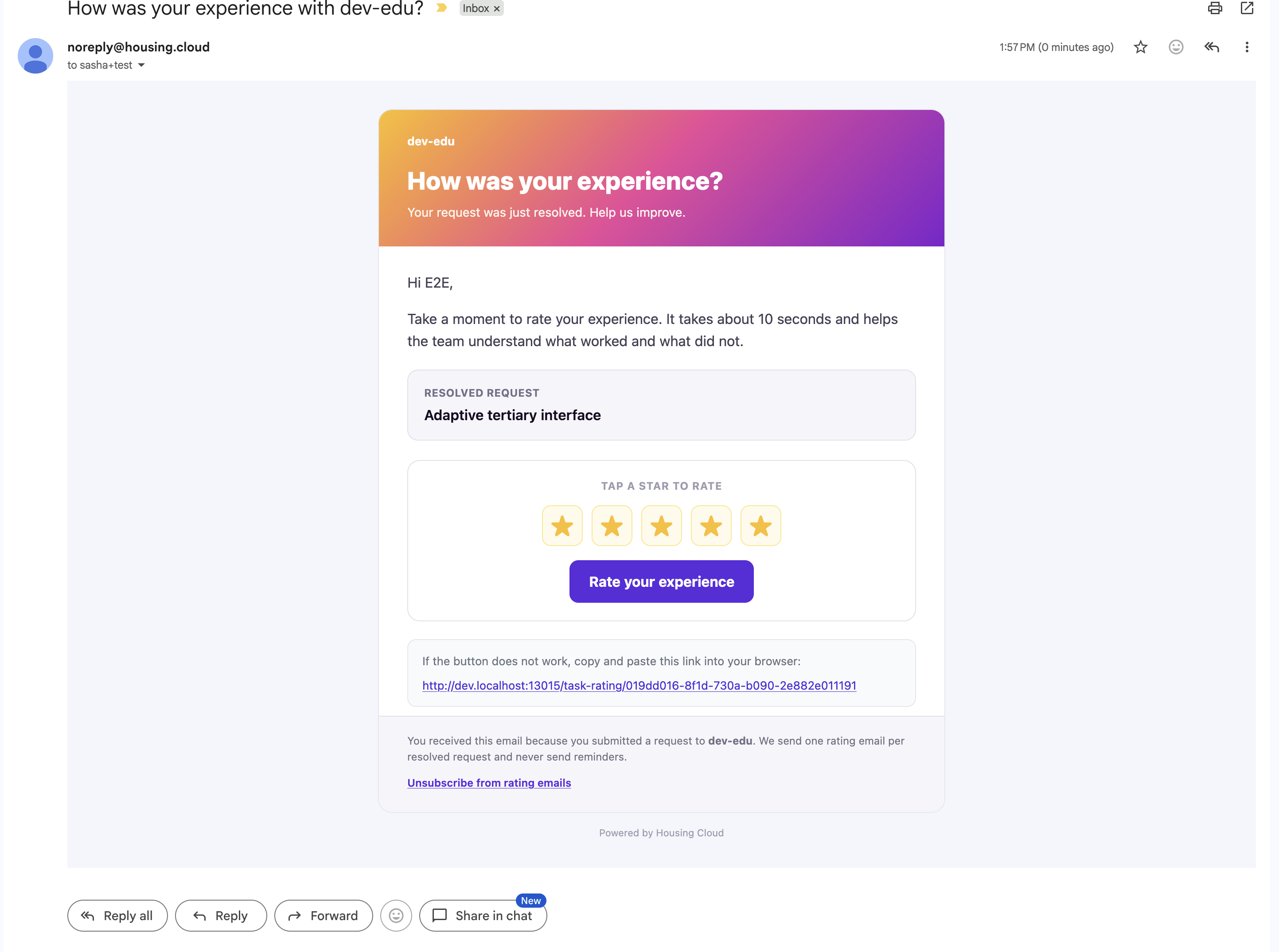
The rating email
When a task is closed, Housing Cloud schedules a rating invitation email to be sent 3 days later. The email is sent to the resident who submitted the original request.
The email includes:
- Subject line: How was your experience with [your institution]?
- Headline: How was your experience?
- Personalized greeting (e.g., "Hi E2E,")
- A box labeled RESOLVED REQUEST containing the task title
- A rating area with five stars and a button labeled Rate your experience
The email footer includes important information:
- "We send one rating email per resolved request and never send reminders."
- An Unsubscribe from rating emails link
- "Powered by Housing Cloud"
The public rating page
When a resident clicks the rating link or button, they land on a public feedback page. The page shows:
- Your institution's logo and name with the subtitle Resident feedback
- A Secure feedback link indicator at the top right
- A green Resolved status badge
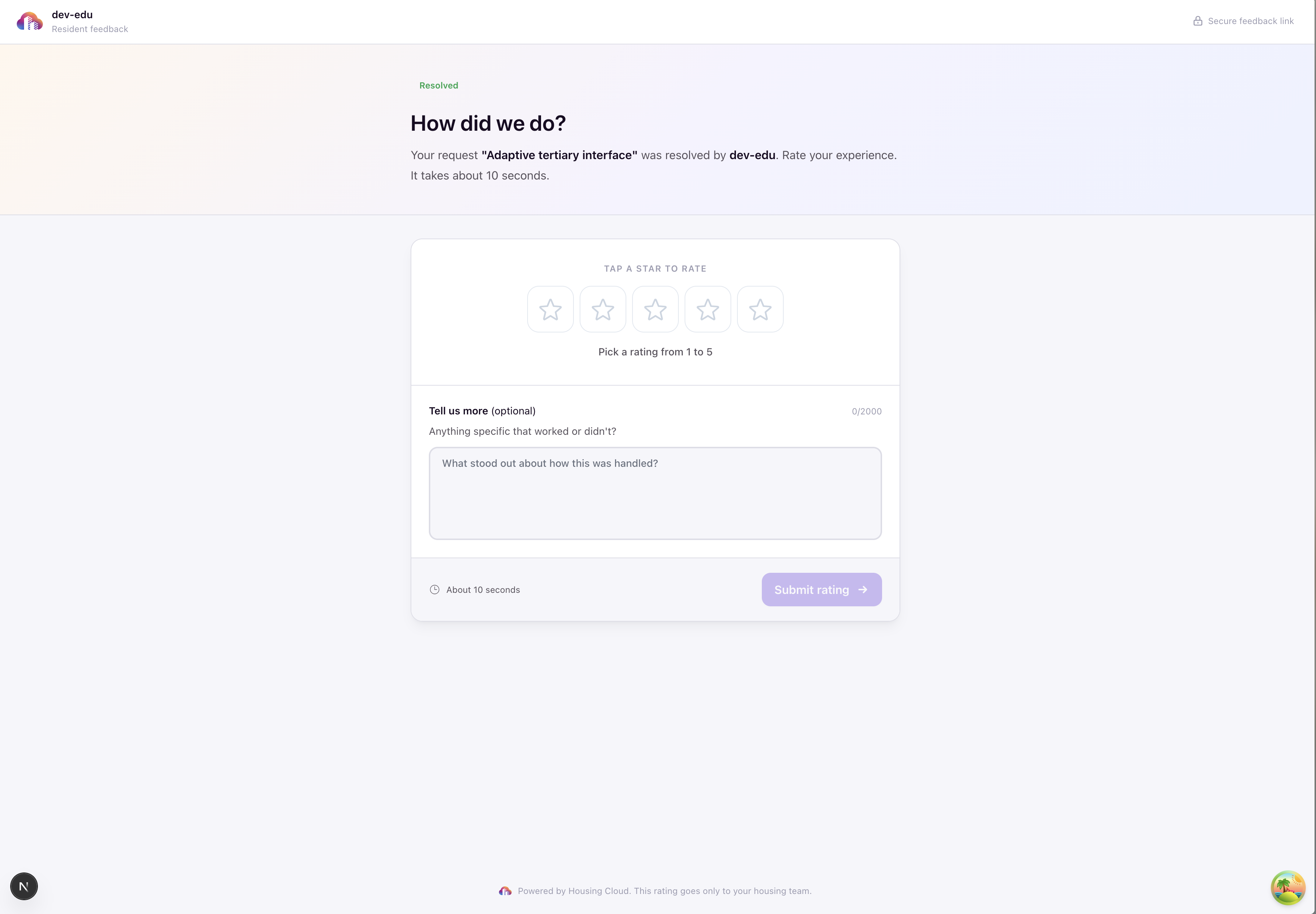
The main heading reads How did we do? followed by context: "Your request '[task title]' was resolved by [institution]. Rate your experience. It takes about 10 seconds."
Star Rating
The rating card prompts TAP A STAR TO RATE with five star buttons. Helper text reads: Pick a rating from 1 to 5. Each score has a label:
- 1 star = Poor
- 2 stars = Not great
- 3 stars = Okay
- 4 stars = Good
- 5 stars = Excellent
Residents tap a star to select their score. The form does not allow submission until a score is selected.
Feedback Chips
Depending on the selected score, the form displays preset feedback chips:
- For scores 4-5 (positive): Fast response, Solved completely, Friendly staff, Clear communication
- For scores 1-3 (critical): Took too long, Issue not fully fixed, Hard to reach someone, Unclear updates
Multiple chips can be selected. Switching between a positive and critical score preserves any free-typed comment text while dropping chips from the previous tone.
Written Comment
An optional text field labeled Tell us more (optional) with helper text Anything specific that worked or didn't? and a character counter showing 0/2000. The placeholder reads: What stood out about how this was handled?
Comments are limited to 2000 characters total, including any text added from chips. If the combined text exceeds the limit, the form displays an inline error and blocks submission.
Submission
A clock icon with the text About 10 seconds appears near the submit button. After selecting a score and optionally adding a comment, the resident clicks Submit rating to complete the feedback.
The footer notes: Powered by Housing Cloud. This rating goes only to your housing team.
Confirmation after submission
Once a rating is submitted, the page displays a confirmation with the heading Thanks for your feedback. The confirmation shows the submitted star score, the task title, and any comment displayed as a quote. It notes that the feedback is private to the housing team.
Submission is idempotent—if the resident revisits the same link later, they see the already-rated confirmation state.
Link unavailable states
If a resident clicks a rating link that is no longer valid, they see the message This rating link is unavailable. This can occur when:
- Task reopened — The request was reopened, so the previous rating link is no longer active.
- Profile unsubscribed — The resident previously unsubscribed from rating emails.
- Invalid token — The token does not match a valid rating record.
Unsubscribing from rating emails
Residents can opt out of future task rating emails without signing into the portal. The rating email includes an Unsubscribe from rating emails link that opens a public unsubscribe page.
Unsubscribing affects future rating invitations only. It does not cancel the current rating prompt or remove any previously submitted ratings.
Edge cases and important notes
What happens if a task is reopened
If a task is reopened before a rating has been submitted, the rating link becomes unavailable. The resident sees the unavailable state if they try to access the link.
If a rating has already been submitted and the task is later reopened, the rating is retained. When the task is closed again, no new rating invitation is sent—the original rating remains in place.
Editing or deleting ratings
Ratings cannot be edited or deleted after submission. Once a resident submits a rating, it is final. Administrators also cannot modify or remove submitted ratings.
What happens if a task is deleted
If a task is deleted, the associated rating is removed from the satisfaction dashboard and task records.
Time limit for submitting ratings
The rating link does not expire. It remains active until the resident submits a rating or the task is reopened. Residents can submit a rating at any time after receiving the email, as long as the task remains closed.
Disabling task ratings
Task ratings can be disabled in Feature Management. Navigate to Admin › Setup › Feature Management and toggle the TASK_RATING feature off to disable the feature for your institution. There is no per-category or per-building disable option.
Frequently asked questions
Can I disable task ratings for specific task types or buildings?
No. Task ratings are controlled at the tenant level through Feature Management. Navigate to Admin › Setup › Feature Management and toggle the TASK_RATING feature off. There is no per-category or per-building disable option.
Will residents receive a notification asking them to rate a task?
Yes. When a task is closed, Housing Cloud schedules a rating email to be sent 3 days later. The email includes the task title and a direct link to the rating page—no login required. Housing Cloud sends one rating email per resolved request and never sends reminders.
Yes. The Rating column in the tasks list includes a filter. You can show all tasks, only rated tasks, only unrated tasks, or tasks with a specific score (1–5 stars).
Can I see which specific staff member received a low rating?
Yes. The By Assignee table on the satisfaction dashboard shows average satisfaction scores grouped by the staff member assigned to each task. This allows you to identify both high performers and staff who may benefit from additional support.
What if a resident doesn't submit a rating?
Rating submissions are optional. If a resident does not click the rating link or chooses not to submit feedback, no rating is recorded for that task. The Response rate metric tracks the percentage of resolved tasks that received feedback.